Step 1: Update the IAM Role
Before launching your EC2 instance, you must update its IAM role to include the necessary policies.- Navigate to the IAM Roles section in your AWS IAM console.
- Locate the role used for metric filtering.
- Click Add permission and select Attach policies. Then, attach the CloudWatch agent server policy.

Step 2: Launch an EC2 Instance
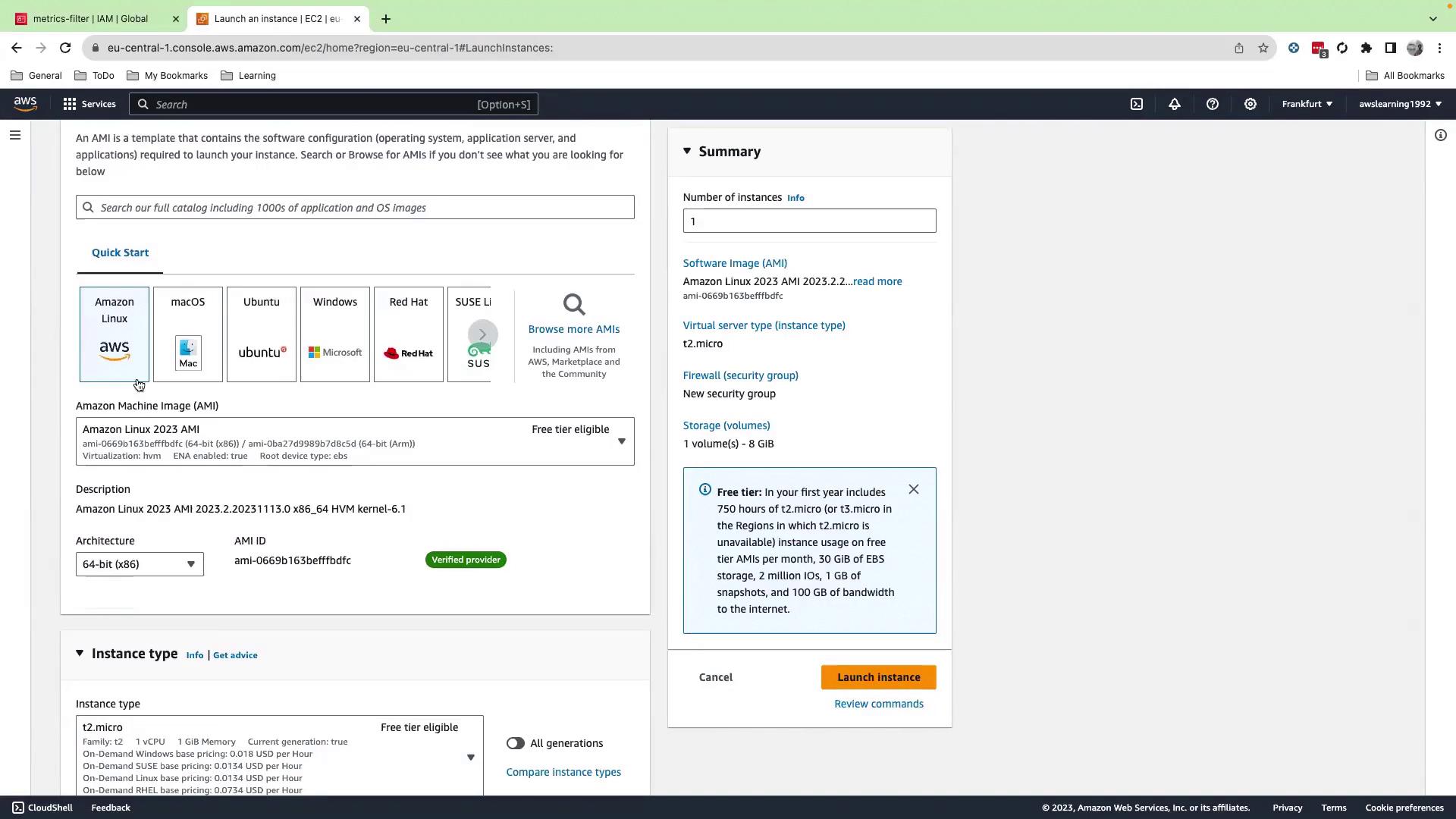
Proceed to the EC2 console and launch a new instance using these guidelines:- Select the desired AMI (e.g., Amazon Linux).
- Assign an instance name. If necessary, proceed without a key pair.
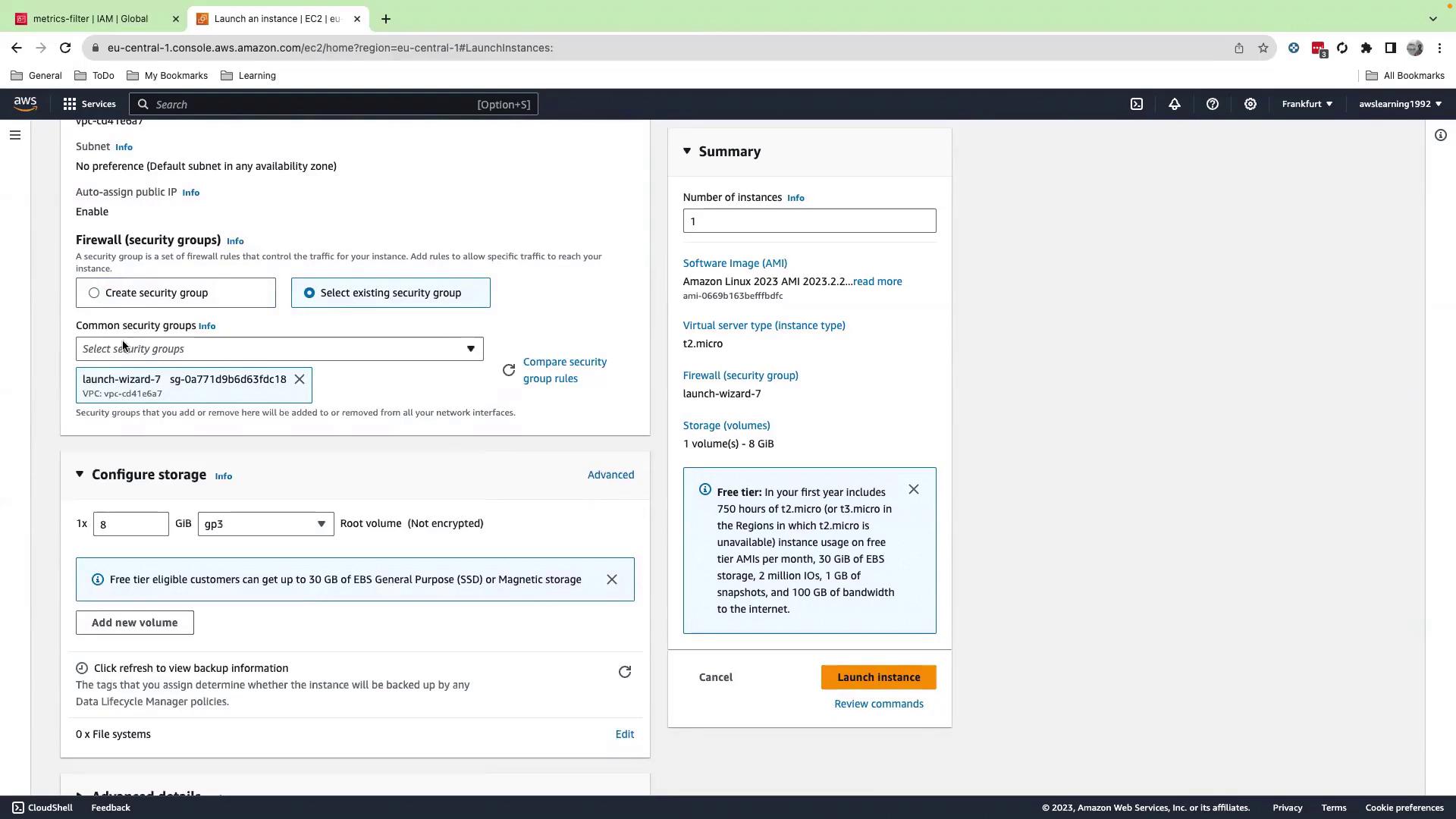
- Choose an existing security group or create a new one based on your requirements.
- In Advanced Details, select the updated IAM role.
- Launch the instance.
Step 3: Explore the Log Files on the EC2 Instance
Once your instance is running, log into it and switch to the root user:/var/log directory. For example, list the contents of /var/log with:
By streaming these logs to CloudWatch, you can monitor system activity and quickly detect security-related events.
Step 4: Download and Install the CloudWatch Agent
Download the Agent
On your EC2 instance, use the wget command to download the CloudWatch agent package:Unzip and Install the Agent
Next, unzip the downloaded package and inspect the contents:cwagent):
Step 5: Configure the CloudWatch Agent
Create a configuration file (e.g.,cloudwatch-agent-config.json) to specify which logs should be collected and where they should be sent. Below is an example configuration to collect audit logs:
Ensure the log file
/var/log/audit/audit.log exists before starting the agent.Step 6: Create the CloudWatch Log Group
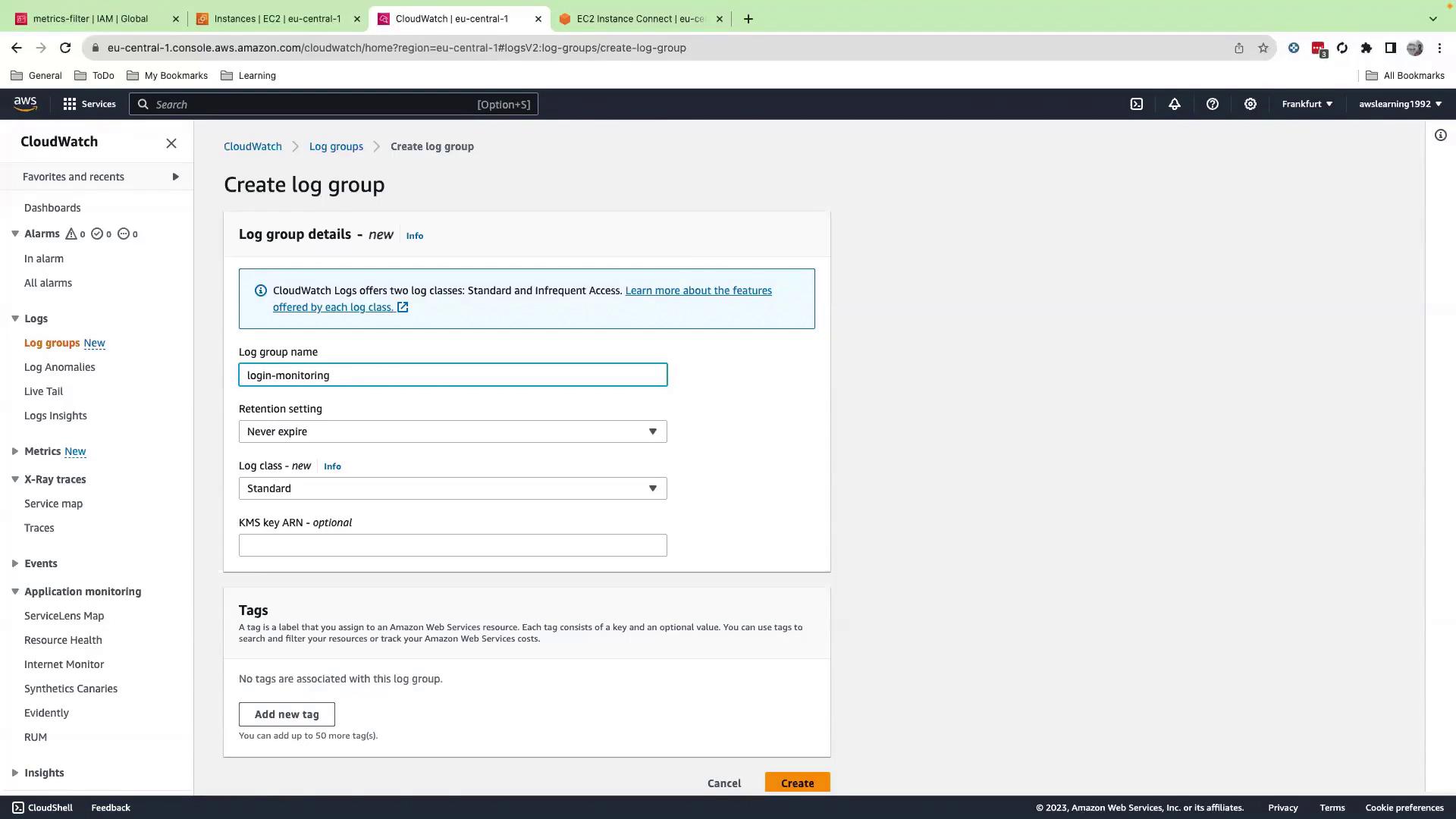
Log in to the CloudWatch console and create a log group:- Navigate to the CloudWatch Logs section.
- Click Create log group.
- Enter login-monitoring as the log group name and confirm.
Step 7: Start the CloudWatch Agent
With your configuration file prepared, use the commands below to fetch the configuration and launch the CloudWatch agent: Fetch the configuration:Step 8: Review the CloudWatch Agent Logs
The CloudWatch agent logs are accessible via a symbolic link in/var/log that points to the actual logs directory. Follow these steps to review the logs:
-
Change to the
/var/logdirectory and confirm the symlink: -
Navigate to the CloudWatch Agent log directory and list its contents:
-
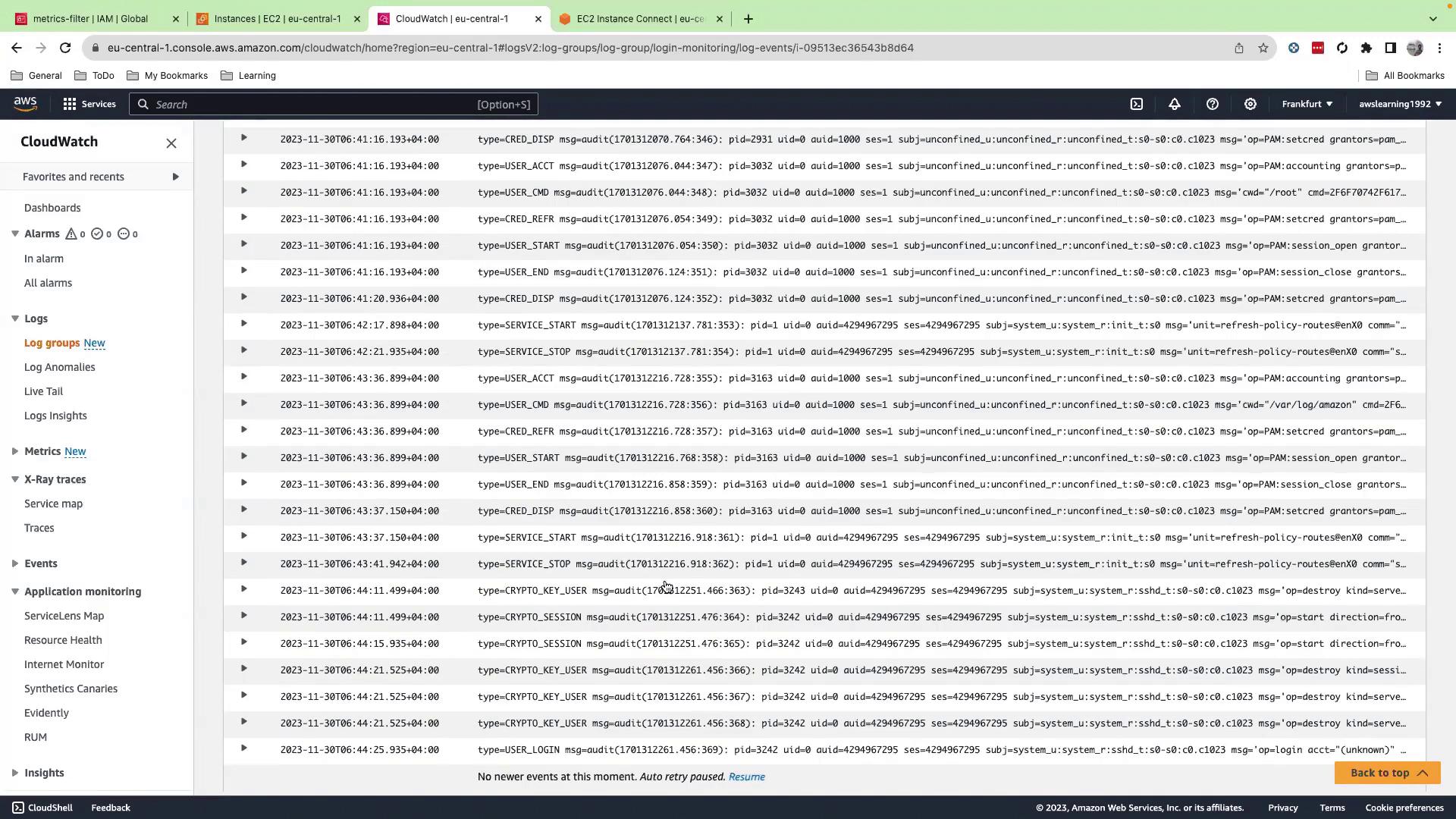
To monitor the log output in real-time, use the following command: