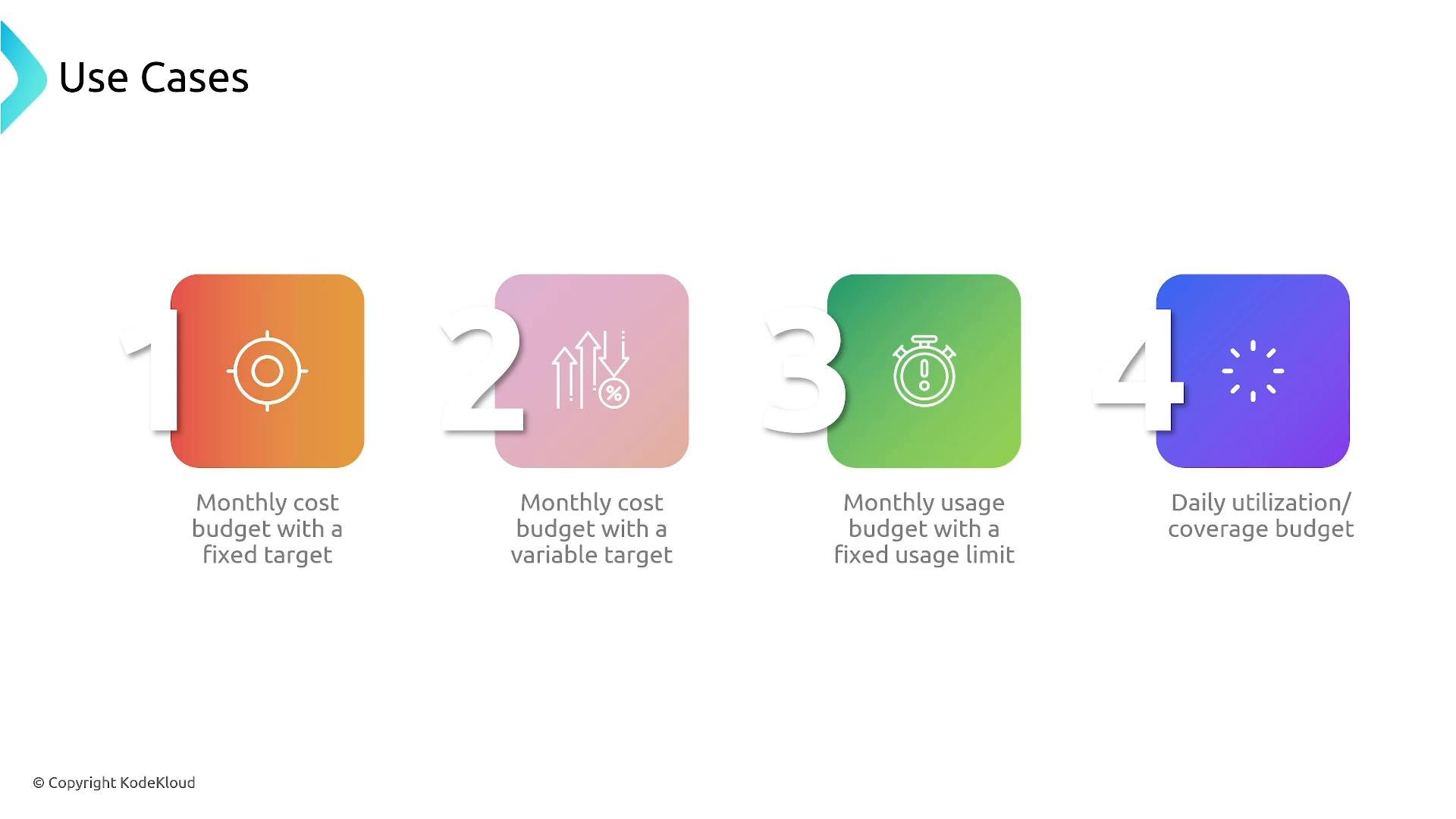
Welcome. This guide explains how to configure AWS Budgets to monitor spend, send alerts, and execute automated cost-control actions. AWS Budgets helps you track actual and forecasted costs, set threshold notifications, and optionally trigger automated responses to reduce overruns. Use this to gain predictability, visibility, and operational control over AWS spending. AWS Budgets supports fixed and auto-adjusting budgets, usage-based limits, and specialized budgets for Reserved Instances (RIs) and Savings Plans. Typical scenarios include monthly or quarterly cost limits, daily usage caps, multi-threshold notifications, and utilization/coverage monitoring for RI/Savings Plans. For reference:
A slide titled "Use Cases" showing four numbered colored tiles with icons and short labels. The tiles list: monthly cost budget with a fixed target, monthly cost budget with a variable target, monthly usage budget with a fixed usage limit, and daily utilization/coverage budget.
Why use AWS Budgets? Cloud costs are itemized and dynamic. AWS Budgets provides the visibility and controls needed to:
  • Detect and respond to unexpected spend spikes.
  • Enforce financial guardrails across teams or environments.
  • Improve accountability by tracking costs by account, service, or tags.
  • Automate responses to cost breaches (e.g., notify, stop instances, or modify policies).
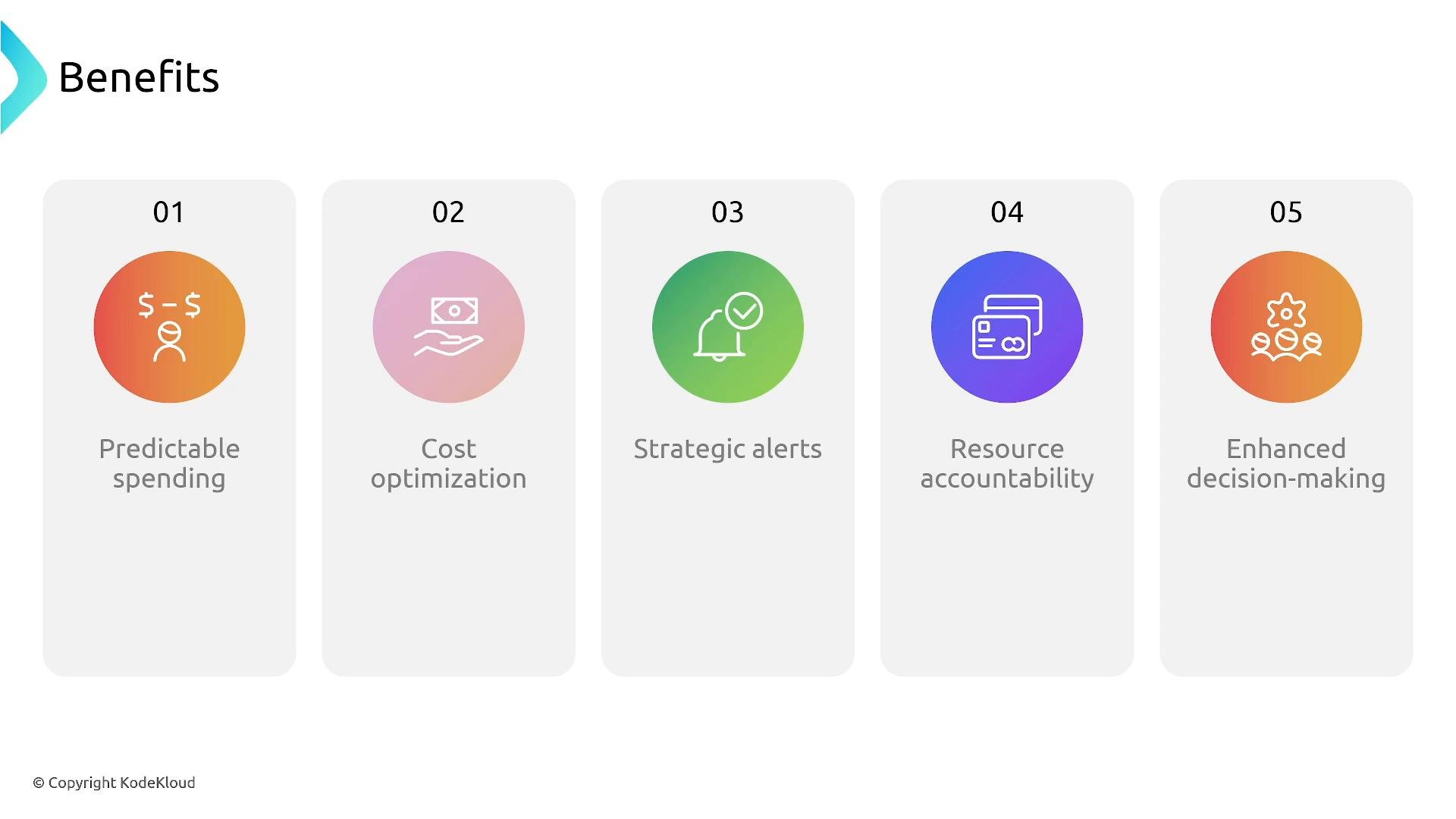
A slide titled "Benefits" showing five numbered panels (01–05) with colorful icons and labels: Predictable spending, Cost optimization, Strategic alerts, Resource accountability, and Enhanced decision-making. Each panel features a circular icon above the descriptive text.
Budget types AWS Budgets supports these primary budget types: Note: RIs and Savings Plans can apply across multiple services (for example, EC2, RDS, Redshift, ElastiCache, OpenSearch). Track both utilization and coverage to validate the value of your commitments.
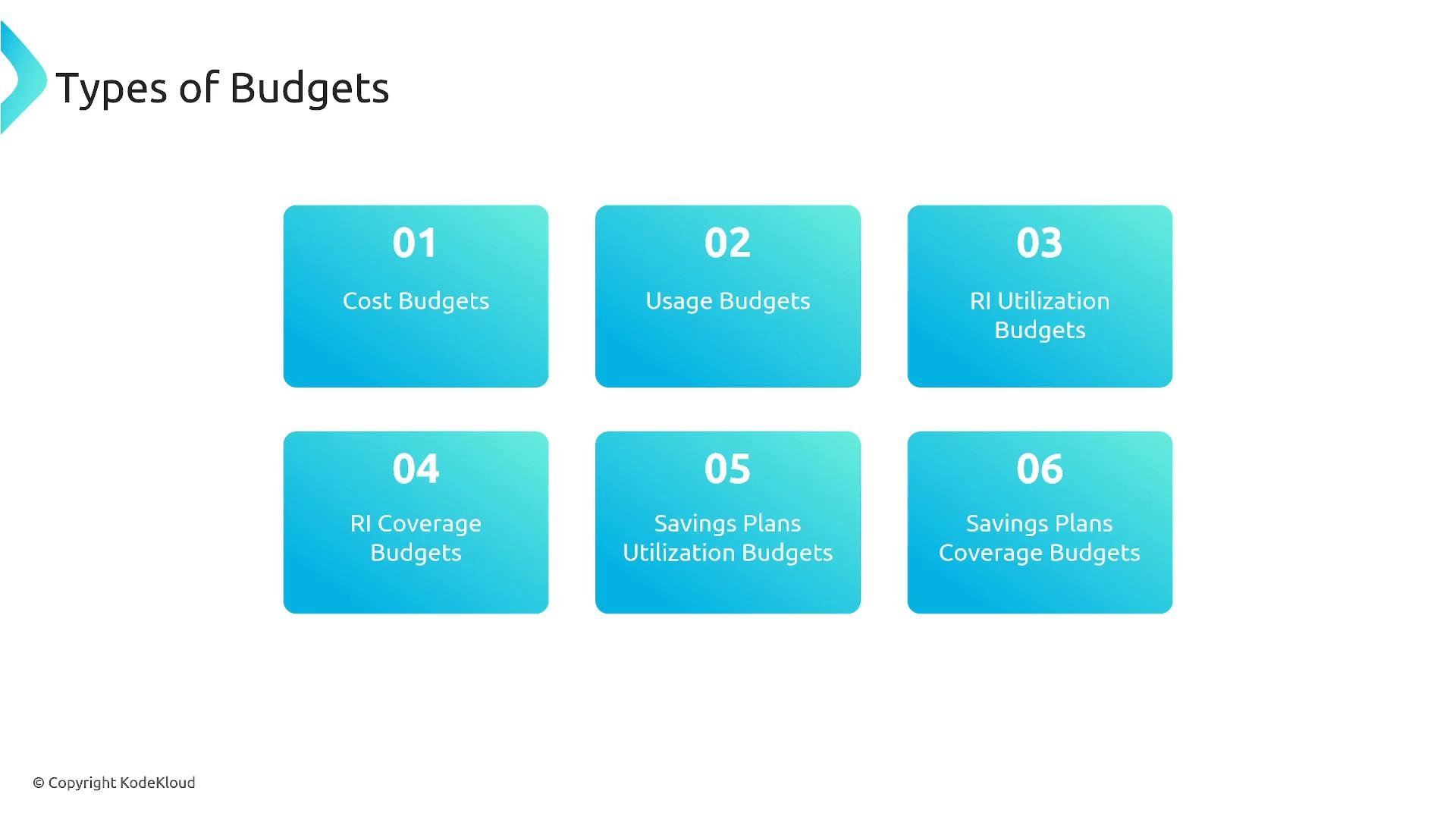
A presentation slide titled "Types of Budgets" showing six numbered blue rounded boxes. The boxes list: 01 Cost Budgets, 02 Usage Budgets, 03 RI Utilization Budgets, 04 RI Coverage Budgets, 05 Savings Plans Utilization Budgets, and 06 Savings Plans Coverage Budgets.
Creating a budget — the basics Follow these high-level steps when creating a budget:
  1. Choose the budget type (cost, usage, reservation/RI, or Savings Plans).
  2. Set the budget period and amount — monthly, quarterly, or yearly — and pick fixed or auto-adjusting (variable).
  3. Scope the budget using filters (accounts, services, regions, tags, instance types).
  4. Configure alerts (thresholds and recipients).
  5. Optionally attach automated actions that run when thresholds are breached.
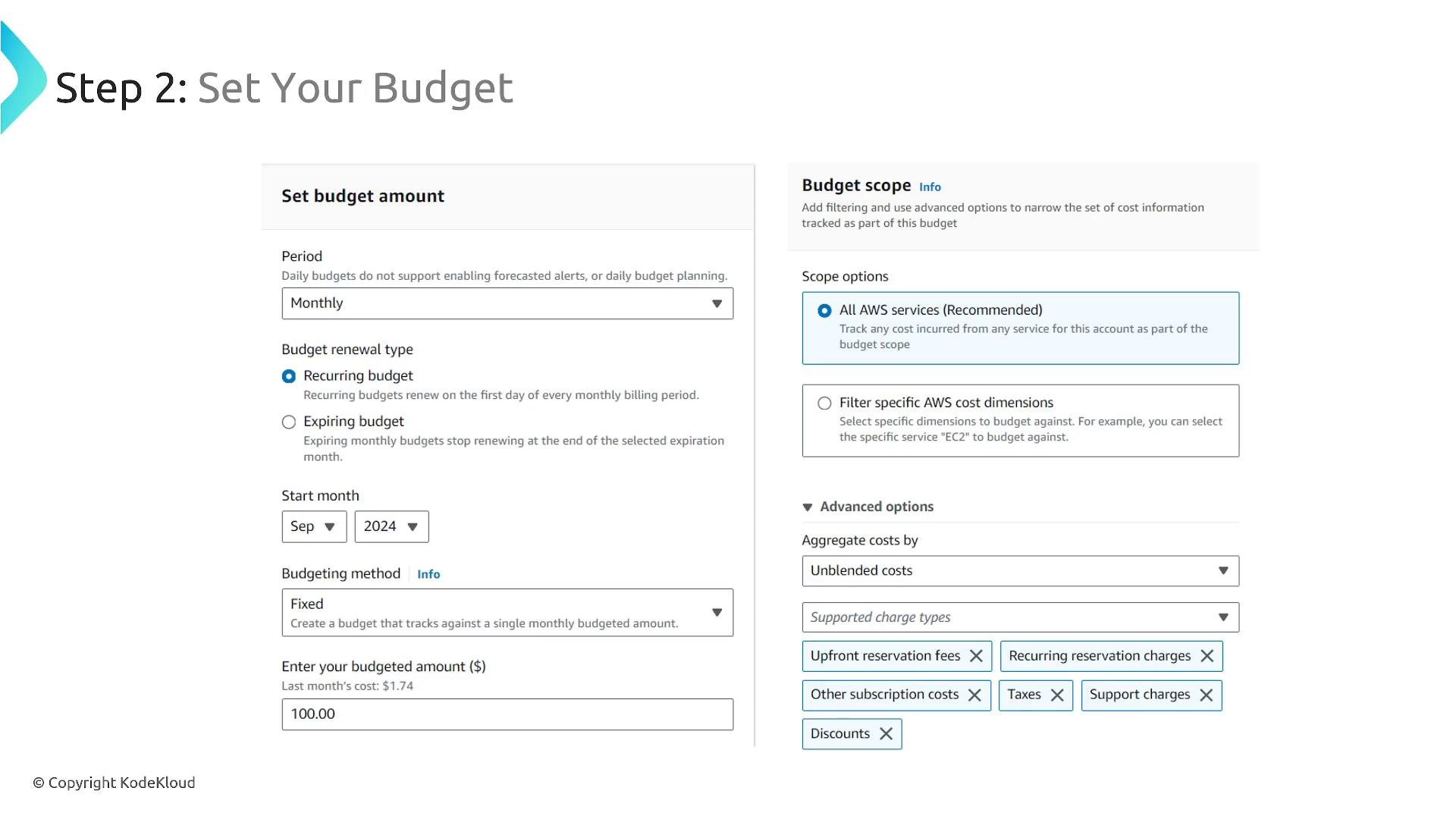
During the “Set Your Budget” step you specify the period and renewal behavior, start month, budget method (fixed vs. auto-adjust), and the budgeted amount for fixed budgets. You can restrict the scope to all AWS services or limit it by service, charge type (tax, support, Marketplace), account, or tags.
A screenshot of an AWS "Step 2: Set Your Budget" setup page showing form fields for period (Monthly), budget renewal type, start month, budgeting method and an example budget amount ($100). The right side shows budget scope options (e.g., "All AWS services (Recommended)"), advanced options and supported charge-type selections.
Fixed vs. auto-adjusting budgets
  • Fixed method: You define a constant budget amount for each period (for example, 100 USD/month). Use this when you need strict, predictable limits.
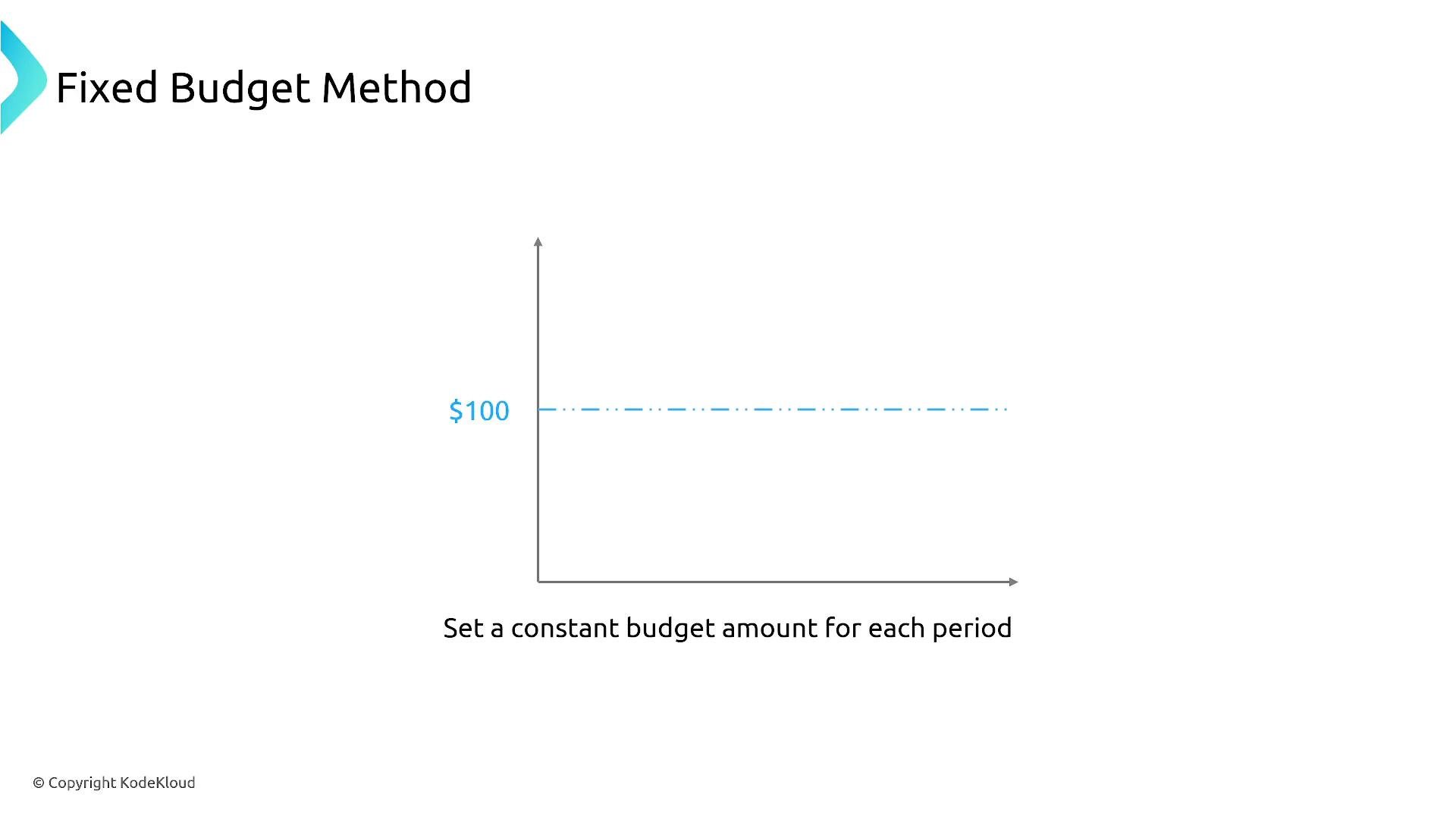
A slide titled "Fixed Budget Method" showing a graph with a horizontal dashed line at $100 to illustrate a constant budget over time. The caption reads "Set a constant budget amount for each period."
  • Auto-adjusting (variable) method: AWS Budgets adjusts the budget based on historical spend or usage during a selected baseline period and forecasts future amounts. Use this when budgets should follow seasonal or historical trends and you want forecast-driven notifications.
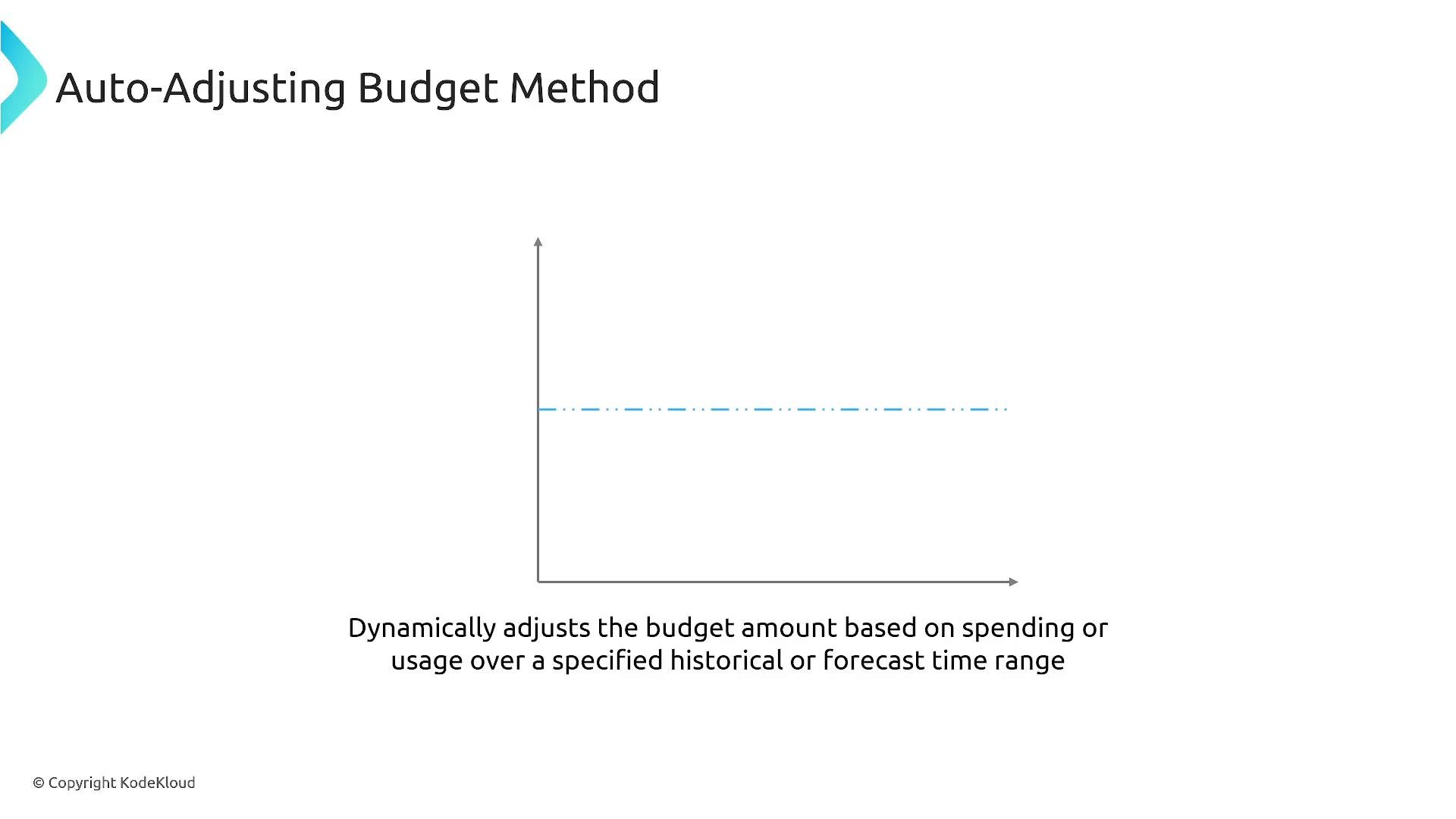
A presentation slide titled "Auto-Adjusting Budget Method" featuring a simple X/Y axes graphic with a dashed horizontal line. The caption explains it dynamically adjusts the budget based on spending or usage over a specified historical or forecast time range.
Filters and scope AWS Budgets exposes many of the same dimensions used by Cost Explorer. Common and practical filters include: Other available filters include billing/legal entity, availability zone, API operation, purchase option, and platform/OS. For most operational and exam-focused scenarios, remember account, service, region, instance type, and tags.
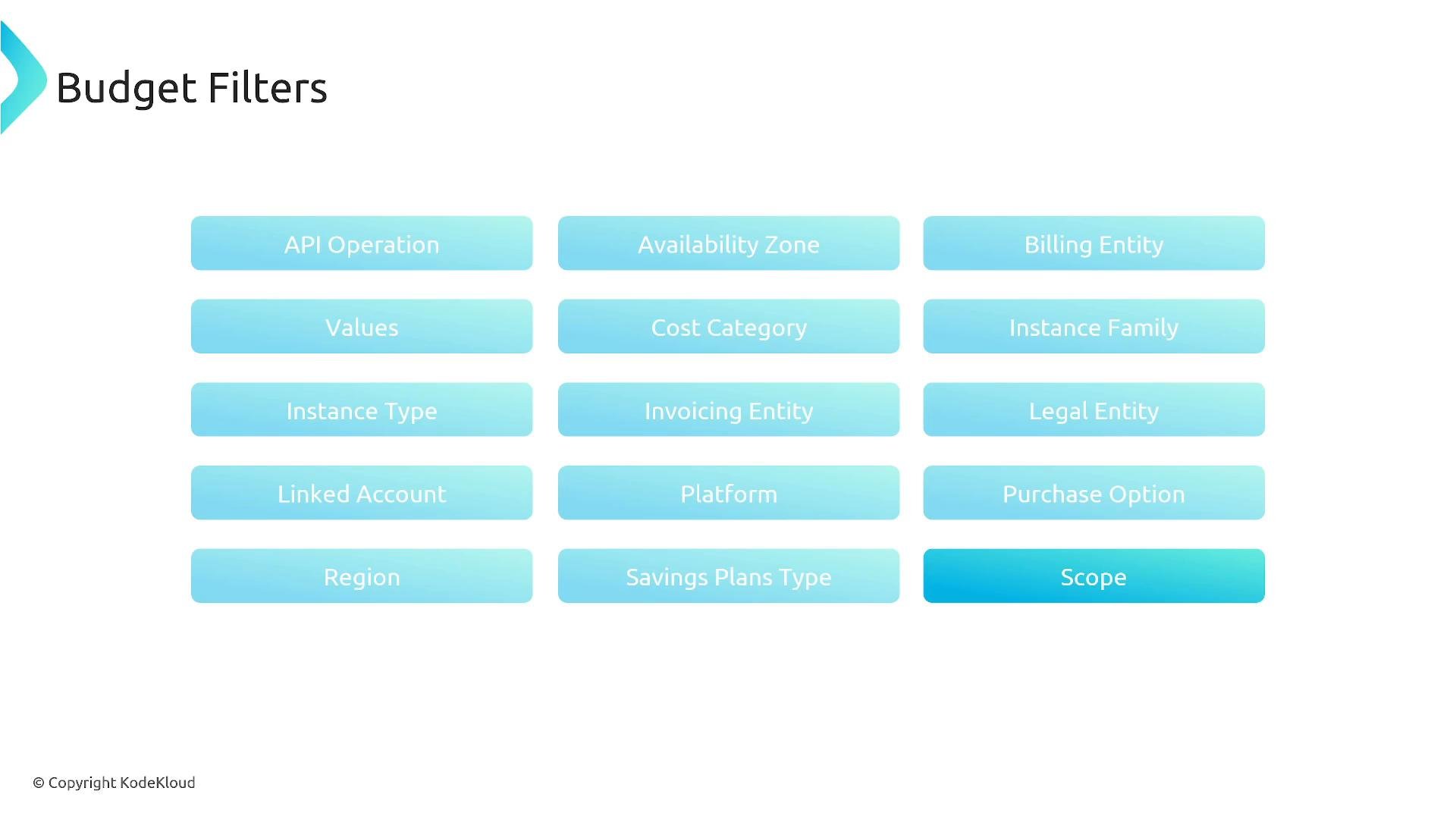
A presentation slide titled "Budget Filters." It shows a grid of blue rounded buttons with filter names like API Operation, Availability Zone, Billing/Legal/Invoicing Entity, Instance Type/Family, Region, Savings Plans Type, Scope, and others.
Alerts and notifications Configure threshold conditions to notify teams before or when budget limits are crossed (for example, notify at 50%, 75%, and 100%). Notifications can be delivered via:
  • Email addresses (direct recipient alerts).
  • Amazon SNS topics (integrate with Slack, PagerDuty, or automation workflows).
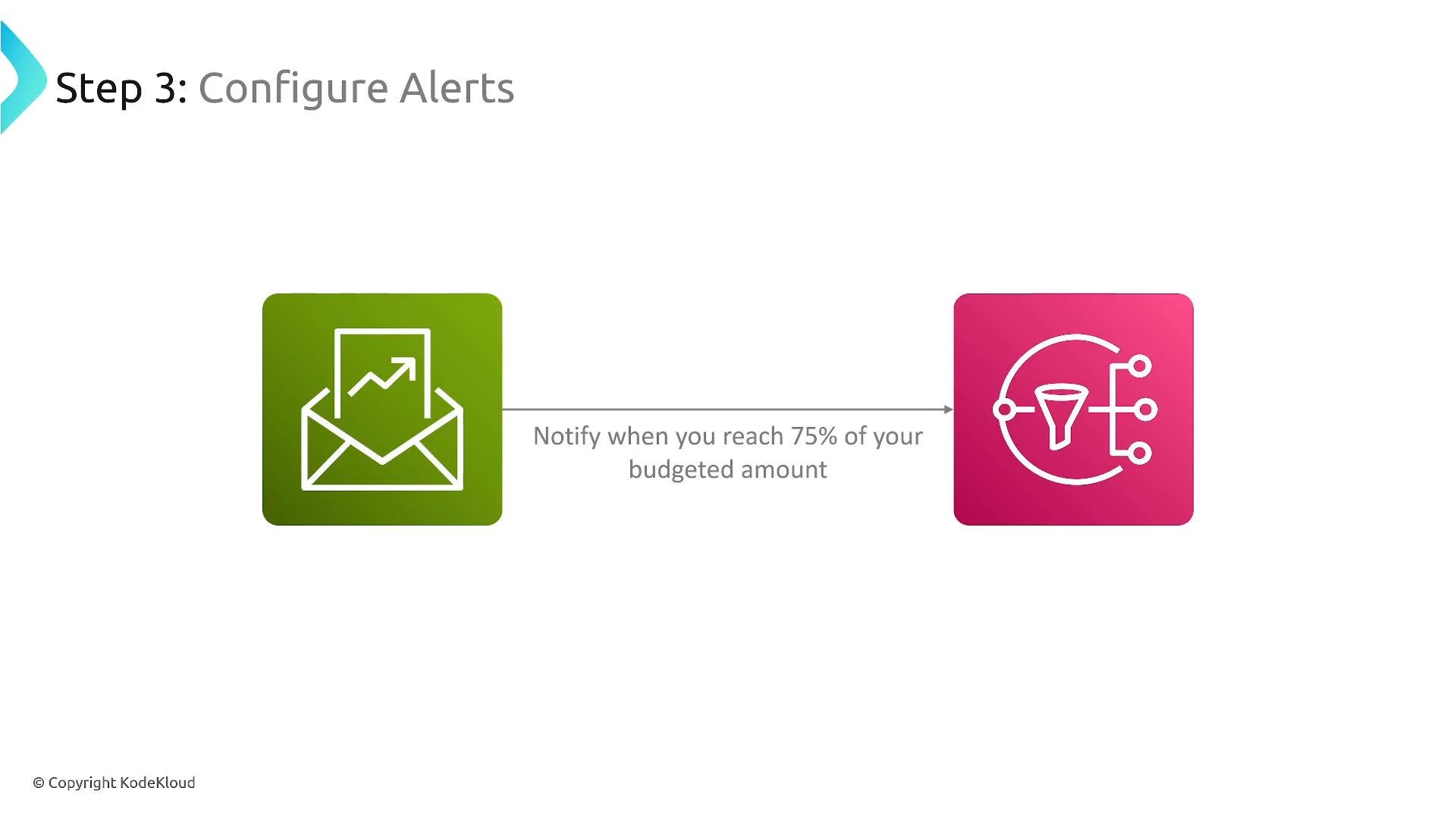
Use multiple thresholds to give teams time to investigate and act before costs exceed expectations.
A presentation slide titled "Step 3: Configure Alerts" showing a green envelope/chart icon linked by an arrow to a pink funnel/process icon. The arrow label reads "Notify when you reach 75% of your budgeted amount."
Budget actions (automations) Beyond alerts, AWS Budgets supports budget actions — automated responses executed when thresholds are crossed. Actions include applying account-level policy changes (via AWS Organizations) or publishing to SNS so downstream automation can take operational steps (for example, stopping EC2 instances). Common automation patterns:
  • Publish to an SNS topic that triggers an AWS Lambda function to evaluate tags and stop non-critical instances.
  • Invoke an AWS Systems Manager Automation runbook to gracefully shut down or scale resources.
  • Apply Service Control Policies (SCPs) or IAM adjustments to restrict resource creation or operations (requires Organizations and appropriate permissions).
When defining a budget action, configure:
  • Action type and target accounts/resources.
  • The SNS topic and subscribers (Lambda, SSM Automation, etc.).
  • Notifications for action execution and results.
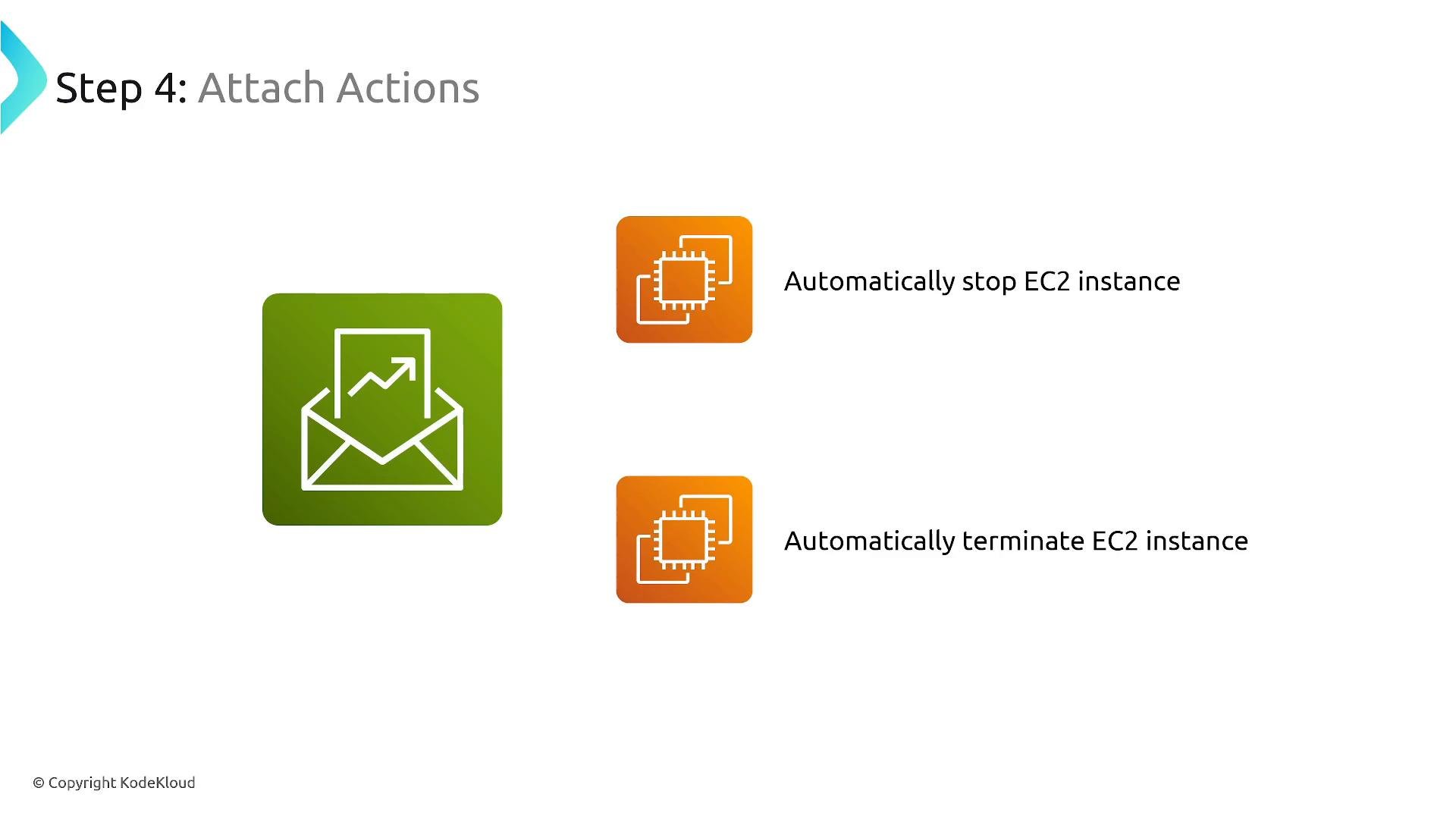
A slide titled "Step 4: Attach Actions" showing a large green email/notification icon and two orange EC2 icons. The right-side labels read "Automatically stop EC2 instance" and "Automatically terminate EC2 instance."
Example: stopping EC2 instances via budget-driven automation
  1. Create a budget and set a threshold (for example, 100% of the monthly budget).
  2. Configure the budget to publish to an Amazon SNS topic when triggered.
  3. Subscribe an automation endpoint (an AWS Lambda function or an AWS Systems Manager Automation runbook) to the SNS topic. The automation should identify the targeted instances using tags or instance IDs and perform safe shutdown operations.
  4. When the threshold is reached, AWS Budgets publishes to SNS, the automation executes, and notifications are delivered.
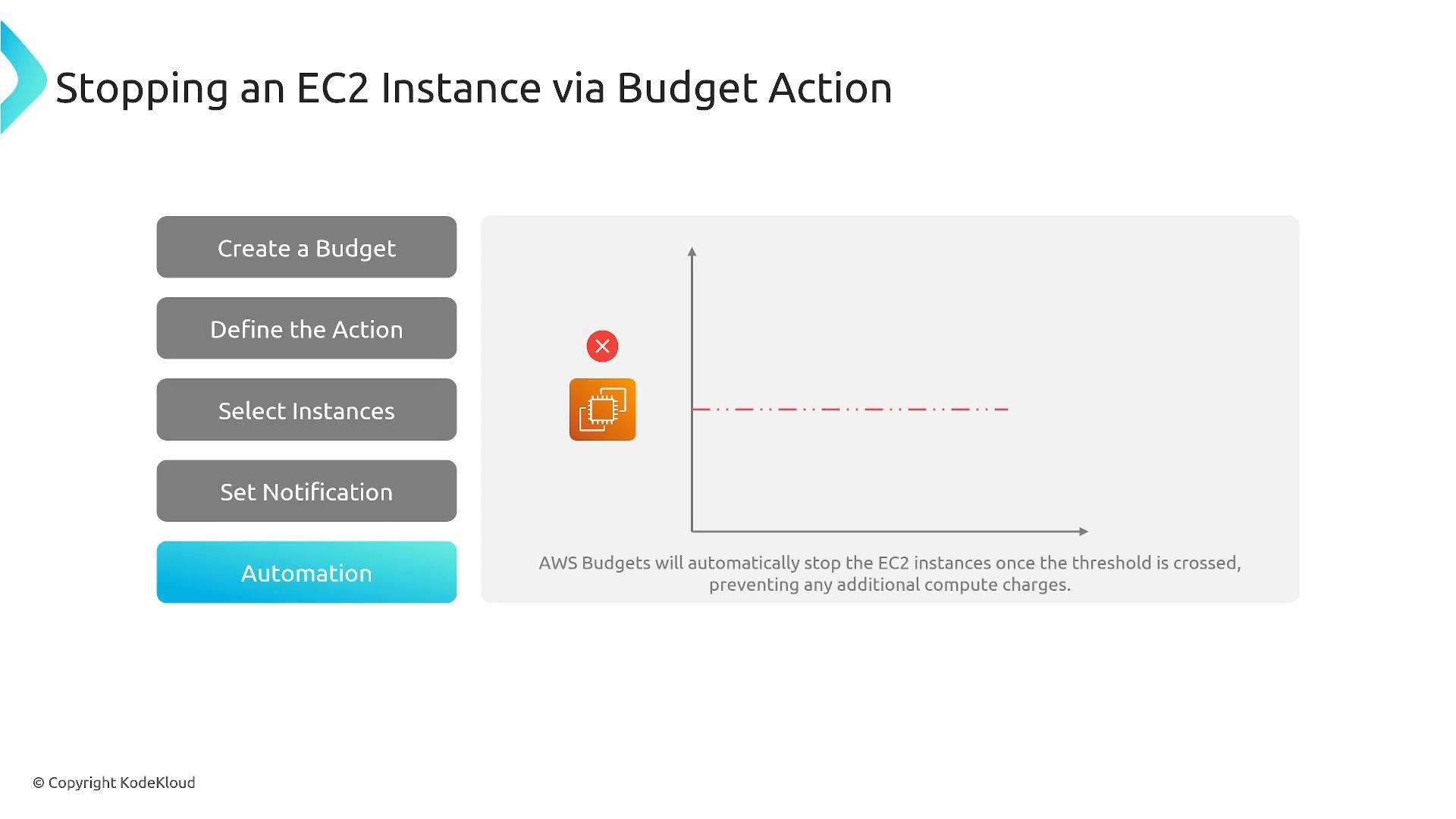
A presentation slide titled "Stopping an EC2 Instance via Budget Action" explaining how AWS Budgets can stop instances when a threshold is crossed. It shows step buttons on the left (Create a Budget, Define the Action, Select Instances, Set Notification, Automation) and an EC2 icon with a stop symbol beside a budget threshold graph on the right.
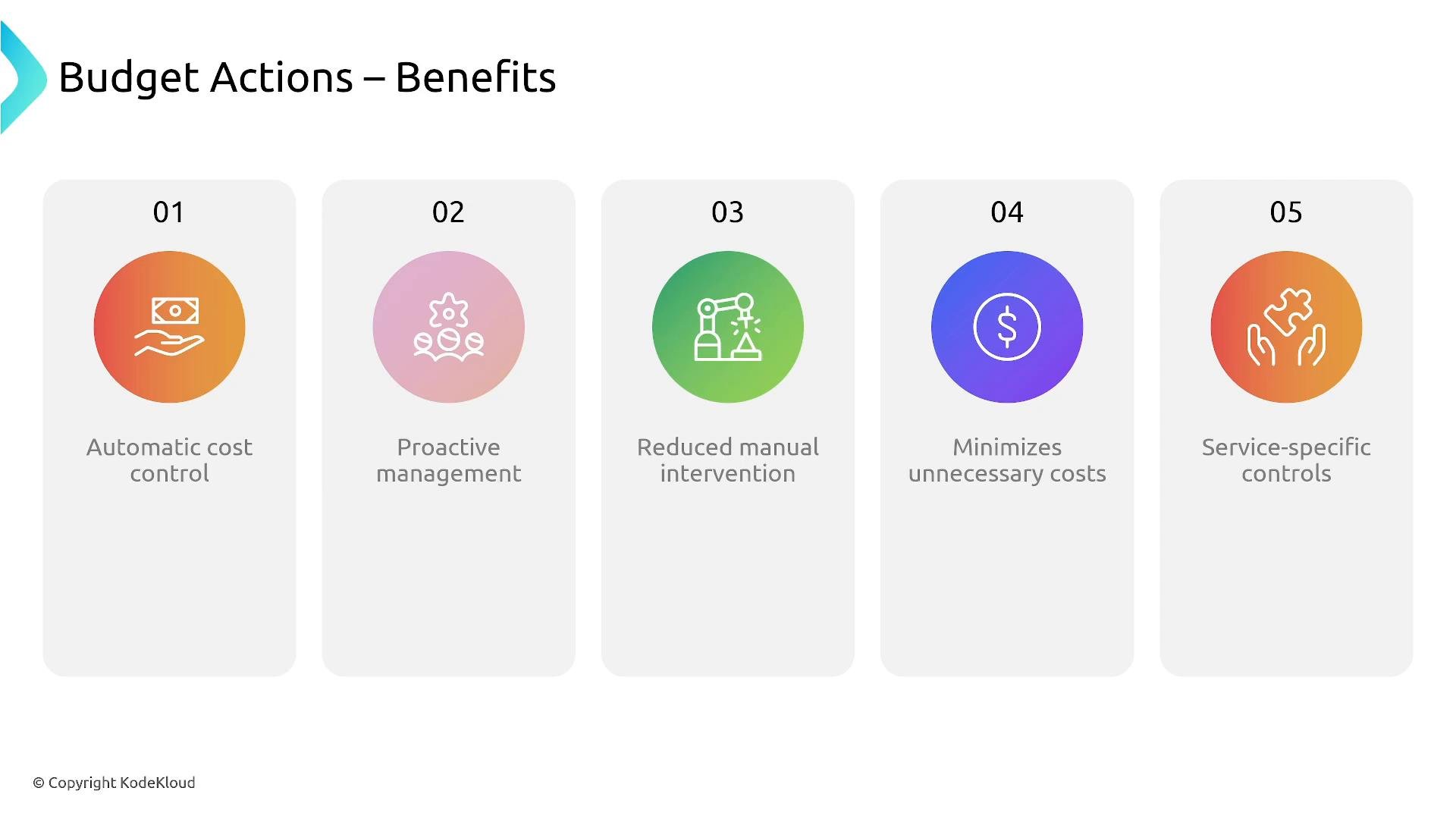
Benefits of budget actions include automatic cost control, proactive management, reduced manual intervention, minimized unnecessary costs, and service-specific controls.
A presentation slide titled "Budget Actions – Benefits" showing five numbered benefit panels with colorful icons and labels: Automatic cost control, Proactive management, Reduced manual intervention, Minimizes unnecessary costs, and Service-specific controls. Each benefit is displayed in a rounded rectangle with a circular icon above the text.
Use multiple conservative notification thresholds (for example, 50% and 80%) to give teams early visibility. Reserve automated actions for thoroughly tested scenarios to avoid accidental disruption of critical workloads.
Budget actions that stop or terminate resources require appropriate IAM permissions and careful testing. Automated terminations can cause service outages—confirm the exact scope (accounts, tags, instance IDs) before enabling automated actions.
Exam tips
  • Remember the four main budget types: cost, usage, reservation/RI, and Savings Plans.
  • Key filters to remember: account, service, region, instance type, and tags.
  • Budgets can both notify (email/SNS) and trigger automated actions.
  • Understand fixed vs. auto-adjusting budgets: auto-adjust uses historical data to forecast future budgets.
Links and references Thanks for completing this lesson.

Watch Video