

Simple S3 Bucket CloudFormation Template
Every CloudFormation template starts with a version declaration and may include a brief description. In the example below, the “Resources” section defines an S3 bucket named using your account ID and region. This ensures uniqueness across AWS environments.Deploying the Template via CloudFormation Console
- Open the CloudFormation console and select the option to upload an existing template file.
- Upload the file containing the S3 bucket definition.
- Click Next, and provide a stack name, such as “kk-s3-simple-bucket.”
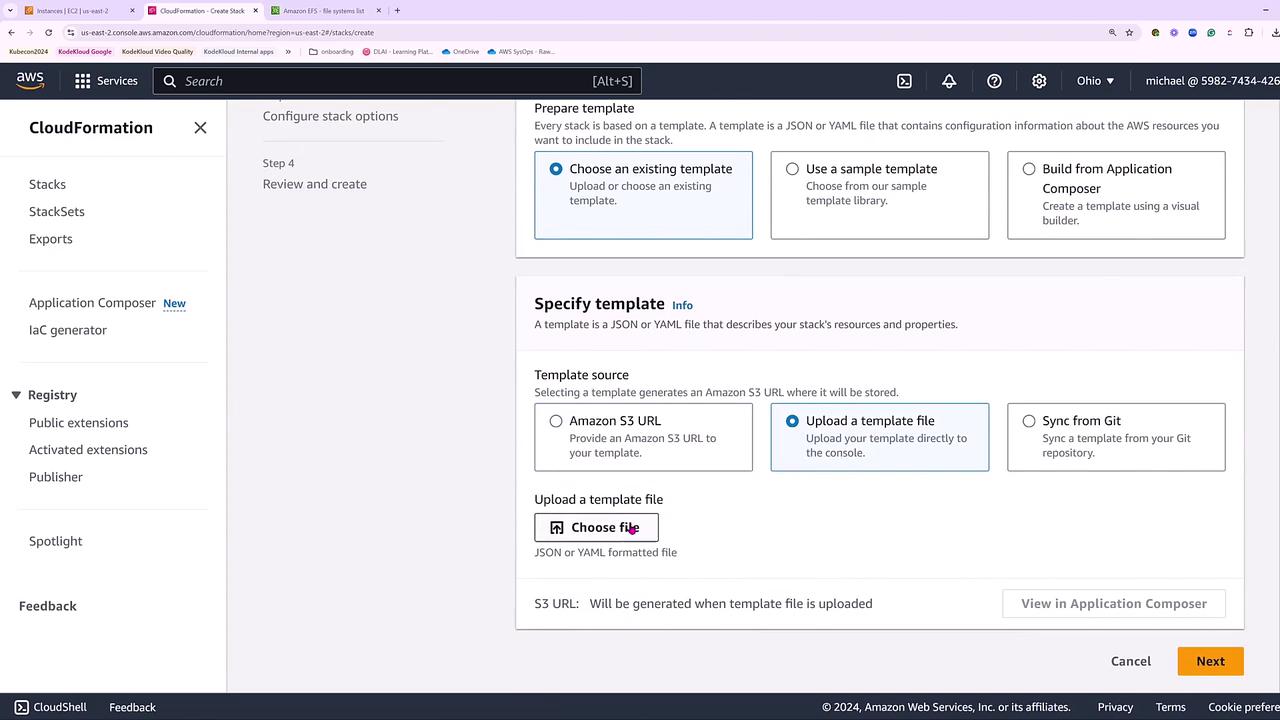
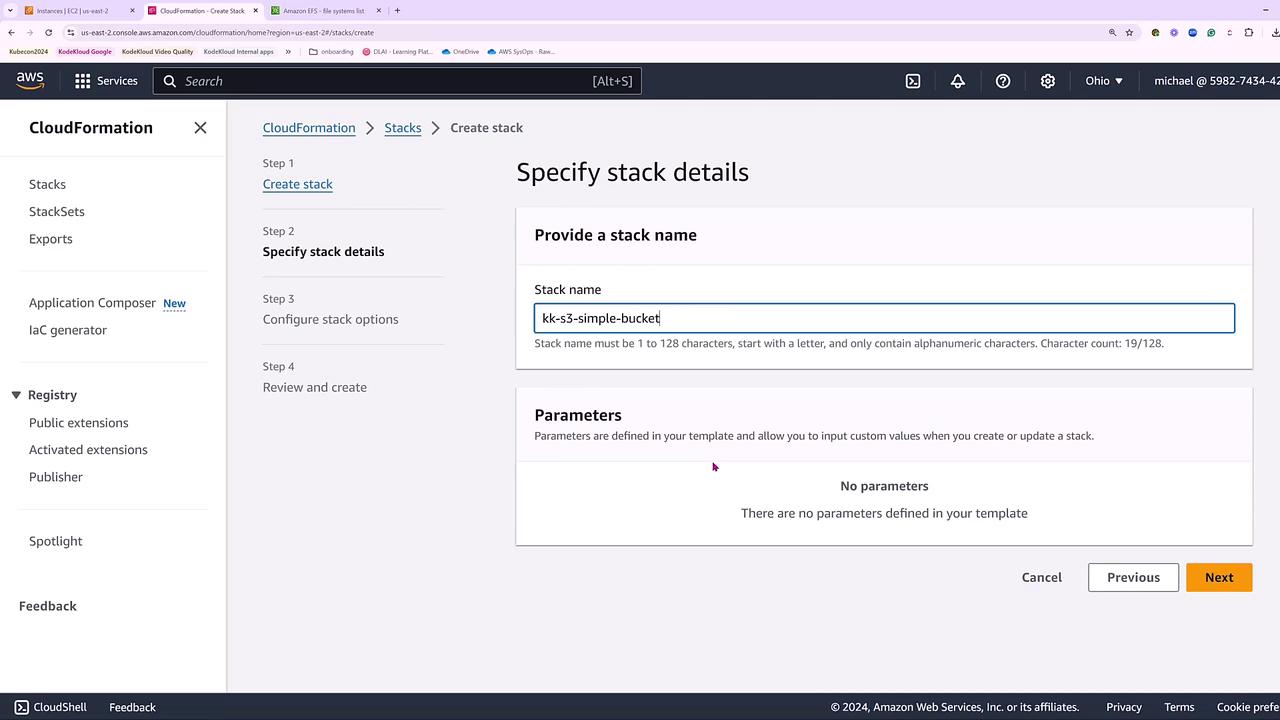
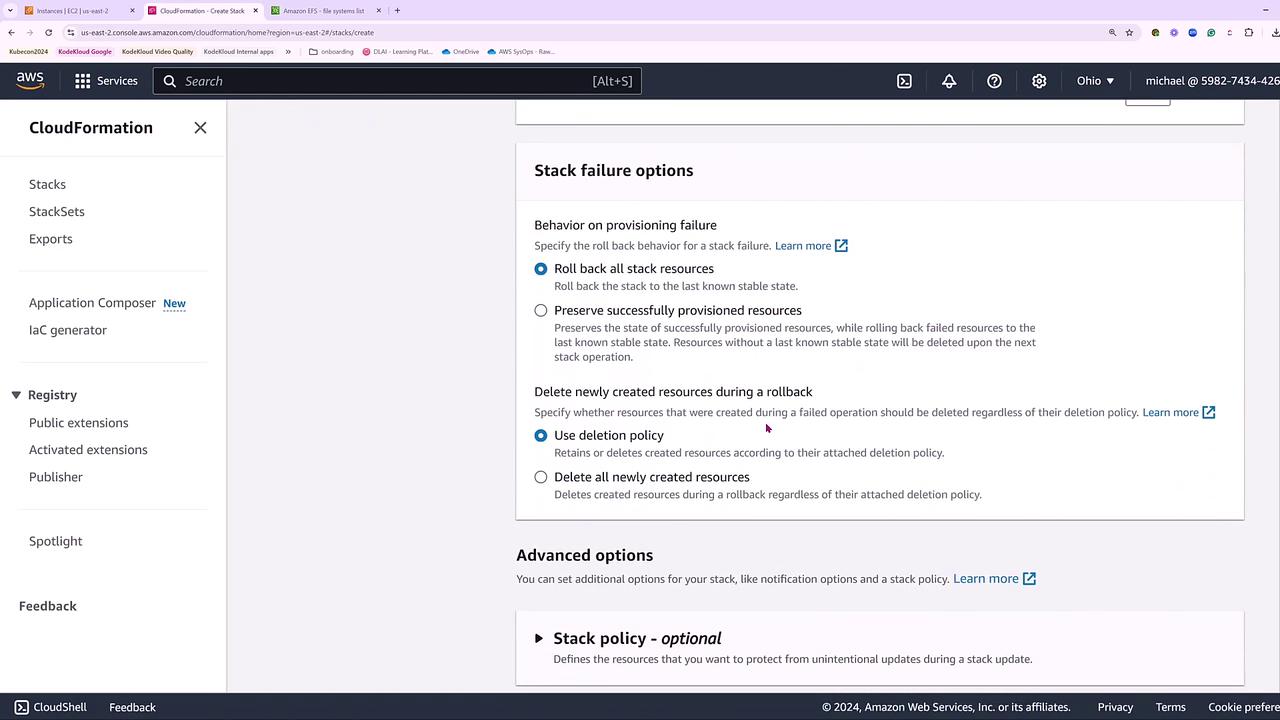
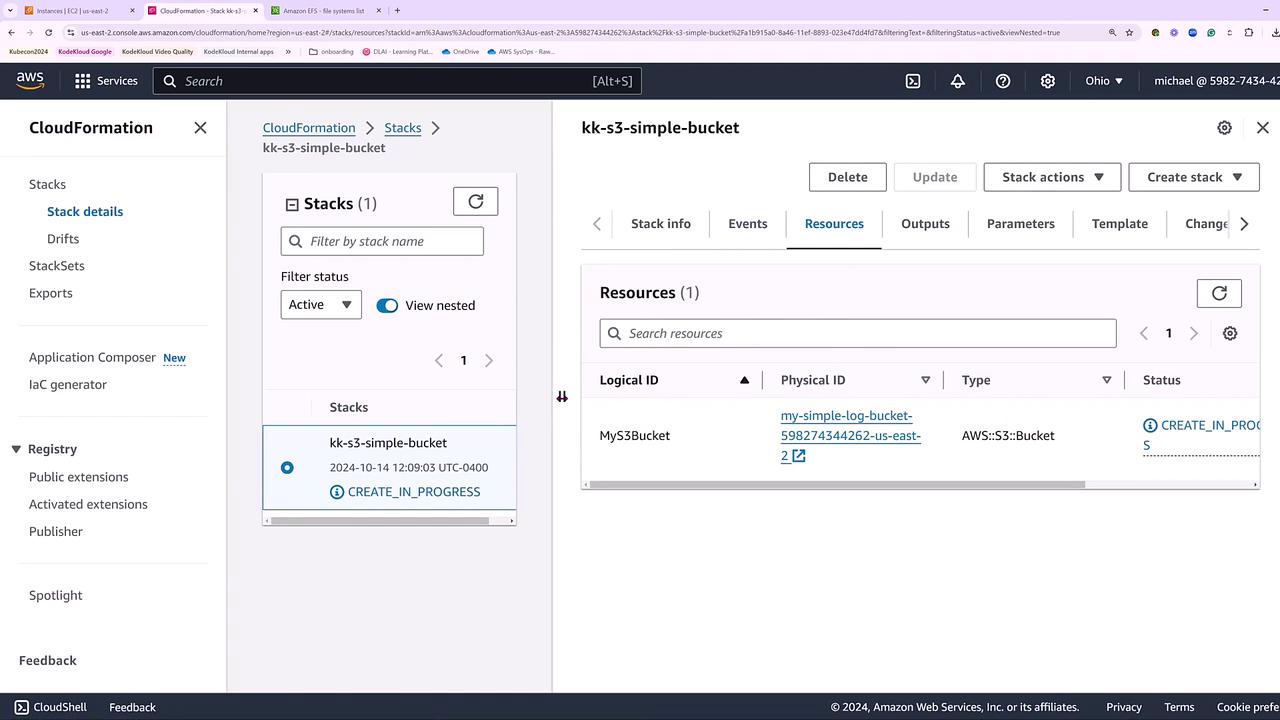
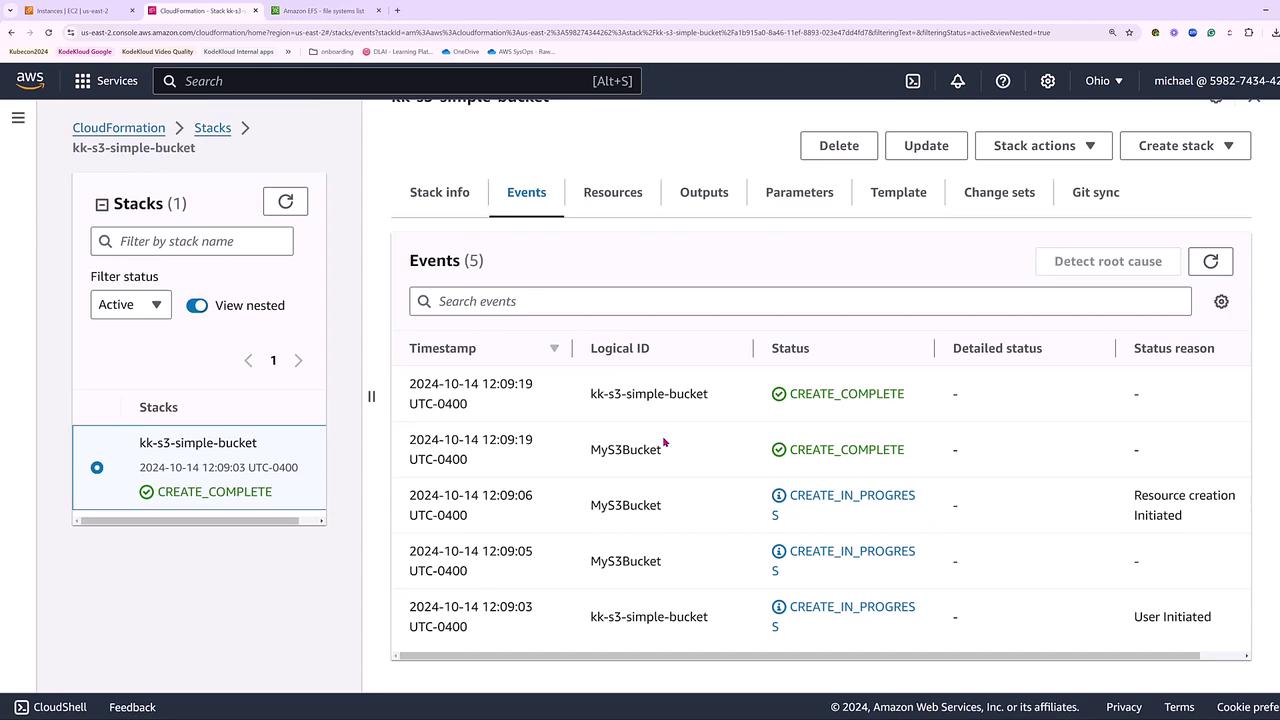
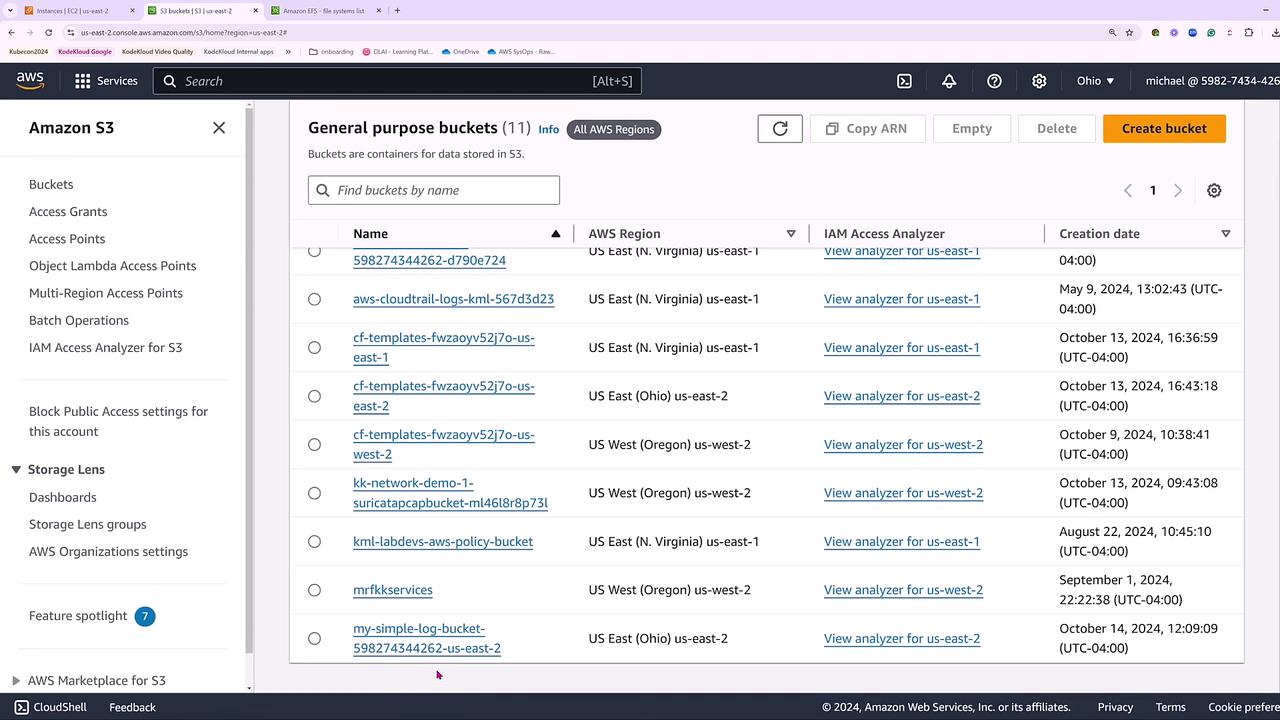
This simple example demonstrates that AWS CloudFormation allows you to define your infrastructure as code with just the minimum details necessary to launch resources.
A More Comprehensive S3 Bucket Template
For advanced use cases, enhance your CloudFormation template to include additional configurations such as versioning, encryption, lifecycle rules, logging, website hosting, CORS (Cross-Origin Resource Sharing) configuration, and tagging. The example below sets up a comprehensive S3 bucket along with a dedicated log bucket.Key Features of the Comprehensive Template
- Unique Bucket Naming: The bucket name incorporates the AWS account ID and region for uniqueness.
- Versioning: Enabled to maintain a history of object changes.
- Encryption: Server-side encryption is set using AES256 to secure your data.
- Lifecycle Management: Objects are transitioned to Glacier storage after 60 days and deleted after 365 days.
- Logging: Access logs are stored in a dedicated log bucket.
- Website Hosting: Configured with specified index and error documents.
- CORS Settings: Allows GET requests from all origins.
- Tagging: Applies tags to efficiently manage resources in production environments.
Integrating these advanced configurations into your CloudFormation templates enables you to adopt best practices in security, data management, and resource monitoring.