

Viewing Trails and Event History
Upon accessing the CloudTrail dashboard, the first thing you will notice is the set of trails configured in your account. For example, a trail titled “KML trail logs” may be present. The event history panel displays a chronological list of recorded events. Navigating to the subsequent pages may reveal recent modifications, such as changes to a network prefix list. Although networking events are typically associated with EC2 APIs, CloudTrail logs these changes along with other events for a comprehensive audit trail. When you click on a specific event, detailed information is presented, including:- Event time
- Username (e.g., “Michael Forrester”)
- Source IP address
- Access key used during the event
- AWS region where the event occurred
- Whether the event was classified as a read or write operation
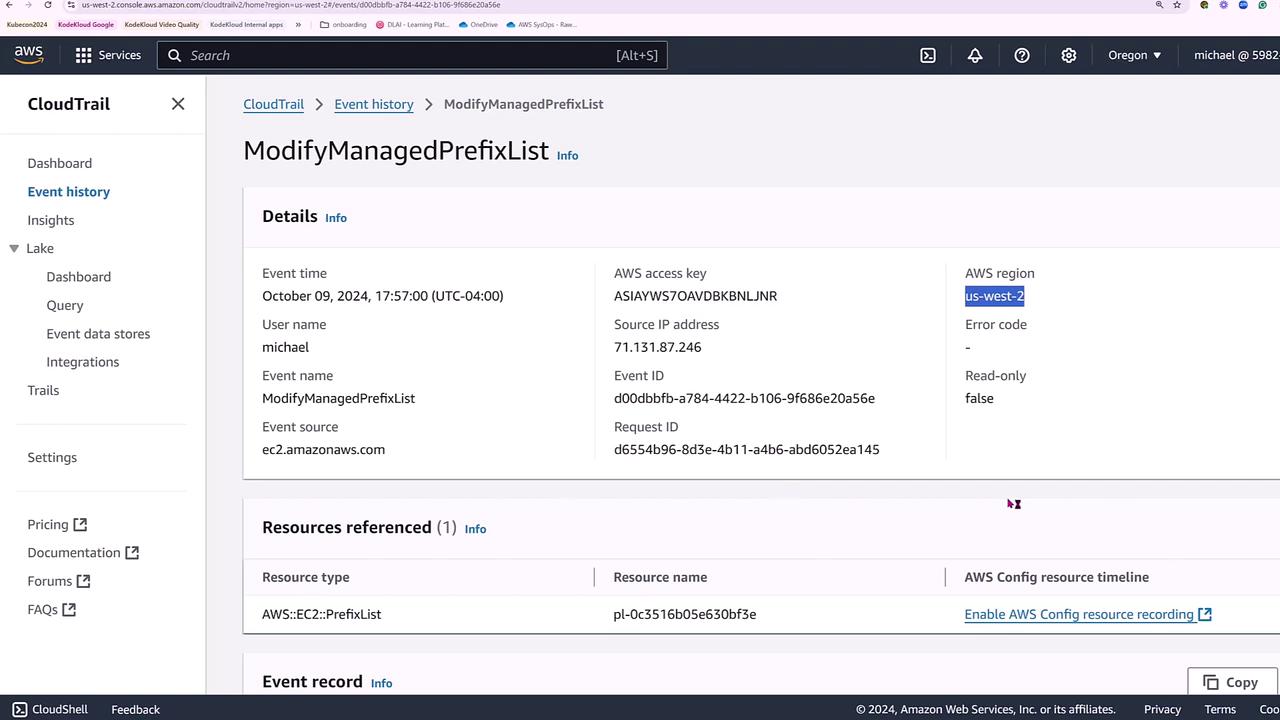
Reviewing the event details confirms any modifications made — such as a change to the network prefix list. The log indicates a successful update, the use of SSL/TLS settings, and the activation of multi-factor authentication (MFA).
Sample CloudTrail JSON Record
Below is an example JSON record from CloudTrail. This record highlights the critical information obtained when an event, such as modifying a managed prefix list, occurs:Searching Events in CloudTrail
Returning to the event history view enables you to search for specific events efficiently. You can filter the logs by access key, event ID, or username (for example, events initiated by Michael Forrester). This search functionality is especially useful when you need to quickly pinpoint changes in your account activity.Utilize CloudTrail’s search filters to narrow down event logs. Filtering by specific criteria ensures you can swiftly investigate any modifications or accesses made within your AWS environment.