

Confluent provides a free trial (typically a $400 credit for 30 days) that you can use to create and test clusters, connectors, and other managed services. This is ideal for learning and development.
- A web browser and a Google account (recommended) or another supported sign-in method.
- A valid email. Depending on region, Confluent may request a credit/debit card for verification.
- Open Confluent Cloud
- Visit the Confluent Cloud landing page: https://www.confluent.io/confluent-cloud/.
- Click Start for Free to begin registration.
- Choose Cloud vs Self-managed
- On the signup screen select the Cloud option (default) for this walkthrough.
- Sign in with Google or another supported provider.
- Provide required details (name, email, country). If prompted for payment information, complete the verification steps.
Confluent may place a small authorization hold (often around $1) to validate your payment method. This is typically an authorization only and not a permanent charge. You won’t be billed as long as you stay within the free-trial credit limits.
- Confluent Cloud console overview
- After signup and verification, you’ll land in the Confluent Cloud console.
- The left navigation includes Environment, Data Portal, Stream Governance, Connectors, and Clusters — these are the main areas you’ll use.
- Create a Kafka cluster
- From the left sidebar click Environments → open the default environment → Create a cluster.
- Choose plan: for this demo select Basic (suitable for learning and low-cost testing).
- Click Begin configuration, choose a cloud provider (AWS, GCP, or Azure), select a region (single-zone is fine for demo), name your cluster (e.g.,
Kafka cluster), then Launch cluster.
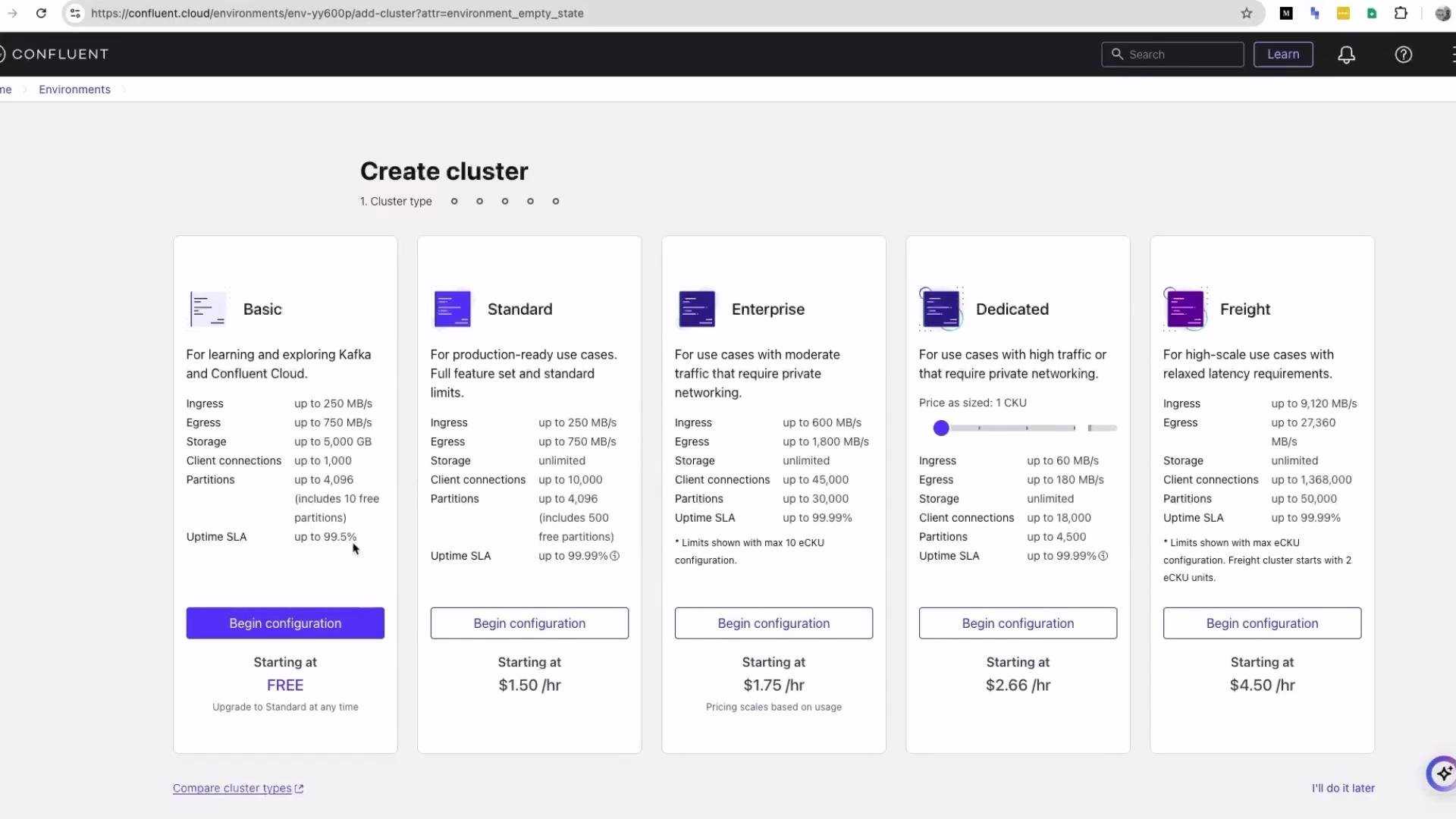
- Confluent provisions the infrastructure in the selected cloud on your behalf for the managed Basic flow (it does not create resources in your own cloud account).
- If account validation (email or payment verification) is incomplete, provisioning may fail — complete those steps first.
- Cluster overview and data tools
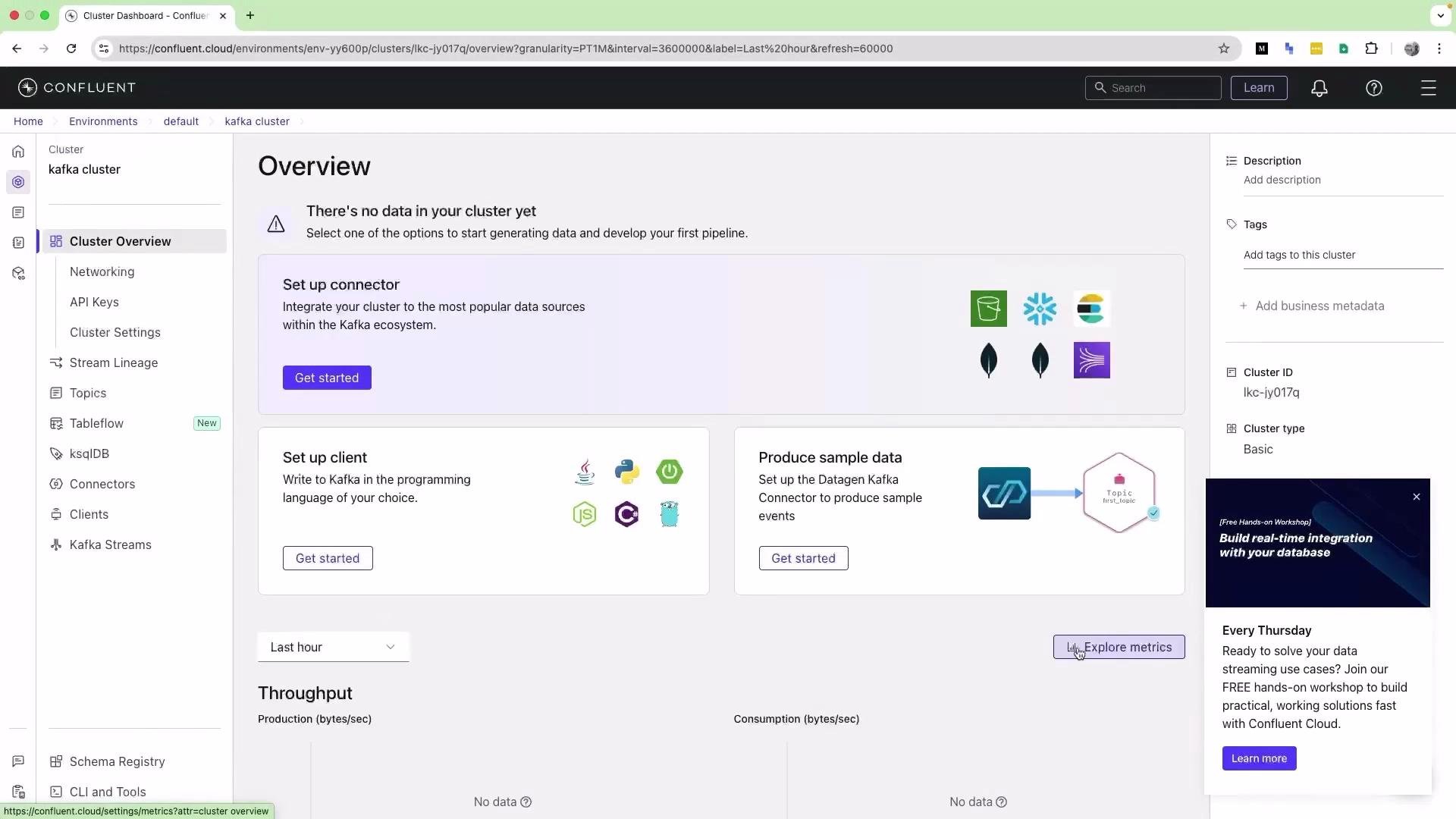
- When the cluster is ready, open Home → Environment → Default to see your Kafka cluster listed.
- From the cluster overview you can access connectors, clients, sample-data producers, networking, and API key management.
- Create a topic
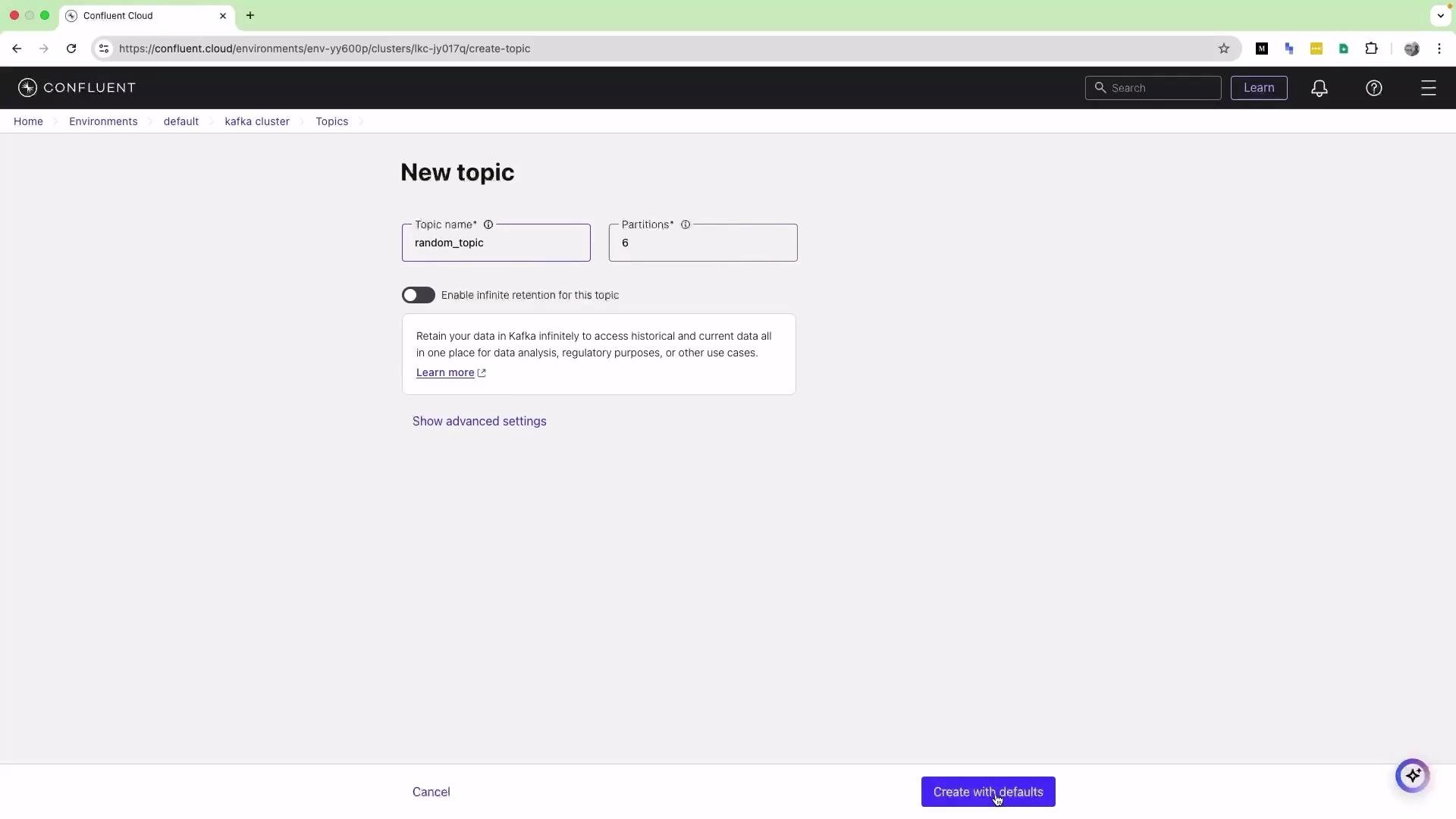
- Navigate to Topics → Create topic.
- Enter a topic name (for example
random topic) and accept or update the default number of partitions (default shown was 6). - Click Create with defaults to finish.
- Produce sample data
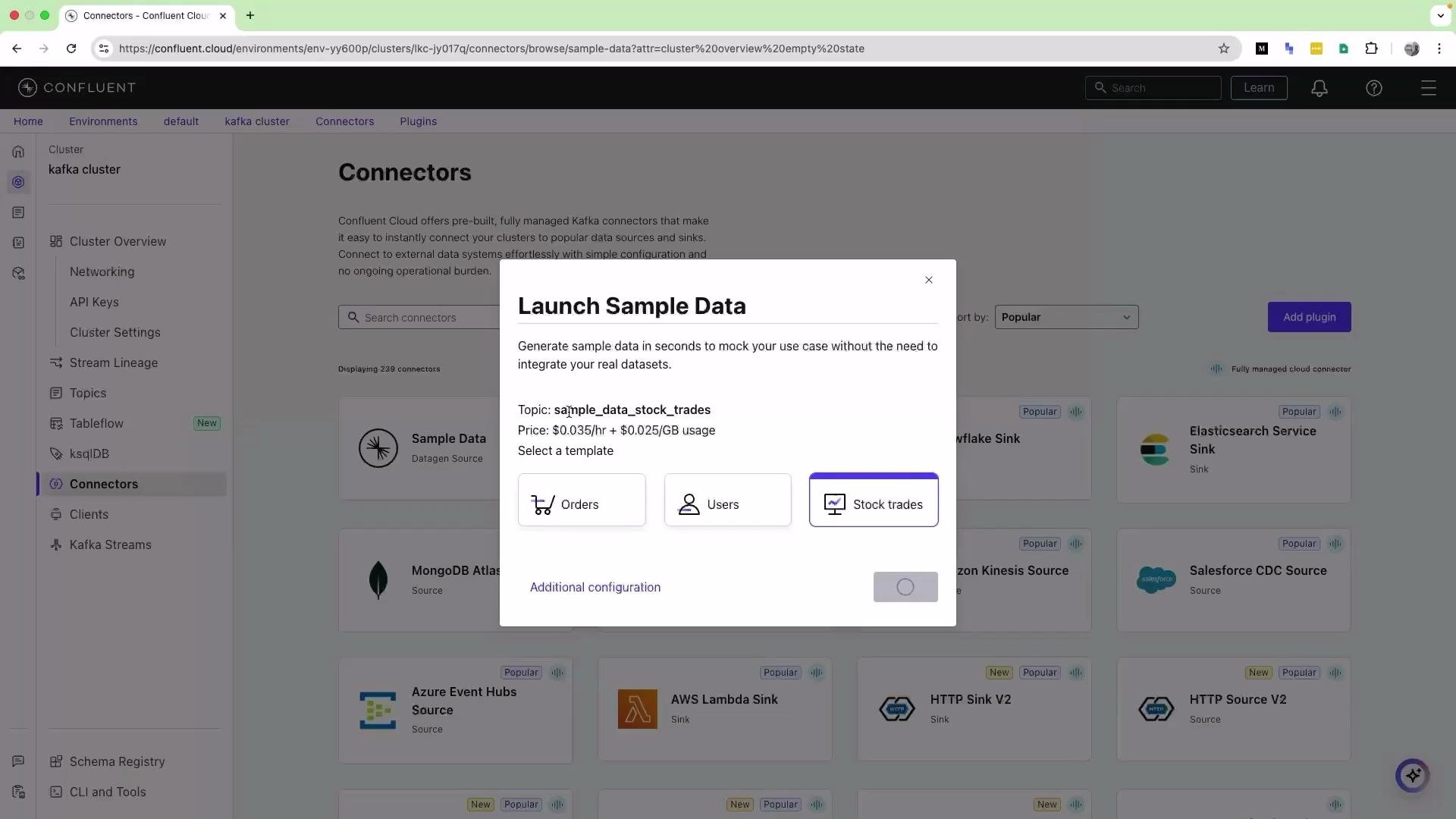
- From the cluster overview click Get started → Produce sample data.
- Select a template (for this demo choose Stock trade) and click Launch.
- The sample producer will provision a connector that sends events to a demo topic — commonly
sample_data_stock_trades. You do not need to pre-create this topic.
- The sample producer appears in the Connectors area and will show a Provisioning status before moving to Running. Wait until it shows Running.
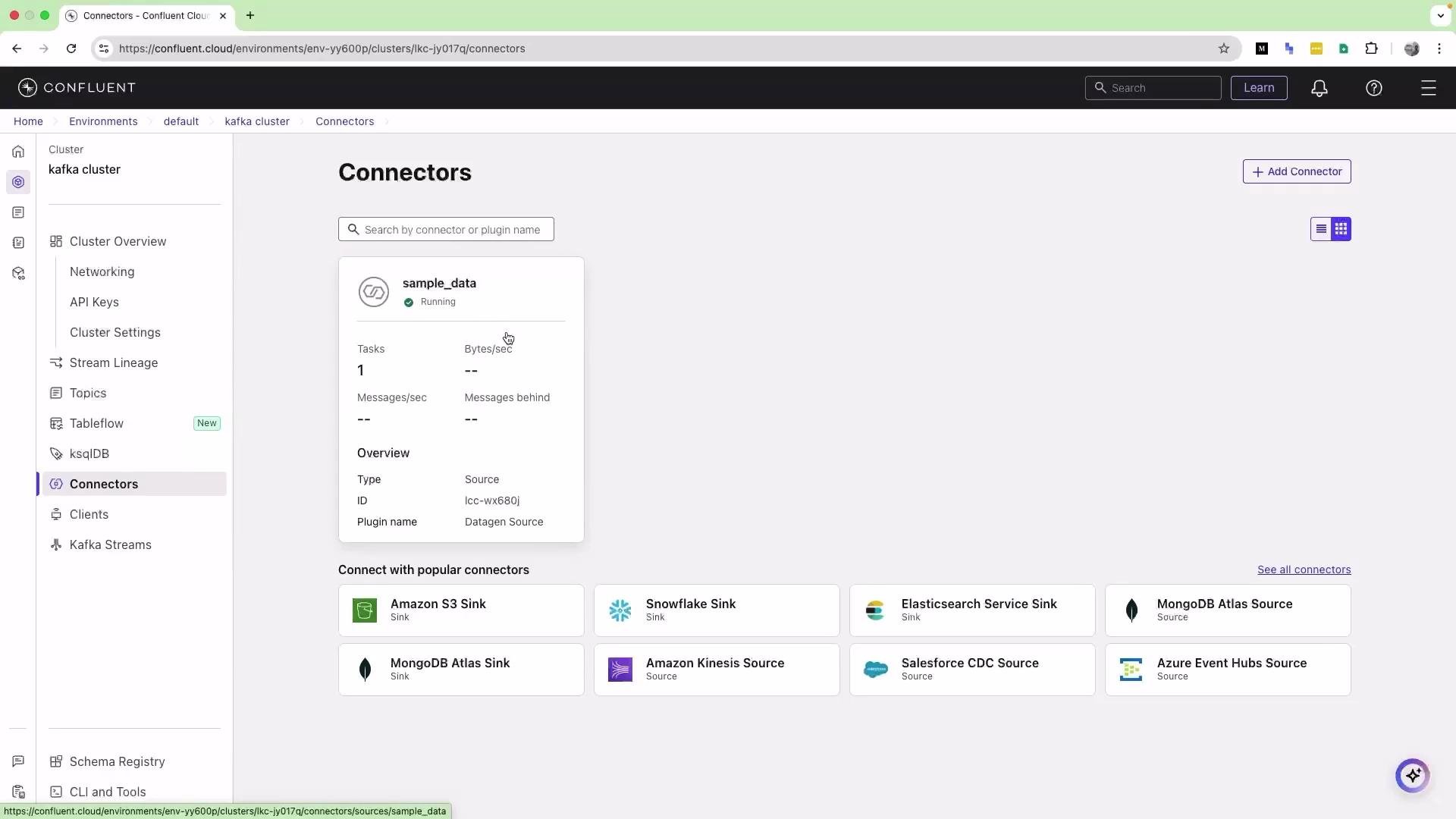
- Refresh the Connectors page periodically to see the status change.
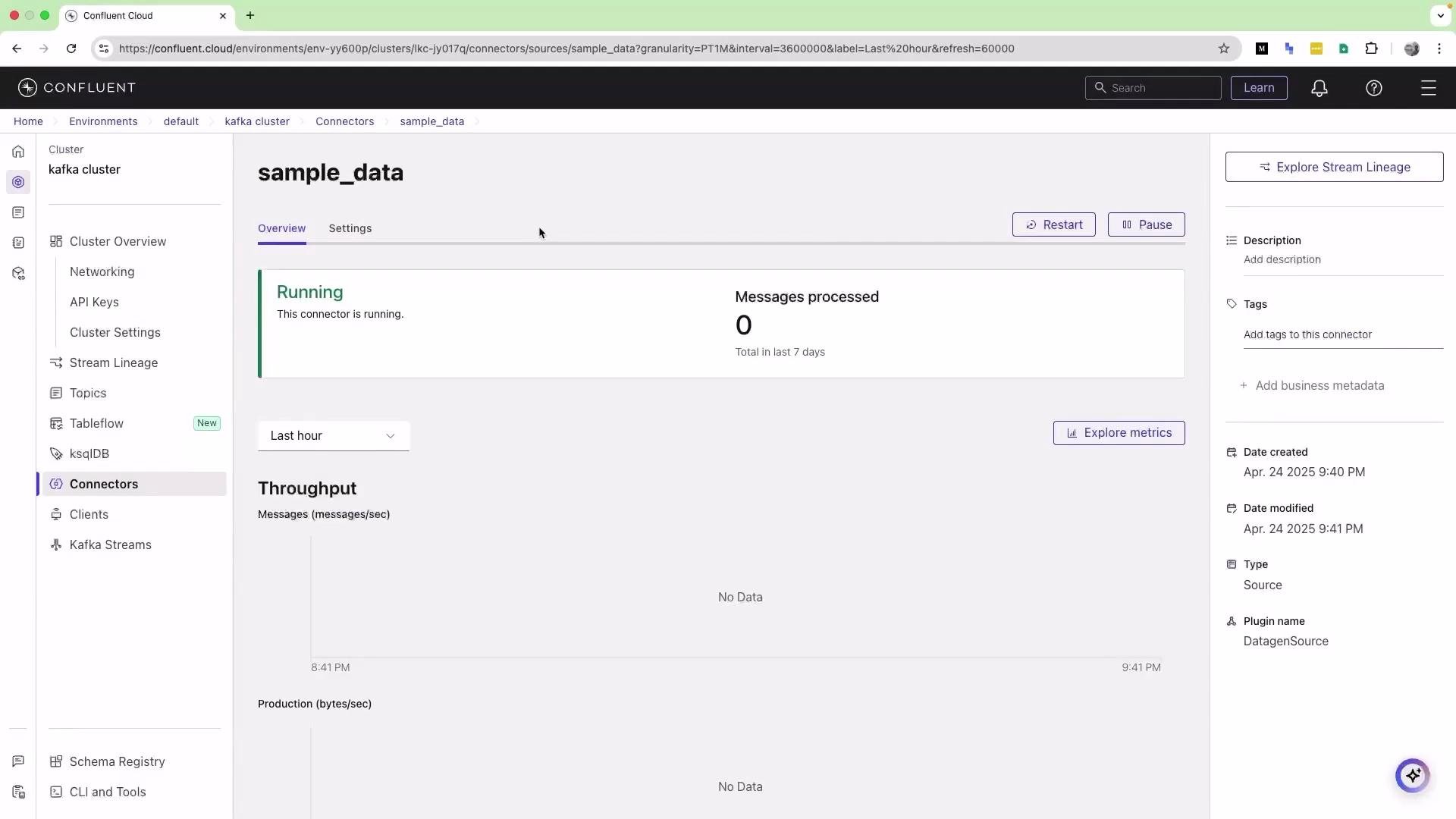
- Inspect topics and messages
- Go to Topics. You should see both the
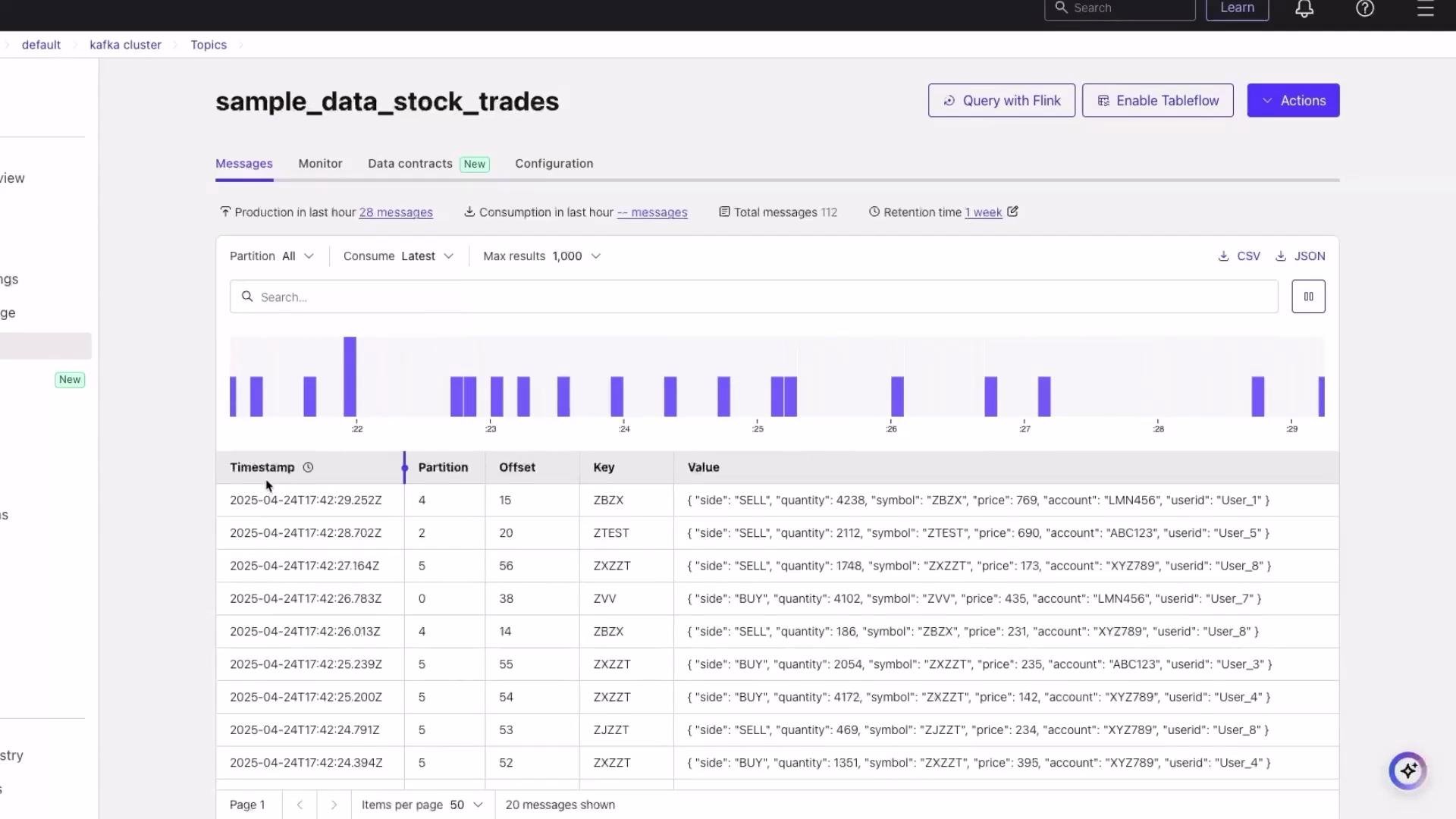
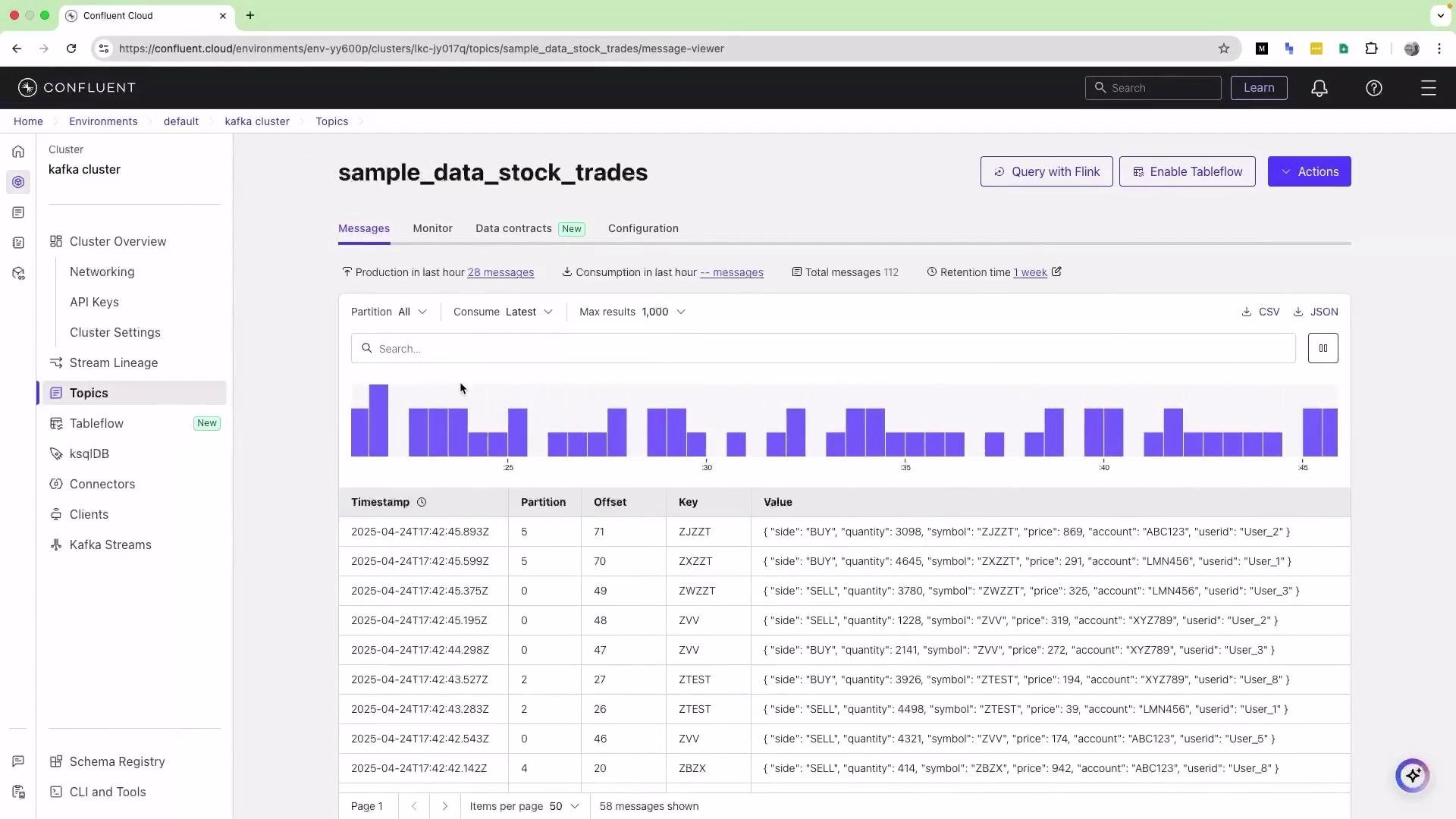
random topicyou created and the auto-createdsample_data_stock_tradestopic. - Open
sample_data_stock_tradesto view messages — the UI displays timestamp, partition, offset, key, and value. Values are typically JSON objects (e.g., trade events with ticker, price, buy/sell fields).
- Consuming and sinking data
- To export topic data to another system, go to Connectors → add a Sink connector (for example Amazon S3).
- Select the sink connector (e.g., Amazon S3), choose the topic(s), and provide destination configuration (AWS credentials, S3 bucket, path, etc.). Confluent will deliver topic data to the configured sink.
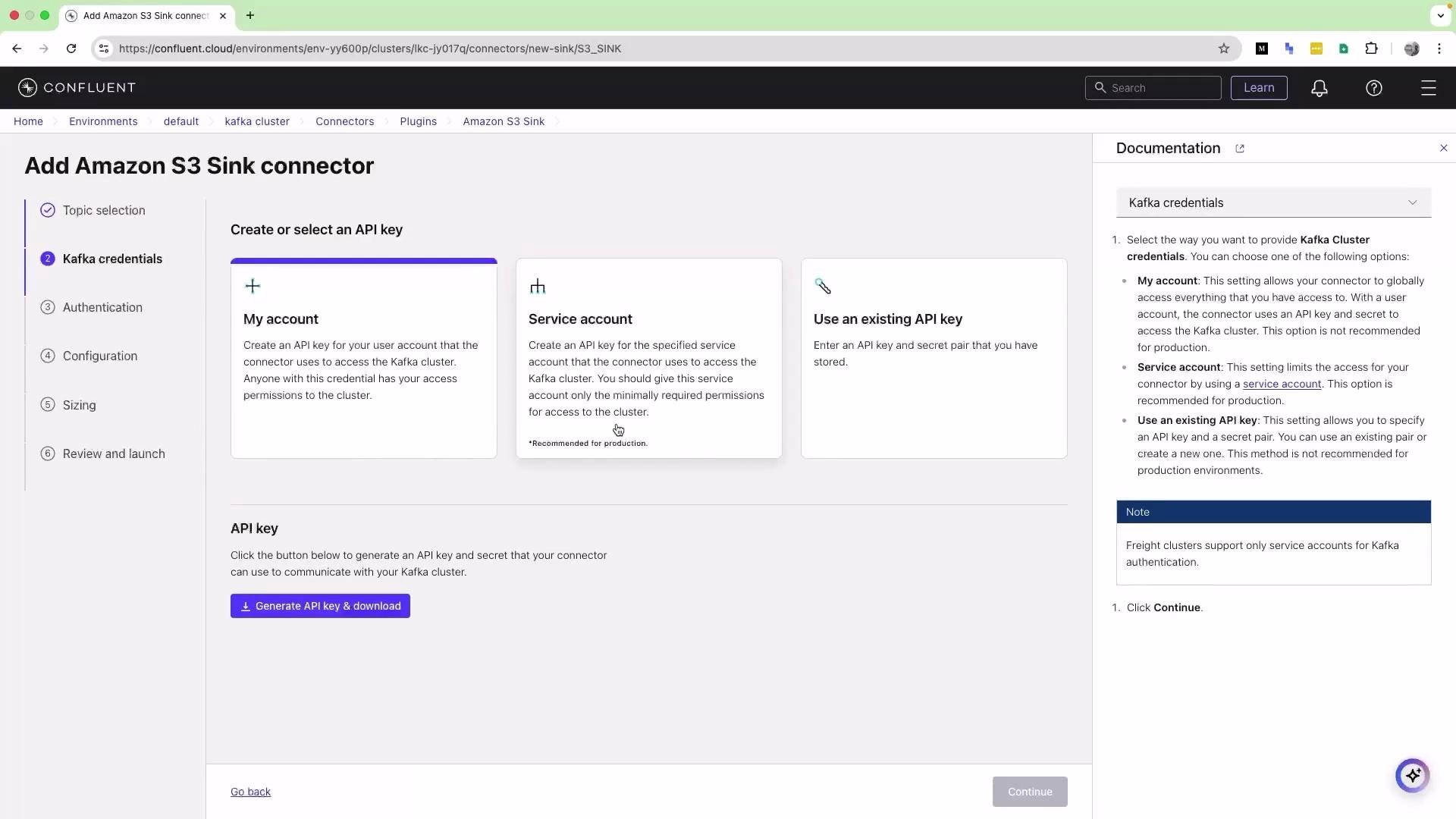
- If you don’t have a destination (e.g., no S3 bucket), you can skip sink configuration while exploring the Console. In this demo we did not configure an S3 sink.
- Monitor and configure
- Click Monitor on any topic to view metrics and performance charts.
- Use the topic configuration to change retention settings, partitions, and other parameters as needed.
Summary and next steps
- Confluent Cloud makes provisioning and managing Kafka clusters fast and simple, including built-in connectors, sample producers, and monitoring.
- For stream processing and querying explore ksqlDB (https://ksqldb.io/) or Flink (https://flink.apache.org/).
- Other managed Kafka options include AWS MSK (https://aws.amazon.com/msk/) and Google Cloud Pub/Sub or Confluent on GCP; choose based on organizational needs and cost trade-offs.
- Confluent Cloud: https://www.confluent.io/confluent-cloud/
- ksqlDB: https://ksqldb.io/
- Apache Flink: https://flink.apache.org/
- AWS MSK: https://aws.amazon.com/msk/