

- Creating an IAM role for SSM access
- Launching an EC2 instance with the role attached
- Connecting via Session Manager (browser shell)
- Installing Java and Kafka
- Formatting KRaft metadata storage and configuring
server.properties - Opening the Kafka port and starting the broker
- An AWS account with permission to create IAM roles and EC2 instances.
- Basic familiarity with the AWS Console and SSH/Session Manager.
- Browser access for the Session Manager shell (no SSH key required for this demo).
Create an IAM role
Create an IAM role for EC2 that allows Session Manager (SSM) access:- In the AWS Console, search for and open IAM.
- Click Roles → Create role.
- Select EC2 as the trusted entity.
- Click Next.
- Attach at minimum the
AmazonSSMManagedInstanceCoremanaged policy. This enables Session Manager connectivity. - Name the role (example:
Kafka S3 Demo) and create it.
Launch an EC2 instance
Launch an EC2 instance and attach the IAM role you created. Recommended configuration for this demo:- In the AWS Console, open EC2 → Instances → Launch Instance.
- Configure the instance using the recommended settings above.
- Under Advanced details, select the IAM role (
Kafka S3 Demo) you created. - Launch the instance.
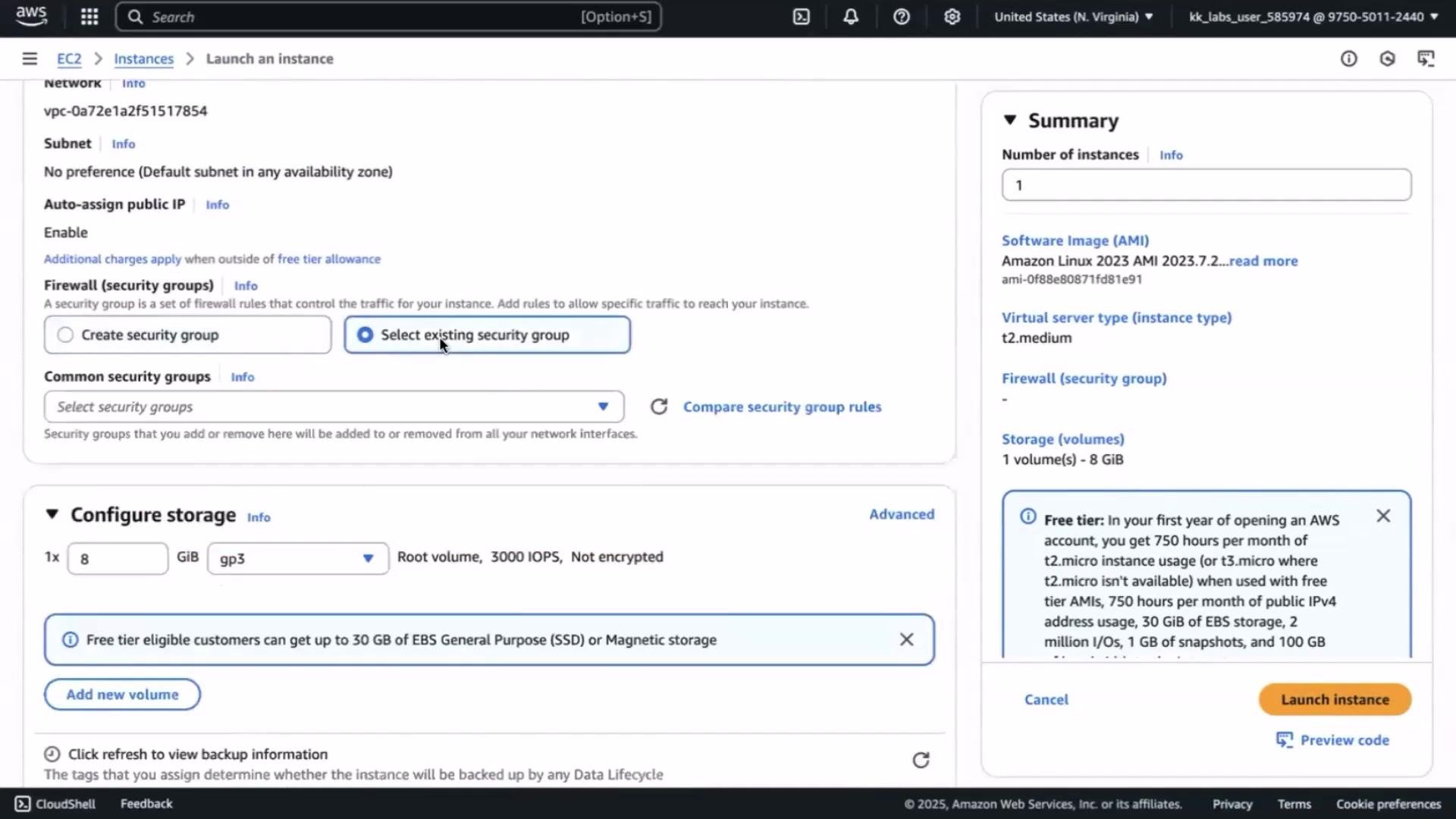
Connect to the instance using Session Manager
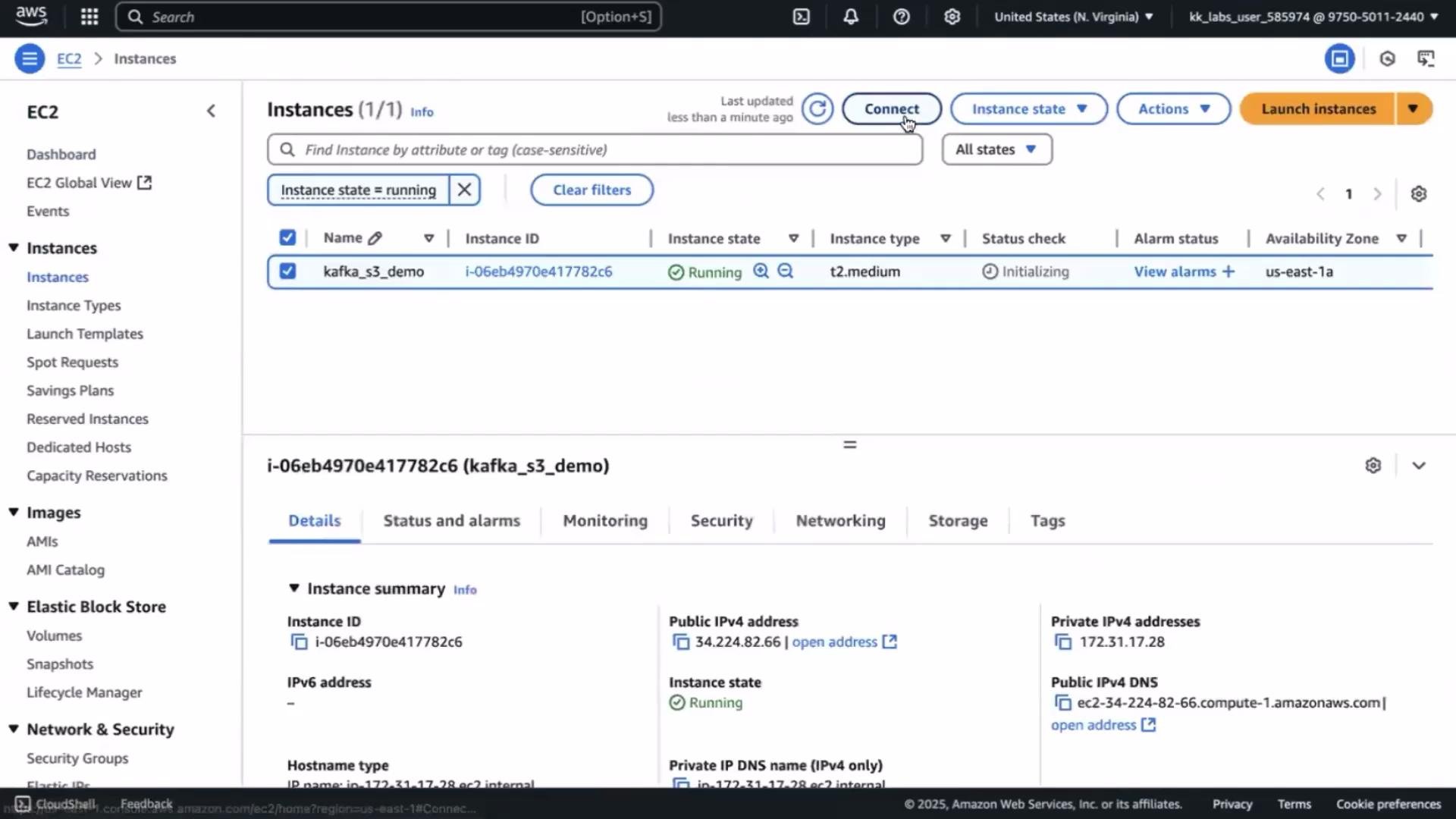
Because the EC2 instance has the SSM role attached, you can open a browser shell without an SSH key.- Go to EC2 → Instances.
- Select the instance and click Connect.
- Choose Session Manager and click Connect to open a browser-based shell.
Session Manager is convenient for demos and secure access: no inbound SSH port or key pairs are required. Ensure your instance has the SSM agent installed (most recent AMIs include it by default) and the attached IAM role has
AmazonSSMManagedInstanceCore.Switch to root, download Kafka, and inspect files
Once connected, become root and move to the home directory:config, bin, and libs — Kafka Connect is bundled, so no separate Connect install is required. Connector-specific JARs (for S3) will be added later.
Install Java
KRaft and Kafka need a JDK. Check if Java is installed:Format storage for KRaft metadata
KRaft stores metadata locally and requires initializing the storage directory with a cluster UUID. Generate a UUID:Edit the KRaft server.properties
Openconfig/kraft/server.properties and update the settings required for a single-node KRaft cluster. Key items:
- Enable both broker and controller roles:
process.roles=broker,controller - Assign a node id:
node.id=1 - Define controller quorum voters for a single-node cluster
- Bind listeners to all interfaces (
0.0.0.0) - Set
inter.broker.listener.name - Advertise the EC2 public IP so remote clients can connect
server.properties:
<EC2_PUBLIC_IP> with your instance’s public IP (copy from the EC2 console) and save the file.
Open the Kafka broker port in the security group
Before starting the broker, allow inbound traffic on TCP port9092 in your instance’s security group so clients can reach Kafka.
For production or organizational environments, never open Kafka to the entire internet. Restrict inbound rules to specific IP ranges (for example, your office IP or VPN CIDR). Allowing
0.0.0.0/0 exposes your cluster to attacks.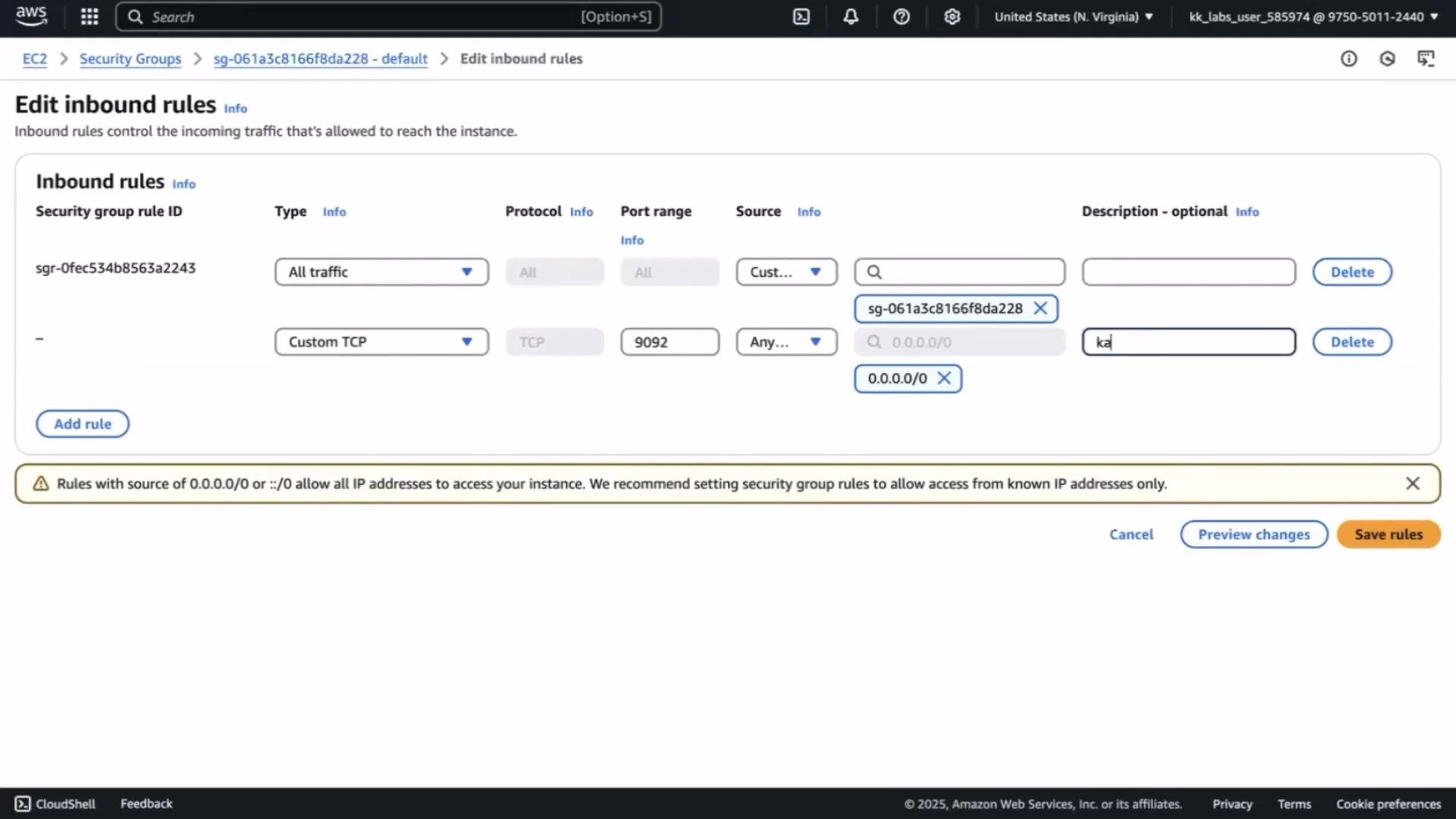
Start the KRaft Kafka service
Start Kafka with the KRaft configuration:9092 and 9093. Watch for fatal errors — if you see errors, check the server.properties values and the storage format step.
What’s next
With a single-node KRaft broker+controller up and reachable, the next lessons will cover:- Downloading and installing an S3 connector (Confluent S3 connector or a community connector)
- Preparing the connector configuration (including AWS credentials and S3 bucket settings)
- Running Kafka Connect and syncing topic data to S3
- Confluent S3 Connector
- KRaft (KIP-500) overview and Kafka documentation
- AWS Systems Manager Session Manager