

Producer: front-end order event (context)
When an order is placed in the front-end, the app produces an order event to Kafka. The producer code looks like this:Producer delivery is asynchronous by default. To ensure delivery before shutdown, either call
producer.flush() on shutdown or supply a delivery callback to confirm the message reached the broker.Configure the backend consumer to connect to your Kafka broker
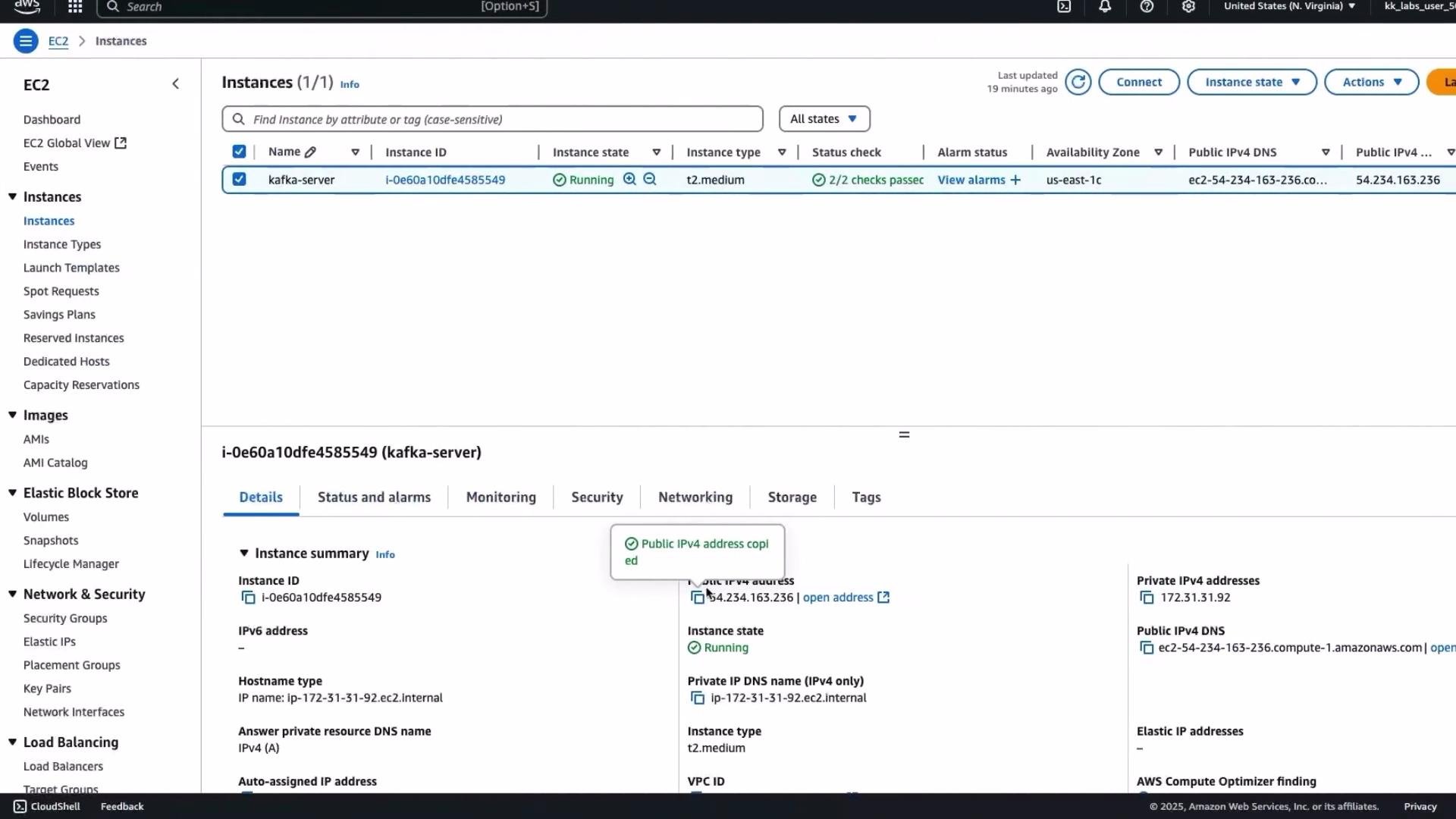
Open the warehouse UI app (folder:final-projects/warehouse, file: app.py) and locate the Consumer import from confluent_kafka. The consumer configuration needs the broker address in bootstrap.servers. Replace the placeholder with the public IP (and port) of the EC2 instance running Kafka.
Replace
bootstrap.servers with the EC2 instance’s public IP and Kafka port (for example 54.234.163.236:9092). This allows the consumer running locally (or from another host) to connect to the Kafka broker.Consumer configuration notes
Below are the important consumer settings used by the warehouse dashboard and why they matter:If you generate a new unique
group.id on every run and do not commit offsets, the consumer will re-read messages from the earliest offset each time. For normal operation, use a stable group.id and commit offsets to avoid duplicate processing.Consumer implementation used by the warehouse UI
This implementation polls Kafka for available messages, decodes JSON payloads, skips tombstone messages (value isNone), and returns a list of parsed order dictionaries for rendering in the UI.
- The dashboard calls
get_kafka_messages()when the packer clicks “Refresh Dashboard”. - Each returned dict should contain
customer_name,delivery_address,products, andtotal_amount. - The frontend renders those fields in an actionable format for packers (items, prices, totals, address).
Running the warehouse UI locally
- Open a terminal in the
final-projects/warehousefolder. - Start the app:
python3 app.py
- Open the dashboard in your browser (or use the editor’s “Open in Browser”).
Test the end-to-end flow
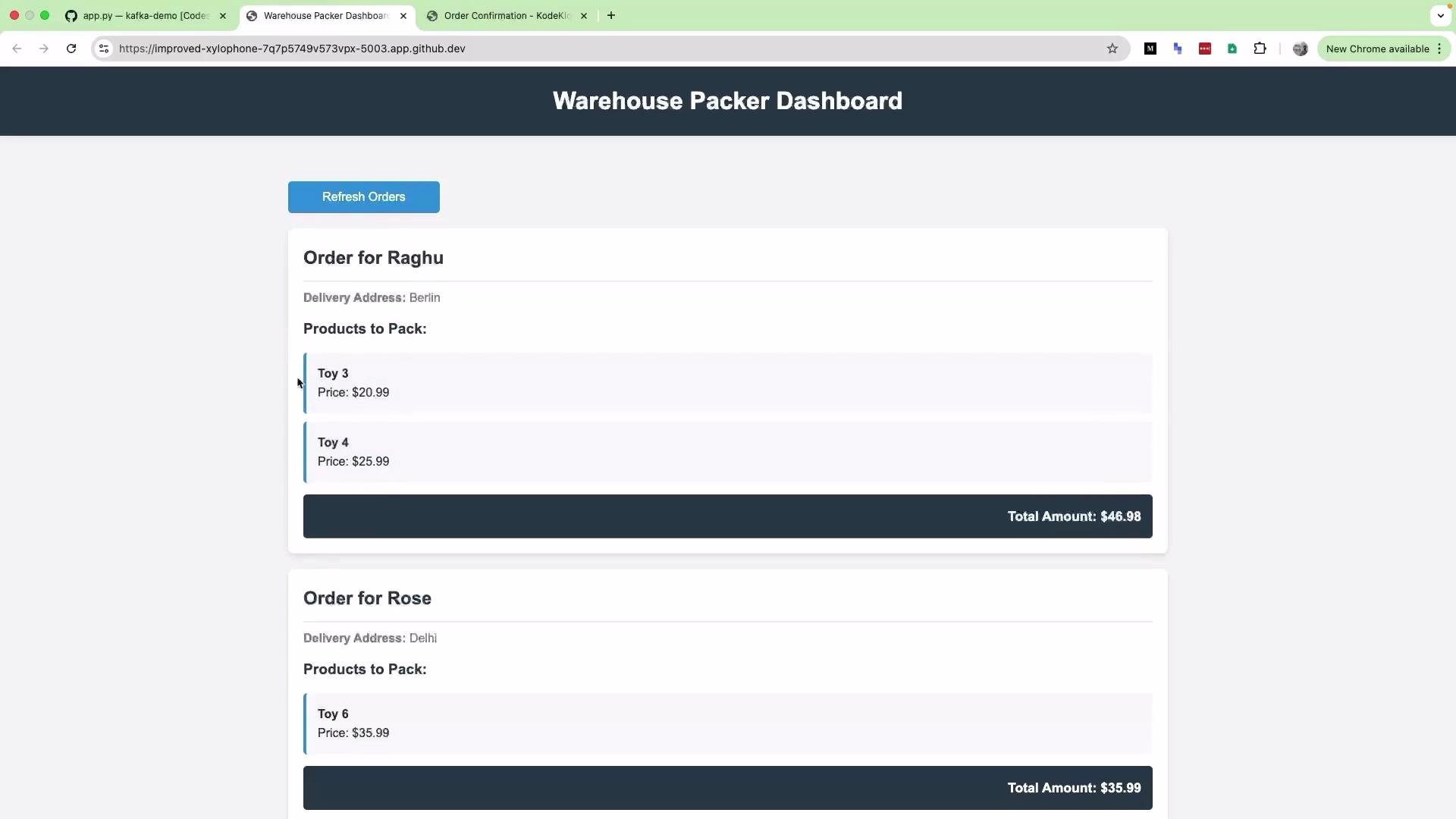
- Place an order in the shop front-end (e.g., add toy 6, view cart, enter customer name “Rose” and address “Delhi”, then click Place Order). This produces an event to the
cartevnttopic. - In the warehouse dashboard, click Refresh Dashboard. The backend consumer will poll Kafka, parse the event, and render it.
- Auto-refresh on a timer or via WebSocket updates.
- Group orders into batches for efficient picking.
- Highlight priority shipments or fragile items.
- Enrich events with inventory metadata (e.g., rack locations).
rack or location field (e.g., “rack 15”), then include that in the rendered order to speed up picking.