

Below, we’ll explore each interface in detail.
1. Consul KV HTTP API
The HTTP API exposes a/v1/kv endpoint. Use standard HTTP verbs (PUT, GET, DELETE) to manage keys.
1.1 Writing a Key (PUT)
true means the write succeeded. If the path (data/app4) doesn’t exist, Consul creates it automatically.
1.2 Reading a Key (GET)
Value field is Base64-encoded. Decode it:
Base64 encoding is not encryption. Data at rest in Consul is unencrypted by default; the API simply returns values encoded in Base64.
2. Consul Command-Line Interface
Theconsul kv set of commands provides a quick way to interact with the KV store from your terminal.
Consult the Consul CLI documentation for additional flags and examples.
3. Consul Web UI
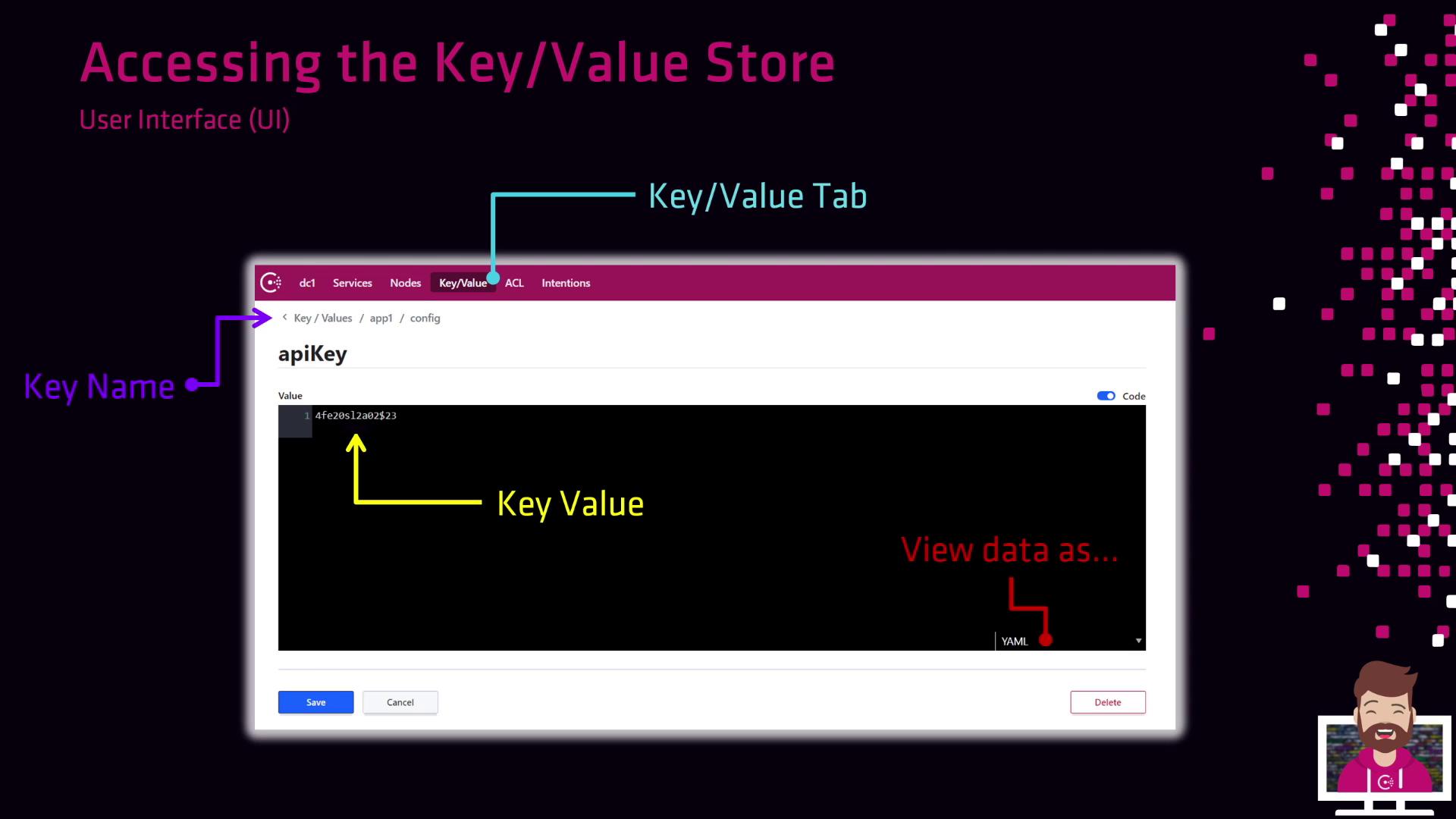
The Consul UI provides a visual way to browse and modify KV entries.- Log in to your Consul cluster.
- Click on the Key/Value tab in the top navigation.
- Drill down through key prefixes to locate your entry.
- Click on a key to view or edit its value in JSON, YAML, or HCL format.
4. Limiting Access with ACLs
By default, Consul’s KV store is open to all clients. To enforce security:- Enable ACLs in your Consul configuration.
- Bootstrap an ACL management token.
- Create policies that grant read/write permissions on specific key prefixes.
- Distribute tokens to users or applications.
Once ACLs are enabled, all API, CLI, and UI requests require a valid token. Plan your migration and token distribution carefully.
Links and References
- Consul Key/Value HTTP API
- Consul CLI Commands:
kv - Consul Web UI Overview
- Consul ACL Security
- HashiCorp Consul Documentation