In this guide, we’ll explore how to verify the status of your services in HashiCorp Consul using the UI, DNS interface, and HTTP API. We’ll also walk through adding a second node to the cluster and confirming that multiple service instances are correctly registered.
Viewing Services in the Consul UI
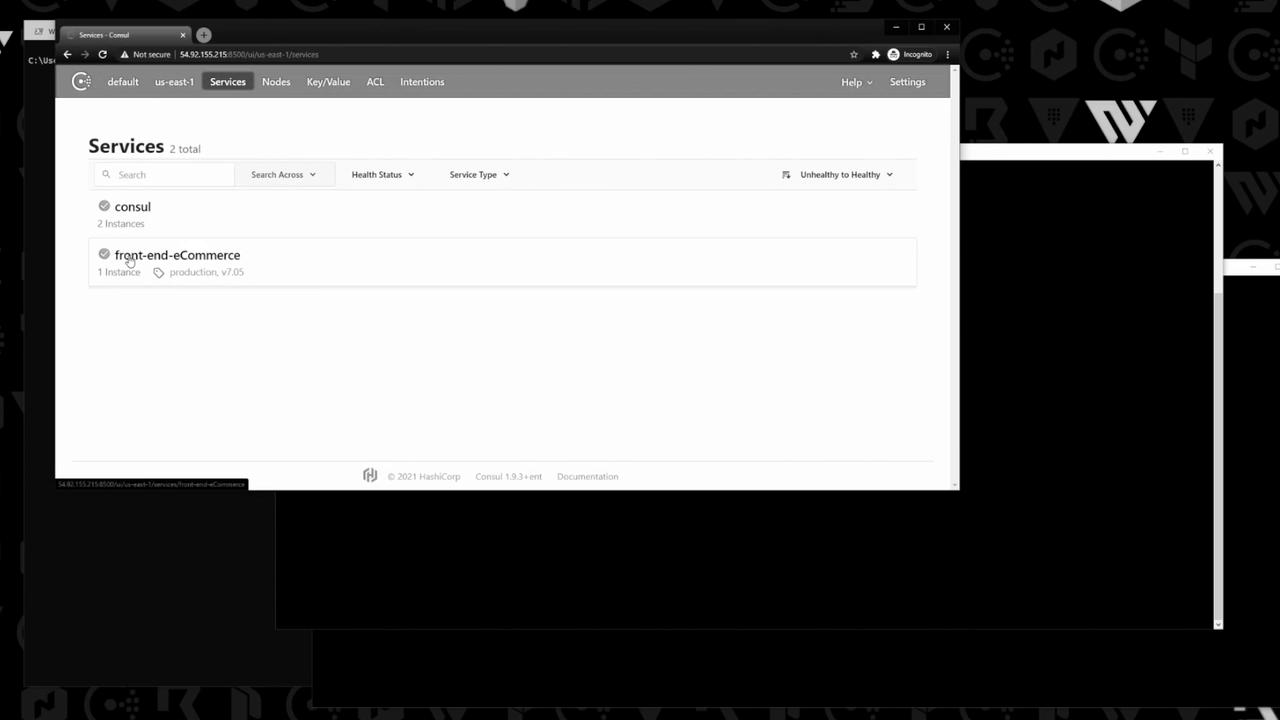
We have a client node named web-server-01 which registers the front-end-eCommerce service. On the Consul UI home screen, you’ll see two entries:
consul (2 instances)
front-end-eCommerce (1 instance)
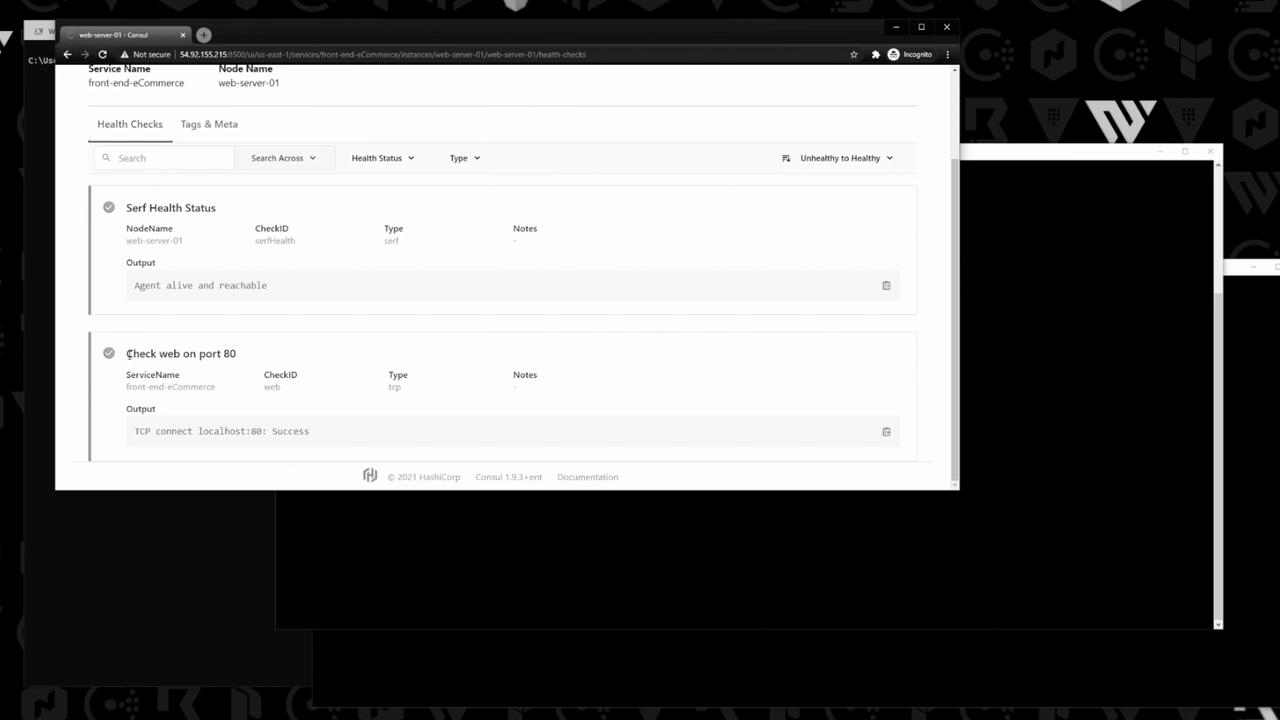
Click front-end-eCommerce to view the service details and health check (check web on port 80), which passes since Apache is running on the host.
Querying the Service Catalog
You can also query Consul programmatically via DNS or the HTTP API. Below is a quick comparison:
Query Method Command Output Format DNS (port 8600) dig @<CONSUL_IP> -p 8600 front-end-eCommerce.service.consul AA records (IP addresses) HTTP API (port 8500) curl http://<CONSUL_IP>:8500/v1/catalog/service/front-end-eCommerce?ns=default | jqJSON array
DNS Lookup
Consul’s built-in DNS server listens on port 8600 by default. Ensure your firewall allows UDP/TCP traffic on this port.
Run:
dig @10.0.101.110 -p 8600 front-end-eCommerce.service.consul A
Sample output:
;; ANSWER SECTION:
front-end-eCommerce.service.consul. 0 IN A 10.0.101.177
HTTP API Query
Fetch the service catalog via HTTP:
curl --request GET \
http://54.92.155.215:8500/v1/catalog/service/front-end-eCommerce?ns=default \
| jq
Example response:
[
{
"Node" : "web-server-01" ,
"Address" : "10.0.101.177" ,
"ServiceName" : "front-end-eCommerce" ,
"ServiceTags" : [ "v7.05" , "production" ],
"ServiceAddress" : "10.0.101.177" ,
"ServiceTaggedAddresses" : {
"lan_ipv4" : { "Address" : "10.0.101.177" , "Port" : 80 }
}
}
]
This output shows the node name, IP address, and metadata for each instance.
Adding a Second Server
Let’s register web-server-02 with the same front-end-eCommerce service.
Step Command Expected Result Start Consul agent sudo systemctl start consulAgent is running Join the cluster consul join 10.0.101.110web-server-02 shows in consul membersRegister the service consul services register service-with-health.jsonService appears in UI
Verifying Multiple Instances
In the UI
Refresh the Consul UI. front-end-eCommerce now displays two healthy instances: web-server-01 and web-server-02 .
Via HTTP API
Re-run the catalog query:
curl http://54.92.155.215:8500/v1/catalog/service/front-end-eCommerce?ns=default | jq
You’ll see both nodes:
[
{ "Node" : "web-server-01" , "Address" : "10.0.101.177" , … },
{ "Node" : "web-server-02" , "Address" : "10.0.101.178" , … }
]
Via DNS
Query DNS again:
dig @10.0.101.110 -p 8600 front-end-eCommerce.service.consul A
Sample ANSWER SECTION :
front-end-eCommerce.service.consul. 0 IN A 10.0.101.177
front-end-eCommerce.service.consul. 0 IN A 10.0.101.178
This confirms that both Consul DNS and the HTTP API correctly reflect the two running instances.
Links and References