

In the sections below, we’ll walk through each method step by step.
1. DNS Queries
Using DNS is often the simplest way to discover services in Consul, since most applications already support DNS resolution.How It Works
- Your corporate DNS forwards queries for the
.consuldomain to Consul’s DNS port (8600). - The application looks up
database.service.consulas an A record. - Consul responds with the IP addresses of healthy service instances.
- The application selects an IP and connects to the service.
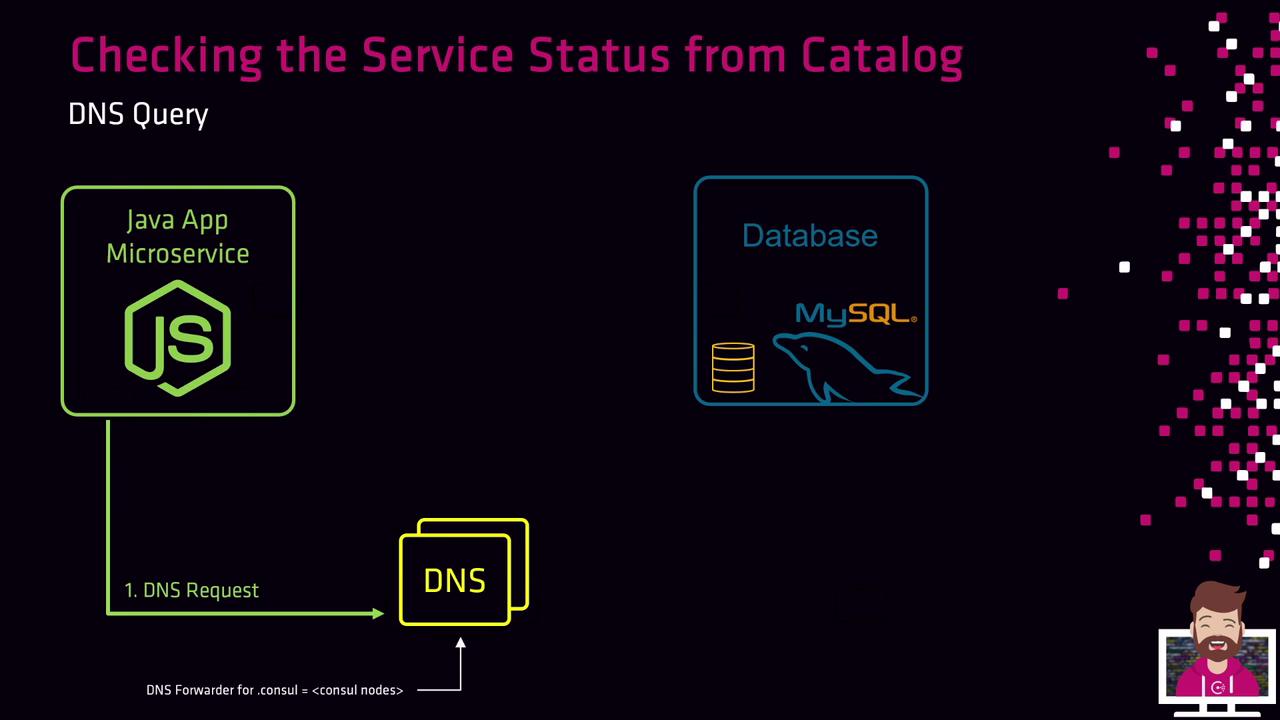
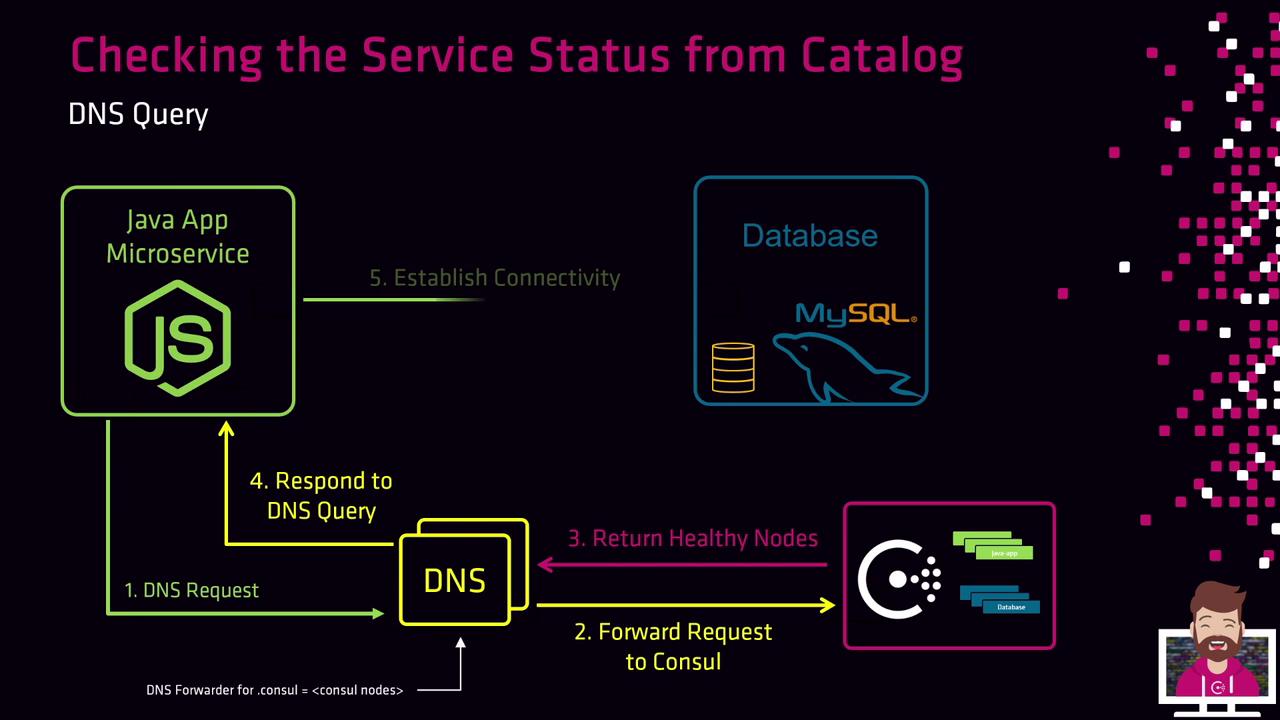
Ensure your firewall allows traffic to port
8600/udp for DNS forwarding.Example: dig against Consul DNS
10.3.15.67.
2. API Requests
When your application can make HTTP requests, the Consul HTTP API lets you retrieve service entries in JSON format.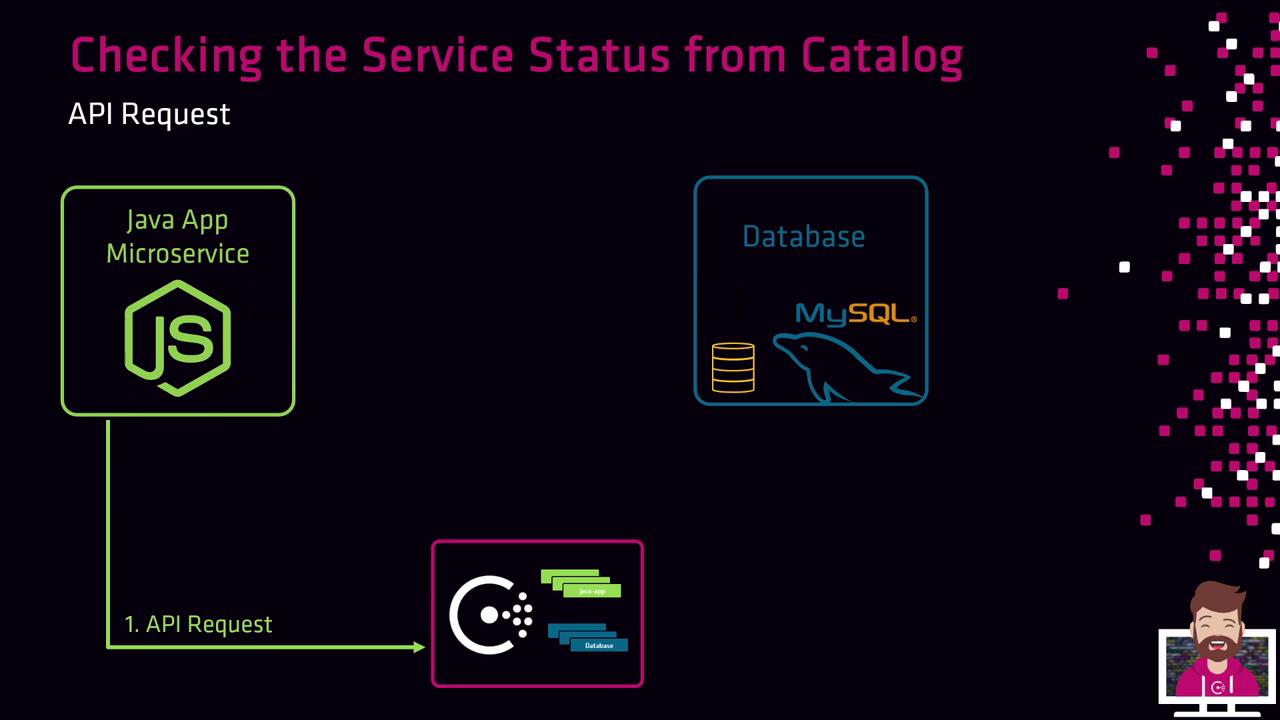
Steps
- Send a GET request to:
- Consul returns a JSON array of nodes passing health checks.
- Your code parses the array and picks an IP to connect.
Example: curl against the Catalog API
10.3.15.67 is healthy.
3. Consul UI
For human operators, the Consul web UI offers an intuitive overview of services and checks.- Open your browser at
http://<consul-server>:8500/ui. - Click Services in the sidebar to list all registered services.
- Select a service (e.g., customer-database-ecommerce) to view node details, health status, tags, and metadata.
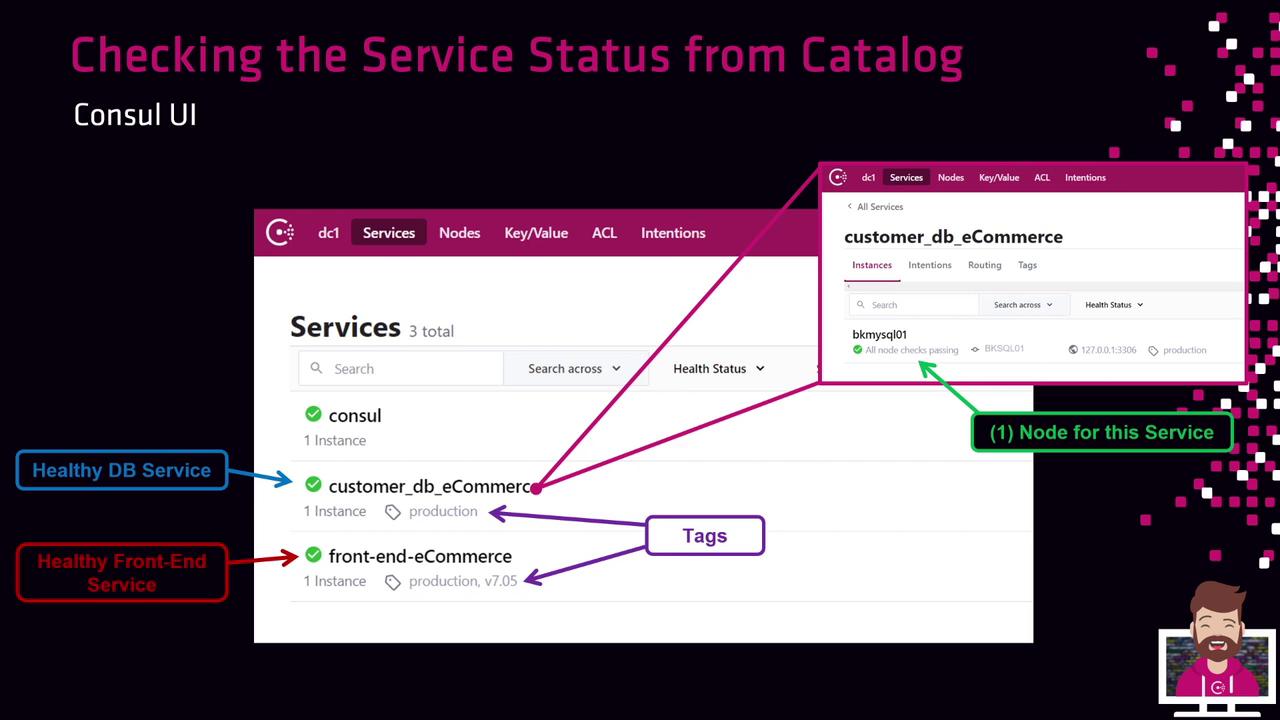
The Consul UI is unauthenticated by default. Consider enabling ACLs or reverse-proxy authentication in production.
With DNS queries, REST API calls, and the web UI, you have flexible options to check service status in Consul’s catalog and ensure your applications connect to healthy nodes.