

- Download and install the Consul CLI
- Create configuration files
- Launch the Consul agent (service or manual)
- Run Consul in development mode
1. Download and Install Consul
Visit the Consul releases page to download the appropriate binaries for your operating system: Consul ReleasesIf you have a Consul Enterprise license, be sure to select the enterprise package instead of the open-source edition.
- Unzip the downloaded archive.
- Move the
consulbinary into your$PATH. For example, on Linux:
- Verify the installation:
2. Create Consul Configuration
Consul supports HCL files and CLI flags. You can use a single file or a directory of files.Single File vs. Configuration Directory
Example directory structure when using a folder:
Mixing CLI flags and configuration files can lead to unexpected overrides. Prefer HCL files for production setups.
3. Start the Consul Agent
In production environments, run Consul under a service manager (e.g., systemd on Linux). Create a unit file like this: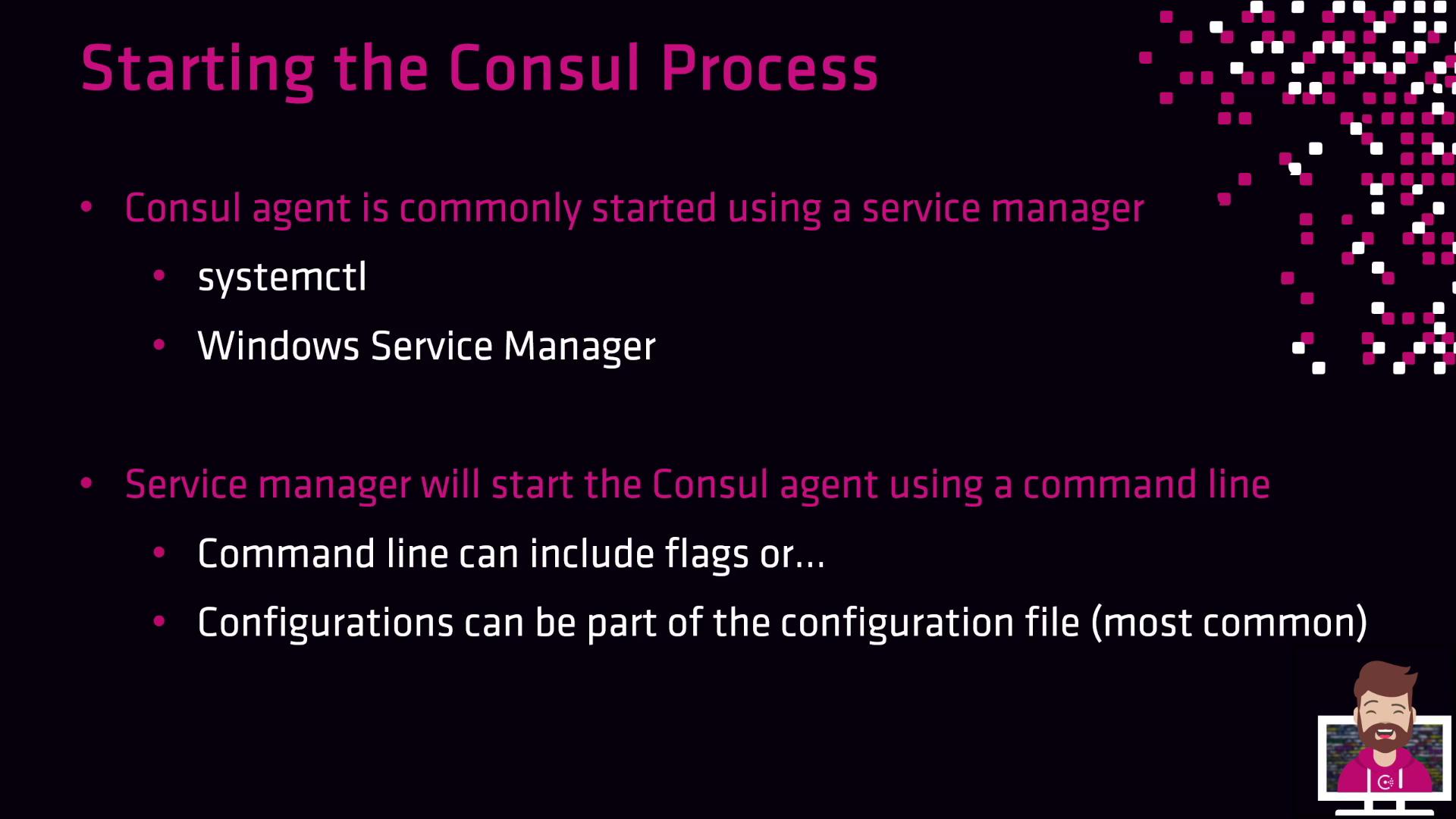
4. Development Mode
For quick testing or demos, start Consul in development mode. This is not recommended for production.- Runs entirely in memory (no disk persistence)
- Enables Connect (service mesh) on port
8502 - Suitable for single-node experiments
Ctrl+C.
Now you have the basics: installing Consul, writing configurations, and starting the agent in both production and development modes. Next up: service registration and health checks.