

Ensure you have the correct ACL token (Secret ID) before continuing. Without it, all management actions in the UI will be blocked.
Prerequisites
- A running Consul cluster or single server with ACL enforcement enabled
- Your ACL bootstrap token or another token with sufficient privileges
- Access to the Consul UI (node IP, load balancer, or
localhost)
Authenticating in the UI
- Open the Consul UI and click the ACL tab (highlighted in yellow).
- Paste your ACL Secret ID into the token field.
- Click Save.
Managing Tokens and Policies
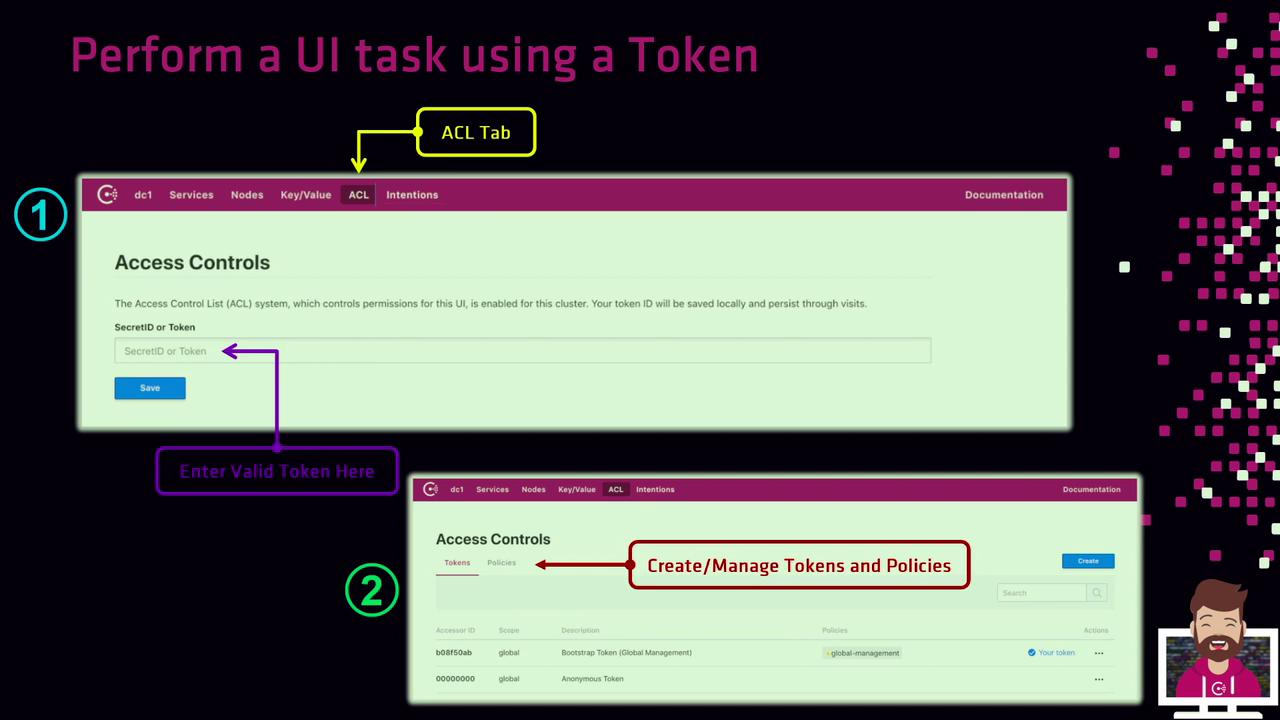
-
Tokens
- Click Create Token to issue a new token and bind it to one or more policies.
- Provide a name and select the policies that define its permissions.
-
Policies
- Click Create Policy to open the policy editor.
- Define rules using HCL syntax.
- Save the policy, then switch back to Tokens to issue tokens using your new policy.
Next Steps
- Explore the Services, Nodes, and KV tabs to verify your permissions.
- Automate workflows by using your token with the Consul CLI or API.
For complete ACL configuration and best practices, see the Consul ACL documentation.