

Example application change
Here is a small Flask app update you might push to demonstrate an automatic build trigger:Manual build (quick reminder)
To start a build manually from the OpenShift web console: open your BuildConfig and click Start Build. The build details will indicate it was triggered manually.Set up GitLab webhook to trigger builds automatically
OpenShift BuildConfig objects include atriggers section with several webhook options: a generic webhook, a GitHub webhook, and the ability to add GitLab or Bitbucket webhooks. To configure GitLab to notify OpenShift when you push code, follow these steps:
- In the BuildConfig view in the OpenShift console, go to Actions → Edit.
- Under Triggers, click Add Webhook and select GitLab as the webhook type.
- You must use a webhook secret to secure the webhook. If you don’t have one, click Create New Webhook to generate a secret for GitLab, then create it.
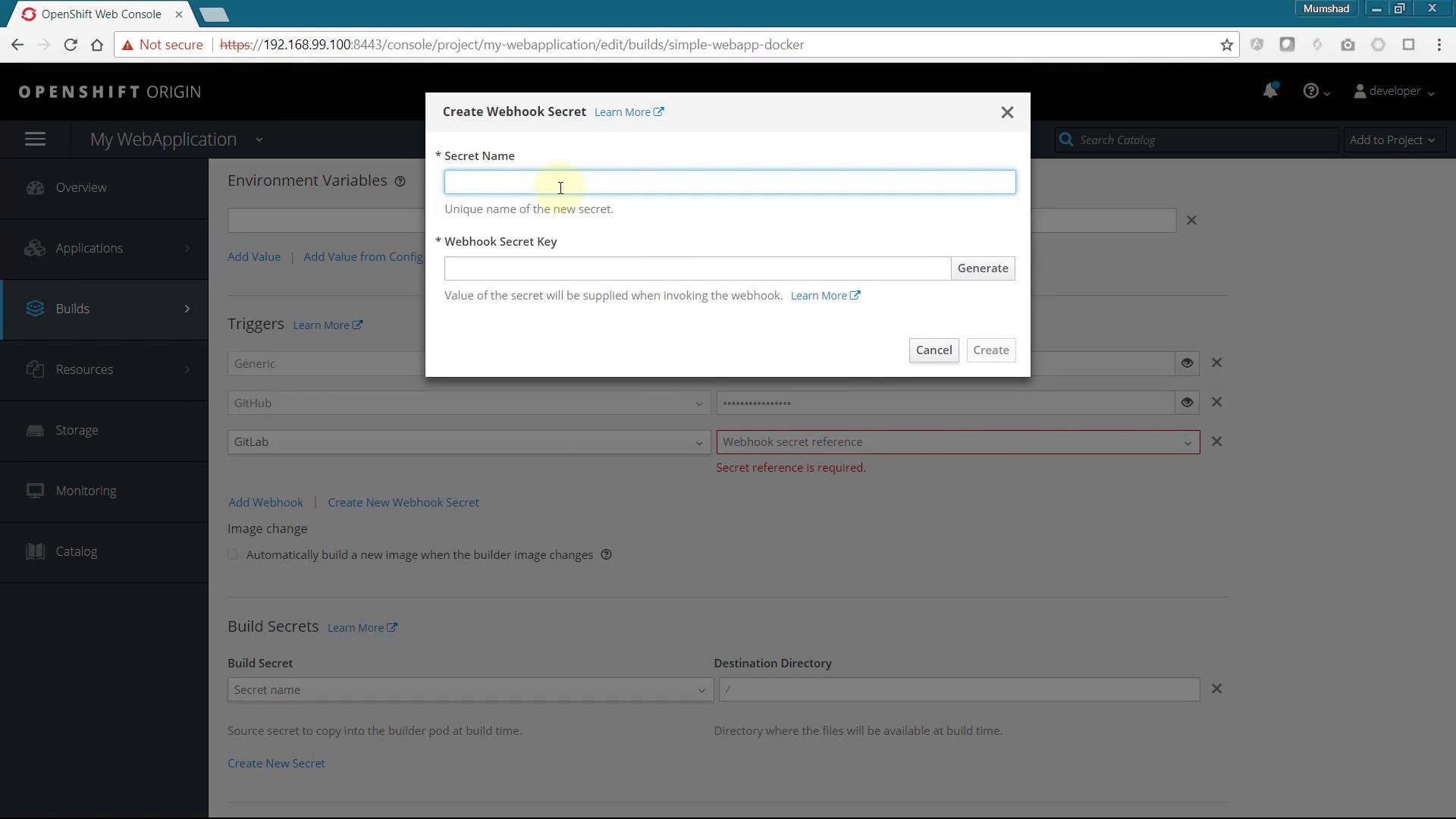
- Select the newly created webhook and save the BuildConfig. The GitLab webhook URL will now appear in the BuildConfig Triggers section — copy that URL.
- In your GitLab project, go to Settings → Integrations (or Webhooks) and paste the webhook URL into the URL field. The secret token is embedded in the URL, so you do not need to enter a separate token.
- For local development without a valid SSL certificate, uncheck Enable SSL verification before saving the webhook.
- Save the webhook and use the Test button to verify the connection.
Tip: The webhook URL includes the secret token, so keep it private. For production environments, leave SSL verification enabled and secure the webhook URL.
Troubleshooting: GitLab blocks requests to the local network
If you test the webhook from a GitLab instance that blocks outbound requests to local network addresses (common in local development), you may see an error in the GitLab logs indicating requests to local network addresses are blocked. Example log excerpt:Warning: For GitLab to reach a local OpenShift server, allow outbound requests to local network addresses in GitLab’s Admin Area. On the GitLab server go to Admin Area → Settings → Outbound requests and check Allow requests to the local network. Only enable this in trusted development environments.
Verify the build in OpenShift
Back in the OpenShift console you can watch the build progress. When it finishes, open the build details to confirm the trigger type — the build record will indicate it was started by a GitLab webhook.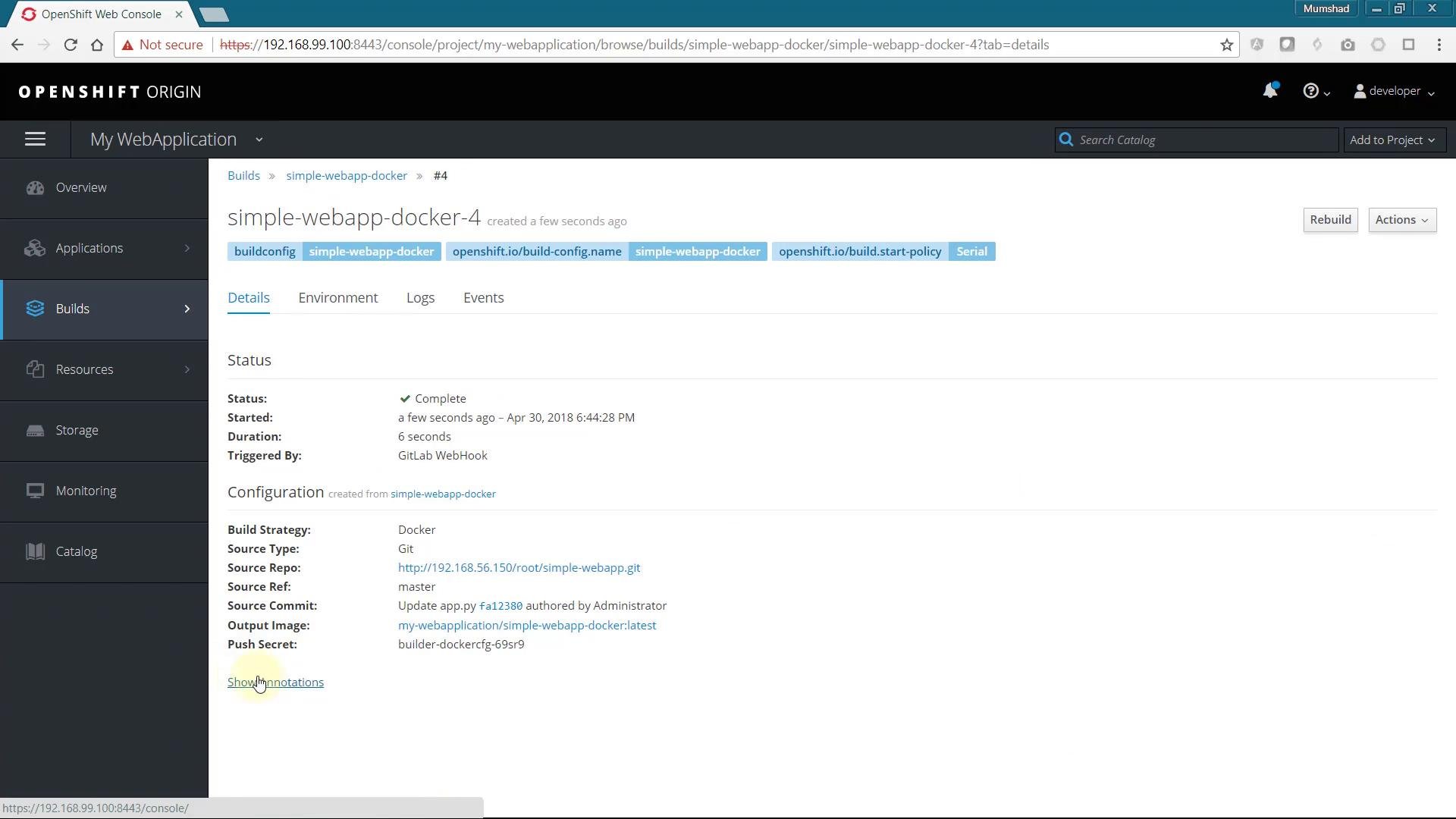
Quick reference
Links and references
- OpenShift Builds and BuildConfig concepts: https://docs.openshift.com/
- GitLab Webhooks documentation: https://docs.gitlab.com/ee/user/project/integrations/webhooks.html
- GitLab Admin settings for outbound requests: https://docs.gitlab.com/ee/administration/settings/outbound_requests.html