

oc CLI. You’ll learn how to use the console Catalog to deploy applications (for example, a Python app) and how to use the oc command-line tool bundled with Minishift to inspect and interact with a local OpenShift cluster.
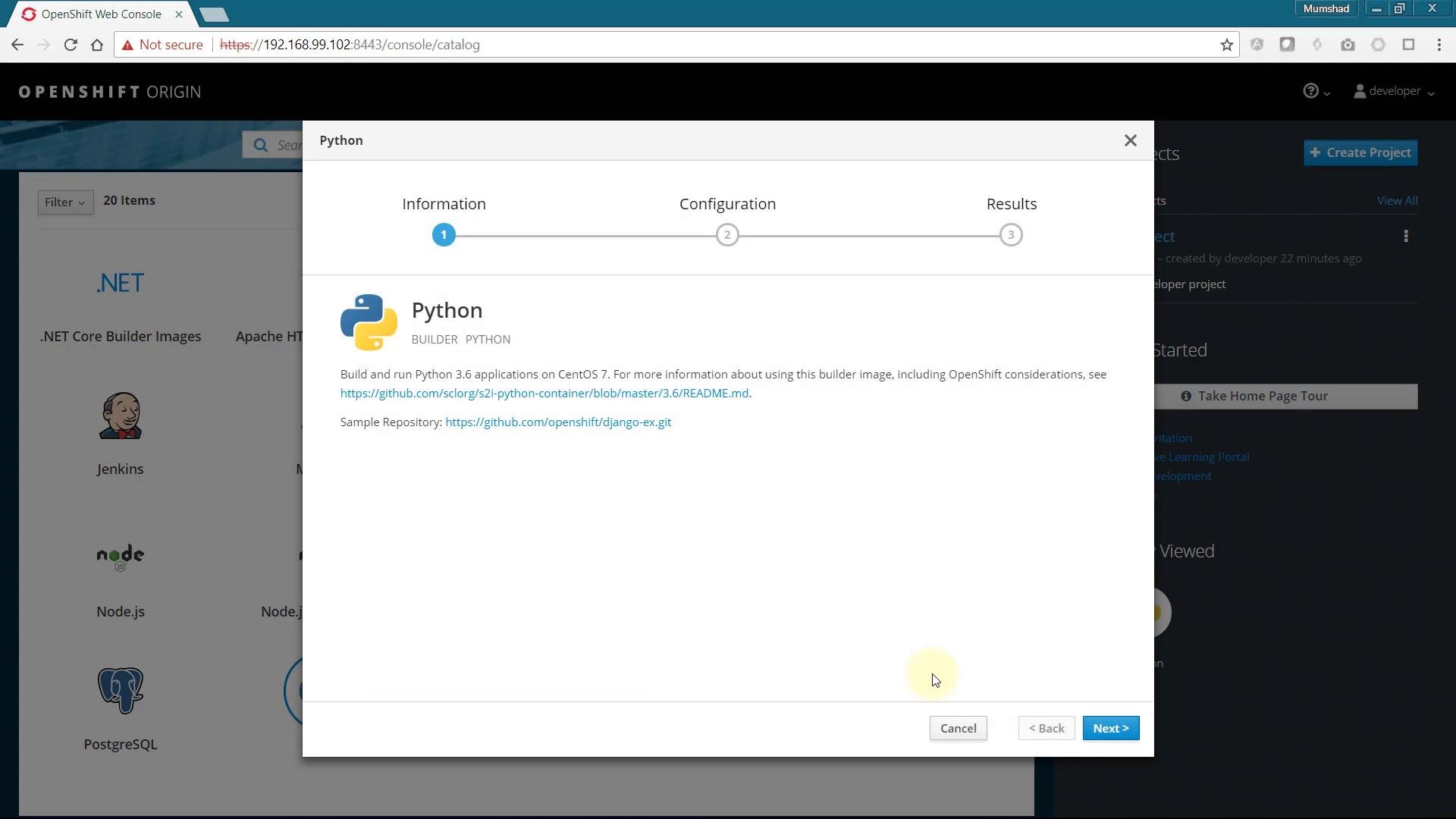
The OpenShift web console provides a catalog of pre-configured builder images and templates that make application deployment straightforward. To deploy a Python application, select the Python catalog item and follow the deployment wizard—enter the application repository or source, choose resource limits and environment variables, and finish the deployment.
Projects and the Add to Project workflow
On the console’s right-hand side you will see a list of Projects. By default, OpenShift creates a project named “My Project” (myproject) for the logged-in developer user. Use the “Create Project” button to add additional, named projects. Clicking a project opens the Project Overview, which shows:
- Applications and their current status
- BuildConfigs and DeploymentConfigs (build and deploy workflows)
- Routes and Services for network exposure
- Persistent storage and monitoring information
Getting the oc CLI
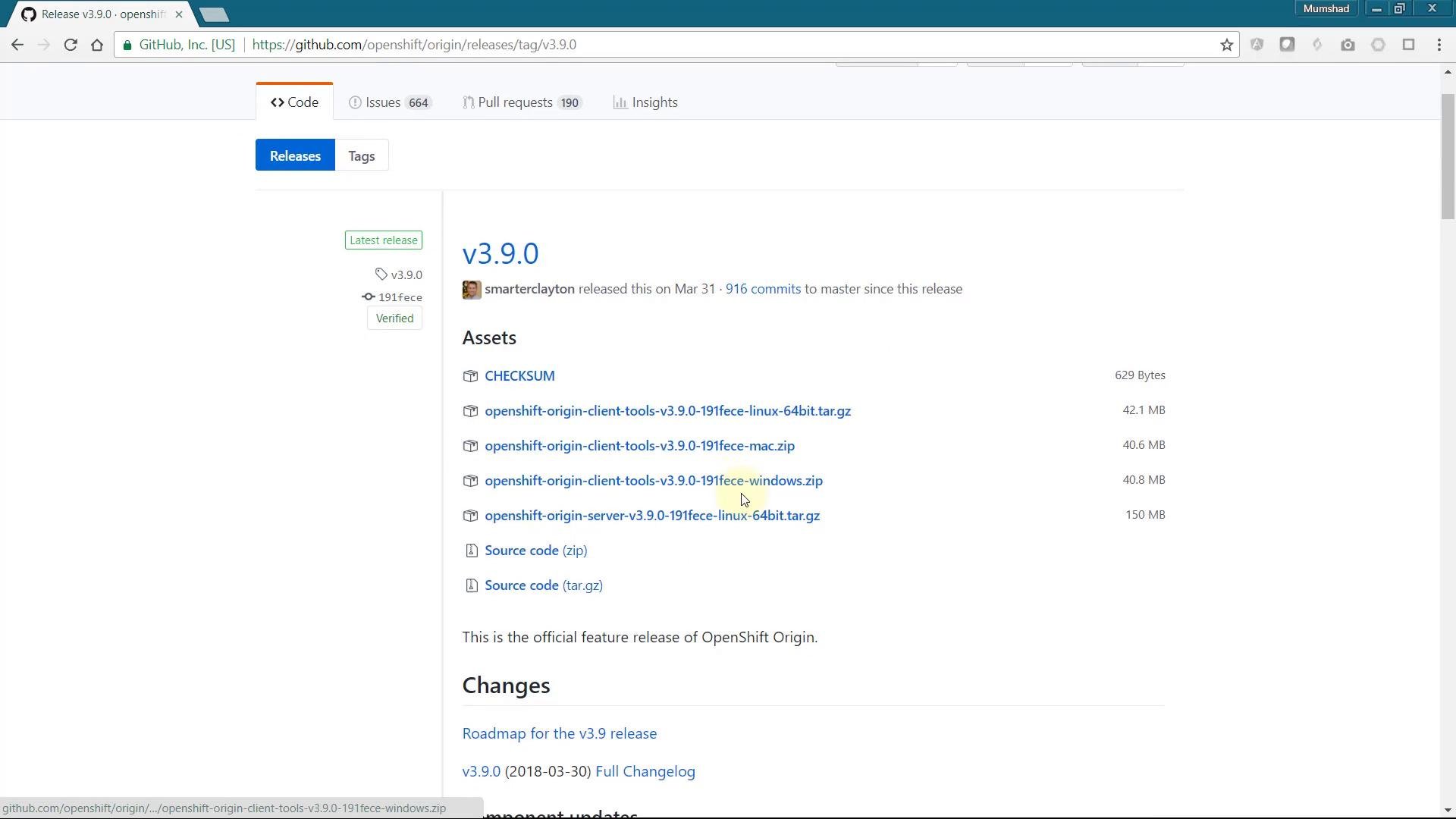
Theoc command-line tool is the primary CLI for interacting with OpenShift from your terminal. If you’re using Minishift, it includes a compatible oc client. If you are not using Minishift, you can download the OpenShift CLI from the web console Help menu:
- In the web console, open the Help menu (top-right) and choose Command Line Tools to find
ocdownloads and instructions.
oc binary locally and also prints the commands needed to configure your shell to use it. The following sections show a typical Windows CMD workflow when using Minishift.
Using the oc client bundled with Minishift
When Minishift starts it prints essential information including the web console URL and how to log in. Example (trimmed) Minishift start output:oc is not on your PATH, attempting to run oc from a shell that doesn’t have it configured will produce an error like this on Windows:
oc binary to your PATH, run minishift oc-env and evaluate the printed command in your shell. Example Minishift output on Windows CMD:
SET command printed by minishift oc-env to update PATH for the current session:
PATH you can log in as the cluster administrator:
system:admin user has cluster-wide privileges and can access all system projects.
Using the REST API with curl
OpenShift exposes a REST API that you can call directly. In OpenShift 3.x, older resources live under/oapi; newer APIs use /api or /apis. To list projects via the API you need:
- TLS handling (skip verification for local Minishift clusters with
-k, or provide the CA certificate with--cacert). - An Authorization header containing a valid Bearer token.
oc. Log in as the developer user and then get the token:
curl request to the Projects endpoint. For local clusters you’ll commonly use -k to skip TLS verification:
If you prefer not to use
-k with curl, retrieve the OpenShift CA certificate from the cluster and use curl --cacert <path-to-ca.pem> instead.Common commands and quick reference
Summary
- The OpenShift web console is a user-friendly way to browse builder images/templates and manage Projects and application resources.
- The
ocCLI (bundled with Minishift) enables scripting and automation for builds, deployments, and cluster administration. - Use
minishift oc-envto print the commands needed to configure your shell to use theocbinary shipped with Minishift. - Use
oc whoami -tto obtain a token that can be used withcurlwhen calling the OpenShift REST API.
Links and references
- OpenShift documentation: https://docs.openshift.com/
- Minishift project: https://github.com/minishift/minishift
- OpenShift CLI (oc) downloads and instructions: access via the web console Help → Command Line Tools