

oc command-line client, and the REST API — and includes practical examples and links to documentation for further reading.
There are three primary ways to interact with an OpenShift cluster:
- The web console — the most direct and user-friendly option.
- The command-line interface using the
occlient tool. - The REST API — useful for integrations, automation, and scripting.
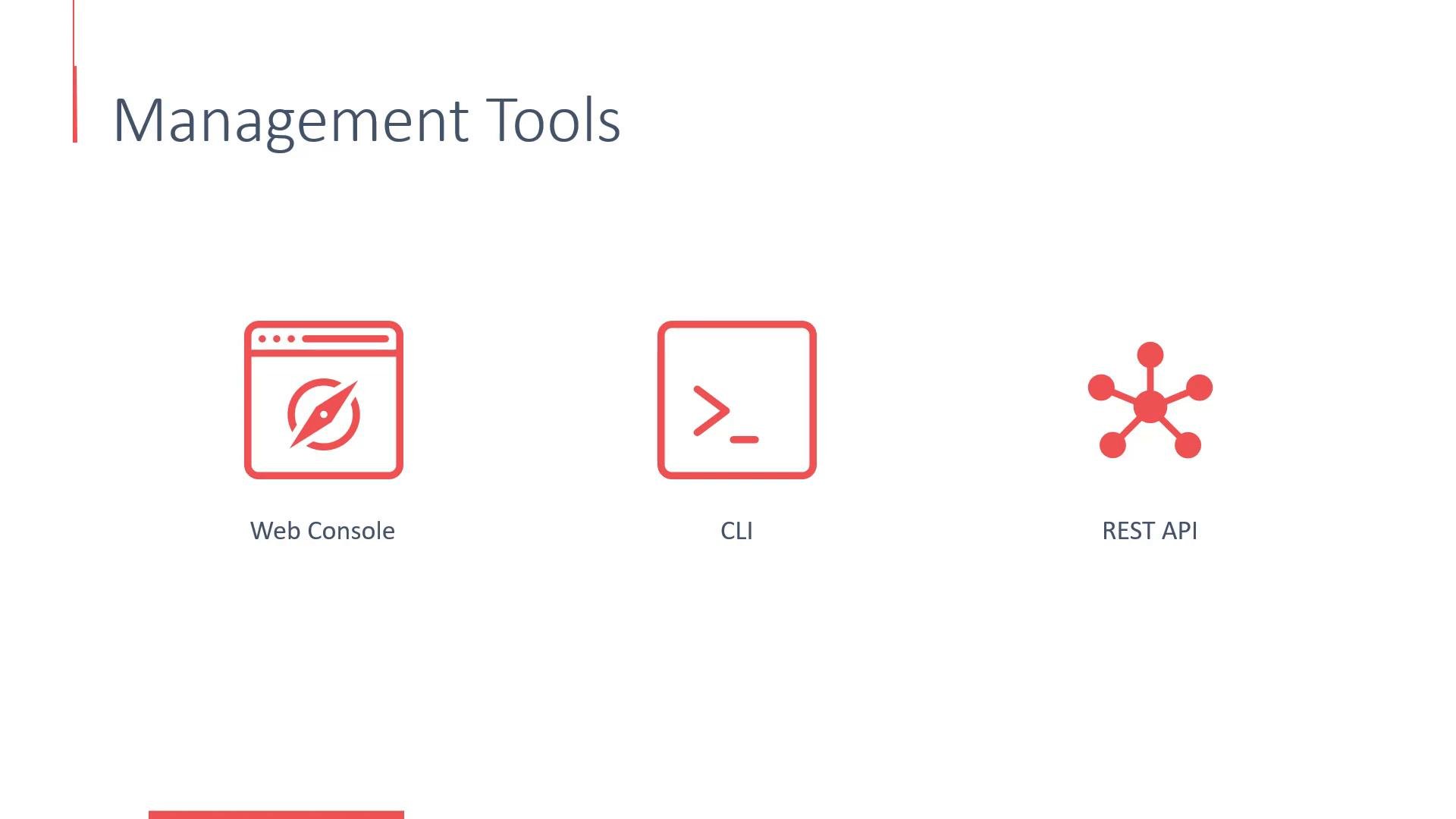
Quick comparison
Web Console
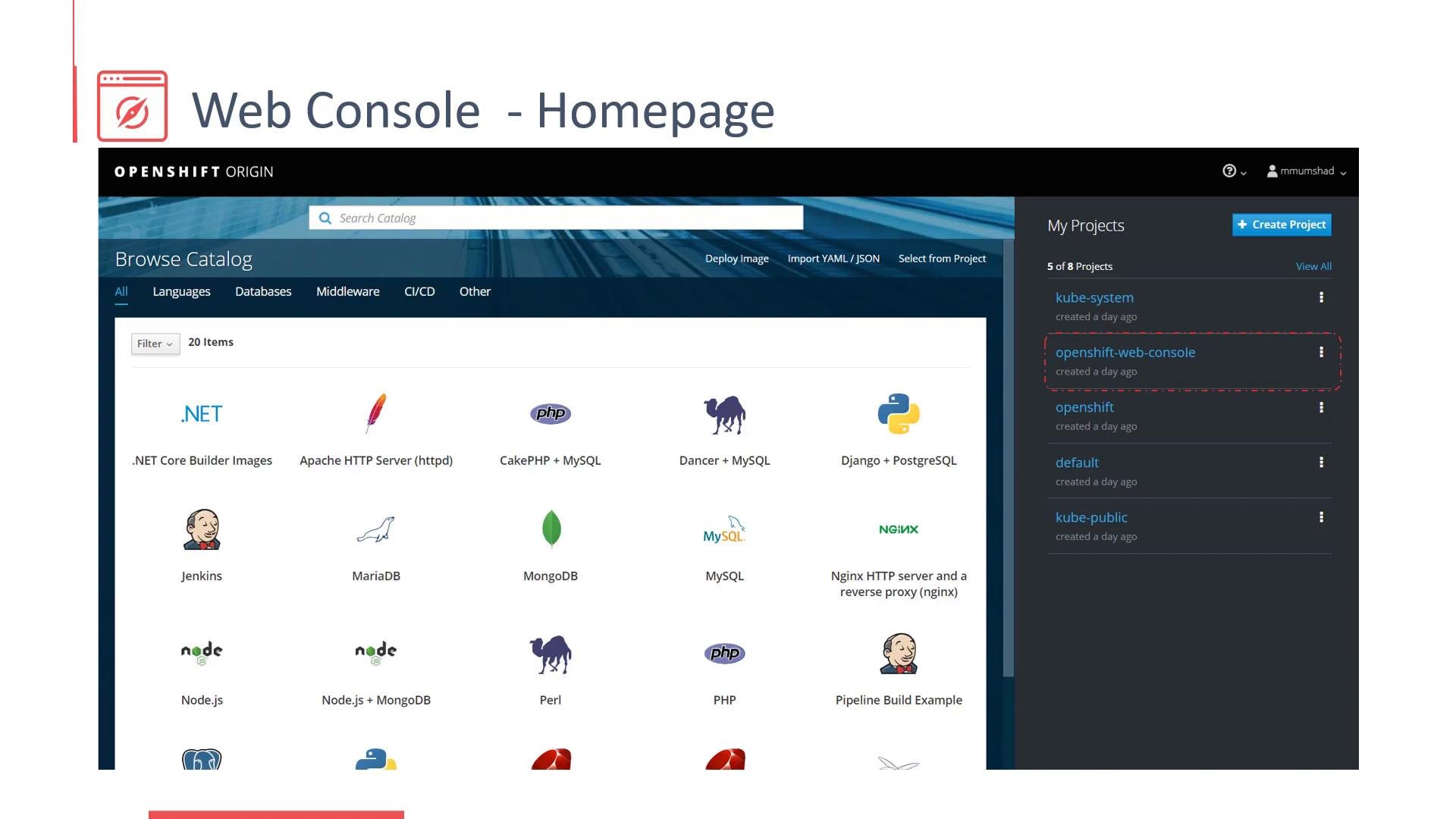
The OpenShift web console provides a browser-based UI for managing your cluster and applications. It is usually served over HTTPS. In many OpenShift 3.x setups the console listens on port 8443 (for example,https://<cluster-ip>:8443), though production deployments often expose it via a route or load balancer on standard HTTPS port 443 or a custom hostname.
Key capabilities available from the console:
- Create and manage projects (namespaces).
- Manage builds, deployments, and services.
- Configure routes and external access.
- Create and monitor CI/CD pipelines and build logs.
- Browse a service catalog of quickstart images and templates.
kube-system and openshift-web-console host internal components, including the console itself.
CLI (oc)
Theoc client is the primary command-line tool for interacting with OpenShift clusters. It works for both developers and administrators and is available for download from the OpenShift CLI docs:
https://docs.openshift.com/container-platform/3.11/cli_reference/openshift_cli/getting-started-cli.html
oc is included with local developer tools such as Minishift (OpenShift 3.x) or CodeReady Containers (CRC for OpenShift 4.x).
Common oc workflows:
- Authenticate and switch projects
- Start builds, follow build logs
- Create resources from templates and source repositories
- Inspect and tail logs, exec into running pods
- Admin tasks via
oc adm
ruby-ex:
oc commands
REST API
OpenShift exposes a RESTful API for programmatic access. This is ideal when building automation, CI pipelines, or integrations with external systems. In OpenShift 3.x, several endpoints live under/oapi (while Kubernetes core API endpoints are under /api or /apis).
Example: list users via the API (replace the token placeholder with a valid token):
oc login:
Token lifetimes depend on cluster configuration. Many clusters issue short-lived tokens (often 24 hours). For automation, consider service accounts or long-lived credentials configured according to your organization’s security policy.
For automation, prefer service accounts or OAuth tokens scoped to minimal privileges. Use the REST API for integrations and the
oc CLI for interactive tasks and scripted workflows.Wrapping up
This lesson covered the three primary OpenShift management options:- Web Console for visual management and the service catalog
ocCLI for developer and admin workflows- REST API for automation and integrations
- Explore the OpenShift web console and create a sample project.
- Use
oc new-appto build and deploy a small application and follow build logs. - Review the REST API documentation to learn how to query and script cluster operations.
- OpenShift CLI docs: https://docs.openshift.com/container-platform/3.11/cli_reference/openshift_cli/getting-started-cli.html
- OpenShift REST API: https://docs.openshift.com/container-platform/3.11/rest_api/index.html
- Kubernetes concepts: https://kubernetes.io/docs/concepts/