

Deployment concept recap
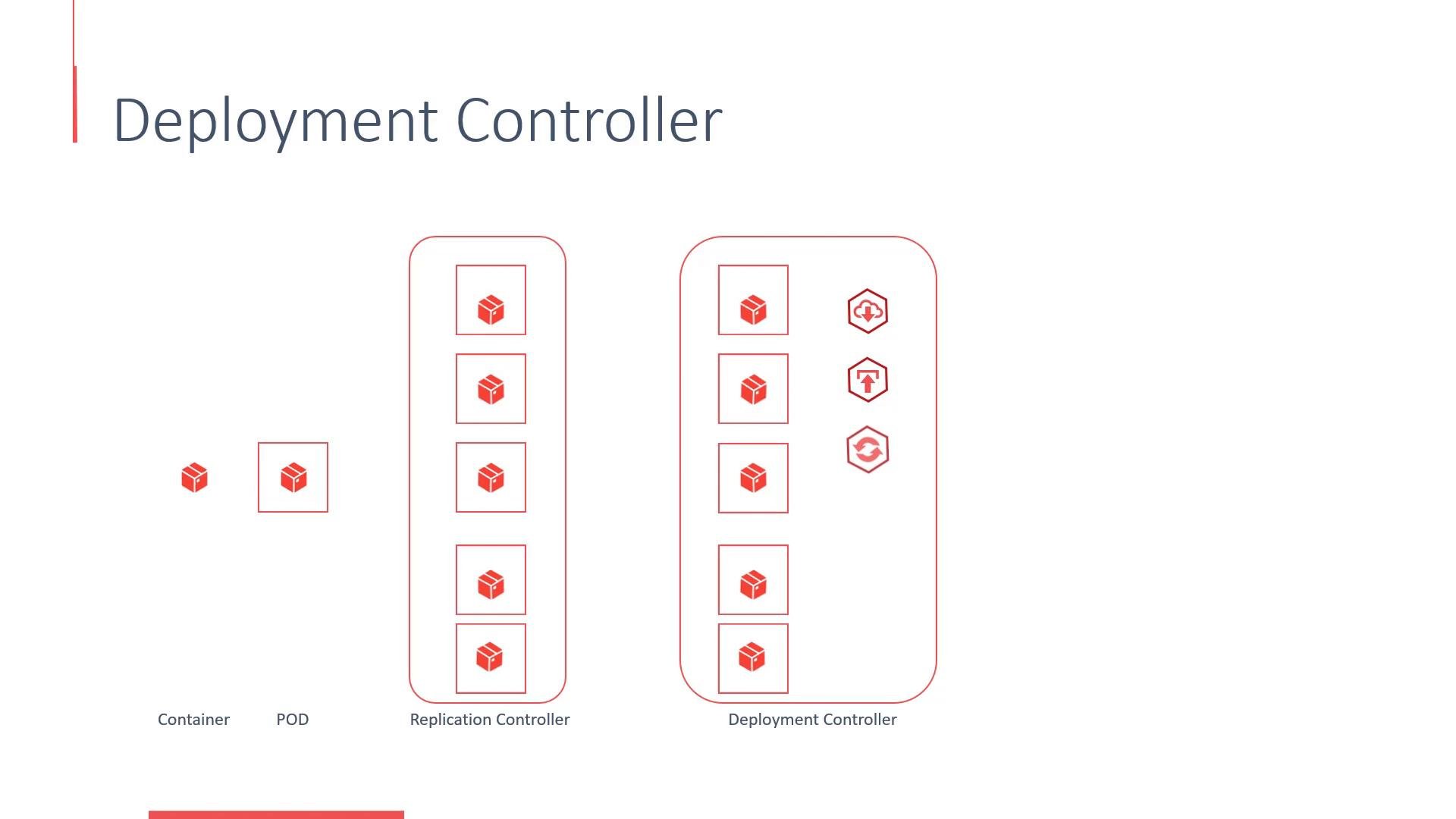
Deployments in OpenShift map closely to Kubernetes deployments but use OpenShift-specific API kinds and features. Briefly, the object hierarchy is:- Container image (built with Docker or S2I)
- Pod — the smallest deployable unit (one or more containers)
- ReplicaSet / ReplicationController — ensures the desired number of Pod replicas
- Deployment / DeploymentConfig — manages lifecycle (rolling upgrades, rollbacks, revision history)
OpenShift workflow: BuildConfig, ImageStream, DeploymentConfig
When you add an application to a project in OpenShift, the platform typically creates:- A BuildConfig — defines how the image is built.
- An ImageStream — a logical reference to images produced by builds.
- A DeploymentConfig — controls application deployment and lifecycle.
- Manual: Click Deploy in the UI or use the CLI to trigger.
- Automatic: An image change trigger starts a deployment when the ImageStream tag referenced by the DeploymentConfig is updated (for example, when a build completes).
DeploymentConfig (kind:
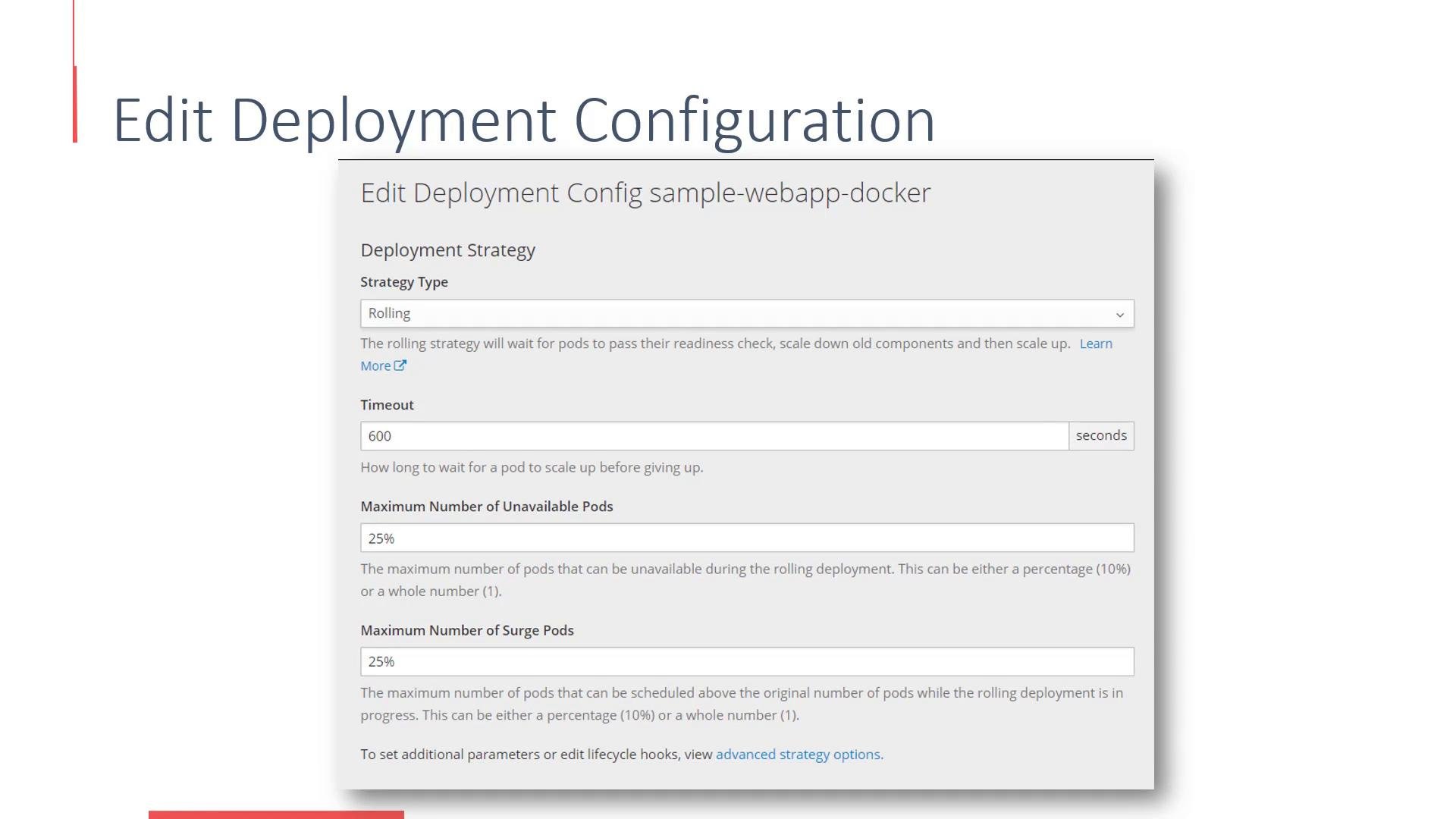
DeploymentConfig) is OpenShift-specific and provides image-change triggers and lifecycle hooks. Kubernetes uses kind: Deployment; many fields are similar, but the API kinds and some behaviors differ.maxUnavailable, maxSurge, etc.) from the console when configuring rolling or recreate behavior.
Deployment history and rollback
The OpenShift web console preserves deployment history. Each deployment increments an internal version number. To roll back, choose an earlier version in the history and select Roll Back.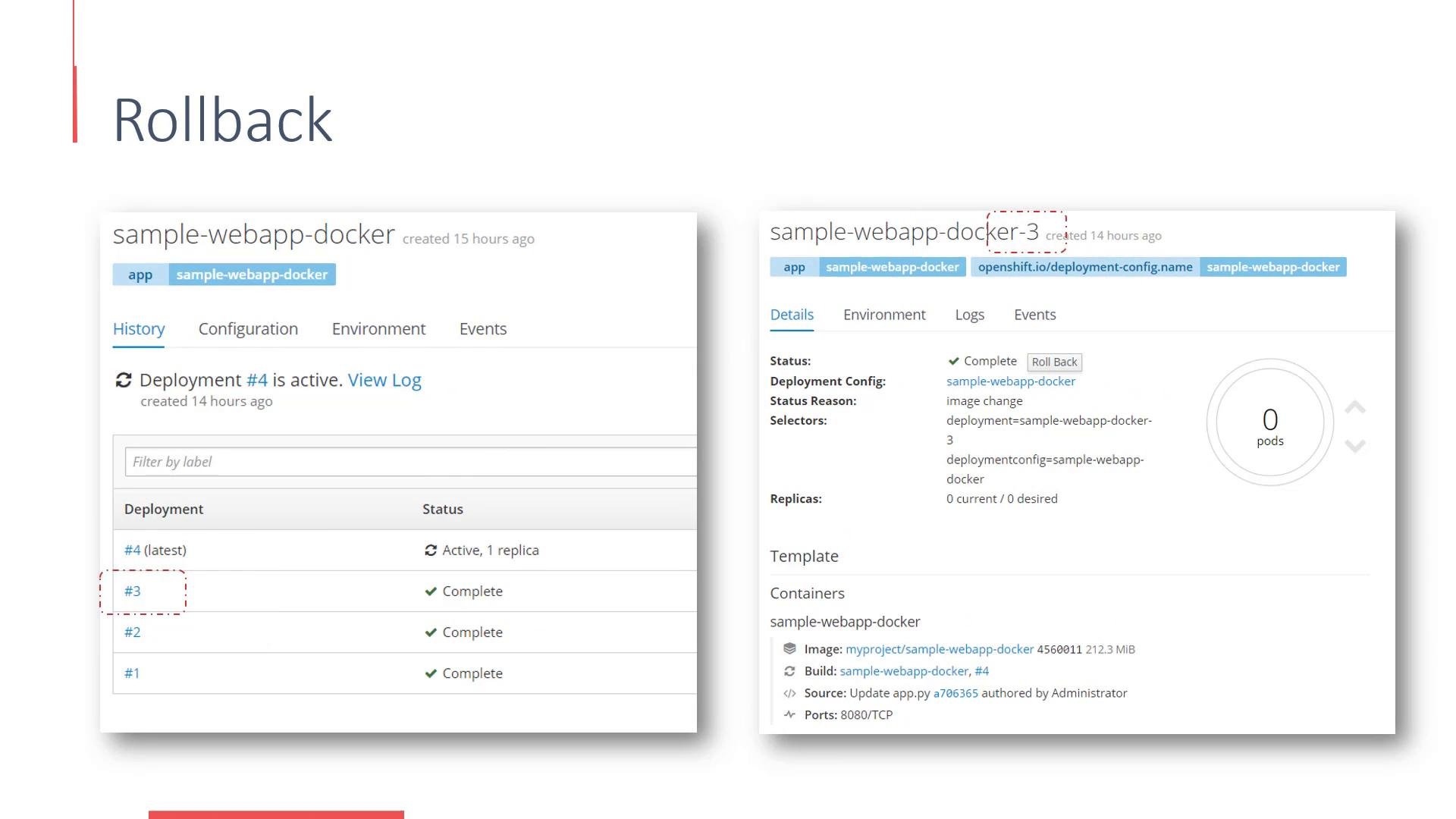
Deployment strategies
- Recreate: Terminates all existing Pods, then creates new Pods for the updated version. Suitable when you cannot run multiple versions concurrently, but it causes downtime during the transition.
- Rolling (default): Updates Pods incrementally so the application remains available. If you don’t choose a strategy, OpenShift uses Rolling by default.
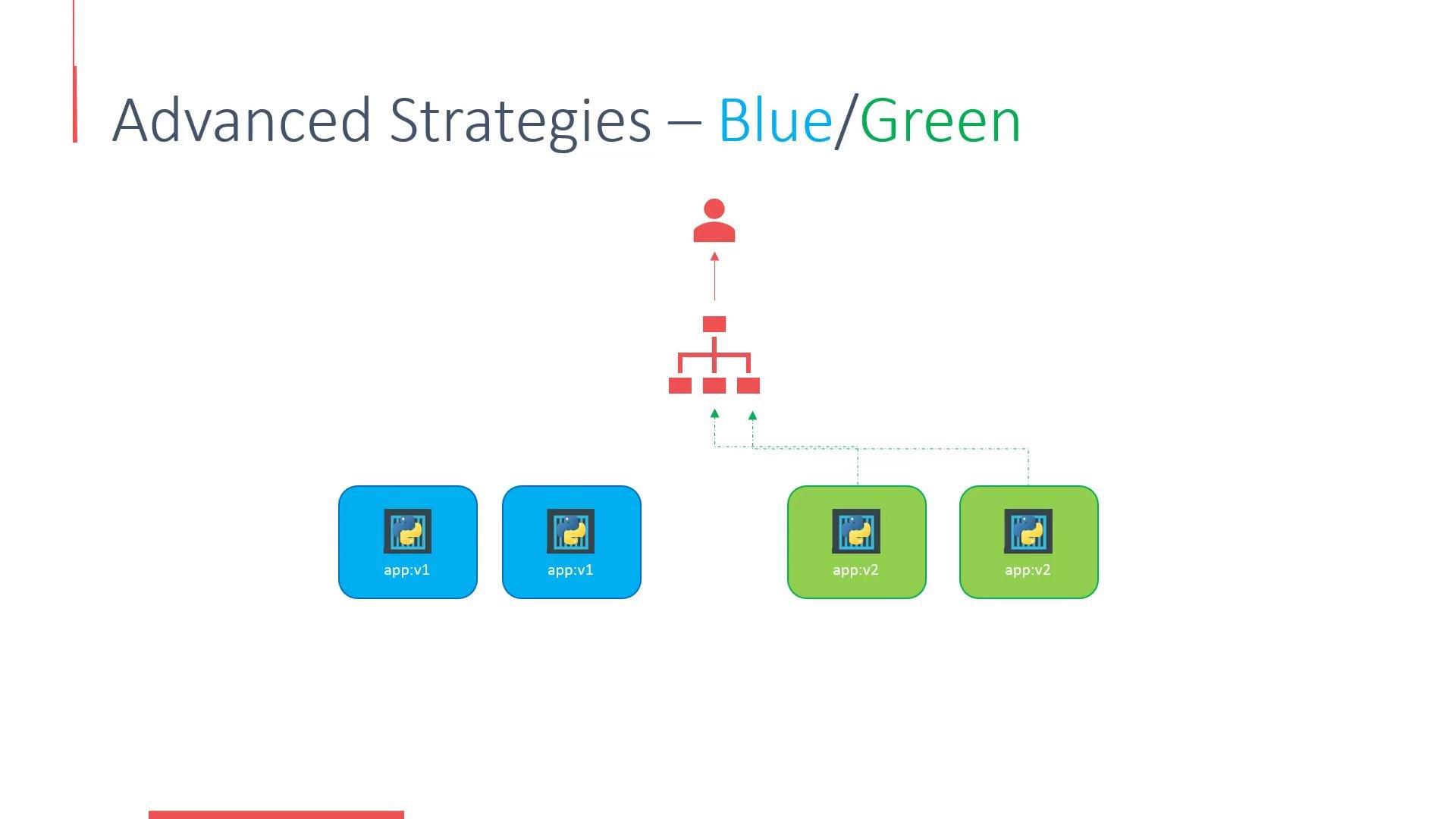
- Blue/Green: Deploy a separate “green” environment alongside the current “blue” one. Test green, then switch traffic from blue to green (for example, via router or load balancer configuration).
- A/B (traffic-splitting): Route a small percentage of real traffic to the new version and monitor metrics. Gradually increase traffic until the new version receives full load.
Automatic image-change triggers can start deployments as soon as a build finishes. If you need predictable rollout timing, consider disabling the automatic trigger and triggering deployments manually with
oc rollout latest.Common rollout commands
- Trigger a manual rollout
- View rollout history or status
- Roll back to a prior revision
- Inspect the DeploymentConfig resource
Example CLI summary:
Further reading
- OpenShift Documentation: https://docs.openshift.com/
- Kubernetes deployments reference: https://kubernetes.io/docs/concepts/workloads/controllers/deployment/
- ImageStream & BuildConfig concepts in OpenShift