Hello, and welcome to this lesson on OpenShift 3 for the Absolute Beginners. In this lesson we cover OpenShift templates and the Catalog — what they are, how they bundle multiple resources, and how to author and publish your own templates so users can provision complete application stacks in one step. When you log in to the OpenShift web console, the interface that presents various deployment options is the Catalog. Earlier lessons created individual BuildConfigs, DeploymentConfigs (or Deployments), Services, and ImageStreams. Catalog items in the console are pre-packaged combinations of those objects that deploy a complete application stack in one go. Let’s inspect the Django + PostgreSQL catalog item as an example. This catalog item packages together multiple OpenShift objects, including:
  • A BuildConfig to build the application image.
  • An ImageStream to tag and track the resulting image.
  • A DeploymentConfig (or Deployment) to run the web application.
  • A DeploymentConfig to run PostgreSQL.
  • Services to expose the database to the application and the application internally.
  • A Route to expose the application to external users.
  • A Secret used to store and pass the database credentials securely.
  • A set of template parameters shown in the web console wizard (application name, namespace, Git repository, etc.).
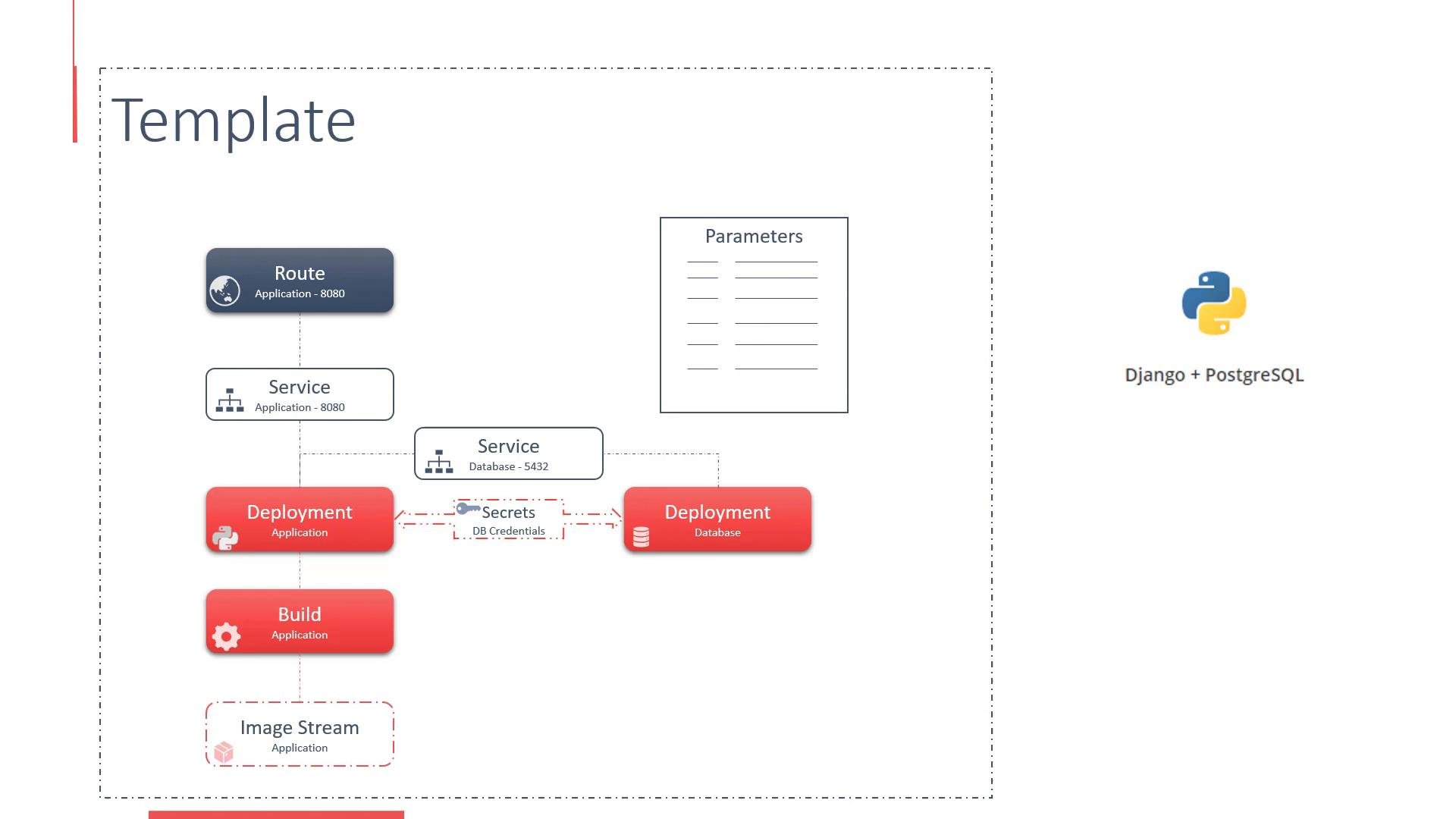
All of these components are packaged into a single Template so a user can provision a ready-to-run application stack from the catalog in one step.
A schematic application deployment diagram inside a dashed border showing Route, Services, Deployments, Build, Image Stream, Secrets, and a Parameters panel. On the right is a Python/Django logo labeled "Django + PostgreSQL" indicating the tech stack.
You can author your own templates and add them to the Catalog so others can instantiate them via the web console or the CLI. How a template is created A Template is a YAML (or JSON) document that aggregates multiple resource manifests and declares parameters that users can supply when instantiating the template. When processed, OpenShift creates each object listed in the template’s objects array and substitutes parameter values where specified. Minimum structure of a Template YAML
Key points
  • The objects array contains the resource manifests that will be created when the template is processed.
  • Use template parameters (e.g., ${APP_NAME}) inside manifests to substitute user-provided values at instantiation time.
  • Secrets remain OpenShift Secret objects; templates usually parameterize sensitive values or generate them during instantiation.
  • Avoid including runtime-only fields (for example status, metadata.resourceVersion, metadata.uid) when converting exported resources into template objects.
Components commonly packaged in application templates Creating and registering a template
  1. Save your Template YAML (for example template-config.yml).
  2. Create the template in your project with:
Example output:
If you need to build a template from existing resources, export the resource manifests from your project, then clean them up and replace concrete values with parameters:
When adapting exported manifests:
  • Remove runtime fields such as status, metadata.resourceVersion, metadata.uid, and metadata.creationTimestamp.
  • Replace environment-specific values with template parameters (for example replace my-app with ${APP_NAME}).
  • Ensure any ${PARAM_NAME} used in the template is declared in the parameters section.
When parameterizing manifests, use \${PARAM_NAME} (e.g., ${APP_NAME}) inside the YAML so OpenShift will substitute those values at instantiation time. Also avoid including runtime-only fields such as status or resourceVersion when adding exported resources to a template.
Instantiate a template Users can instantiate a template from the web console (Catalog wizard) or from the CLI. Example CLI instantiation:
Or process + create:
Links and references That’s it for this lesson — you should now understand how Templates and the Catalog let you package, parameterize, and re-use full application stacks in OpenShift.

Watch Video