

spec.replicas field.
In demos so far we used a single replica. You can change the replica count by editing the object’s YAML, but the OpenShift web console provides a quick interactive way to scale up or down with one click. Traffic is automatically distributed to replicas by a Service (for cluster-internal traffic) or by the Router (for external traffic).
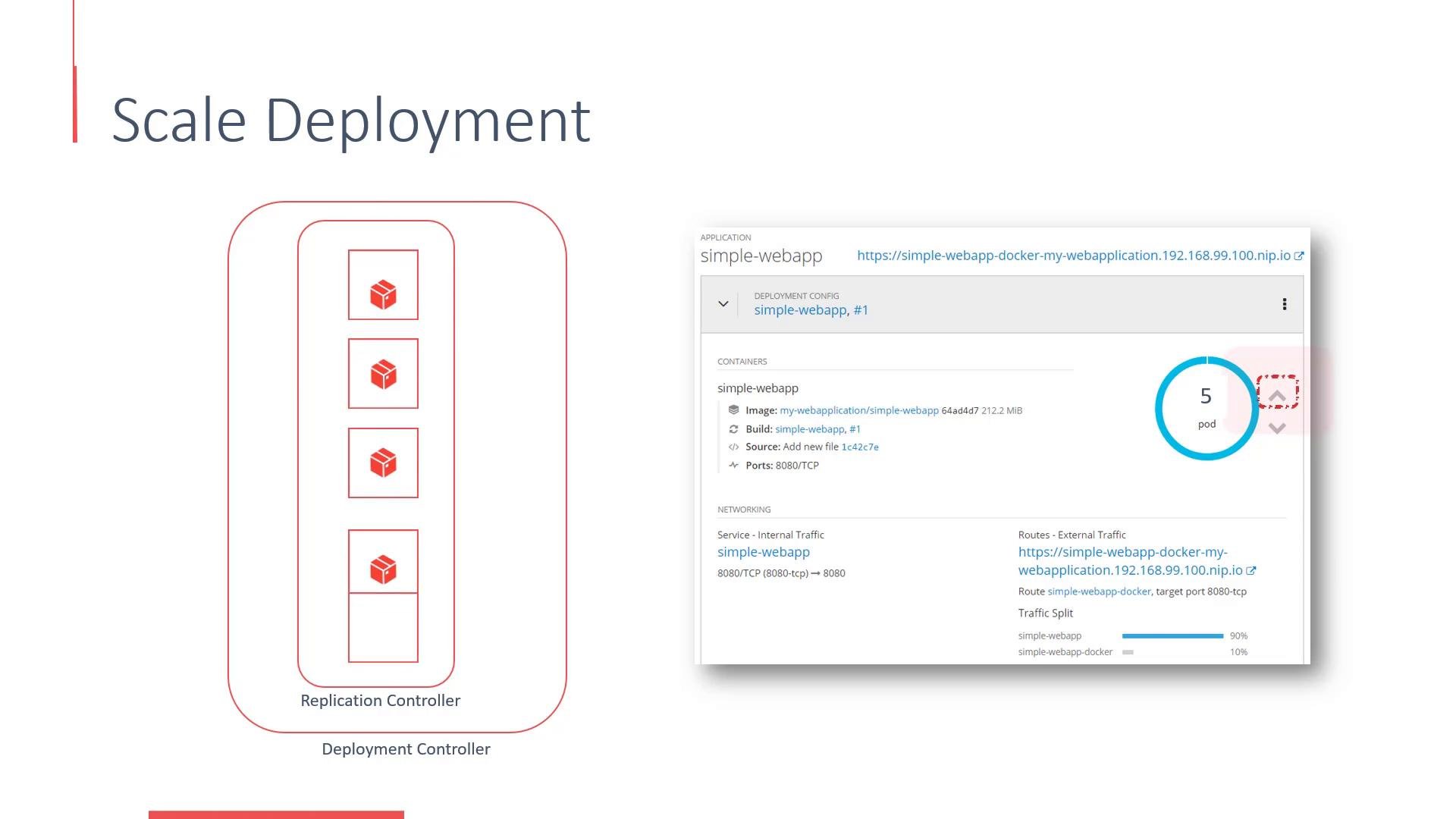
You can scale interactively in the web console for quick changes. Use the
oc CLI for repeatable, scriptable operations and automation.Common methods to scale
This section shows common ways to scale a DeploymentConfig or a Deployment in OpenShift: using the web console, usingoc to scale/edit/patch, and enabling Horizontal Pod Autoscaling.
1) Scale using the oc CLI
Scale a DeploymentConfig directly:2) Edit the YAML directly
Open the resource in your editor, change thespec.replicas value, save and exit. OpenShift will reconcile and create or terminate pods as needed.
Edit a DeploymentConfig:
spec.replicas in the file contains the desired count.
3) Patch the resource (quick one-liner)
Useoc patch to update replicas without opening an editor:
4) Enable autoscaling (Horizontal Pod Autoscaler)
OpenShift supports Horizontal Pod Autoscaling for DeploymentConfigs and Deployments. Theoc autoscale command creates a HorizontalPodAutoscaler that scales based on metrics such as CPU utilization.
Example:
Commands quick reference
When editing live resources, be mindful of production traffic. Changing replicas may disrupt session-affine workloads unless you use sticky sessions or an external session store.
Notes on traffic distribution
- A Service that fronts your pods will automatically load-balance traffic across available replicas.
- For externally exposed applications, the Router (OpenShift’s ingress point) distributes requests across Service endpoints (the pods).
- Ensure readiness probes are configured so traffic is only sent to healthy pods.
Troubleshooting tips
- If new pods remain in Pending, check node capacity with
oc get nodesand pod events withoc describe pod <pod-name>. - If pods start but never become Ready, inspect logs and probe configurations:
oc logs <pod-name>oc describe pod <pod-name>
- For HPA issues, confirm metrics are available (metrics-server or Prometheus adapter as required).
Summary
- Scaling changes the
spec.replicasvalue of a DeploymentConfig or Deployment. - Web console scaling is convenient for ad-hoc changes; the
ocCLI is best for automation. - Use
oc scale,oc edit, oroc patchto adjust replicas from the CLI. - Use
oc autoscaleto add Horizontal Pod Autoscaling based on CPU (or other supported metrics). - Services and the Router handle traffic distribution across replicas automatically.