

Why use MCP vs a direct API integration
MCP is about reuse and standardization. A direct API integration is usually one-to-one: you build an adapter per service and per model. MCP lets you expose tools through a common protocol so multiple models or agents can call the same tool without each needing a bespoke connector.Example: AI chat that sends email via an MCP tool
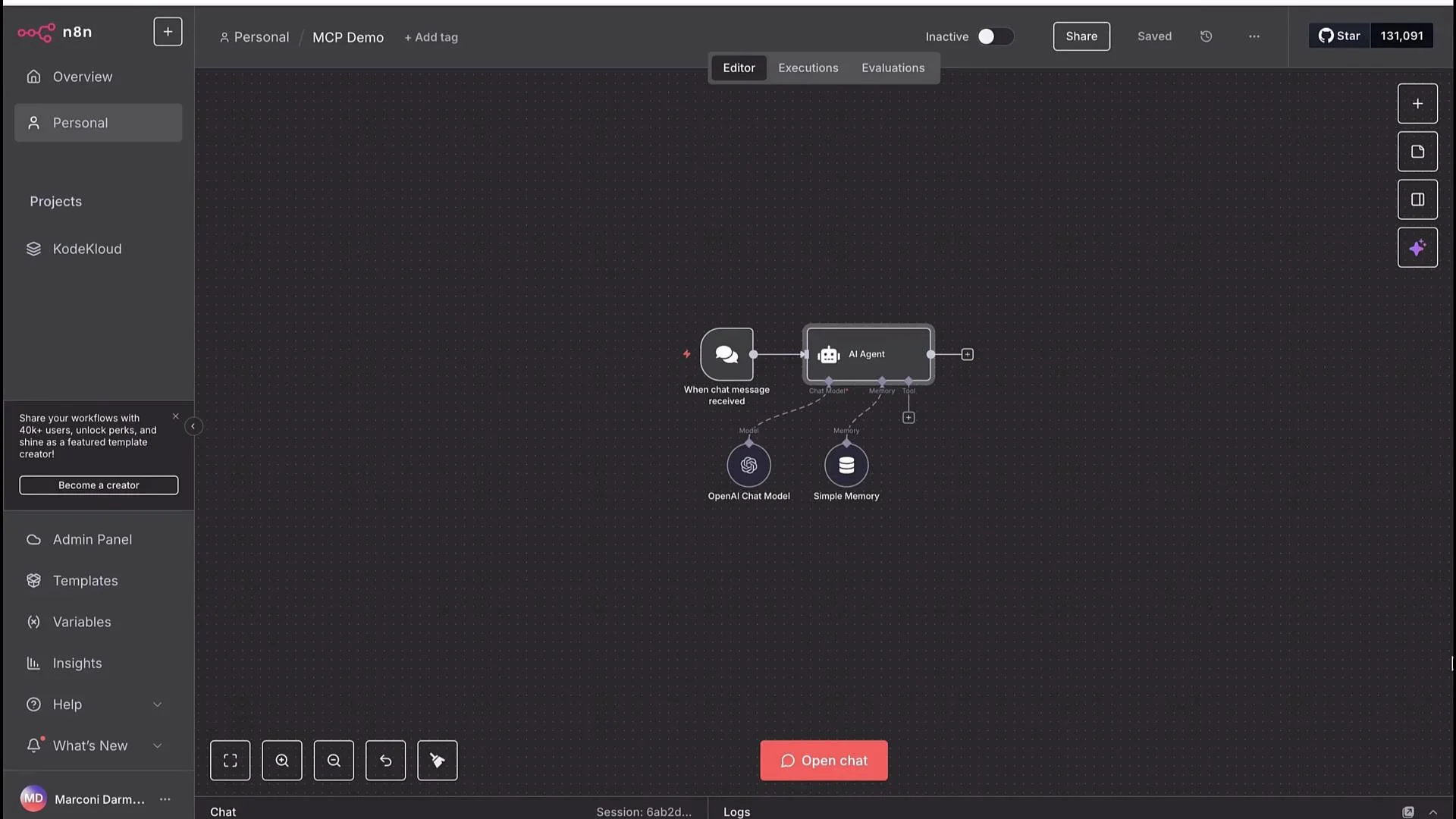
This walkthrough shows how a chat-based AI (OpenAI chat model) can use an MCP Client tool to request sending an email, and how an MCP Server Trigger in n8n receives that request and executes a Gmail node. High-level steps (we follow these in the same workflow for clarity):- Start with a chat trigger → AI Agent → memory (Simple Memory) flow.
- Add an MCP Server (MCP Trigger node) to accept client calls.
- Add an MCP Client tool to the AI Agent configuration and point it at the MCP Server URL.
- Configure server transport (HTTP Streamable recommended) and authentication.
- Run the workflow, send a chat prompt, and observe the server executing the Gmail action.
1) Add an MCP Server Trigger
Add the MCP Trigger node to act as your server endpoint. The trigger exposes a Test URL and a Production URL — functionally similar to webhooks — which the MCP Client will call.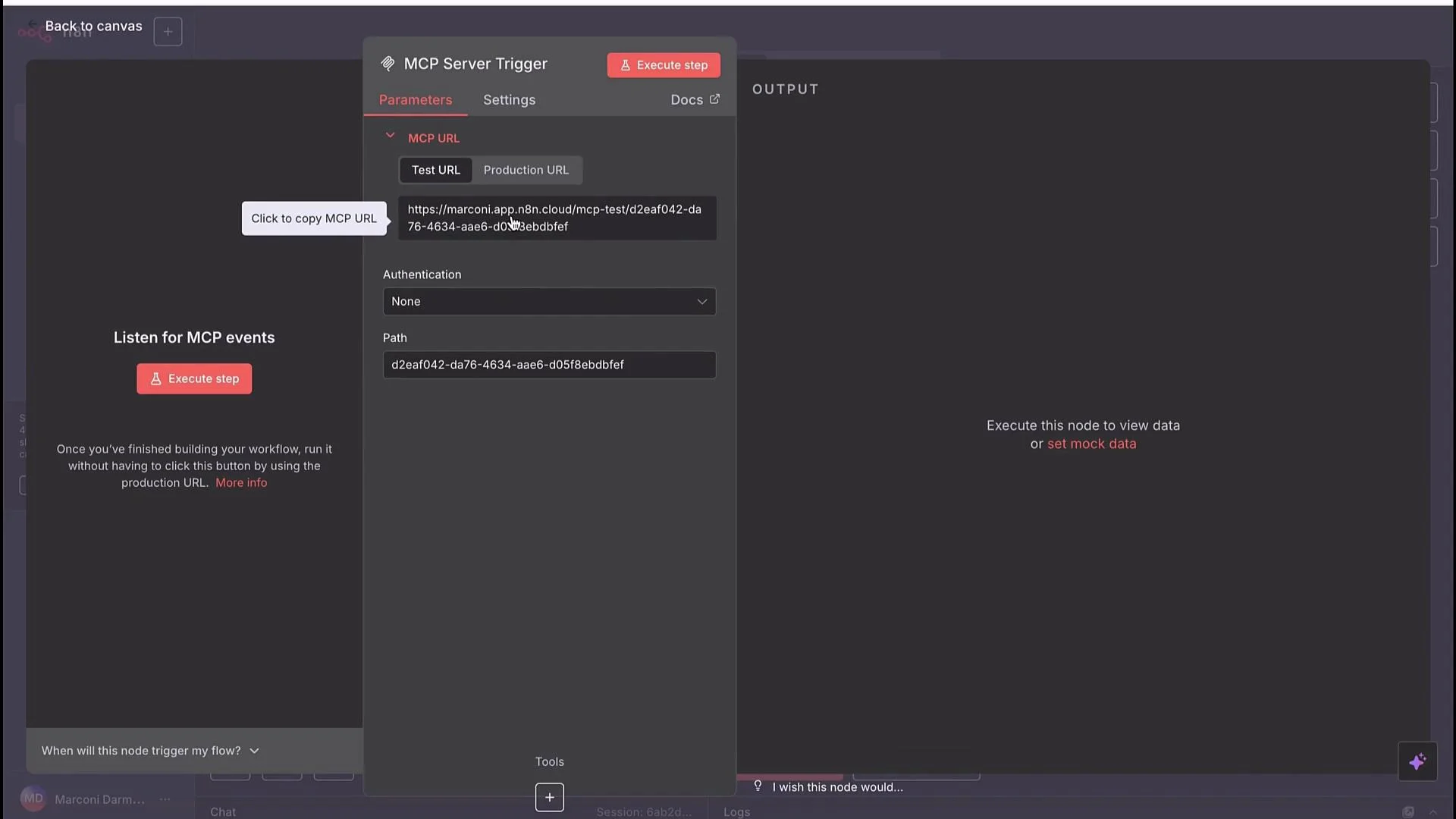
Leaving your MCP Server unsecured (no authentication) is acceptable only for local demos. For any shared or production environment enable authentication and secure your endpoints.
2) Configure the MCP Client in the AI Agent
Open the AI Agent’s tool configuration and add an MCP Client. Paste the MCP Server Test URL into the client’sendpoint field so the client knows where to send tool calls.
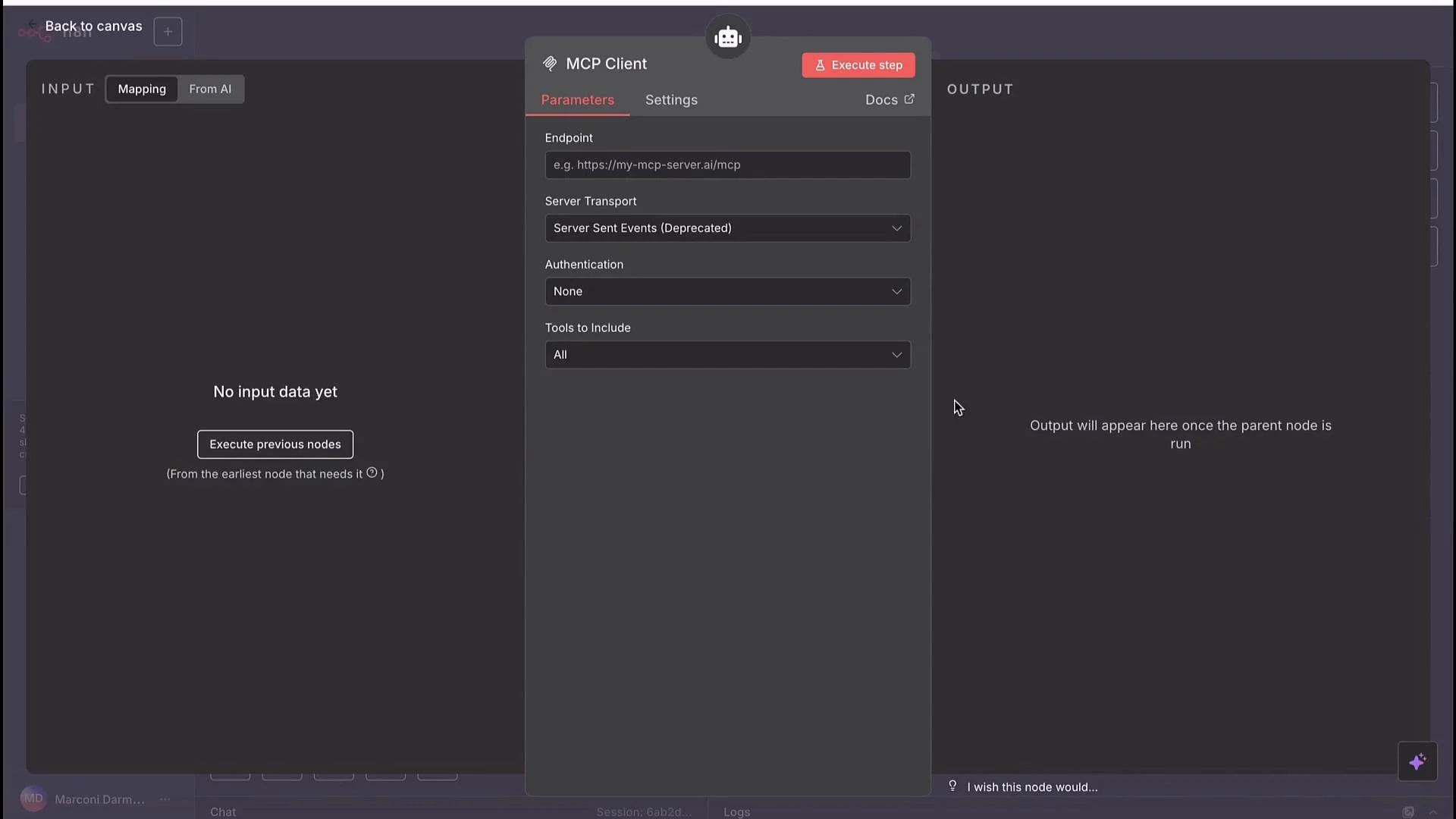
SSE uses a persistent connection for server-to-client events. HTTP Streamable streams responses over chunked HTTP, allowing the client to start processing partial results as they arrive. For new n8n setups, choose HTTP Streamable.
- Set Server Transport to
HTTP Streamable. - If the MCP Server requires credentials, configure matching authentication on the MCP Client; otherwise set to
Nonefor demos.
3) Inform the model about the tool (system message)
Tell the model that a tool is available and when to use it: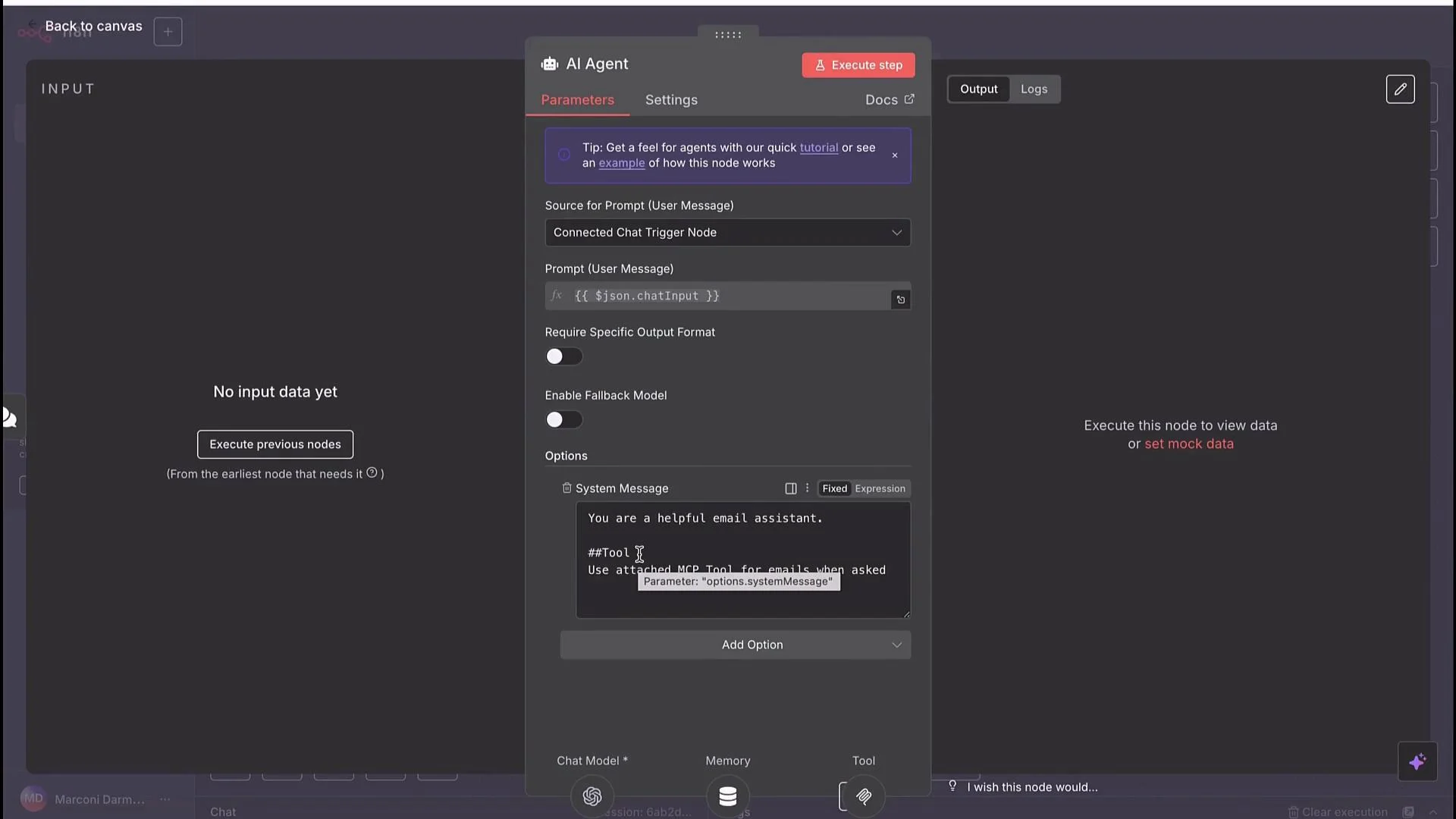
4) Run the flow and trigger the model
Execute the workflow and send a chat prompt to the agent. Example prompt: “Hi, can you send an email to marconi.zammo@codecloud.com regarding my appointment on Thursday from Jason.” When the model decides to use the tool, it will call the MCP Client, which forwards the request to your MCP Server Trigger. The server executes the configured tool — in this demo, a Gmail action that composes and sends the email using the Gmail node’s account.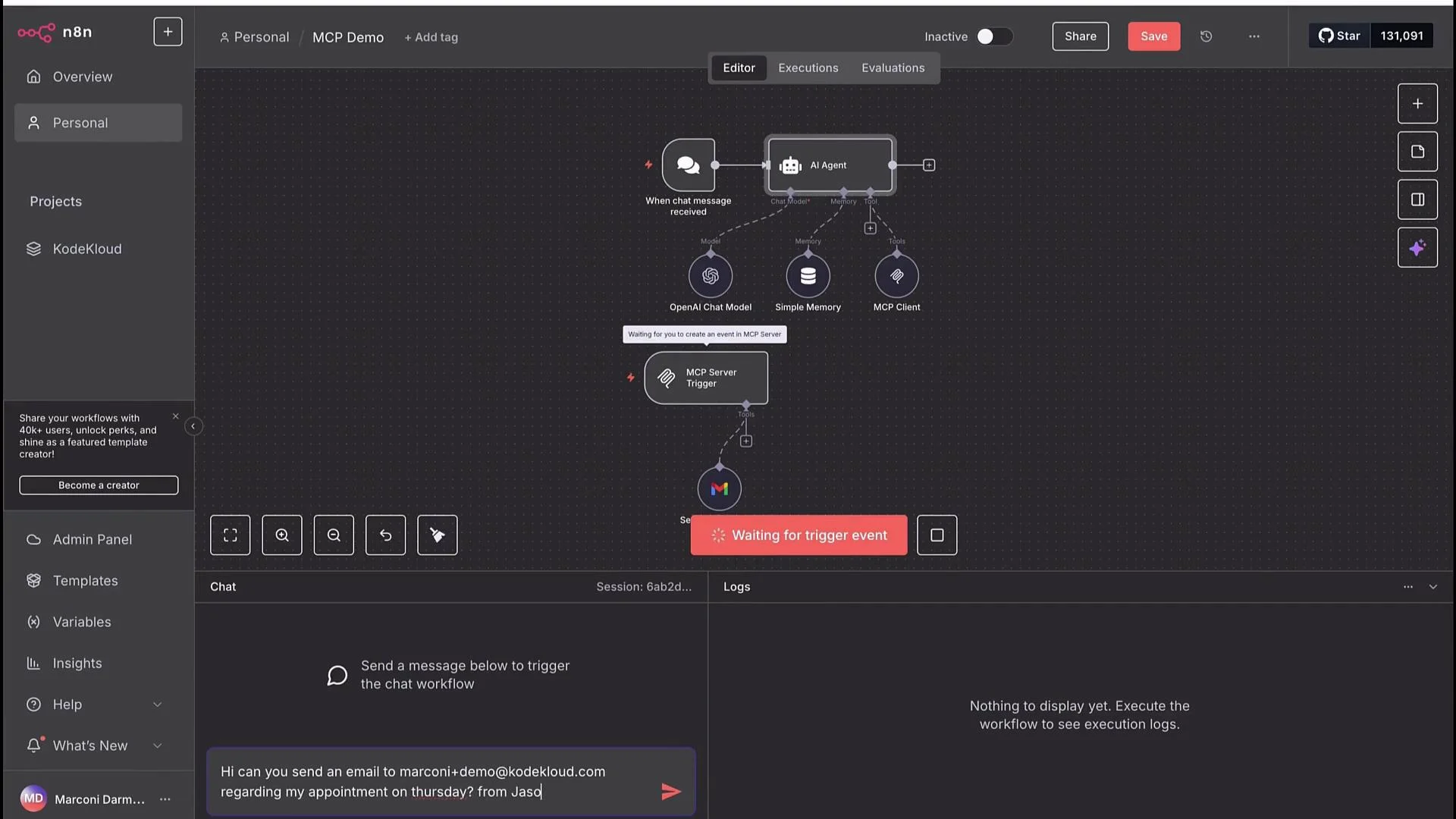
Troubleshooting and tips
- If the MCP Client can’t reach the server: verify the Test URL, confirm the server is active, and check any authentication settings.
- If partial responses are missing or delayed: confirm Server Transport is set to
HTTP Streamableand your n8n instance supports it. - For complex email generation: add fields in the system prompt or use a follow-up step to collect subject, salutation preferences, or signatures.
Links and references
- n8n Documentation: https://docs.n8n.io/
- OpenAI Platform docs: https://platform.openai.com/docs
- For the MCP spec and community resources, check your platform or vendor documentation that describes Model Context Protocol implementations.