This lesson compares running n8n inside the KodeKloud lab playgrounds with running on n8n Cloud. The workflow you’ll build is the same in both environments — an Email AI Agent triggered by chat messages — but the credential configuration and a few behaviors differ. Below you’ll find a streamlined walkthrough that highlights the exact steps needed to get the workflow running in the KodeKloud lab, plus tips to avoid common credential pitfalls.
Lab instances are ephemeral: the owner account (email, first name, last name, password) you create is temporary and tied to that lab session only. Feel free to reuse different credentials for different lab runs.
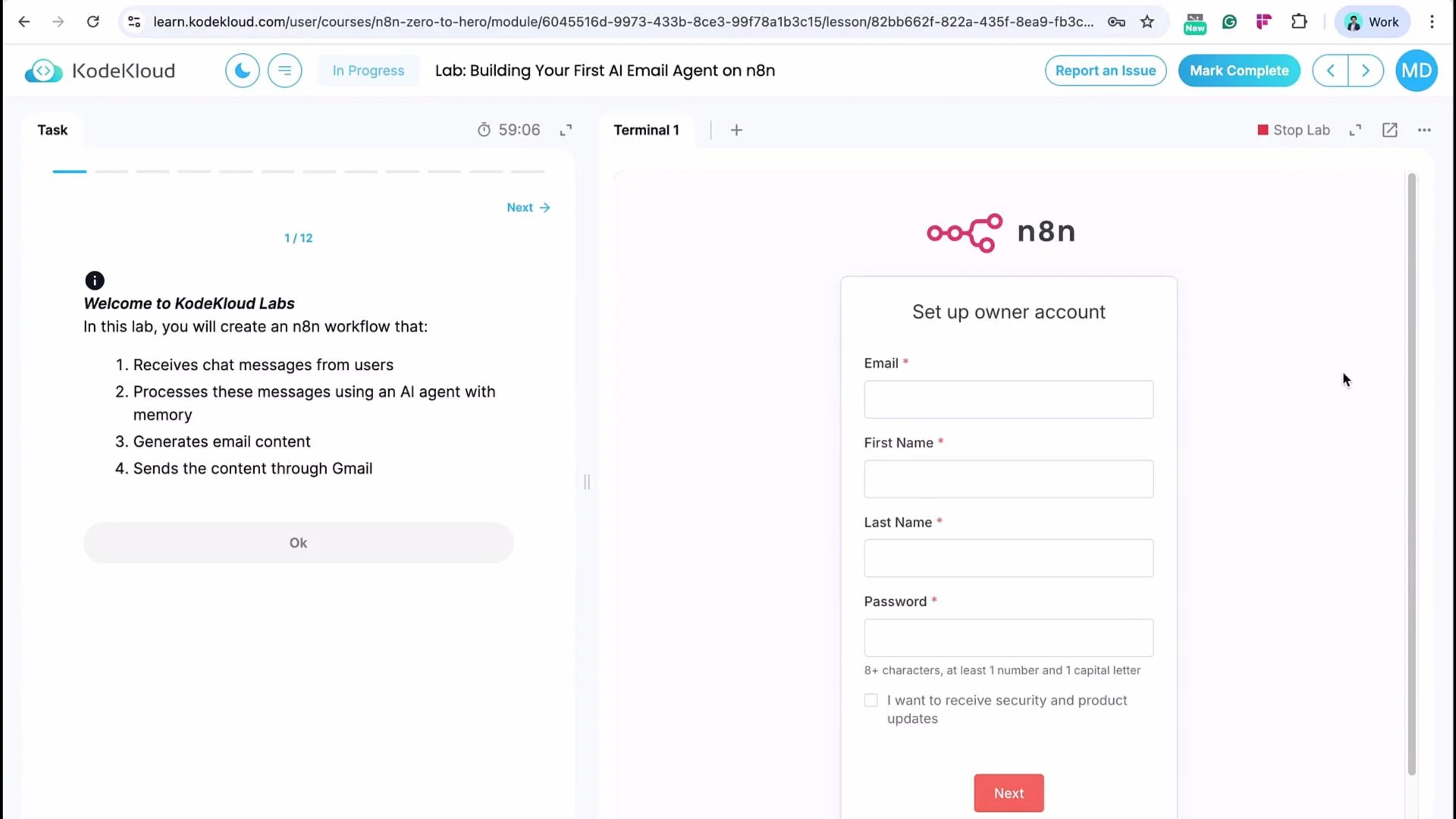
The image shows a KodeKloud Labs interface for a lab on building an AI email agent with n8n, alongside a setup form for creating an owner account.
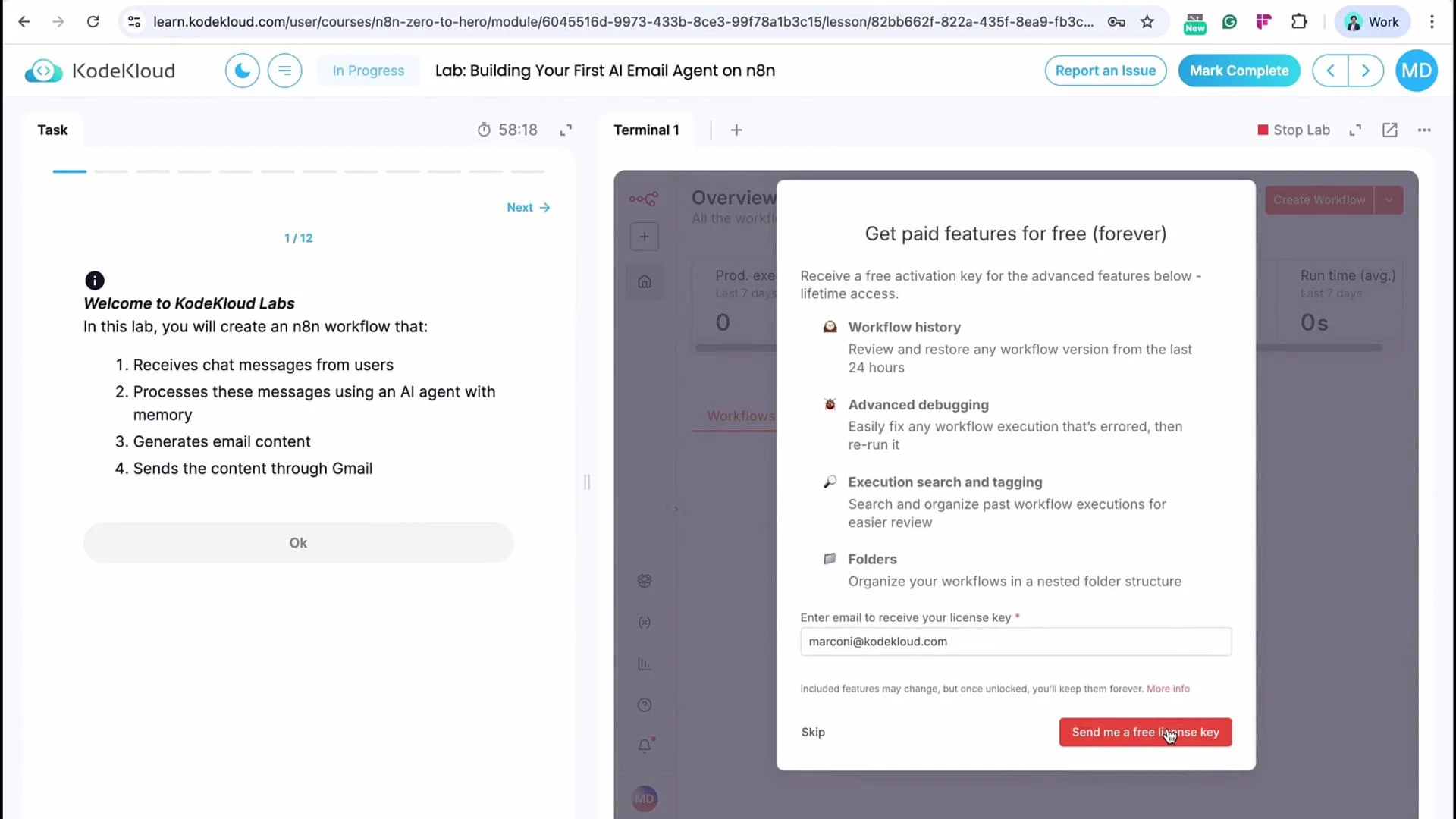
After completing the account form, click Next. You can skip the onboarding screens (select Get Started) and bypass any paid-features prompts.
The image shows a KodeKloud lab interface where users can create a workflow with steps involving AI processing and sending emails. A pop-up offers free activation for advanced features like workflow history and debugging, with an email input field for the license key.
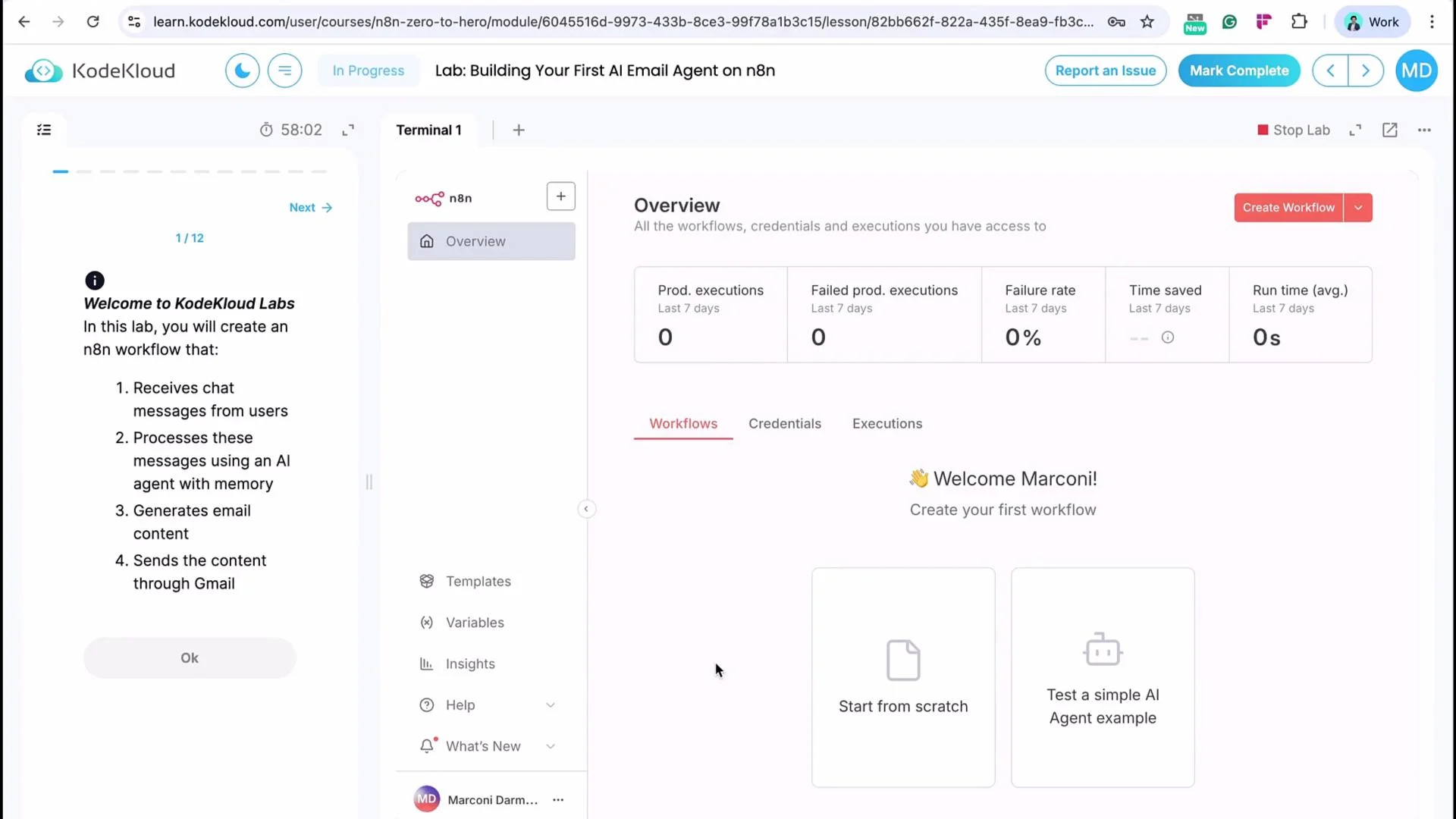
You will land on the n8n admin dashboard provided by the lab. It looks like n8n Cloud, but the available nodes, credential behavior, and some integrations may differ.
The image shows an online lab interface from KodeKloud for creating an n8n workflow, providing an overview of executions and an option to start a new workflow. It guides users to build a workflow that processes chat messages using an AI agent and sends email content.

Start the workflow

  1. Click Start from Scratch.
  2. Build a simple Email AI Agent:
    • Trigger: Chat Trigger
    • Chain: Chat input → AI model node → Gmail node
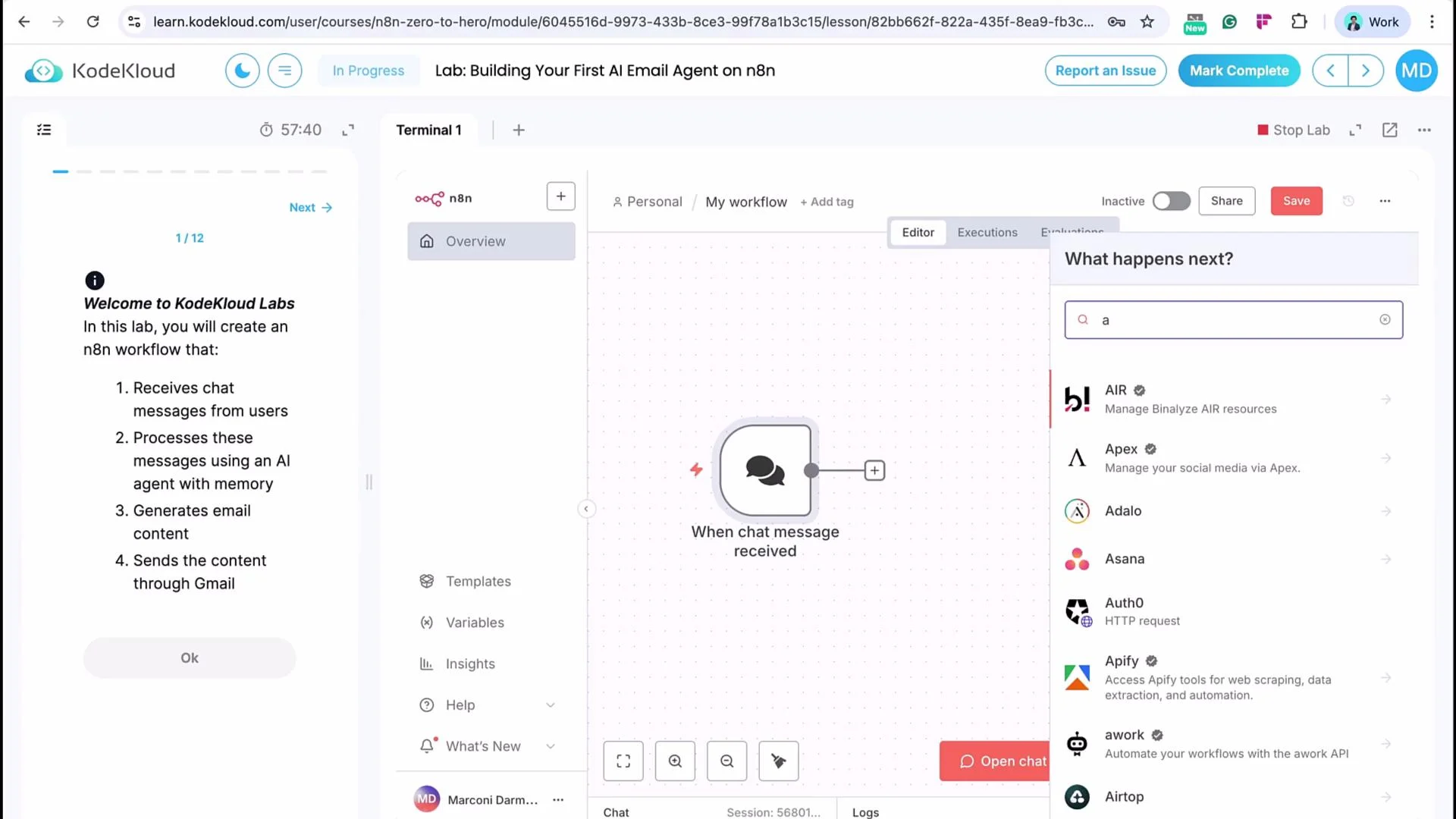
The workflow’s logic is intentionally simple: receive chat input, call an AI model to generate email content, then send the email. The main differences to watch for are credential and model configuration.
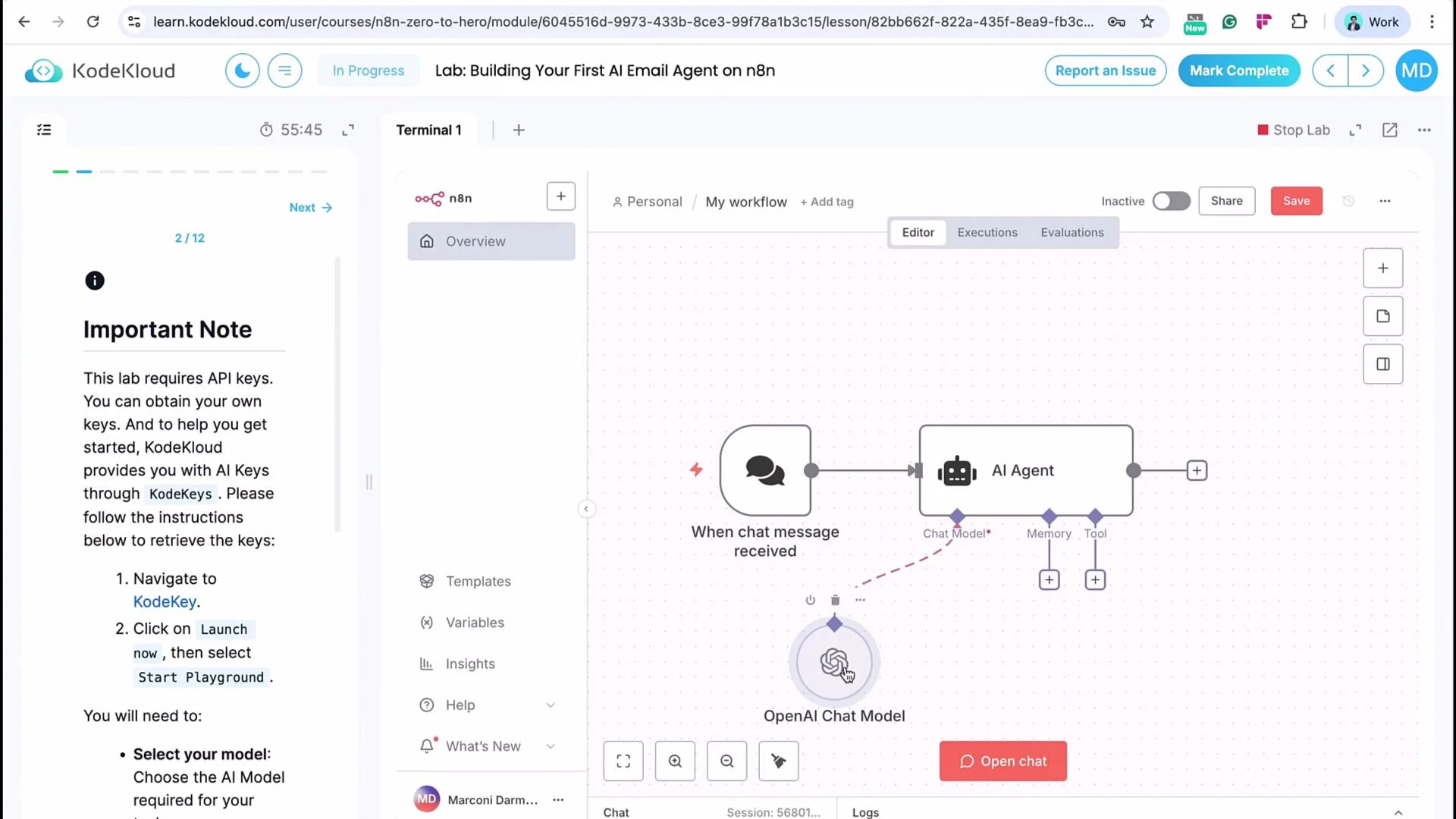
The image shows a KodeKloud Labs interface for creating an n8n workflow. The left panel outlines a lab exercise, and the right panel displays a workflow editor with a chat message receiving node.

AI Model Options: KK Keyspace vs. Official OpenAI API

In the KodeKloud lab you can use either KodeKloud Keyspace (KK Keyspace) or an official OpenAI API key. Each option has slightly different steps.
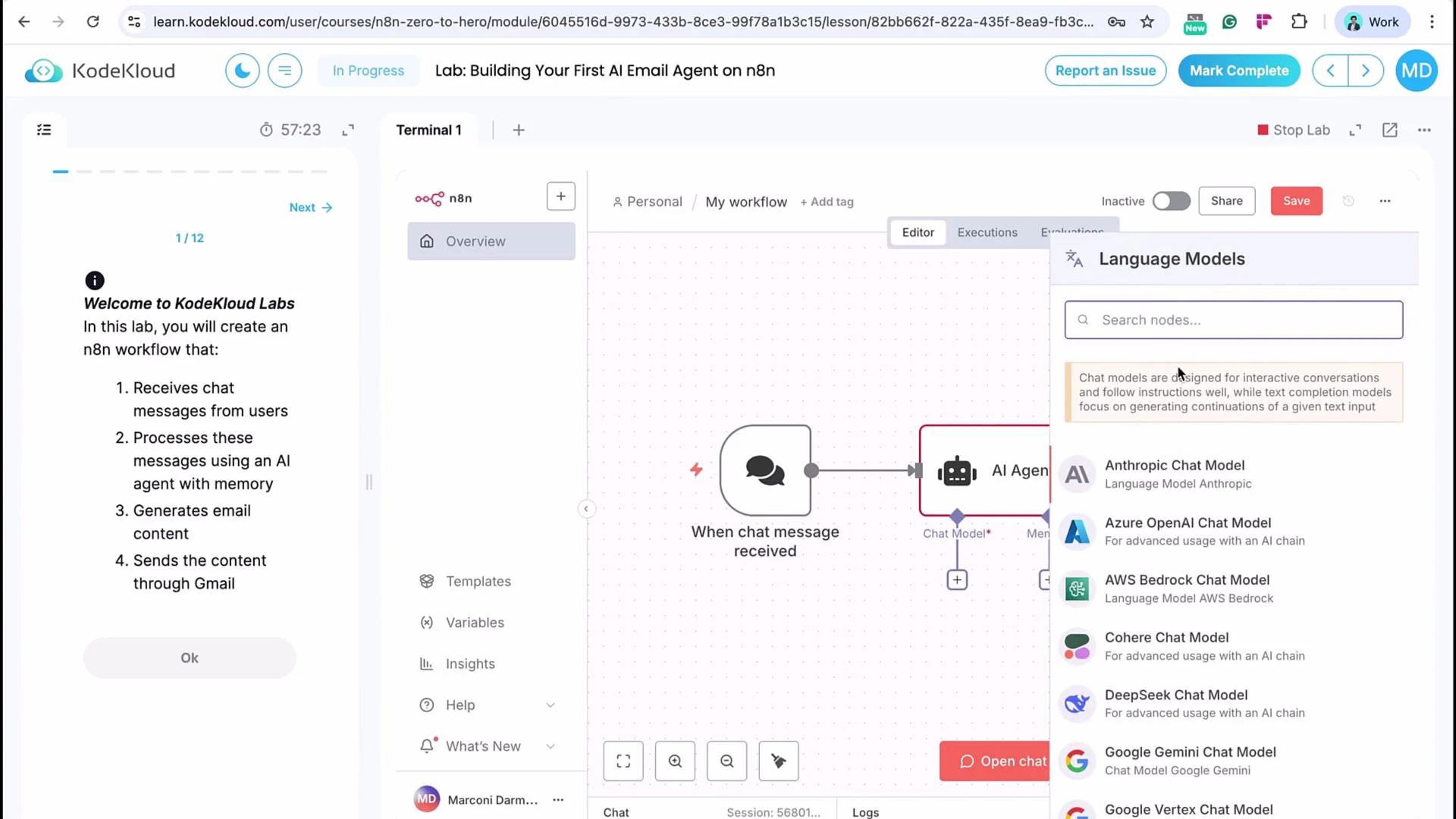
The image shows a KodeKloud Labs interface for building an AI email agent using n8n. It includes a workflow editor with nodes for receiving chat messages and processing them with various AI models.

Using KK Keyspace (lab-provided)

  • Follow the lab instructions (left-hand panel) to open the KK Keyspace dashboard and copy:
    • Keyspace base URL
    • Keyspace API key
  • In n8n, create a new credential for the OpenAI/Chat node:
    • Paste the Keyspace API key
    • Leave organization ID blank
    • Set the base URL to the Keyspace base URL
  • Save and test the credential.
Important: the model dropdown in n8n may not list familiar OpenAI model names when using KK Keyspace. If a simple test (e.g., sending “hello”) fails, use the exact model ID string provided in the lab instructions.
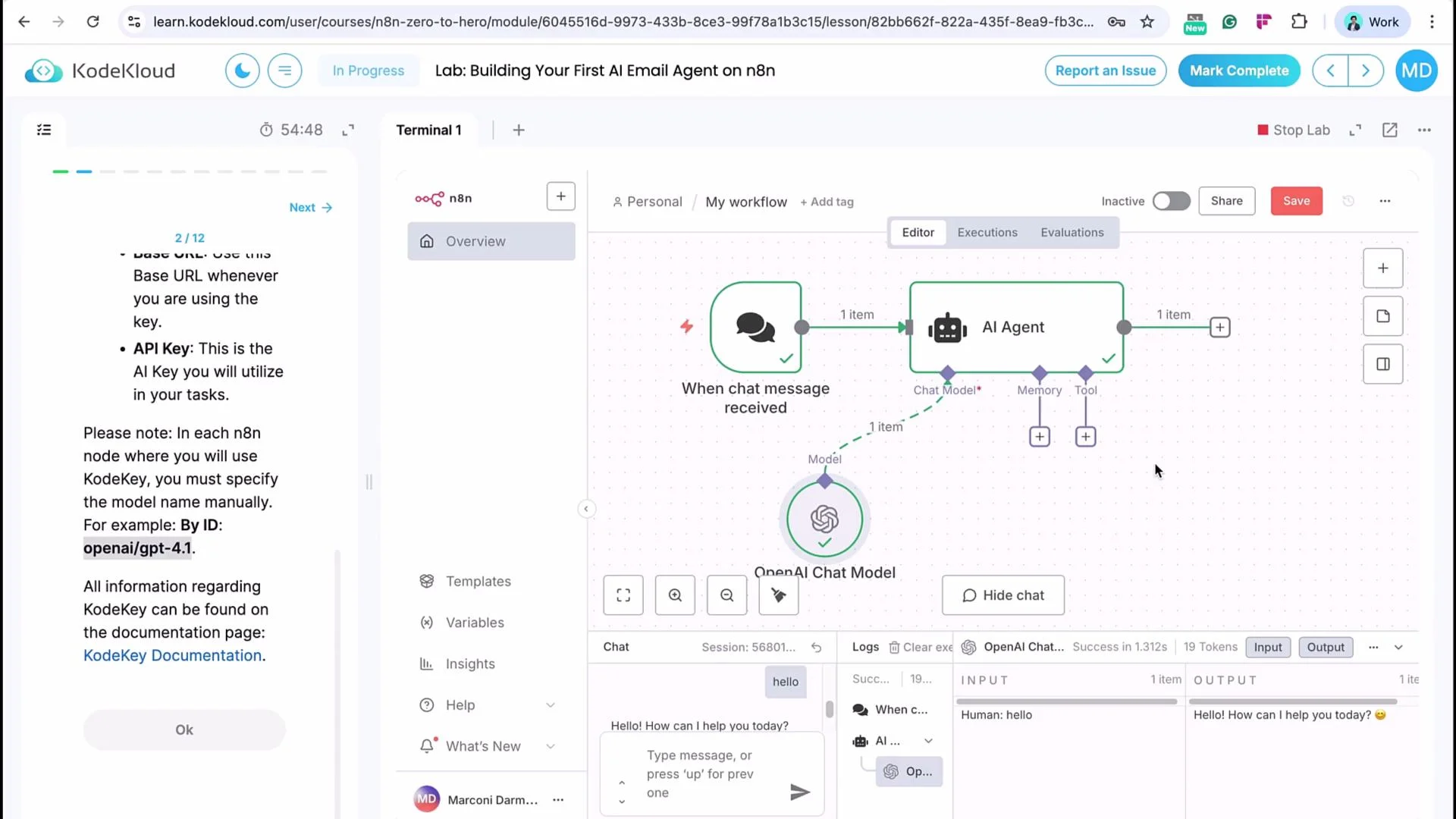
The image shows an online lab interface from KodeKloud, demonstrating a workflow editor for building an AI email agent using n8n. The editor includes nodes for receiving chat messages and connecting with an AI agent and OpenAI Chat Model.
If you encounter an error when running a test message, set the Chat Model ID manually with the exact model string from the lab (for example):
OpenAI/GPT-4.1
Paste that into the Chat Model ID field and run the node again.
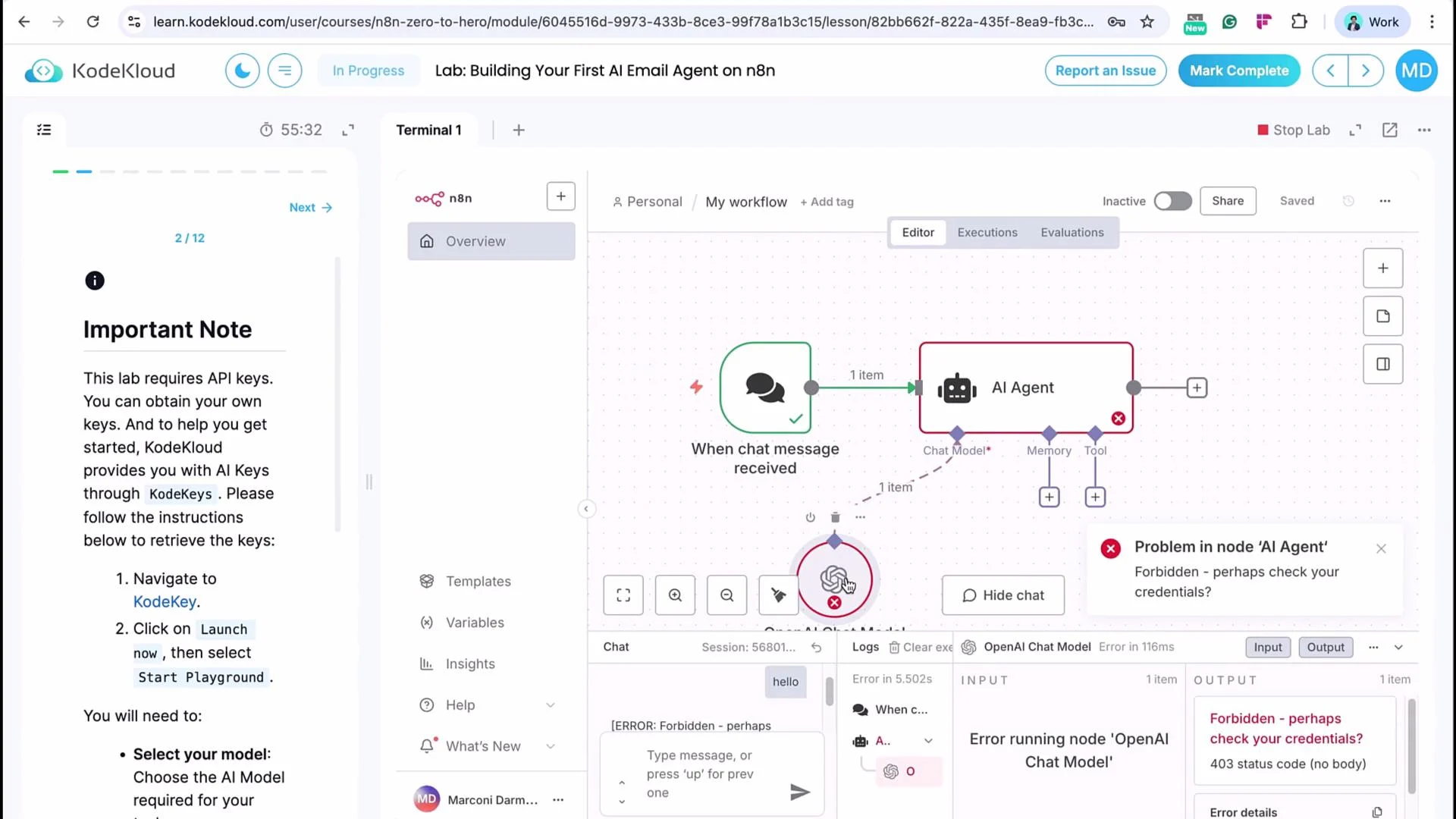
The image shows a workflow setup screen on KodeKloud for building an AI Email Agent using n8n. There is an error message indicating a problem with the AI Agent node, likely related to credentials.
The image shows a workflow in KodeKloud's n8n automation platform where an AI agent responds to a chat message using OpenAI's chat model.

Using an official OpenAI API key

  • Go to https://platform.openai.com and create an API key:
    • Sign in → View API keys → Create new secret key (label it like n8n email integration)
    • Copy the secret
  • In n8n, create an OpenAI credential:
    • Paste the API key
    • Leave base URL as default
  • The model dropdown will populate with standard OpenAI names — you can select GPT-4.1 (or other supported models) directly.
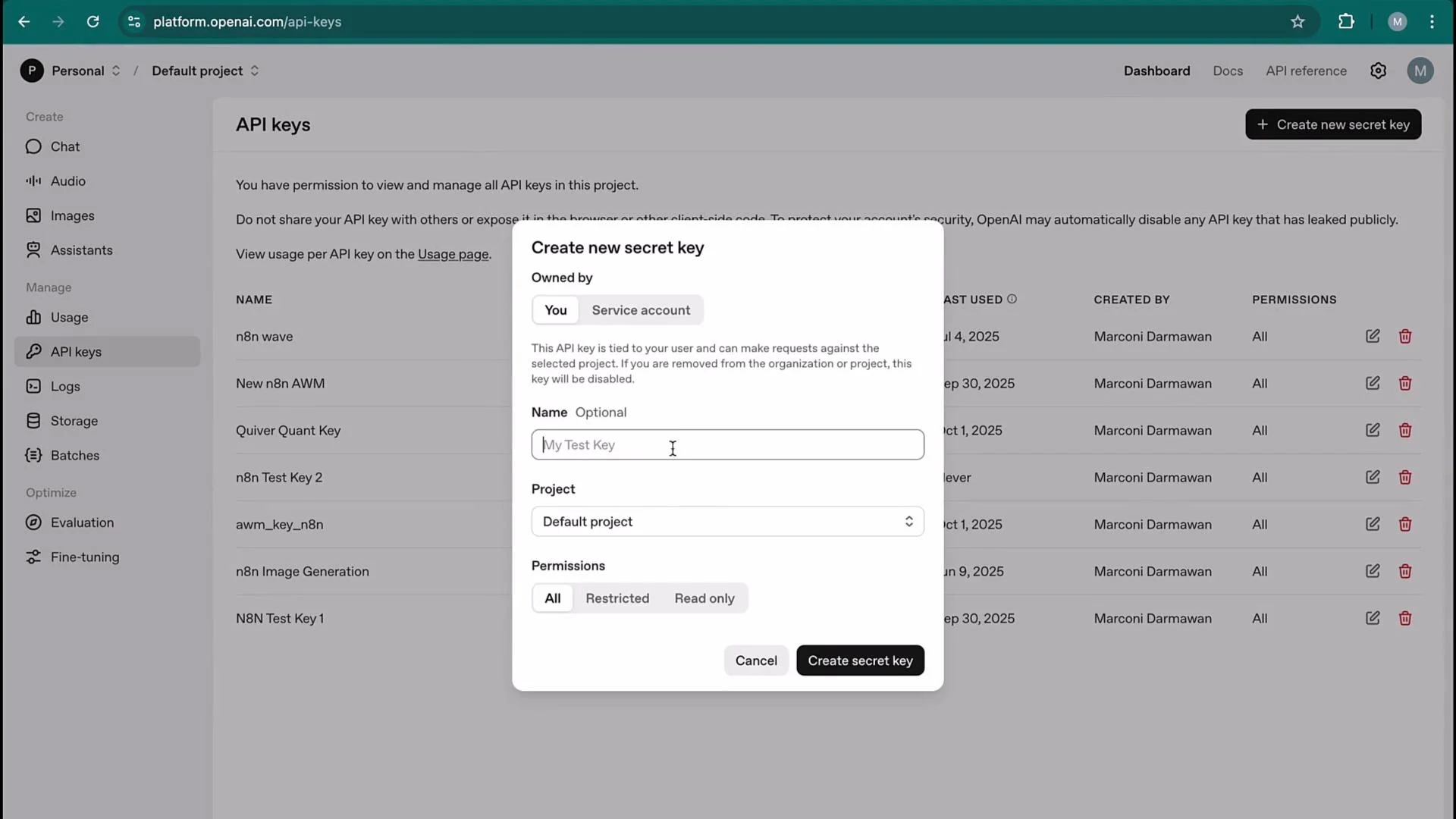
The image shows a user interface for managing API keys on the OpenAI platform, with a dialog box open for creating a new secret key. The sidebar menu includes options for managing usage, logs, storage, and more.
Once the credential is configured correctly, a test chat should show the node calling the intended model and returning a response.
The image shows a KodeKloud Labs interface for creating an n8n workflow. The left panel outlines a lab exercise, and the right panel displays a workflow editor with a chat message receiving node.

Quick comparison: KK Keyspace vs OpenAI API

AreaKK Keyspace (lab)Official OpenAI API
Credential base URLMust set Keyspace base URLUses default api.openai.com
Model selectionMay require exact model ID (OpenAI/GPT-4.1)Models appear in dropdown
Credential sourceKK Keyspace dashboardplatform.openai.com
Typical failure modeModel not found when chosen from dropdownAPI key misconfigured or rate-limited

Gmail and Google OAuth in the lab

In n8n Cloud you sometimes get a “Sign in with Google” button that uses your browser session. In the KodeKloud lab you must create OAuth credentials in Google Cloud Console and paste them into the Gmail credential in n8n.
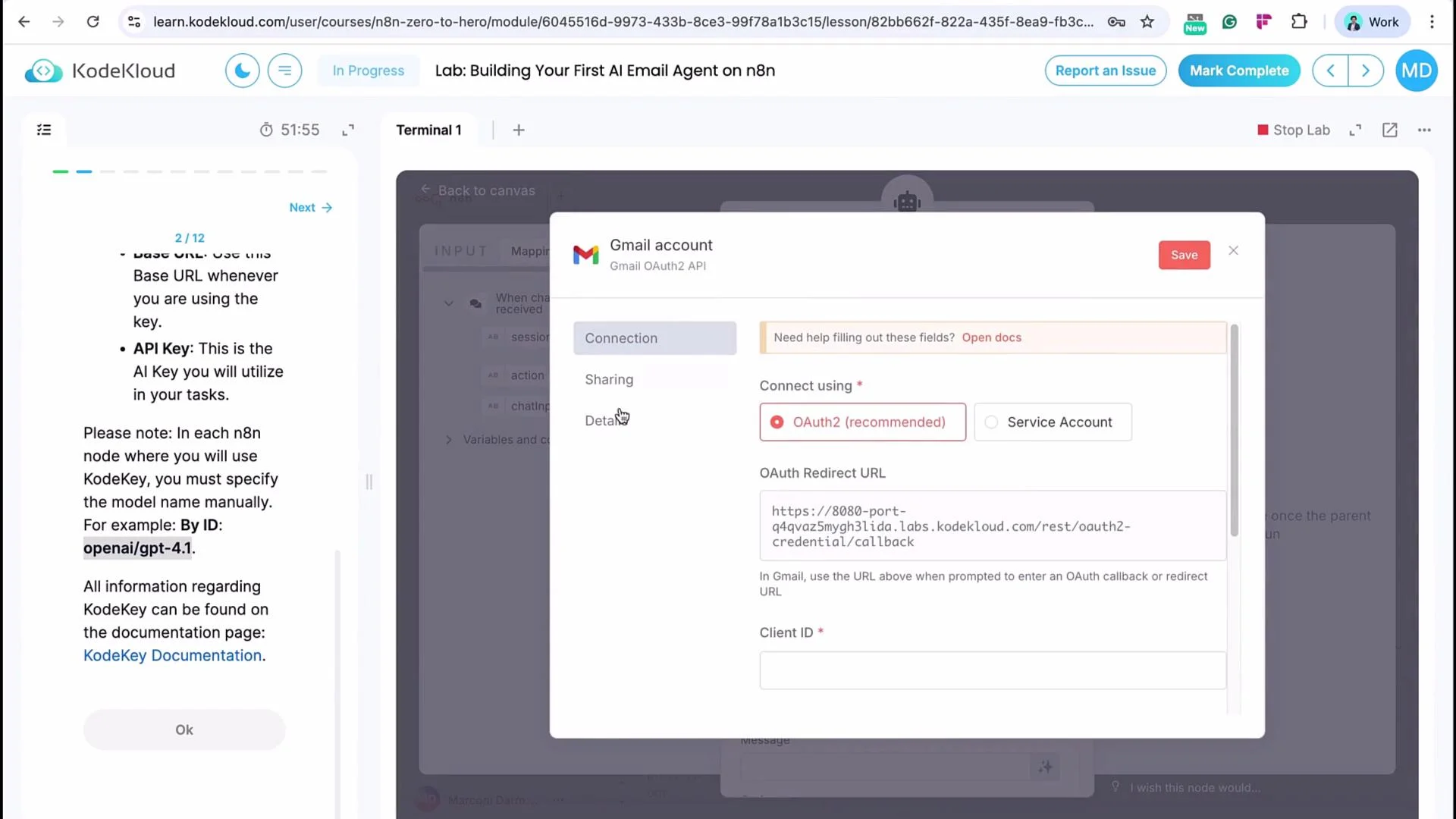
The image shows a screen from KodeKloud with a Gmail account setup window for OAuth2 configuration and a sidebar with API key instructions.
Steps to configure Gmail OAuth for the lab:
  1. Open https://console.cloud.google.com and create a new project (e.g., n8n email app). Select No organization and Create.
  2. Select the new project and enable the Gmail API.
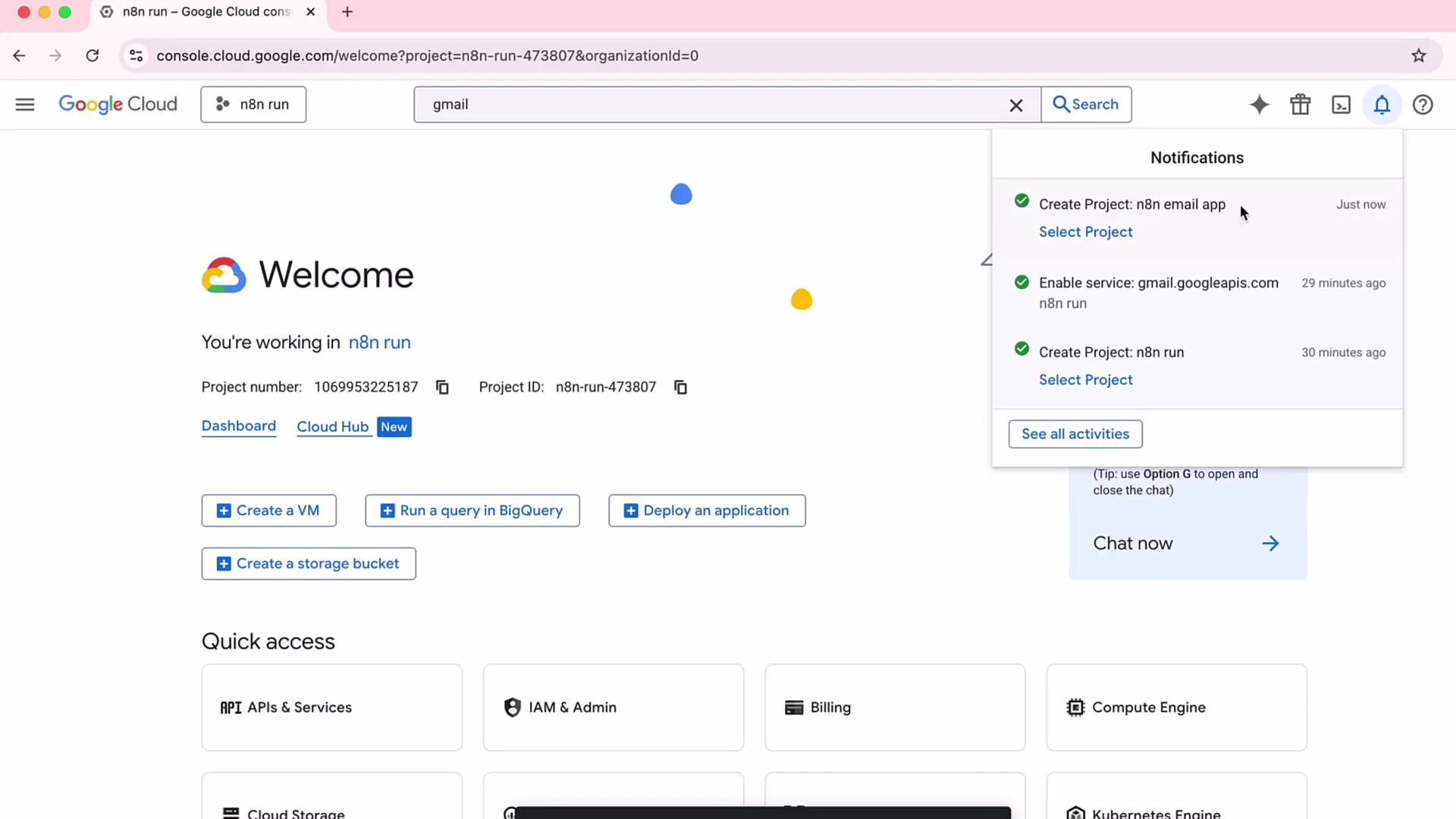
The image shows the Google Cloud Console dashboard with a notification panel open, displaying recent activities such as project creation and service enabling.
  1. Configure the OAuth consent screen:
    • Set App name (e.g., n8n email)
    • Provide a support/contact email
    • Choose External and fill required fields
  2. Add a test user (the email you’ll use for testing), for example marconi@kodekloud.com, and save.
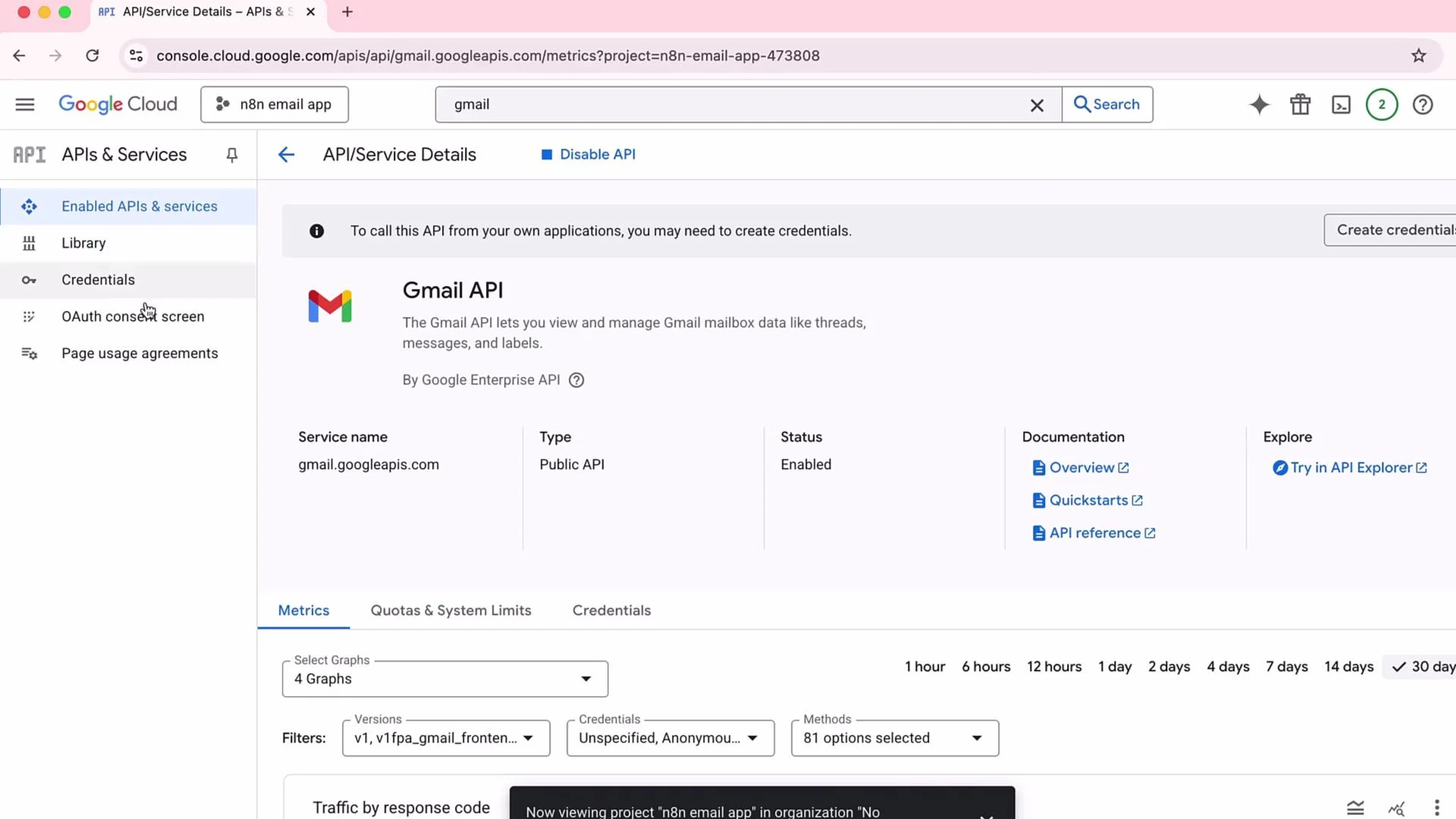
The image shows the Google Cloud Console interface displaying details of the Gmail API, with options for managing credentials, documentation links, and API status information.
  1. Go to API & Services → Credentials → Create Credentials → OAuth client ID:
    • Application type: Web application
    • Name: e.g., n8n email OAuth client
    • Add the authorized redirect URI from your lab’s credential setup page
    • Create the client and copy the Client ID and Client Secret
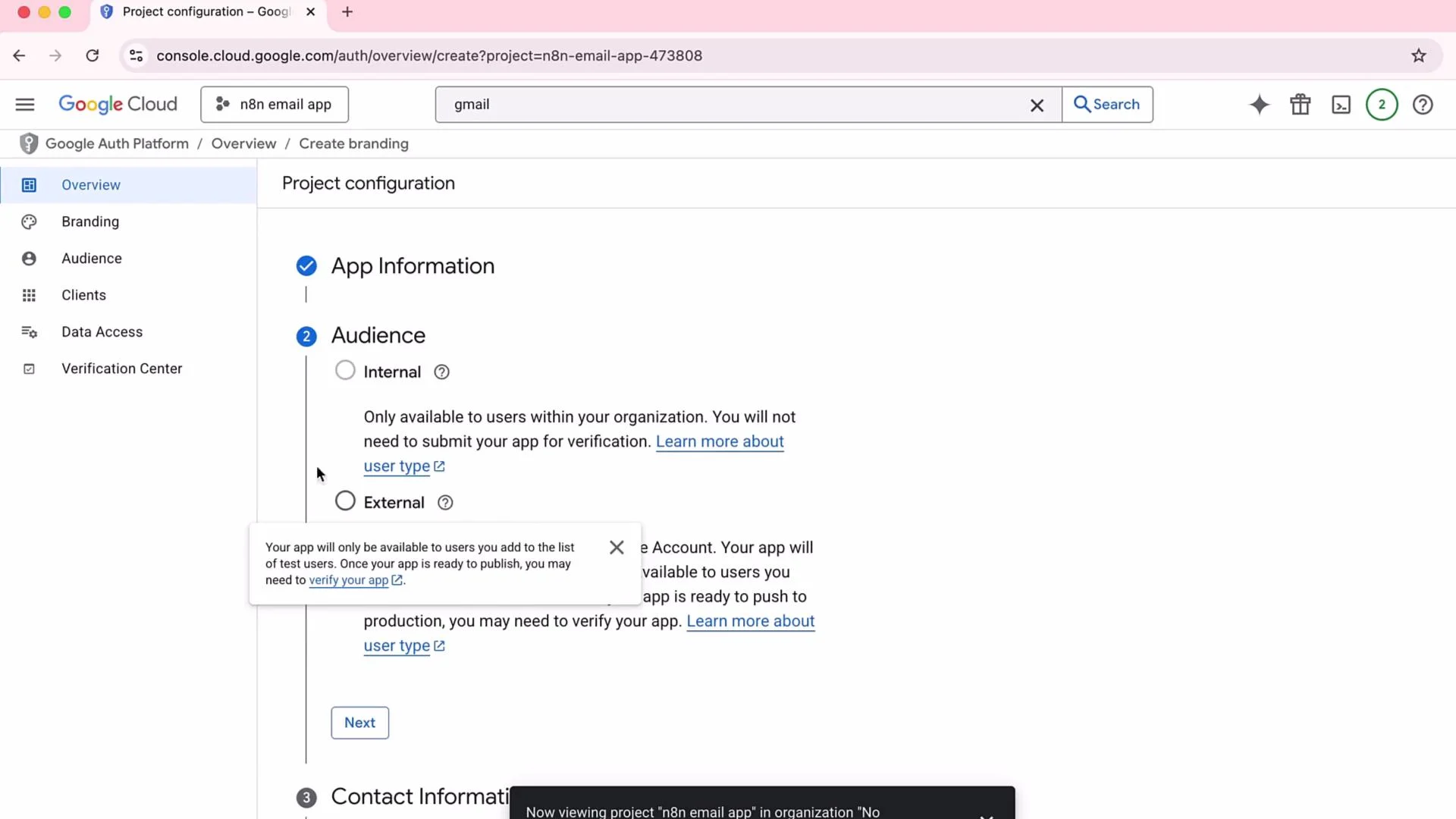
The image shows the Google Cloud console page for project configuration, focusing on app information and audience settings with options for internal and external users. A tooltip provides additional information about app availability and verification.
  1. Paste the Client ID and Client Secret into the Gmail credential in the n8n lab. After doing so a “Sign in with Google” button will appear — use it to authenticate with the test user and grant the requested scopes.
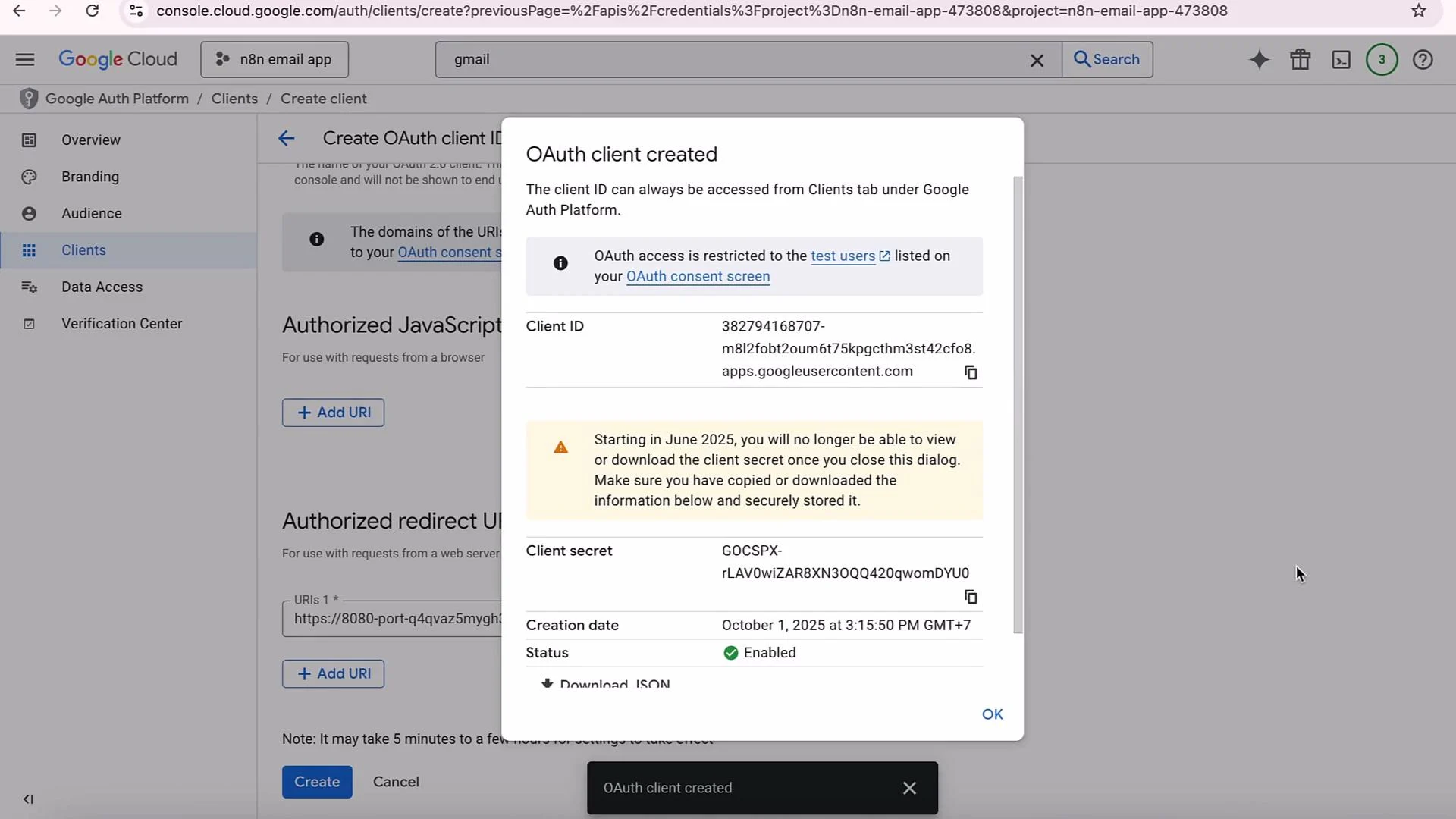
The image shows a Google Cloud Platform console screen where an OAuth client ID has been created. It displays the client ID, client secret, and a warning about the inability to view or download the client secret after closing the dialog starting June 2025.
When you see the “unverified app” message, it is expected for test apps created in your own Google Cloud project. Only proceed if you created the project and trust the app; otherwise, do not grant access.
After authorizing, save the Gmail credential in n8n. In the lab environment it may take a few seconds for the lab backend to register the credential — then run an Execute step to validate the integration.

Test the complete workflow

With the Chat Trigger, AI model, and Gmail credential in place, test the end-to-end flow:
  • Trigger using the Chat Trigger: “Hi, can you send an email to coding@dot.com to just say hello?”
  • Execute the workflow and check the target inbox. You should receive a simple generated email (for example: “Hello Marconi, I just want to say hello. Best regards.”).
The sample workflow intentionally omits a system prompt — the goal here is to demonstrate lab-specific configuration differences (KK Keyspace vs OpenAI API and Google OAuth setup), not advanced prompting techniques.

Troubleshooting tips

  • If AI model calls fail with KK Keyspace: verify the base URL, API key, and paste the exact model ID string from lab instructions.
  • If the OpenAI model list is empty: ensure your OpenAI API key is correct and saved in the OpenAI credential.
  • If Google OAuth fails: confirm the redirect URI in Google Cloud Console exactly matches the URI shown in the n8n credential setup page, and that test user is added to the OAuth consent settings.
  • Remember that some issues are environment-specific (lab vs Cloud vs self-host). When a node behaves differently in a lab, re-check credential configuration and environment-specific instructions.
As you explore n8n in different environments you’ll notice additional differences: available community nodes, supported versions, or features that exist in n8n Cloud but not in the lab or a self-hosted instance. Often these differences are resolved by using the correct credentials or a small configuration change.

Watch Video

Practice Lab