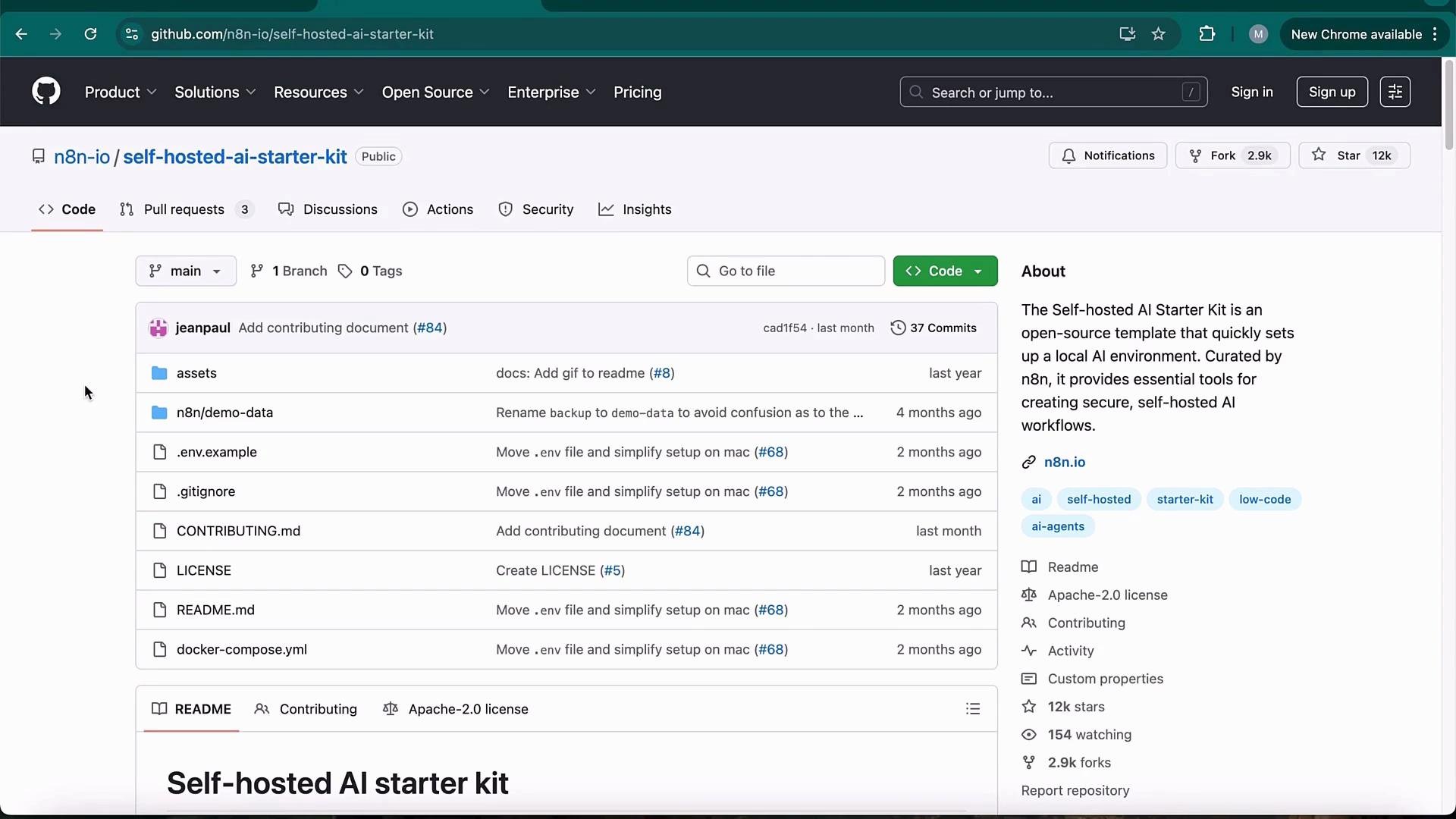
In this lesson you’ll learn how to run n8n locally using Docker Desktop and the n8n-io/self-hosted-ai-starter-kit repository, which includes Ollama as a local LLM runtime. Follow the steps below to clone the starter kit, configure environment variables, and bring up the stack with Docker Compose.
The image shows a GitHub repository for a "Self-hosted AI Starter Kit" by n8n, featuring various files and an overview of the project's purpose. It includes sections for code, pull requests, discussions, and other repository details.
Overview
  • Clone the n8n self-hosted AI starter kit repository.
  • Copy and edit the .env file to configure secrets and host settings.
  • Start the stack with Docker Compose using the profile appropriate for your hardware.
  • Open n8n at http://localhost:5678 and create an owner account.
  • Inspect and run the demo workflow that uses a local Ollama model.
Prerequisites
RequirementNotes / Links
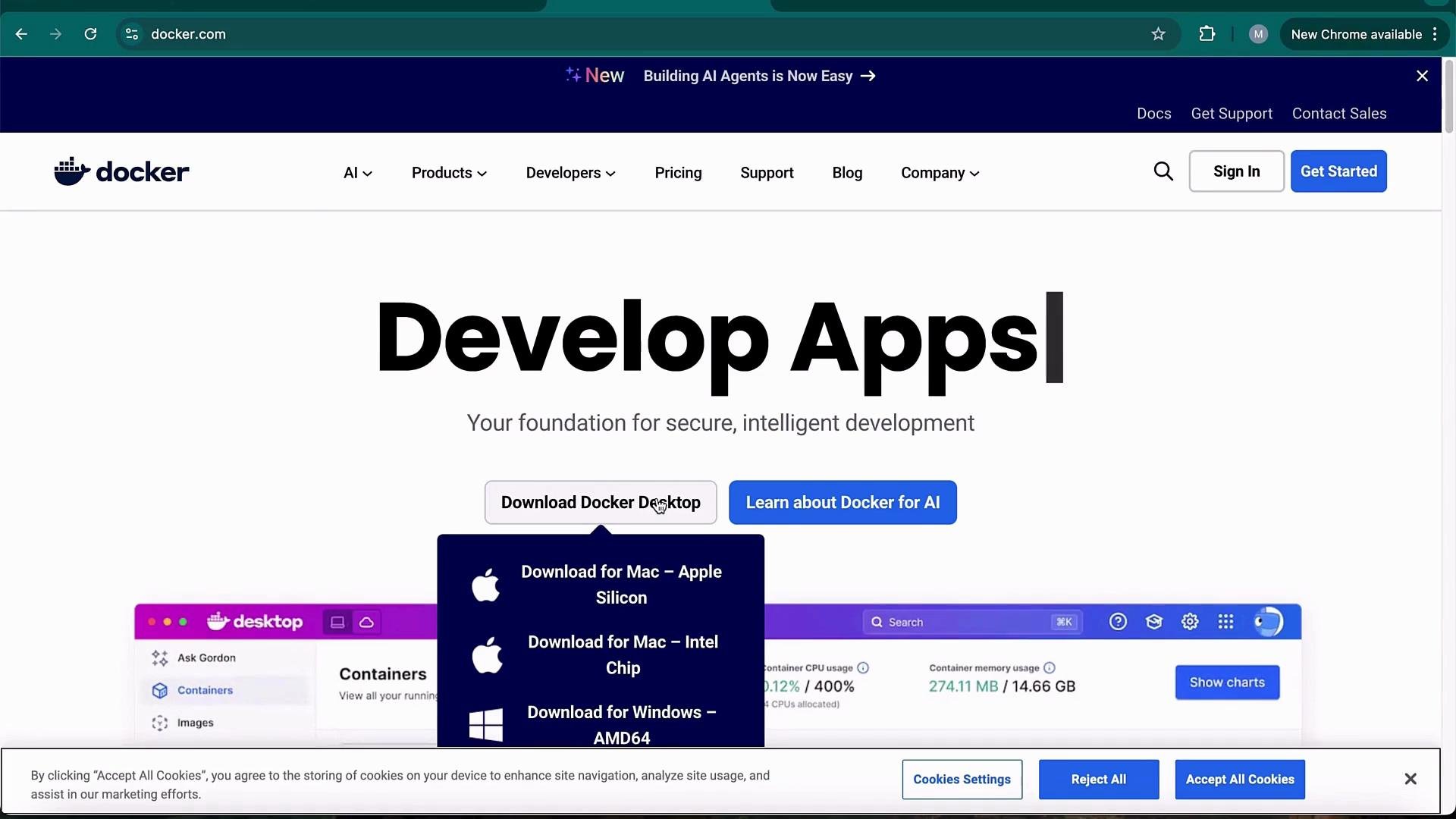
Docker DesktopInstall for Windows or macOS: https://www.docker.com/products/docker-desktop
GitNeeded to clone the repository
(Optional) Ollama installed separatelyIf you prefer managing Ollama outside the compose stack, install via https://ollama.ai/docs and set OLLAMA_HOST in .env
The image shows the Docker website with an emphasis on downloading Docker Desktop for different platforms, including Mac (Apple Silicon and Intel) and Windows (AMD64). It also includes navigation options and a banner about building AI agents.
Step 1 — Clone the repo and create your .env
git clone https://github.com/n8n-io/self-hosted-ai-starter-kit.git
cd self-hosted-ai-starter-kit
cp .env.example .env
# Edit .env to update secrets, passwords and any host settings (e.g., POSTGRES_PASSWORD, OLLAMA_HOST)
Open .env and update secrets (database credentials, encryption keys, JWT secrets, etc.) before starting the stack. If you plan to use a separately installed Ollama instance, set OLLAMA_HOST (for example: http://localhost:11434).
Step 2 — Start the stack with Docker Compose Choose the profile that matches your hardware. Each profile brings up the same services with configuration appropriate to the runtime.
ProfileUse caseCommand
cpuCPU-only environments (Mac Apple Silicon / no GPU)docker compose --profile cpu up
gpu-nvidiaLinux machines with NVIDIA GPUs and driversdocker compose --profile gpu-nvidia up
gpu-amdMachines with AMD GPUsdocker compose --profile gpu-amd up
Example:
docker compose --profile cpu up
Note: The first run pulls several images (Postgres, Qdrant, n8n, Ollama, etc.). This can take a few minutes depending on network speed. Common services started
ServicePurpose
PostgresPrimary n8n database
QdrantVector database for embeddings
n8nWorkflow editor and runtime
OllamaLocal LLM runtime used by demo workflows
Example terminal output (truncated)
Cloning into 'self-hosted-ai-starter-kit'...
remote: Enumerating objects: 161, done.
Receiving objects: 100% (151/151), 9.92 MiB | 4.35 MiB/s, done.
Resolving deltas: 100% (26/26), done.
marconi@Marconi-MacBook-Pro % cd self-hosted-ai-starter-kit
marconi@Marconi-MacBook-Pro self-hosted-ai-starter-kit % cp .env.example .env
marconi@Marconi-MacBook-Pro self-hosted-ai-starter-kit % docker compose --profile cpu up
[+] Running 98/41
 postgres Pulled  ...
 qdrant Pulled  ...
 n8n Pulled  ...
 ollama Pulled  ...
...
ollama  time=2025-08-26T08:24:08.451Z level=INFO source=logs:130 msg="inference compute" id=0 library=cpu total="7.7 GiB" available="6.8 GiB"
postgres-1 2025-08-26 08:24:08.422 UTC [1] LOG:  starting PostgreSQL 16 on aarch64-unknown-linux-musl
drant 2025-08-26T08:24:08.444UTC INFO drant: 1x unit API Listening on 6333
n8n-import  Successfully imported 2 credentials.
n8n-import  Successfully imported 1 workflow.
n8n  Initializing...
n8n  Editor is now accessible via:
Step 3 — Open n8n in your browser
  • Go to: http://localhost:5678
  • On first visit you will be prompted to create an owner account (email, name, password). Any local email works for this self-hosted setup.
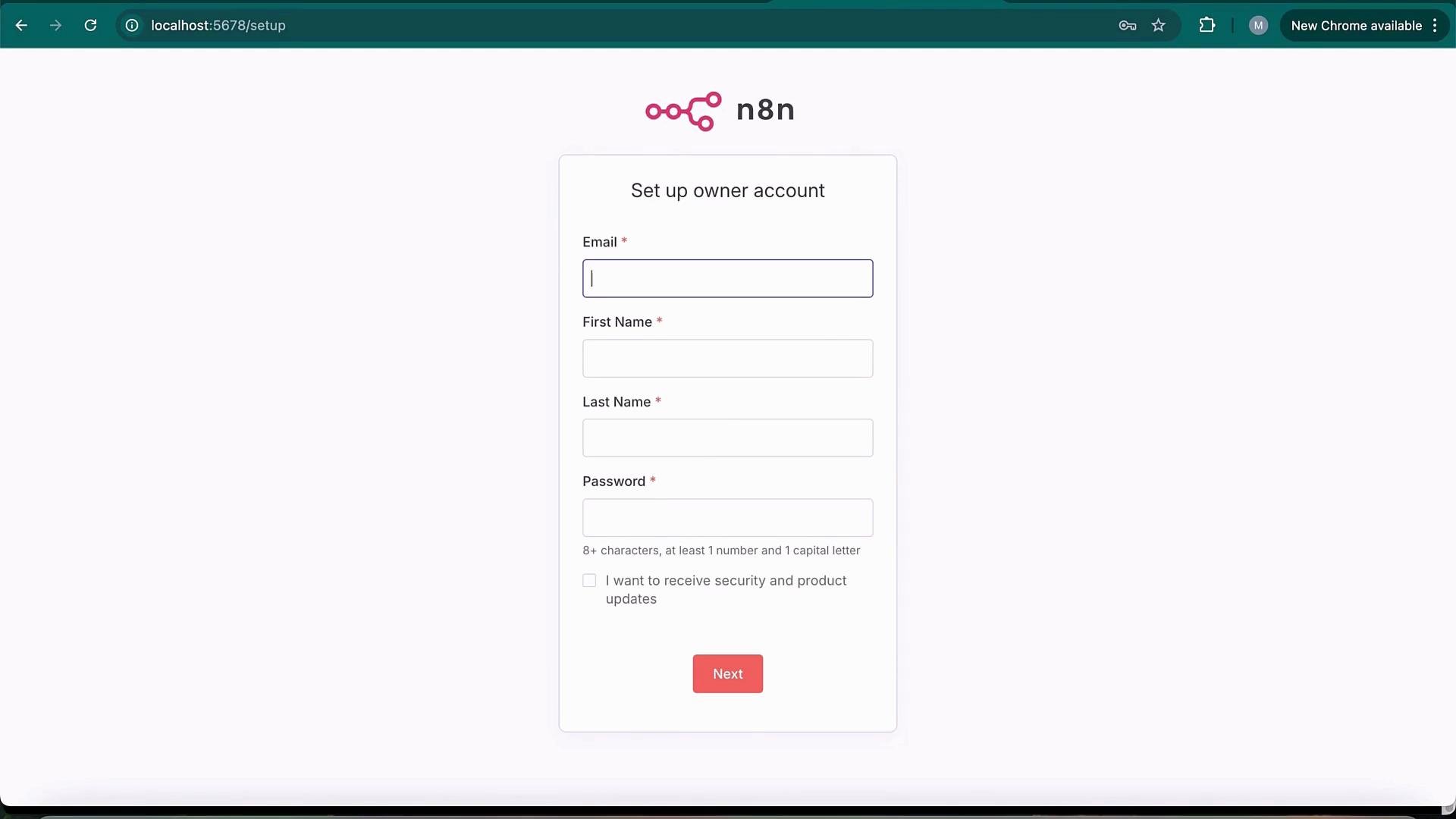
The image shows a web page with a form for setting up an owner account, requiring email, first name, last name, and password. There is also an option to receive security and product updates.
Demo workflow and Ollama integration
  • The starter kit automatically imports a demo workflow when n8n starts.
  • Open the demo workflow in the editor: it demonstrates a simple LLM chain using an Ollama chat model.
  • Create an Ollama credential in n8n and point it to your Ollama host. When using the compose stack, the default is ollama:11434 (Docker-internal hostname mapped to localhost:11434 on the host machine).
  • Send a sample prompt (for example, “Hey, how’s it going?”) to test the node. Responses should come from the local Ollama instance running in the compose stack.
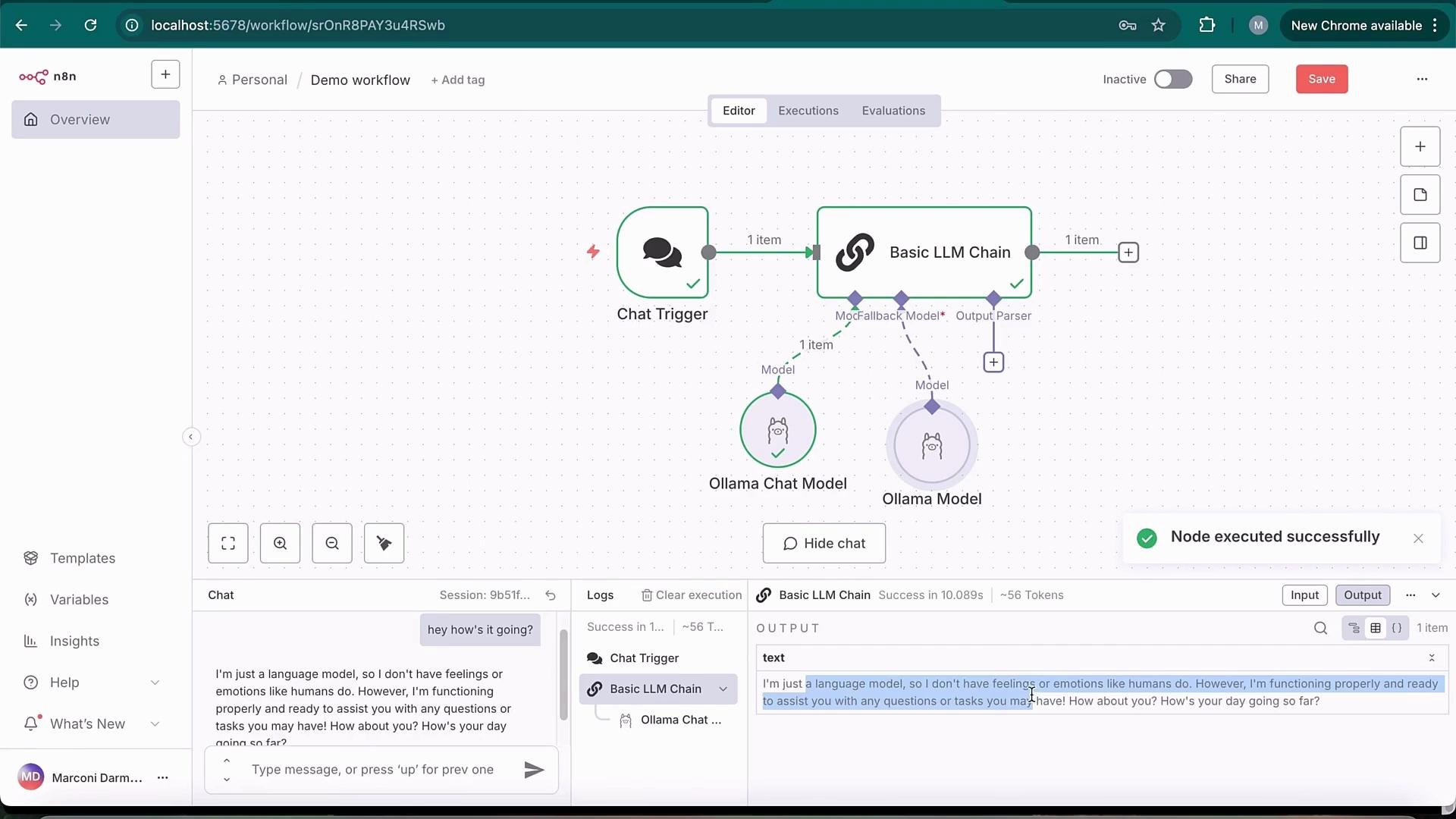
The image shows a workflow interface in a software application, featuring a chat trigger connected to two models (Ollama Chat Model and Ollama Model) through a basic LLM chain. There is a chat log at the bottom displaying an interaction with the system.
Inspecting Docker Desktop
  • Use Docker Desktop to view containers, images, networks, and volumes created by the starter kit.
  • Stopping the compose stack (or containers) will disconnect n8n from Ollama and other services because they run in the same compose network.
  • Volumes hold Postgres and Ollama state; manage them via Docker Desktop if you need to clear or backup data.
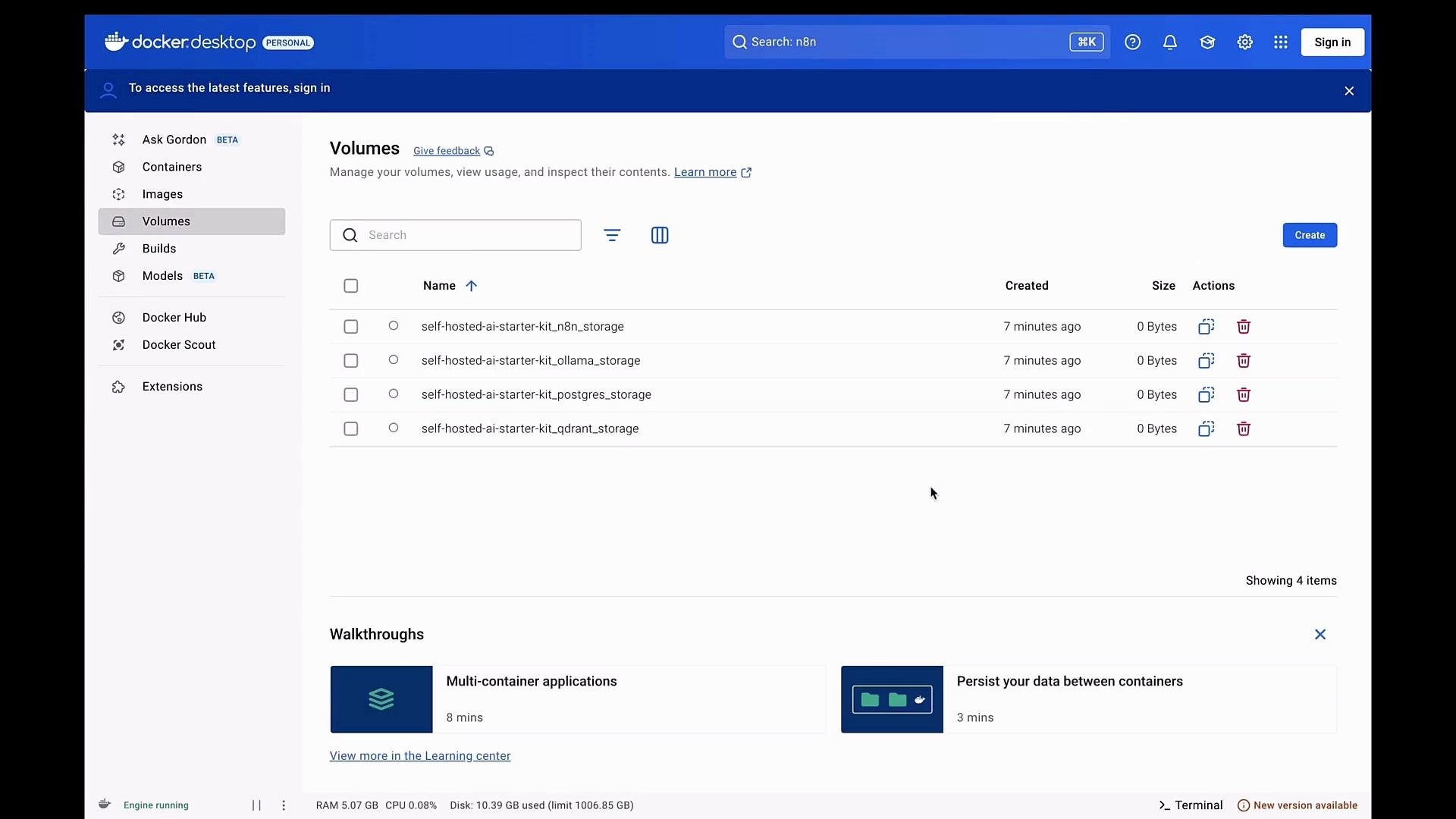
The image shows the Docker Desktop interface, focused on the "Volumes" section, displaying a list of available self-hosted AI starter kit storage volumes with options to manage them. There is also a section for walkthroughs at the bottom of the screen.
The image shows the Docker Desktop application with a list of running containers, displaying details like container name, ID, image, ports, CPU usage, and actions available.
Compose configuration (example) If you need to change ports, credentials, environment variables, or persistent volumes, edit the repository’s docker-compose files. Below is an illustrative excerpt showing volumes, network, and the n8n & Ollama service definitions — update .env values as appropriate.
volumes:
  n8n_storage:
  postgres_storage:
  ollama_storage:
  qdrant_storage:

networks:
  demo:

x-n8n: &n8n-service
  image: n8n/n8n:latest
  networks: ['demo']
  environment:
    - DB_TYPE=postgresdb
    - DB_POSTGRESDB_HOST=postgres
    - DB_POSTGRESDB_USER=${POSTGRES_USER}
    - DB_POSTGRESDB_PASSWORD=${POSTGRES_PASSWORD}
    - N8N_DIAGNOSTICS_ENABLED=false
    - N8N_PERSONALIZATION_ENABLED=false
    - N8N_ENCRYPTION_KEY=
    - N8N_USER_MANAGEMENT_JWT_SECRET=
    - OLLAMA_HOST=${OLLAMA_HOST:-ollama:11434}
  env_file:
    - .env

x-ollama: &ollama-service
  image: ollama/ollama:latest
  container_name: ollama
  networks: ['demo']
  restart: unless-stopped
  ports:
    - "11434:11434"
Do not commit your .env file to source control. The file contains sensitive values (database passwords, encryption keys, JWT secrets). Use secure storage or environment-specific secrets for production deployments.
References and further reading Wrap-up
  • This starter kit runs n8n, Ollama, Postgres, and Qdrant locally using Docker Desktop, enabling full local development and testing of AI-driven workflows.
  • For production-grade deployments, evaluate network security, backups for volumes, and using managed database or vector stores as needed.
That’s it — you’re ready to build and test n8n workflows locally with a local Ollama LLM.

Watch Video