

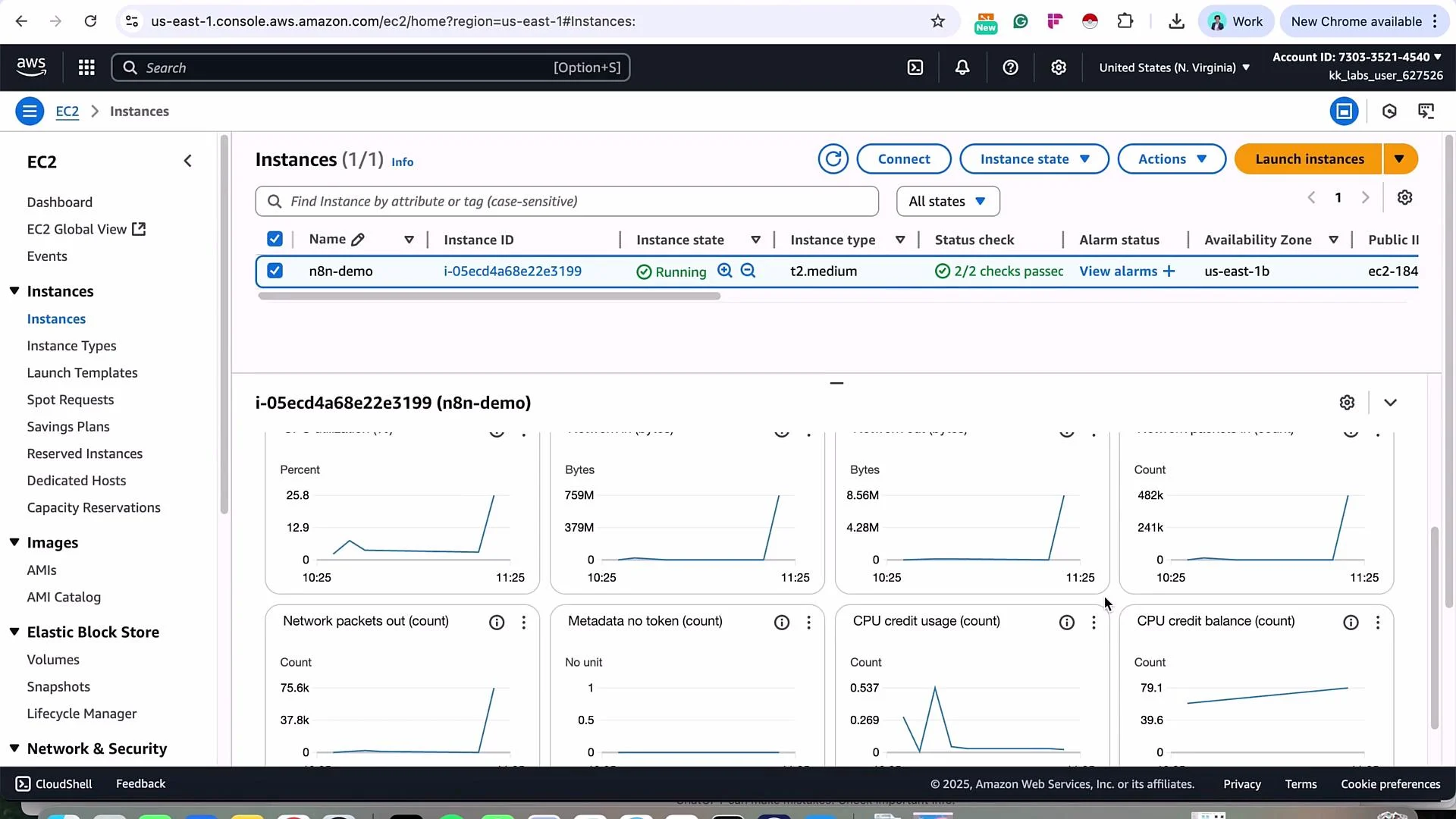
- Launch an EC2 instance (Ubuntu).
- Install Docker and Docker Compose v2 (CLI plugin).
- Clone the n8n self-hosted AI starter kit.
- Configure environment variables and run the stack.
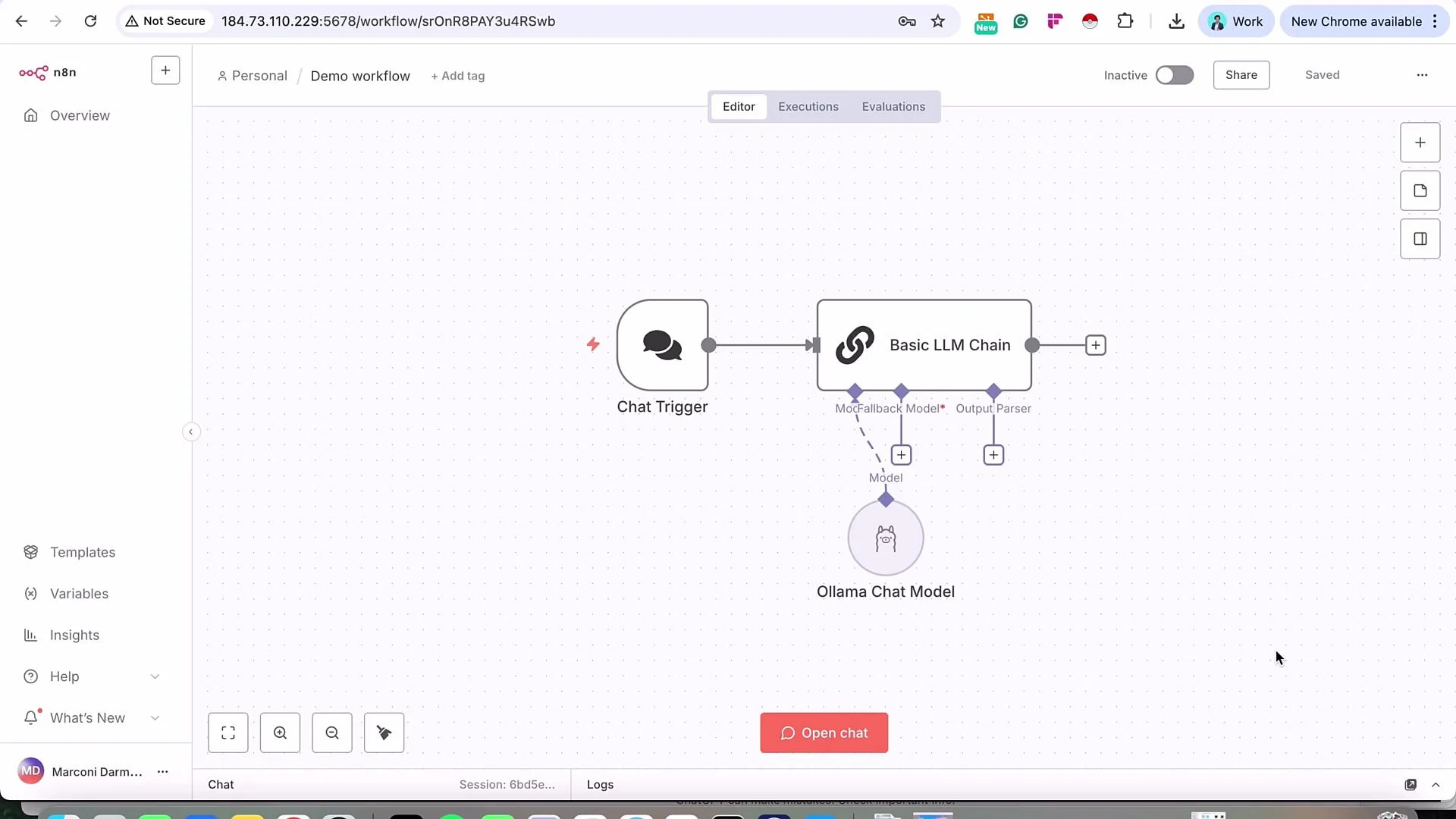
- Access n8n via the instance public IP.
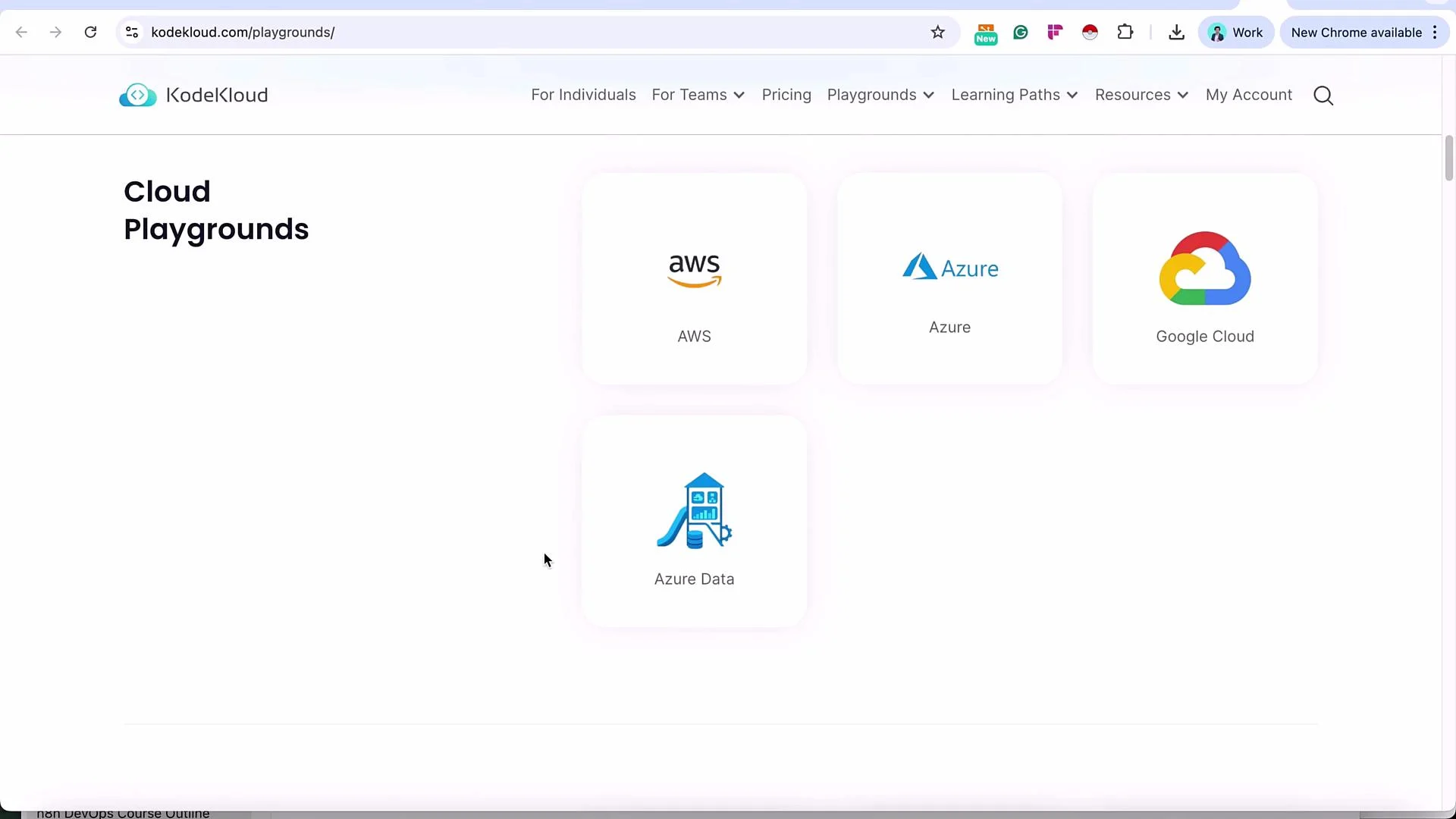
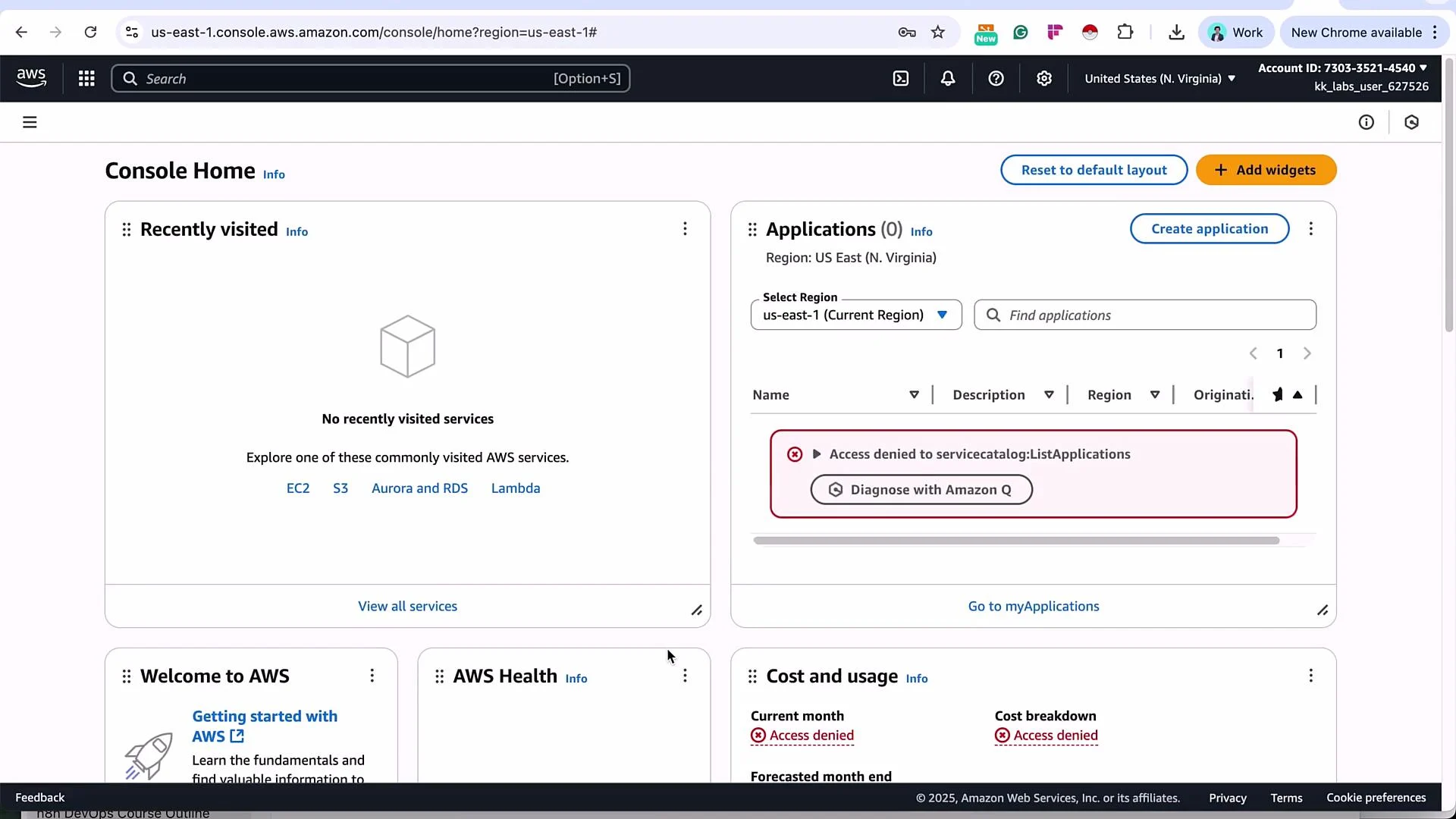
1 — Launch an EC2 instance
- Console: EC2 → Instances → Launch Instance.
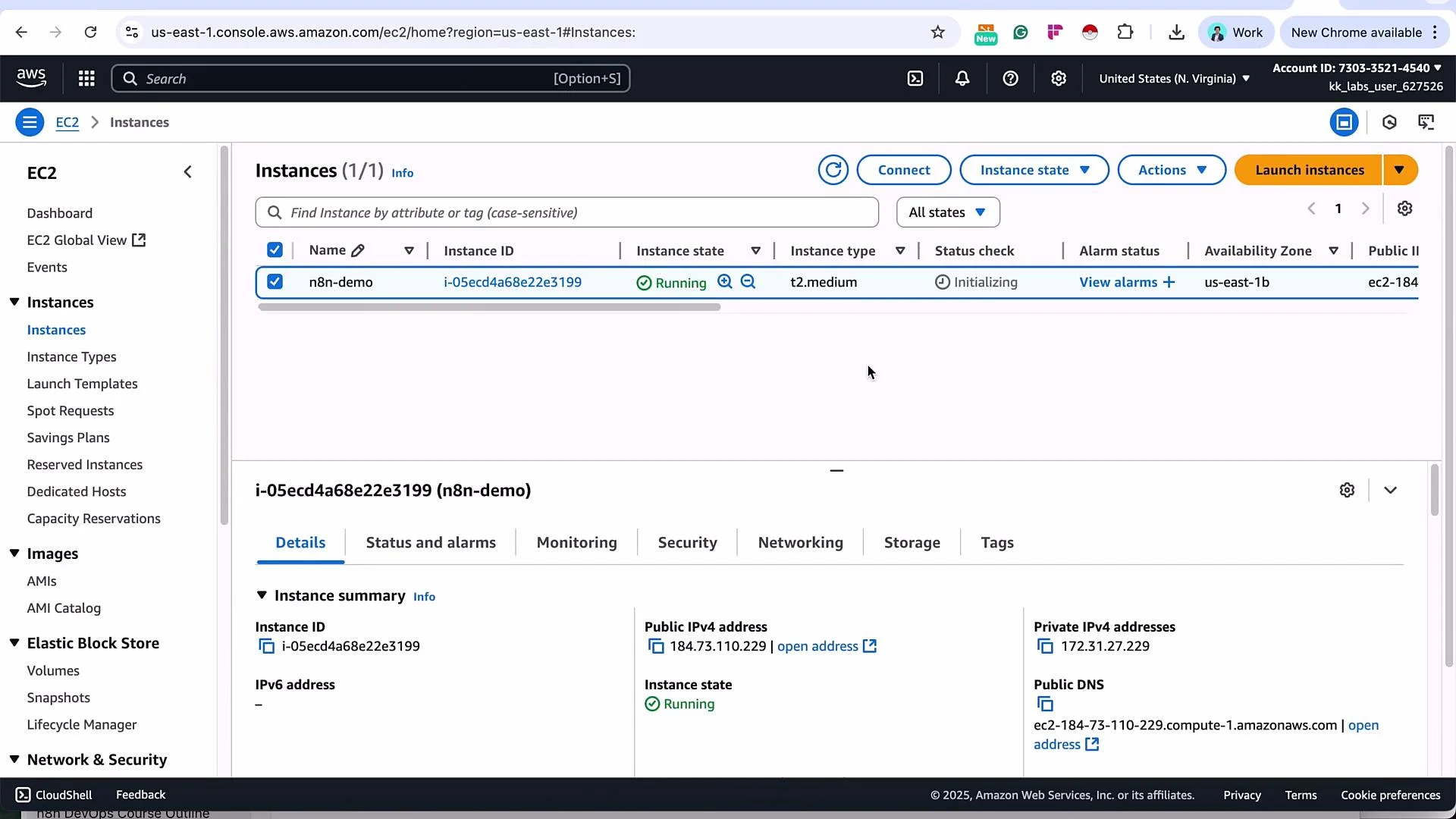
- Name the instance
n8n-demoand select an Ubuntu AMI (e.g., Ubuntu 22.04 LTS). - Choose an instance type (e.g.,
t2.medium). This demo uses a slightly larger instance to accommodate Ollama and extra repo data. - Increase the root volume to 30 GB (or larger as needed).
- Create a new key pair
n8n-demo-keyin PEM format and download it. - Configure the security group to allow:
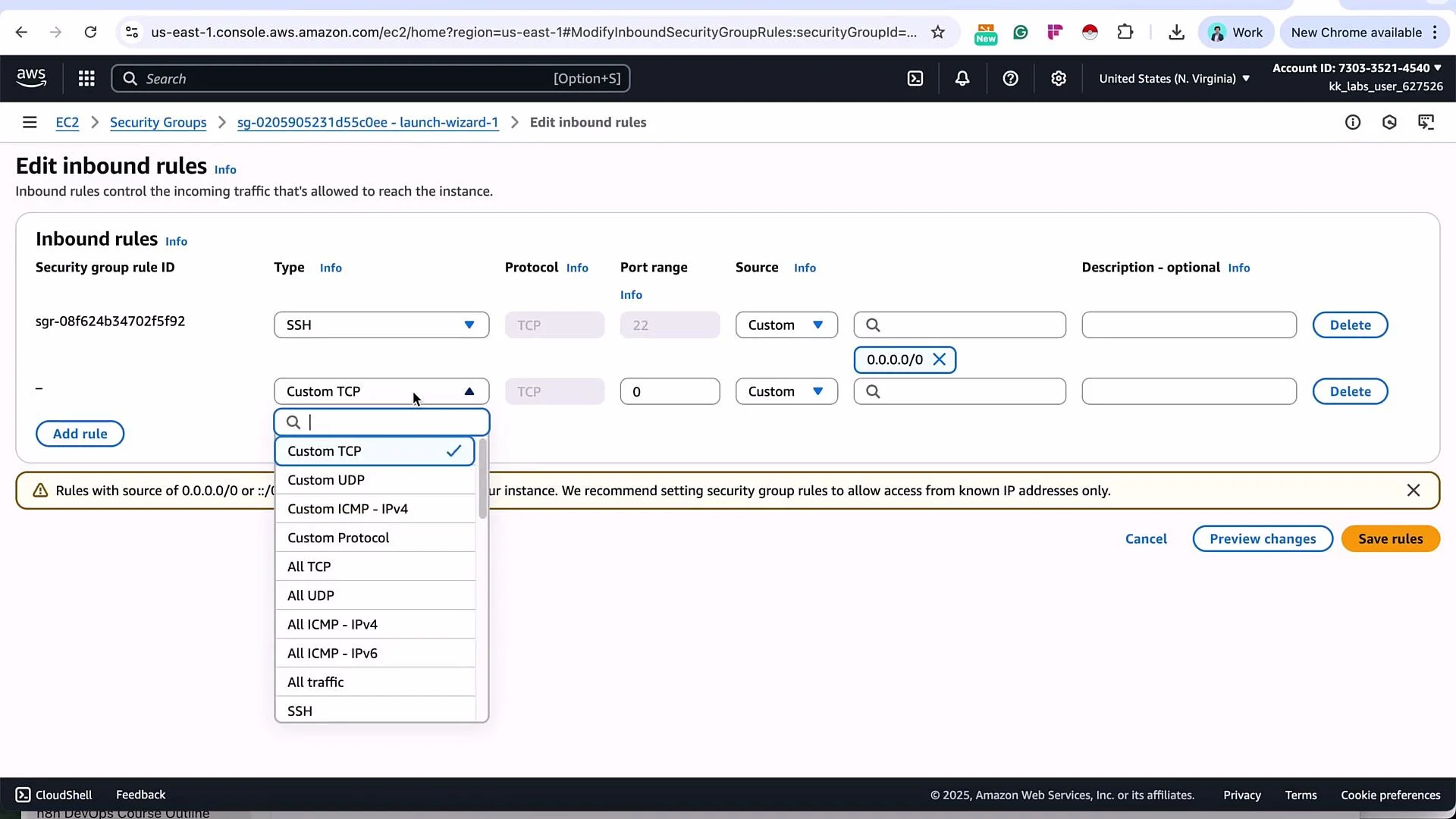
- SSH (port 22) — for administration.
- n8n (port 5678) — to access the UI.
- Additional ports used by included services (Ollama, Qdrant) if needed.
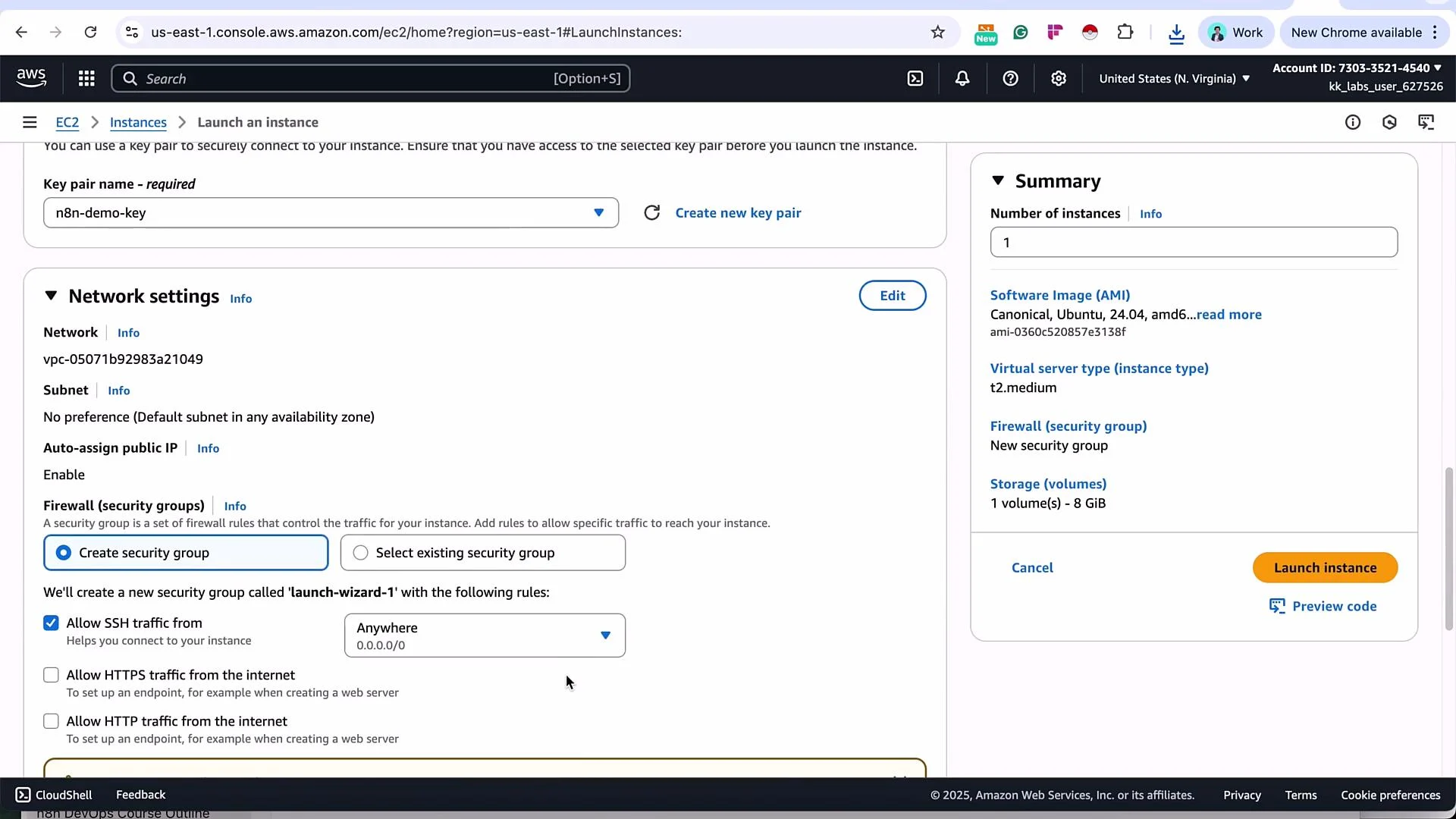
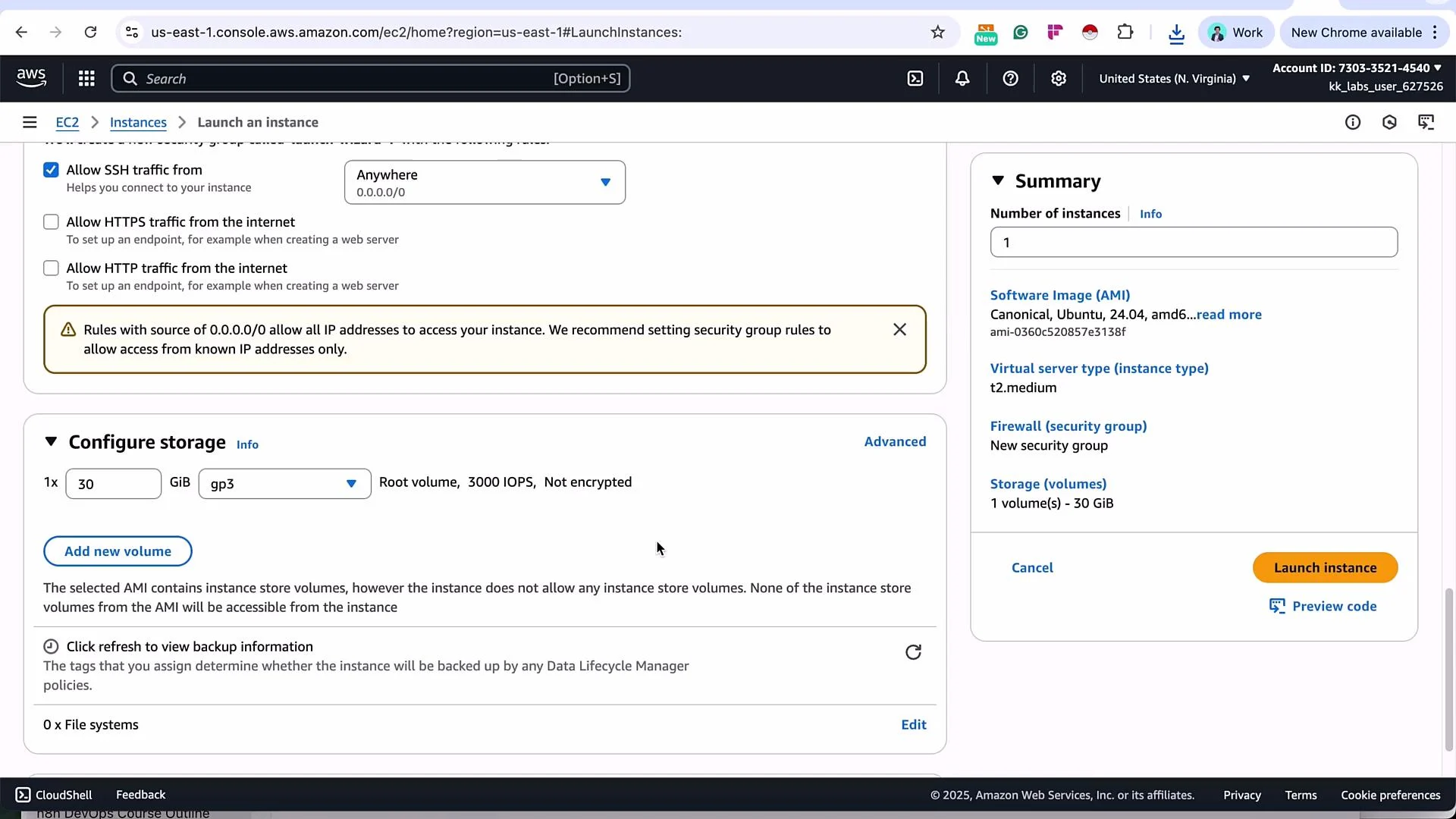
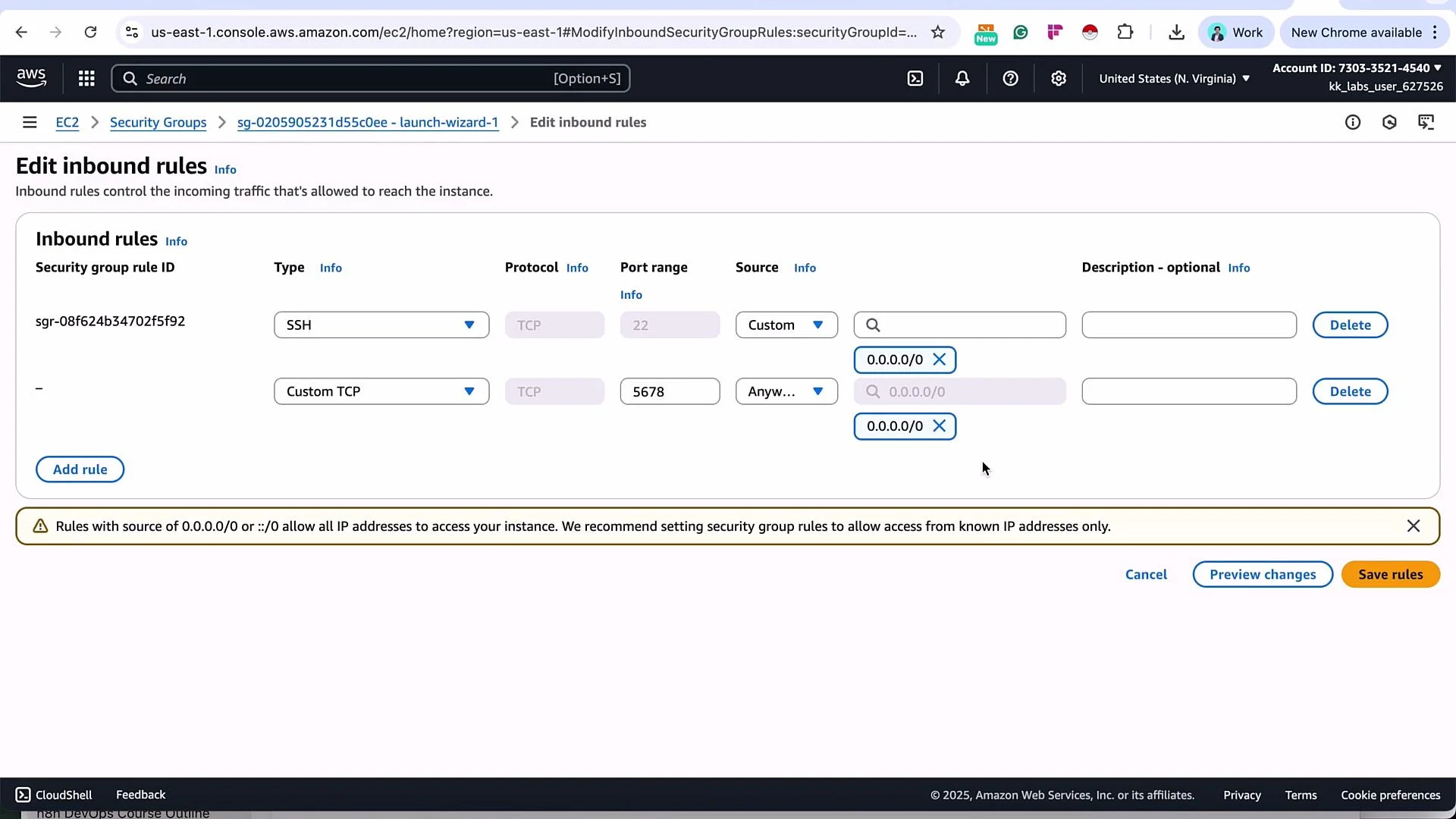
For production, do not leave SSH (22) or n8n (5678) open to the entire internet (
0.0.0.0/0). Restrict access by IP range, use a VPN or bastion host, and implement least-privilege security. The open rules shown here are only acceptable for a short-lived demo sandbox.2 — SSH into the instance
On your local machine, move to the folder where the PEM key was downloaded and secure the file:ubuntu user and the instance public IP (replace <PUBLIC_IP>):
yes to continue. Example:
3 — Install Docker and Docker Compose v2
Update packages and install Docker using the official convenience script:docker compose, not docker-compose):
- Docker docs: https://docs.docker.com/engine/install/ubuntu/
- Docker Compose CLI plugin: https://docs.docker.com/compose/cli-command/
4 — Clone the repository and configure environment
Clone the n8n self-hosted AI starter kit and prepare the environment file:.env and set relevant variables. Minimum example (only key variables shown):
- Ensure variable names are
N8N_prefixed andPOSTGRES_DBisn8n. N8N_SECURE_COOKIE=falseis used here because the demo uses HTTP. For production with HTTPS, setN8N_SECURE_COOKIE=true.- Replace
N8N_ENCRYPTION_KEYandN8N_USER_MANAGEMENT_JWT_SECRETwith strong, unique secrets.
Quick reference — Ports and services
5 — Start the stack with Docker Compose
Start services using the Compose profile included in the repo:- Use
docker compose logs -fordocker compose logs <service>to inspect startup issues. - Ensure sufficient disk and CPU on the instance; Ollama and Qdrant are resource-intensive.
6 — Access n8n in the browser
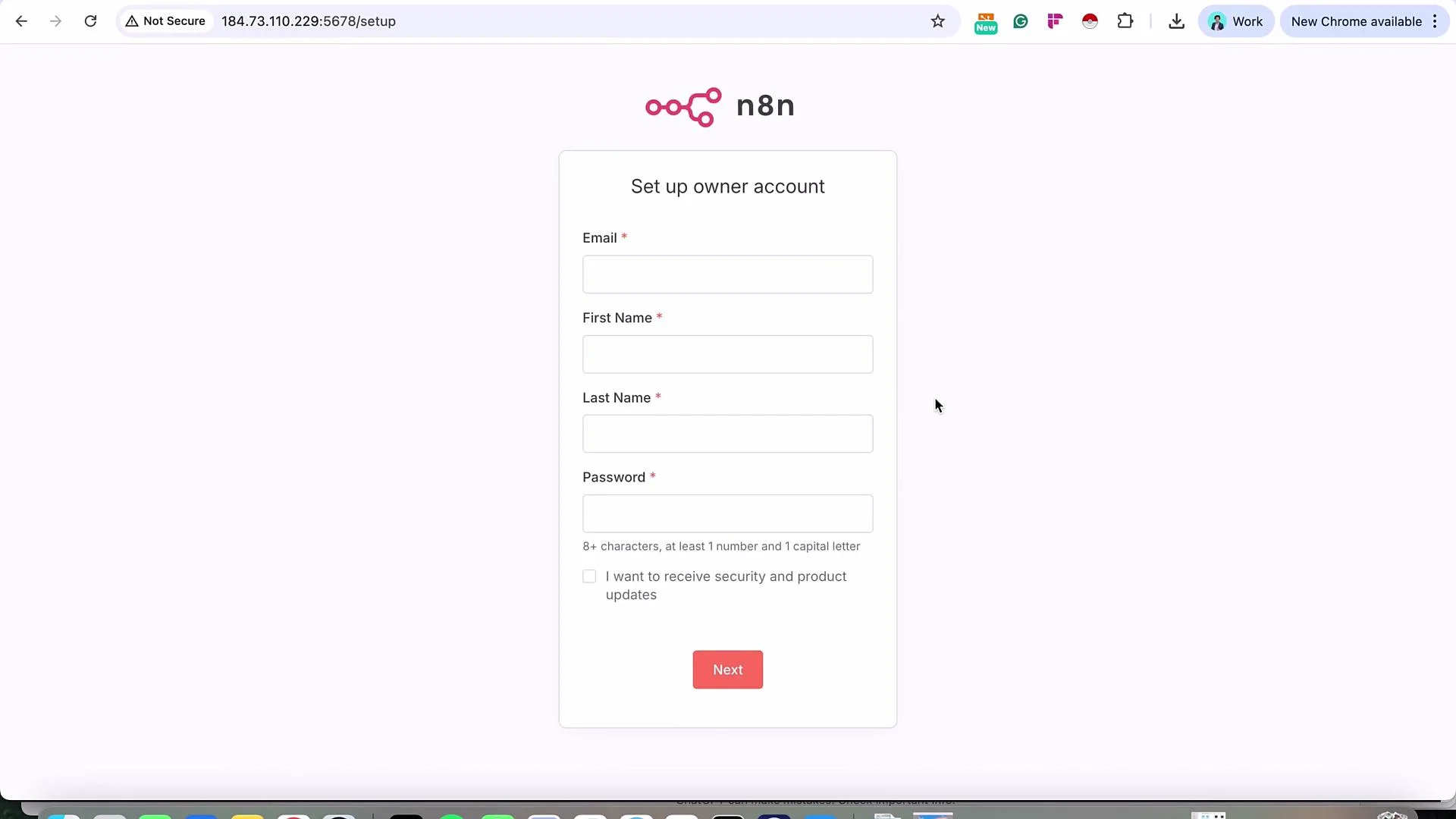
Open:<PUBLIC_IP> with your EC2 instance public IPv4 address. On first access you will be prompted to create an owner account (email, first name, last name, password).
Closing notes
- This walkthrough demonstrates a simple self-hosted n8n setup on EC2 using Docker Compose. If you prefer a managed service, consider n8n Cloud.
- For production:
- Terminate public-only SSH/n8n access; restrict by IP or use a bastion/VPN.
- Enable HTTPS (reverse proxy, load balancer, or TLS termination).
- Use secure secret management, backups, and monitoring/alerts.
- Learn more:
- Docker docs: https://docs.docker.com/
- AWS EC2: https://docs.aws.amazon.com/ec2/
- n8n self-hosted starter kit: https://github.com/n8n-io/self-hosted-ai-starter-kit
- KodeKloud Docker course: https://learn.kodekloud.com/user/courses/docker-training-course-for-the-absolute-beginner
- KodeKloud EC2 course: https://learn.kodekloud.com/user/courses/amazon-elastic-compute-cloud-ec2