

- Create or select a Google Cloud project.
- Configure the OAuth consent screen.
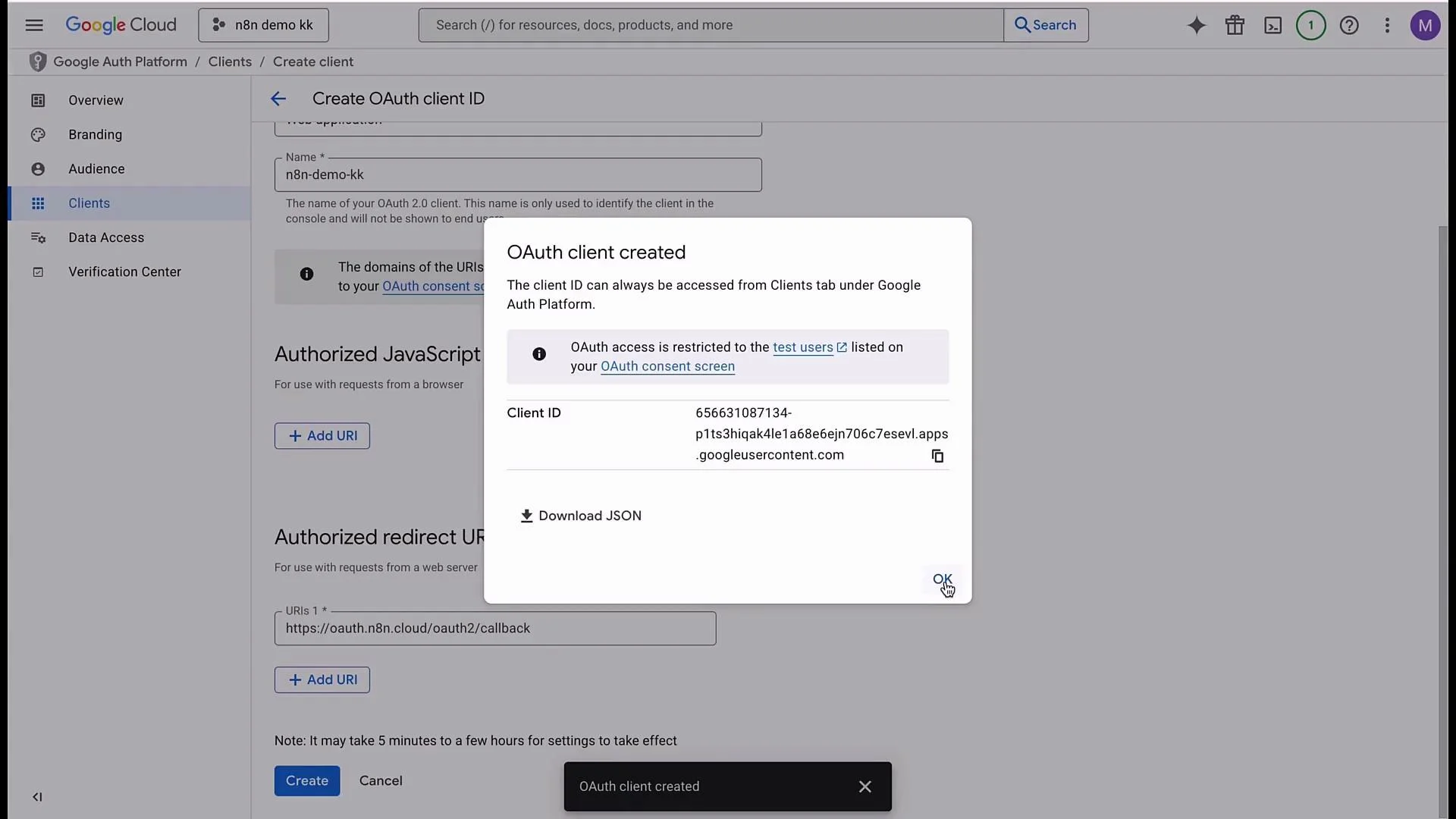
- Create an OAuth 2.0 Client ID (web application).
- Add n8n’s OAuth redirect URL to the client.
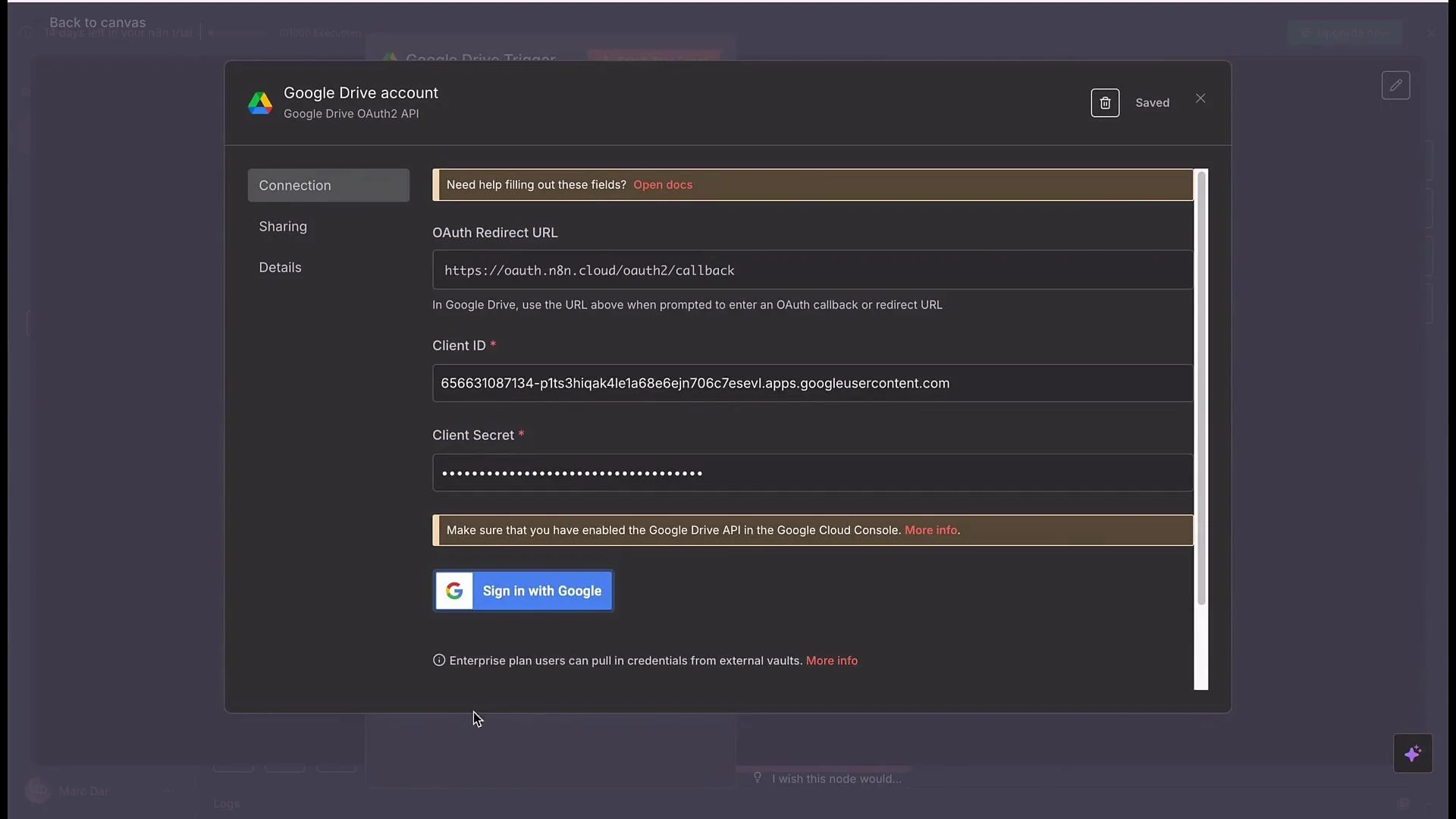
- Copy Client ID and Client Secret into n8n.
- Enable required Google APIs (Drive, Sheets, Gmail, Docs).
- Authenticate from n8n and test the integration.
- Open Google Cloud Console
- Go to
https://console.cloud.google.comand sign in with the Google account you want to use for API access.
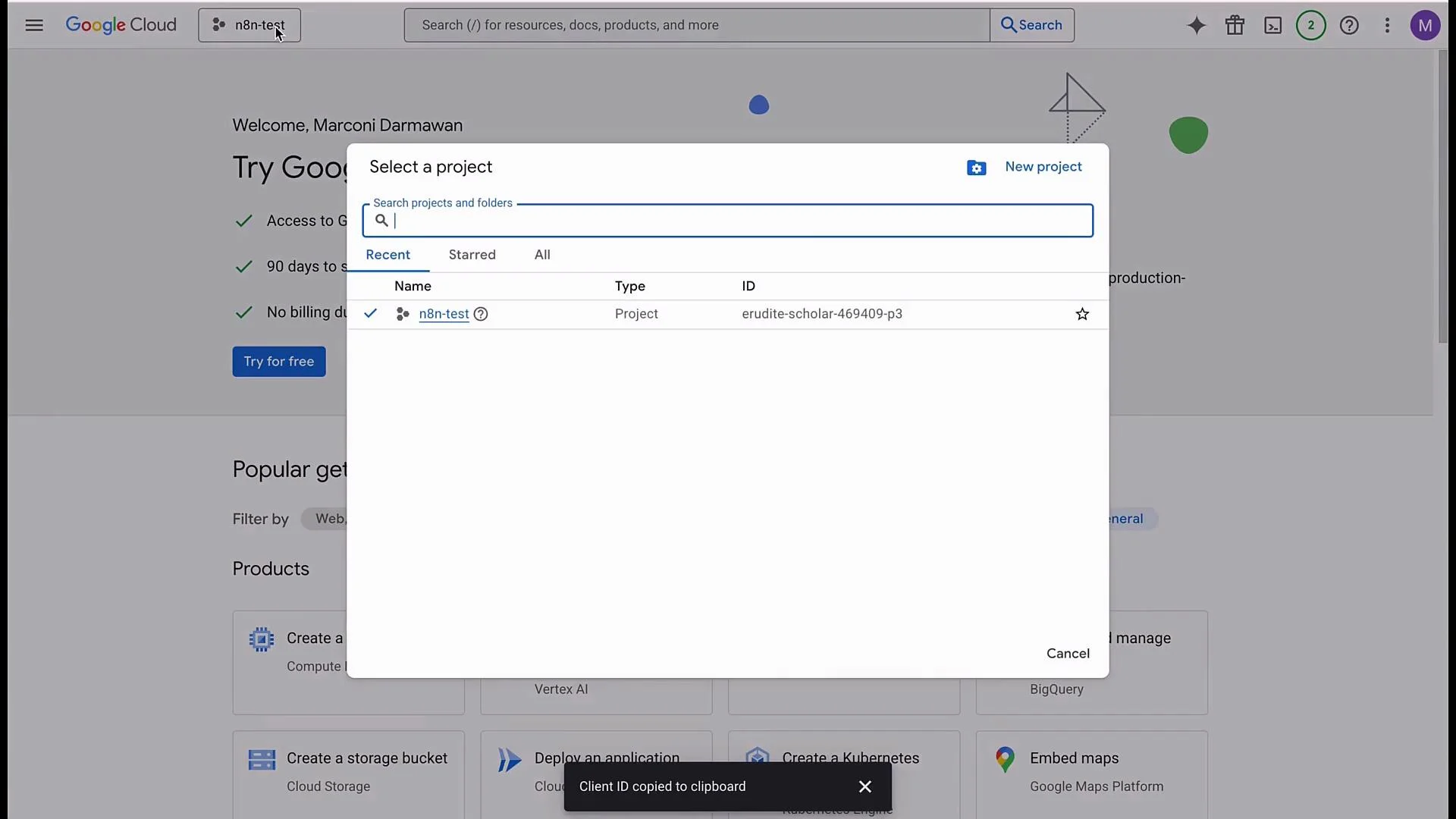
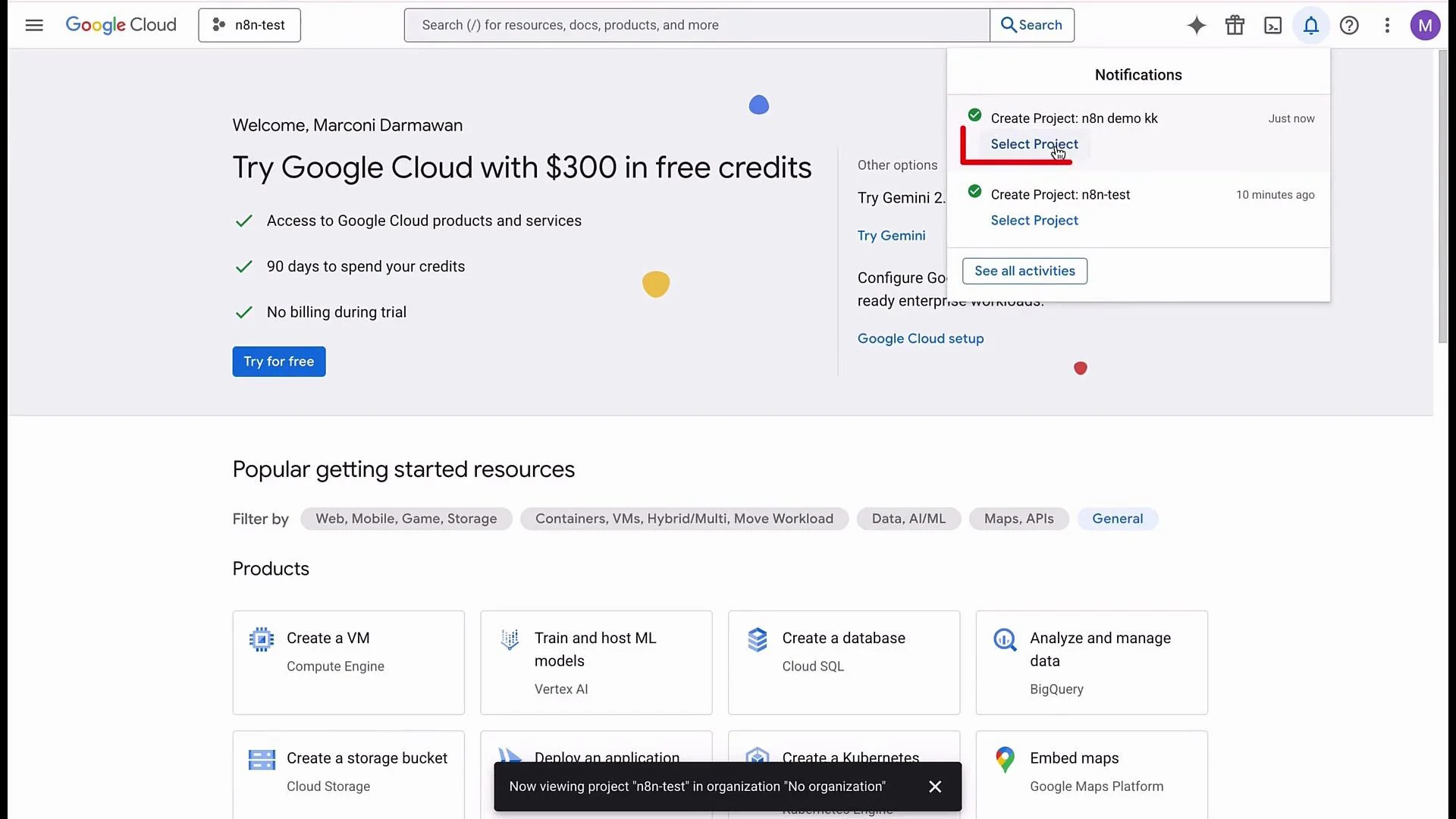
- Create or select a project
- Click the project drop-down (top-left) and choose New Project.
- Give the project a name (for example
n8n-demo-kk) and set Location to “No organization” if applicable. Click Create, then Select.
- Configure the OAuth consent screen
- In the left menu go to APIs & Services > OAuth consent screen.
- Click Get started if prompted.
- Enter an App name (you can reuse your project name) and choose a Support email.
- For User Type choose
Externalunless you have a Google Workspace domain and wantInternal. - Save and continue through the required fields.
- Create the OAuth 2.0 Client ID
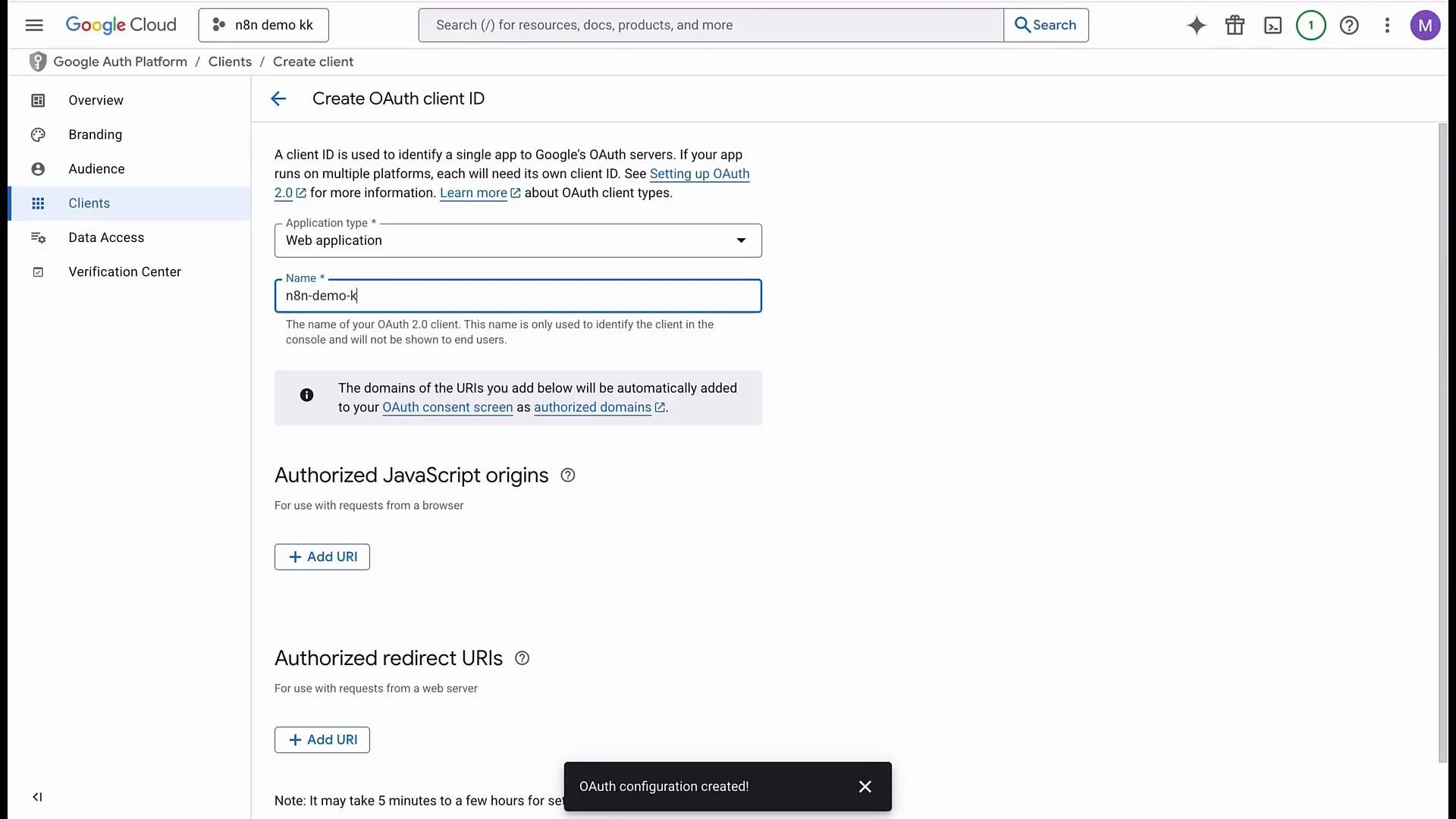
- Go to APIs & Services > Credentials and click Create Credentials > OAuth client ID.
- Select Application type:
Web application. - Give the OAuth client a Name (for example
n8n-demo-kk).
- Add an Authorized redirect URI
- In n8n, when creating the Google credential, copy the OAuth Redirect URL shown in the credential form.
- Paste that exact redirect URL into Authorized redirect URIs in the Google Cloud dialog, then click Create.
- Copy the Client ID and Client Secret
- After creating the OAuth client, copy the Client ID and Client Secret from the Google Cloud dialog.
- Paste them into the corresponding fields in the n8n Google credential.
-
Branding and Authorized domains:
- In the OAuth consent screen > Branding section, add any Authorized domains you will use.
- For n8n Cloud users add
n8n.cloud. For self-hosted n8n add your host domain (for exampleexample.com). - The authorized domain must match the domain portion of the redirect URI you provided.
-
Enable the APIs you will use:
- Search for and enable the Google APIs your workflows require (for example: Google Drive API, Gmail API, Google Sheets API, Google Docs API).
- Set testing/publishing state
- In the OAuth consent screen, set the Publish status to
Testingfor development. For production you can submit the app for verification and publish it. - Note: an unverified app will display a Google warning during sign-in; this is expected for development accounts.
If you see a “Google hasn’t verified this app” warning when signing in, that is expected for unverified apps. For development and testing you can proceed. To remove the warning for production, submit the app for verification through Google Cloud.
- If you receive redirect mismatch errors during sign-in, double-check the Authorized redirect URIs and Authorized domains in the OAuth consent screen. They must match the exact domain and path used in the n8n credential.
Ensure the redirect URI you add to Google Cloud exactly matches the OAuth Redirect URL shown in n8n (including protocol, domain, and path). A mismatch will cause Google sign-in to fail.
- Authenticate from n8n
- Back in n8n’s Google credential dialog, click Sign in with Google.
- Choose the account and accept the requested permissions (scopes).
- Once authorized, n8n will display the account as connected.
- Test the Google Drive trigger
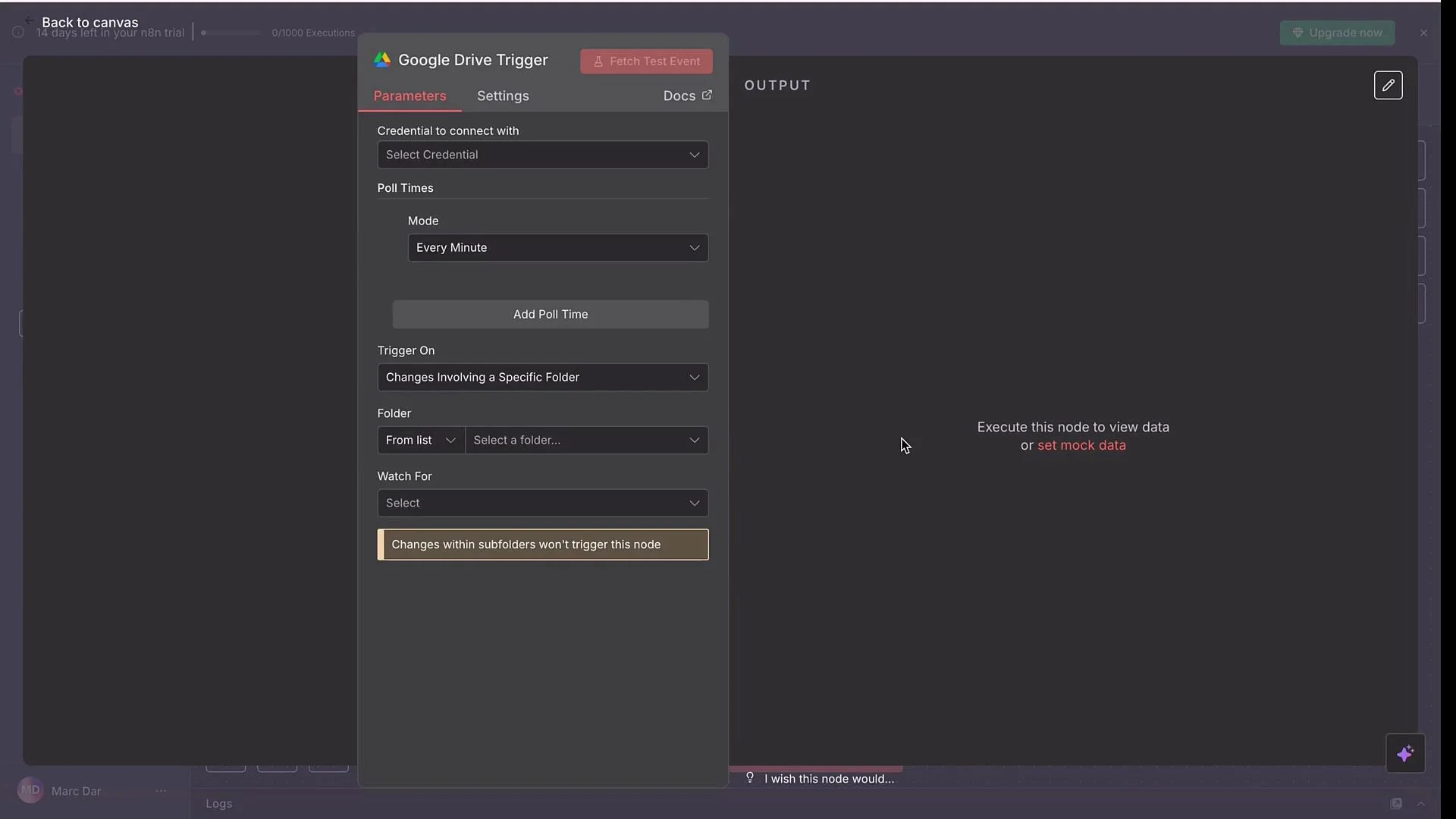
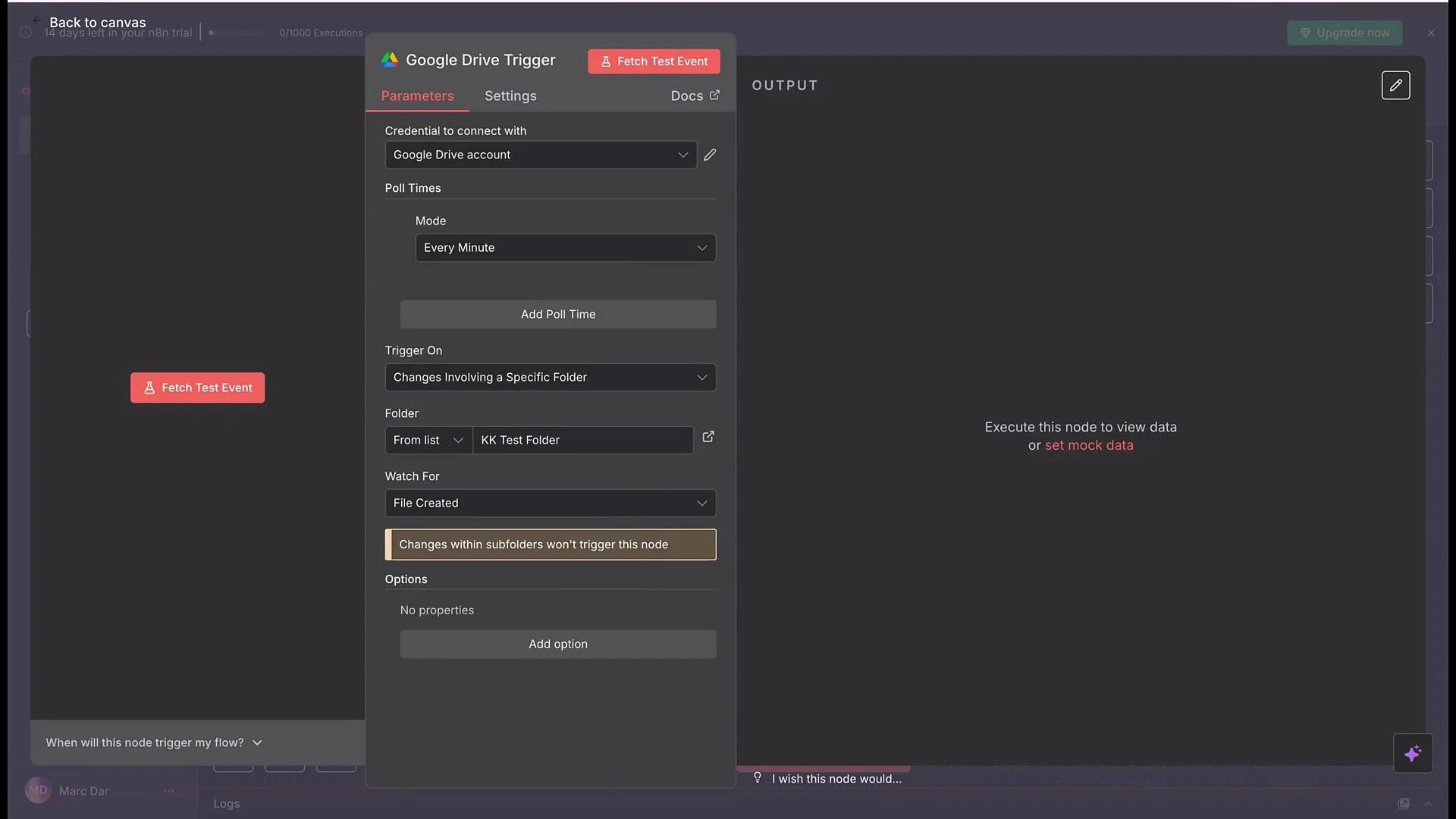
- Configure the Google Drive Trigger node and choose the folder to watch.
- Click Fetch Test Event. If there’s no recent activity you may see “no data with the current filter.”
- Upload a file (for example an
.xlsx) to the selected Drive folder, then click Fetch Test Event again. The node should receive the new file metadata and trigger.
- After you enable an API in Google Cloud (Sheets, Gmail, Docs, etc.), you can use the same OAuth credential in n8n to connect those nodes. The OAuth client, redirect URI, and authorized domains remain the same — only enable the additional APIs you need.
Links and references
- Google Cloud Console:
https://console.cloud.google.com - n8n: https://n8n.io/
- Google API docs:
- Google Drive API — https://developers.google.com/drive/api
- Google Sheets API — https://developers.google.com/sheets/api
- Gmail API — https://developers.google.com/gmail/api
- Google Docs API — https://developers.google.com/docs/api