

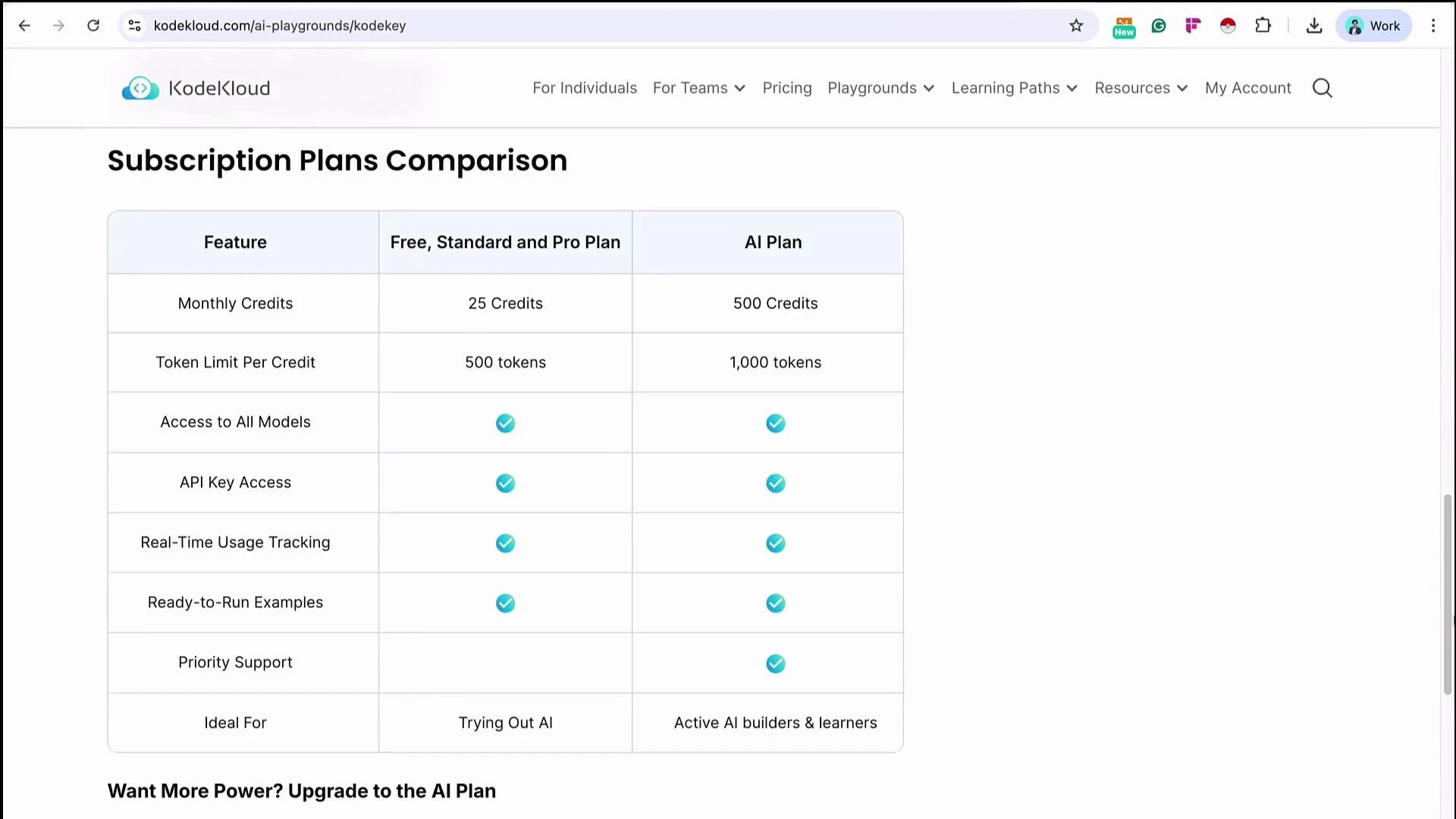
https://kodekloud.com/ai-playground/kk-keyspace. Once you have the correct subscription and access, click Launch Now → Start Playground to reach the dashboard where you can create API keys, pick available models, and view example requests.
This article demonstrates two practical ways to call a GPT-4.1 model through KK Keyspace from an n8n workflow:
- Use n8n’s built-in OpenAI “Message a Model” node with a custom KK Keyspace credential.
- Use n8n’s HTTP Request node by importing a cURL example from the KK Keyspace docs.
Method 1 — OpenAI “Message a Model” node (with a KK Keyspace credential)
Steps:- Add a trigger node (for example, a Chat Trigger). Example payload for a chat trigger:
- Add the OpenAI “Message a Model” node to the workflow.
- Create a new credential (for example,
KK Keyspace Demo) and configure:- Base URL: paste the KK Keyspace base URL shown in your KK Keyspace dashboard.
- API Key: paste the API key you created in the KK Keyspace dashboard.
- Save the credential.
If a red compatibility warning appears in the n8n UI after entering a custom base URL, it is usually a harmless UI incompatibility caused by supplying a non-default base URL. You can still use the credential and execute the node.
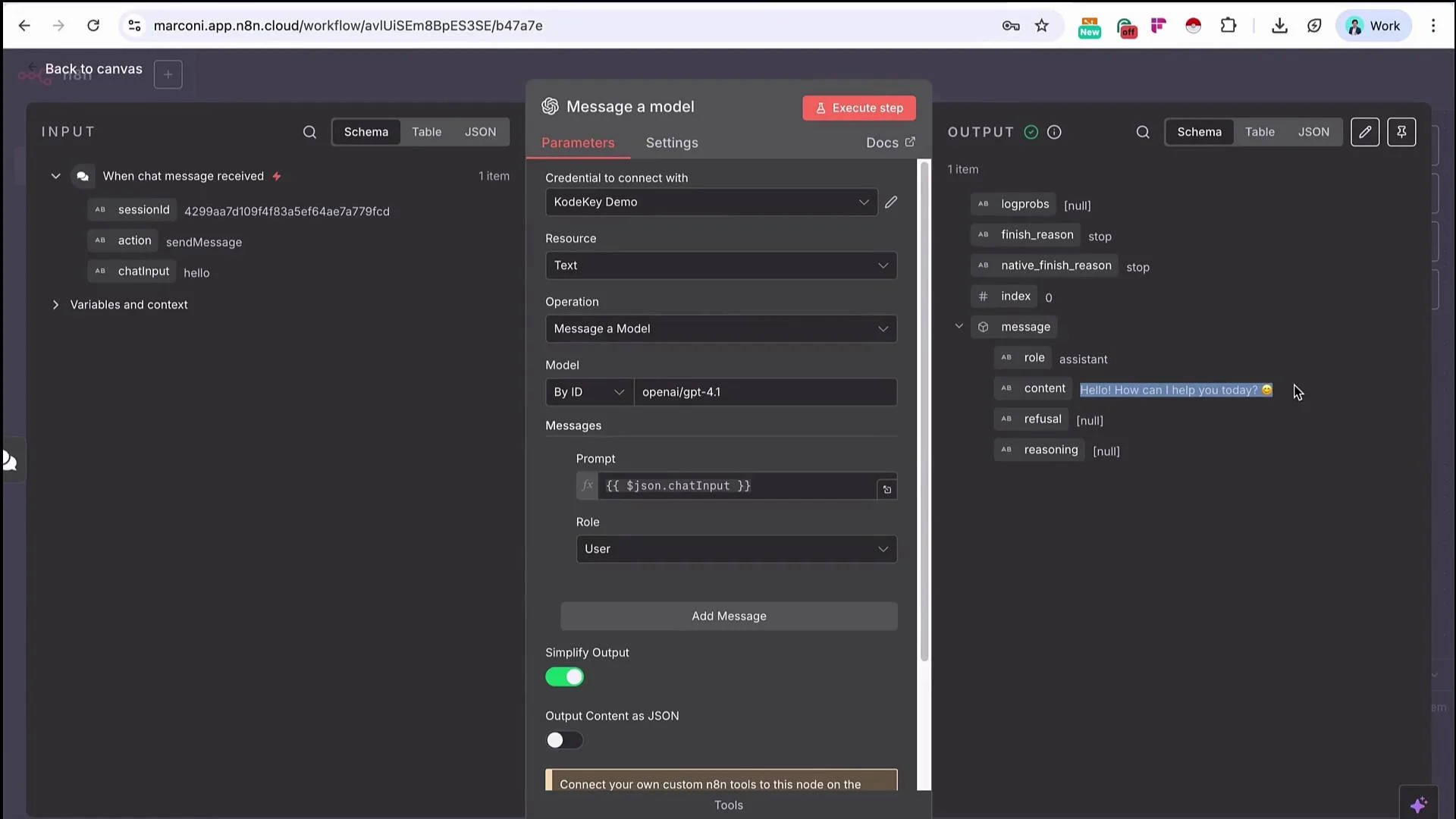
- In the “Message a Model” node:
- Set Model selection to “By ID”.
- Enter the model ID manually (KK Keyspace model IDs may not appear in the built-in provider list). For GPT-4.1 use:
- Map the trigger’s chat input variable into the node message field so the user’s prompt is sent to the model.
- Execute the node to see the response in the node output, for example:
“Hello! How can I help you today?”
Method 2 — HTTP Request node (import a cURL from KK Keyspace docs)
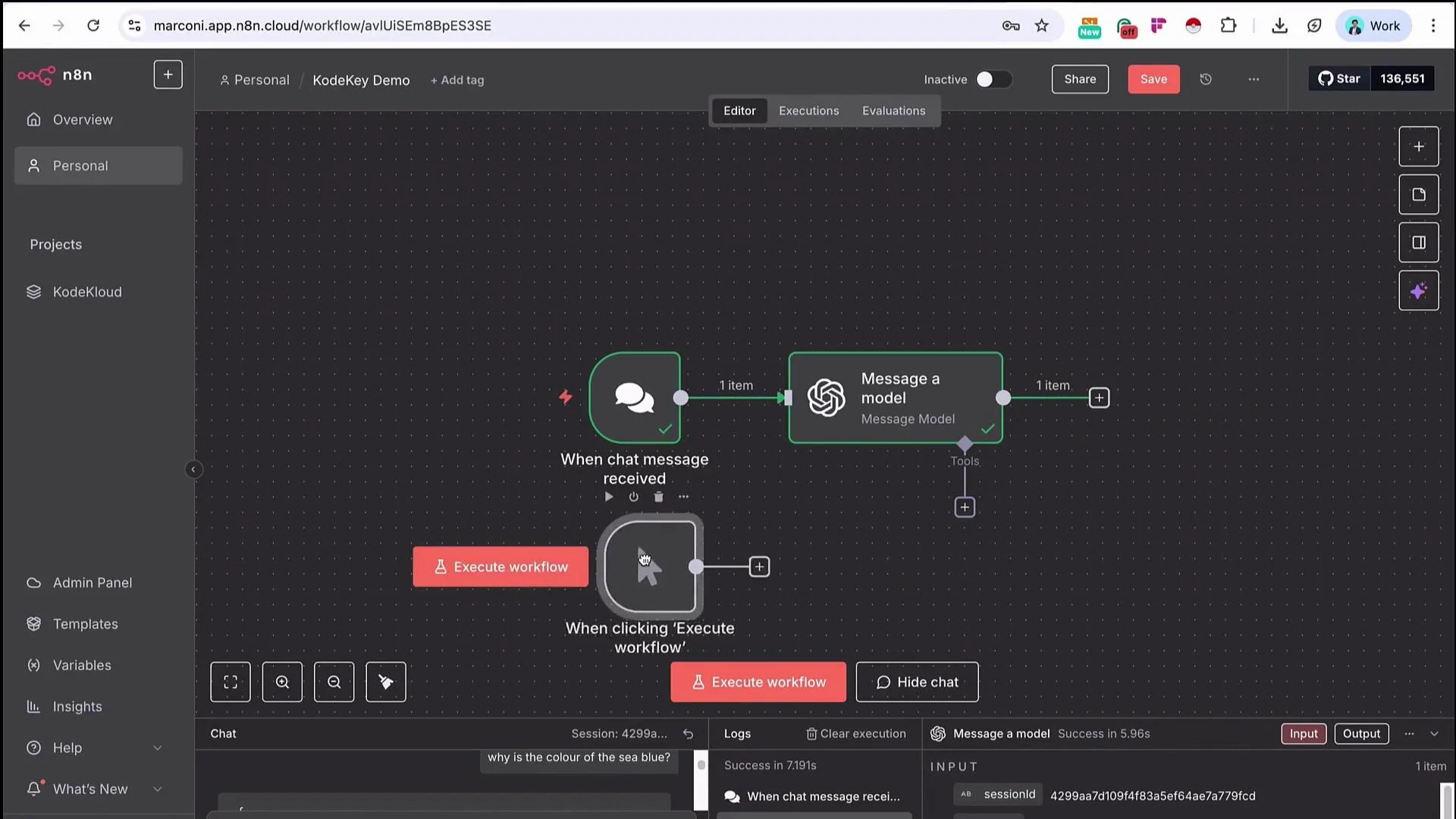
Use this approach when you prefer direct HTTP calls or need request options that the built-in node doesn’t expose.- Add a Manual Trigger (Trigger Manually) and attach an HTTP Request node.
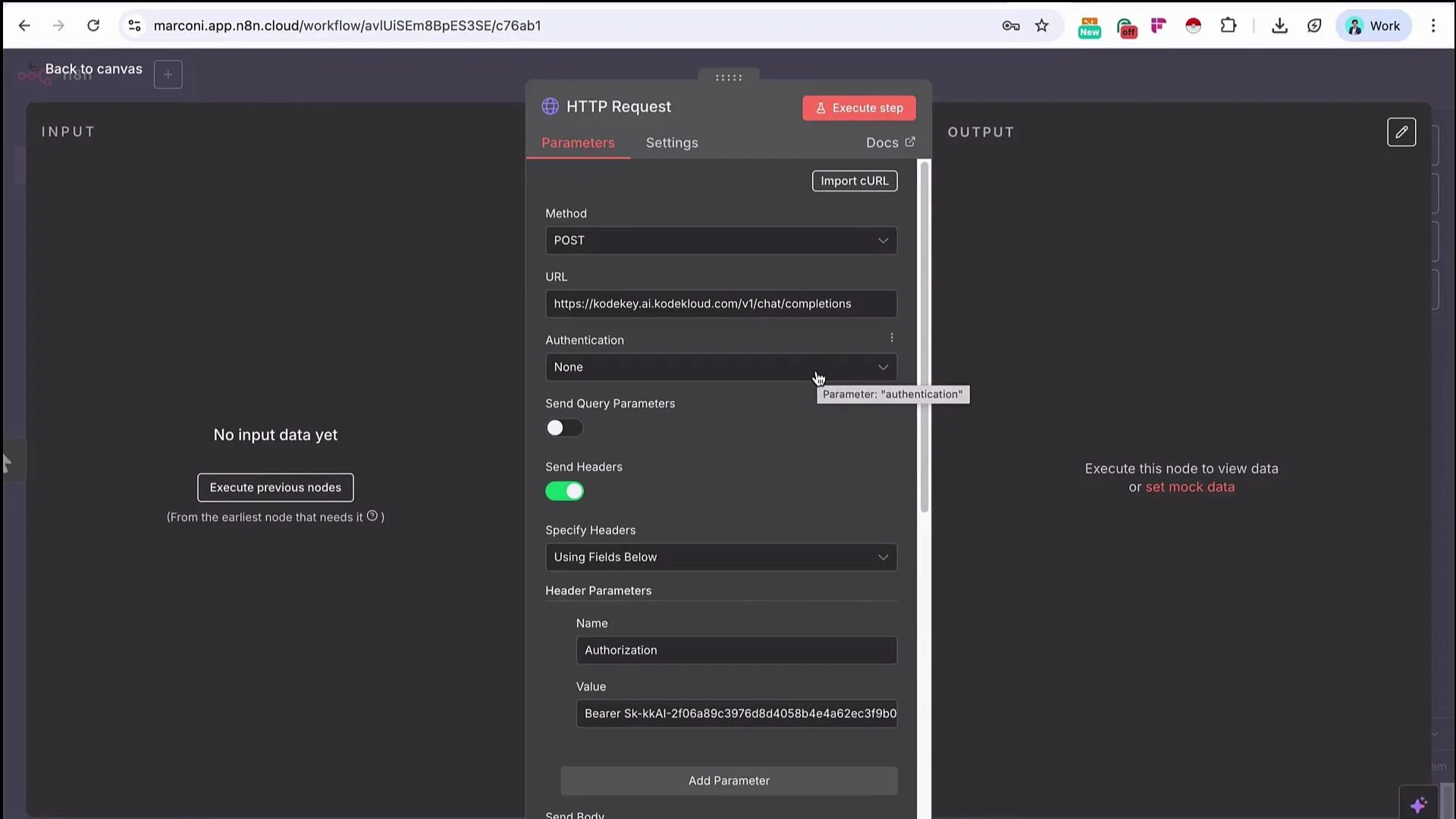
- In the KK Keyspace documentation, switch the example request to cURL and copy the example cURL command.
- In the n8n HTTP Request node, click Import cURL and paste the cURL — n8n will populate the method, URL, headers, and body fields automatically.
- Review and refine the imported configuration. You can move the
Authorizationheader into the dedicated Authentication fields or keep it under Headers; n8n often places Authorization and Content-Type in the Headers section on import.
- Execute the HTTP Request. A typical JSON body for a chat completion looks like:
“Someone should choose KodeKloud because it offers highly interactive, hands-on labs and real-world scenario-based exercises that accelerate practical skills development beyond traditional video-based courses.”Example cURL (redacted API key)
Never commit or expose your API keys publicly (for example in Git repositories or logs). Redact or inject secrets via n8n credentials and environment variables.
Method comparison
Summary
- KK Keyspace provides a quick path to obtain API keys and access multiple LLMs without immediately using each model provider’s billing account.
- In n8n you can:
- Use the OpenAI “Message a Model” node with a custom KK Keyspace credential (set Base URL and API Key).
- Or import a cURL from KK Keyspace docs into an HTTP Request node to run direct API calls.
- Both methods let you route chat input from triggers into a model and use the model responses in your workflows.
Links and references
- KK Keyspace (AI Playground):
https://kodekloud.com/ai-playground/kk-keyspace - OpenAI Platform: https://platform.openai.com/
- Anthropic: https://www.anthropic.com/
- n8n Documentation: https://docs.n8n.io/