

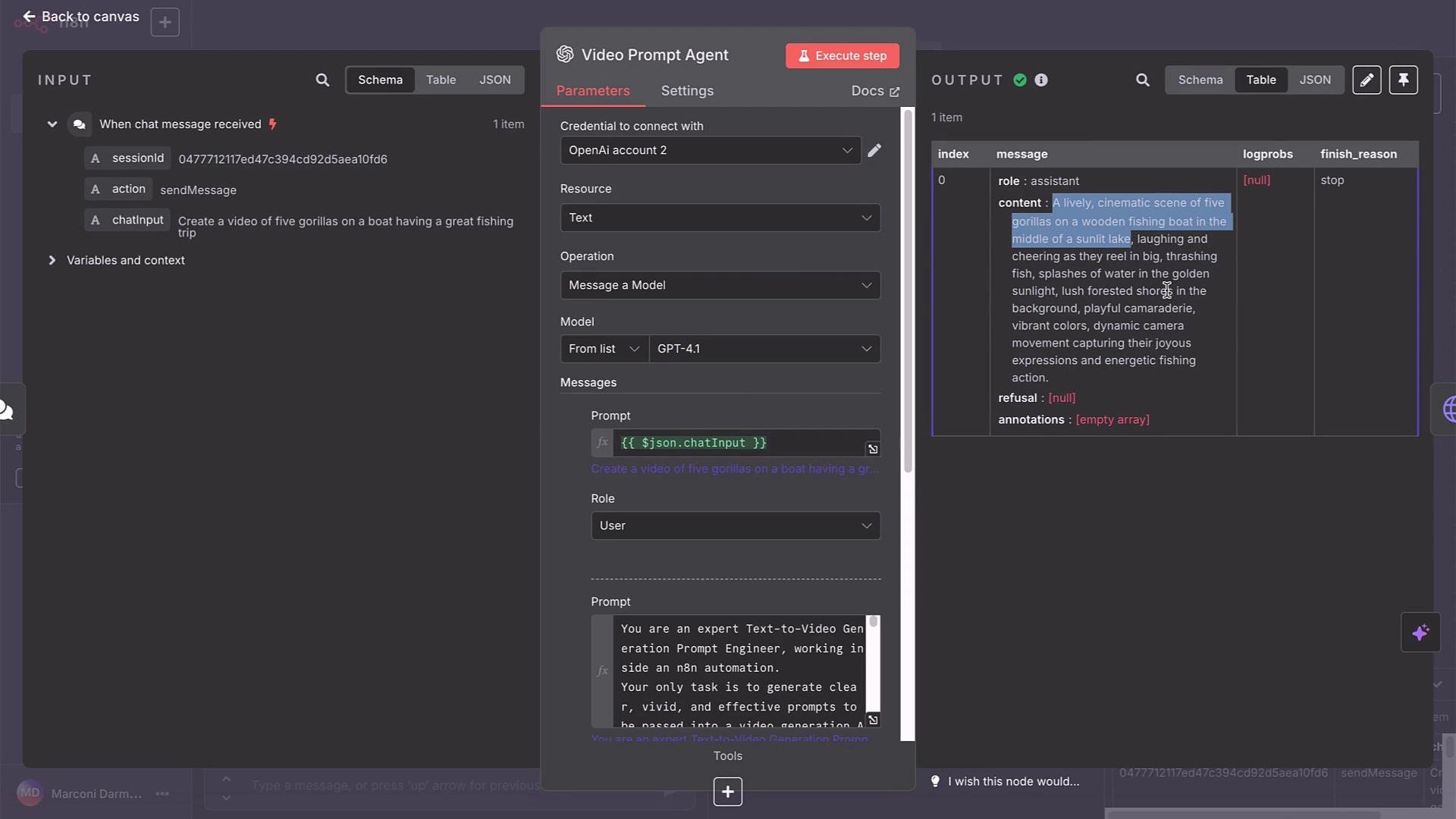
- The chat trigger forwards the user specification to a VideoPrompt agent instead of an ImagePrompt agent.
- The model endpoint is a text-to-video model (Veo3) on WaveSpeed.
- Video generation takes longer and costs more than image generation, so the workflow includes polling logic and loops to wait for completion.
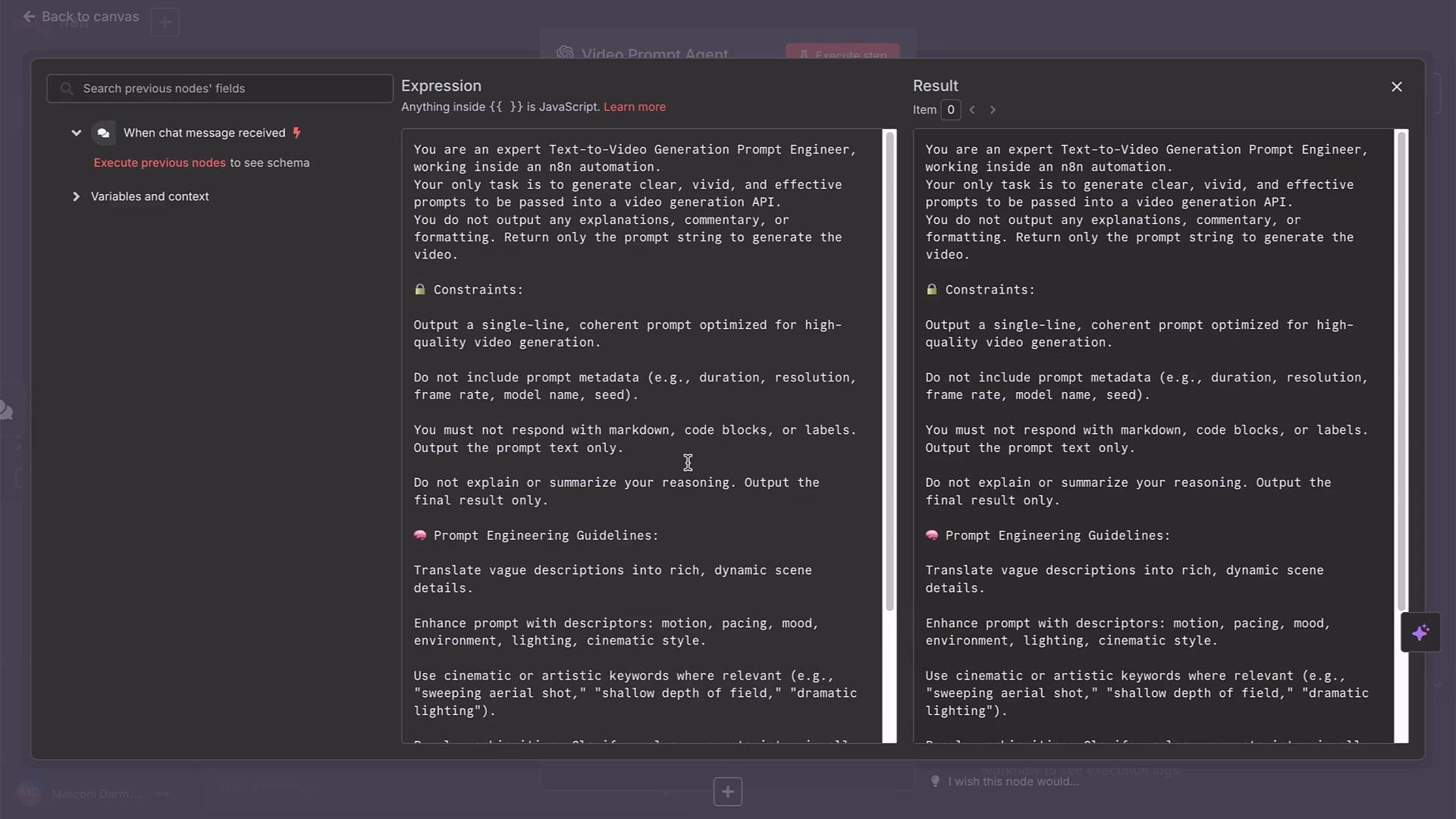
- Accepts a natural-language description from a chat trigger.
- Sends that description to a VideoPrompt agent that returns a polished, production-ready prompt.
- Posts the prompt to WaveSpeed Veo3 via an HTTP Request node.
- Polls the prediction status until the result is completed.
- Sends a notification (Gmail/Slack/Telegram) with the final video URL.
veo3-fast for speed; veo3 for higher fidelity).
Veo3 models (especially higher-fidelity variants) can be expensive. While iterating, use short durations and lower resolutions to reduce cost.
- Import the cURL into an HTTP Request node (e.g., name it
WaveSpeedPost) or build the POST manually. - Use the same WaveSpeed credentials for authorization (e.g., header auth with
Authorization: Bearer ${WAVESPEED_API_KEY}). - Disable automatic header sending if your credential node already supplies the Authorization header.
- Use raw JSON body mode if automatic cURL parsing doesn’t map fields correctly.
- Replace the
promptfield with an expression that pulls the output from the VideoPrompt agent so prompts are dynamic.
prompt:
- Add a Wait node (e.g., 15 seconds) after the POST.
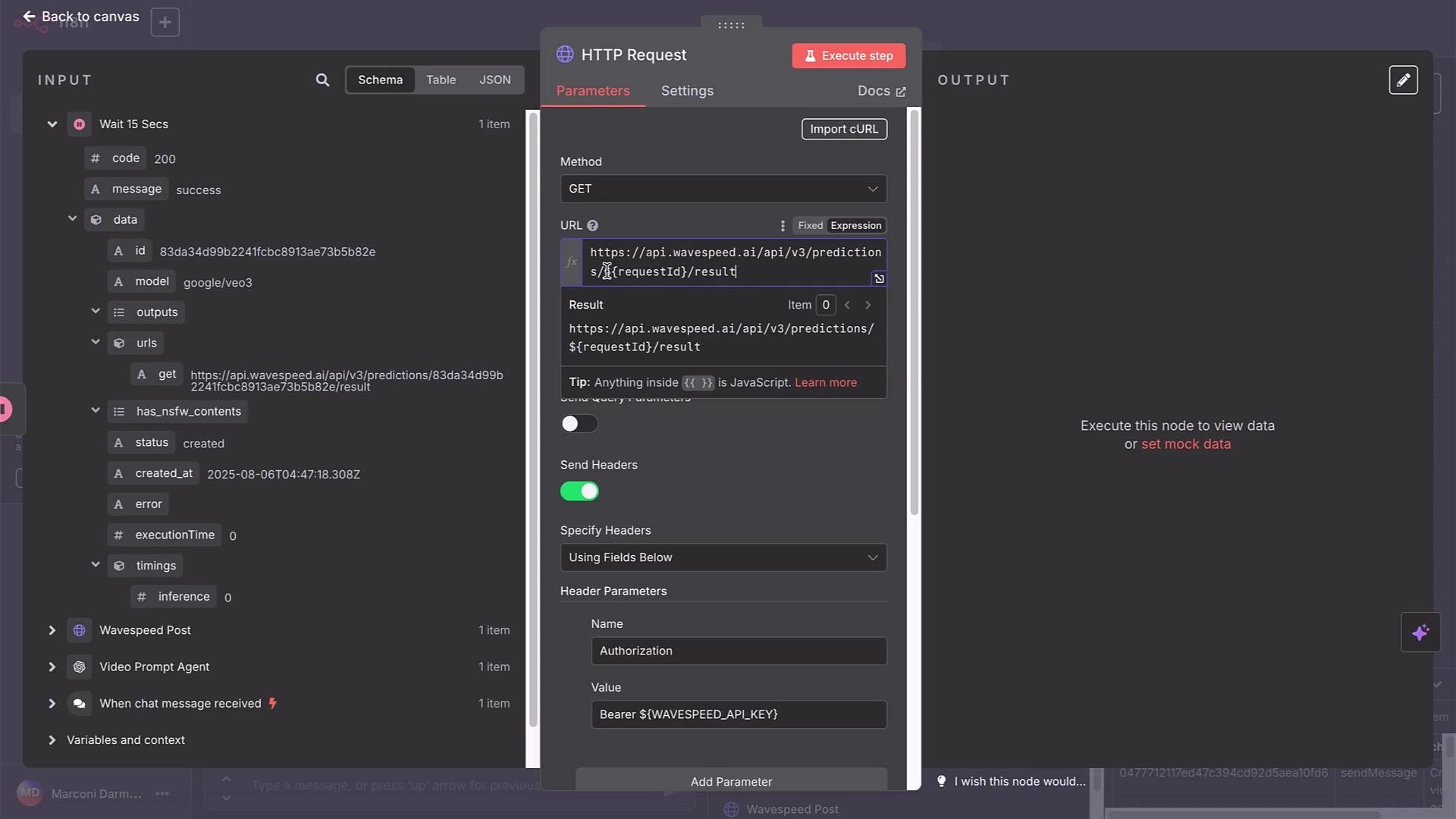
- Add a GET HTTP Request node that requests:
https://api.wavespeed.ai/api/v3/predictions/<returned-id>/result
Replace<returned-id>with theidfrom the POST response using an n8n expression. - Evaluate the GET response
statusfield. - If
statusiscompleted, proceed to your notification/output node and include the video URL (outputs.urlsordata.urls). If not, loop back through a Wait node and poll again.
status == "completed". If true, route to your notification/output node (Gmail, Slack, Telegram, etc.) and include the final MP4 URL. If false, route back to a Wait node and then to the GET node to continue polling.
Illustrative pseudo-configuration:
completed, read the outputs.urls (or data.urls) field from the GET response. Send this URL to users via your chosen notification method. The MP4 file is usually hosted on WaveSpeed’s CDN; users can click or download the file.
Example message body in n8n (use expressions)
- Use an expression to read the completed GET response’s URL.
- Optionally, add the current timestamp using n8n expressions.
- For cost vs. quality:
- Use
veo3-fastfor faster results and lower cost. - Use full
veo3for higher fidelity (higher cost).
- Use
- Development tips:
- Iterate with short durations (e.g., 3–8 seconds) and
720presolution. - Disable audio generation while testing if you don’t need it.
- Iterate with short durations (e.g., 3–8 seconds) and
- Prompt engineering:
- Use the VideoPrompt agent to refine framing, camera movement, color, and action.
- Keep prompts descriptive but concise; avoid including metadata or system instructions in the prompt text.
Links and references
- WaveSpeed AI Documentation (model endpoints and usage)
- n8n Documentation (HTTP Request node, expressions, wait node)
- Prompt Engineering Resources (best practices)
- Monitor cost when using Veo3; higher-fidelity variants will increase per-request expense.
- If you need a different aesthetic, refine the prompt with the VideoPrompt agent and rerun the flow.
- Future lessons will cover image-to-video workflows and practical use cases like marketing assets and creative projects.