

- A base image (the source image the video will be derived from).
- A Video Prompt (the user-provided description of the desired video).
- Google Drive trigger detects a new image upload.
- A Telegram bot notifies the user and requests a video idea.
- The image URL and timestamp are appended to a Google Sheet (
Image to Video Log). - A Telegram OnMessage trigger captures the user’s idea and the chat id.
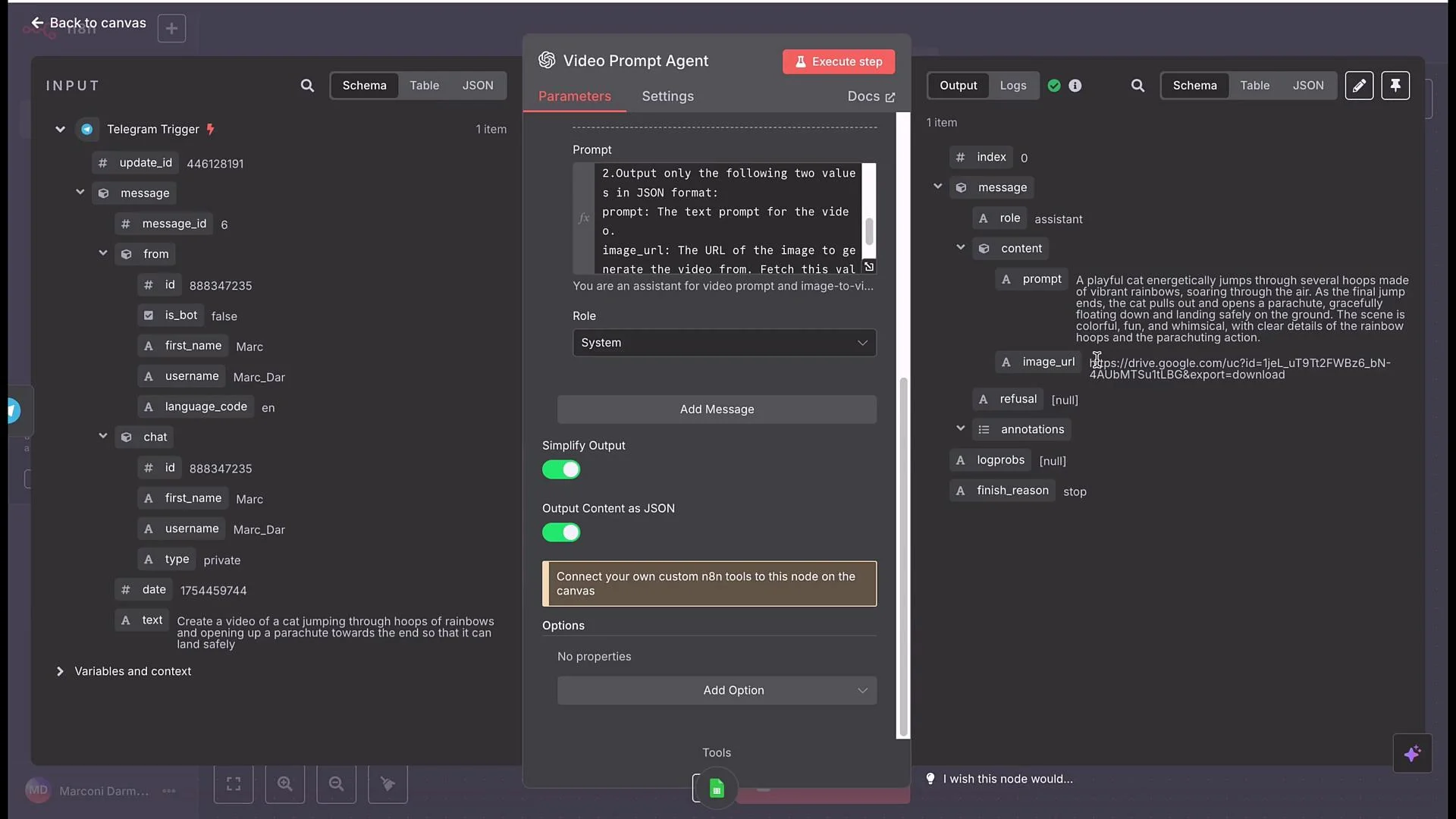
- An OpenAI Chat model (Video Prompt agent) converts the idea into a concise, structured video-generation prompt and returns the image URL.
- POST to Seedance (via the Wavespeed API) starts video generation.
- Wait + GET loop polls the API until processing completes.
- Send the finished video back to the user on Telegram.
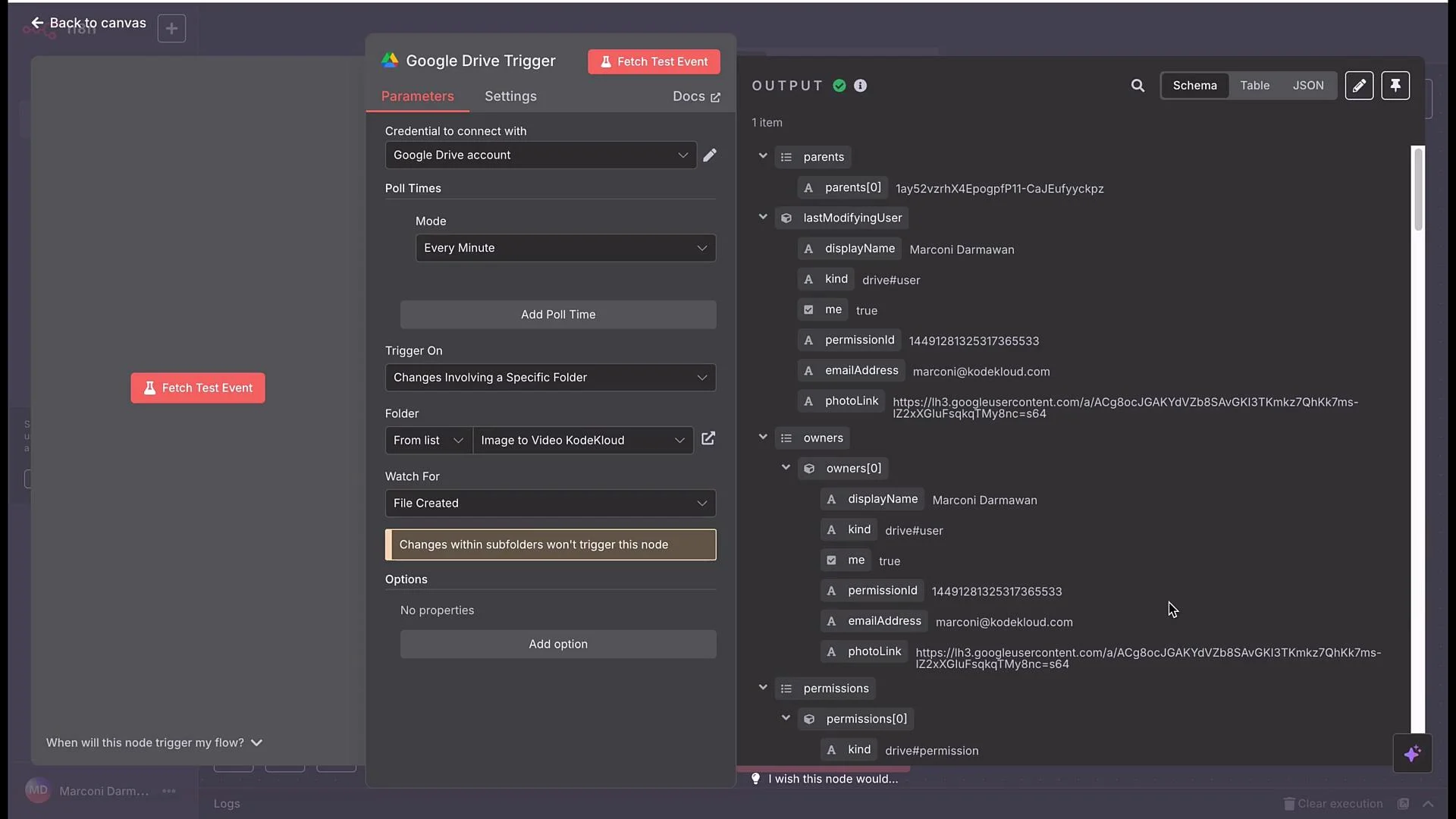
- Purpose: monitor a specific folder for newly created files (use polling, e.g., every minute).
- Key options:
- Folder: choose the folder to watch (e.g.,
image to video CodeCloud). - Event:
File Created.
- Folder: choose the folder to watch (e.g.,
- Output: the node returns metadata including a publicly shareable link in
webContentLink. Use that field as the image URL downstream.
While testing, share the Drive file via a public view link so the downstream HTTP POST can access the image. Revoke or restrict permissions for production.
- Create a bot via Telegram’s BotFather (
@BotFather):- In Telegram, start a chat with
@BotFatherand run/newbot. Follow the prompts to get your bot token. - Useful BotFather commands:
- In Telegram, start a chat with
- Add the bot token as credentials in your automation platform (e.g., in n8n create a credential named
Telegram Demo). - Test the credential to confirm connectivity.
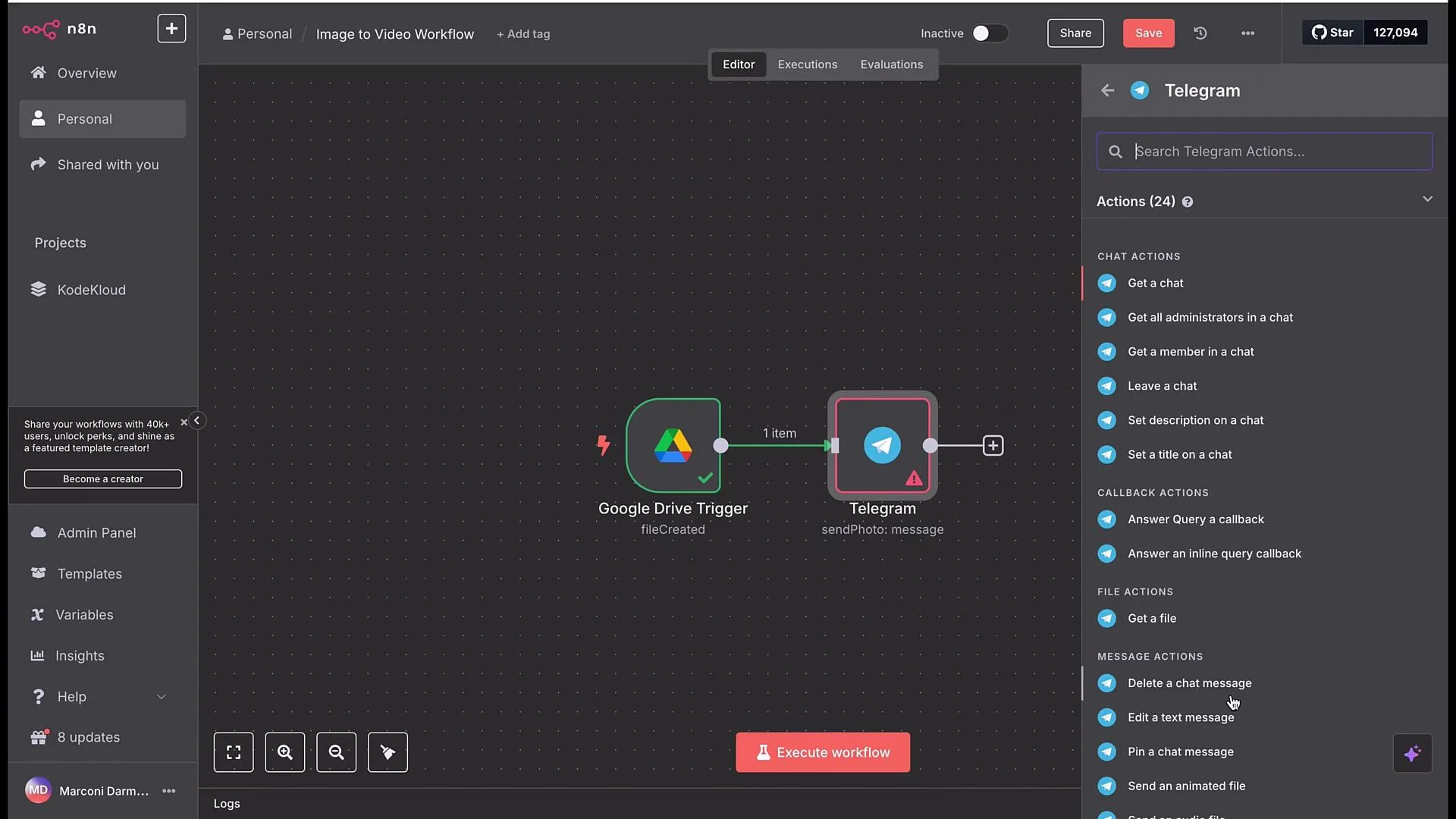
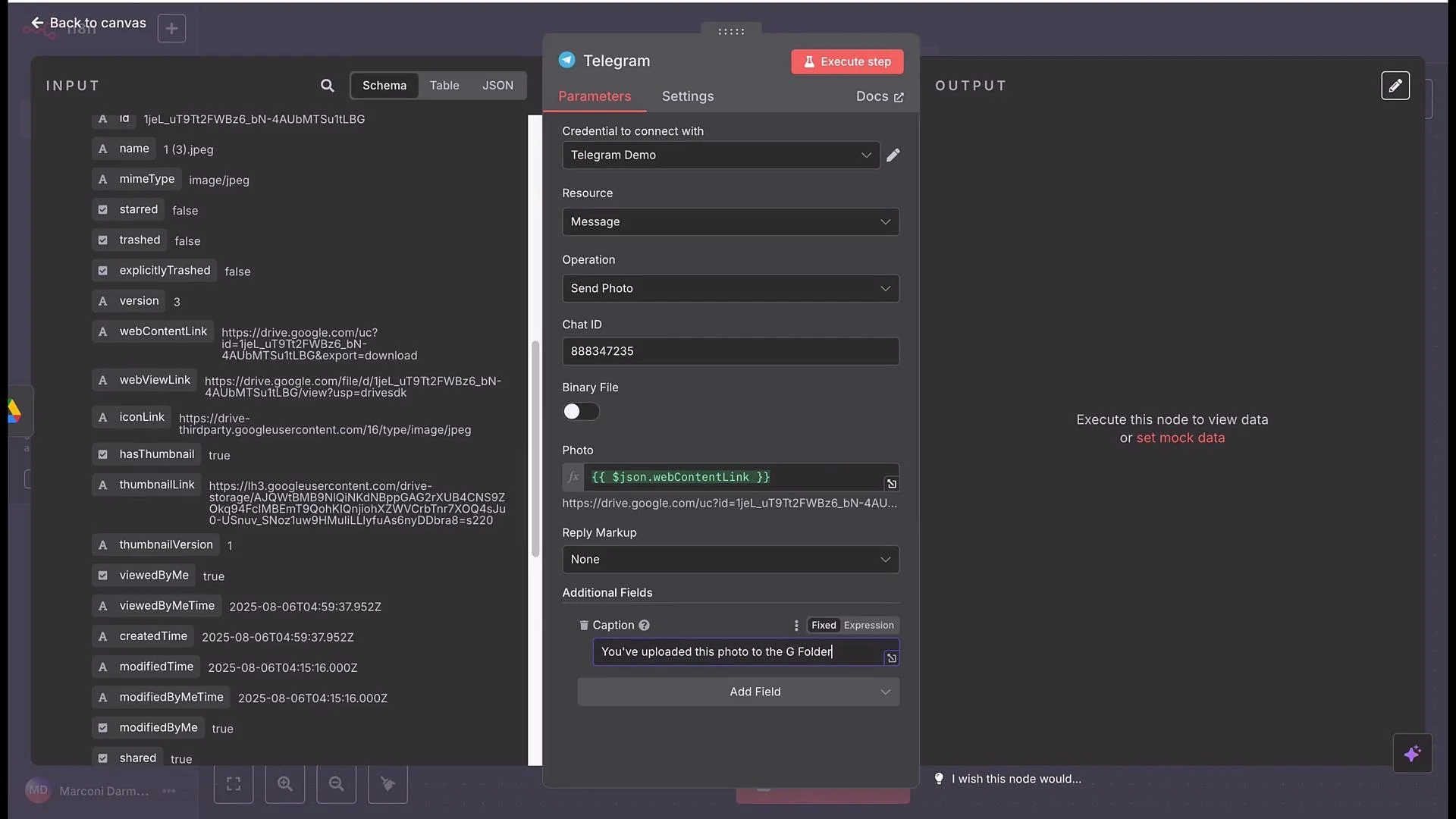
- Add a Telegram node configured to
Send a Photo. - Provide the
chat_id(you’ll capture this from the Telegram trigger below; for testing you can hard-code it). - Photo URL: map the Google Drive
webContentLinkoutput. - Caption example: “You’ve uploaded this photo to the Google Drive folder. Kindly provide the video idea that you want to generate from this image.”
- Add a Telegram
OnMessagetrigger node using the sameTelegram Democredentials. - Execute the trigger node, then message the bot from Telegram (e.g.,
testor your video idea). The trigger output contains the message body andchat.id. - Use the captured
chat.idas thechat_idin yourSend a PhotoorSend a Videonodes. Example mapping (platform specific):
- After a successful test run, copy the trigger execution back into the editor (e.g., using “Copy to Editor”) so earlier nodes can reference the test data.
- In the Telegram
Send a Photonode, map the DrivewebContentLinkinto the photo URL and add the caption shown above. - Execute to confirm the bot posts the image and requests the video idea.
- Add a Google Sheets node to append a row to
Image to Video Log(Sheet1). - Suggested columns:
image URLanddate. - Mapping:
image URL: map to the DrivewebContentLink.date: set toNow(timestamp).
- Purpose: the Video Prompt agent can use this sheet to fetch the most recent image URL if it needs to.
- Purpose: transform the user’s free-text idea into a concise, structured prompt for the image-to-video model and return the image URL.
- Add an OpenAI Chat node (e.g., GPT-4.1) and configure it to return raw JSON.
- Desired agent output (JSON):
prompt— the model-ready text prompt.image_url— the image URL to pass to Seedance.
- Tell the Chat agent to:
- Produce a concise, effective video prompt tailored to the image-to-video model.
- Return a JSON object with keys
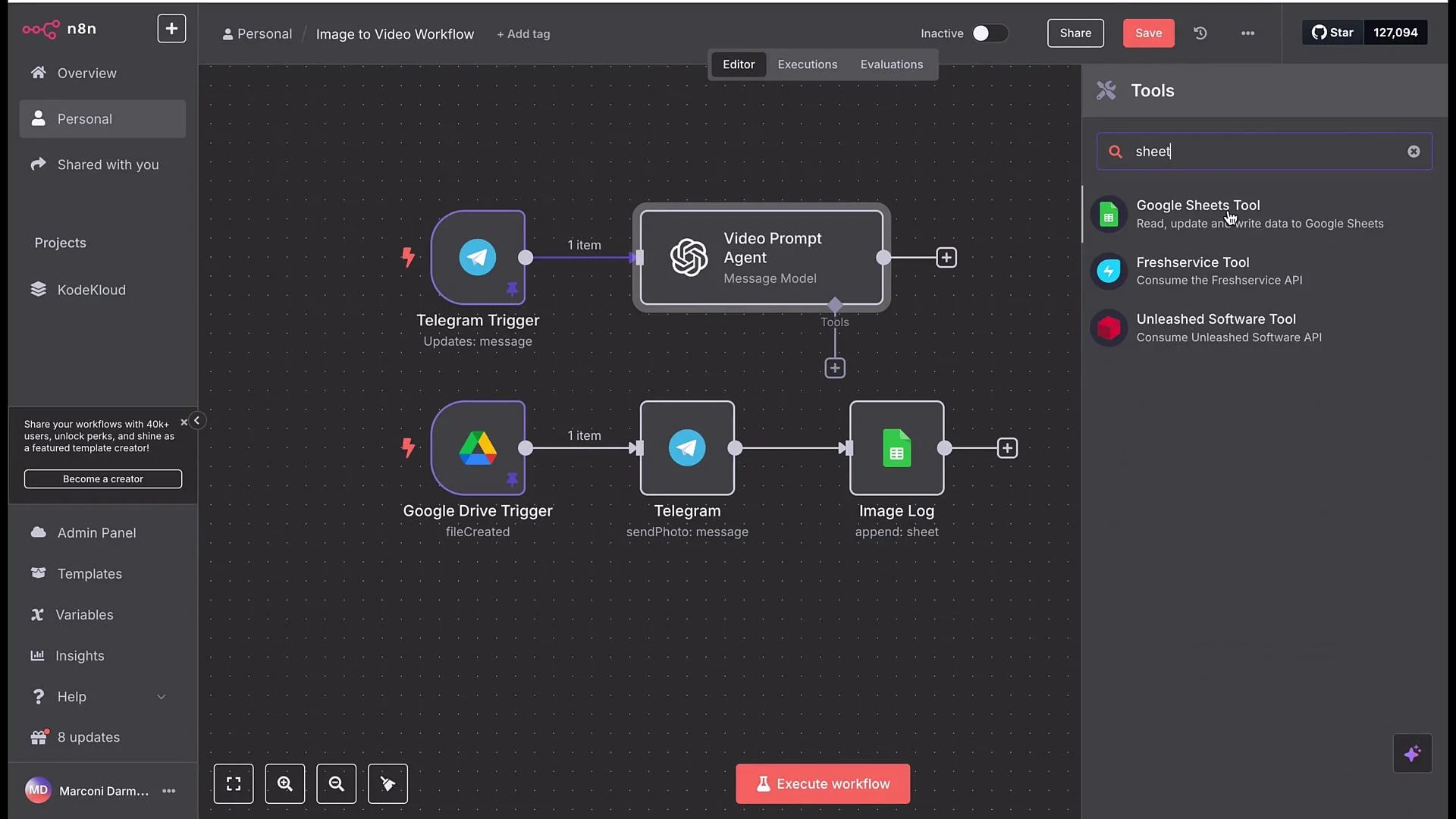
promptandimage_url. - Use a provided “Google Sheet Lookup” tool to fetch the last uploaded image URL (if not directly provided).
- Attach a tool to the Chat node named
Google Sheet Lookupwhich reads the last row of theImage to Video Logand returns theimage URL. The agent should populateimage_urlfrom that tool when necessary.
- Execute the Chat node and verify the response contains well-formed JSON with
promptandimage_url.
- Add an HTTP Request node to POST to the Seedance image-to-video endpoint. Import the cURL example from the Wavespeed docs when available.
- Authentication: set Authorization header to
Bearer ${WAVESPEED_API_KEY}(or your platform’s credential store).- If your automation platform already injects Authorization headers, remove duplicate header entries.
- Map:
image→image_urlfrom the Video Prompt agent.prompt→promptfrom the Video Prompt agent.duration,camera_fixed,seed→ set as appropriate (e.g.,duration: 5).
- Response: capture the returned
requestIdor predictionidfor polling.
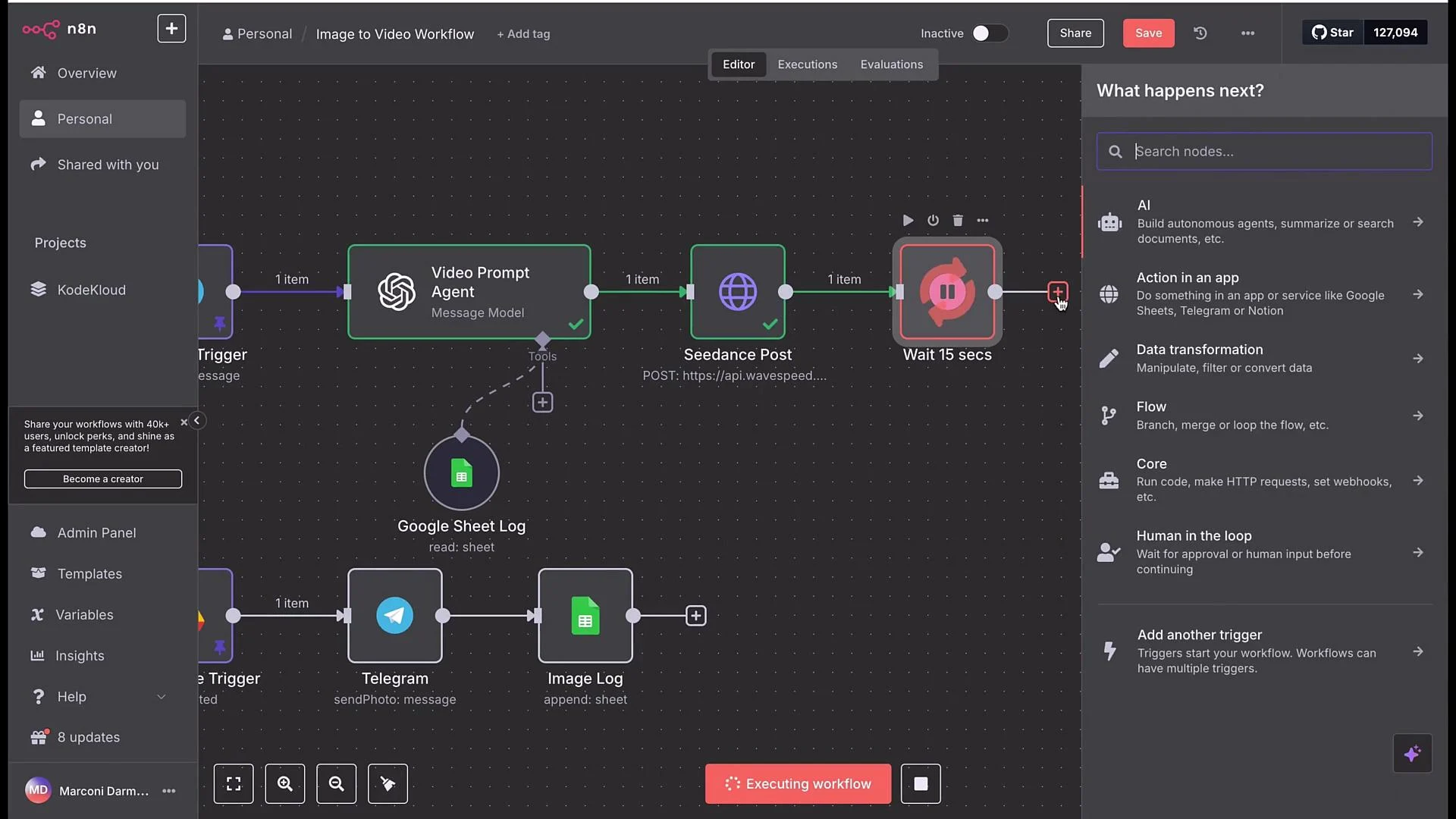
- Pattern:
- POST request to start prediction → returns
requestId. - Wait node (e.g., 15 seconds).
- GET request to:
https://api.wavespeed.ai/api/v3/predictions/${requestId}/resultwith same Authorization header. - Check response
status. - If not
completed, loop back to the Wait node and GET again untilcompleted.
- POST request to start prediction → returns
- Example GET cURL:
- Add an
Ifnode to check whether the GET response’sstatusfield equalscompleted.- True: proceed to the Telegram
Send a Videonode. - False: connect back to the Wait node to continue polling.
- True: proceed to the Telegram
- This prevents the workflow from failing when the video is still processing.
- In the
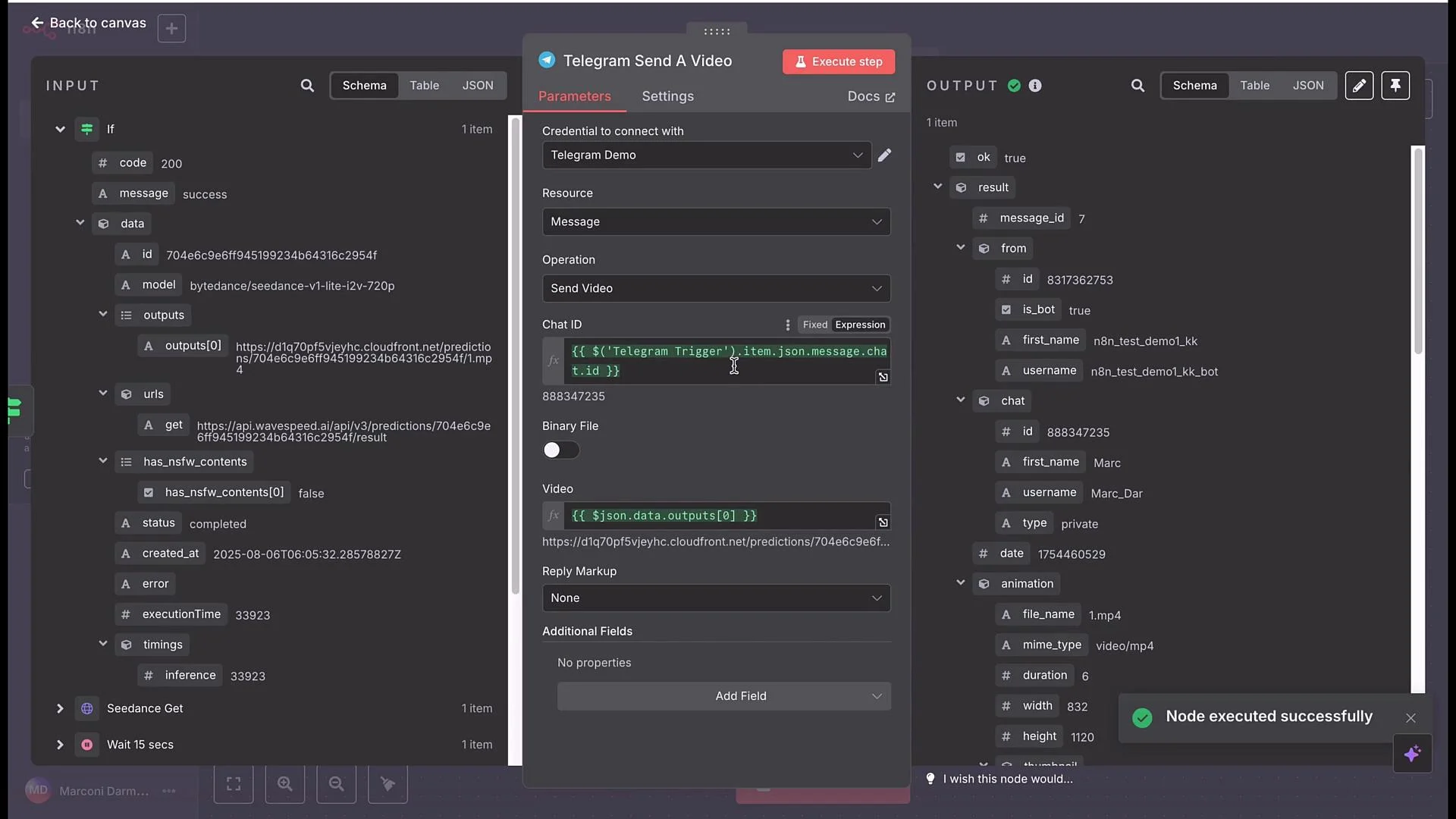
Ifnode true branch (whenstatus == completed), add a Telegram node configured toSend a Video. - Map:
chat_id→ thechat.idcaptured from the Telegram trigger (dynamic mapping is recommended).video→ the video URL returned in the completed prediction result payload.
- Example mapping for chat id (platform-specific):
- Execute and verify the user receives the generated video in the Telegram chat.
- Example outcome: a playful/cartoonish video of a cat jumping through rainbow hoops and deploying a parachute to land safely.
- You can refine the system prompt and the Video Prompt to control style and behavior:
- Styles: hyper-realistic, cinematic, stylized animation, cartoon, etc.
- Camera: fixed vs moving, dolly, low/high angles, POV.
- Duration and aspect ratio: map to the Seedance parameters.
- Seed: set to a fixed number for reproducible results or
-1for varied outputs.
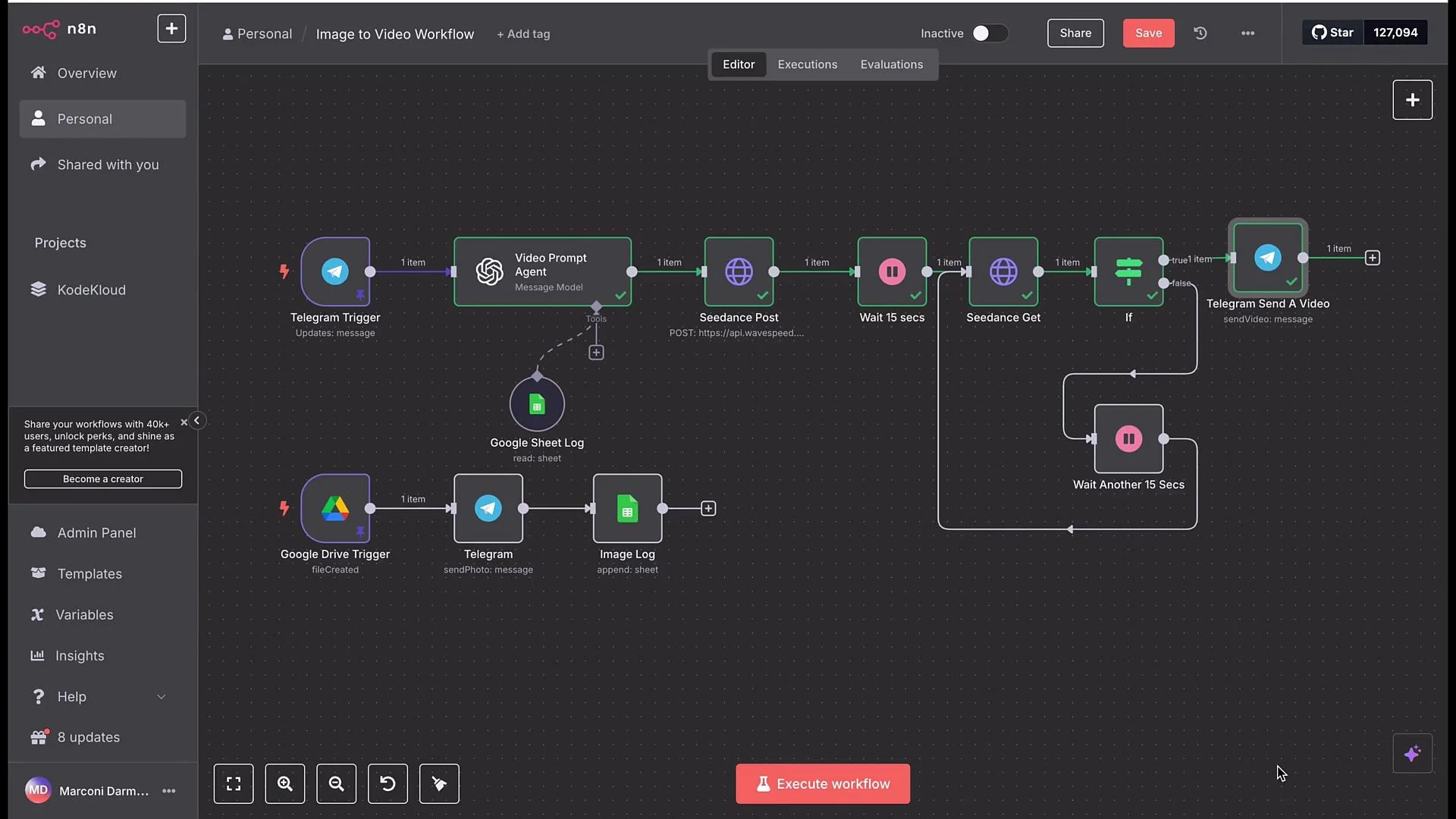
- Full workflow chain: Google Drive trigger → Telegram notification → Google Sheets logging → Telegram OnMessage → OpenAI (Video Prompt agent) → Seedance POST → Wait → GET → If → Telegram send video.
- Secure Drive and Sheets: avoid public links in production; use signed URLs or a proxy for transient access.
- Protect API keys: rotate keys, store them in a secrets manager, and scope tokens when possible.
- Add retries, backoff, and alerting for API failures.
- Validate user inputs (e.g., prompt length, forbidden content).
- Add logging and observability for long-running jobs.
Before deploying to production, remove public Drive sharing and ensure API keys and credentials are stored securely. Implement rate limits, retries, and content validation to prevent unexpected costs or misuse.
Links and references
- Telegram: https://telegram.org
- BotFather: https://t.me/BotFather
- Google Drive: https://www.google.com/drive/
- Google Sheets: https://www.google.com/sheets/about/
- OpenAI Chat guide: https://platform.openai.com/docs/guides/chat
- Wavespeed / Seedance API: https://wavespeed.ai
- Build the workflow end-to-end in your automation tool.
- Test with different prompt styles and durations.
- Harden with the production checklist above and iterate on agent system prompts for improved results.