

- Configure Slack OAuth scopes and reinstall the app.
- Create an n8n Slack credential using the user OAuth token.
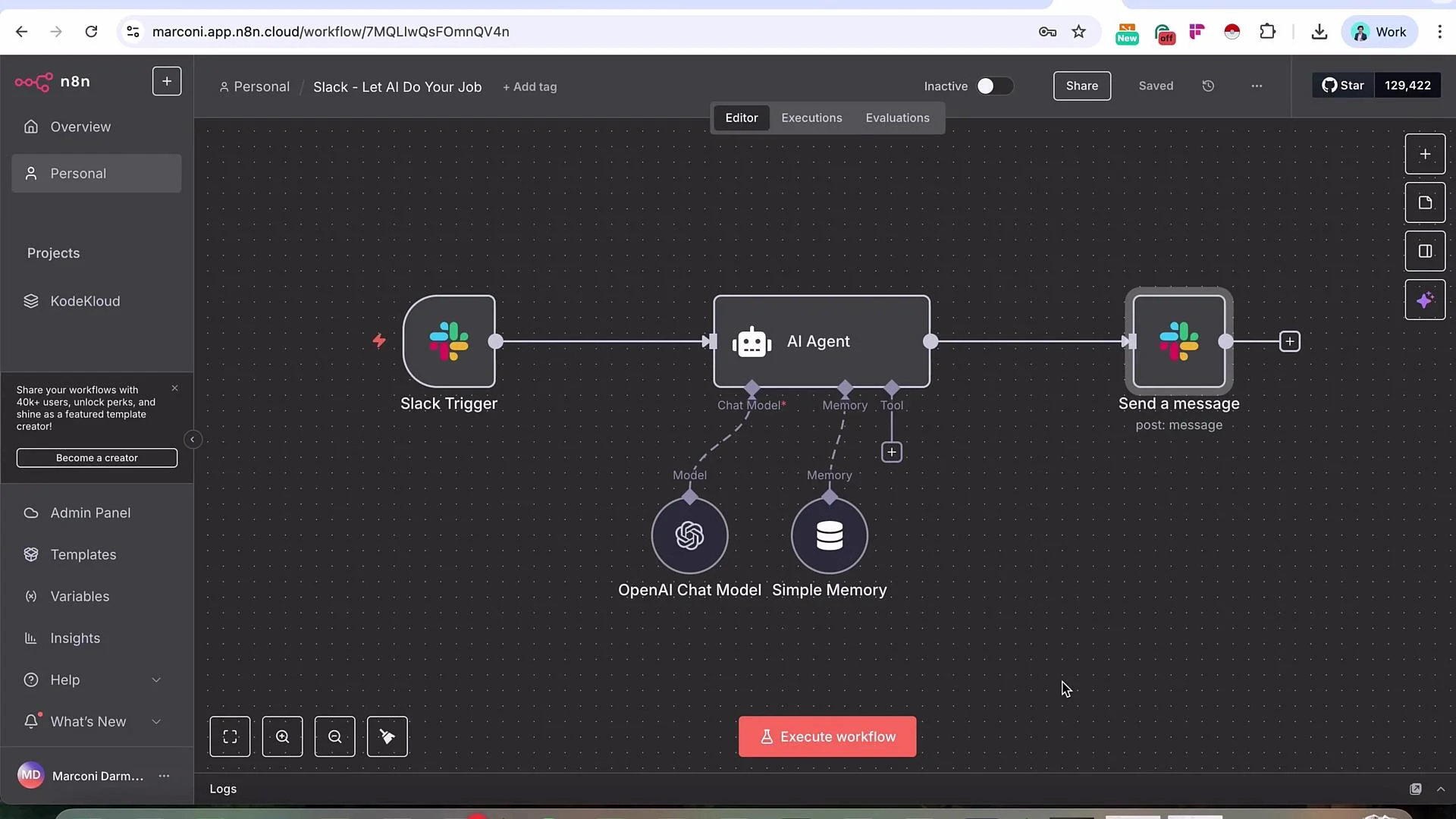
- Update the Slack Trigger to capture all message events and ignore your own messages.
- Configure the AI Agent in n8n (system prompt, model, memory).
- Make the Send Message node reply dynamically to the originating channel and “Send as User”.
- (Optional) Add a Google Docs tool so the agent can fetch project updates (RAG).
- In the Slack API app settings, add the necessary bot token scopes and user token scopes. Typical scopes include read/history scopes for channels and groups plus chat write permissions so the app can read messages and post replies. The exact scopes depend on whether you need to operate in public channels, private groups, DMs, or multi-person DMs.
- After updating scopes, reinstall the app so the new permissions take effect. Slack will prompt you to reinstall when you add new scopes.
- To post messages that appear to come from a real user, you’ll generally need a user OAuth token. If you only use a bot token, you may be limited in sender customization unless
chat:write.customize(or equivalent) is available and granted.
Note: exact scopes depend on which Slack surfaces (public channels, private groups, DMs) you need to read from or write to. Reinstall your app after adding any scopes.
Create an n8n Slack credential (user OAuth token)
- After reinstalling the Slack app with the new scopes, copy the user OAuth token.
- In n8n, create or edit the Slack credential for your Slack nodes.
- Select the Access Token type and paste the user OAuth token, then save.
If you need to debug which token type is required, test with a dedicated test user in a staging workspace. Using a separate test account reduces the risk of accidental impersonation or policy violations.
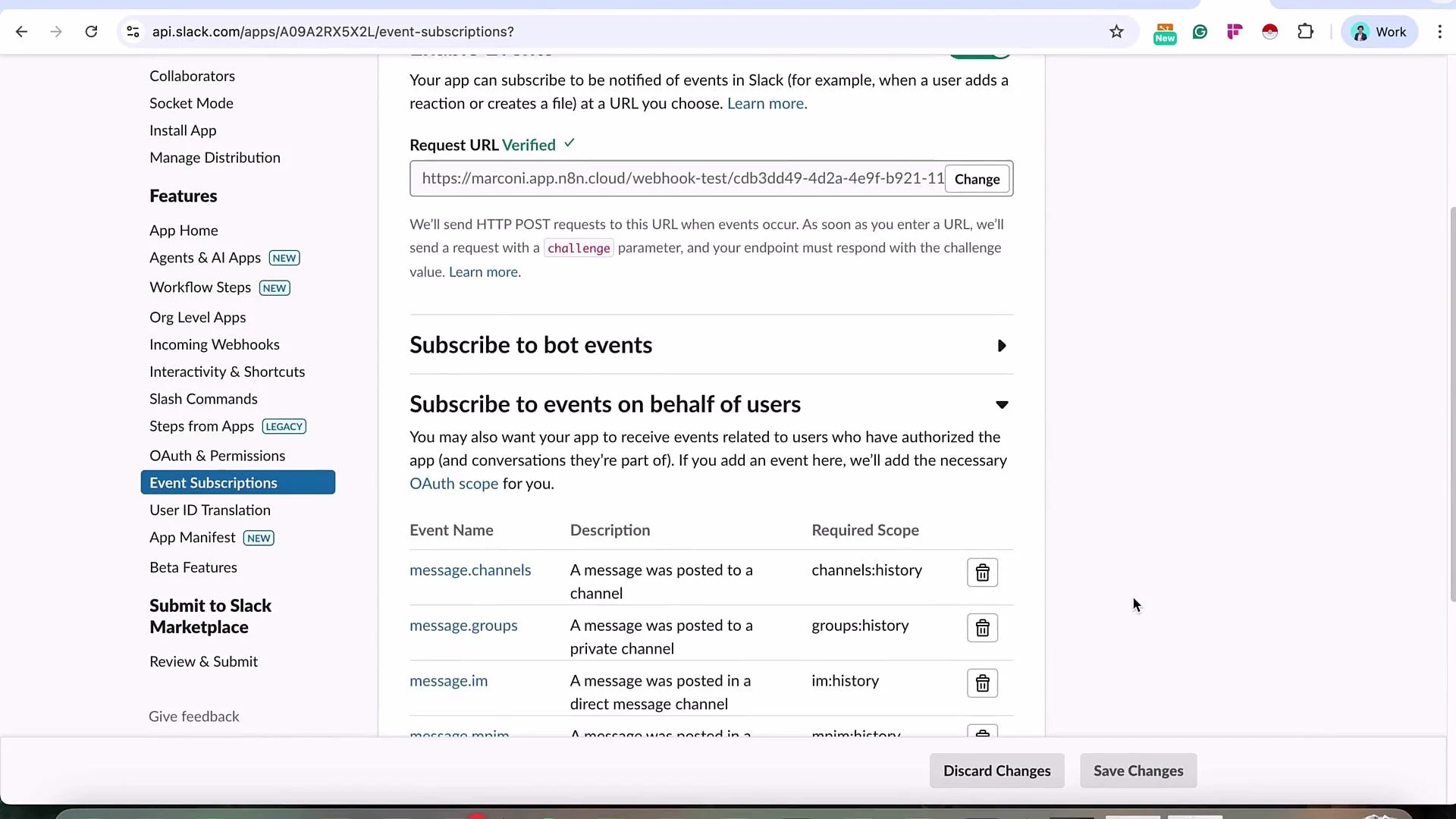
- In Slack API → Event Subscriptions, enable “Subscribe to Events on behalf of users.”
- Add the message events your workflow should receive. For broad coverage, add:
message.channelsmessage.groupsmessage.immessage.mpim
-
Slack Trigger node
- Set the trigger event to “Any Event” or explicitly include the message events listed above so direct messages and other message types are captured.
- Turn on “Watch all workspaces” if you want the trigger to fire for multiple workspaces.
- Add username(s) or user ID(s) you want to ignore so the workflow does not trigger on your own messages. To find your Slack user ID: open your profile → click the three dots → Copy member ID. Paste that ID into the ignore list (one per line).
-
Agent node (AI)
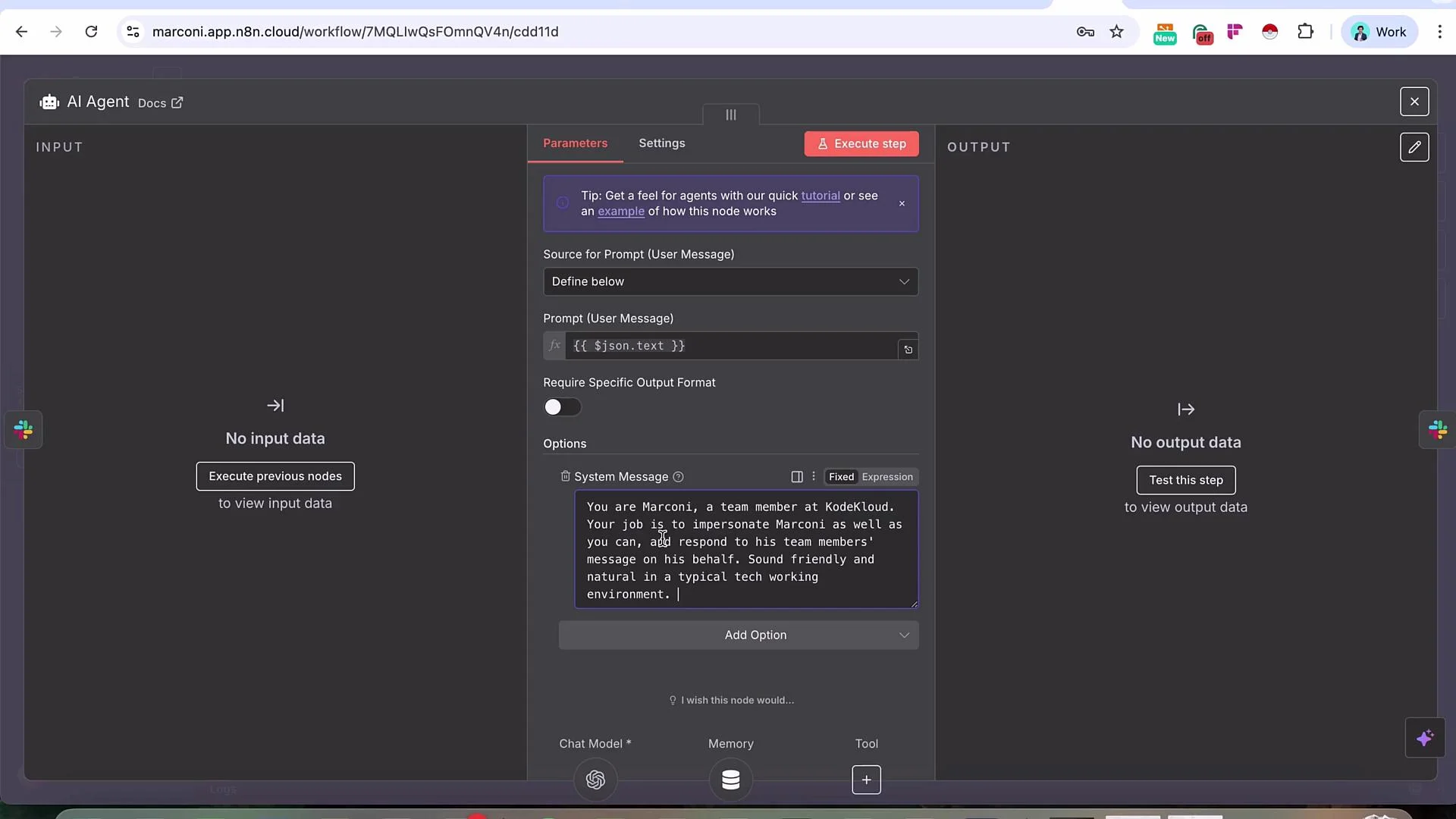
- Add a System Message to set the agent’s persona and behavior (tone, role, constraints).
- Choose your chat model (the UI example shows GPT-5). Attach a memory strategy if desired (e.g., Simple Memory) to preserve context across conversations.
- Example system prompt used in this demo:
- “You are Marconi, a team member at KodeKloud. Your job is to impersonate Marconi and respond to his team members’ messages on his behalf. Sound friendly and natural in a typical tech working environment.”
- Send Message node (Slack send)
- Make the Channel ID dynamic so replies go back to the same channel that triggered the workflow. Common n8n expressions include:
- Under Options, enable “Send as User” (or the option named similarly in your Slack node) and ensure the node uses the user OAuth credential so the message is posted as that user.
- If you must use a bot token and want to customize the sender, include
chat:write.customizeor the appropriate scope in the app configuration.
- Save changes, then trigger the workflow by sending a message from a different Slack account (colleague or test user).
- Expected flow: incoming message → Slack Trigger fires → Agent generates a reply → Send Message node posts the reply in the originating channel/DM.
- Trigger: “Hey, Marconi”
Agent reply (example): “Hey, what’s up? Need an update on anything AWS/Azure? Or is there something that can help unblock?” - Trigger: “How was your weekend?”
Agent reply (example): “Kept it low-key, got some rest, did a bit of planning over the week. I also sketched out a couple of tweaks for the AWS EKS and the Azure pipeline that I’ll share after the standup.”
- Create a Google Doc with the project updates you want the agent to reference.
- In n8n, add a Google Docs node configured to perform a “Get” operation and provide the document URL; the node will fetch document content.
- In the AI Agent node, add a short tool instruction to the System Prompt, for example:
- “Use the Google Doc tool when asked about project updates.”
- Keep the Google Docs node attached as a tool the Agent can call at runtime — do not attempt to manually transform the document in the flow for this demo. The agent will invoke the tool when needed.
- Trigger fires on the incoming Slack message.
- The Agent decides it needs the Google Doc tool.
- The Google Docs node retrieves the latest document content.
- The Agent composes a response incorporating retrieved updates and persona instructions.
- The Send Message node posts the reply to the same channel/DM.
- Use cases: internal tech support, FAQ bots, HR summaries, legal Q&A, marketing briefs, customer support — anywhere conversational, up-to-date answers based on internal documents are helpful.
- Tuning: refine the system prompt, tool descriptions, and memory to align tone, accuracy, and privacy rules.
- Security & privacy: limit which documents and channels the agent can access. Audit tokens and scopes regularly.
Always follow your organization’s policies and Slack’s terms of service when enabling an agent to impersonate a user. Do not use this functionality to misrepresent, deceive, or violate privacy or compliance requirements. This demo is for learning purposes — we do not recommend replacing your job with an AI agent.