

- Admin privileges in the target Slack workspace (required to install apps).
- A publicly reachable HTTPS endpoint for n8n (or a secure tunnel such as
ngrok). - An n8n instance running and accessible while you verify Slack Event Subscriptions.
- Create the Slack App
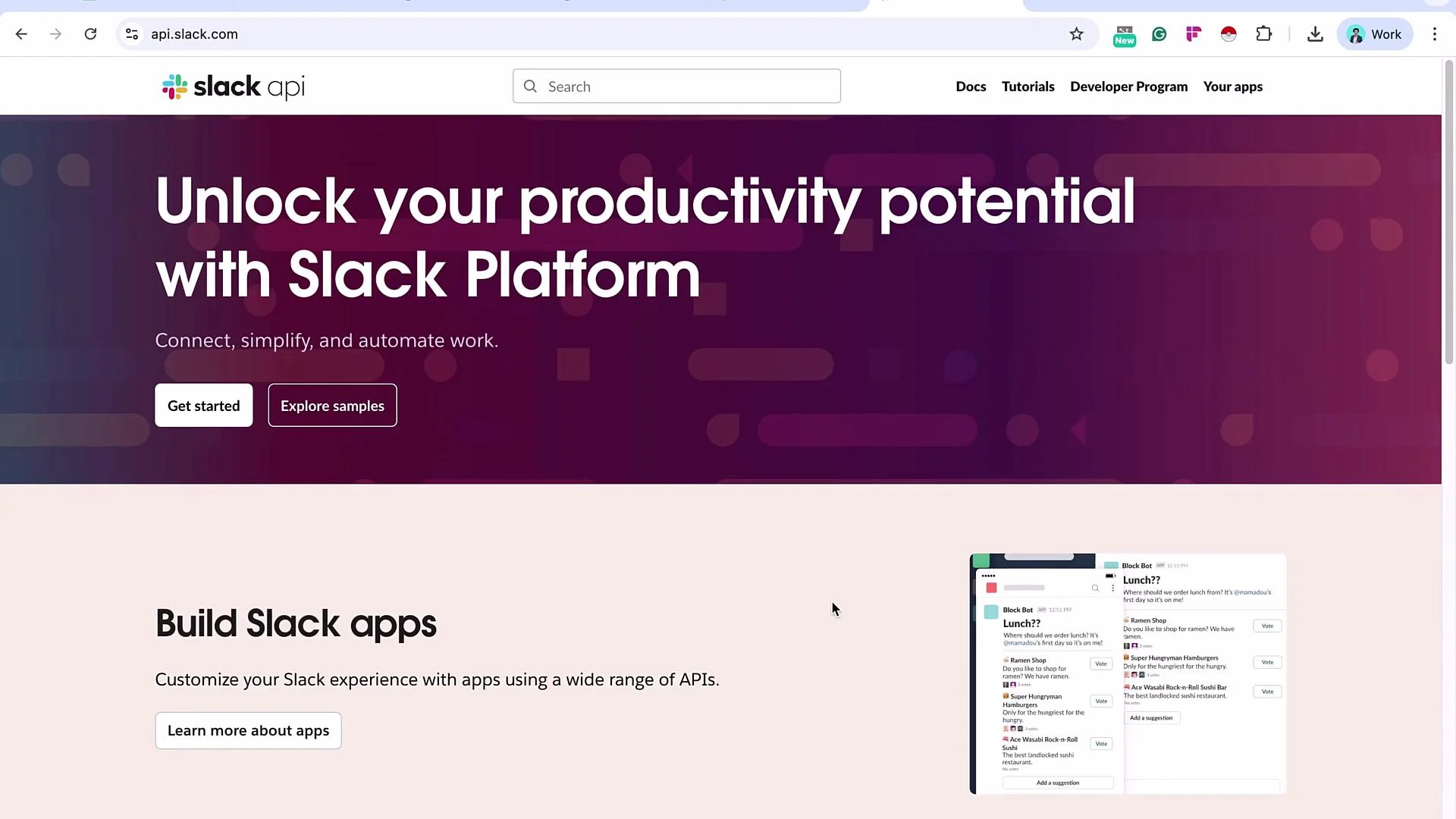
- Sign in at the Slack API site: https://api.slack.com
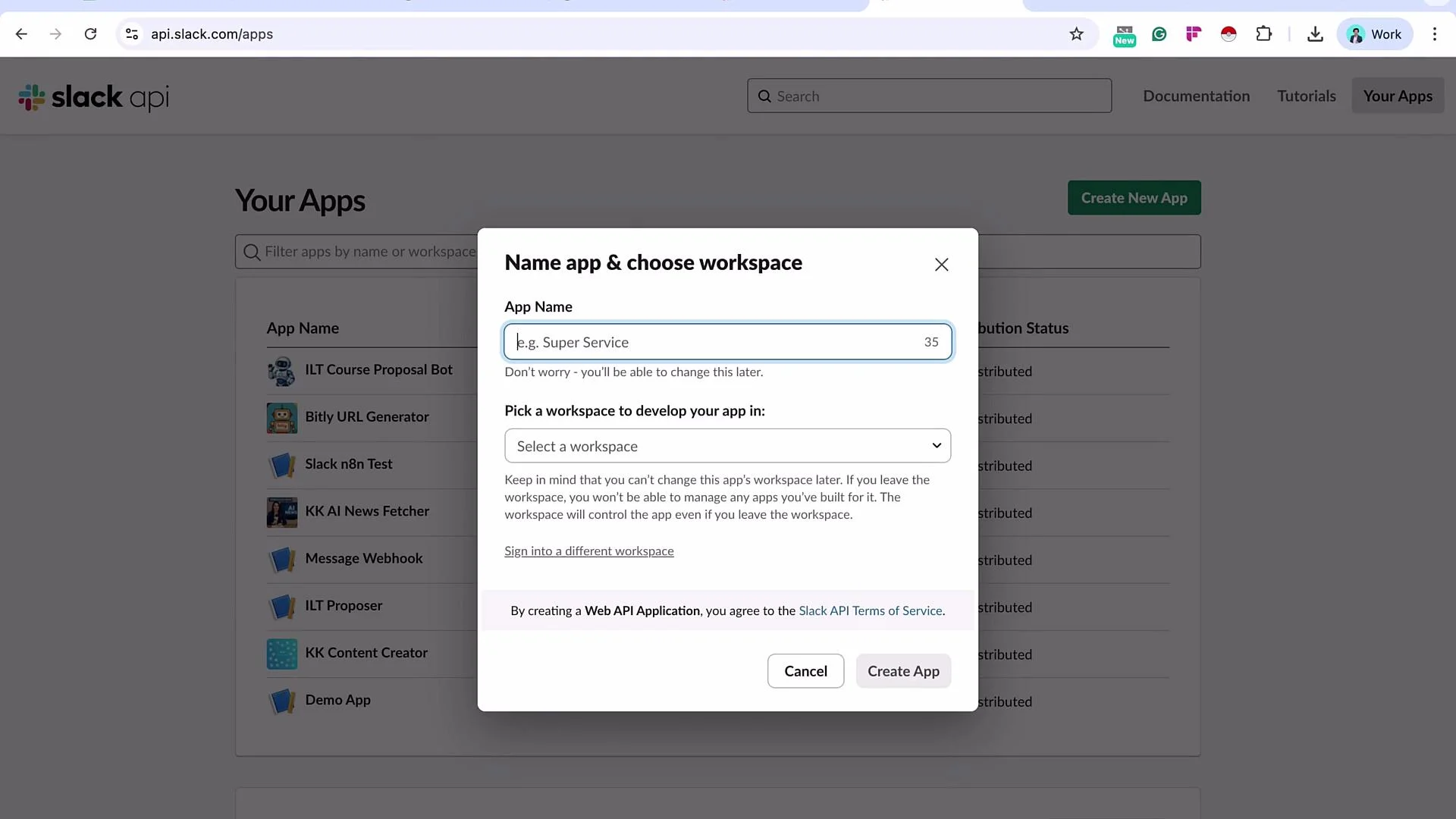
- Open Apps → Create New App.
- Name the app (example: n8nDemoBot) and select the development workspace, then click Create App.
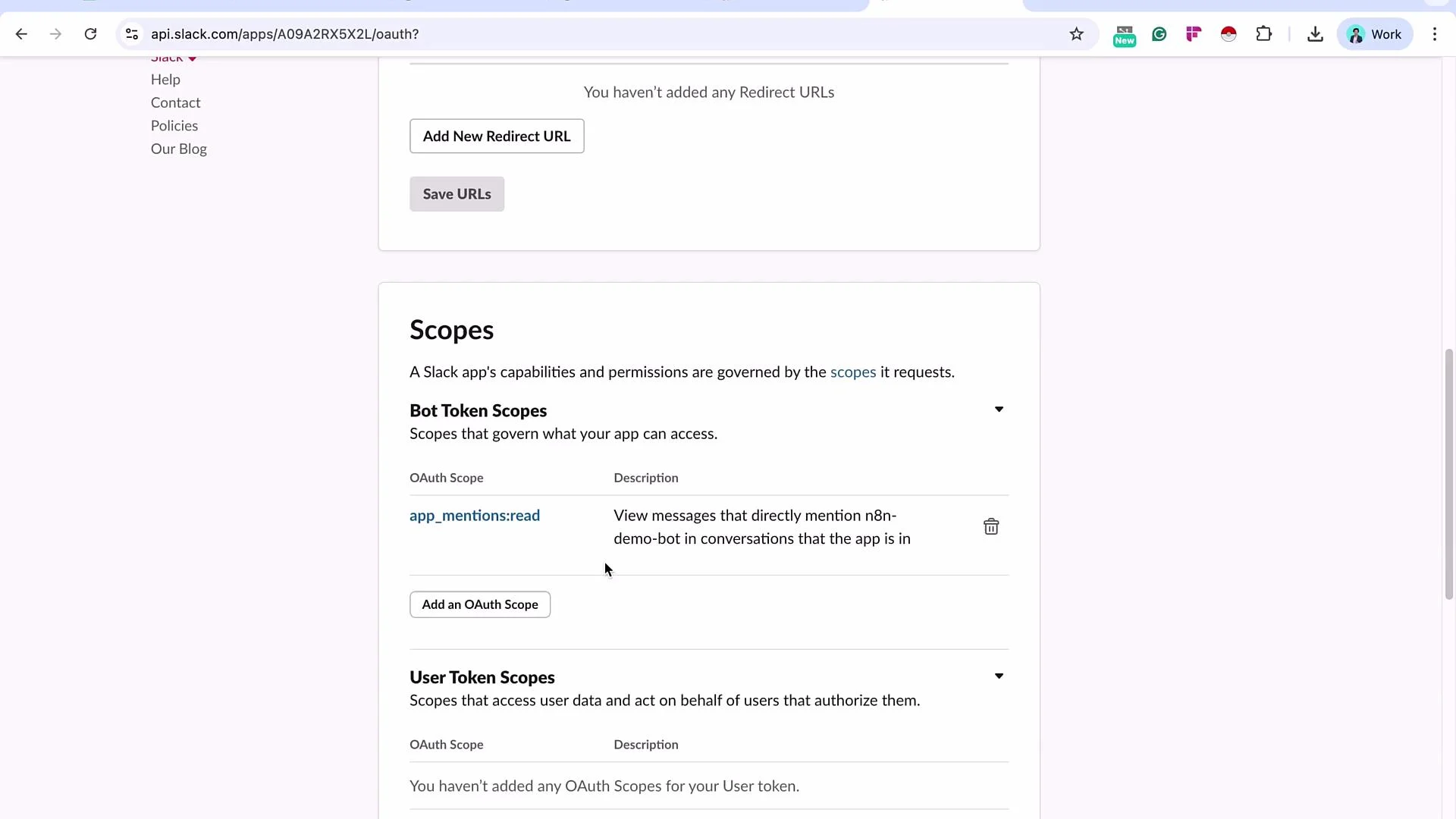
- Add Bot Token Scopes (OAuth & Permissions) Open the app configuration → OAuth & Permissions and add the bot token scopes the bot needs. Scopes define what the bot can read and do in the workspace.
- Install the App and copy the Bot Token
- Install the app into your workspace (you must be an admin or have install permissions).
- After installation, Slack issues a Bot User OAuth Token (starts with
xoxb-). Copy it — you’ll use this token to create an n8n Slack credential.
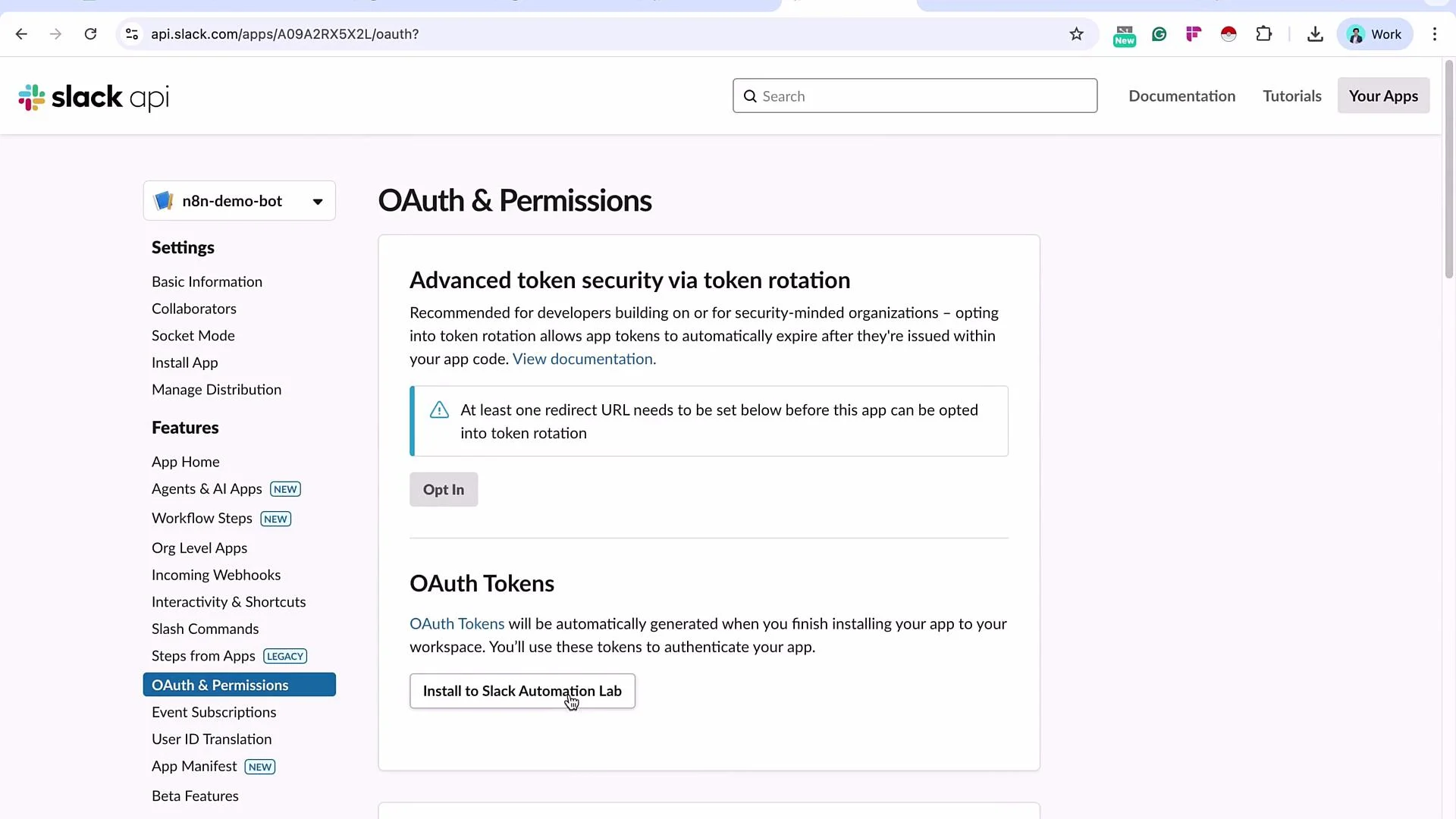
Make sure you are an admin to install the app into the Slack workspace. Treat the Bot User OAuth Token as a secret — do not share it publicly.
- Create a Slack credential in n8n (Slack Trigger)
- In n8n, add a Slack Trigger node (select the Trigger node type, not an Action).
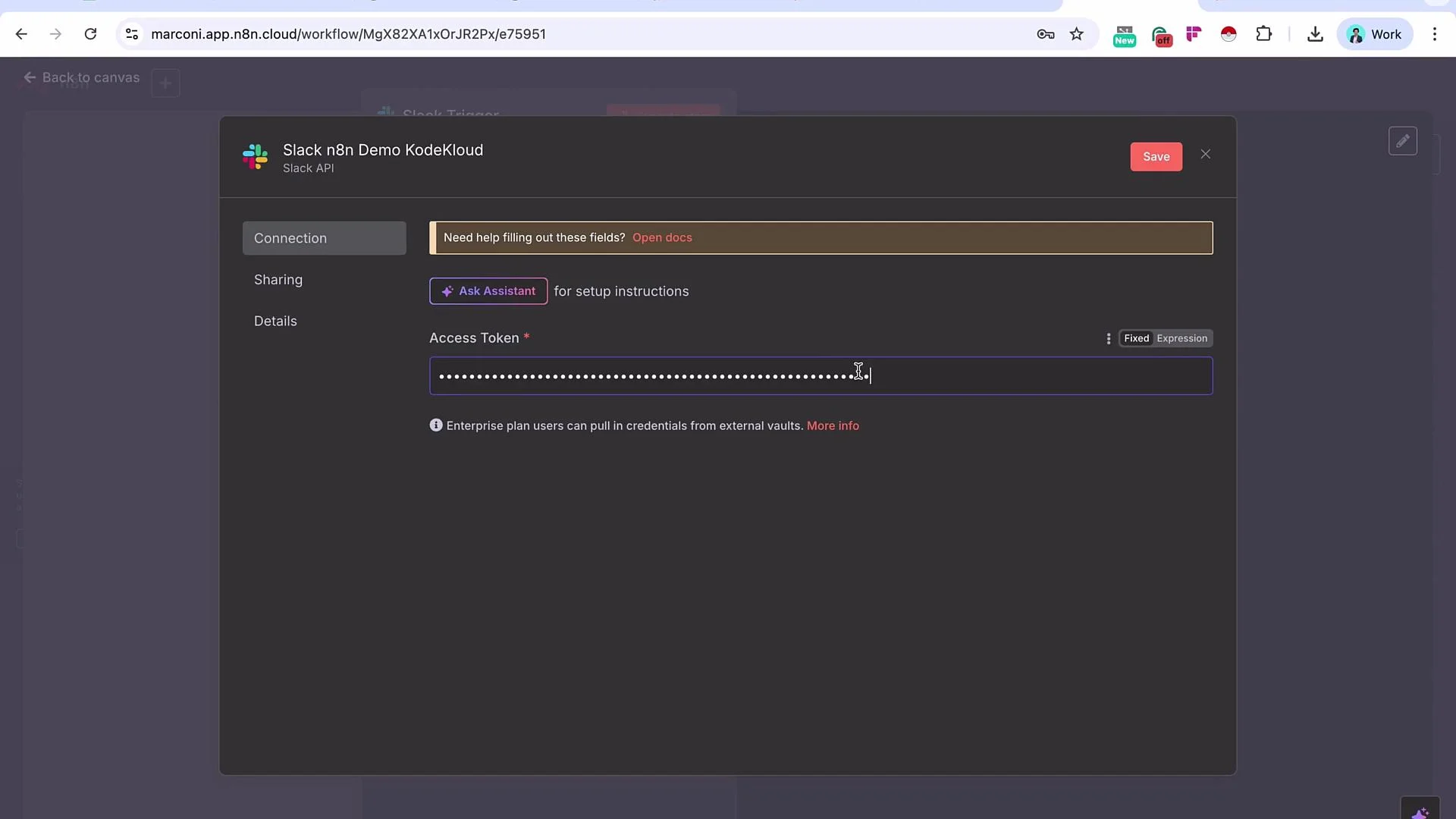
- Use the Bot User OAuth Token you copied to create or paste a new Slack credential in n8n.
- Save and allow n8n to test the credential — a successful connection shows a green confirmation.
- Enable Event Subscriptions and verify the Request URL
Slack Event Subscriptions must point to an n8n webhook URL so Slack can POST events (like
app_mention) to your workflow.
- In the Slack app, open Event Subscriptions → Enable Events.
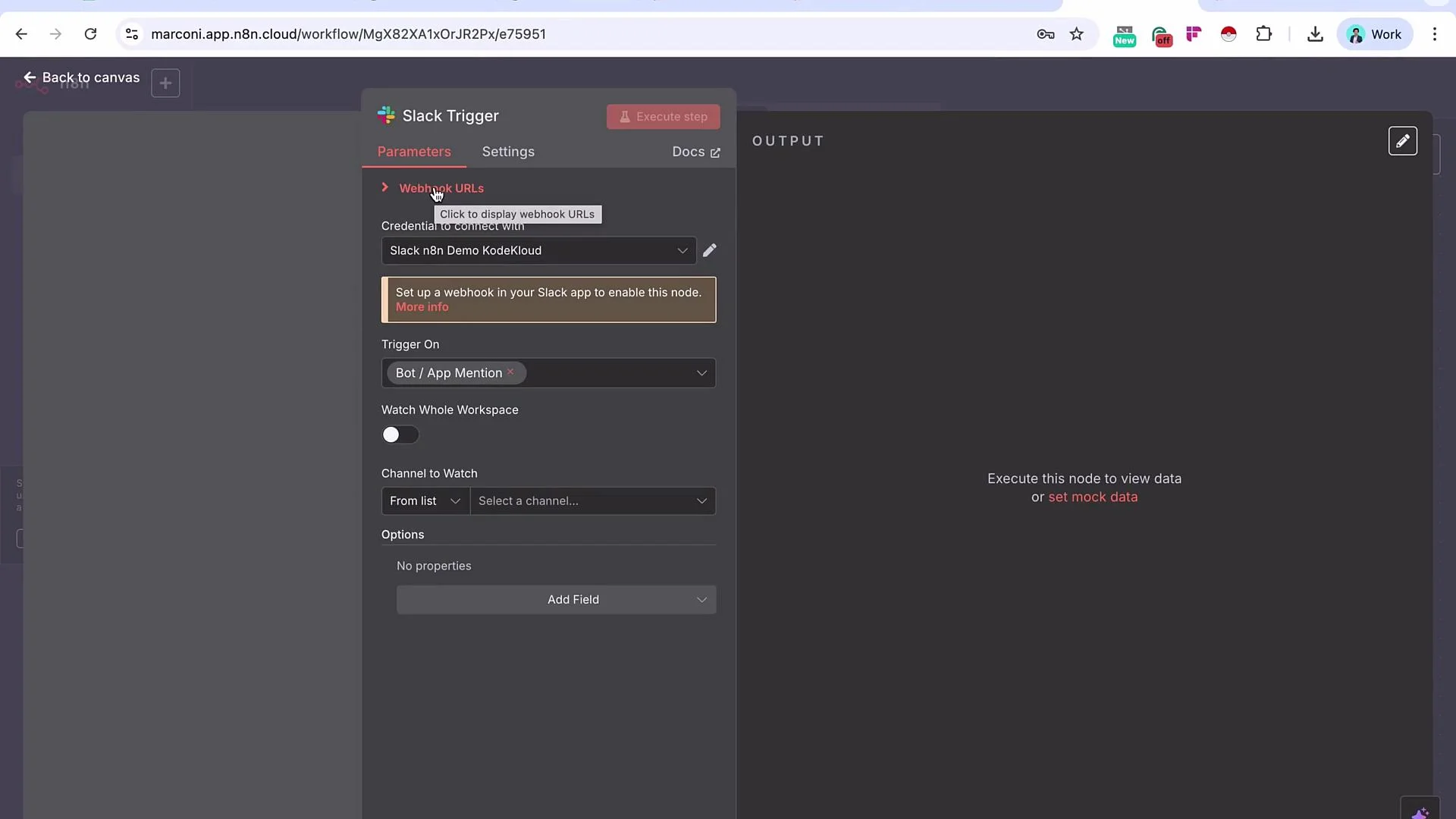
- Copy the webhook Request URL from the Slack Trigger node in n8n. n8n typically provides a test (staging) URL and a production URL — use the test URL for development.
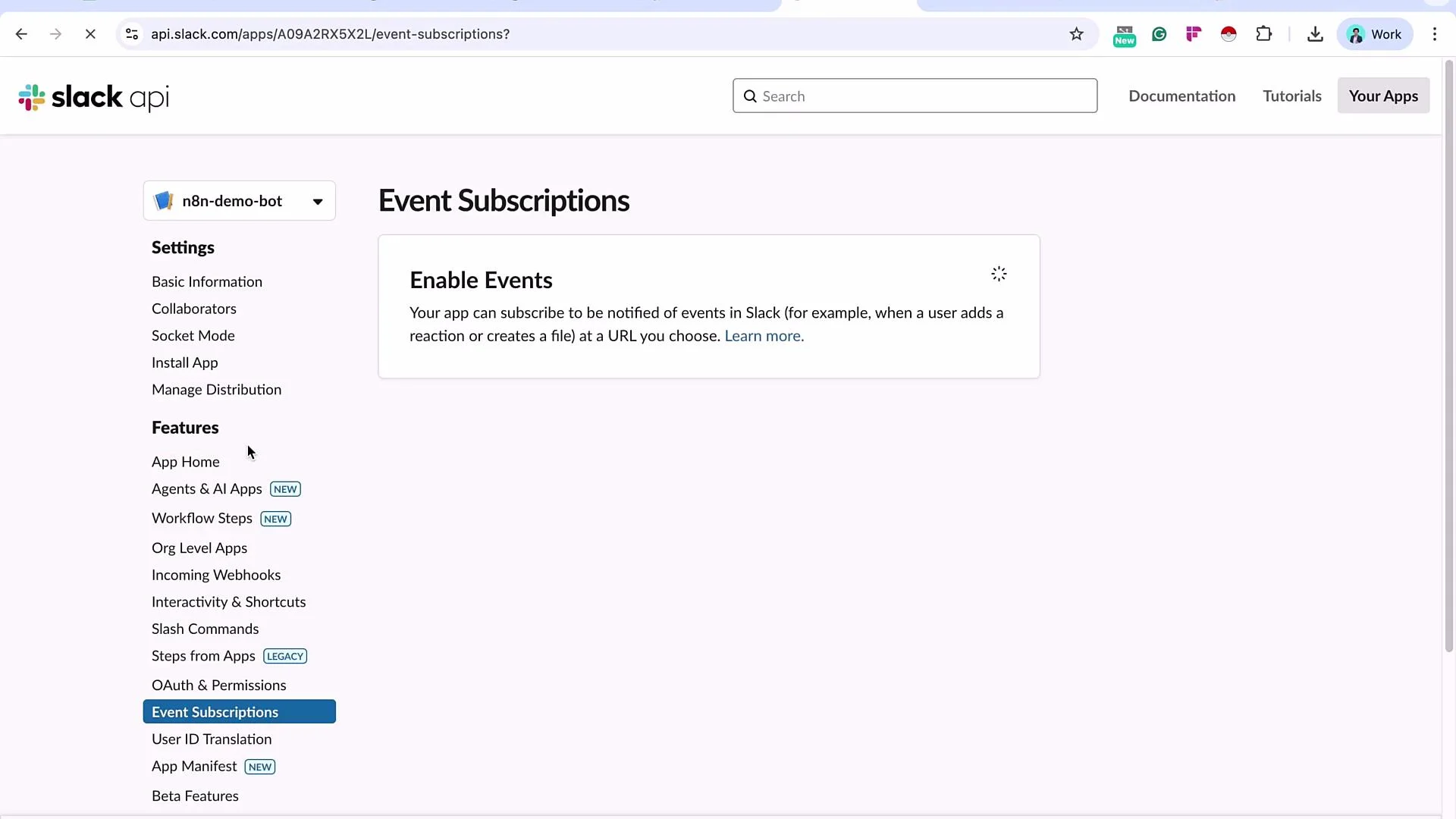
The Slack Request URL must be publicly reachable over HTTPS. If your n8n instance is running locally or behind a firewall, use a secure tunnel (for example,
ngrok at https://ngrok.com) or expose n8n with a valid TLS endpoint. Ensure n8n is running and reachable while completing the verification step.- Paste the n8n webhook URL into Slack’s Request URL field and enable events.
- Slack will send a
url_verificationrequest (includes achallengefield) and expects your endpoint to echo the challenge. In n8n, click Execute Step on the Slack Trigger node so n8n can respond to Slack’s verification request. - After executing the trigger, return to Slack and click Retry. Slack should verify the URL.
- Subscribe to bot events
- On the same Event Subscriptions page, add the bot events you need. For mention-driven bots add the
app_mentionevent. - Save the changes.
- Add the app to channels you want it to monitor
- In Slack, open the target channel → Channel details → Integrations (or Members) → Add apps and add your app (n8nDemoBot) to that channel.
- Configure the Slack Trigger node to listen to a specific channel
- In the Slack Trigger node in n8n you can select the channel:
- From the selection list
- By channel ID (
C0998J1QP46) copied from channel details - By URL
- After choosing the channel, click Execute Step on the Slack Trigger so it is actively listening for events.
- Test by mentioning the bot
- In the configured Slack channel, mention the bot, for example:
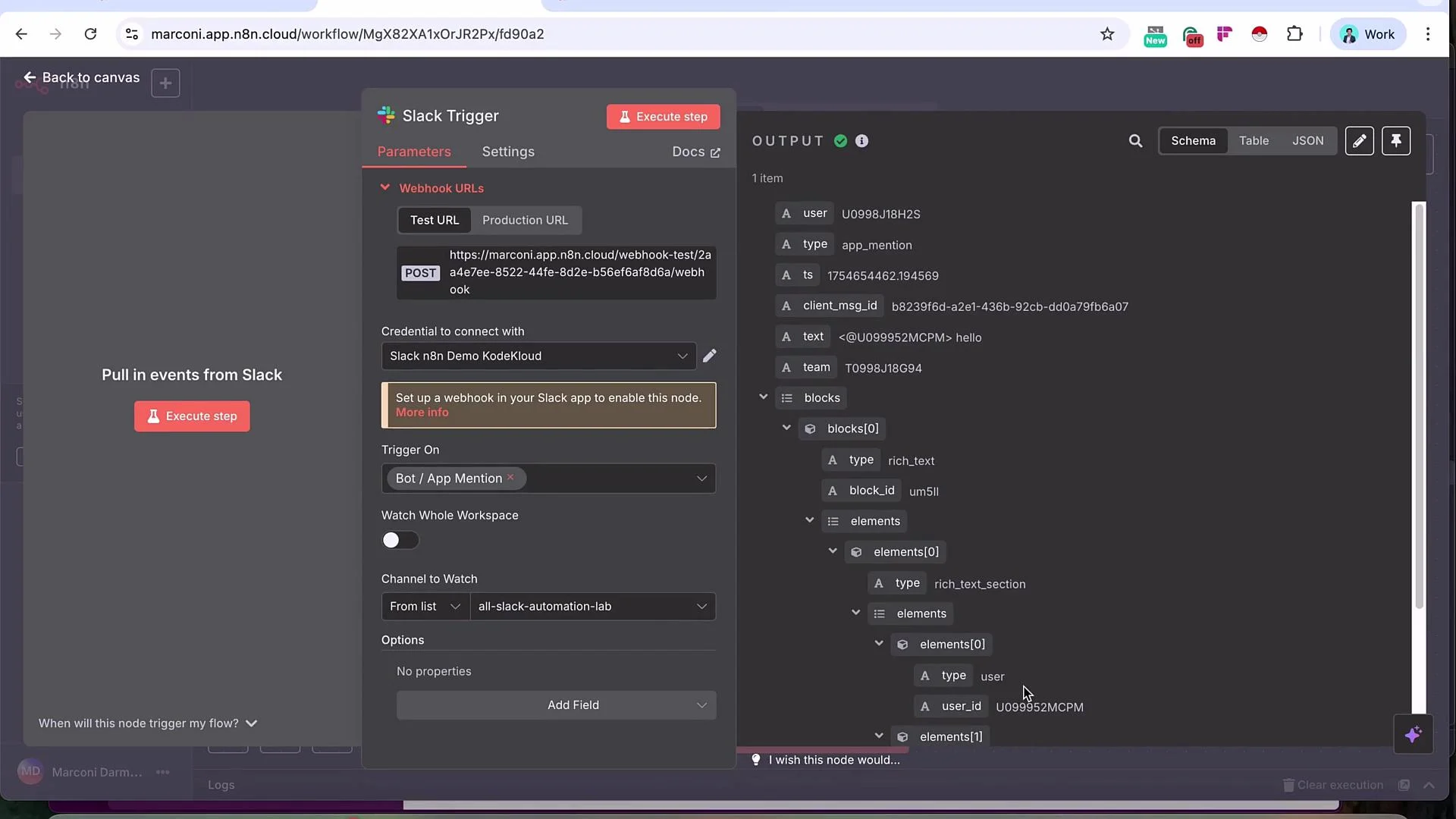
@n8n-demo-bot hello. - When Slack delivers the
app_mentionevent, the Slack Trigger node will receive a payload that contains useful fields.
A simplified example payload (trimmed for clarity):
- Build the reply workflow in n8n
- Connect follow-up nodes after the Slack Trigger to process the message.
-
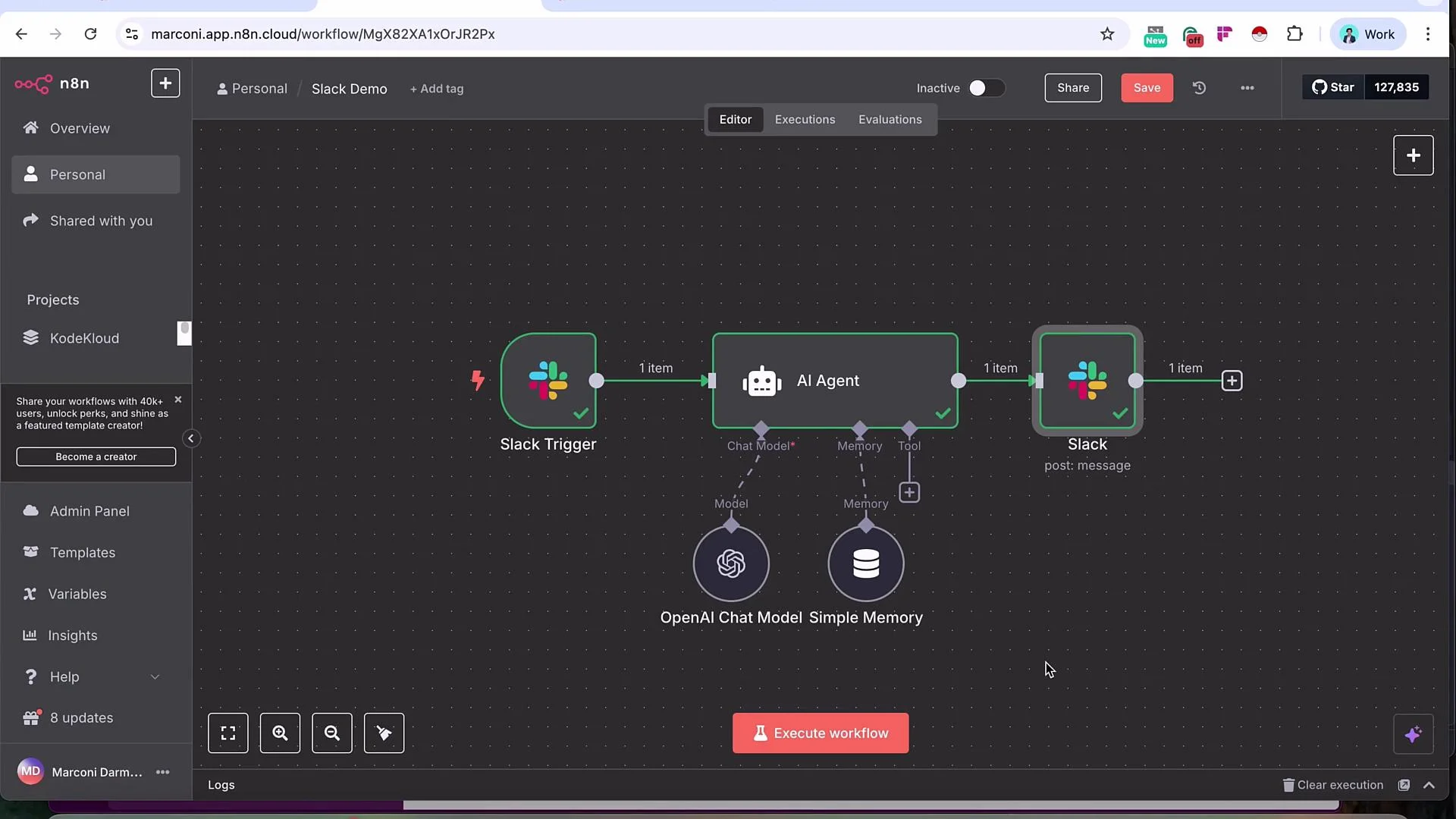
Example flow:
- Slack Trigger (receives
app_mention) - AI Agent node (generates a reply using the Slack message text as input)
- Slack node (sends the AI-generated message back to the channel)
- Slack Trigger (receives
-
Configure the AI Agent node:
- Map the Slack
event.textto the agent input. - Choose a chat model (e.g., GPT-4o Mini or other supported model).
- Optionally enable memory for conversational context. Using the Slack channel ID as the session or conversation ID keeps context scoped per-channel.
- Map the Slack
-
Configure the Slack node to post the reply:
- Use the Slack credential you created.
- Set Resource → Message, Operation → Send.
- Provide the channel ID (or pick from the list) for the destination.
- Map the agent’s response to the Message Text field.
- Optionally toggle off “Include link to n8n workflow” to prevent Slack from appending the “Posted by n8n workflow” note.
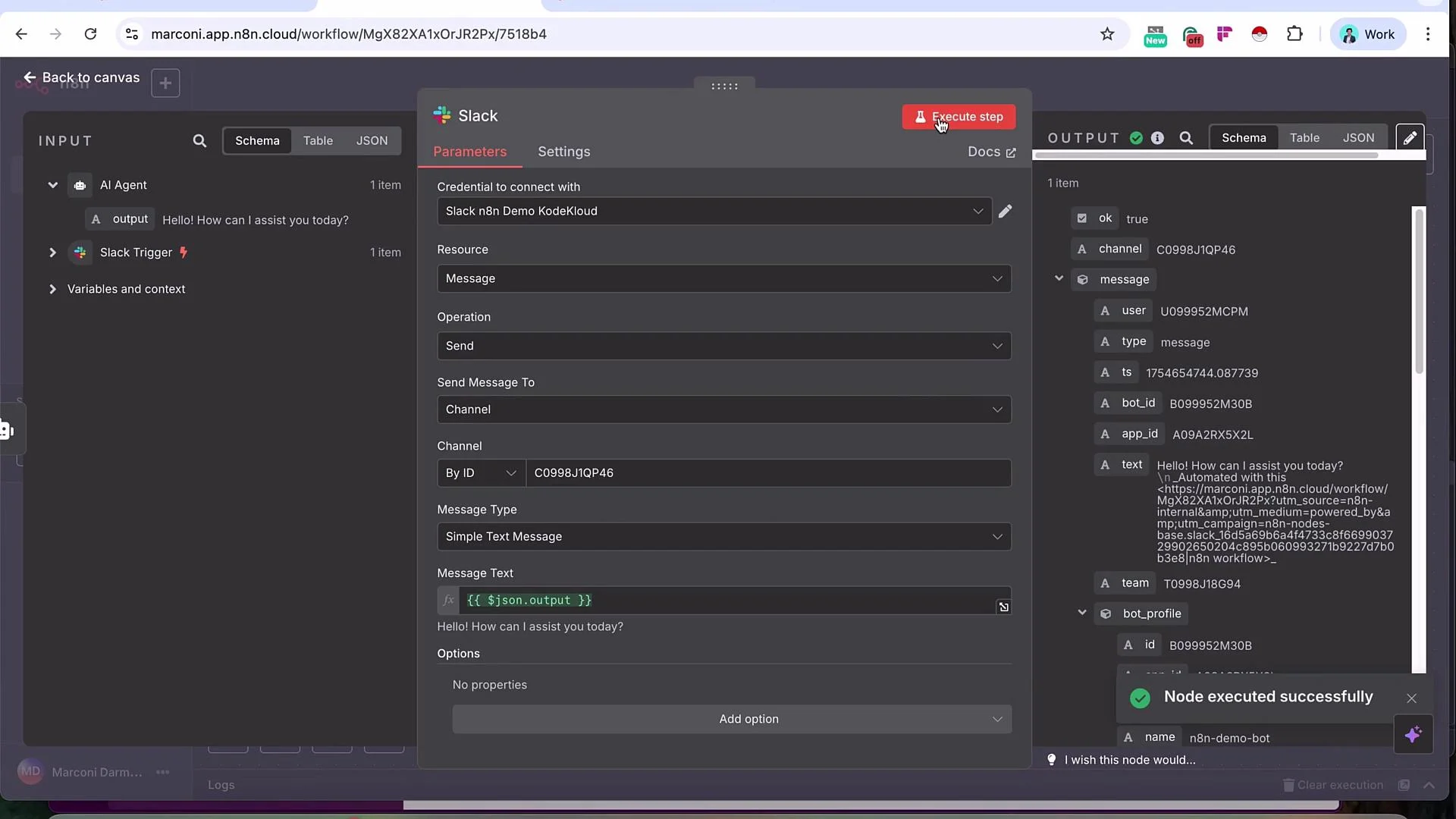
- After execution, your bot should reply in the channel, for example: “Hello, how can I assist you today?”
- This completes the basic end-to-end setup: Slack app with correct scopes, Event Subscriptions verified to the n8n webhook, a Slack Trigger that receives
app_mentionevents, an AI agent that generates a reply, and a Slack node that posts back to the channel.
- You can expand permissions or add richer message composition (blocks, attachments) in the Slack message node.
- Attach external tools or actions to the AI agent for tool-enabled workflows.
- Consider token rotation and secure storage of credentials for production.
- Review Slack rate limits and backoff strategies if your bot will be highly active.
- Slack API: https://api.slack.com
- n8n: https://n8n.io
- ngrok: https://ngrok.com
- OpenAI (models & docs): https://openai.com