

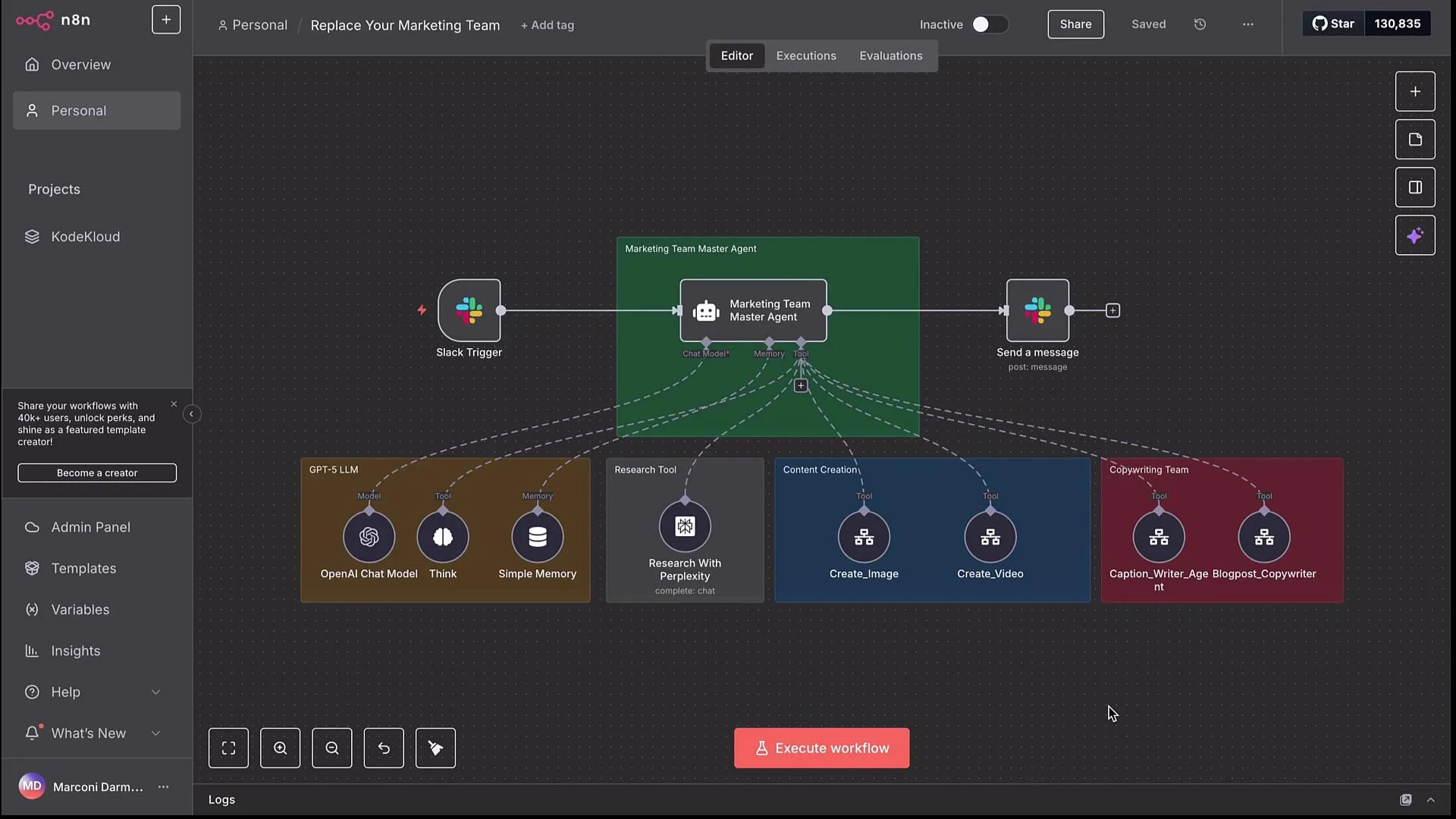
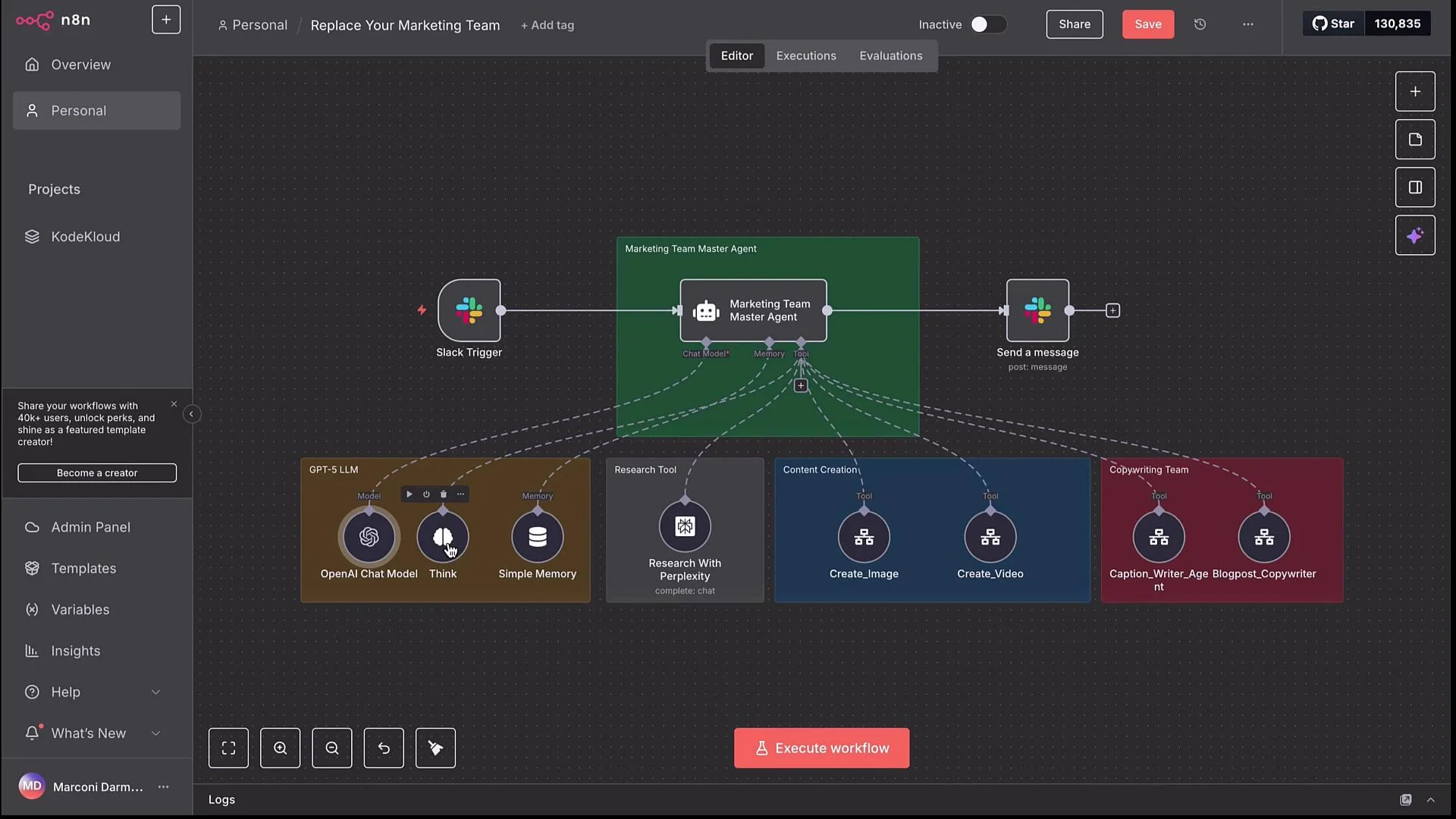
- Trigger: Slack message in a dedicated marketing channel.
- Orchestrator: Marketing Team Master Agent (LLM-based).
- Tools/sub-workflows: text-to-image, text-to-video, caption writer, blog copywriter, plus optional research (Perplexity).
- Output channels: Slack posts, Google Docs links, or other delivery nodes.
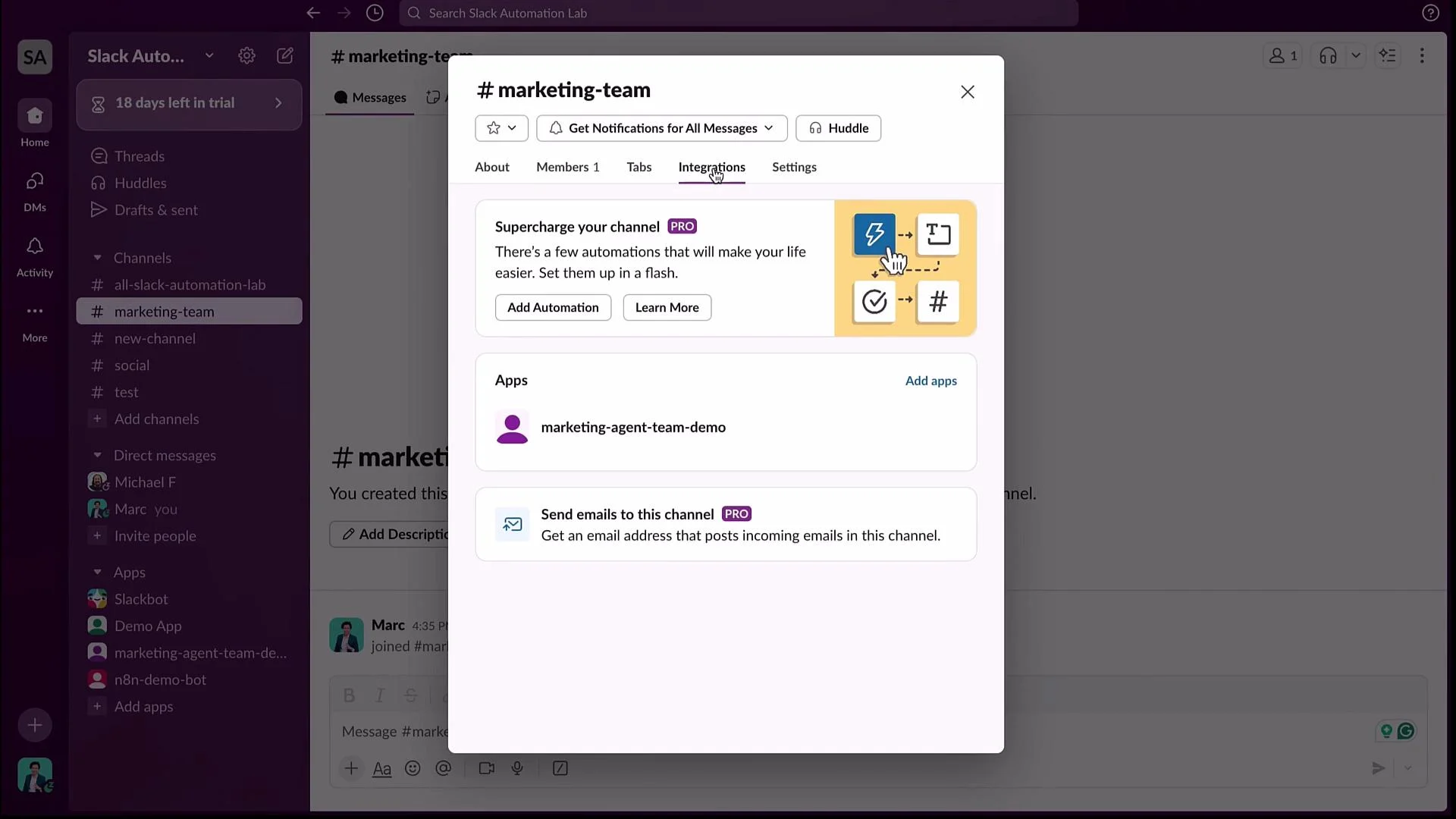
marketing-agent-team-demo, allowing team members to message the master agent directly.
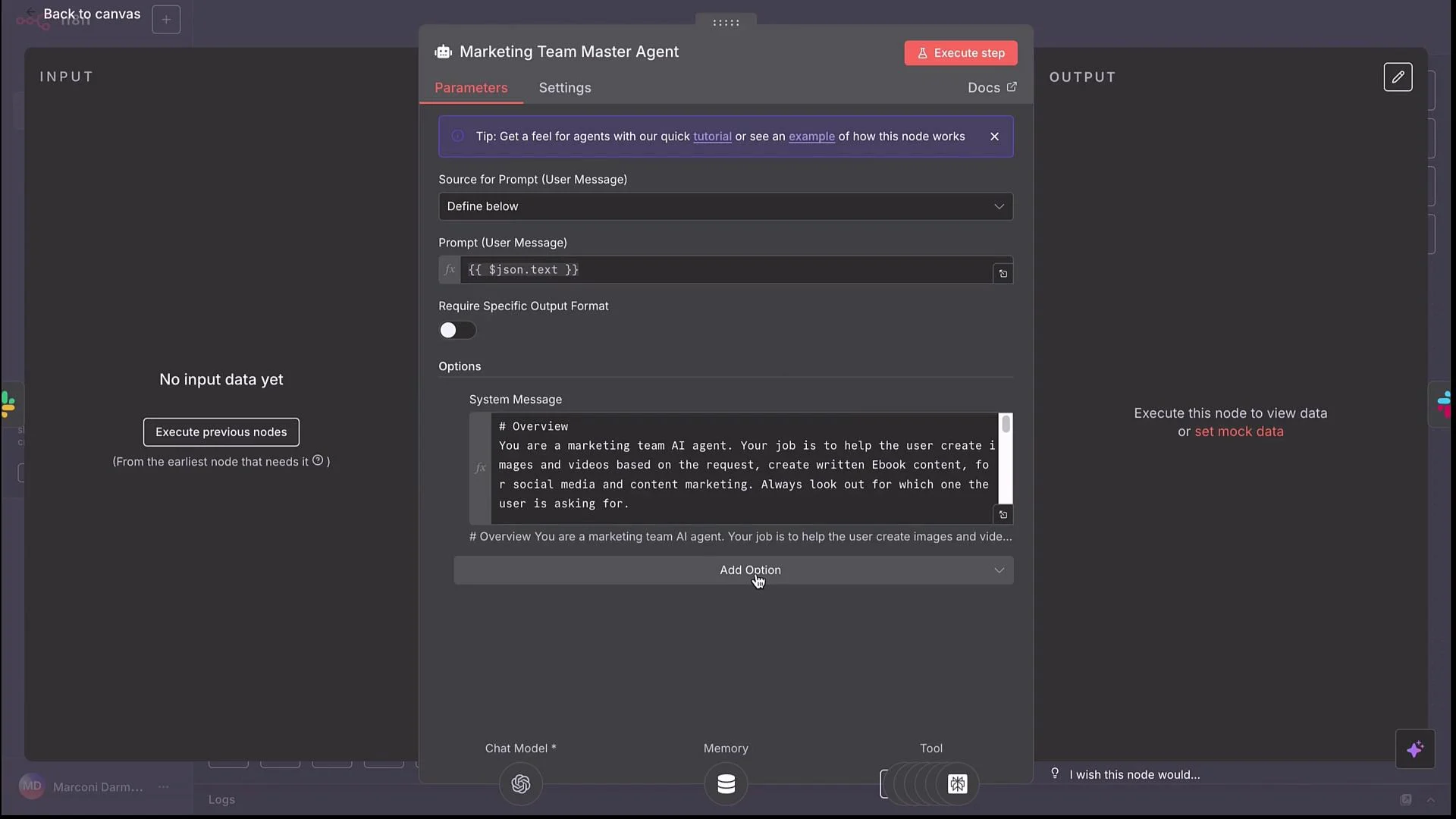
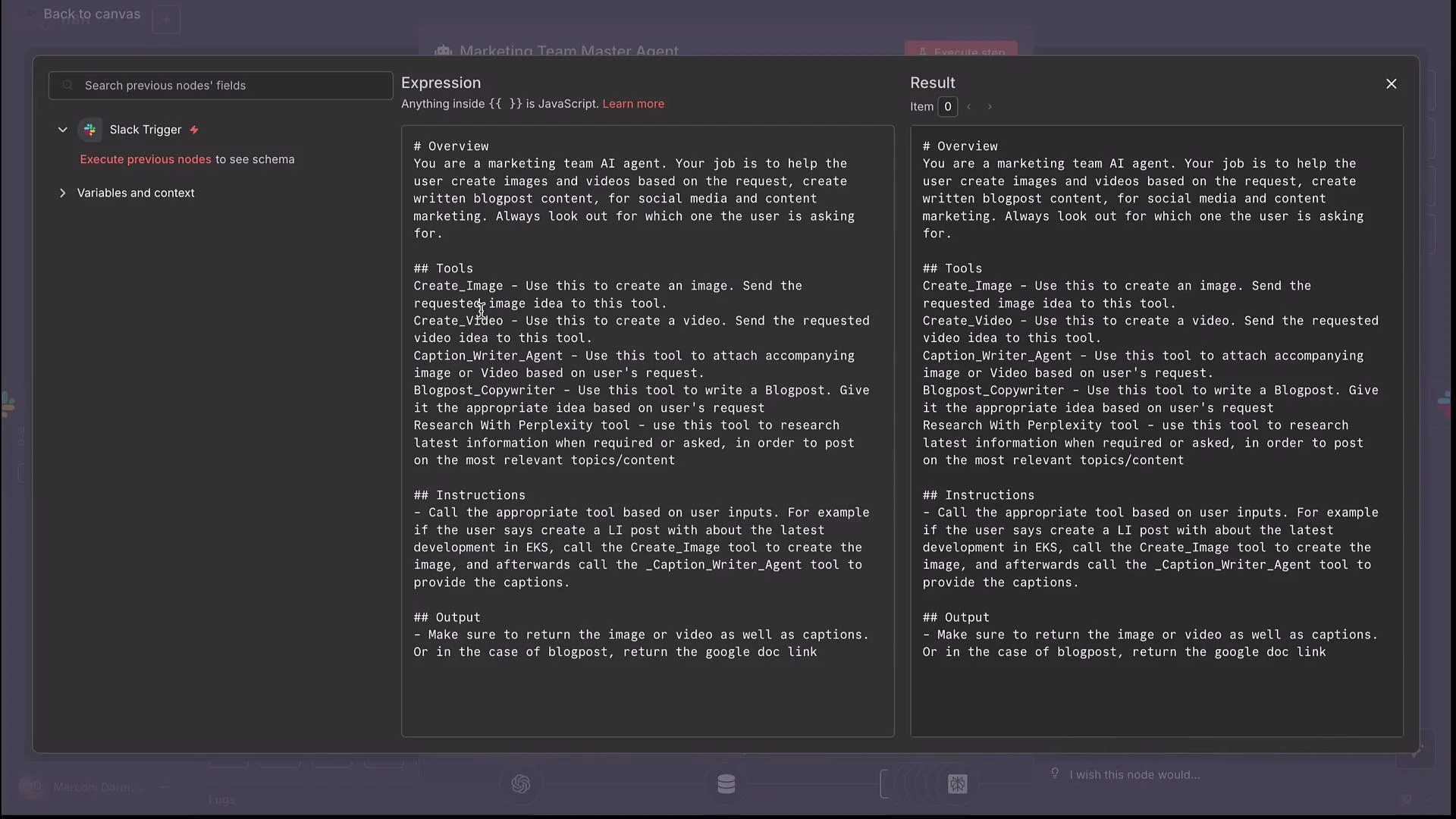
- Parse the user request.
- Optionally call a research tool for up-to-date facts.
- Decide whether to create image(s), video(s), captions, and/or a blog post.
- Call sub-workflows with concise inputs (e.g.,
image idea,video idea,blog post idea) and consolidate returned outputs for Slack or other channels.
Implementation notes and tooling
- Think / intermediate reasoning: The master agent includes a “Think” option so it can plan multi-step flows before taking action. This is useful for deciding which sub-workflows to call and in what order.
- Short memory: Keep a small context window (e.g., 10 entries) for conversational state and recent requests.
- Research: Connect Perplexity (
https://www.perplexity.ai) as an optional research tool; the master agent decides whether to call it depending on the user’s request.
- Remove the original trigger (e.g., Chat Message) since input will be supplied by the caller.
- Add an Execute Sub-workflow node with a defined input field such as
video ideaorimage idea. - Ensure the internal prompt agent (VideoPrompt/ImagePrompt) uses the passed variable as the user prompt (drag the variable into the prompt field).
- Remove delivery nodes (e.g., Gmail) from the sub-workflow so the final node returns the result (URL or JSON) to the main workflow for consolidation.
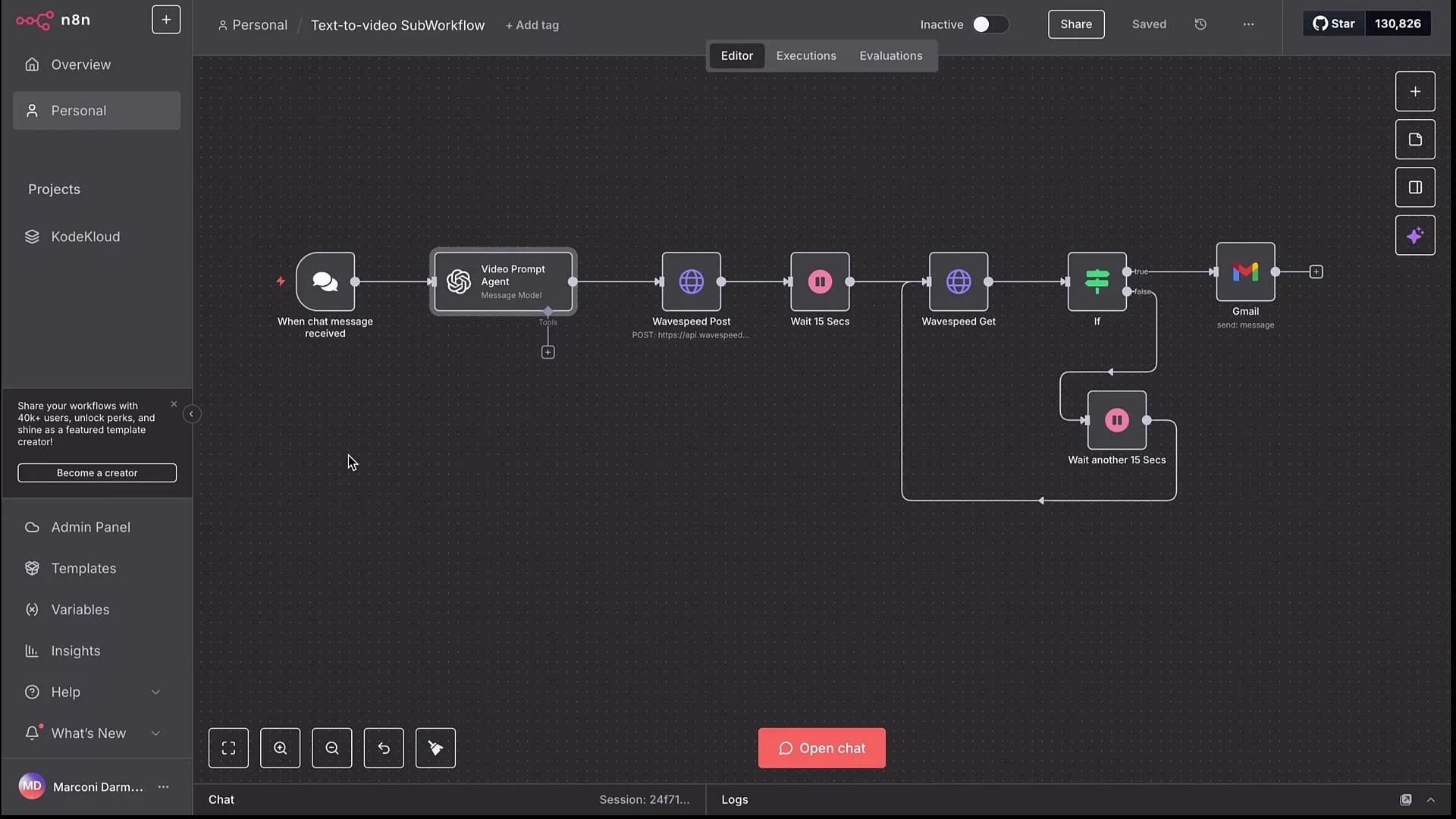
When using sub-workflows, configure them to return their result as the output of their last node. The main workflow will receive that output as the sub-workflow’s response and can then consolidate or forward it (e.g., post the image/video link to Slack, or pass the Google Doc link back to the user).
- The master workflow should pass only a short descriptive input (e.g.,
video idea) into the Create Video sub-workflow. The sub-workflow’s VideoPrompt node constructs the full prompt for the video API. - Same for images: send an
image ideainto the Create Image sub-workflow; let the ImagePrompt agent build the API prompt. - This reduces the cognitive load on the master agent and isolates prompt engineering within each sub-workflow.
- CaptionWriter: Accepts media output (image/video URL) and returns several caption options. In this demo we used an Anthropic chat model for caption tone and brevity (
https://www.anthropic.com). - BlogPostCopywriter: Implemented as a RAG-style agent — it accepts a
blog post idea, queries a Pinecone vector store for references and style guidance, generates the post, creates/updates a Google Doc in a designated folder, and returns the Doc link.
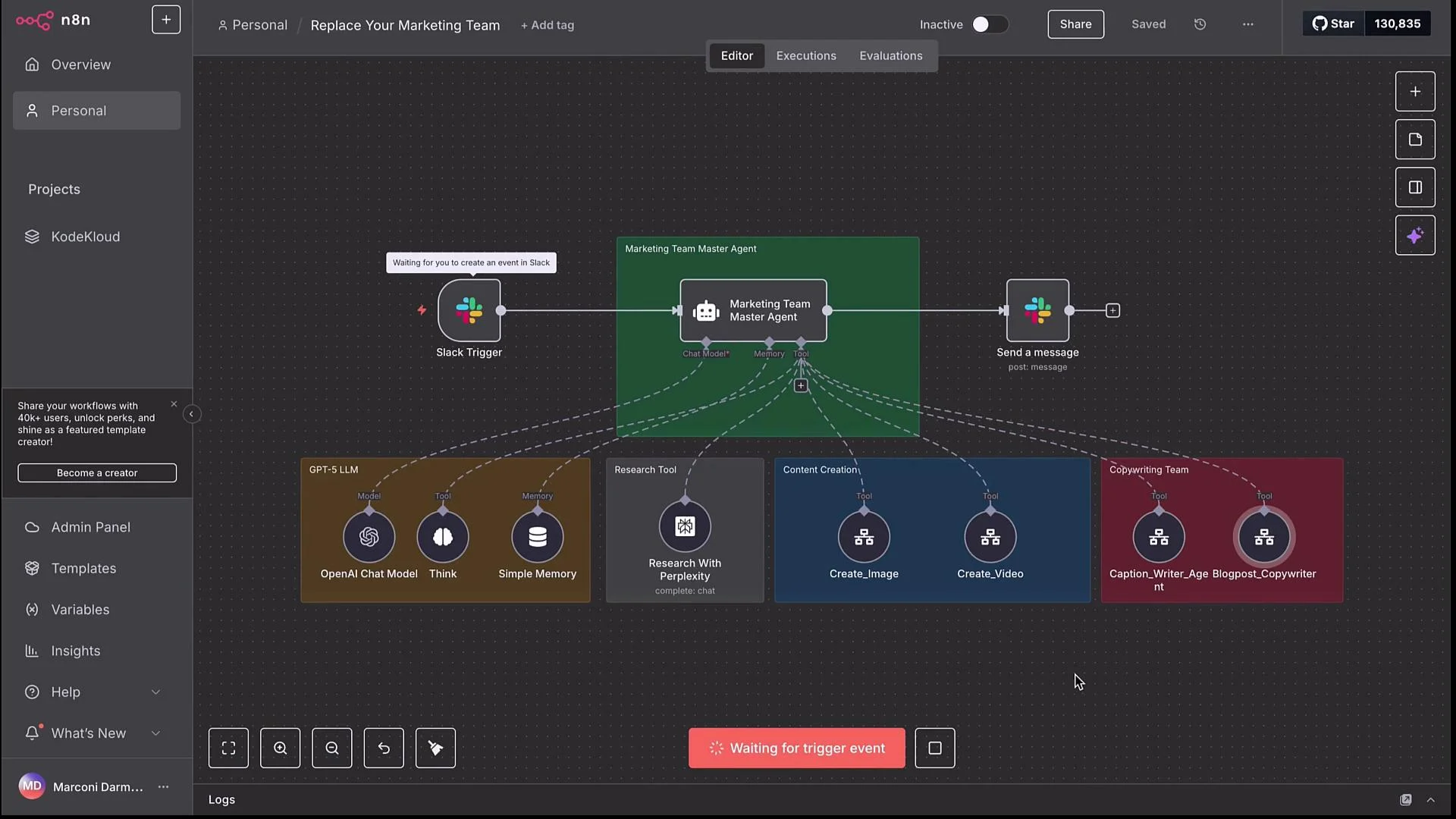
- Slack trigger activates the master agent.
- Master agent optionally calls Perplexity for recent AWS EKS updates.
- Master decides to generate an image and captions.
- Master calls Text-to-Image and CaptionWriter sub-workflows (in parallel or sequence).
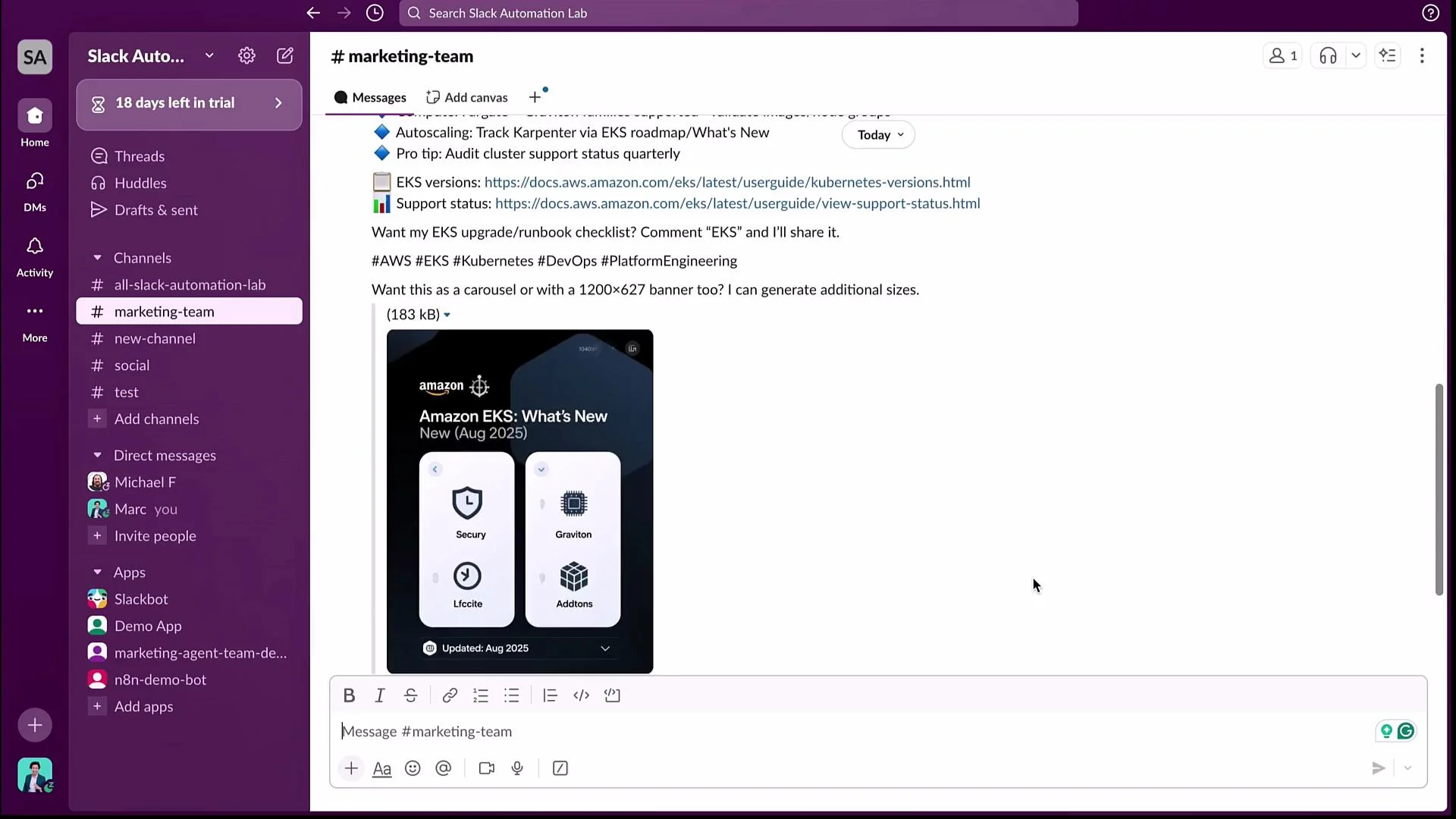
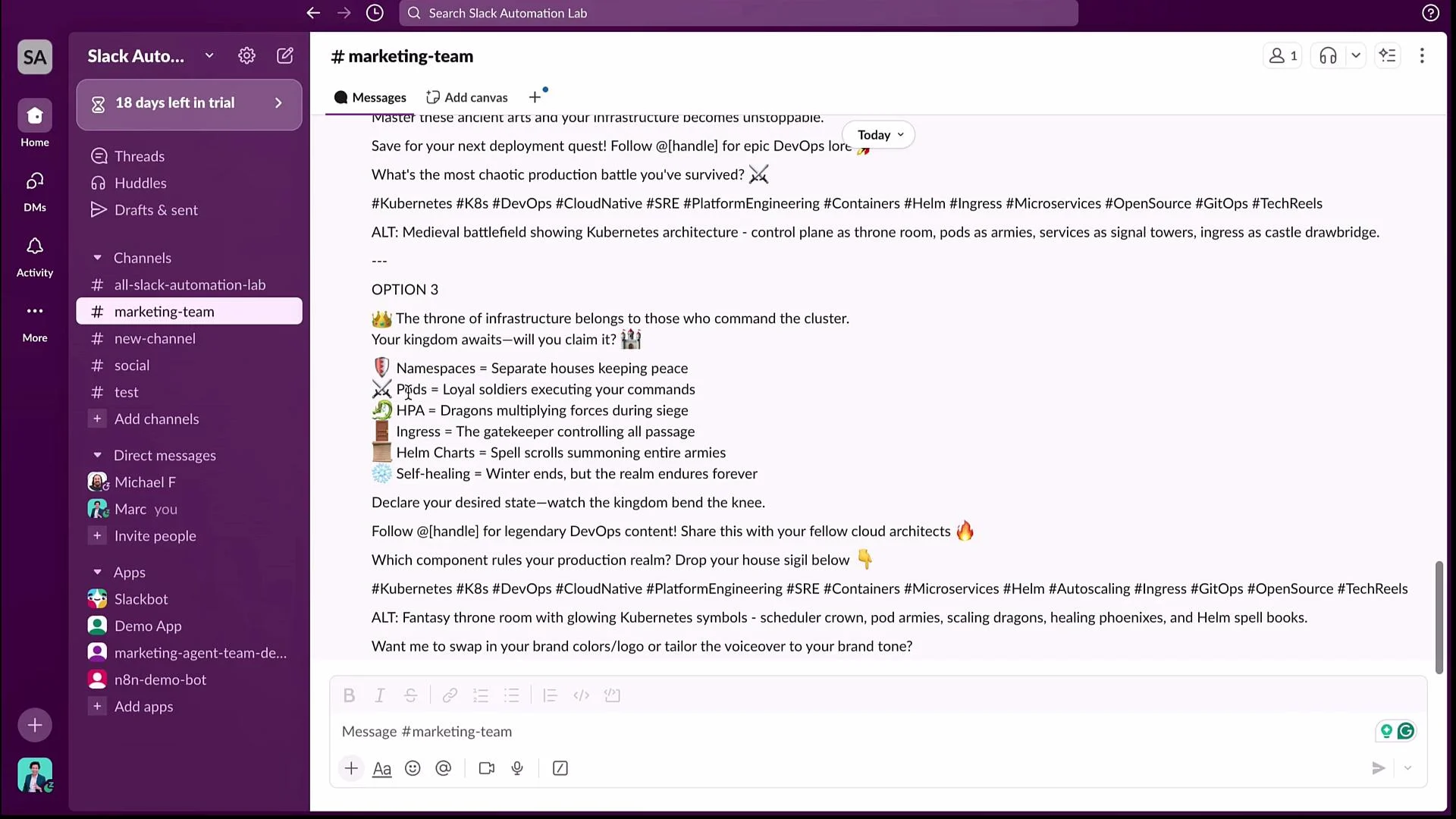
- Once sub-workflows return (image URL + captions), master consolidates and posts back to Slack.
- The master calls the Text-to-Video sub-workflow and the CaptionWriter in parallel.
- Video generation typically takes longer; the video sub-workflow returns JSON metadata and a final video URL when complete.
- The master consolidates the video URL and caption options, posts them to Slack, and/or provides a download link.

- Test each sub-workflow independently. When a sub-workflow errors, open it directly to inspect logs and node outputs.
- Configure sub-workflows to return outputs on their final node so the master can consolidate easily.
- Use a short memory for conversational context and a separate persistent store (Pinecone) for long-term references and brand guidelines.
- For production: add retry policies, timeouts, and backoff strategies on nodes that call external APIs.
- Perplexity: https://www.perplexity.ai
- Pinecone: https://www.pinecone.io
- Anthropic: https://www.anthropic.com
- Google Docs: https://docs.google.com
- AWS EKS overview: https://learn.kodekloud.com/user/courses/aws-eks