Learn to configure Amazon S3 for hosting static websites, including bucket setup, file upload, public access, and custom domain integration.
Welcome to this lesson on configuring Amazon S3 for static website hosting. In this guide, you will learn how to set up an S3 bucket to serve static content such as HTML, CSS, JavaScript, images, and more. This method helps you deploy websites without managing servers or using services like AWS App Runner.
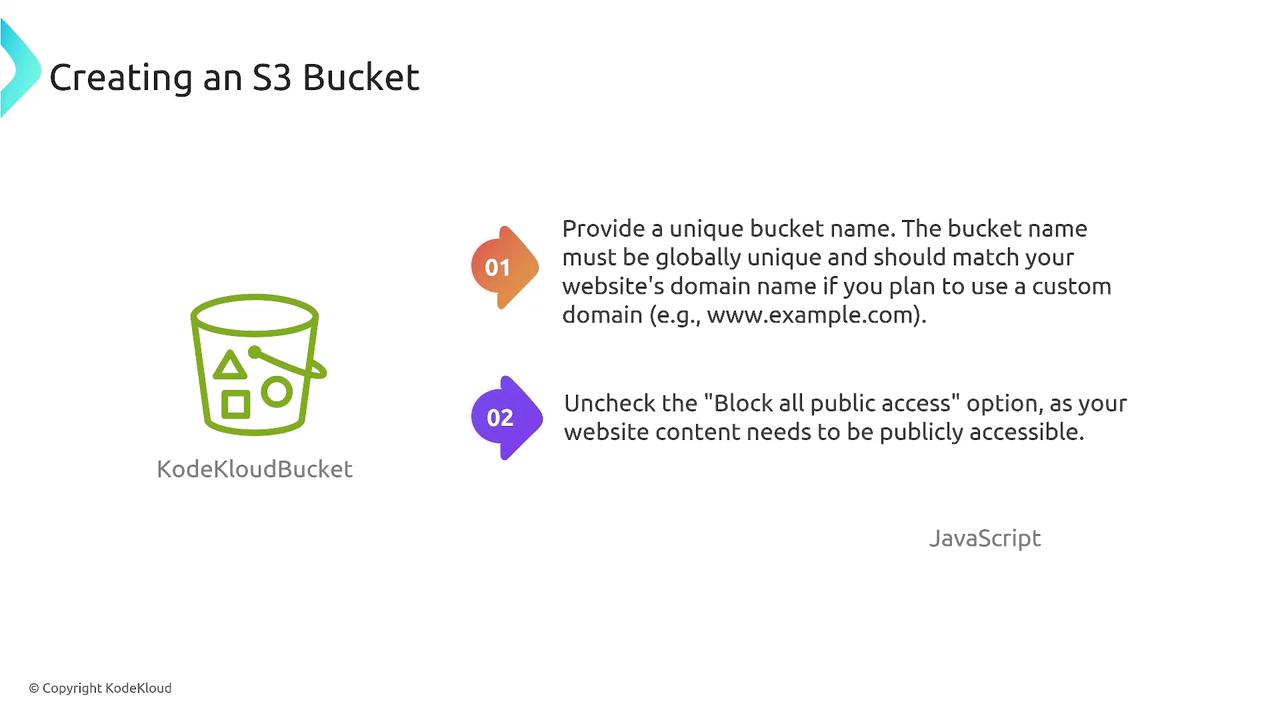
When you create your S3 bucket (for example, “KodeKloud”), remember that the bucket name must be globally unique—Amazon S3 verifies that your chosen name is not already in use across all AWS accounts. If you plan to host your site publicly, make sure you deselect the option to block all public access.
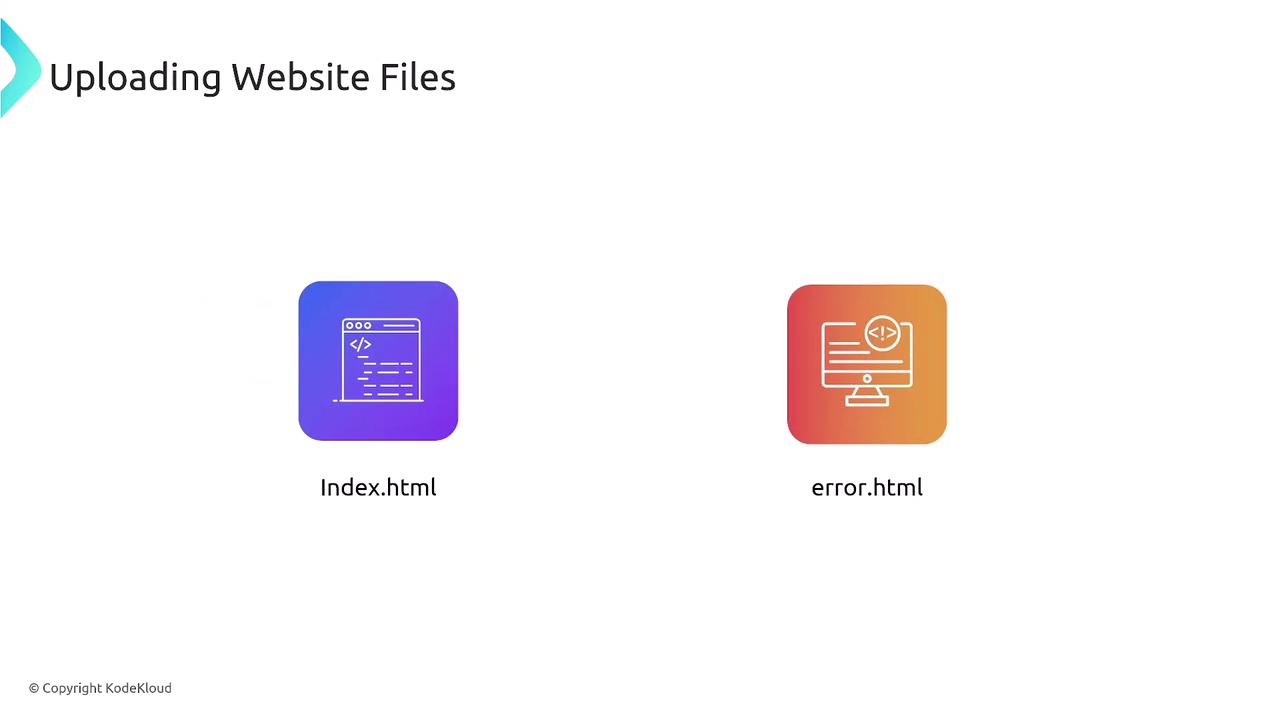
You can also configure additional features such as local encryption or bucket versioning. After completing the configuration, upload your website files. Ensure that the main files are correctly named (typically, index.html and error.html) or that they are properly designated in your website configuration.
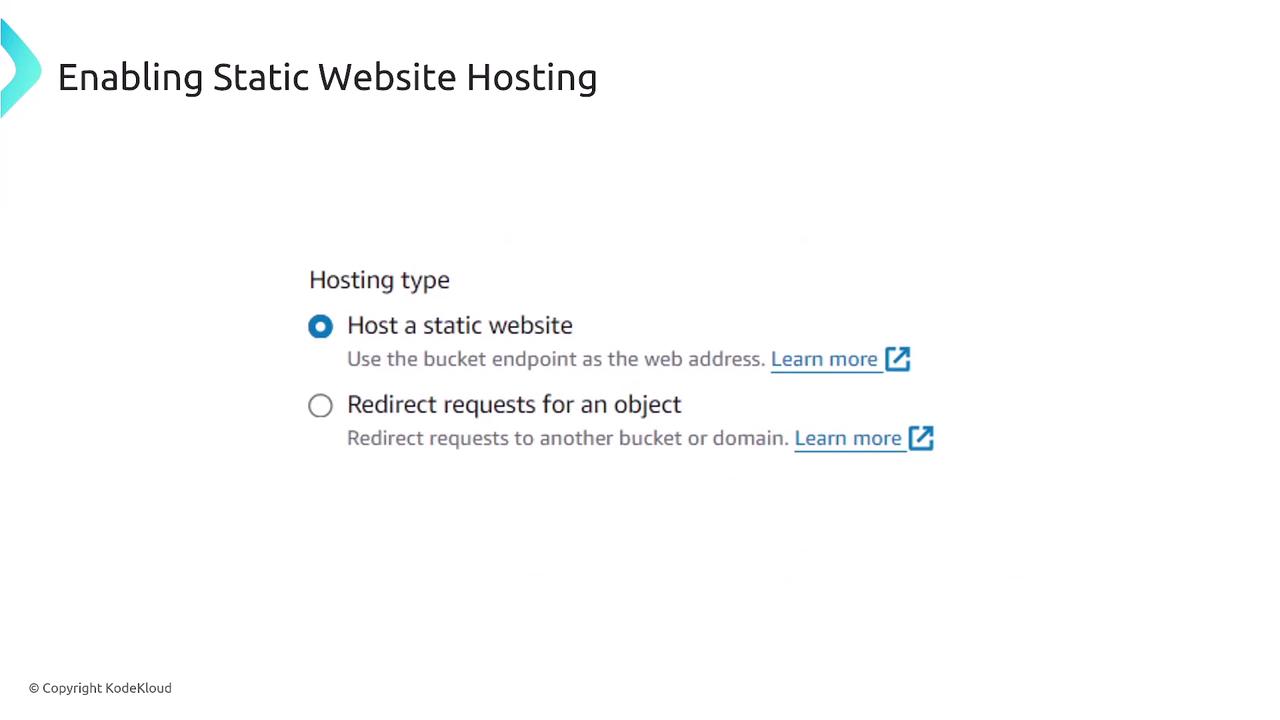
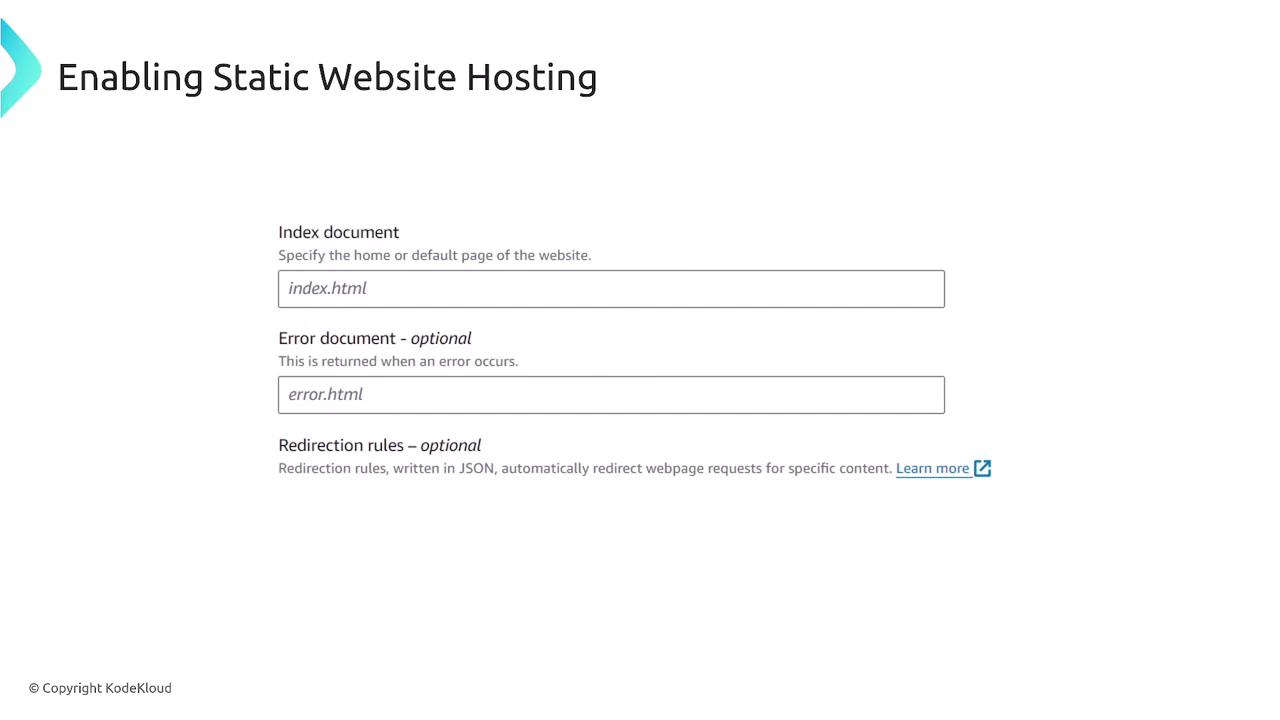
Once your website files are in place, the next step is to enable static website hosting on your bucket. In the setup, you need to specify:
The index document (commonly index.html).
The error document (often error.html).
Any redirection rules if needed.
After enabling static hosting, your bucket generates a URL endpoint, which may appear in formats such as:
kodekloudbucket.s3-website-region.amazonaws.com
kodekloudbucket.s3-website.[region].amazonaws.com
While these URL variations are informative, focus on understanding the overall configuration process.
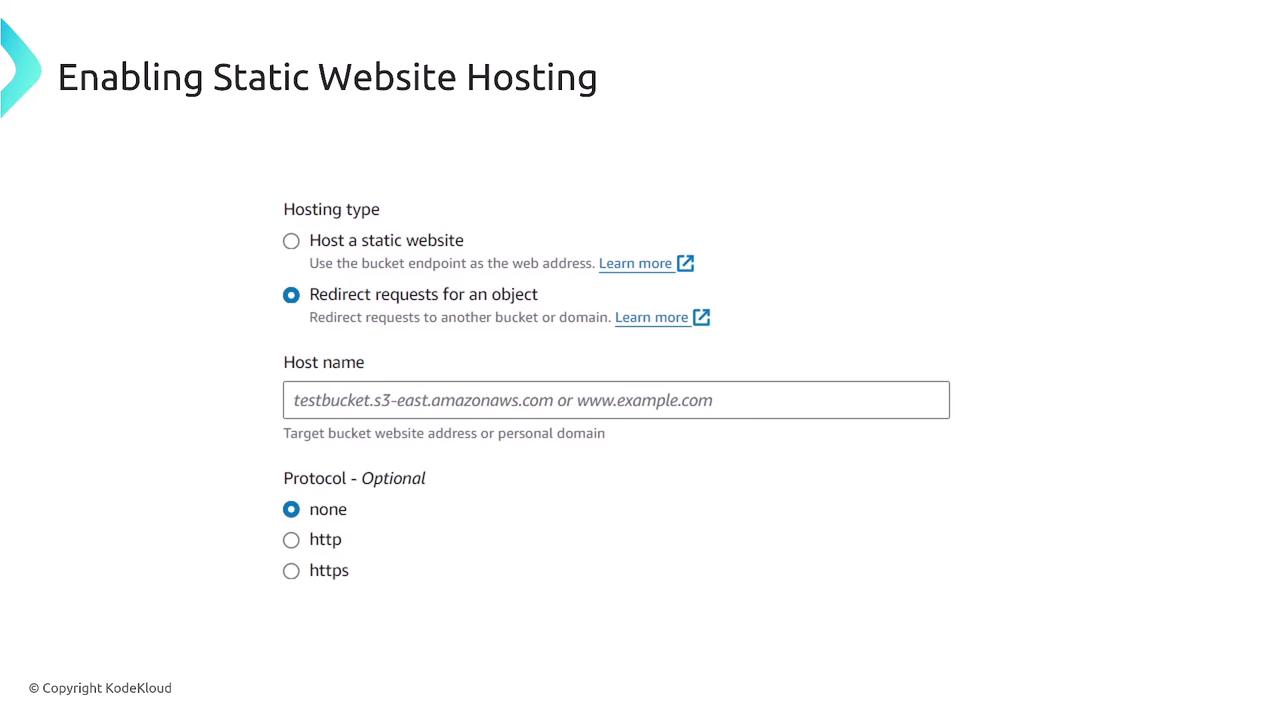
In some cases, you might need to specify protocol settings (HTTP or HTTPS). Although HTTPS is widely adopted today, earlier implementations required the use of CloudFront to enforce HTTPS redirection. CloudFront remains a popular option as a CDN for S3-hosted websites due to its advanced redirection capabilities, although other third-party solutions can be used as well.
By default, objects within an S3 bucket are set to private. To make your website files publicly accessible, you’ll need to attach a resource-based bucket policy. Below is an example policy that grants public read access:
This is a resource-based policy attached directly to the S3 bucket. In contrast, identity-based policies (which do not include the “Principal” element) are associated with IAM identities.
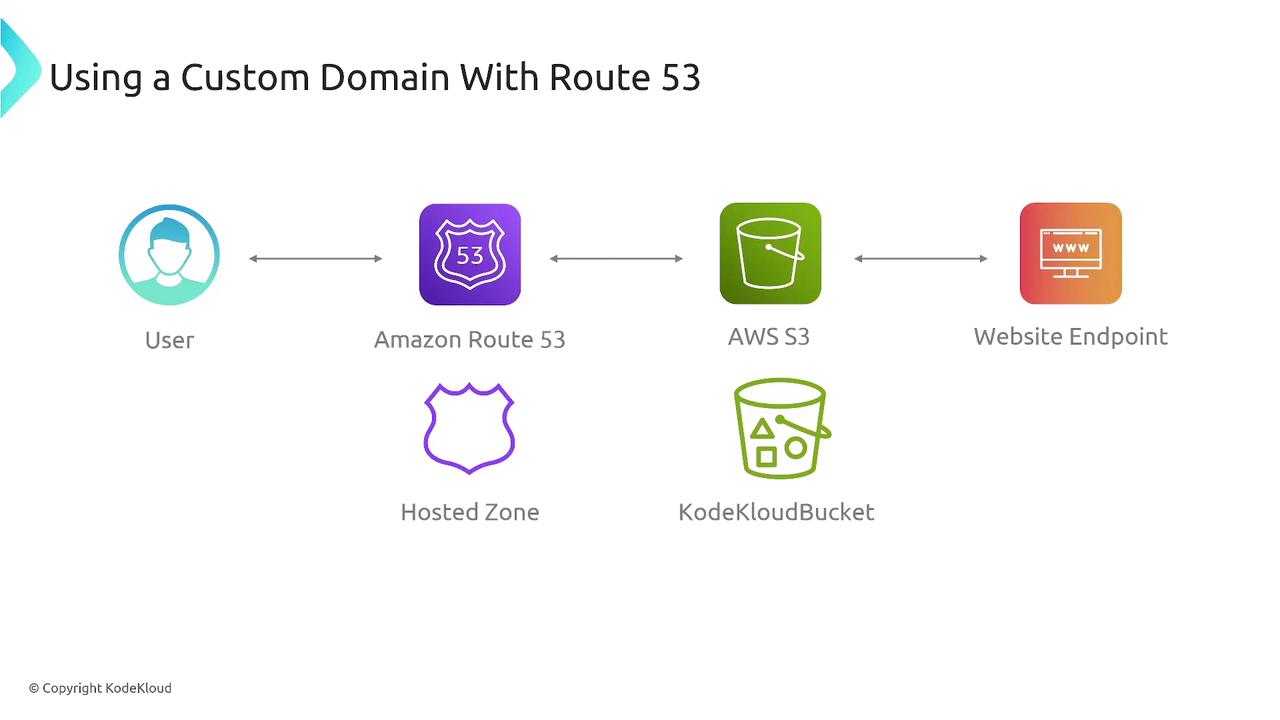
To map your static website to a custom domain (for example, example.com), follow these steps:
Create a hosted zone in Amazon Route 53 (or use your DNS provider).
Publish the hosted zone and configure it to match your S3 bucket.
In Route 53, create an A record with an alias that directs your naked domain (example.com) to the S3 website endpoint.
If you are using CloudFront for additional caching or HTTPS redirection, you may opt to create a CNAME record pointing to the CloudFront distribution. However, when using naked domains, the A record with an alias is the recommended solution.
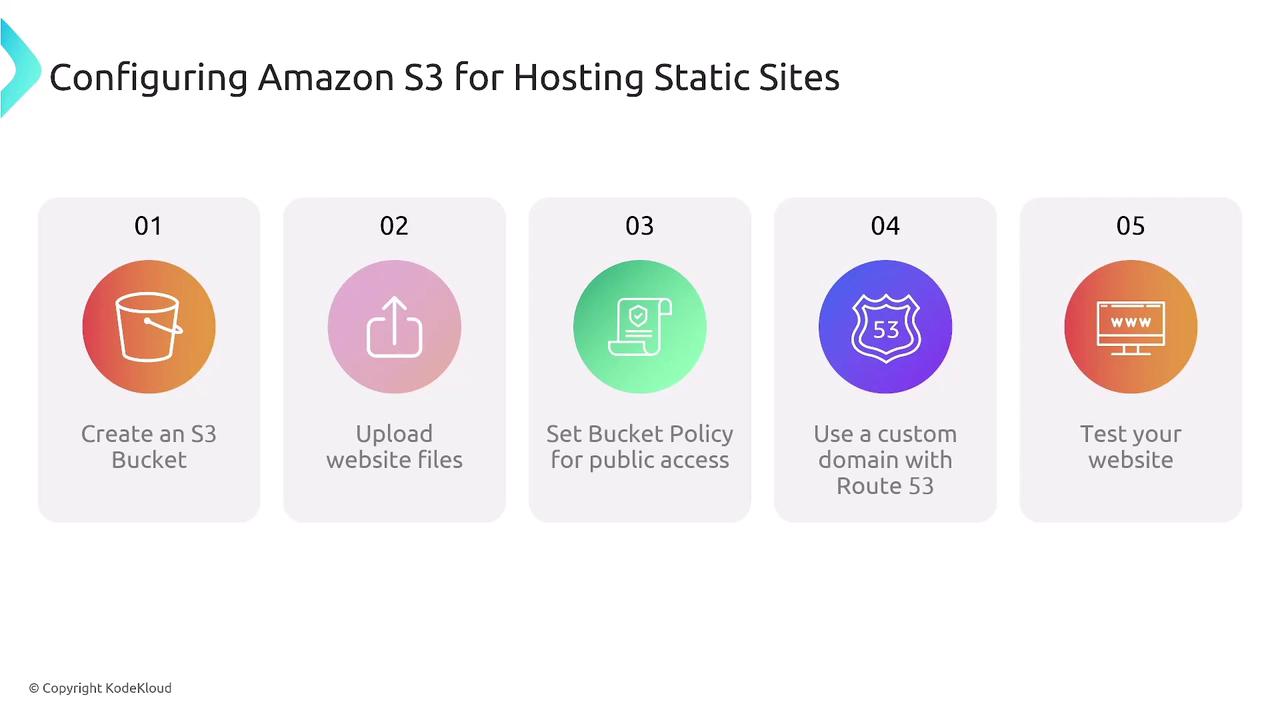
This lesson has guided you through the process of hosting a static website on Amazon S3. By following these steps—bucket creation, file upload, public access configuration, static website hosting setup, and custom domain integration—you can deploy a cost-effective and scalable website on AWS.For further details and extended examples, additional resources are available. Happy hosting!