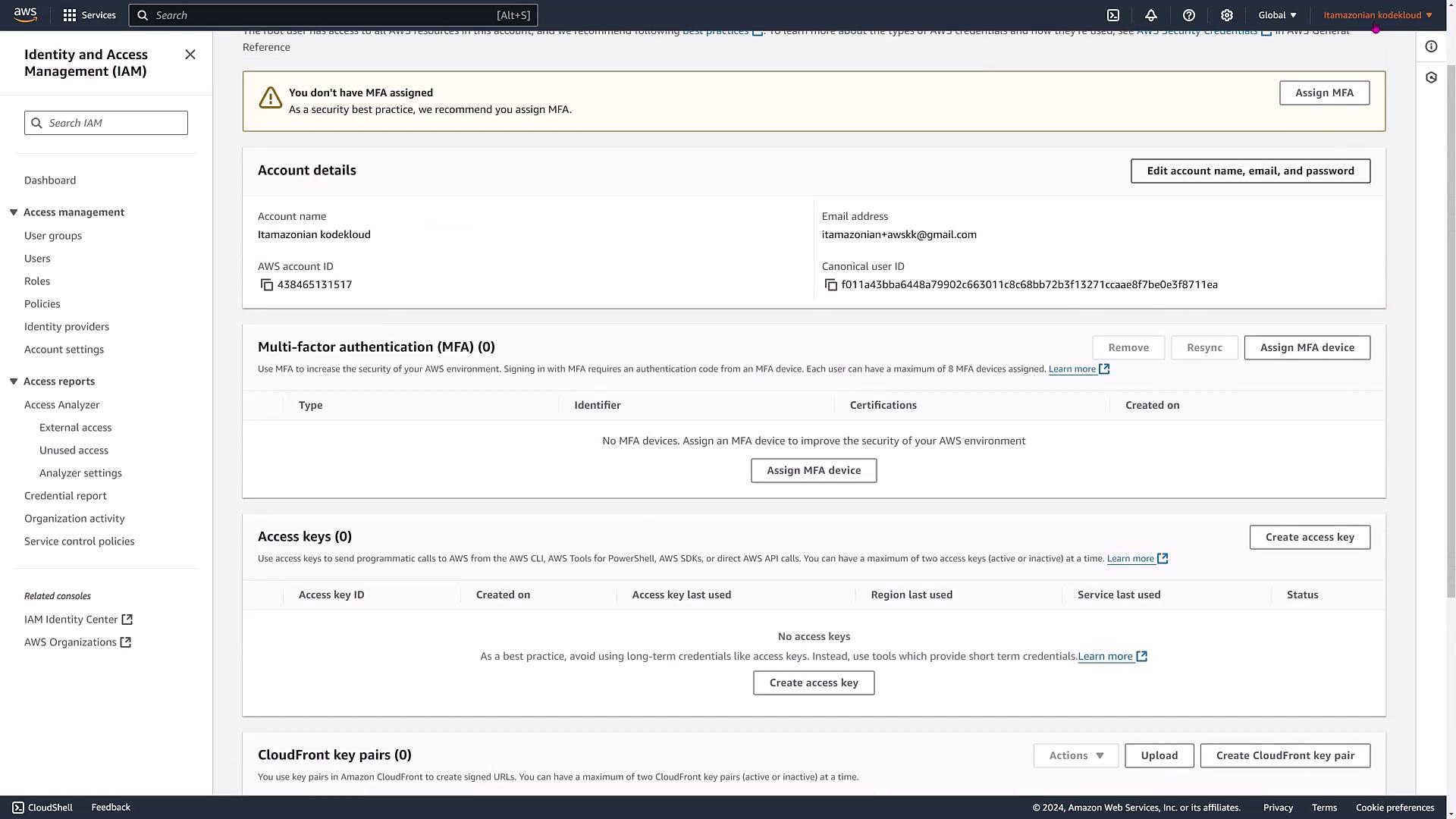
Step 1: Access the AWS Free Tier Page
Start by searching for “AWS Free Tier” on Google and clicking the aws.amazon.com/free link.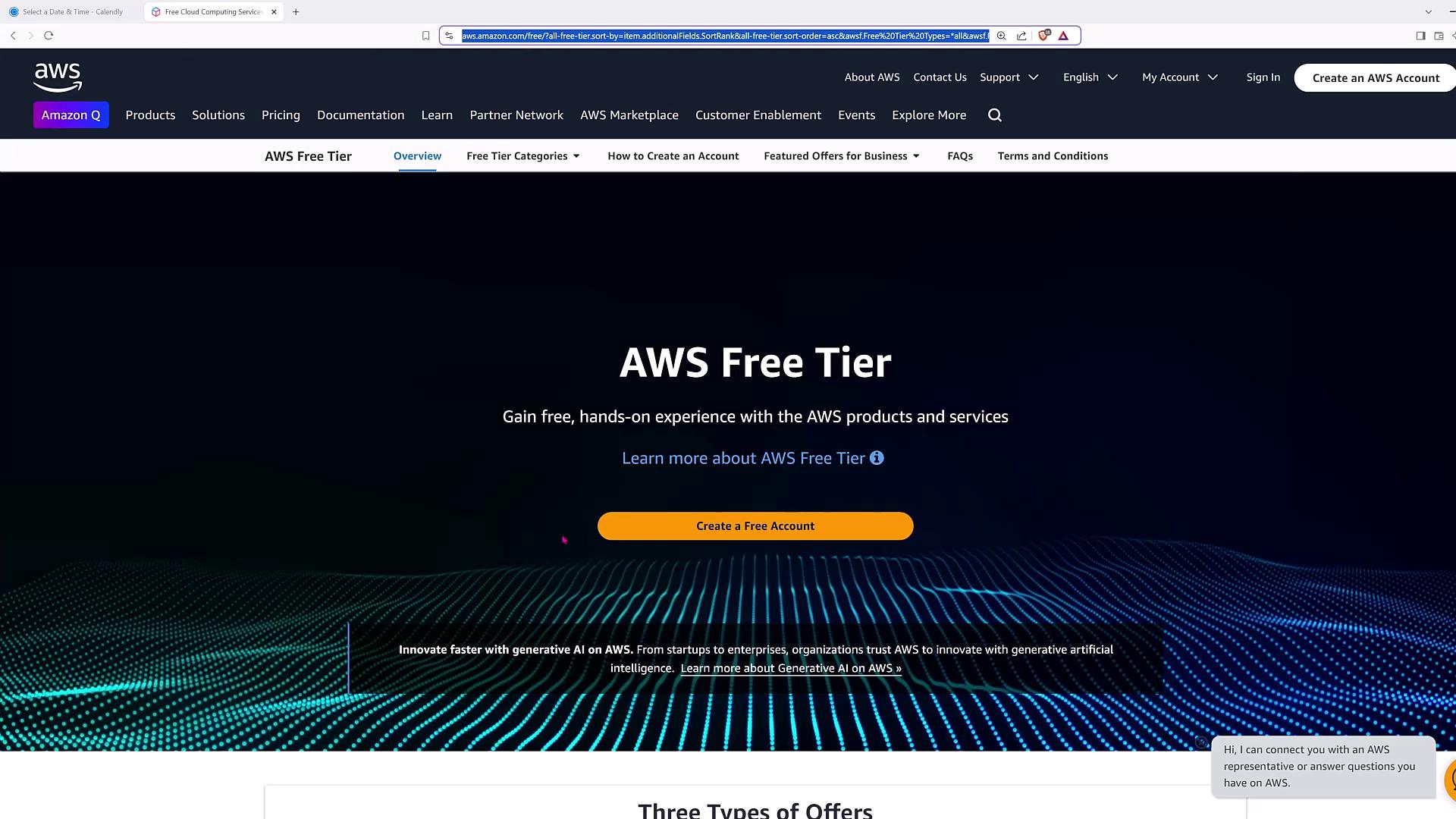
Step 2: Verify Your Email
After entering your email, AWS will send a verification code. Retrieve the code and enter it on the verification page.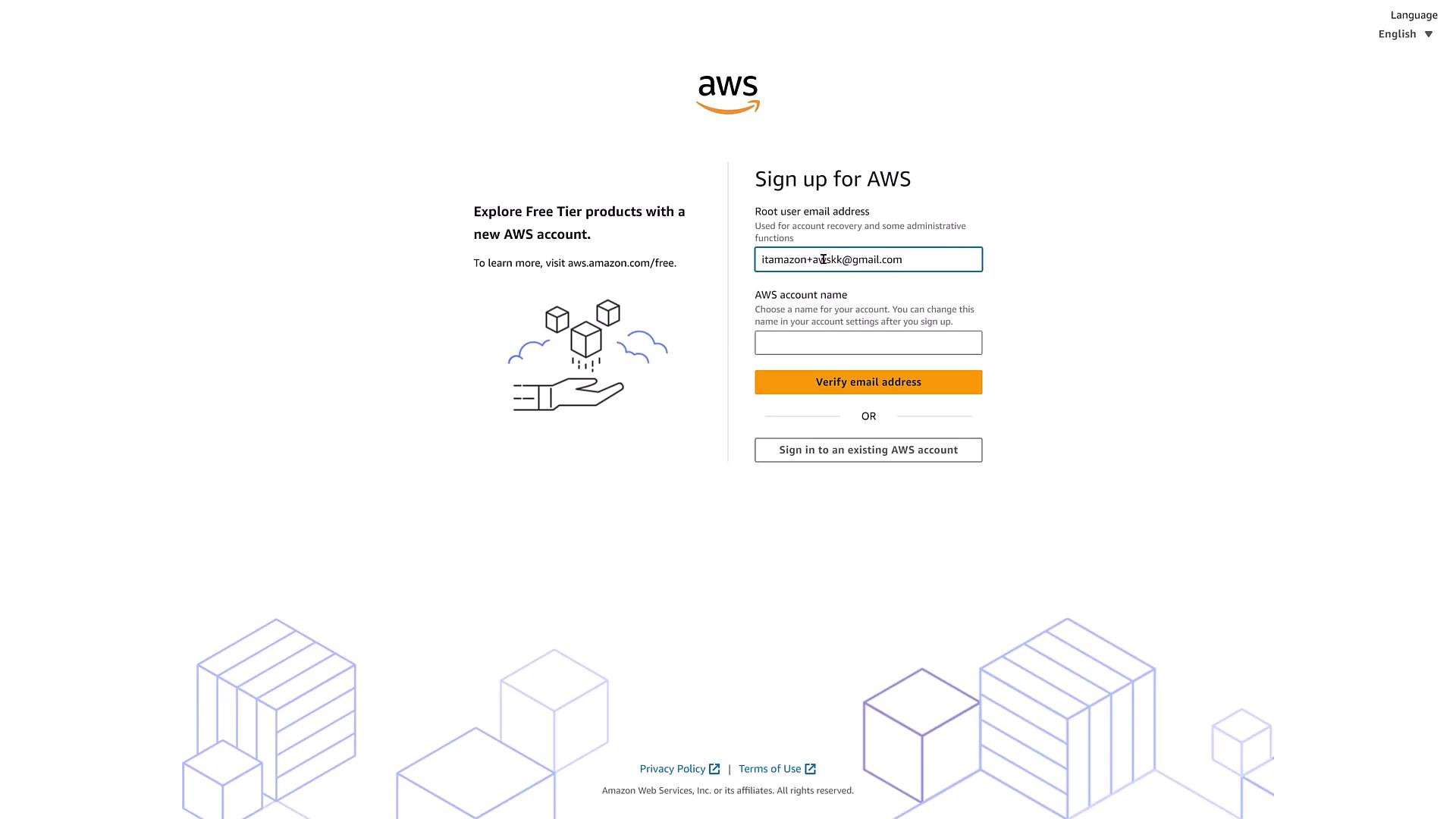
Step 3: Set Up Your Account Credentials
Once your email is verified, set a strong root password. Next, provide your billing information by submitting your credit card details. While the account is free tier, AWS needs to verify your identity with a valid credit card. After a verification code is sent to your phone and confirmed, choose the support plan that best suits your needs—typically, the free Basic support plan suffices for personal use.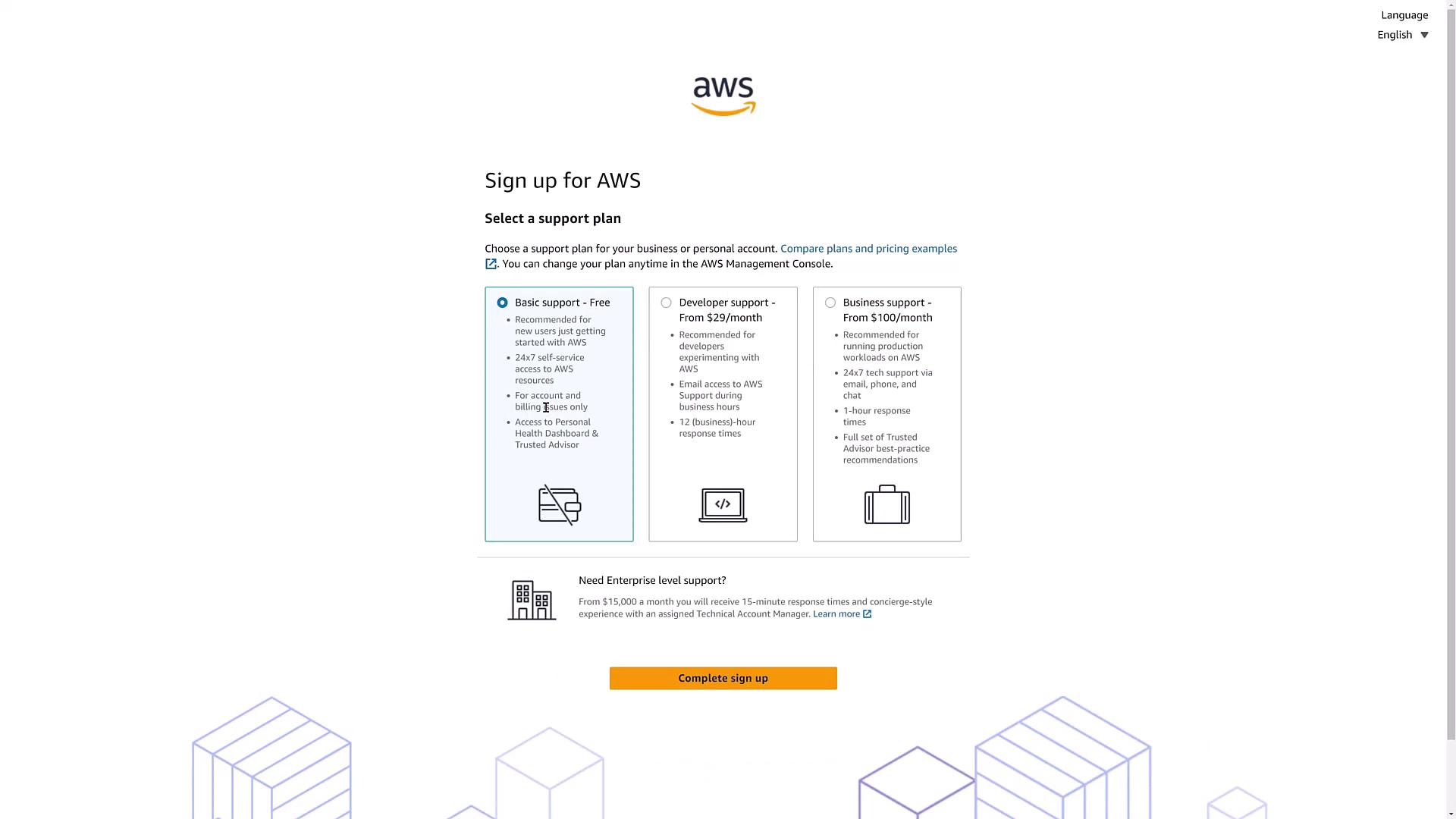
Step 4: Access the AWS Management Console
After completing the sign-up, click on “Go to Management Console.” Initially, you’ll log in as the root user, and the console might default to a specific region (for example, Ohio). Although the root user has full privileges, it is highly recommended to create an IAM user for daily tasks.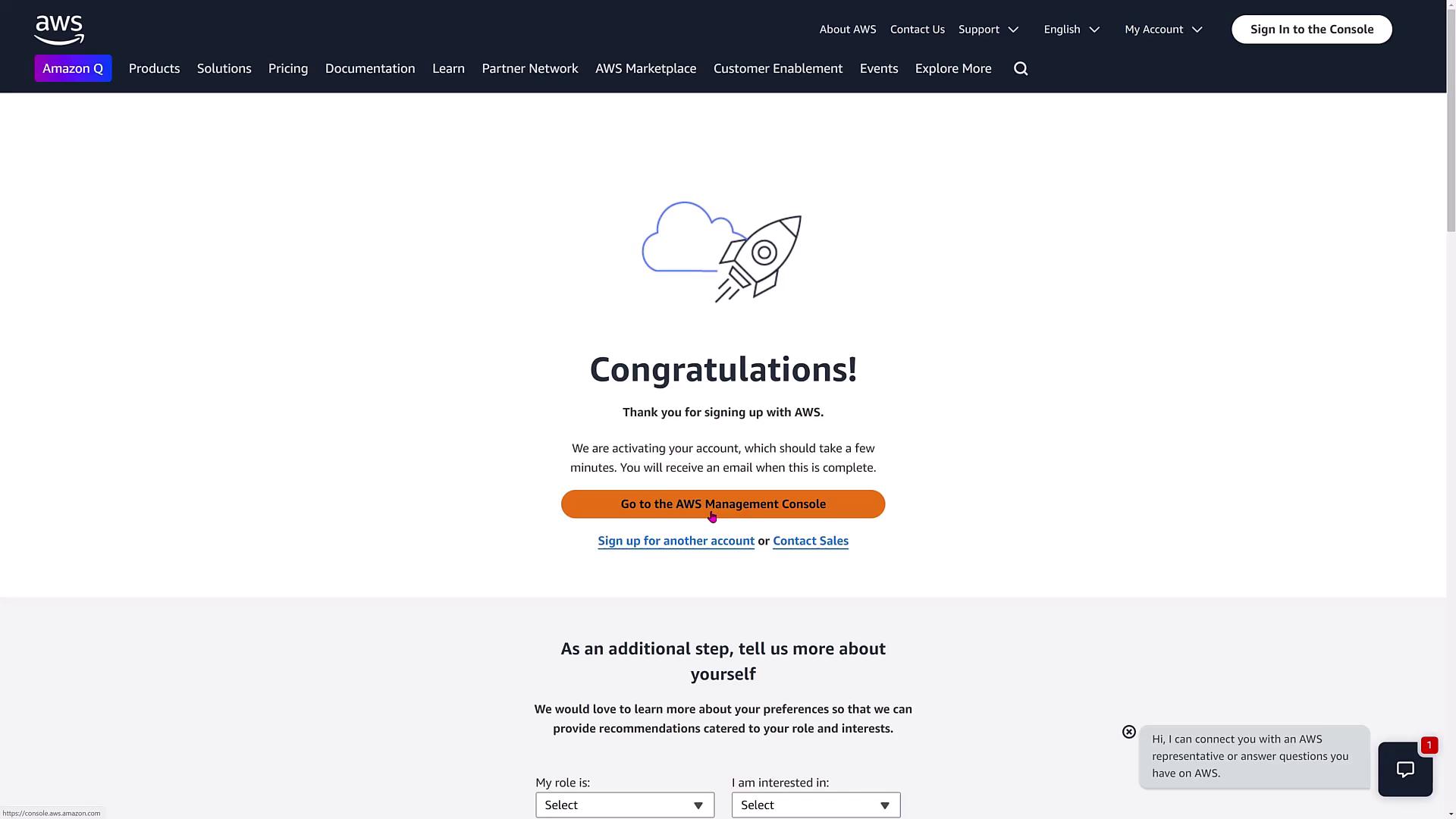
It is best practice to avoid using the root account for daily activities. Always use IAM users with restricted permissions and enable multi-factor authentication (MFA) to enhance security.
Step 5: Create an IAM User
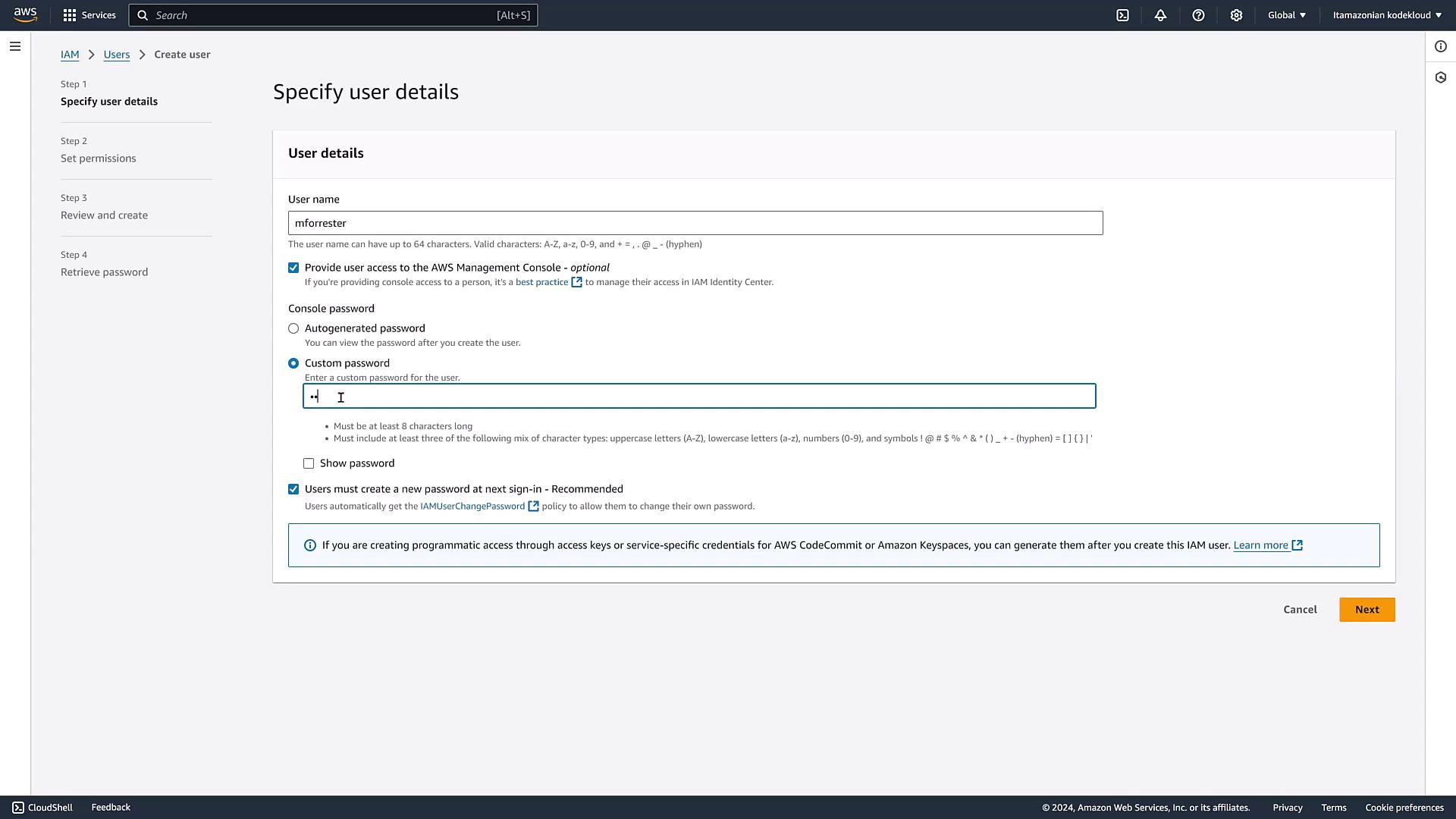
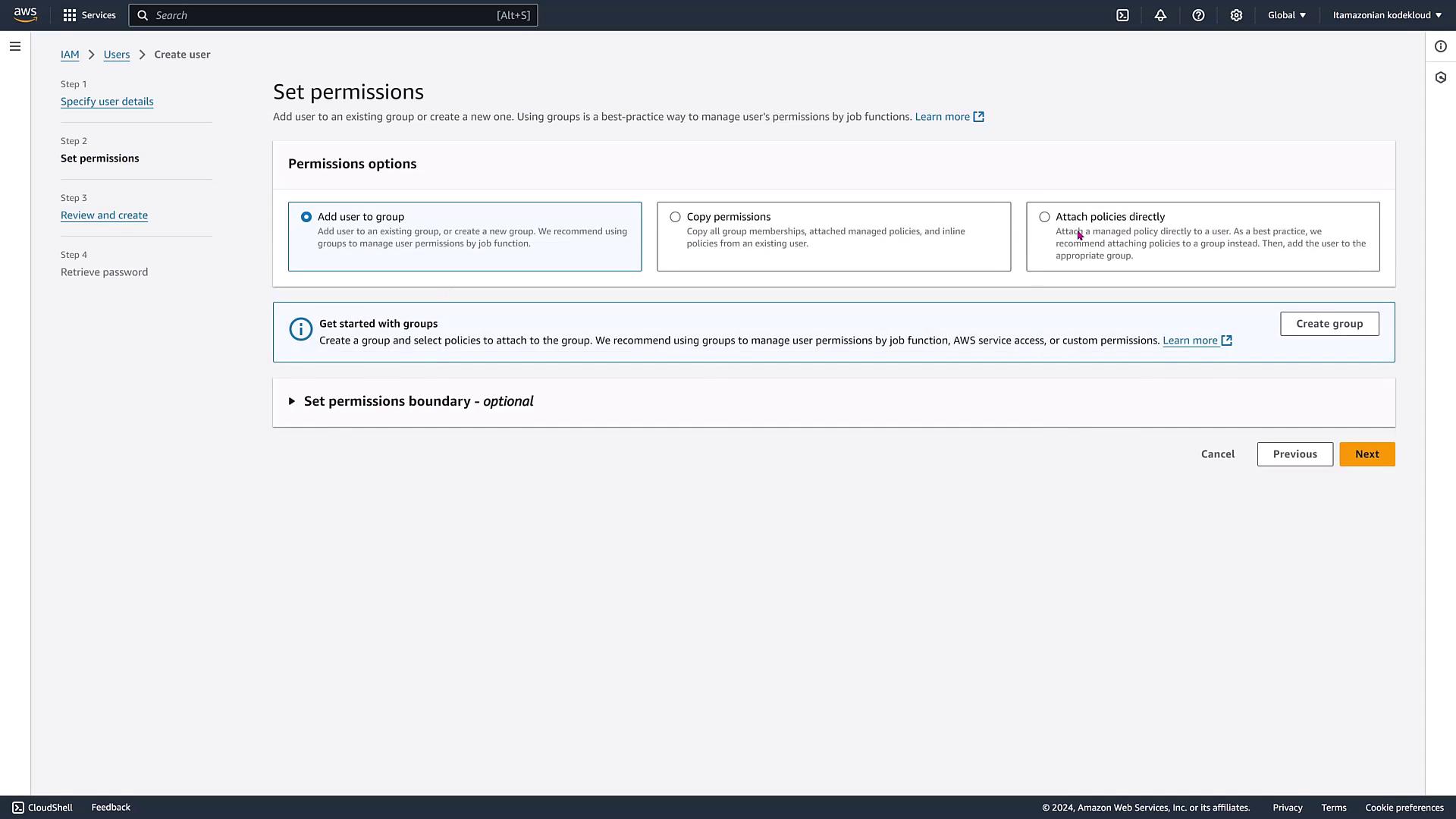
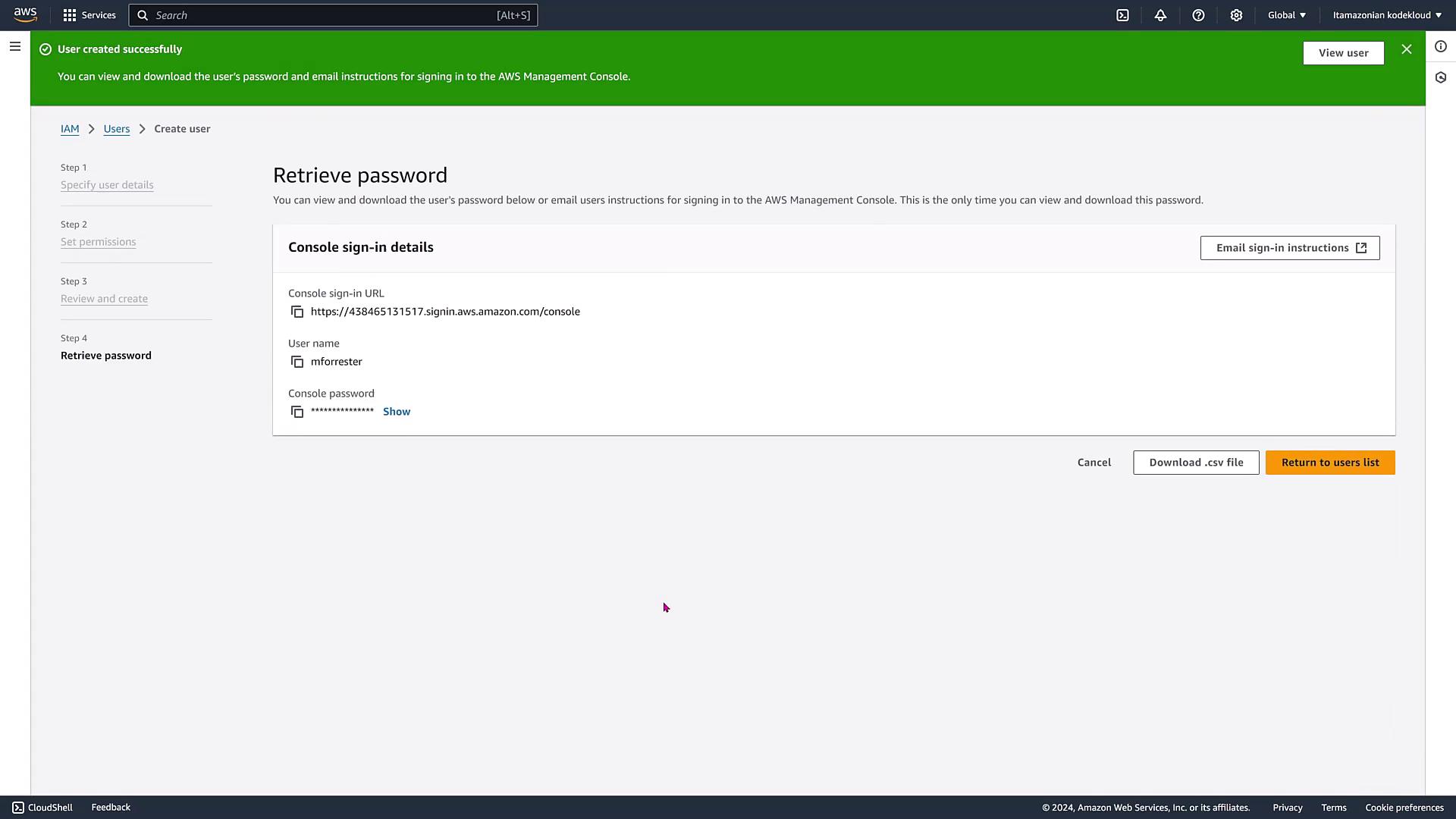
To improve account security:- Navigate to IAM in the AWS console.
- Create a new user (e.g., “MForrester”) with console access.
- Set a custom strong password and choose to require a password change upon first login if necessary.
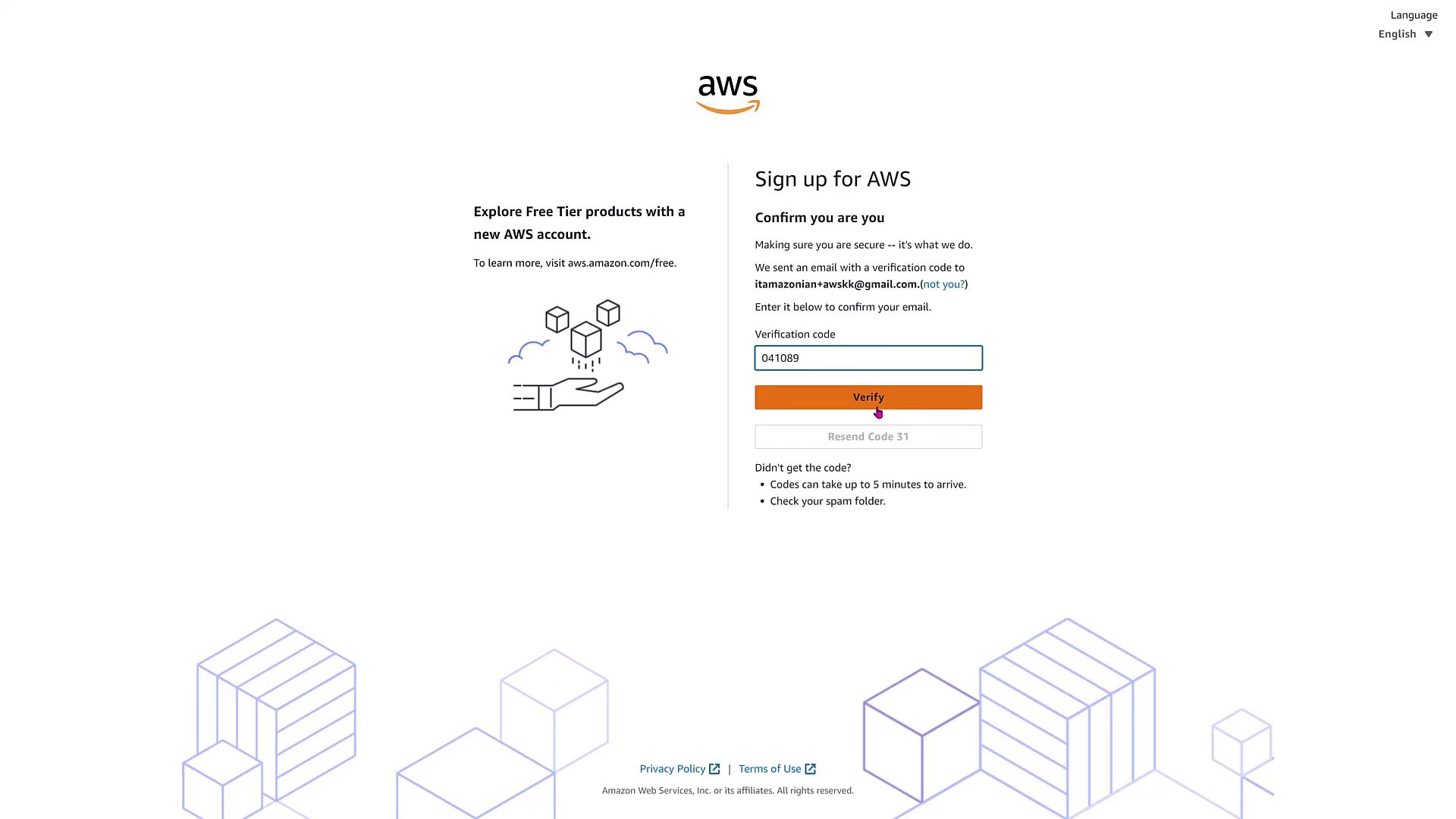
Step 6: Secure Your Account with MFA
Enhance security further by setting up Multi-Factor Authentication (MFA) for both your root user and your newly created IAM user.Do not create access keys or key pairs while logged in as the root user. Always use the IAM user with MFA enabled for daily operations.