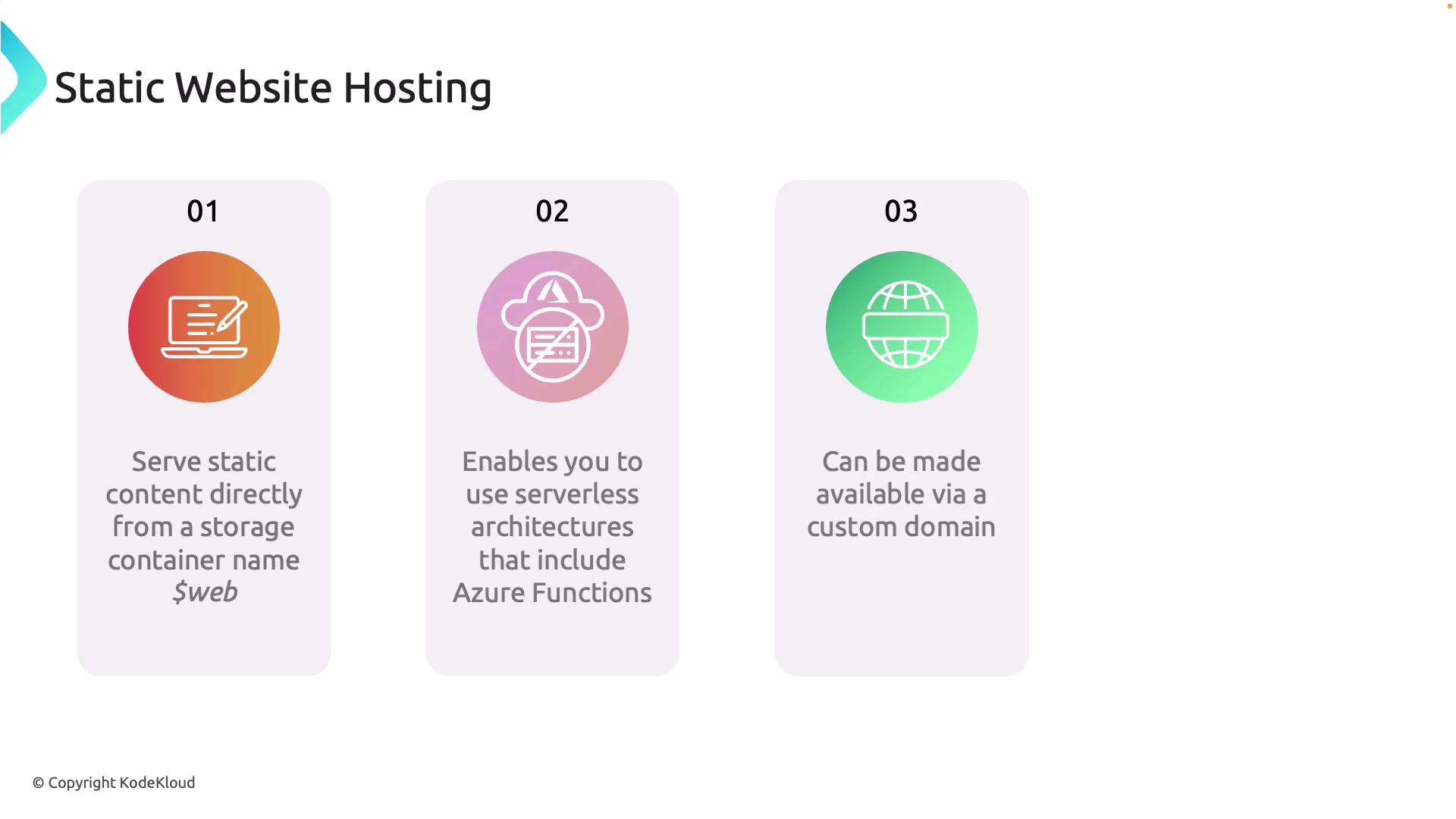
Benefits & Limitations of Static Website Hosting
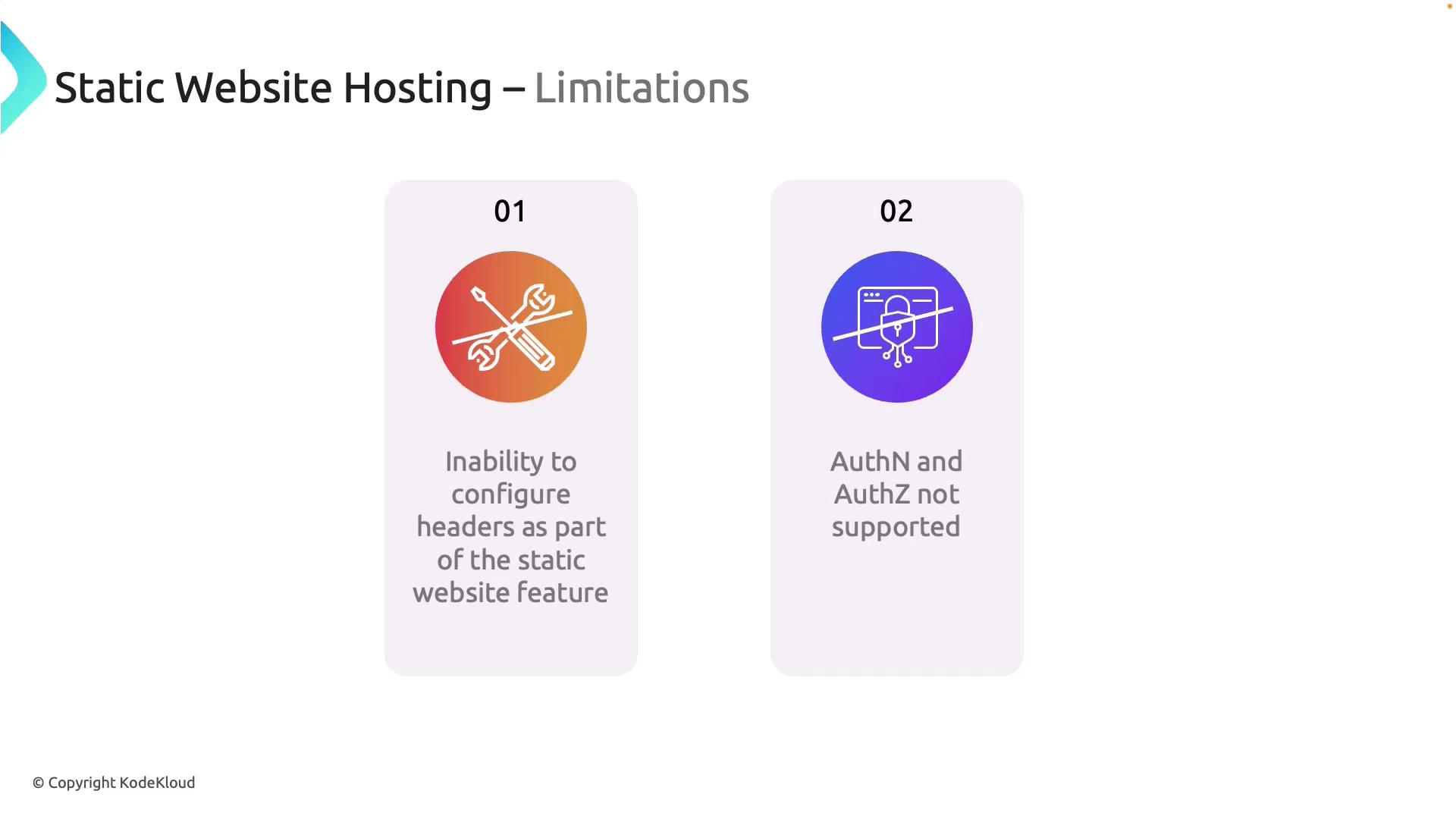
One major benefit is the ease of setup. With just a few clicks in the Azure portal, you can activate the static website feature without dealing with server management. However, there are a few limitations to consider:- Custom HTTP Headers: Azure Blob Storage does not natively support configuring custom HTTP headers (e.g., Content Security Policy, X-Frame-Options, or cache control). Although integrating Azure CDN can serve as a workaround, it introduces additional complexity and potential cost.
- Authentication and Authorization: Built-in static website hosting does not offer features for authentication or authorization. To restrict access (for example, to admin or premium sections), you need to integrate services like Microsoft Entra ID or Azure AD.
Setting Up a Static Website
Follow these steps to create a static website using Azure Blob Storage in the Azure portal:1. Enable Static Website Hosting
- Open your storage account in the Azure portal.
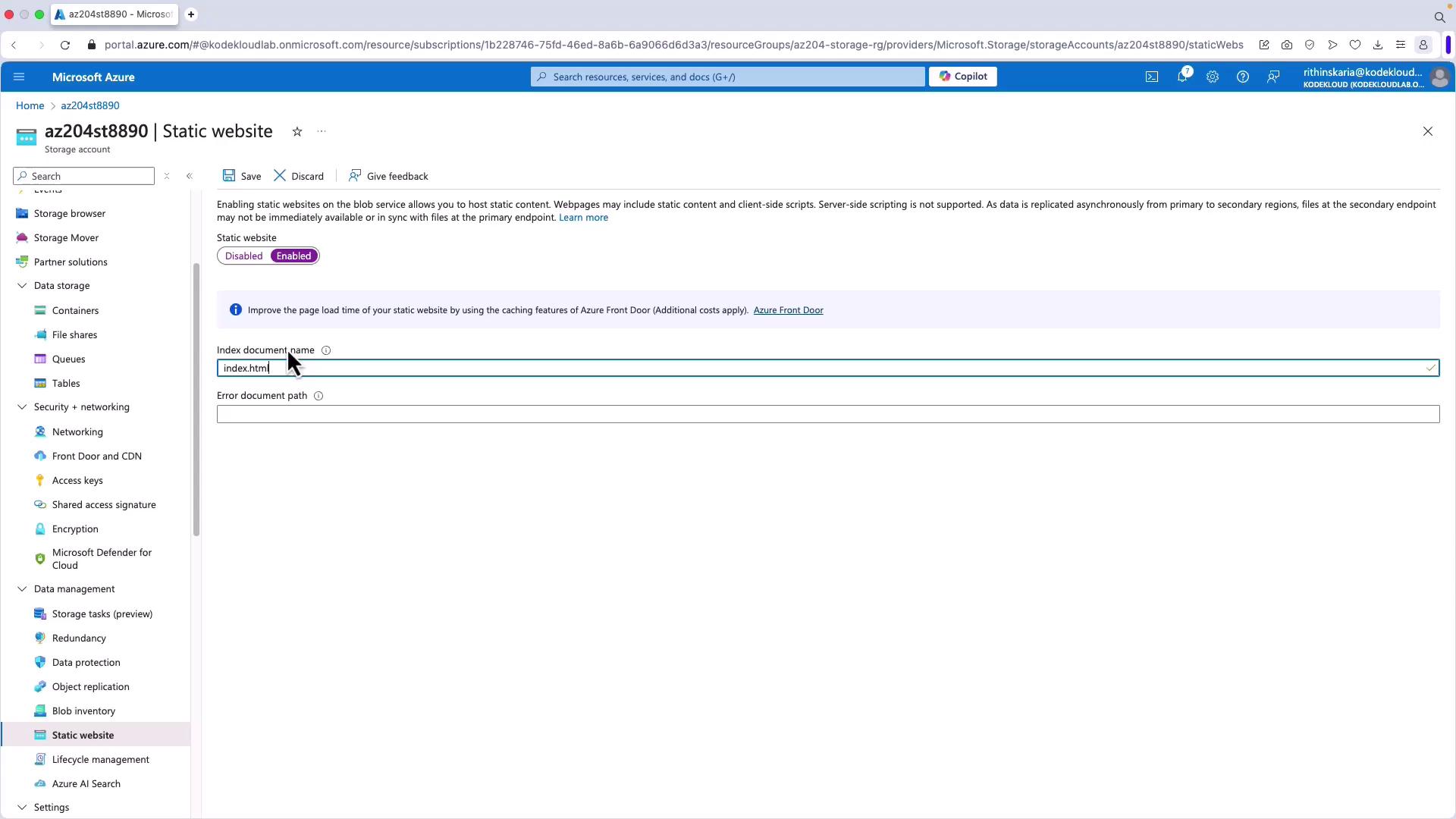
- In the menu (located above “Lifecycle management”), select “Static website” and enable the feature.
- Enter the index document name (commonly
index.html). If required, specify an error document (e.g.,error.html).
2. Configure Container Access
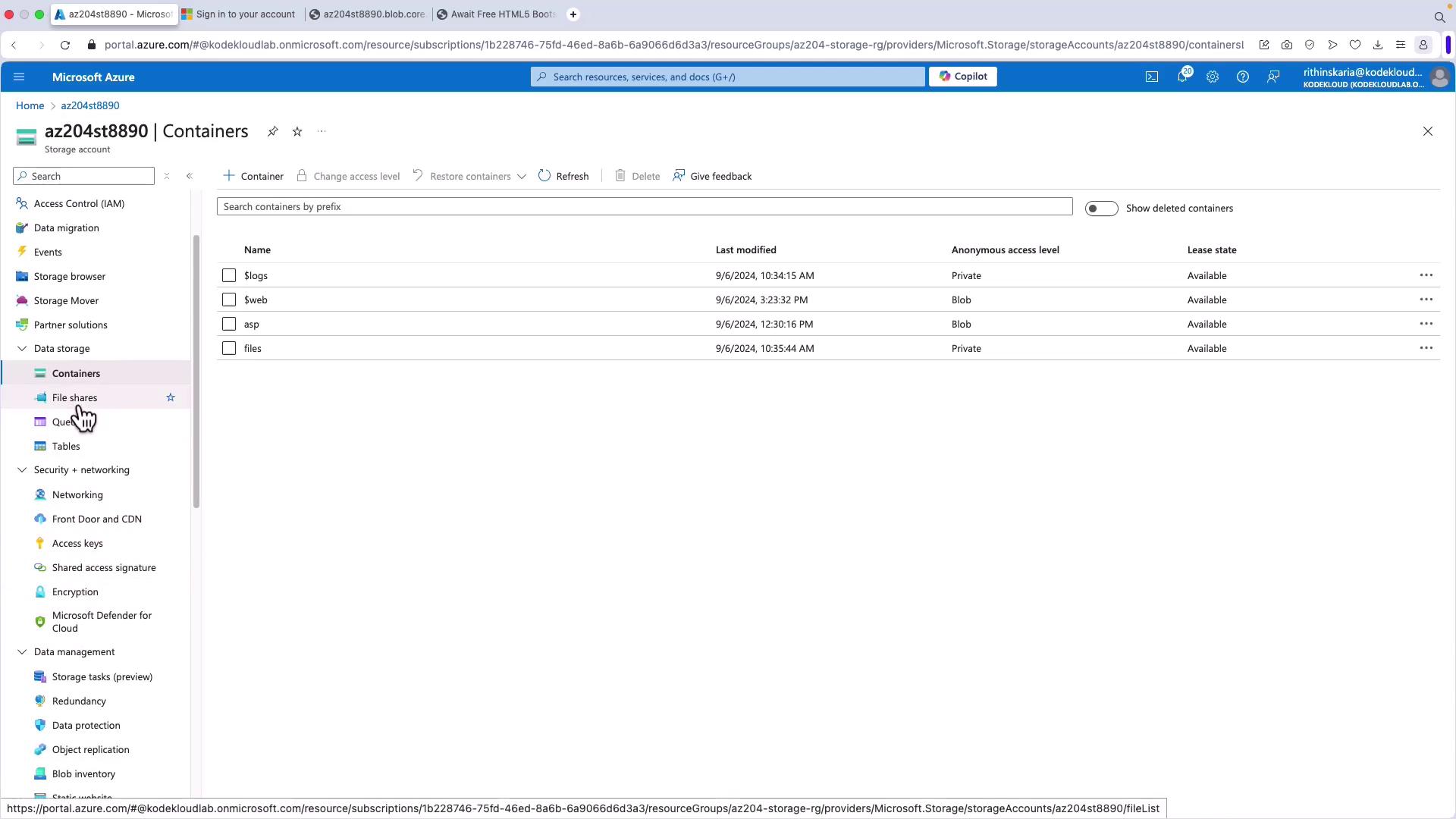
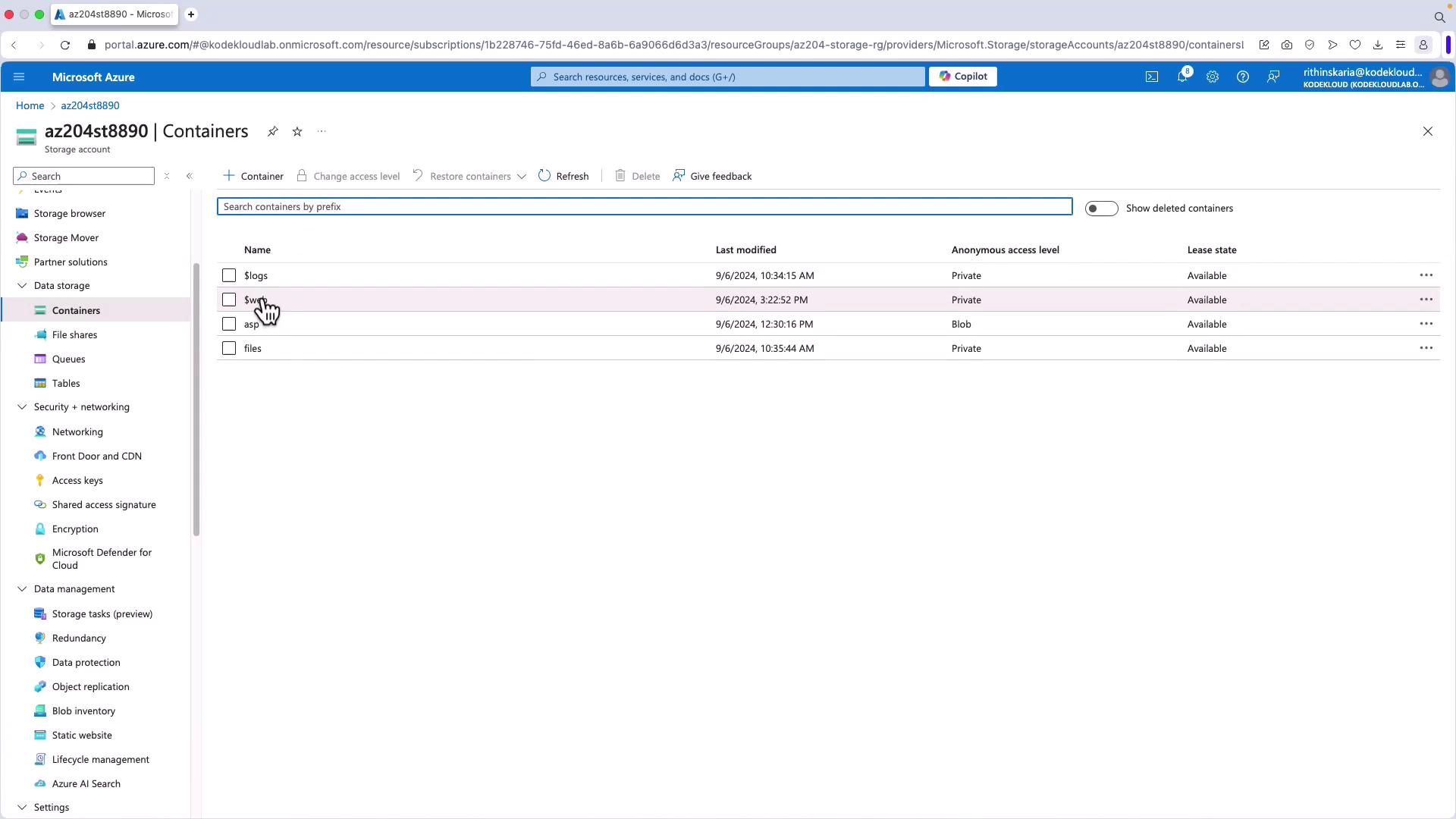
- Navigate to the storage account’s containers and find the newly created $web container.
- By default, the container is private. Click on it, then select “Change access level” and choose “blob” to allow anonymous public access.
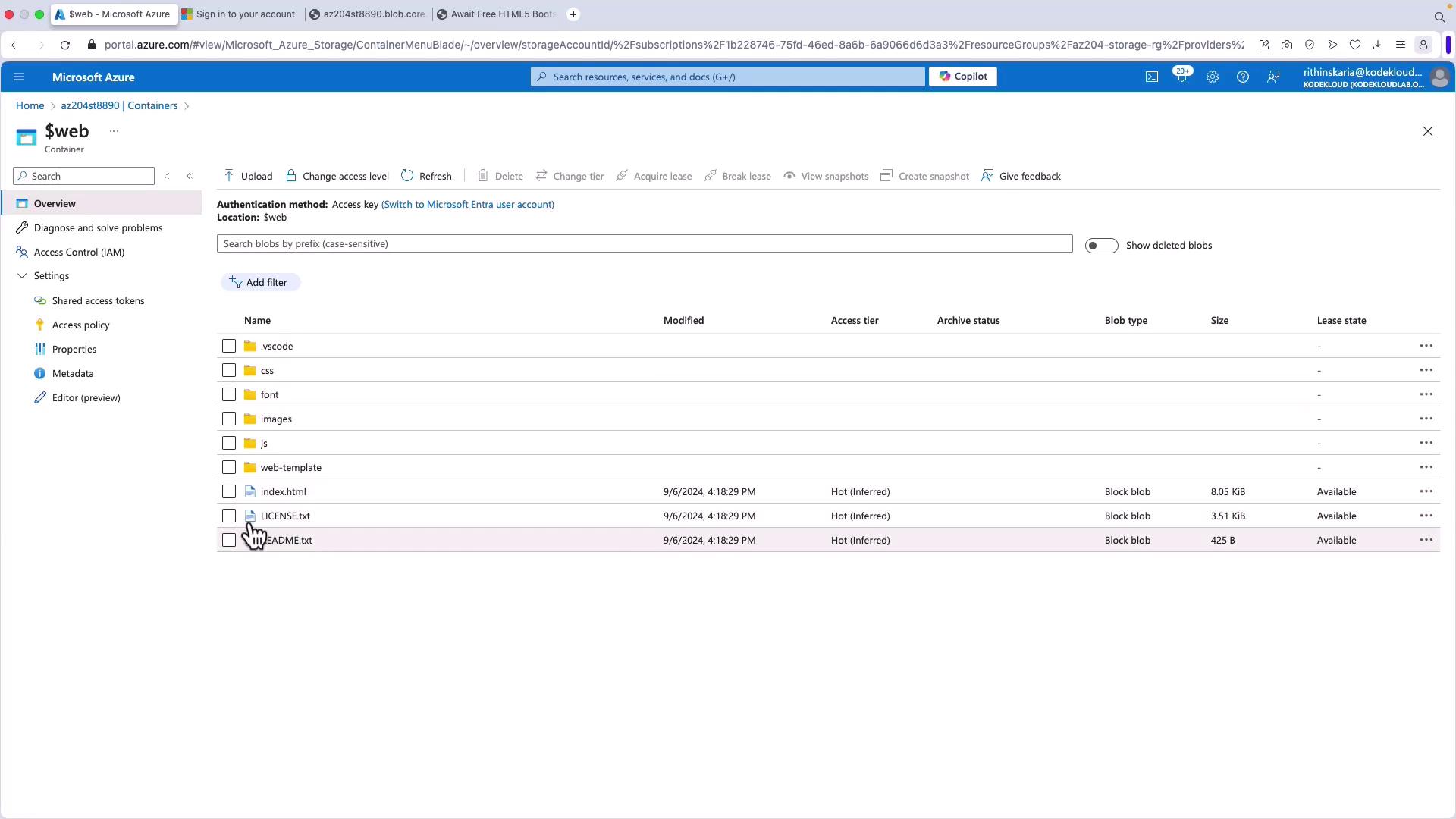
3. Upload Your Website Files
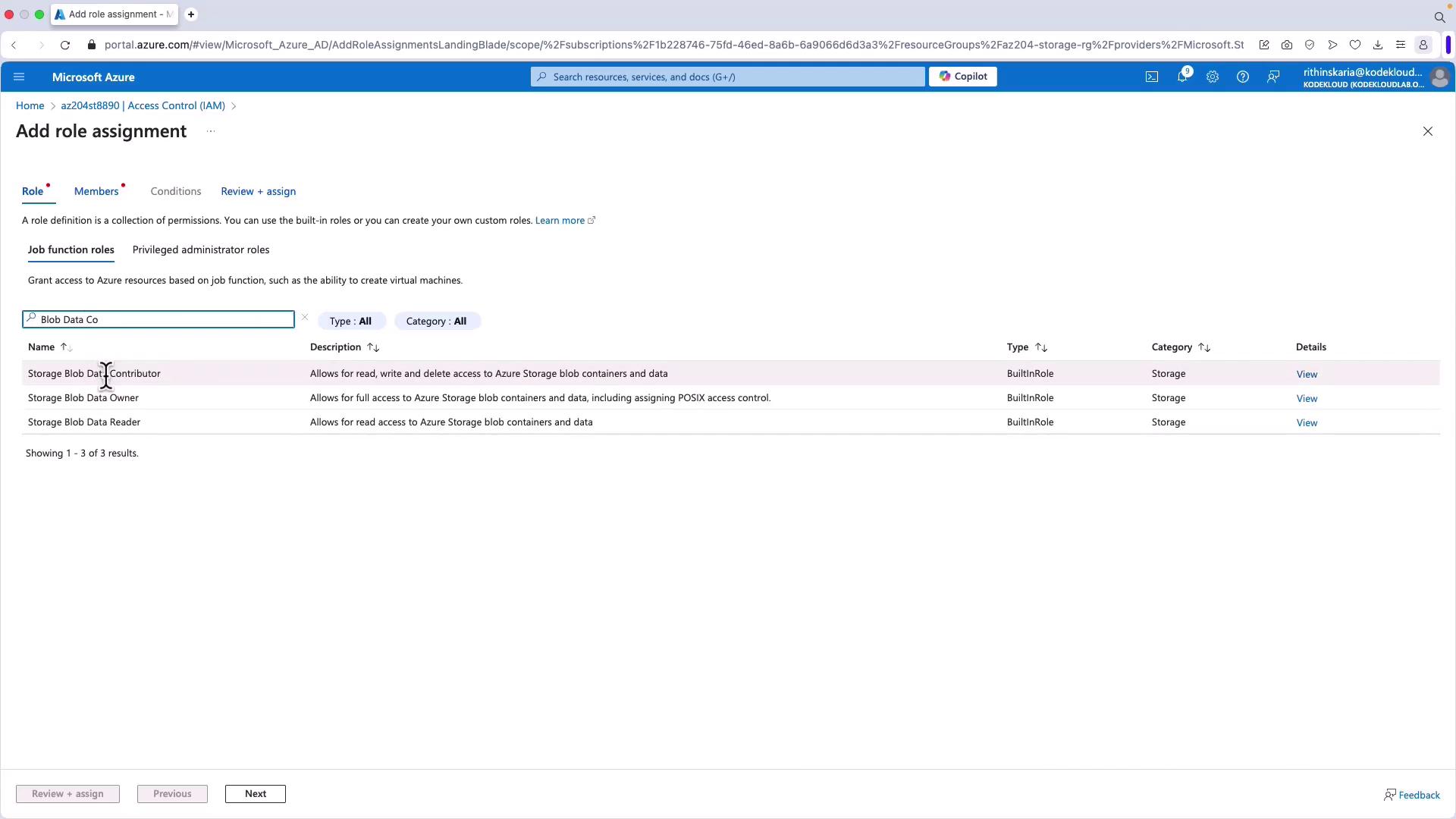
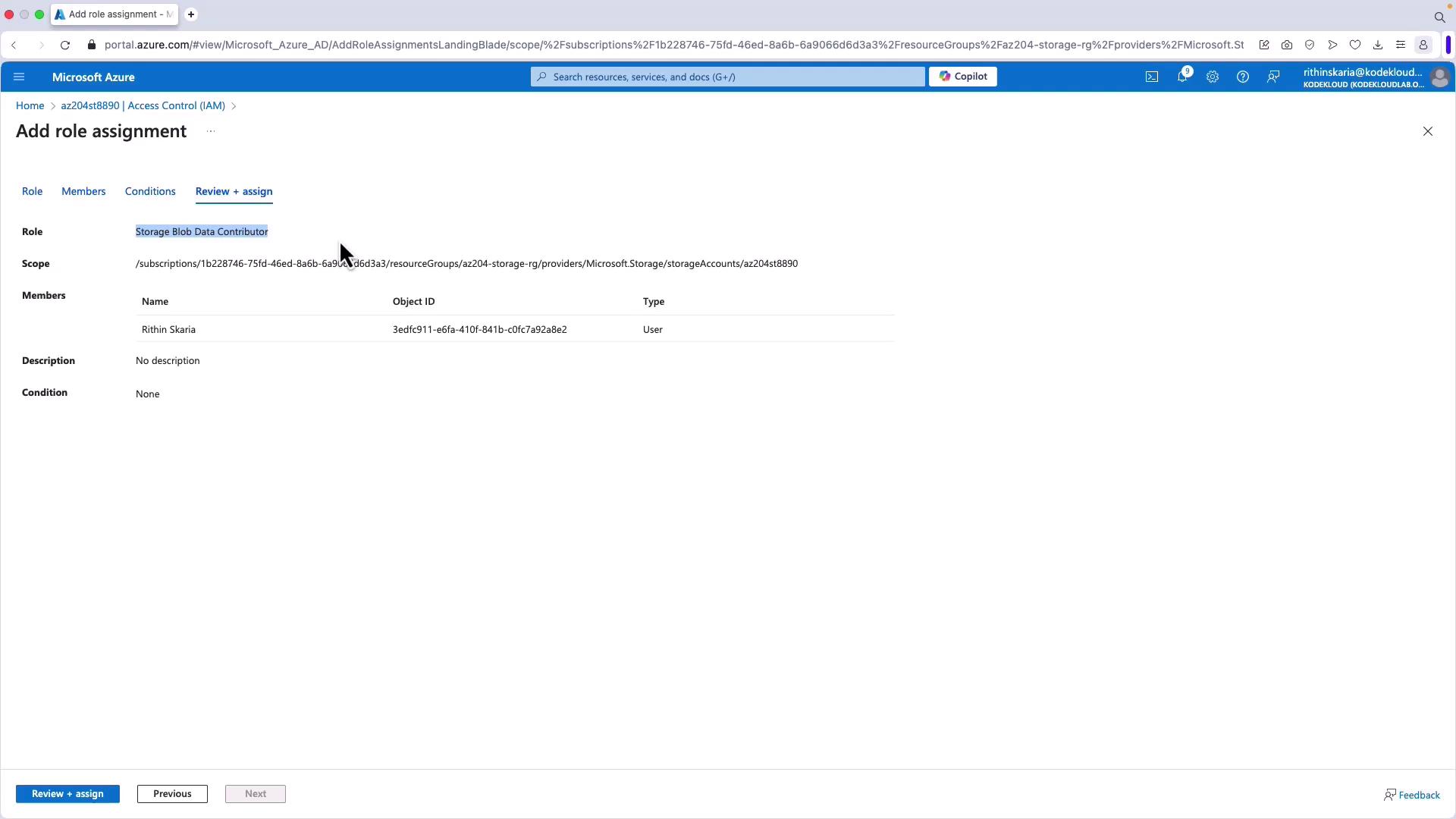
Upload your HTML, CSS, JavaScript, and image files directly into the $web container. There are multiple methods to do this:- Azure Storage Explorer
- Azure Portal: Use the “Upload” option within the $web container.
- AzCopy: A command-line tool ideal for transferring files.
4. Use AzCopy to Transfer Files
Open your terminal to verify that AzCopy is installed. Since you are already logged in, copy the files from your local directory (e.g., “web-template”) to thesymbol in$web` to avoid variable substitution issues in the terminal.
To escape the
$ symbol in the terminal command, use a backslash (\).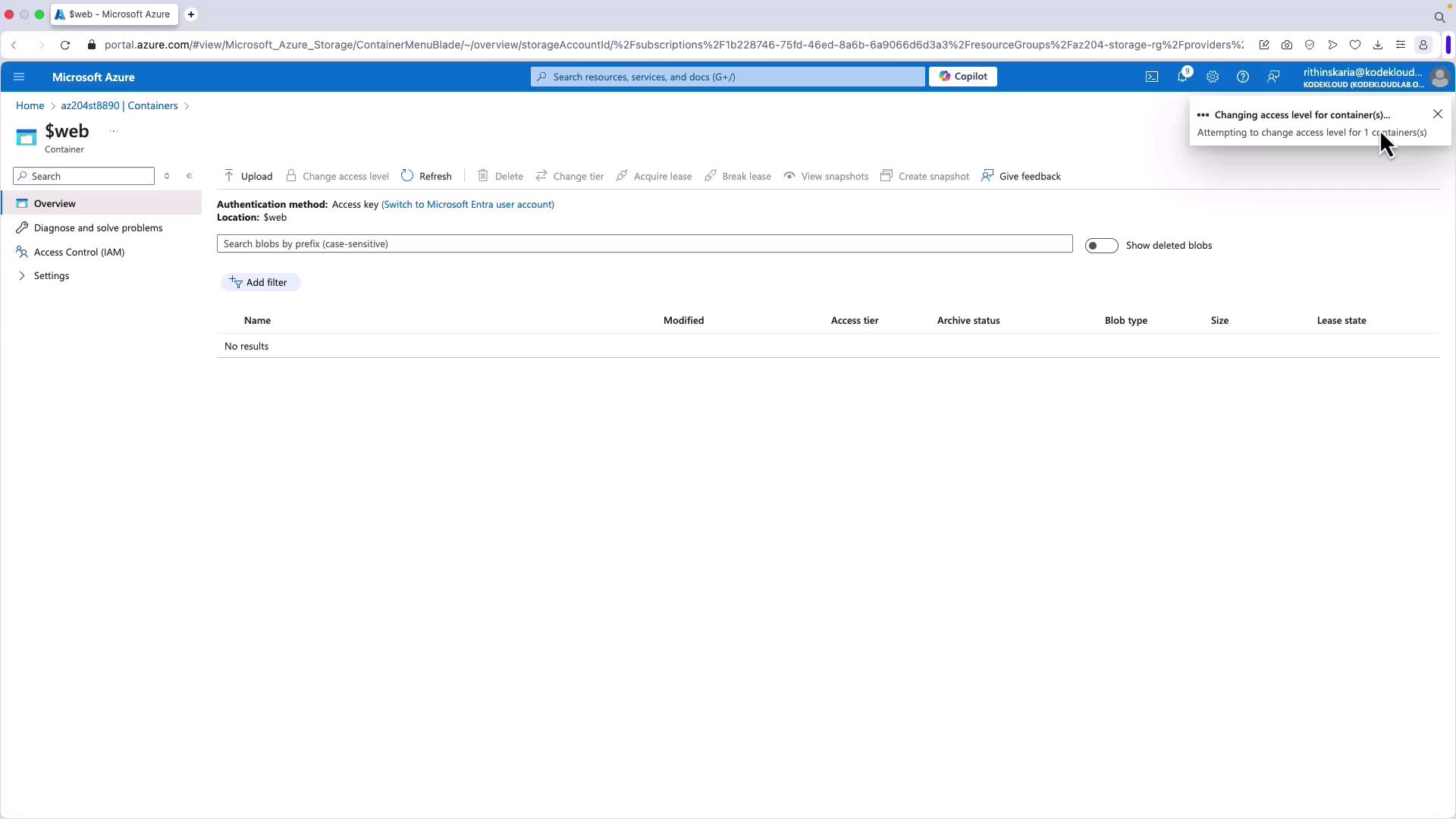
5. Test the Static Website
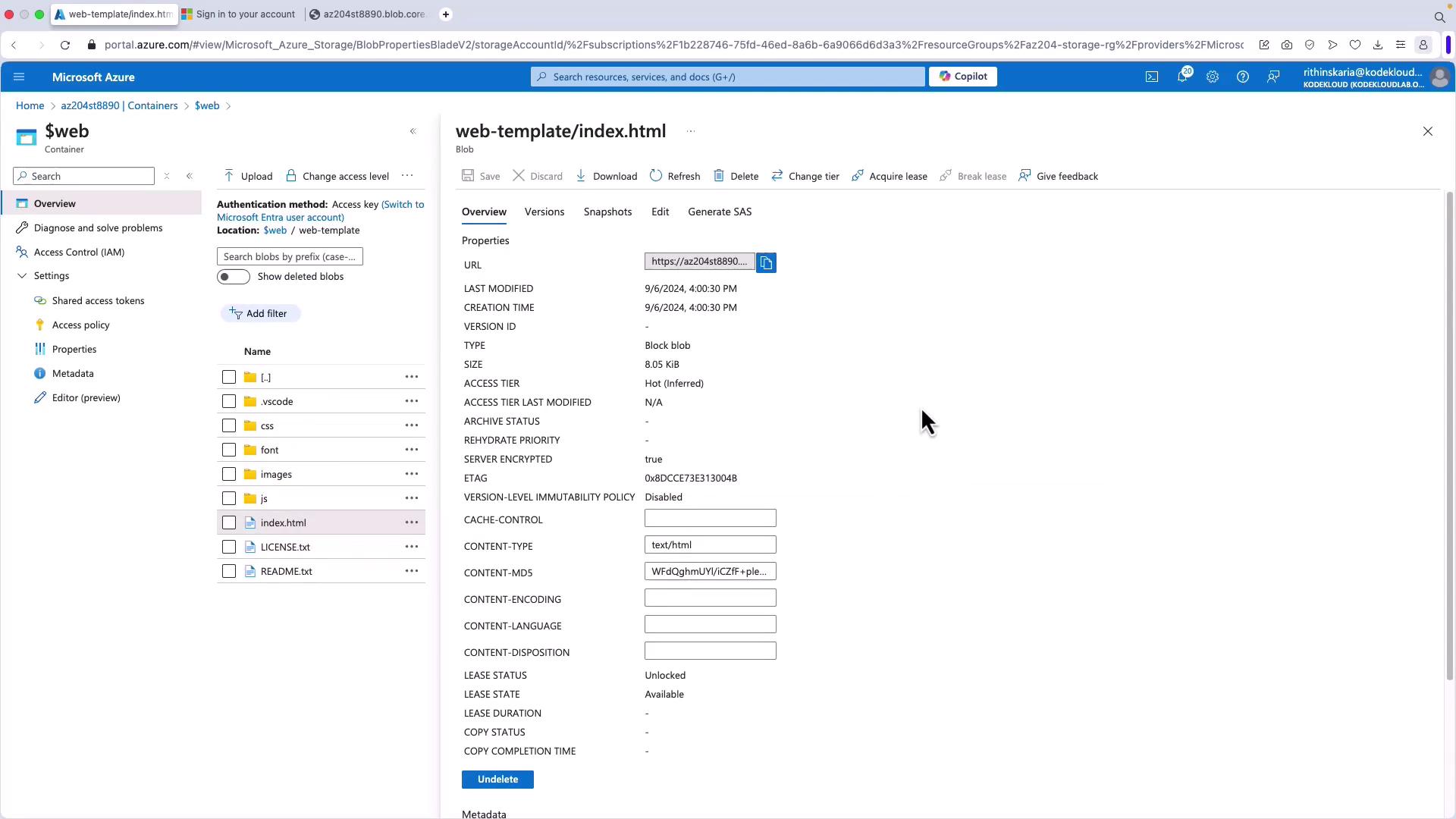
- Locate the
index.htmlblob and inspect its properties. - Click on the blob, copy its URL, and paste it into a web browser. The static website should load as expected.
6. Associate Custom Domains & Additional Services
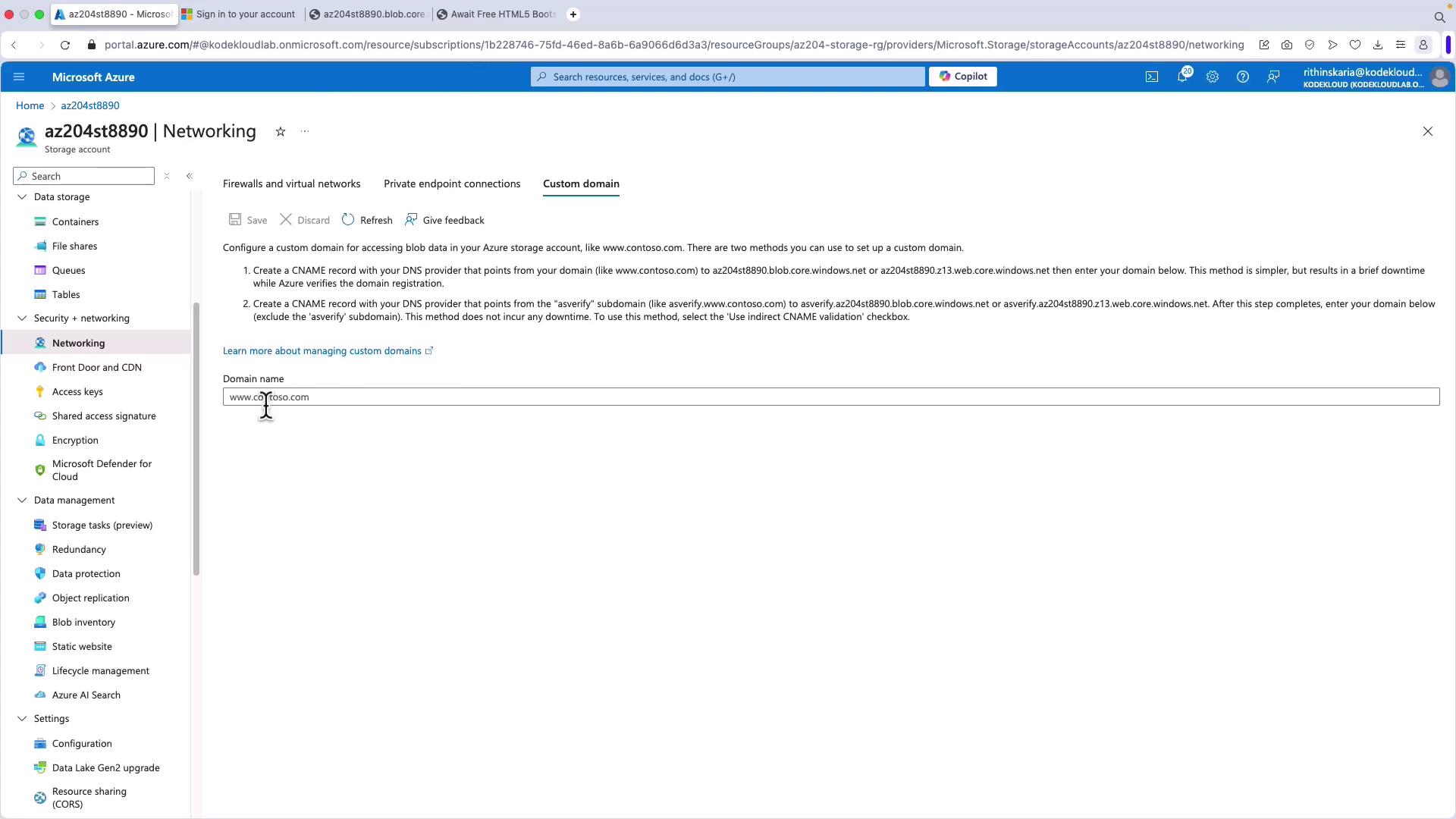
Azure Blob Storage allows you to map a custom domain to your static website. You can also leverage services like Azure Front Door or a CDN for multi-region deployment and content caching.- To configure a custom domain, navigate to the networking settings in your storage account and follow the instructions to set up a CNAME record.