

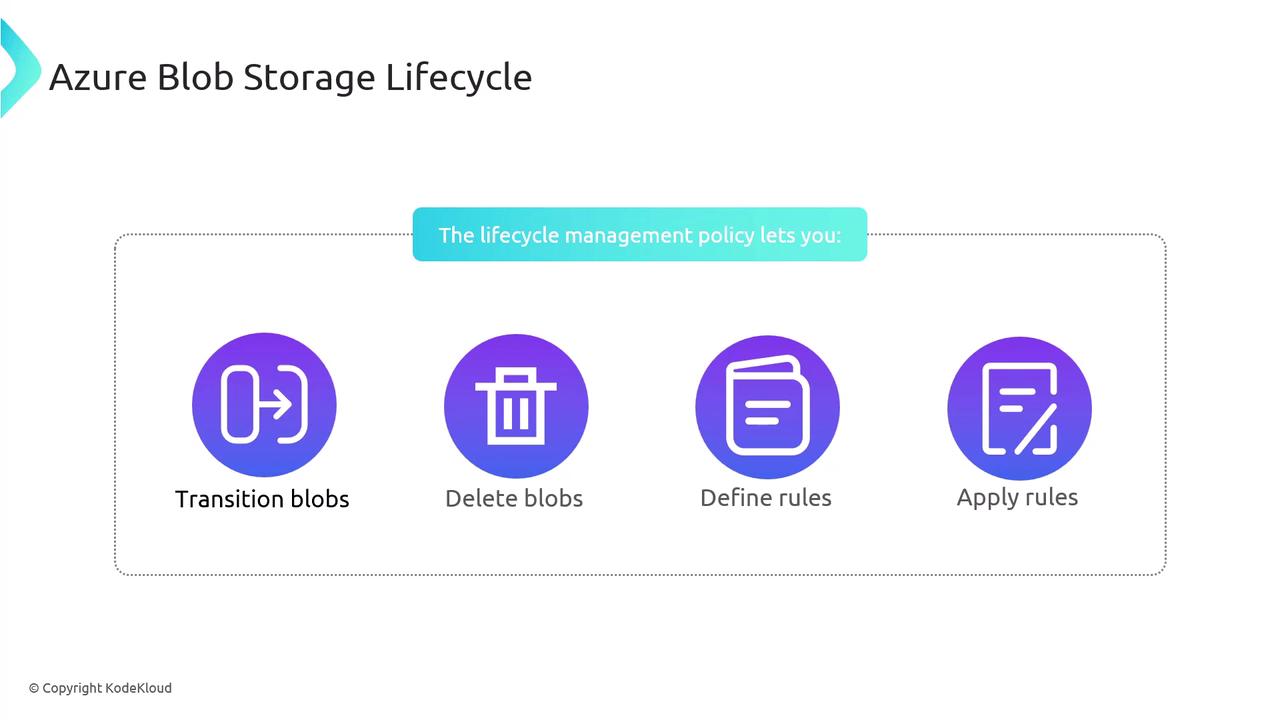
Policy Structure
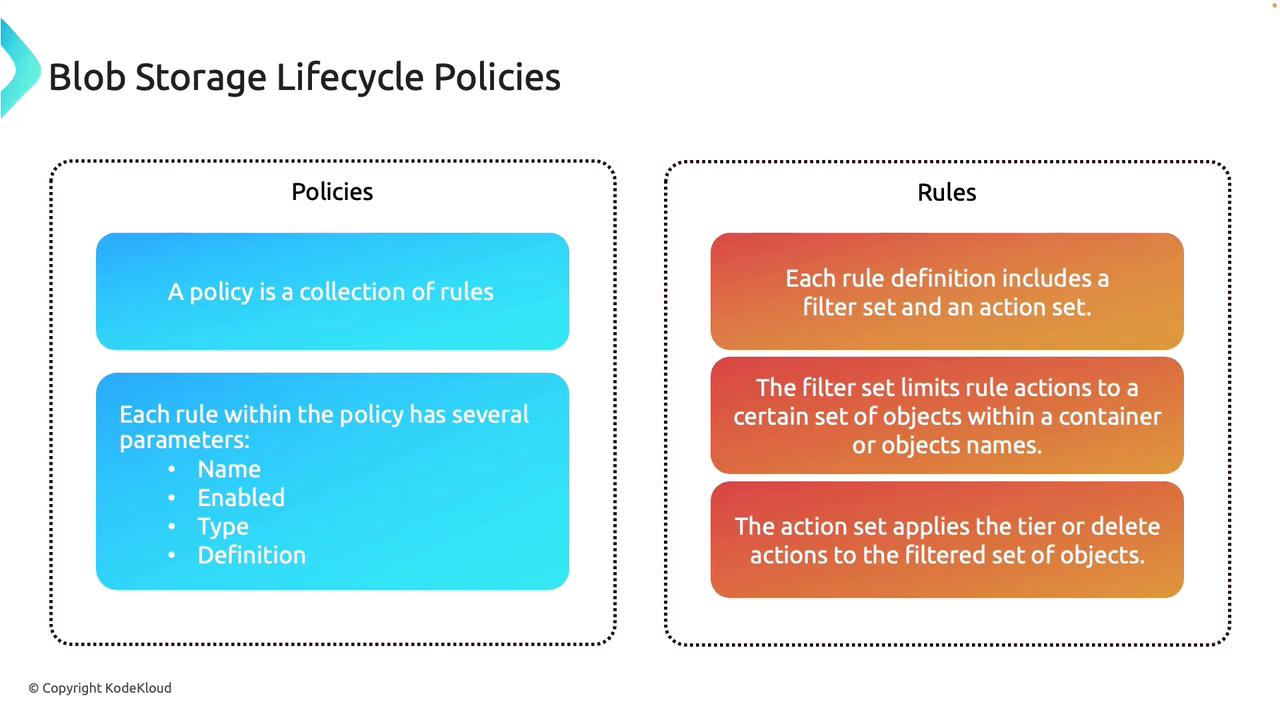
A lifecycle management policy is a collection of rules, where each rule is defined by several key parameters:- name: A unique identifier for the rule, useful for managing multiple rules within a single policy.
- enabled: A boolean value that indicates whether the rule is active, allowing you to enable or disable rules for testing or maintenance.
- type: Specifies that the rule is a “Lifecycle” rule, dictating the type of action to be performed (for example, transitioning data between tiers or deleting it).
- definition (or actions): Details the conditions, filters, and actions applied to the data. This includes specifying which data the rule targets and what lifecycle action(s) to execute.
- Filter Sets: Restrict the rule’s scope (e.g., by container, prefix, or specific object names).
- Action Sets: Define the lifecycle operations, such as transitioning data to cooler tiers or deleting it.
definition block.
Creating Lifecycle Management Policies
There are several ways to create and modify lifecycle management policies in Azure Blob Storage:1. Azure Portal
You can manage lifecycle policies through the Azure Portal using either the code view (for JSON input) or the GUI list view:- Open your storage account and navigate to the lifecycle management section.
- Click on “Add a rule” (e.g., name the rule “delete files”).
- Specify the rule’s scope by choosing whether to apply it to all blobs or only those that match certain filters (such as a specific container, prefix, or metadata).
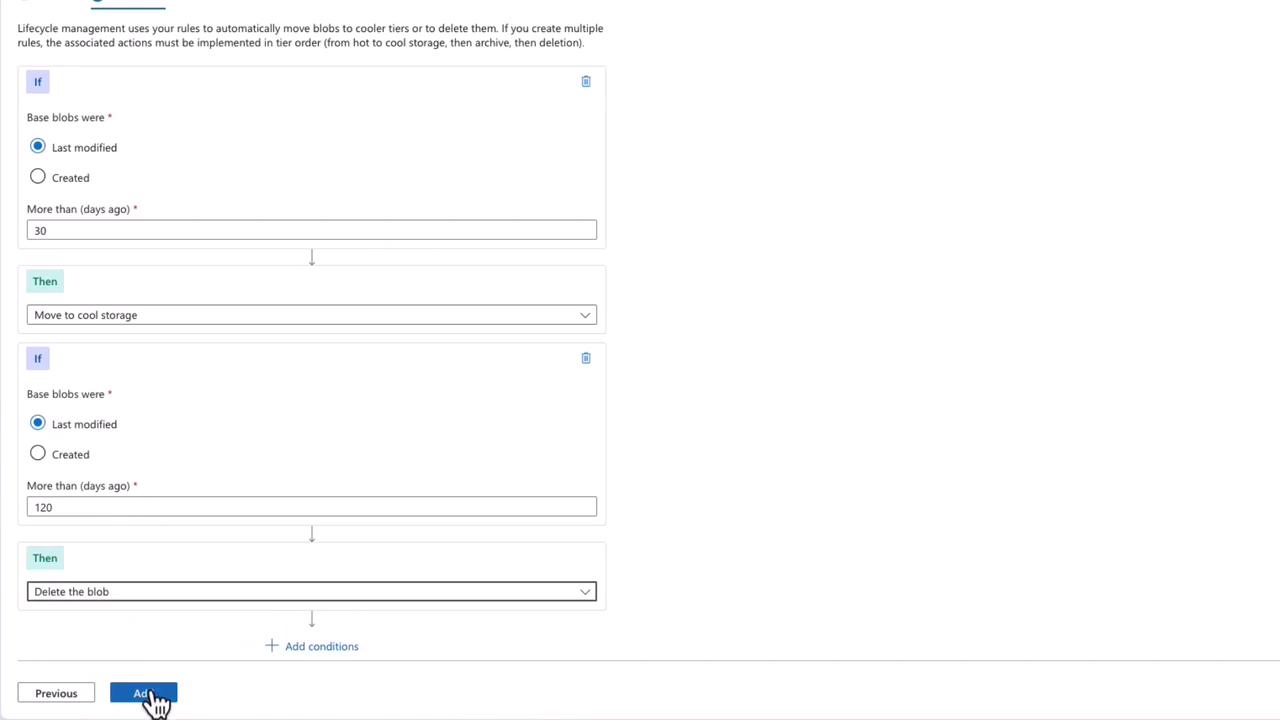
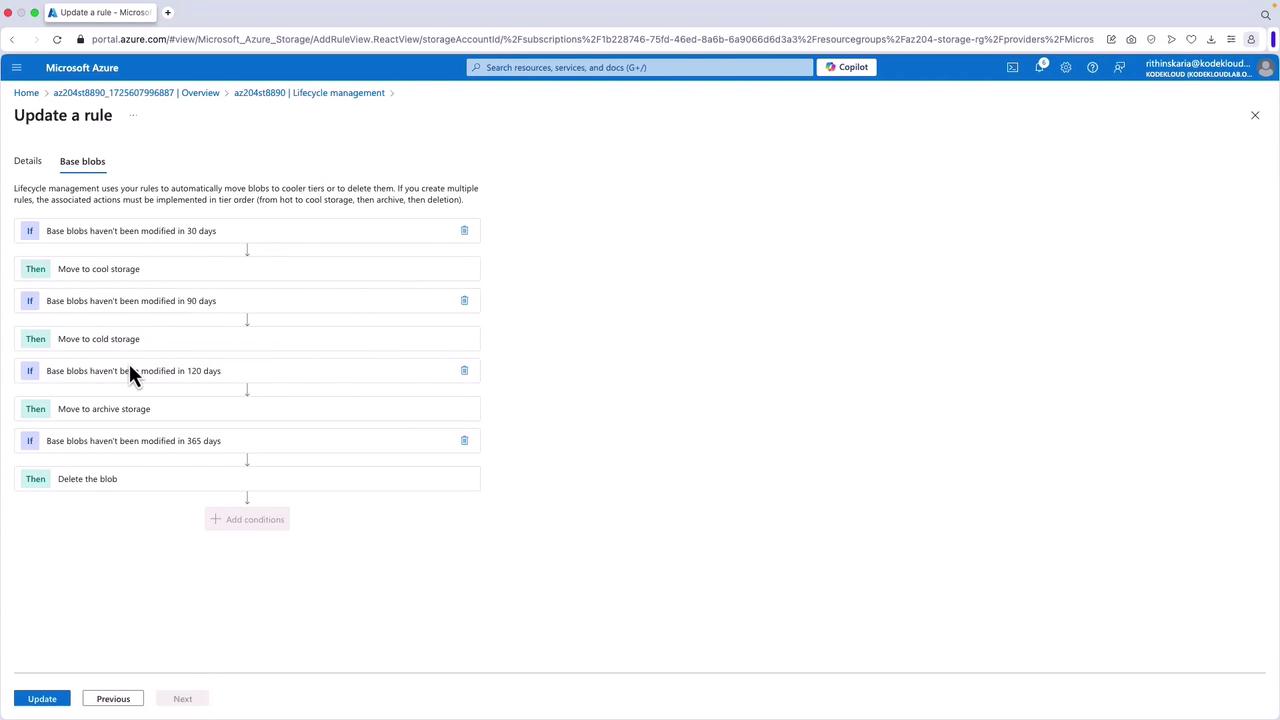
- Select the blob type (e.g., base blobs) and configure actions:
- Move blobs to cool storage if they were “last modified more than 30 days ago.”
- Delete blobs if they were “last modified more than 120 days ago.”
2. Command Line (PowerShell and Azure CLI)
Using the CLI, you can define a JSON policy file and then apply it using the Azure CLI. Consider the following JSON content saved aspolicy.json:
If the policy contains unsupported actions for specific blob types (for example, actions such as tierToCold or delete on append blobs), you will get an error message indicating the invalid rule. Adjust the policy to target only supported blob types, such as “blockBlob.”
3. REST APIs and SDKs
You can also programmatically manage lifecycle policies using Azure REST APIs or the corresponding SDKs that wrap these APIs.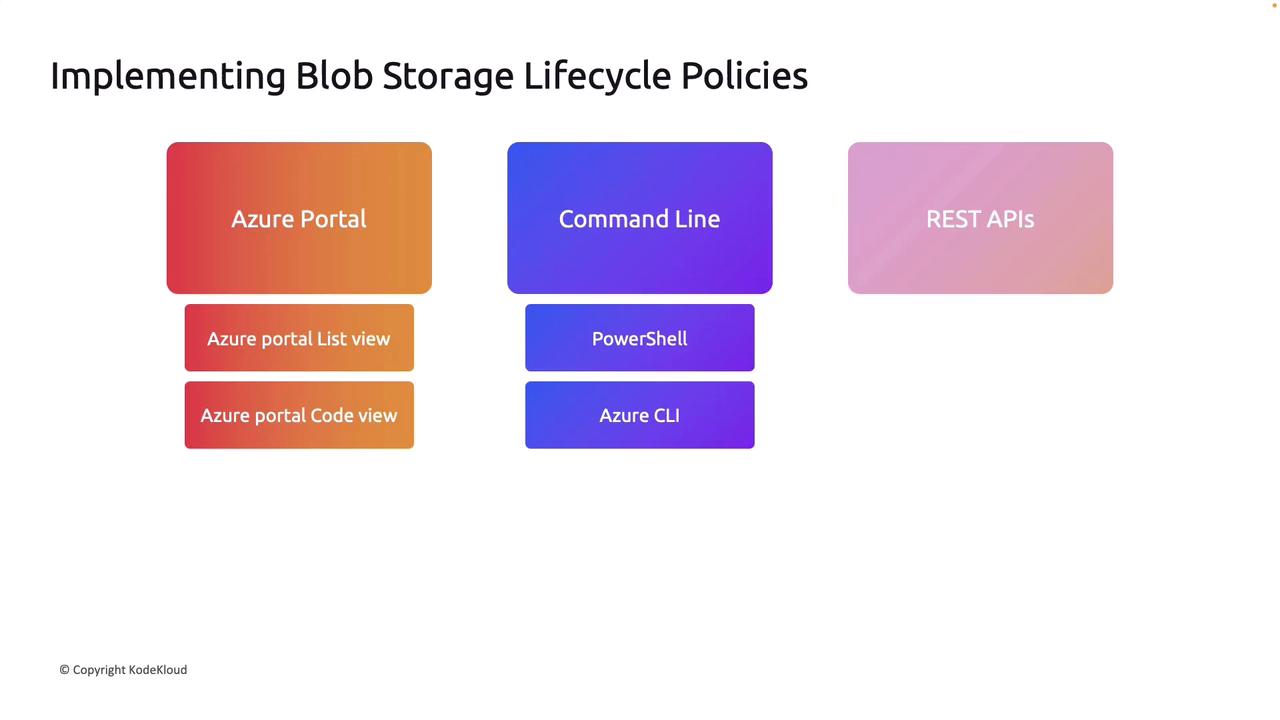
Example Policy Workflow in Azure Portal
Follow these steps in the Azure Portal to configure a lifecycle management rule:- Open your storage account and navigate to the lifecycle management section.
- Click on “Add a rule” (for example, name the rule “delete files”).
- Define the rule’s scope by choosing to apply it either to all blobs or to those matching specific filters (e.g., a particular container, prefix, or metadata).
- Select the blob type (e.g., base blobs) and set the lifecycle actions:
- Move blobs to cool storage if their “last modified” date is more than 30 days past.
- Delete blobs if their “last modified” date is more than 120 days past.
- Verify the rule in both the list view and code view to ensure accuracy.
Overwriting Policies
When you apply a new JSON file using the CLI, the entire management policy is replaced. If you need to incorporate multiple rules (for example, “delete after a year” and “move to cold”), merge them into a single JSON file before applying it via the CLI. An example of a consolidated JSON policy is shown below:policy.json and apply it with the Azure CLI. Remember to verify that the actions specified are supported by the targeted blob types.
Rehydrating Data from the Archive Tier
It’s important to note that rehydrating data from the archive tier is a time-consuming process that can take several hours. This process is used to restore archived blobs back to an online tier when access is required. Although rehydration operations are separate from lifecycle management policies, they play a crucial role in efficiently managing data access within your Azure Blob Storage account.Lifecycle management policies automate essential data retention and optimization tasks but always consider the time delays for policy enforcement and data rehydration when planning your storage strategy.