

By grasping the distinction between delegated and application permissions—as well as knowing when to use static, incremental, or admin consent—you ensure your applications request only the access they truly need, thereby enhancing security.
Permission Types
Delegated Permissions
Delegated permissions are used by applications that act on behalf of a signed-in user. In this model, the app can only access resources that the user is allowed to access. For instance, if a user logs in using their Microsoft account, the app may request access to the user’s calendar; if granted, the app can read or modify the calendar using the user’s permissions.Application (App-Only) Permissions
Application permissions, also known as app-only permissions, allow an application to access resources without the need for a signed-in user. The app authenticates using its own identity. A common scenario is a background service that pulls data from SharePoint Online without any user intervention. In this case, the service authenticates with Microsoft Entra ID, obtains a token using its assigned permissions, and accesses the resource directly.Consent Types
Static User Consent
With static user consent, a user grants an application permission once—typically during the initial sign-in process. For example, once a user consents to an app reading their profile, the permission is remembered for future sessions, and the app cannot request additional permissions later on.Incremental and Dynamic User Consent
Incremental consent allows applications to request additional permissions over time, rather than overwhelming users with multiple prompts at the start. For example, a travel app may initially ask for location access and later request permission to access contacts when needed.Admin Consent
Certain applications, particularly those accessing sensitive data such as full email or directory details, require an administrator to grant consent on behalf of the entire organization. For example, an app reading organization-wide data from Microsoft Graph must be approved by an administrator. If you encounter this scenario and you are not an admin, please contact your tenant administrator.Understanding the differences between delegated and application permissions, and knowing the various consent models (static, incremental, and admin), ensures that you can configure access correctly while respecting user privacy.
Demonstration: Working with Permissions and Consent Using API Calls
Follow this step-by-step demonstration that uses API calls to manage permissions and consent.1. Creating a Secret for Your Service Principal
First, navigate to your service principals in the Azure portal and create a secret. Select the relevant service principal (the one you created previously) and add a new secret.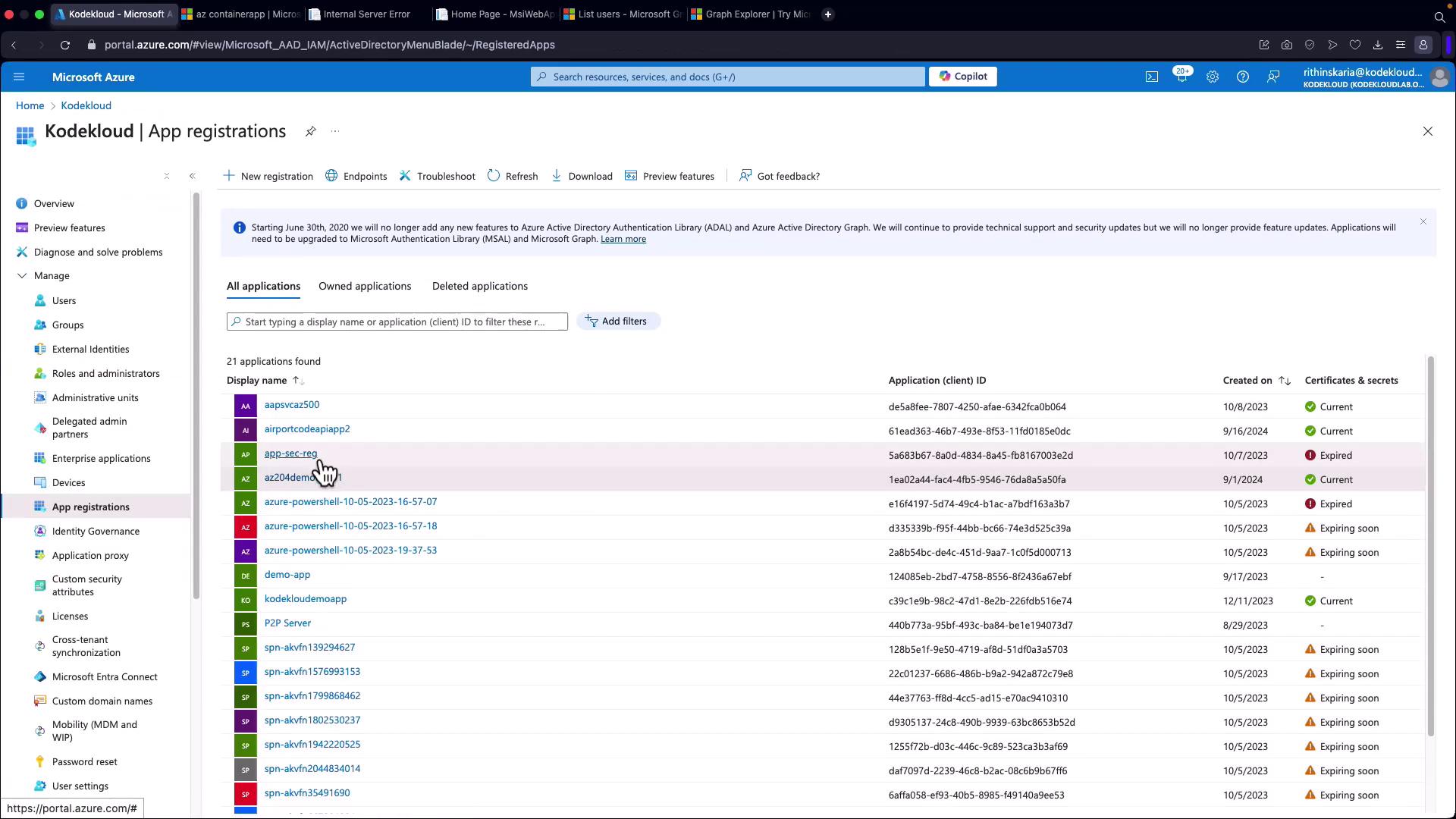
2. Obtaining an OAuth 2.0 Token
Next, go to the Endpoints section in the Azure portal and copy the OAuth 2.0 token URL.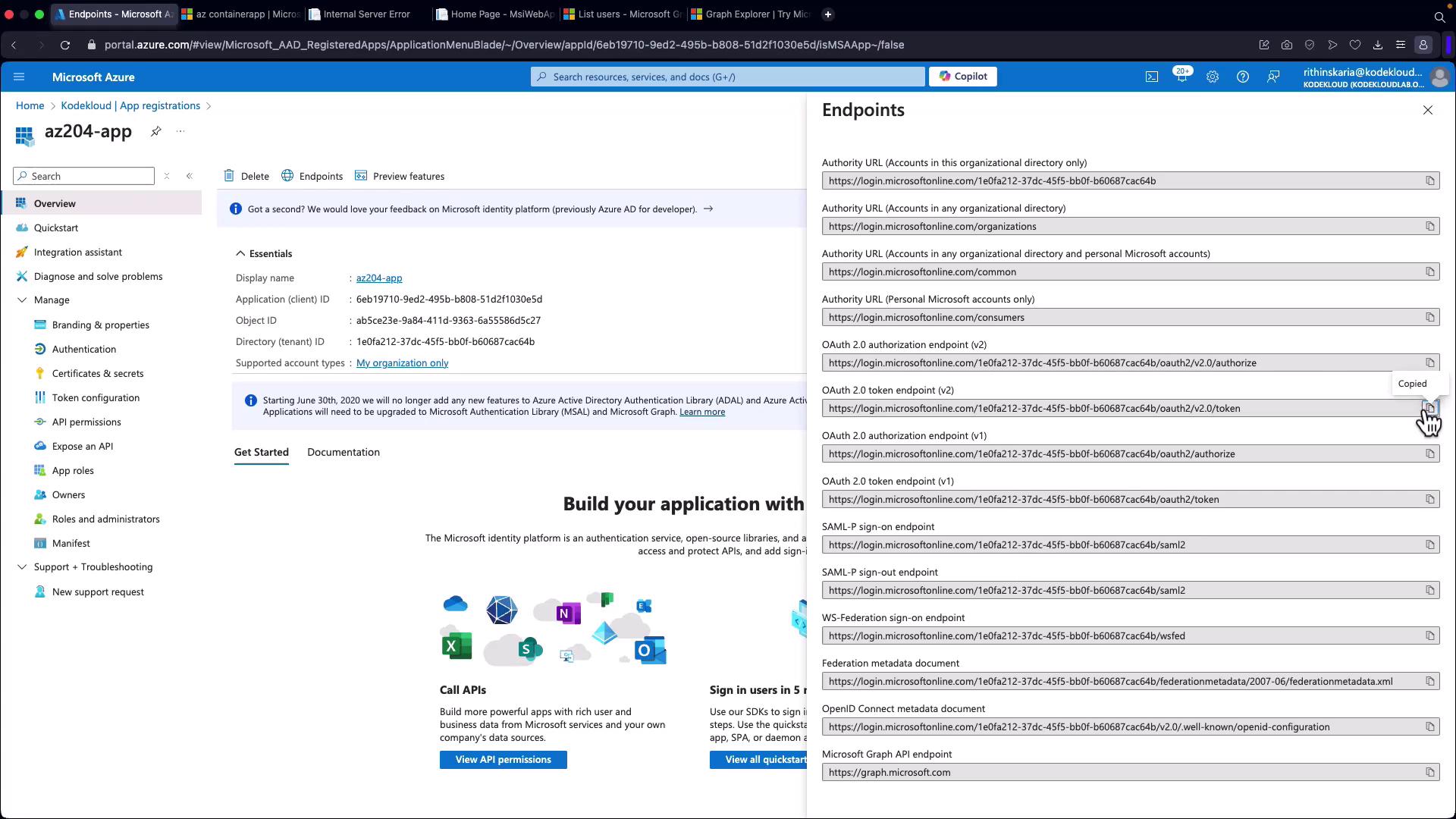
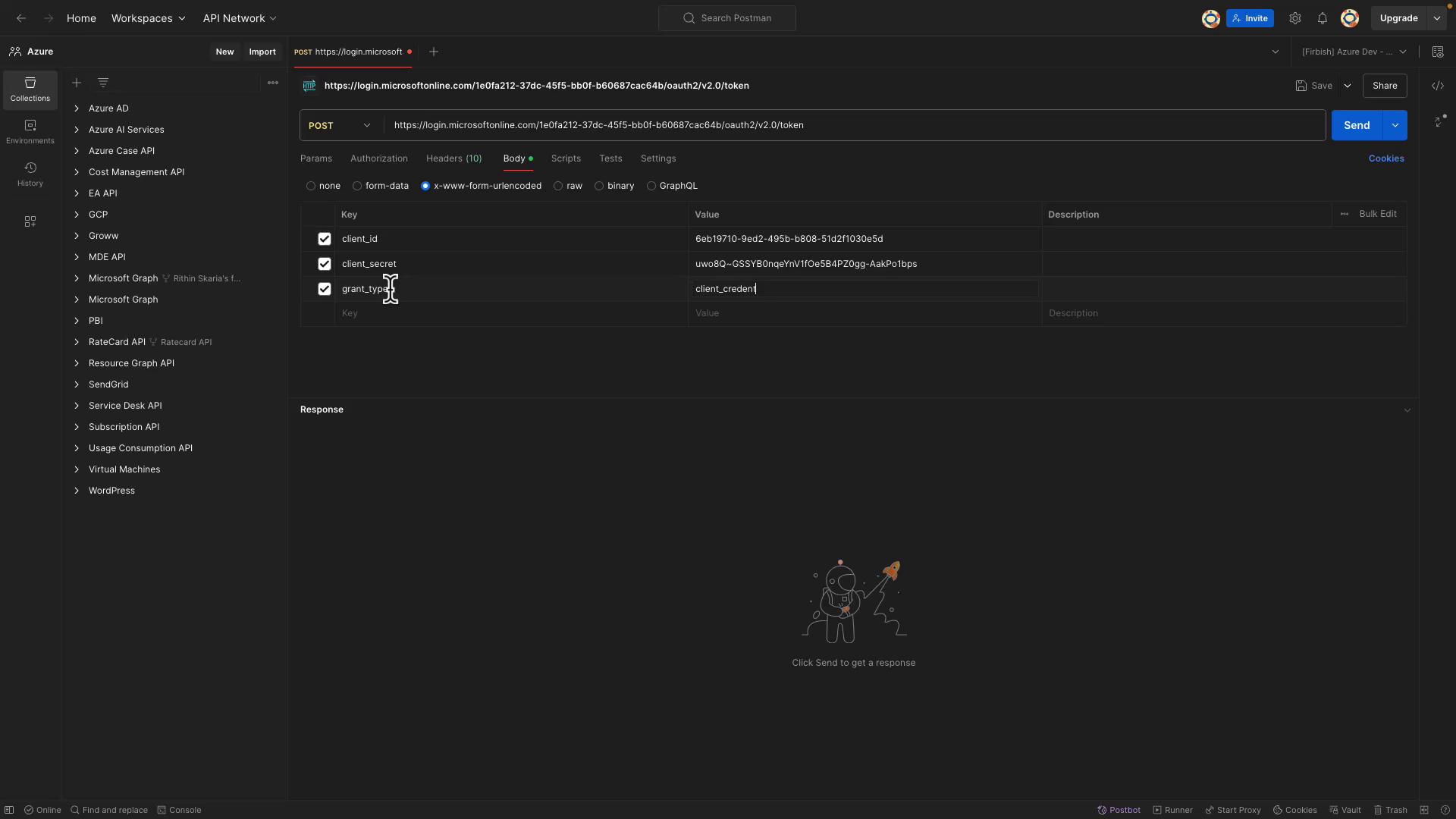
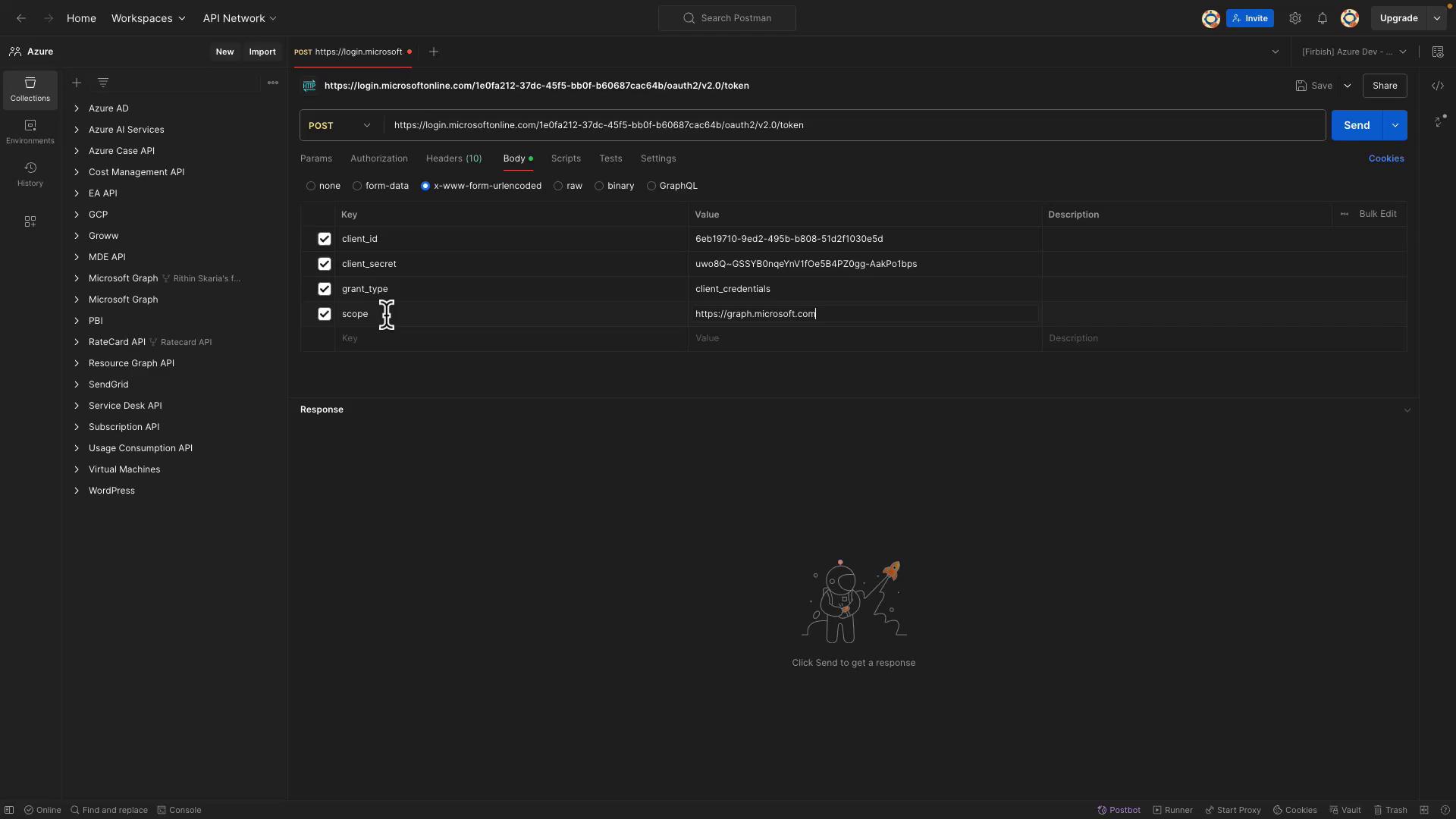
- Body Type: Form URL Encoded
- Parameters:
client_id: (Paste the client ID copied from the Azure portal)client_secret: (Paste the secret you saved earlier)grant_type: client_credentialsscope: https://graph.microsoft.com/.default
3. Calling Microsoft Graph API
To interact with Microsoft Graph API, you can use Graph Explorer to explore available endpoints. For this demonstration, we will use an endpoint that retrieves user profile data. For example, when calling an endpoint that returns user profile data, you may receive a response similar to:4. Granting API Permissions
Return to the Azure portal and select the API permissions tab for your app registration. You might notice thatuser.read is already added. However, to list all users, you need to add an application permission.
Follow these steps:
- Click on Add a permission.
- Choose Microsoft Graph.
- Select Application permissions and then choose
user.read.all. - Click on Add.
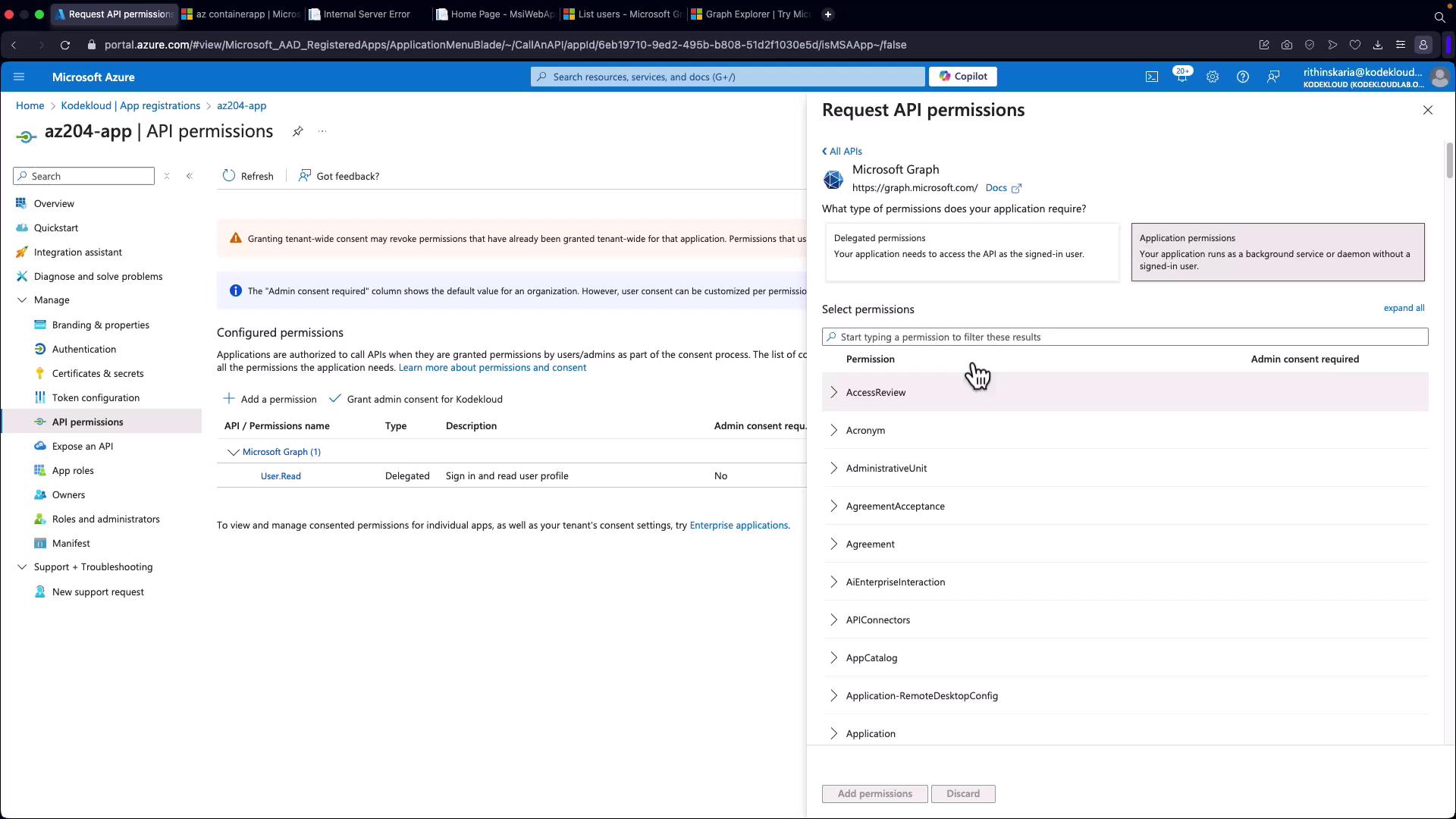
Simply adding the permission is not enough;
user.read.all requires admin consent. If you are not an administrator, contact your tenant administrator to grant the necessary permissions.