

Swap Deployment Slots
You can initiate a slot swap directly from your application’s deployment slots or overview page. This simple action enables you to shift traffic from staging to production environments without interrupting service. The following sections detail the different swap strategies available.Auto Swap
Auto Swap automates the swap process. Once enabled, it automatically swaps slots following a successful deployment to a staging slot. This capability ensures that your latest updates are deployed to production quickly and efficiently with minimal manual intervention.Swap with Preview
The Swap with Preview feature allows you to review and validate changes in a production-like setting before finalizing the swap. This step provides insight into the differences between the source and target configurations, ensuring that application settings are correctly aligned.Custom Warmup
Custom warmup configurations enable you to define specific initialization tasks that your application must complete before a swap occurs. Tasks such as loading data into the cache and performing health checks can be completed ahead of time, ensuring the application is fully prepared to handle user traffic.Roll Back and Monitor a Swap
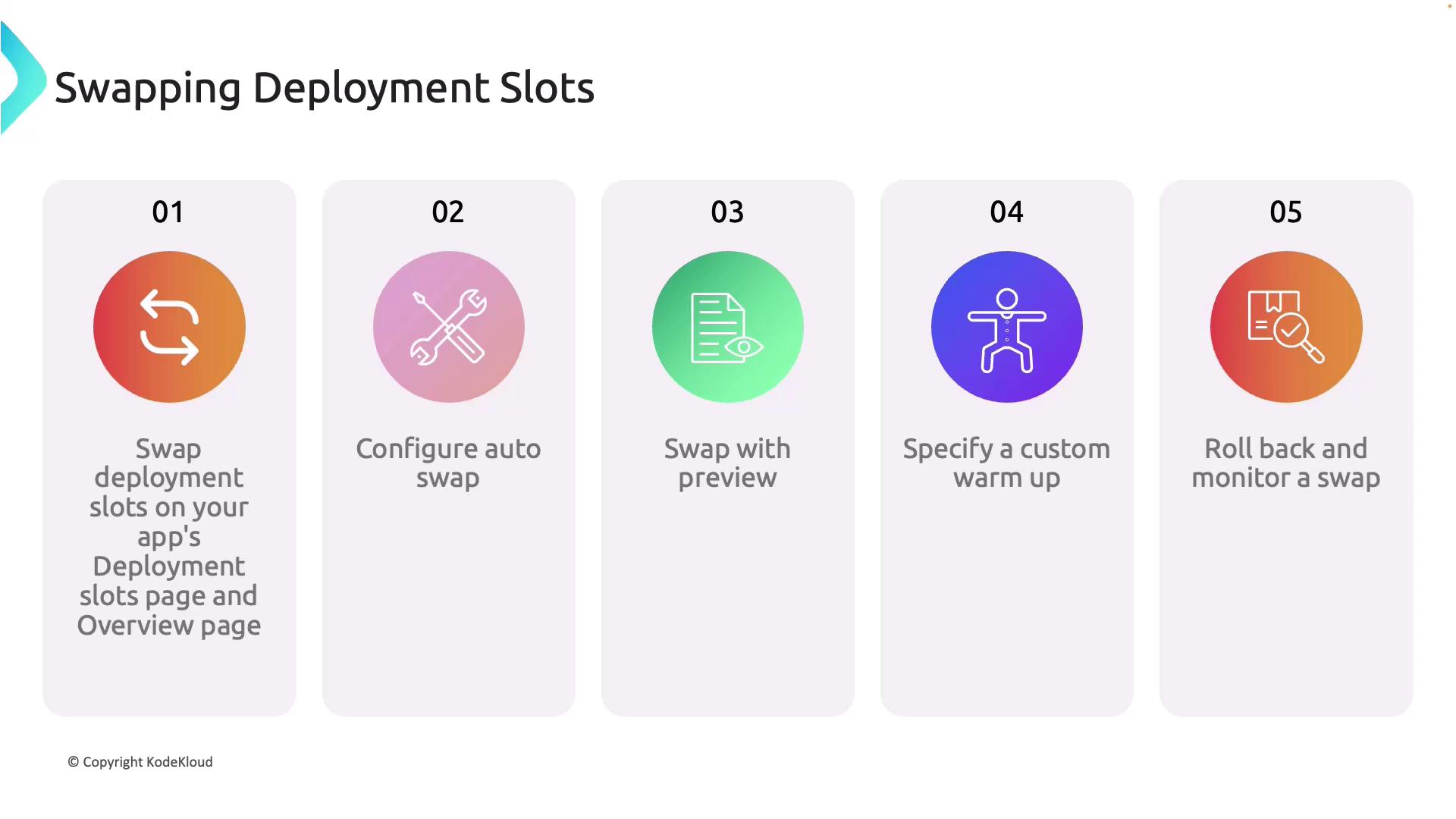
If any issues arise during the swap, you can effortlessly roll back to the previous slot configuration. Monitoring the process is key to ensuring that each step is executed as planned, ensuring high availability and reliability.
Demonstration in the Azure Portal
Follow these steps in the Azure Portal to configure and execute a slot swap.Configuring Auto Swap for the Staging Slot
- Navigate to the configuration settings of your staging slot.
- Under General Settings, locate the Auto Swap option.
- Scroll down and select the target slot for automatic swapping.

Performing a Slot Swap Using the Overview Blade
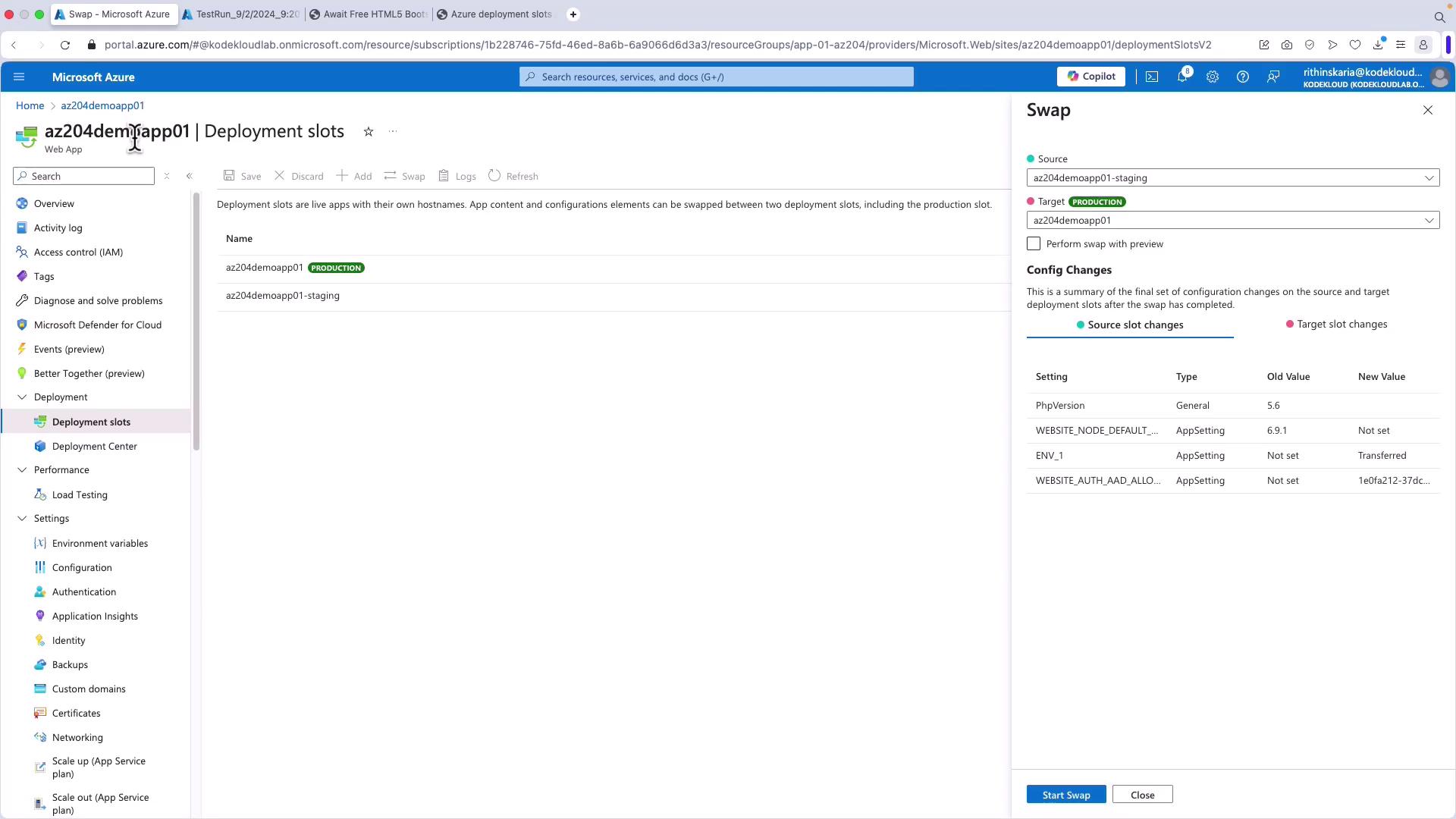
Switch your focus to the production application. Both production and staging apps are visible, allowing you to initiate the swap. To swap the slots:- Click on “Swap” from either the Overview blade or the Deployment Slots blade.
- Set the staging environment as the source slot and the production slot (for example, “demo app 01”) as the target slot.
- Optionally, use the Swap with Preview option to examine the configuration changes on both sides, which displays the modifications to application settings and shows the old and new values.
- Visiting the production slot URL in your browser to confirm the updated version (Version 2) of your site.
- Refreshing the staging slot to see that it now contains the previous version of your code.
This dual-slot capability is highly valuable for traffic management. For example, if preview features are hosted in the staging slot, you can route a portion of user traffic (e.g., 20%) to the staging slot to test new functionalities.