

System-Assigned Managed Identity
A system-assigned managed identity is directly linked to an Azure resource, such as a virtual machine (VM). When you create a new VM with a system-assigned managed identity or enable it on an existing VM, the minimum required role is the Virtual Machine Contributor. No additional Microsoft Entra ID (Azure Active Directory) permissions are necessary. To enable a system-assigned managed identity when creating a VM via the Azure CLI, use the following command. This command creates a new VM, generates SSH keys (for Linux), and assigns the managed identity in one step:User-Assigned Managed Identity
User-assigned managed identities are standalone resources that you create independently and can associate with multiple resources.Creating a User-Assigned Identity
To create a user-assigned identity, run the following command using the Azure CLI:Associating the Identity with a Resource
After creating the identity, you can associate it with a VM (or another Azure service) during its creation. For example, use the following command to create a VM:Configuring Managed Identities via the Azure Portal
Azure Portal also provides an intuitive interface for managing both types of identities.Enabling a System-Assigned Identity
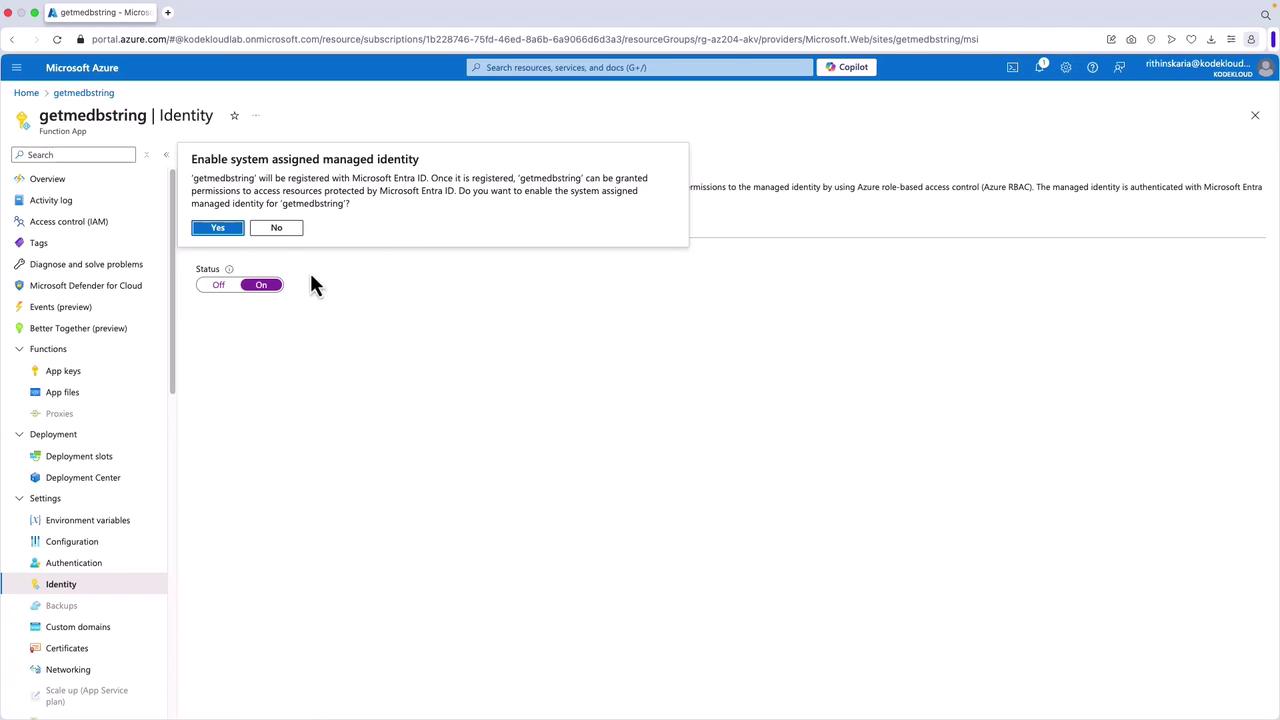
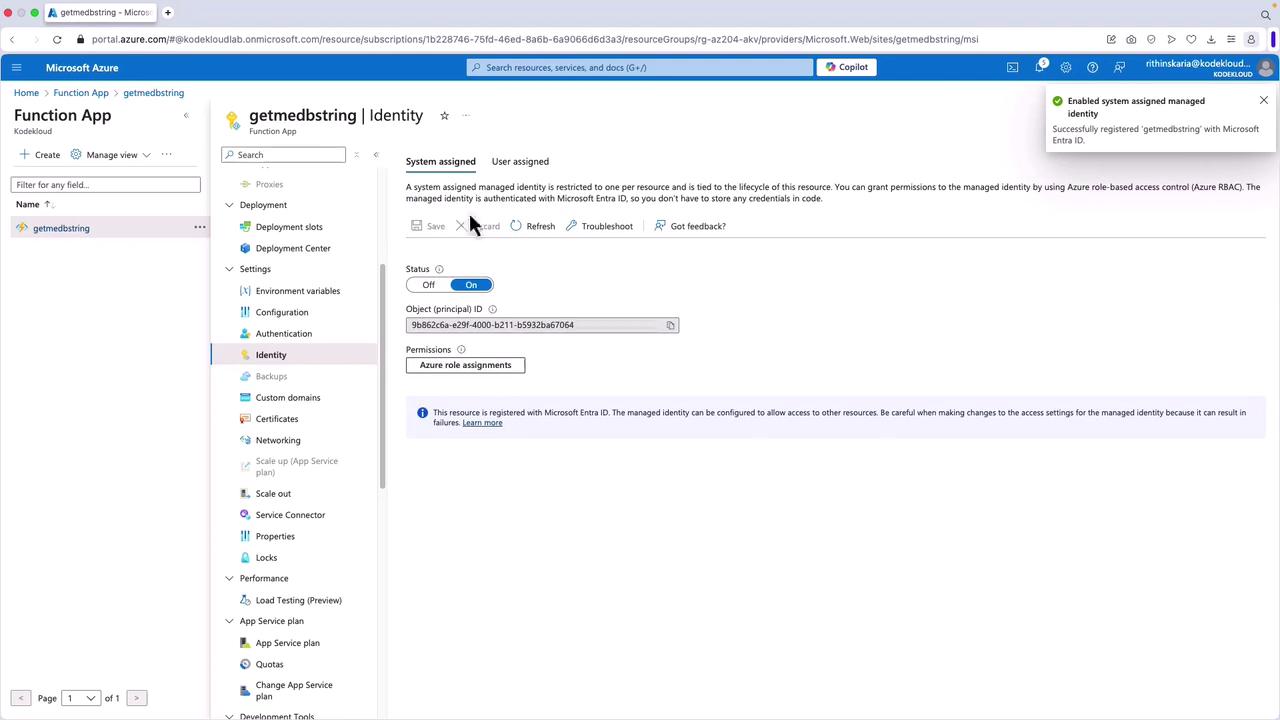
- Navigate to your function app (or another resource) in the Azure portal.
- In the left-hand menu, select Identity.
- Under System assigned, toggle the switch to On and click Save.
When you save, an app registration is automatically created in your tenant. This registration includes the object ID, app ID, certificate, and other details that allow you to assign permissions as needed.
Adding a User-Assigned Identity
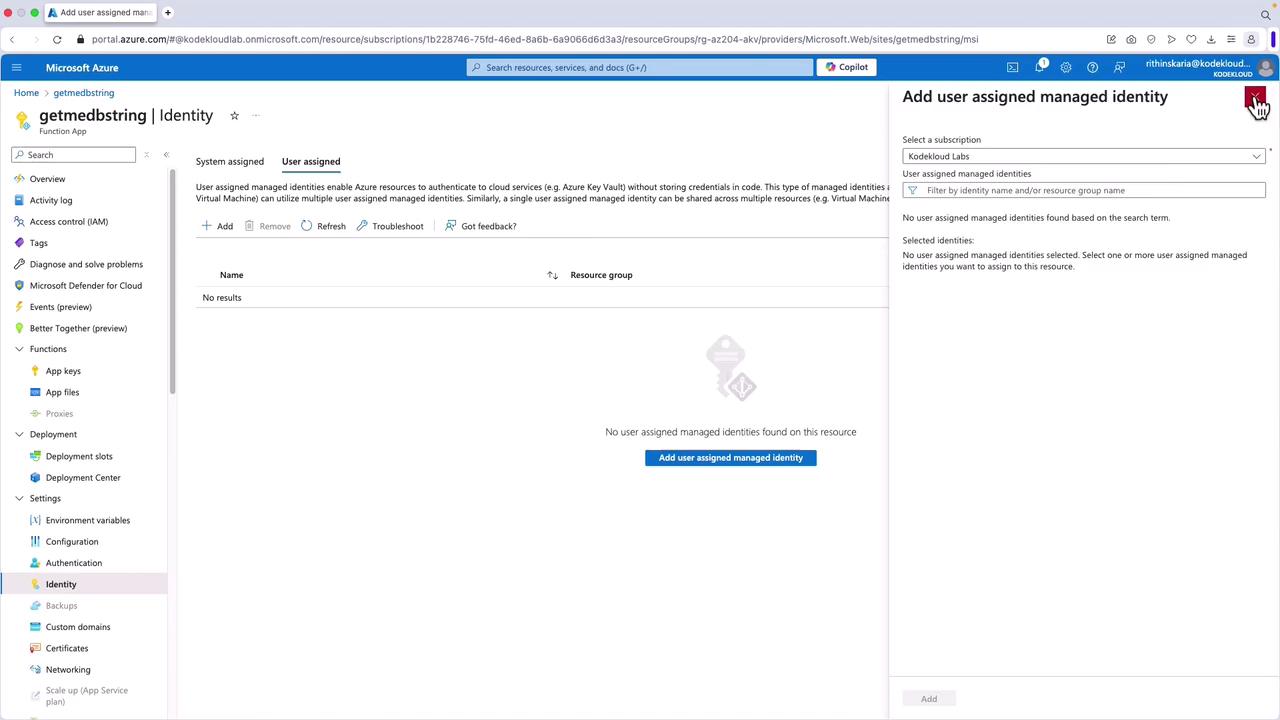
- First, create the user-assigned managed identity from the Managed Identities section in the Azure portal.
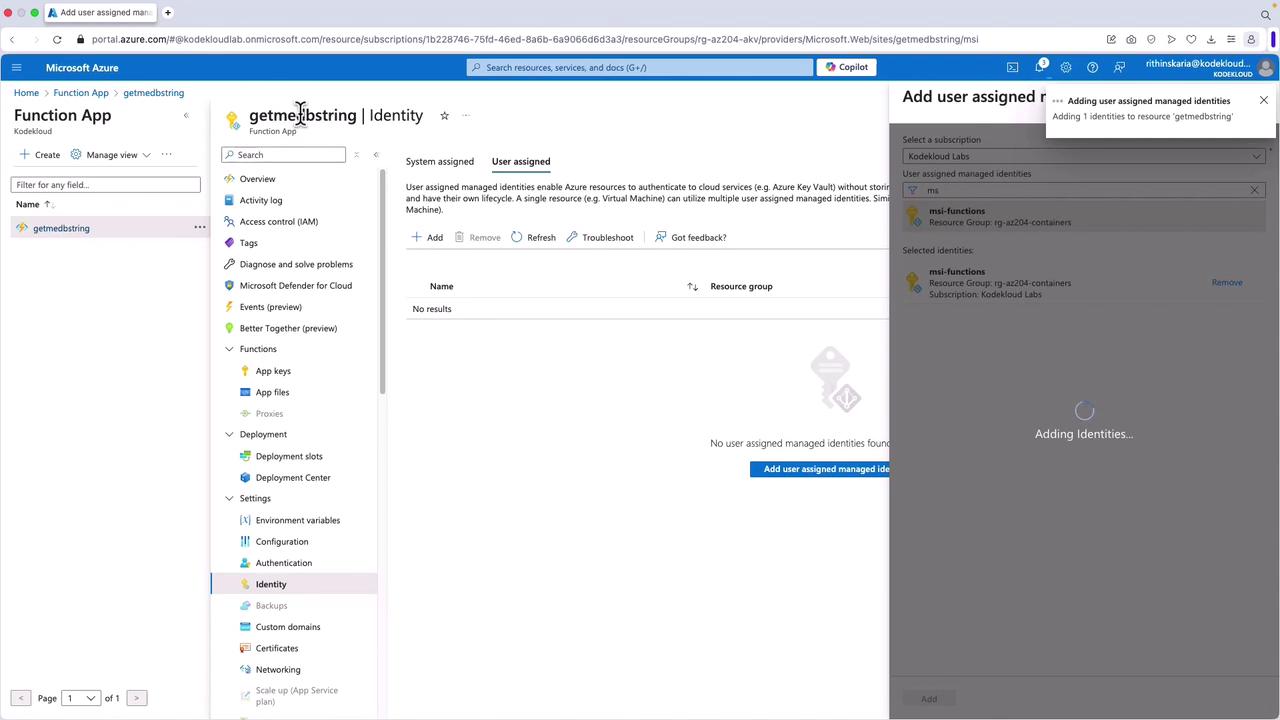
- Return to your function app, select Identity, and go to the User assigned tab.
- Click Add and search for the identity you created (for example, “MSI Functions”).
Modifying Identity Assignment for Other Resources
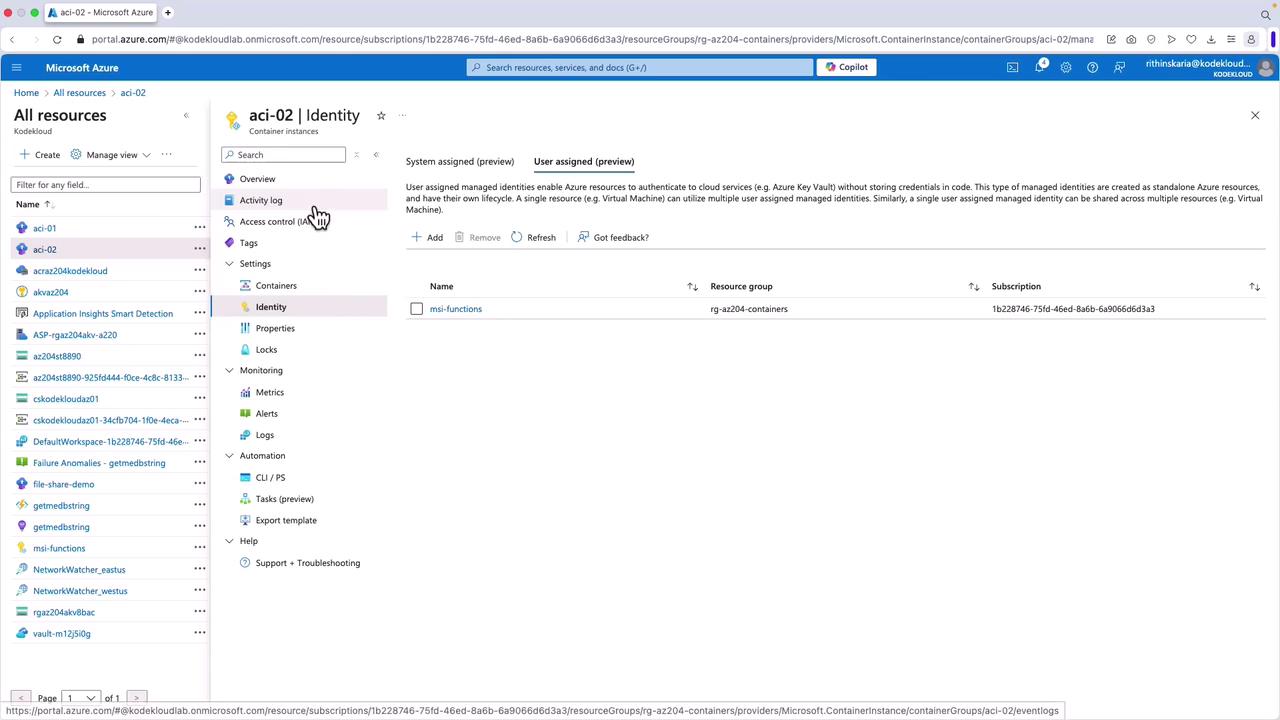
To manage identities for a container instance:- Navigate to the container instance in the Azure portal.
- Select Identity.
- Add or remove user-assigned identities as necessary.
Managing Environment Variables
Proper configuration of environment variables is crucial. If you remove variables such as AZURE_CLIENT_ID, AZURE_CLIENT_SECRET, or AZURE_TENANT_ID from your function app’s environment, your application will not be able to retrieve tokens for accessing services like Key Vault. Below is an example of an environment variable configuration:Missing any of these environment variables will cause errors, such as failing to retrieve tokens for Key Vault access.
Summary
In this article, we demonstrated how to configure both system-assigned and user-assigned managed identities to securely access Azure resources. We covered the following:- How to enable a system-assigned managed identity during resource creation using the Azure CLI.
- The process for creating and assigning a user-assigned managed identity.
- Step-by-step instructions for configuring these identities via the Azure portal.
- How to manage environment variables to ensure secure access to services like Key Vault.