

Creating Items in Azure Cosmos DB
This section demonstrates how to create a new item (an employee record) in an Azure Cosmos DB container using the .NET SDK. First, a connection is established using the CosmosClient class where the endpoint and key are provided, and a container reference is acquired. Then, an employee record is defined and uploaded using both the CreateItemAsync and UpsertItemAsync methods to ensure idempotency.Reading An Item from Azure Cosmos DB
After setting up the container, you might need to retrieve a specific item using its unique ID and partition key. The following example demonstrates how to read an employee record from the container:Querying Multiple Items with SQL Syntax
Azure Cosmos DB supports rich SQL queries to retrieve multiple items that match specific criteria. In this example, we fetch all employees with the propertyisFullTime set to true using the GetItemQueryIterator method.
Creating a Database and Container in the Azure Portal
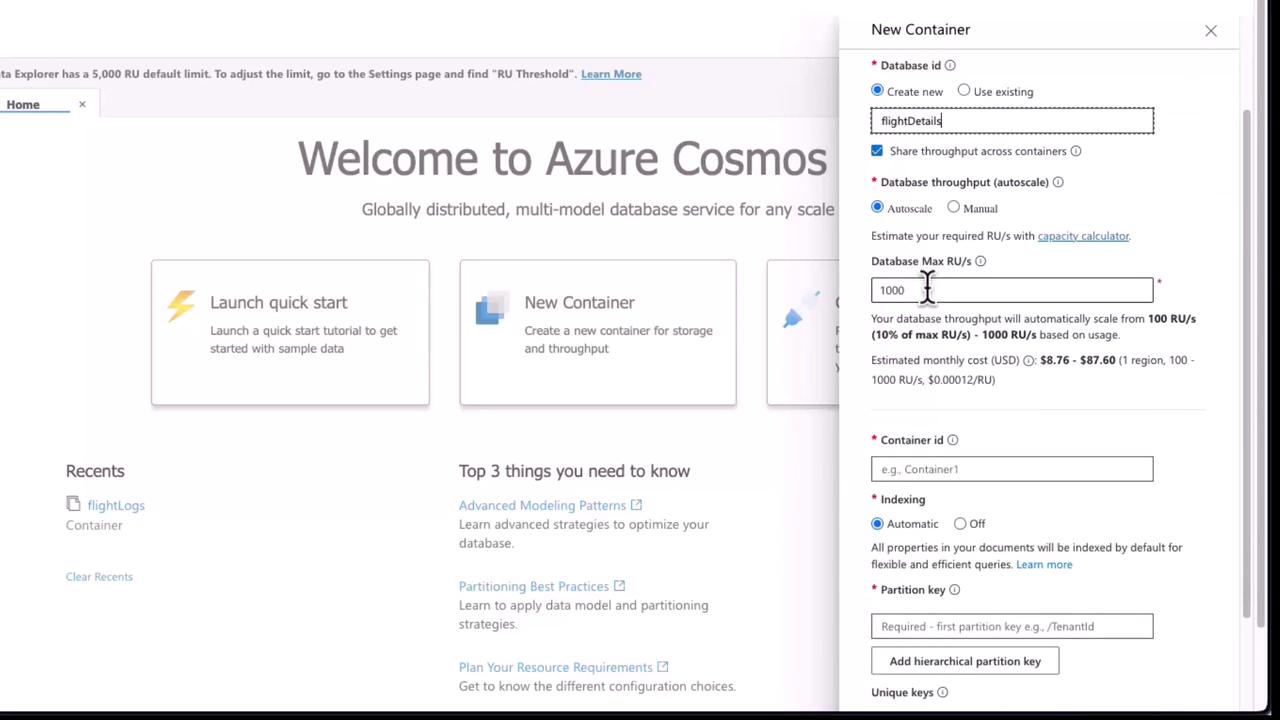
You can also create a Cosmos DB database and container directly through the Azure portal. In Data Explorer, select the option to create a new database if one does not exist. For example, you might create a database named FlightDetails and a container titled Airport Codes. During this process, you can configure the max Request Units (RUs) (e.g., 1000 RUs in the free tier) along with other indexing and partition key settings.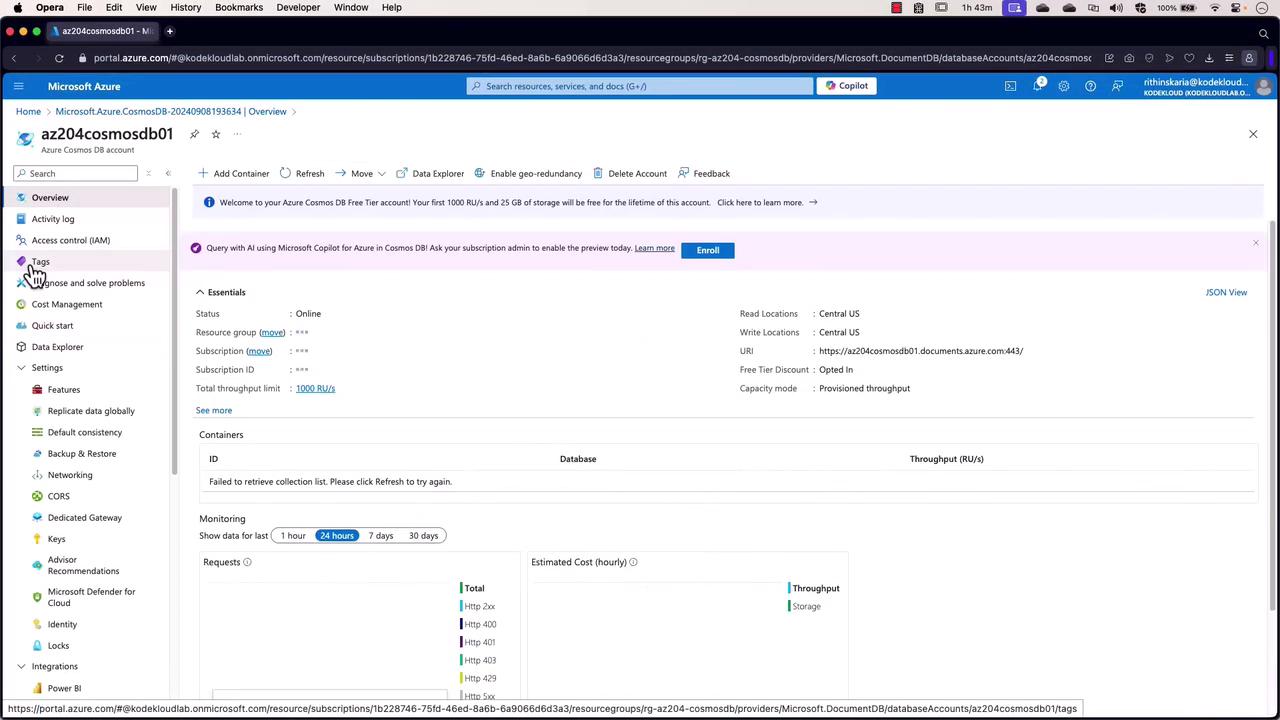
After creating the container, you can utilize it for bulk data import and advanced query operations through Data Explorer.
Using the Data Migration Tool (DMT)
For bulk data import scenarios, the Data Migration Tool (DMT) is an excellent utility that allows for moving data from various sources (local JSON files, S3, Blob Storage, etc.) into Azure Cosmos DB. Below is an example JSON configuration snippet that shows how to transfer data from a local JSON file to a Cosmos DB NoSQL container: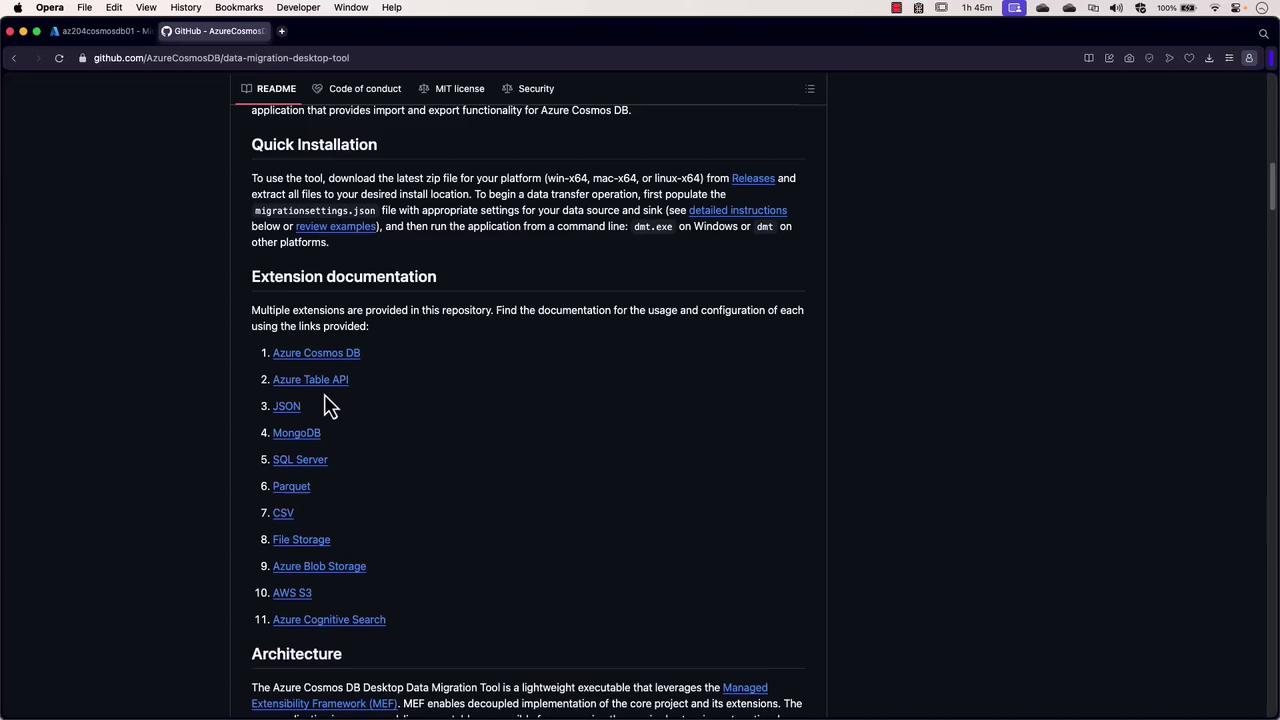
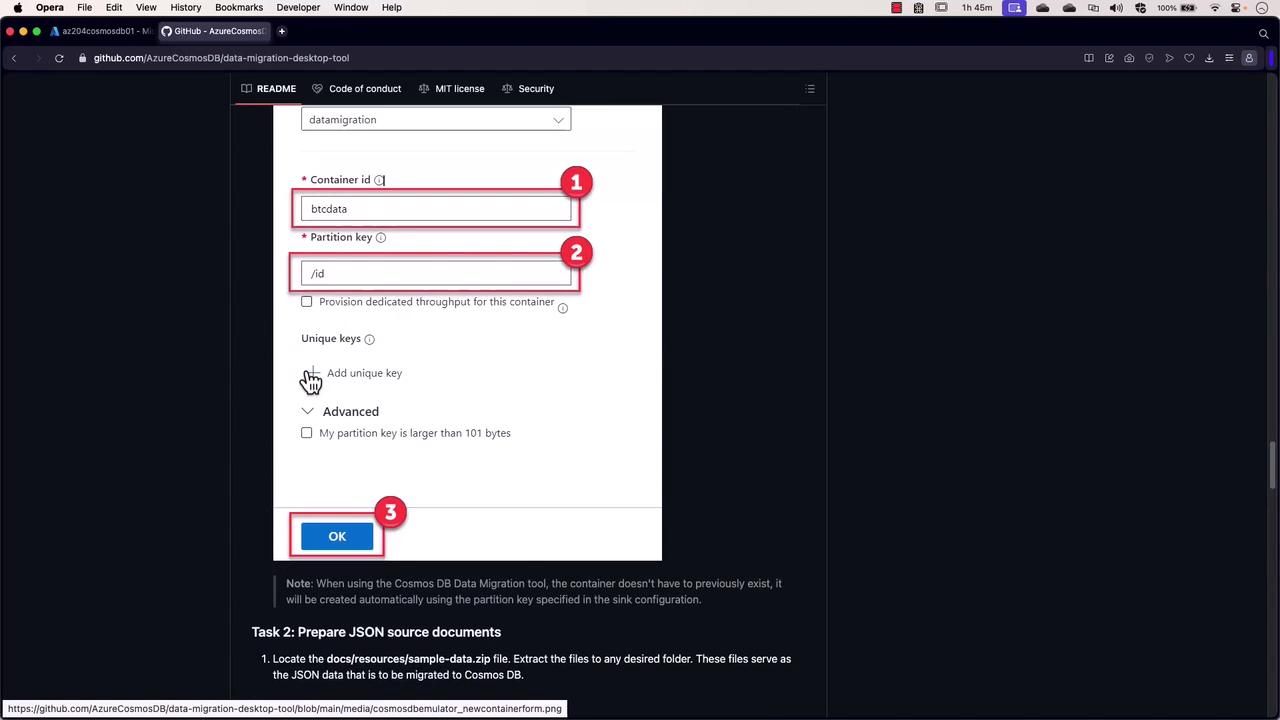
Working with Azure Cosmos DB in Visual Studio
This section explains how to use the .NET SDK in Visual Studio to insert, read, and query items in Cosmos DB.Inserting a New Airport Record
To begin, create a new Console Application (e.g., “Azure Cosmos DB Demo”) in Visual Studio and add the NuGet package “Microsoft.Azure.Cosmos”. Replace the default code with the following sample. This code initializes the Cosmos client, obtains a container reference, and inserts a new airport record into Cosmos DB.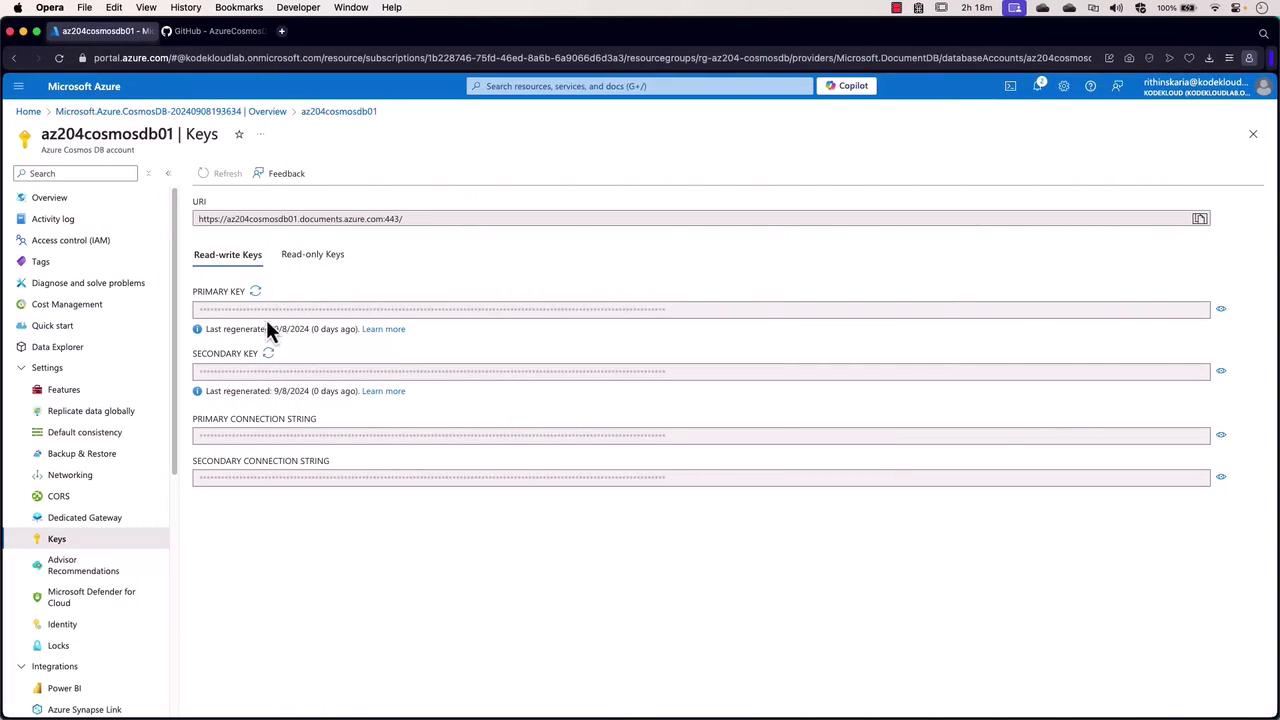
Querying Data from Cosmos DB
The following example shows how to query for all airports in the United States using a SQL-like statement and how to print the resulting airport names:Gregorio Luperon International Airport
Zvartnots International Airport
Caye Caulker Airport
Parry Sound Area Municipal Airport
Pompano Beach Airpark
Akron Canton Regional Airport
Susanville Municipal Airport
Mogilev Airport