This guide demonstrates how to interact with Microsoft Graph using REST APIs and SDKs, covering URL structure, HTTP methods, versioning, and authentication flows.
This guide demonstrates how to interact with Microsoft Graph using both REST APIs and SDKs. Learn about the URL structure, HTTP methods, versioning, and query parameters, and explore the Microsoft Graph SDK along with authentication flows to streamline your development process.
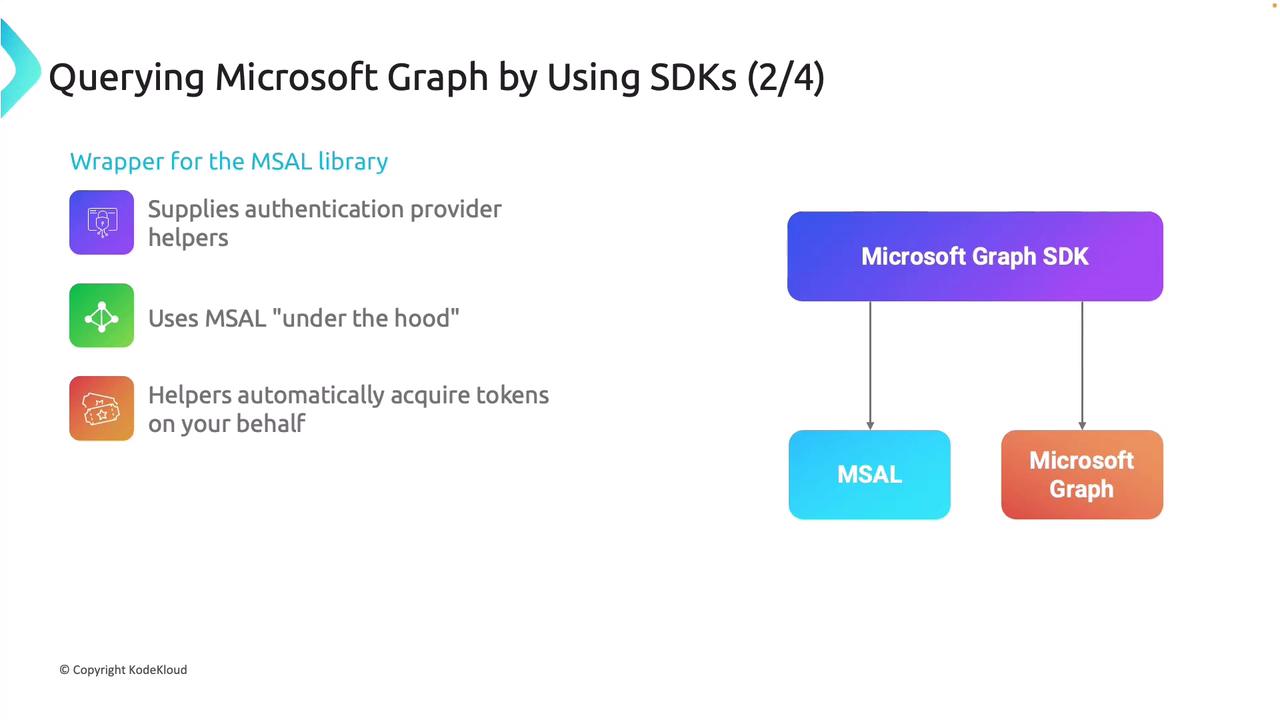
Microsoft Graph Library: Provides an object-oriented mapping that converts REST APIs into corresponding classes.
Core SDK Functions: Encapsulate functions to call Microsoft Graph endpoints, offering high-level methods for data retrieval.
Authentication: Utilizes authentication providers integrated with the Microsoft Authentication Library (MSAL) for secure token management.
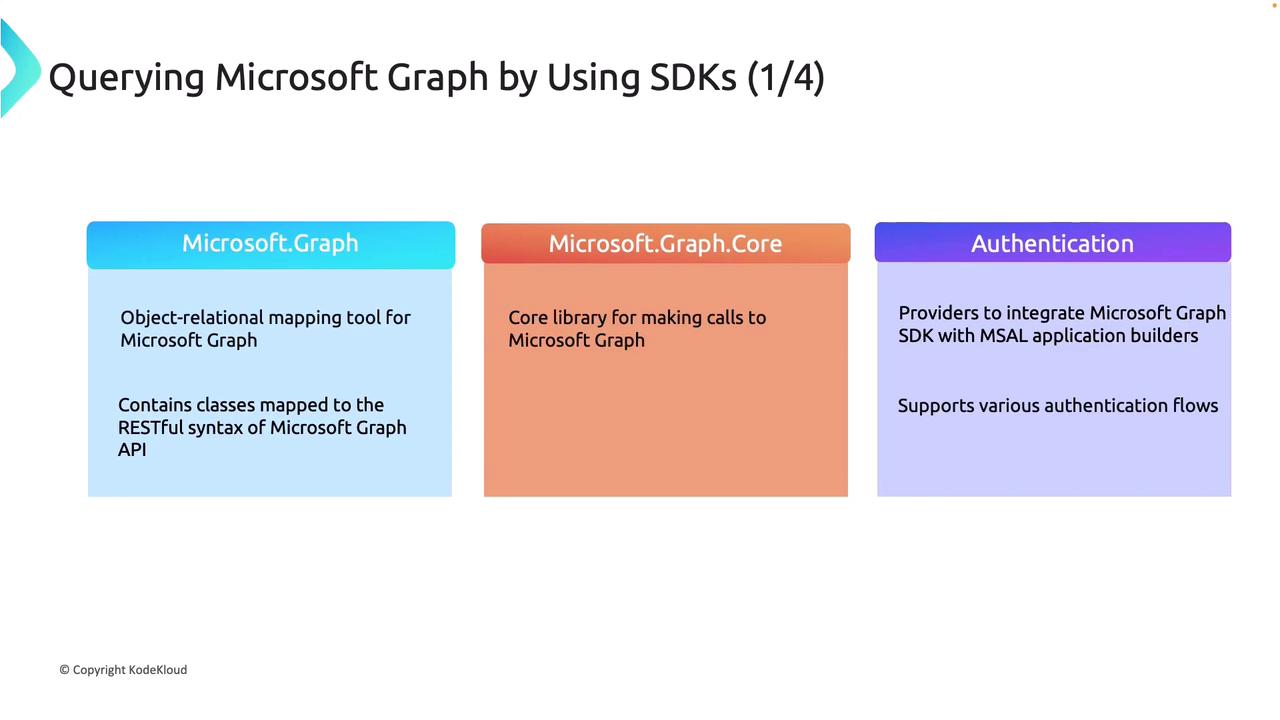
Application builders help retrieve tokens by abstracting various authentication flows. MSAL efficiently handles token acquisition, reducing the need for extra code in your application.
Below is an example of how to build a Microsoft Graph client using the SDK, configuring the authentication provider, and querying the API for user profile details.
The following example demonstrates the creation of a GraphServiceClient that leverages device code authentication to access specific user details.
Copy
Ask AI
// Build a client application.IPublicClientApplication publicClientApplication = PublicClientApplicationBuilder .Create("INSERT-CLIENT-APP-ID") .Build();// Create an authentication provider using the client application and required Graph scopes.DeviceCodeProvider authProvider = new DeviceCodeProvider(publicClientApplication, graphScopes);// Initialize GraphServiceClient with the authentication provider.GraphServiceClient graphClient = new GraphServiceClient(authProvider);
Next, query the API to retrieve specific properties from the authenticated user’s profile. Instead of fetching the entire profile, select only the necessary fields (display name, user principal name, job title, and mobile phone):
Copy
Ask AI
// GET https://graph.microsoft.com/v1.0/me with selected properties.var userProfile = await graphClient.Me .Request() .Select(u => new { u.DisplayName, u.UserPrincipalName, u.JobTitle, u.MobilePhone }) .GetAsync();
The following complete example demonstrates how to use Public Client Application Builder with a device code flow to acquire an access token and make a Graph API call:
Copy
Ask AI
using Microsoft.Graph;using Microsoft.Identity.Client;using System;using System.Net.Http;using System.Net.Http.Headers;using System.Threading.Tasks;class Program{ // Replace these with your actual application details. private static string clientId = "a967af23-c786-47a2-a2ed-5eb9da7b157a"; private static string tenantId = "1e0fa212-37dc-455f-bb0f-d66867cac64b"; private static string[] scopes = new[] { "User.Read" }; static async Task Main(string[] args) { var publicClientApp = PublicClientApplicationBuilder .Create(clientId) .WithAuthority($"https://login.microsoftonline.com/{tenantId}") .WithRedirectUri("http://localhost") .Build(); var authResult = await publicClientApp .AcquireTokenWithDeviceCode(scopes, deviceCodeResult => { Console.WriteLine(deviceCodeResult.Message); return Task.FromResult(0); }) .ExecuteAsync(); using var httpClient = new HttpClient(); httpClient.DefaultRequestHeaders.Authorization = new AuthenticationHeaderValue("Bearer", authResult.AccessToken); var graphClient = new GraphServiceClient(httpClient); var user = await graphClient.Me.GetAsync(); Console.WriteLine($"Display Name: {user.DisplayName}"); Console.WriteLine($"User Principal Name: {user.UserPrincipalName}"); Console.WriteLine($"Job Title: {user.JobTitle ?? "N/A"}"); Console.WriteLine($"Mobile Phone: {user.MobilePhone ?? "N/A"}"); }}
In this example, the client ID, tenant ID, and scopes are defined as variables. The device code authentication flow prompts the user via the terminal to visit microsoft.com/devicelogin for authentication. Once authenticated, the access token is retrieved and used to execute a Microsoft Graph API call to obtain the user profile.
Before using the service principal or app registration, ensure that the authentication settings in your Azure portal app registration are correctly configured for device code flow.
Ensure that the device code flow setting is enabled in your app registration configuration. Failing to do so will cause the authentication process to fail.
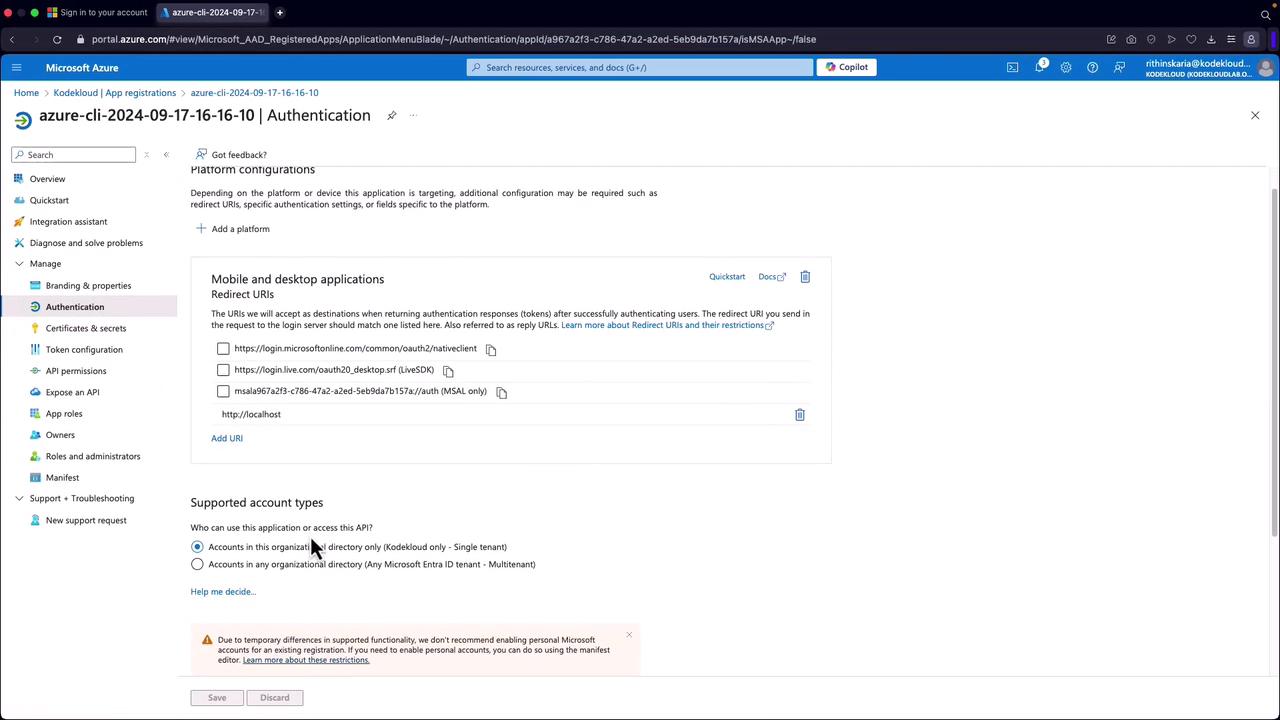
Make sure that after creating your app registration or service principal, the device code flow option is enabled to ensure proper functionality.
This article has demonstrated how to query Microsoft Graph using both REST APIs and the Microsoft Graph SDK. We covered the endpoint structure, query parameters, and used SDK integration with MSAL for simplified authentication and API calls. By following these practices, you can effectively integrate Microsoft Graph into your applications.Next, we will explore best practices to further enhance your integration strategies.