

Adding New Application Settings
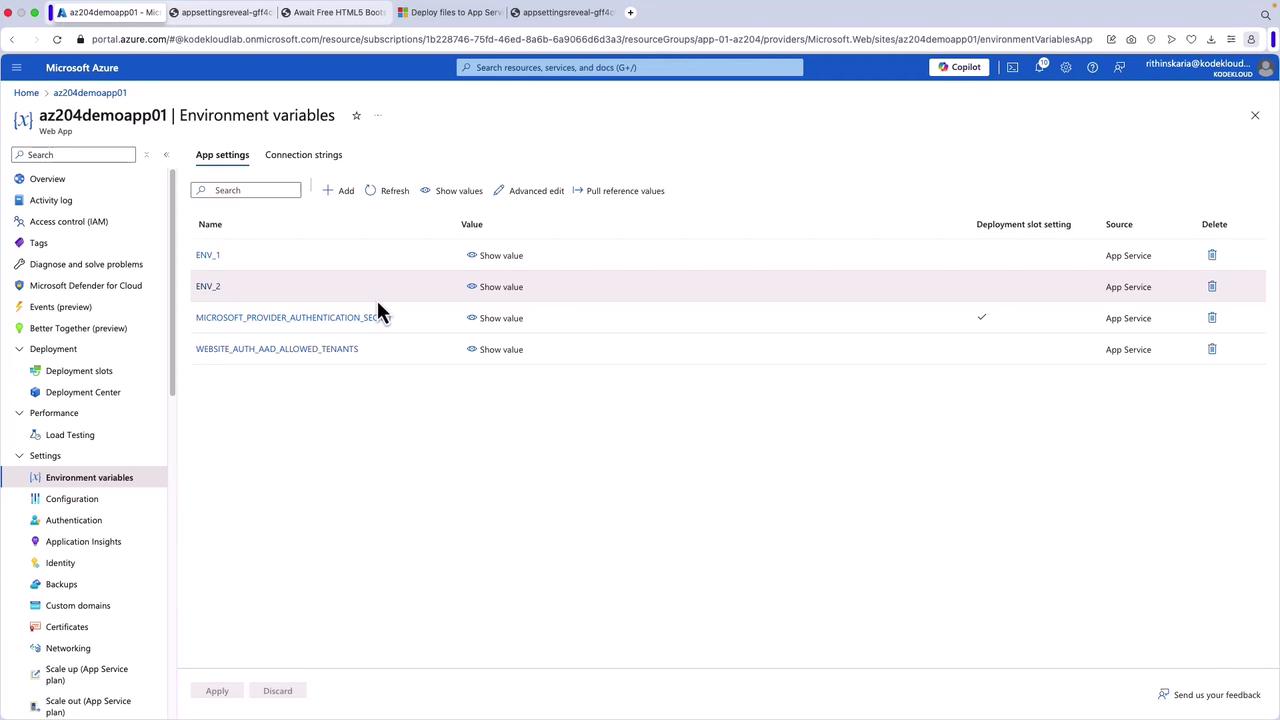
To add a new application setting, simply click the “Add” button on the Environment Variables screen. For example, if your application requires a specific API key for accessing a third-party service, you can securely store that API key as an application setting. This approach prevents hard coding sensitive information directly into your application code. If you need to add or modify multiple settings simultaneously, select the Advanced Edit option. This feature is particularly useful when migrating configurations from one environment to another, such as transitioning from staging to production.Using the Advanced Edit option, you can manage your settings in JSON format. This enables you to copy, paste, and make bulk edits efficiently.
Configuring Connection Strings
In addition to application settings, you can also configure connection strings. These strings are essential for connecting your app to external resources, including databases. For instance, if your app uses an Azure SQL Database, add the corresponding connection string here. One significant advantage of managing connection strings in this way is that they can be linked to specific deployment slots—ensuring that your app connects to the appropriate database based on its environment (e.g., production versus staging). By properly configuring both application settings and connection strings, you enhance your application’s security, maintainability, and adaptability without modifying the underlying code.Navigating the Azure Portal
To review your configuration settings, open the Azure portal and navigate to your App Service. From here, click on the Environment Variables blade. On this screen, you might see various environment variables, including one labeled “Microsoft Graph provider authentication secret.” This secret, established during an earlier app registration process, can be revealed by clicking the eye icon.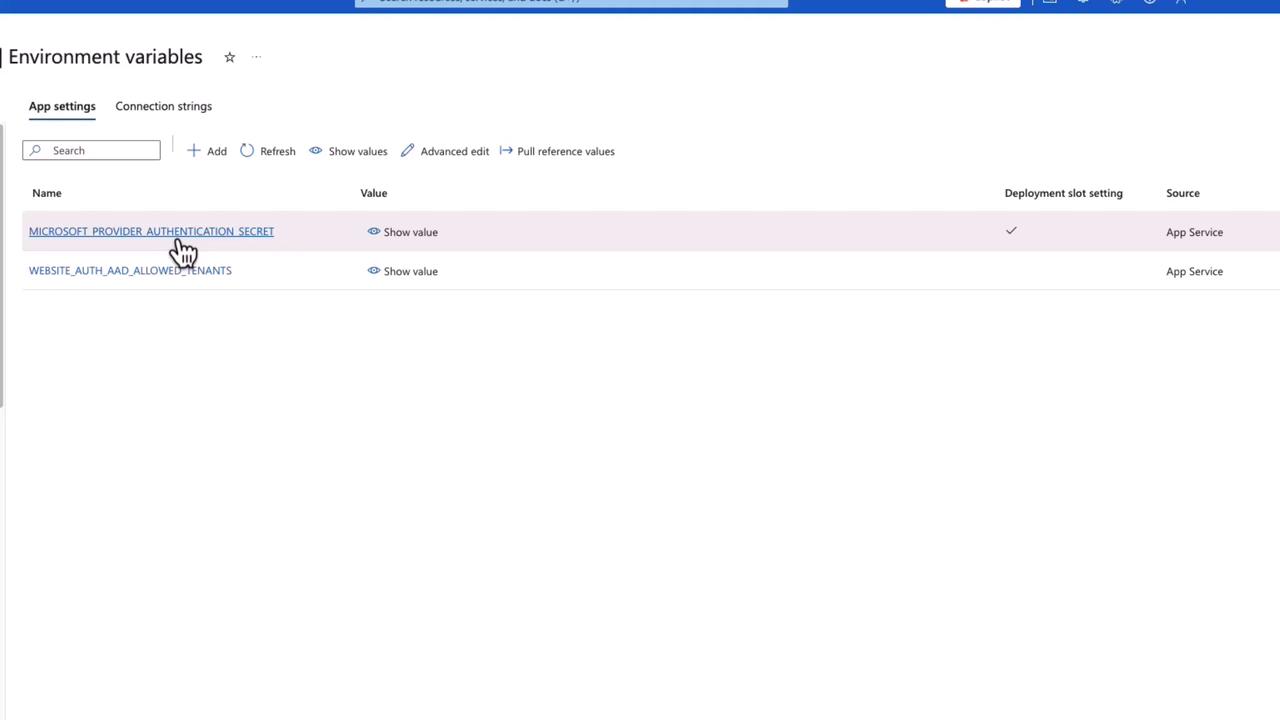
Setting Up Connection Strings
Scroll down to the Connection Strings section. Here, add a new connection string by providing a name, a value (for instance, a random string to simulate a connection string), and selecting the appropriate type, such as SQL Server. Failure to provide the mandatory “Type” property will trigger an error message prompting you to complete the field.
Accessing Environment Variables from Your Application
With these configurations in place, your application can access the environment variables using the appropriate SDKs. This method securely manages your configuration values and ensures they are easily available to your app at runtime.Always store sensitive configuration data such as API keys and passwords using environment variables or connection strings instead of hard coding them into your codebase.