

Message Routing and Correlation Patterns
Azure Service Bus supports various messaging patterns to suit different application requirements, from simple request replies to more complex workflows. Below are the key routing and correlation patterns you can leverage:Simple Request/Reply
The Simple Request/Reply pattern involves a publisher sending a message to a queue where a consumer processes it and responds directly. This is ideal for scenarios requiring an immediate response, such as querying inventory status.Multicast Request/Reply
In the Multicast Request/Reply pattern, a message is sent to a topic, and multiple subscribers independently process it. This pattern is useful when multiple systems need to act on the same information, such as when an update notification must be sent to several services.Multiplexing
Multiplexing enables multiple streams of related messages to be processed through a single queue or subscription. For instance, an e-commerce system can handle both order and shipping messages in one flow, thereby improving processing efficiency.Multiplexed Request/Reply
The Multiplexed Request/Reply pattern extends multiplexing by supporting multiple reply messages for each request within a stream. This pattern works well in complex workflows with multi-step interactions where each step may produce a distinct response.
Understanding the different routing patterns helps you choose the best approach for your messaging needs, ensuring both efficiency and scalability in your system.
Message Serialization
Serialization is essential to converting objects to a format that can be transmitted over the network and then deserialized reliably on the receiving end. Azure Service Bus supports several serialization methods:Content-Type Property
This property specifies the payload format (e.g., JSON or XML), allowing the receiver to deserialize messages correctly.Service-Based API in .NET Framework
The Service Bus API for the .NET Framework allows you to create a brokered message by directly passing .NET objects. This approach simplifies sending complex objects by automatically converting them to the correct message format.Legacy SBMP Protocol Serialization
With the legacy SBMP protocol, objects are serialized using a binary serializer. You also have the option to use a custom serializer, tailoring serialization to specific use cases.AMQP Protocol Serialization
AMQP, an industry-standard protocol, serializes objects into a byte stream ensuring interoperability with various messaging systems that support AMQP.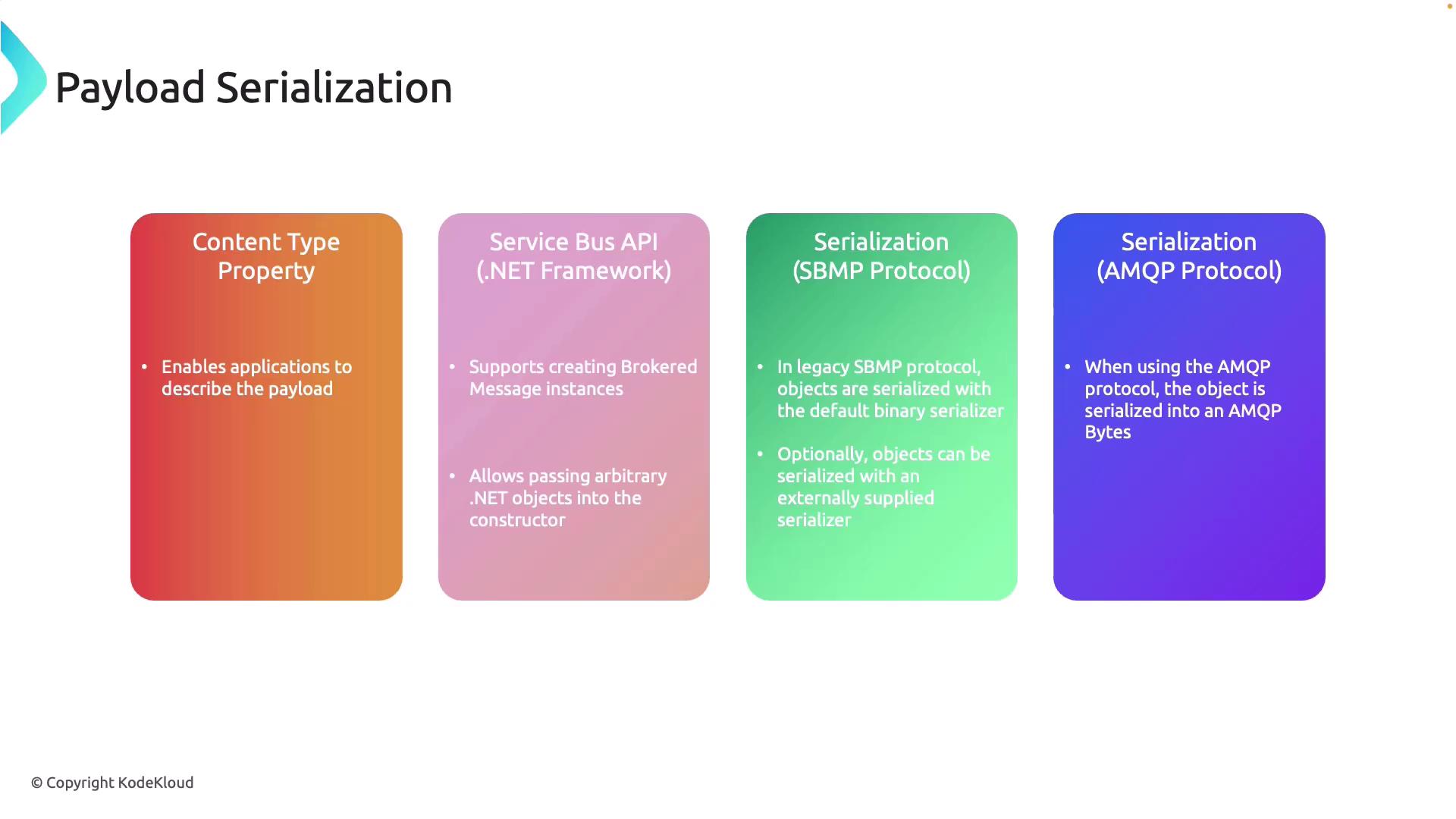
Choosing the appropriate serialization method is crucial for ensuring that your messaging system is both efficient and robust. Evaluate your system’s needs based on data complexity and interoperability requirements.
Azure Portal Walkthrough
Follow these steps to create a Service Bus instance and explore sending and receiving messages via the .NET SDK.- Open the Azure Portal and search for “Service Bus.”
- Create a Service Bus namespace with the following settings:
- Resource Group: RG-AZ204-ServiceBus
- Namespace Name: Choose a unique name (e.g., AZ204-SV-Hub09) to register under servicebus.windows.net.
- Tier: Basic (suitable for simple messaging scenarios)

- Navigate to the Advanced > Networking section and select public access (note that private endpoints require a higher tier).
- After validation, deploy the Service Bus.
- Once deployed, capture both the Service Bus name and the connection string (using either the root Shared Access Signature with manage, send, and listen permissions, or a custom one for specific actions).
Setting Up the Queue and Code Walkthrough
After deploying your Service Bus instance, create a queue (e.g., Q01) for your messaging operations. The default settings such as queue size, maximum delivery count, dead lettering, and partitioning are generally sufficient for initial testing.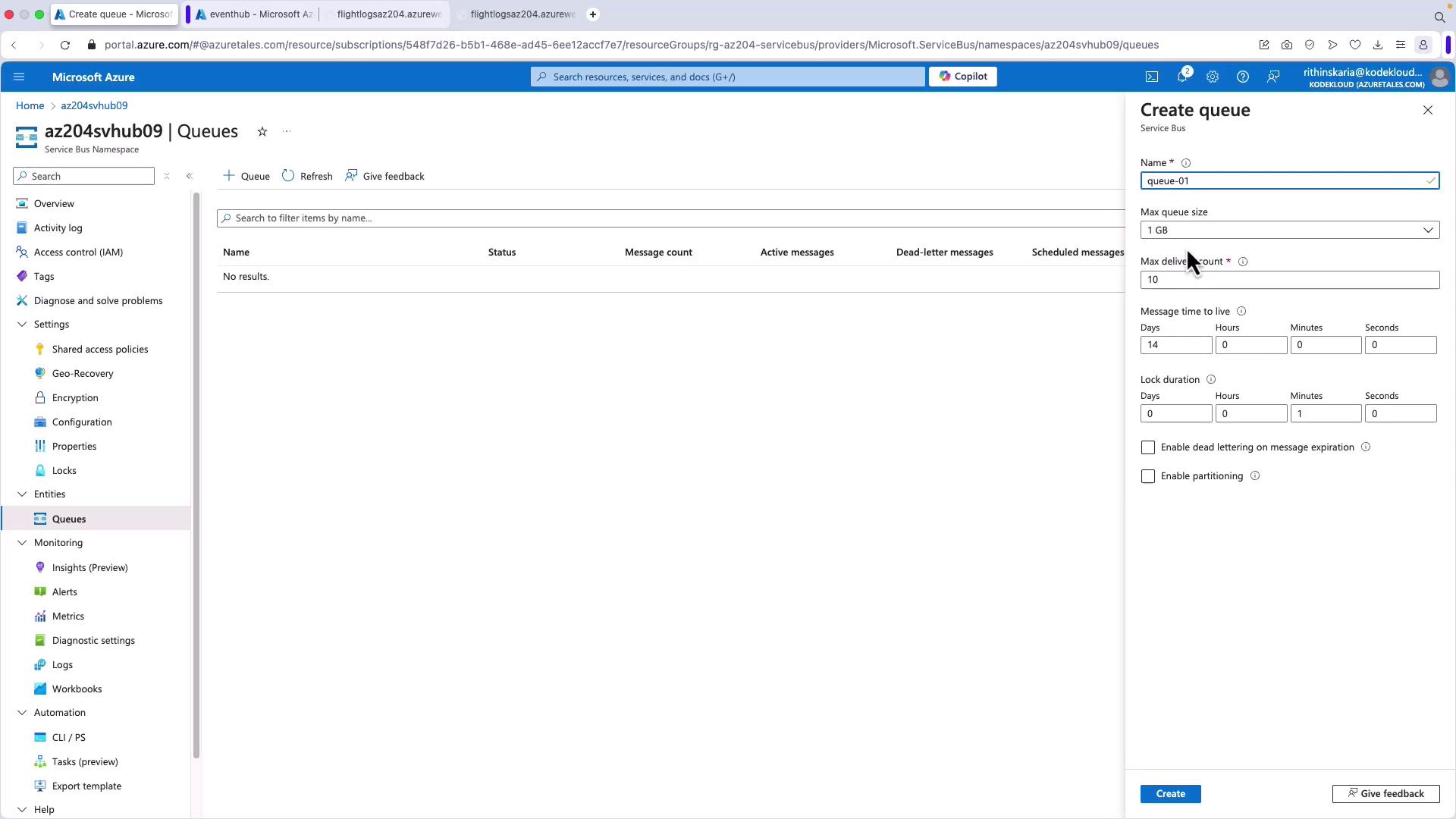
Main Application Code
This section prompts the user to choose between sending or receiving a message:Sending a Message
The following method prompts the user for a message and sends it asynchronously:Receiving Messages
This method sets up a processor to handle incoming messages and errors. It processes messages by converting them to strings and completes each message after processing:Running the Application
After saving your changes, run the application using the following command:Running both send and receive operations concurrently can help test and validate the end-to-end messaging flow in your application.