Managing Revisions and Secrets in Azure Container Apps
This article explains how to manage revisions and secrets in Azure Container Apps for efficient application versioning and secure handling of sensitive data.
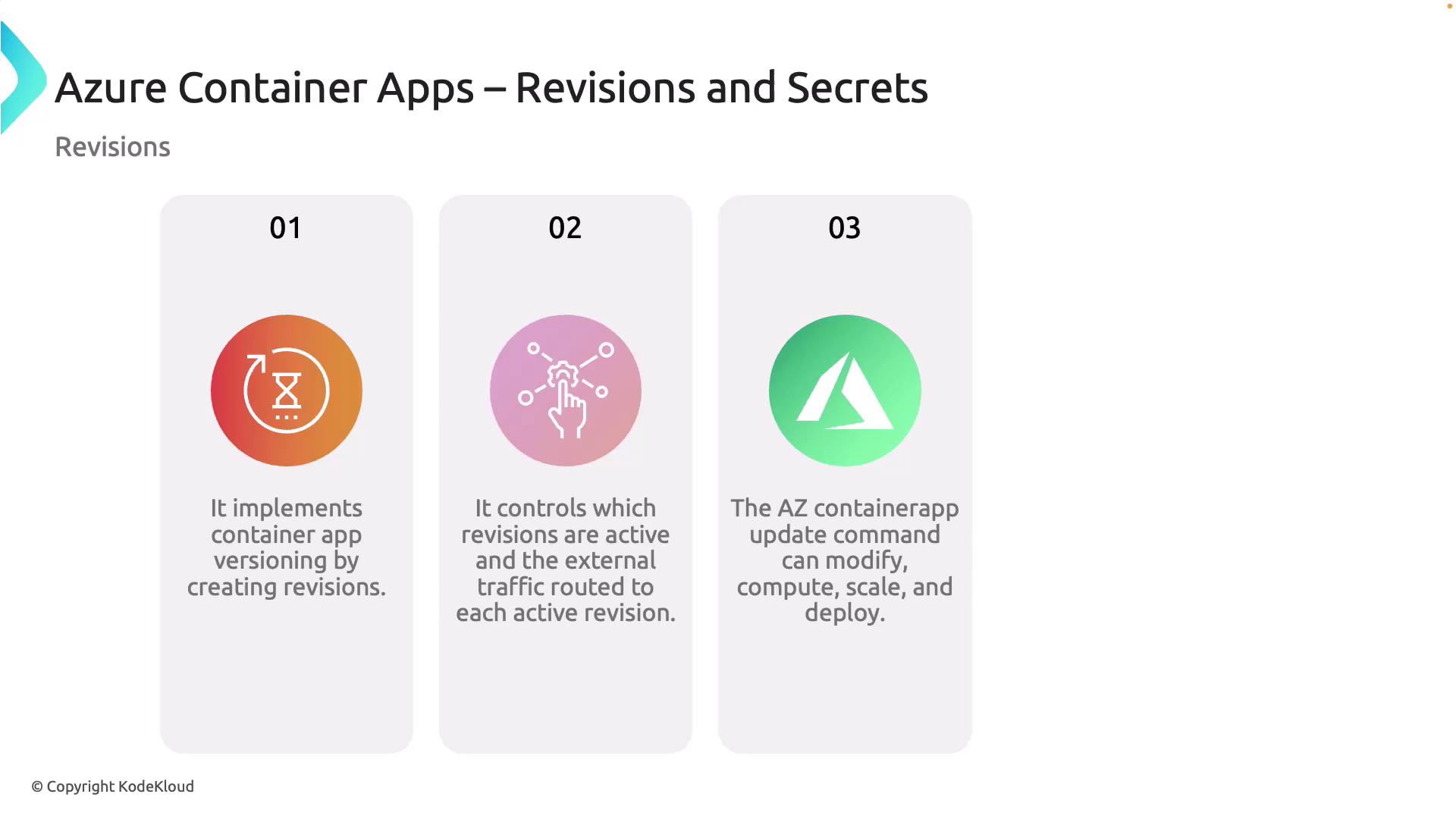
Azure Container Apps supports versioning through revisions. Each revision represents a distinct version of your application and works similarly to deployment slots in Azure App Service. Whether you update environment variables, adjust compute settings, or deploy a new container image, every update creates a new revision. This design enables efficient tracking of changes, management of different versions, and control over which revisions handle external traffic—ideal for A/B testing or gradual feature rollouts.For example, you can update parameters such as environment variables, scaling settings, or container images using the Azure Container Apps update command.
If an update includes a revision scope change, the system automatically generates a new revision.
When planning updates, always consider the impact of generating new revisions on your operational workflow.
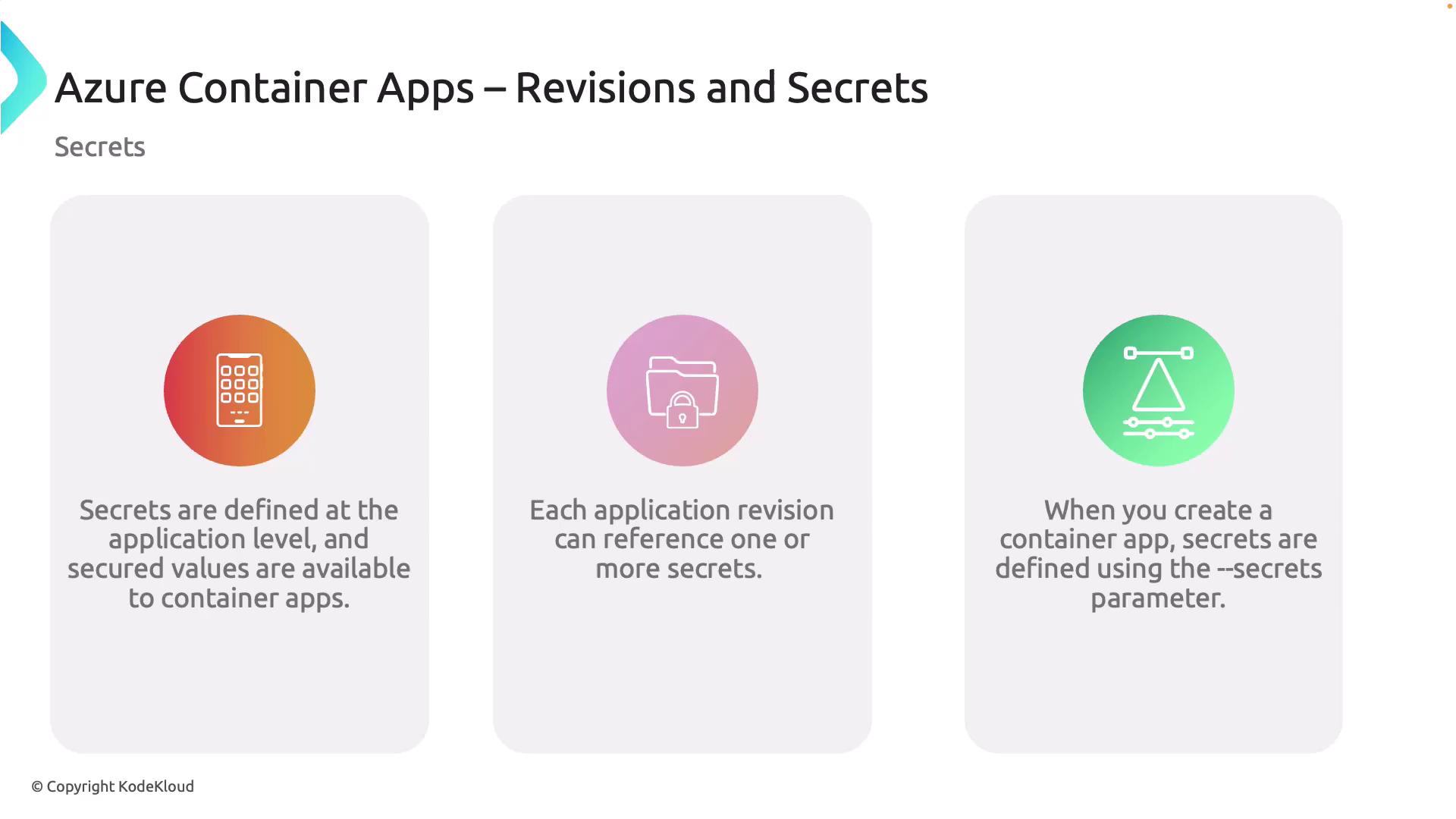
Managing secrets is essential for protecting sensitive data such as API keys and connection strings. In Azure Container Apps, secrets are defined at the application level and are accessible by all app revisions. This centralized approach enhances security by ensuring that sensitive data is not hardcoded into the application or its configuration files.When creating a Container App, you can define secrets using the --secrets parameter in the command line, ensuring that secrets are securely handled during deployment.
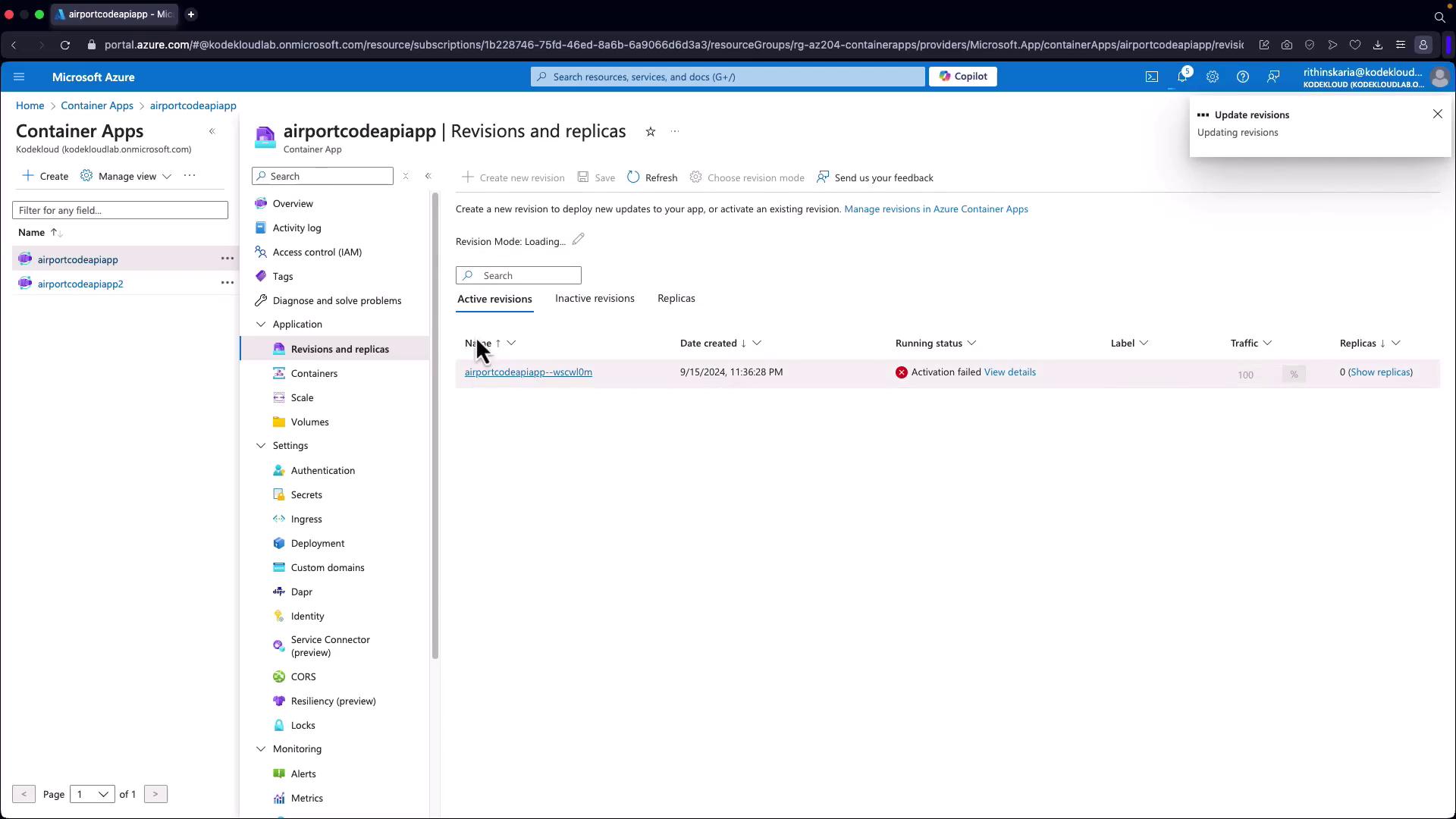
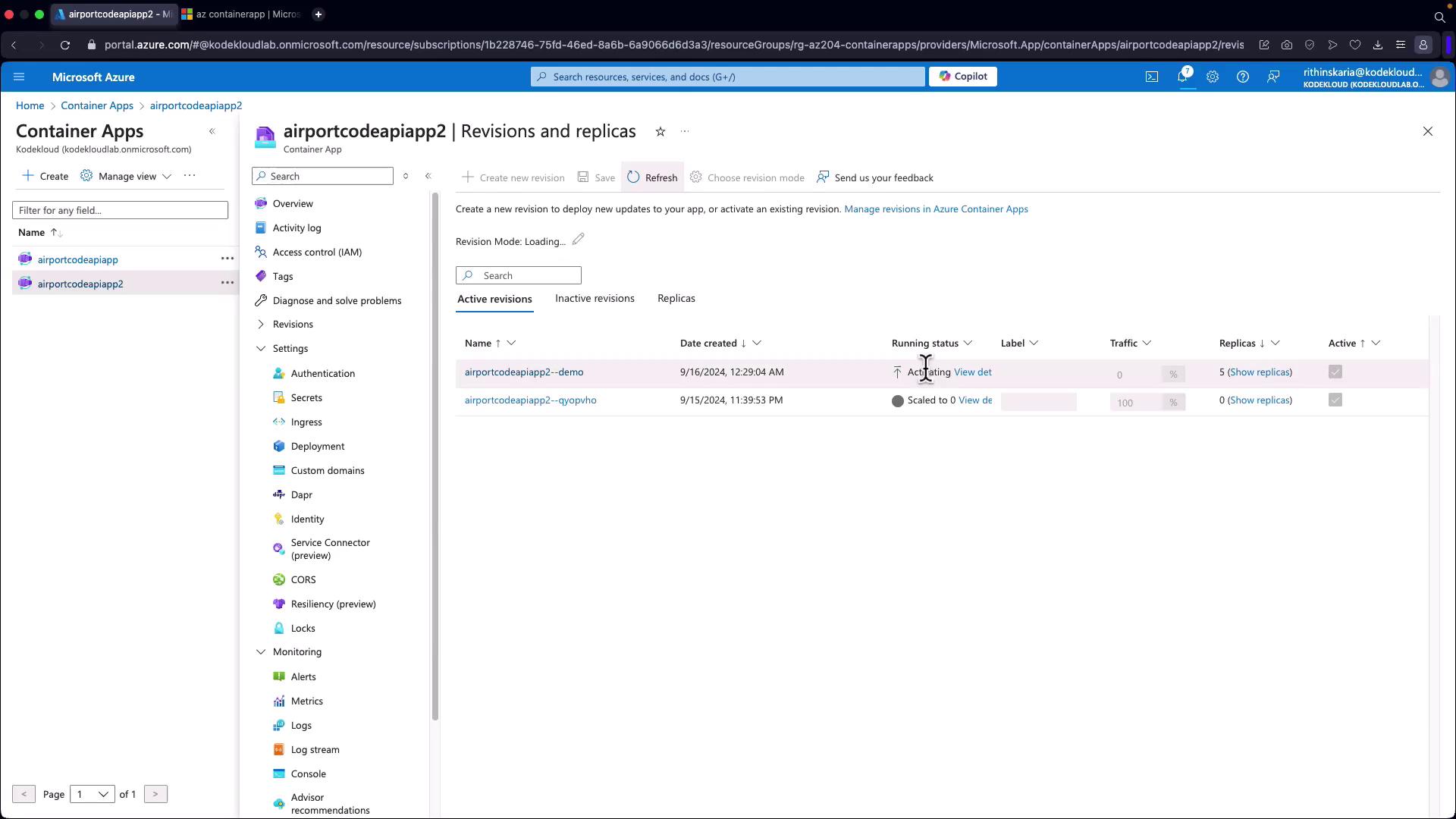
To enable multiple revisions, first switch your app’s revision mode to multi-revision mode. This mode allows you to manage several revisions simultaneously by assigning labels, controlling traffic distribution, and monitoring individual replicas.For example, when using the Microsoft Azure portal, you might encounter an interface like this:
Notice that inspecting another app (e.g., one functioning properly) might display a single node. Converting an app to multi-revision mode allows you to perform actions such as configuring labels, directing traffic flows, and monitoring replicas. You can also deactivate and reactivate revisions—for instance, unchecking a revision deactivates it, while reactivating it returns it to service.
Detailed inspection may reveal configuration differences, such as a target port set to 80 and a service mesh link port set to 8080.
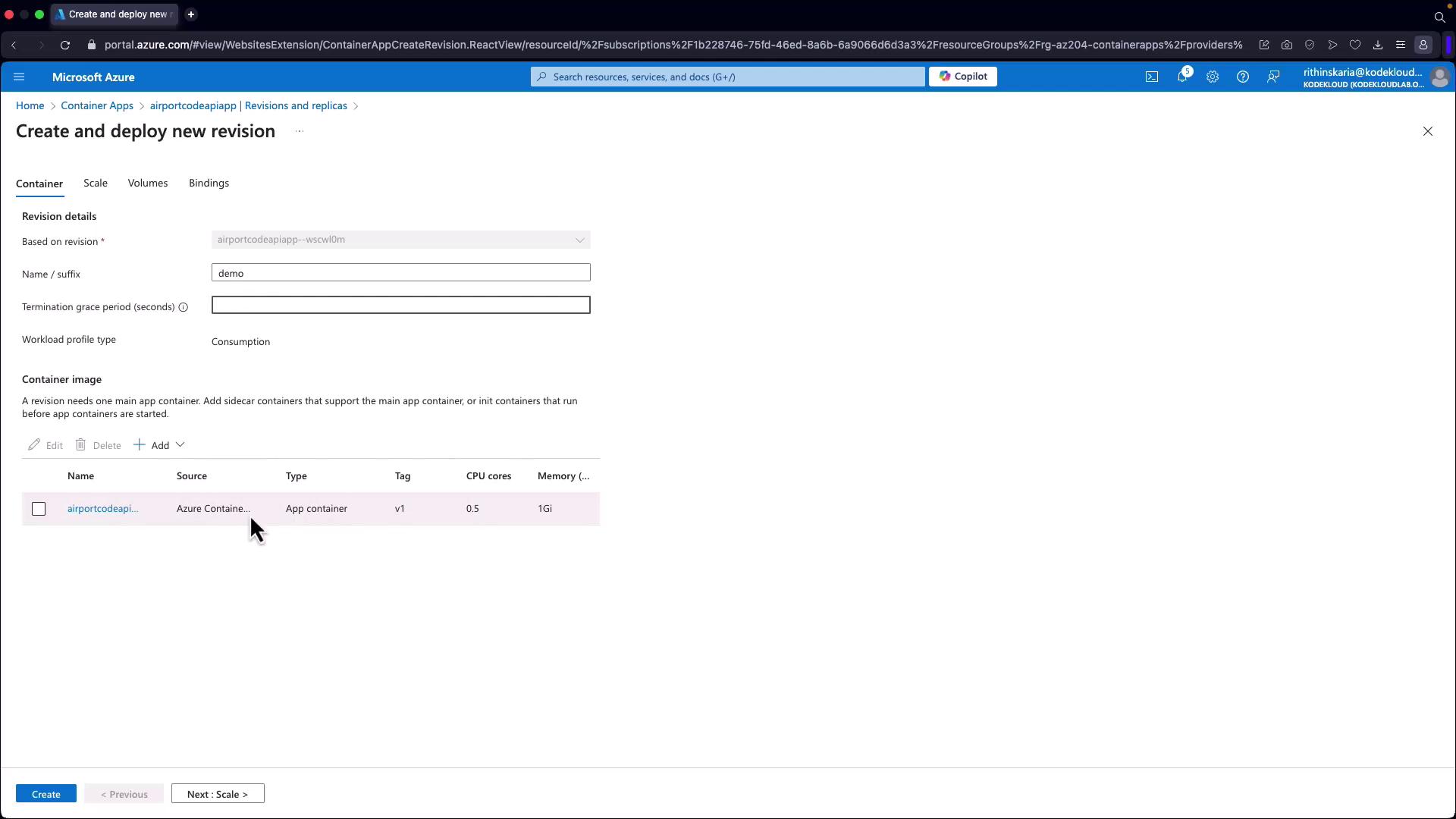
When it comes to updating containers, you have two primary options: using the kubectl update command or the Azure CLI update command. Both methods offer various parameters that allow you to tailor your deployment. You can:
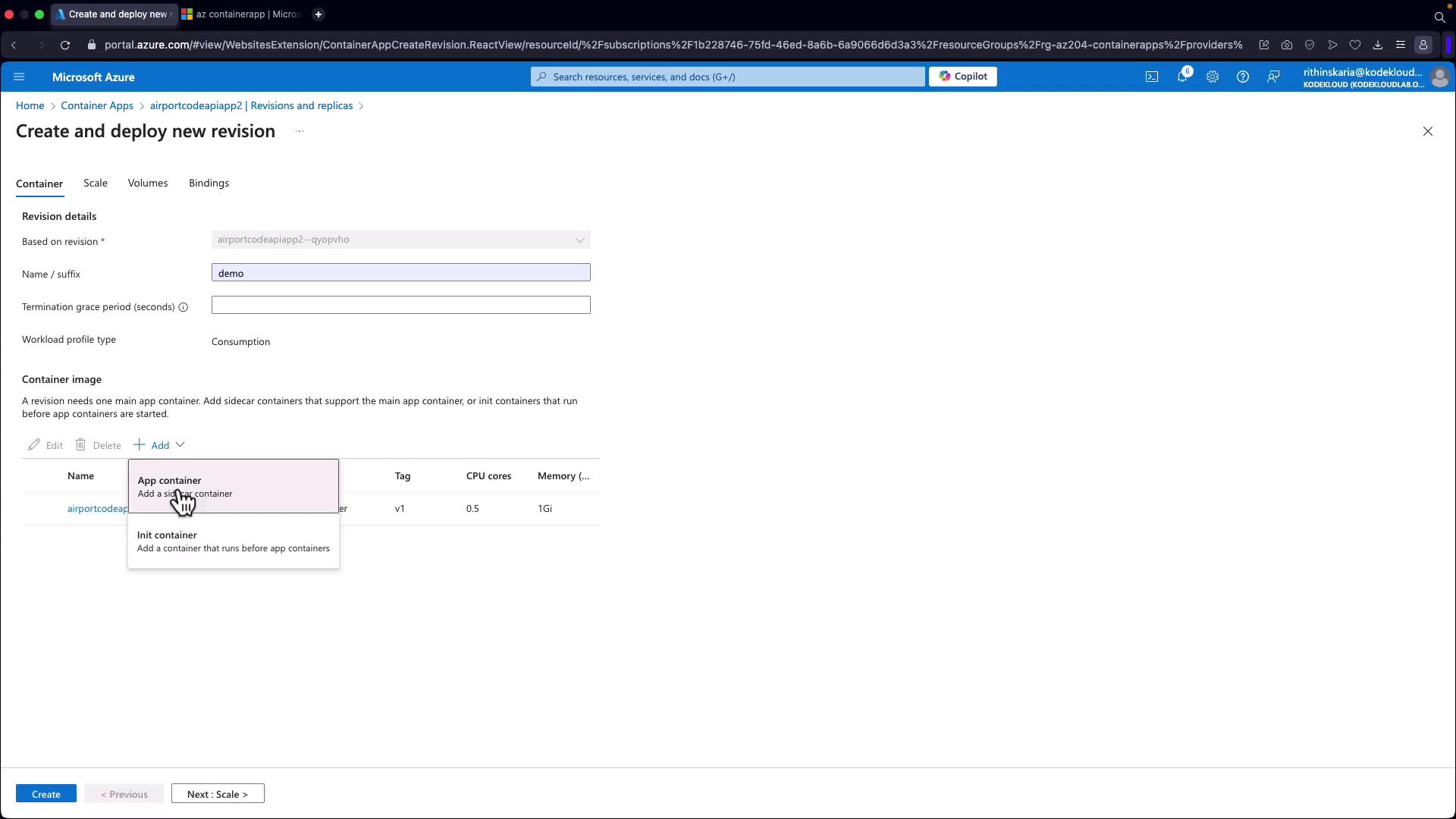
Create a new revision
Set a termination grace period
Specify a new container image
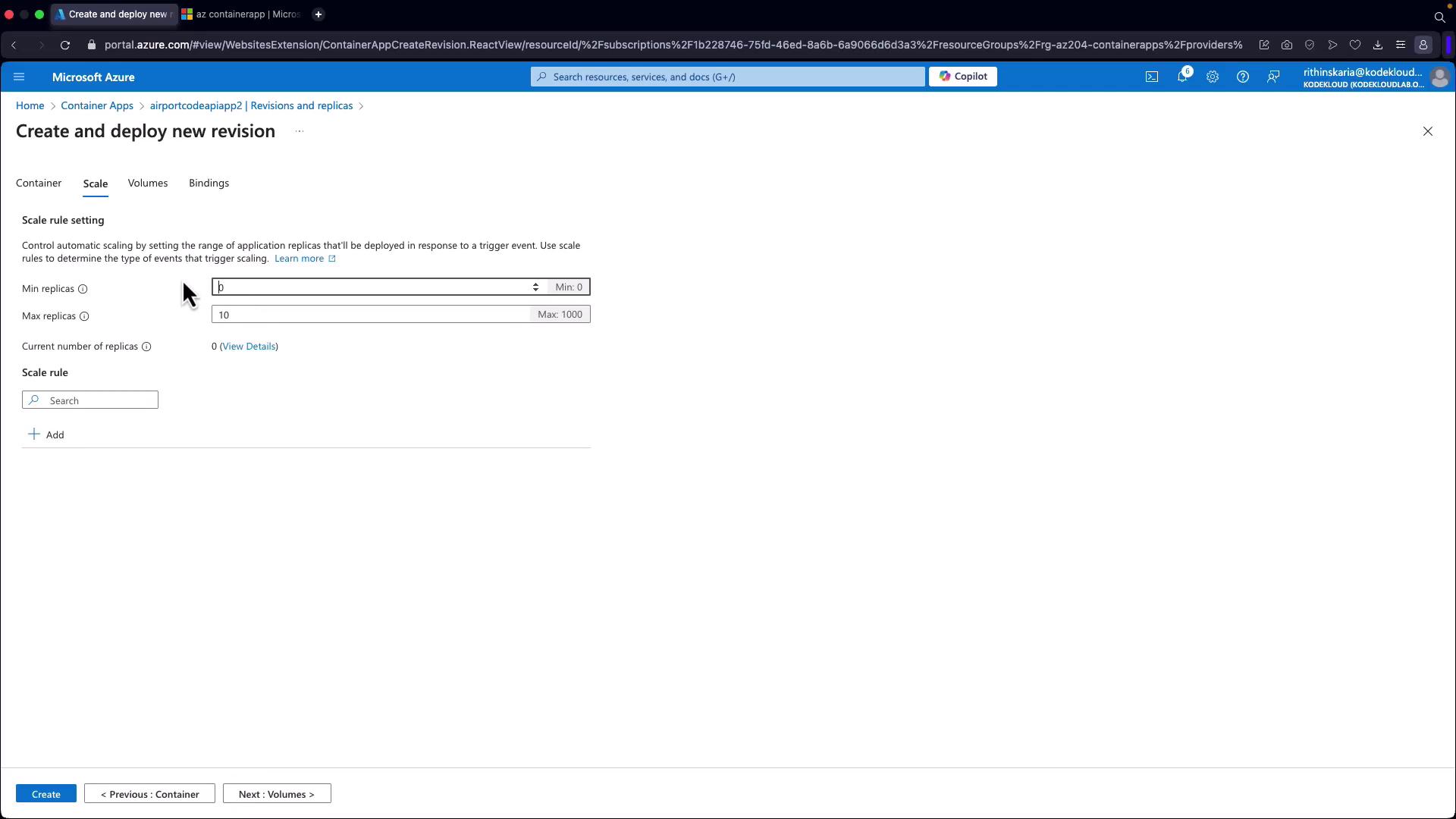
Configure scale sizes
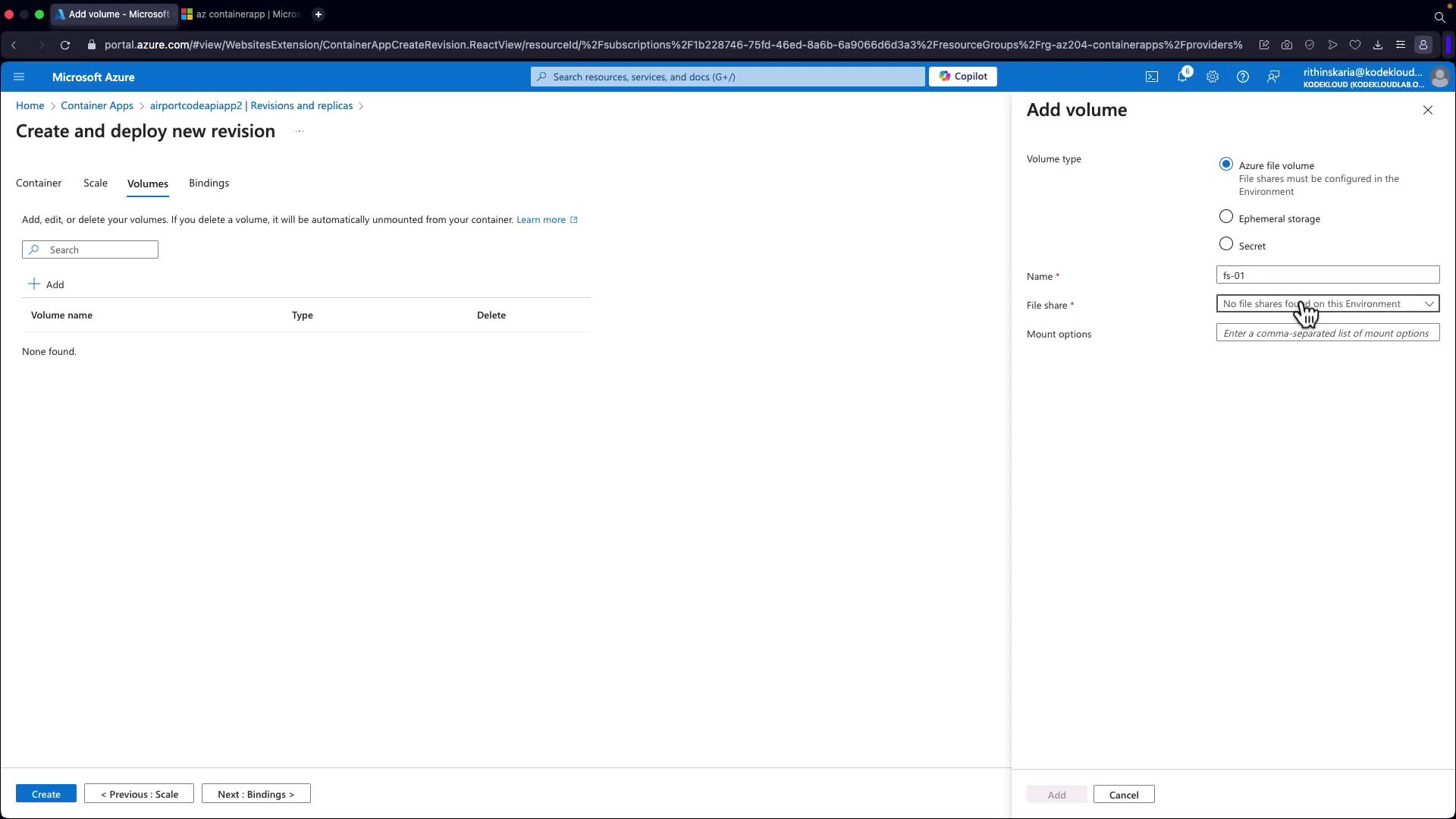
Add volumes
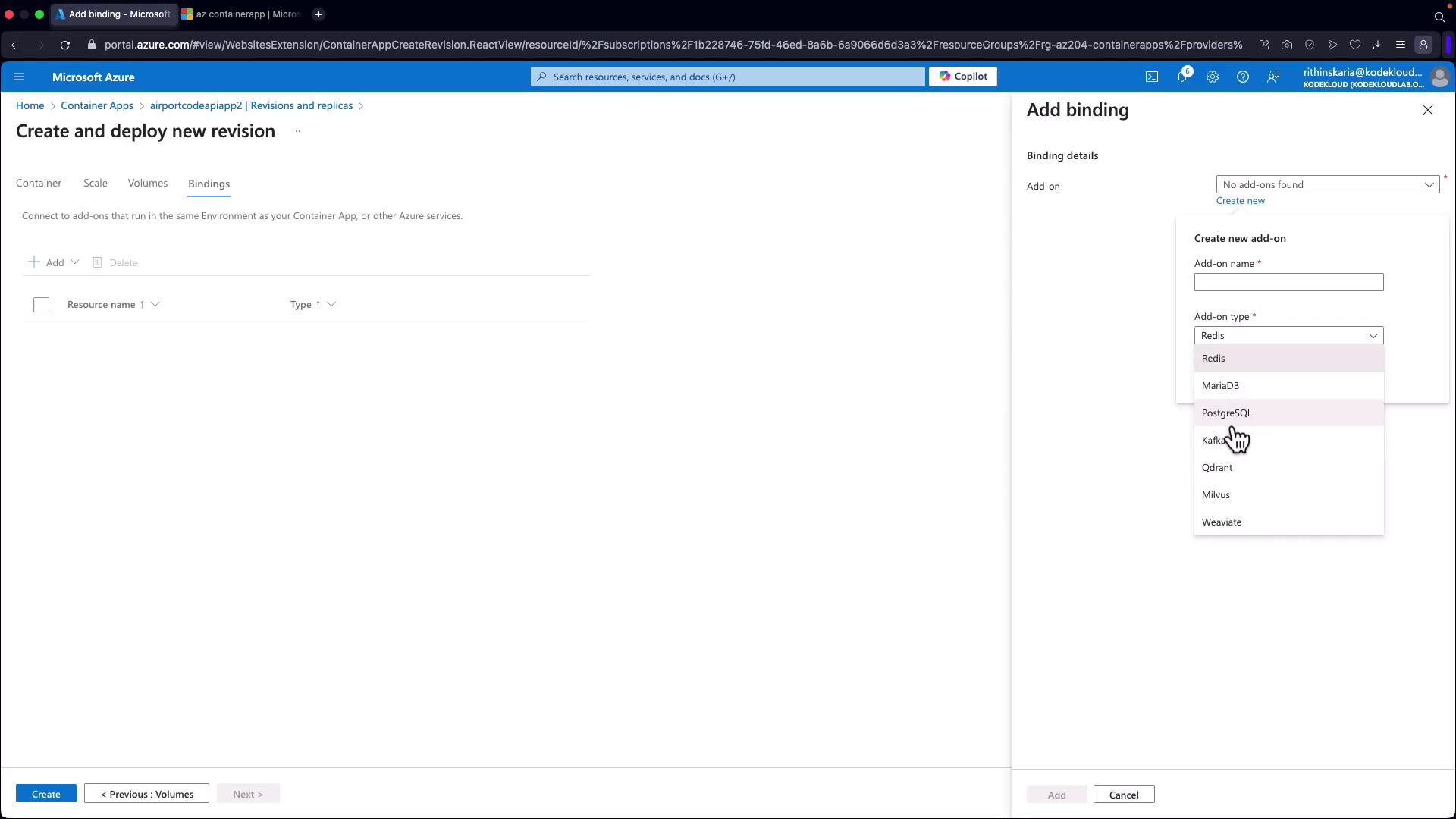
Attach secret or service bindings
Consider this portal view for creating a new container app revision:
You can update a Container App using the following command:
After creating new revisions, you can manage external traffic distribution between them. For example, you might allocate 50% of the traffic to a new demo revision while keeping 50% on the current active revision. This gradual rollout approach allows continuous monitoring and quick rollback if issues arise.
In addition to defining secrets via command-line deployments, you can also create and manage secrets directly from the Azure portal. This interface allows you to add key/value pairs manually or link to a Key Vault, ensuring sensitive information is managed securely.
Azure Container Apps can be integrated with Dapr, simplifying microservices development by enabling seamless inter-service communication. This integration enhances the overall architecture and accelerates application development.With this comprehensive overview, you now understand how to manage revisions and secrets in Azure Container Apps. Whether you use the Azure CLI or the Microsoft Azure portal, these features provide a robust framework for deploying and managing containerized applications securely and efficiently.