Feature Flag
A feature flag is an on/off switch used to enable or disable specific functionality in an application without redeploying code. This allows developers to roll out new features incrementally, test functionality in controlled groups, and prevent unwanted exposure. For example, when introducing a new login feature, you can deploy the code with a feature flag so that only a subset of users experience the new interface while others continue using the existing one.Feature Manager
The feature manager orchestrates the lifecycle of feature flags. It initializes, manages, and applies flags within the application, dynamically evaluating which flags to enable or disable based on specific conditions. In a shopping app, for instance, the feature manager can control features like discount codes or alternative payment methods.Filter
A filter defines criteria or conditions that determine when a feature flag is enabled or disabled. These conditions could be based on factors such as user roles, geographic location, browser type, or even a percentage of the user base. For example, a filter might enable a feature for users in a specific region or only during certain hours.
Components for Managing Application Features
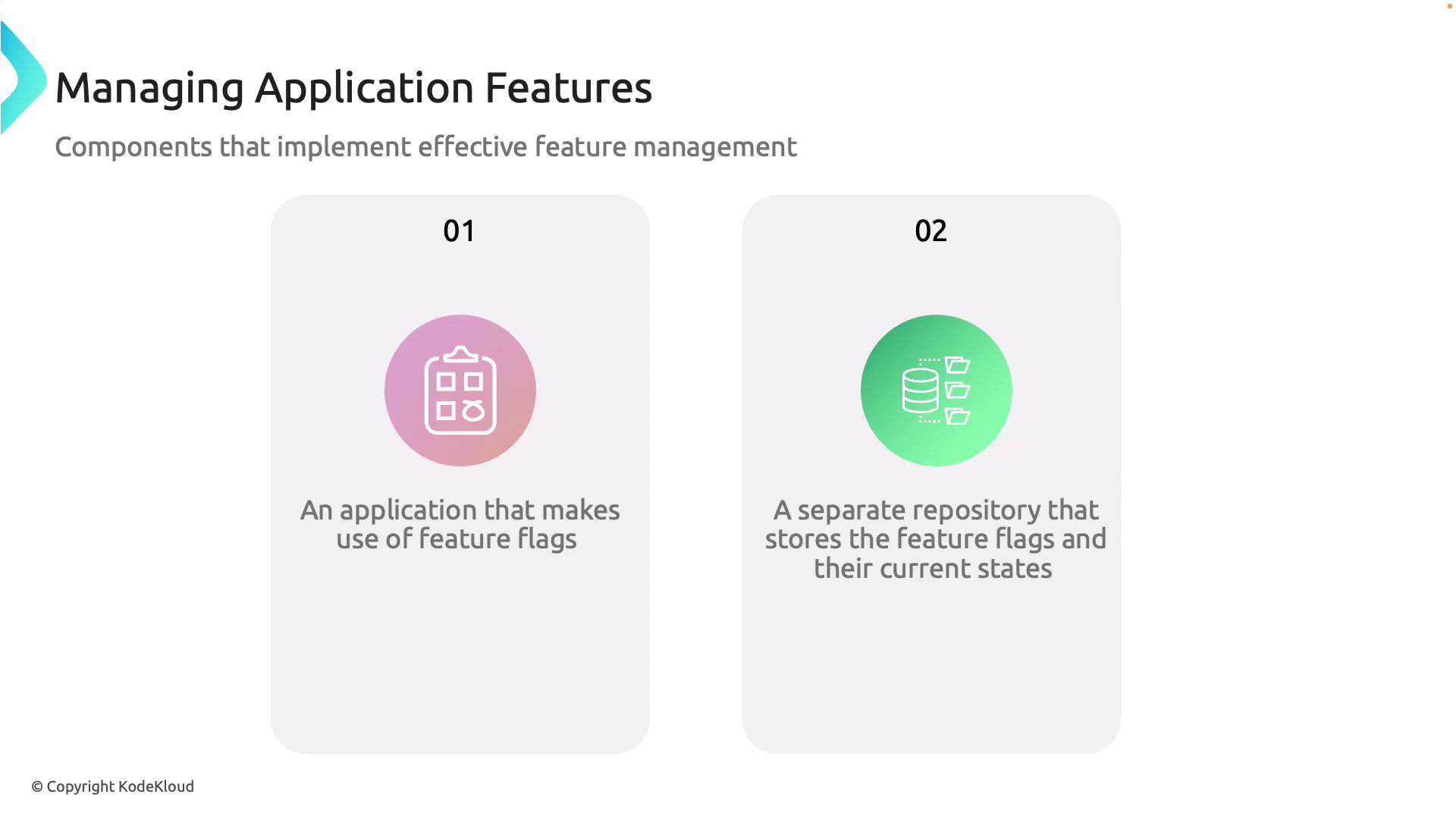
Effective feature management requires a number of components:-
Application with Feature Flags:
Your application must support feature flags as a core part of its development and deployment strategy. This enables selective activation of features based on user or environment. -
Feature Flag Repository:
A dedicated repository (such as Azure App Configuration) stores the feature flags and their statuses (enabled/disabled) independently from your application code.
- App Configuration Service:
This service provides a centralized location for storing feature flags, allowing real-time management of application configuration.
Feature Flag Declaration
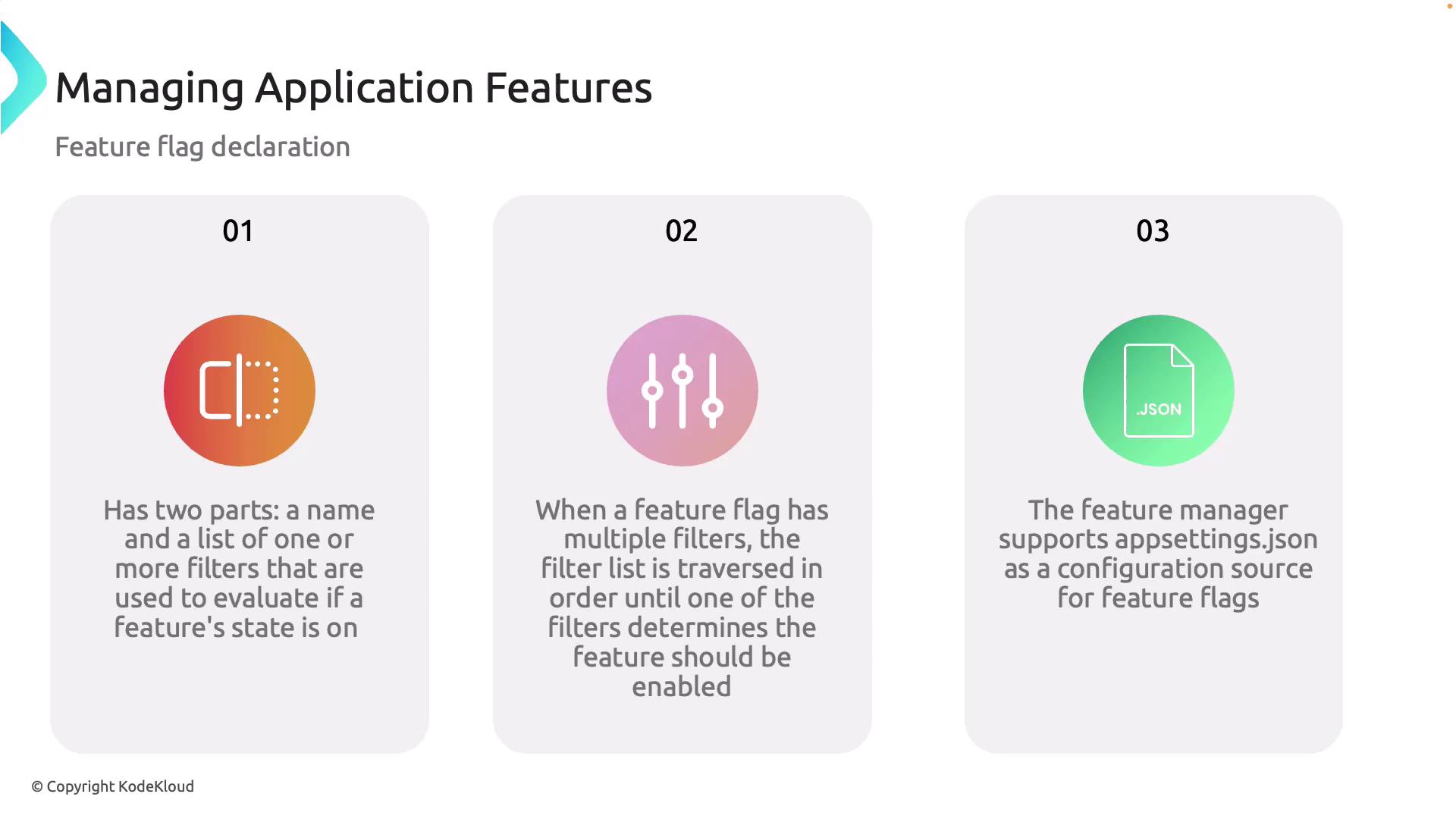
Feature flags are declared using two main components:- Name: A unique identifier for the flag.
- List of Filters: Conditions that determine whether the flag is enabled or disabled.
appsettings.json to manage flags without hardcoding them.
Feature Flag Repository with Azure App Configuration
For optimal use of feature flags, externalizing them is crucial. Hardcoding feature flags negates the benefit of dynamic configuration. Instead, use an external system like Azure App Configuration, which facilitates centralized management across various environments and services.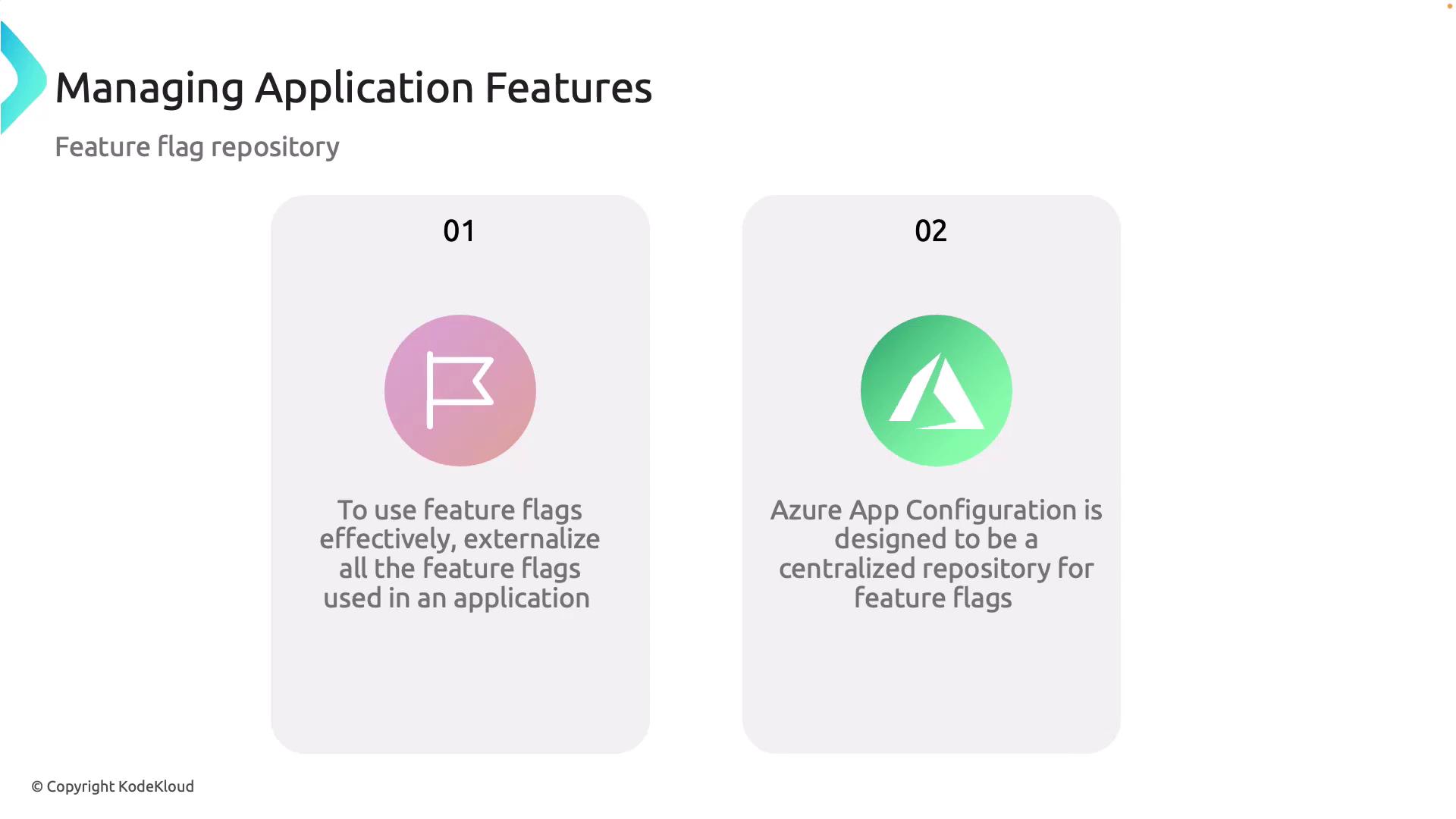
Integrating Azure App Configuration into Your Application
Below is an example demonstrating how to integrate Azure App Configuration into an MVC application using Visual Studio Code.Setting Up program.cs
Inprogram.cs, add the NuGet package for Azure App Configuration and configure it with your connection string. For production scenarios, always secure your connection string using managed identities or other secure methods instead of hardcoding it.
Configuring the csproj File
Ensure that your project file includes the necessary packages:In production environments, avoid hardcoding connection strings. Use secure methods, such as managed identities and Azure Key Vault, to access sensitive configuration data.
Configuration Explorer in Azure Portal
In Azure App Configuration, create key-value pairs for your app settings (e.g., background color, font size, welcome message). The image below shows the key-value pairs in the configuration explorer: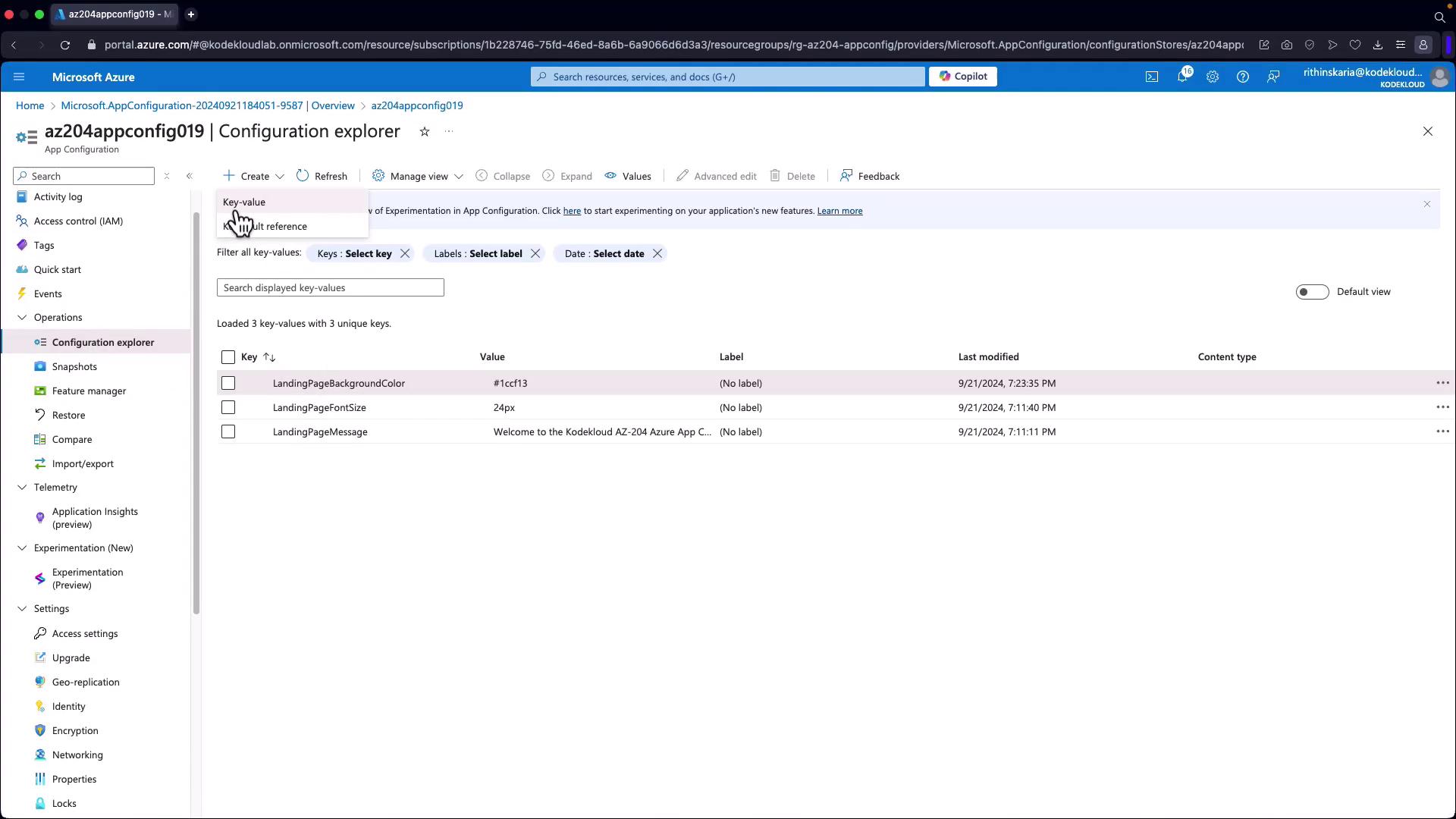
Updated program.cs for Caching
Below is an enhanced example ofprogram.cs with caching enabled:
Home Controller: Accessing Configuration Values
In your HomeController, configuration values are retrieved and passed to the view. The following example demonstrates how to check for a feature flag (e.g., “ShowNewUI”) and override default settings when enabled:Index View
In theIndex.cshtml view, use the values stored in ViewBag to set styles dynamically:
Managing Feature Flags with Azure App Configuration
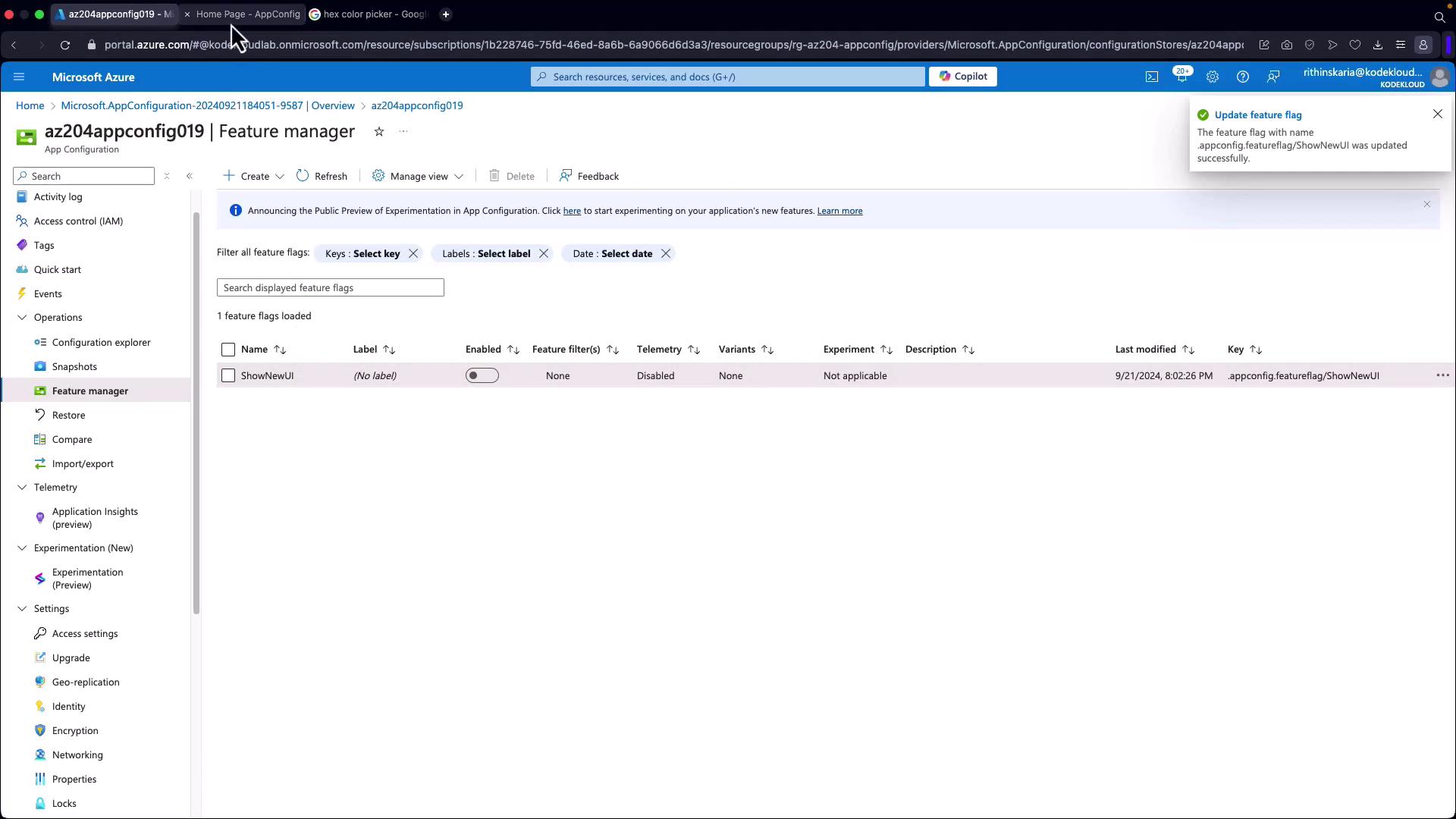
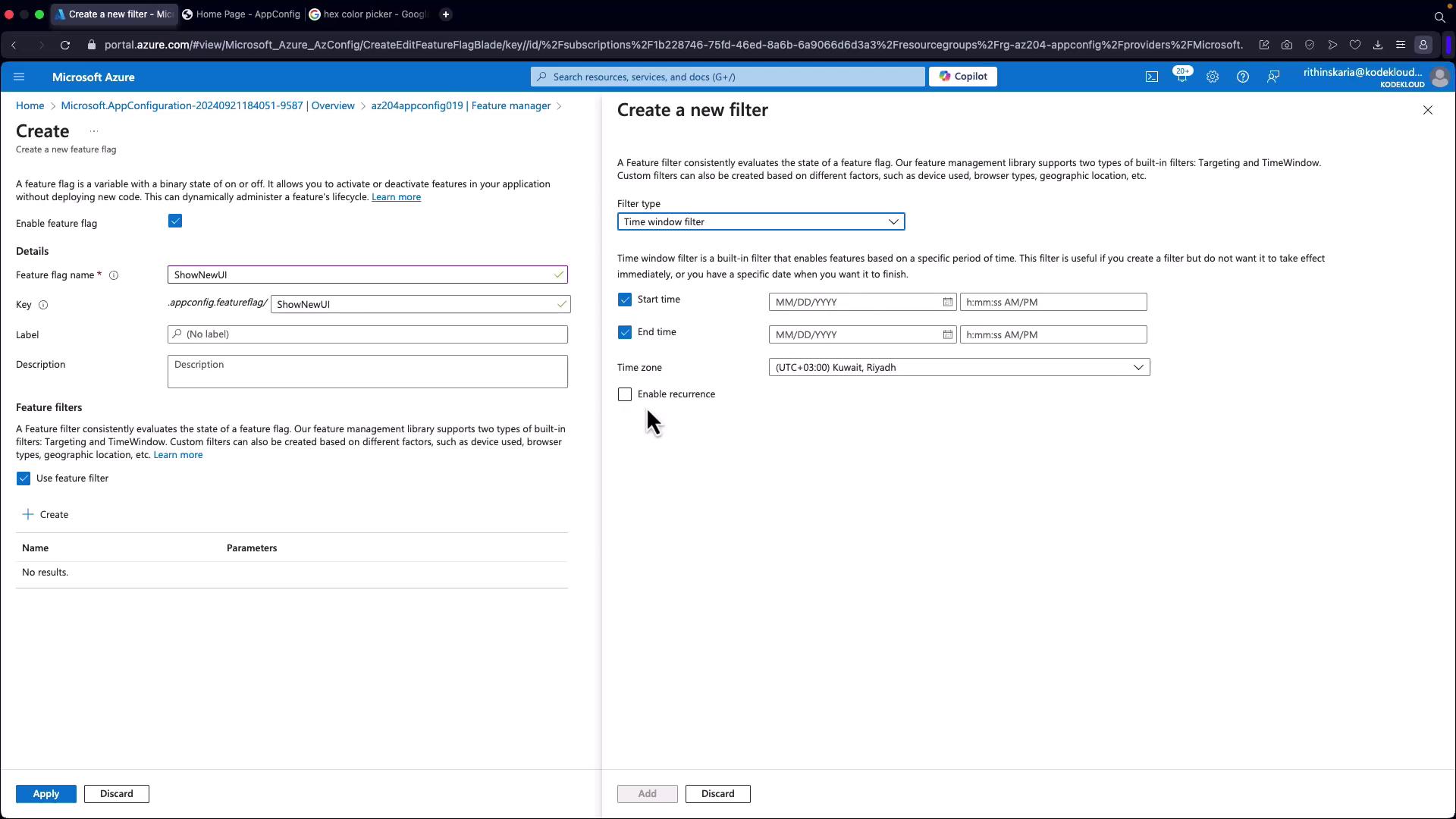
Feature flags are managed directly through the Azure portal. Follow these steps to create and configure a feature flag:- Click on “Create” and select “Feature Flag”.
- Provide a unique name (e.g., “ShowNewUI”) and optionally add a description and label.
- Add filters if you require targeted control, such as a time window filter for scheduling.
Updated program.cs for Feature Management
Below is the enhancedprogram.cs configuration that includes support for feature flags:
Updated csproj File for Feature Management
Ensure your project file includes the appropriate packages:Testing Feature Flags
In the HomeController (as shown earlier), default configuration values are overridden when the “ShowNewUI” feature flag is enabled. Activating this flag in the Azure portal will update your application UI dynamically, while disabling the flag will revert to the default configuration.