

Relevant libraries
Use the Azure SDK packages below to interact with Azure Queue Storage from .NET. The table summarizes each library and when to use it.
Recommended links:
Quick example: create a QueueClient using a connection string
This minimal synchronous snippet demonstrates the basic sequence: instantiate a QueueClient using a connection string, create the queue if it doesn’t exist, and send a message. For production use prefer async APIs (CreateIfNotExistsAsync, ExistsAsync, SendMessageAsync) and modern configuration patterns.Tip:
ConfigurationManager.AppSettings is common in .NET Framework. In modern .NET (Core, .NET 5/6/7+) prefer IConfiguration (appsettings.json) or environment variables (Environment.GetEnvironmentVariable) and use the async SDK methods (CreateIfNotExistsAsync, ExistsAsync, SendMessageAsync) for improved scalability.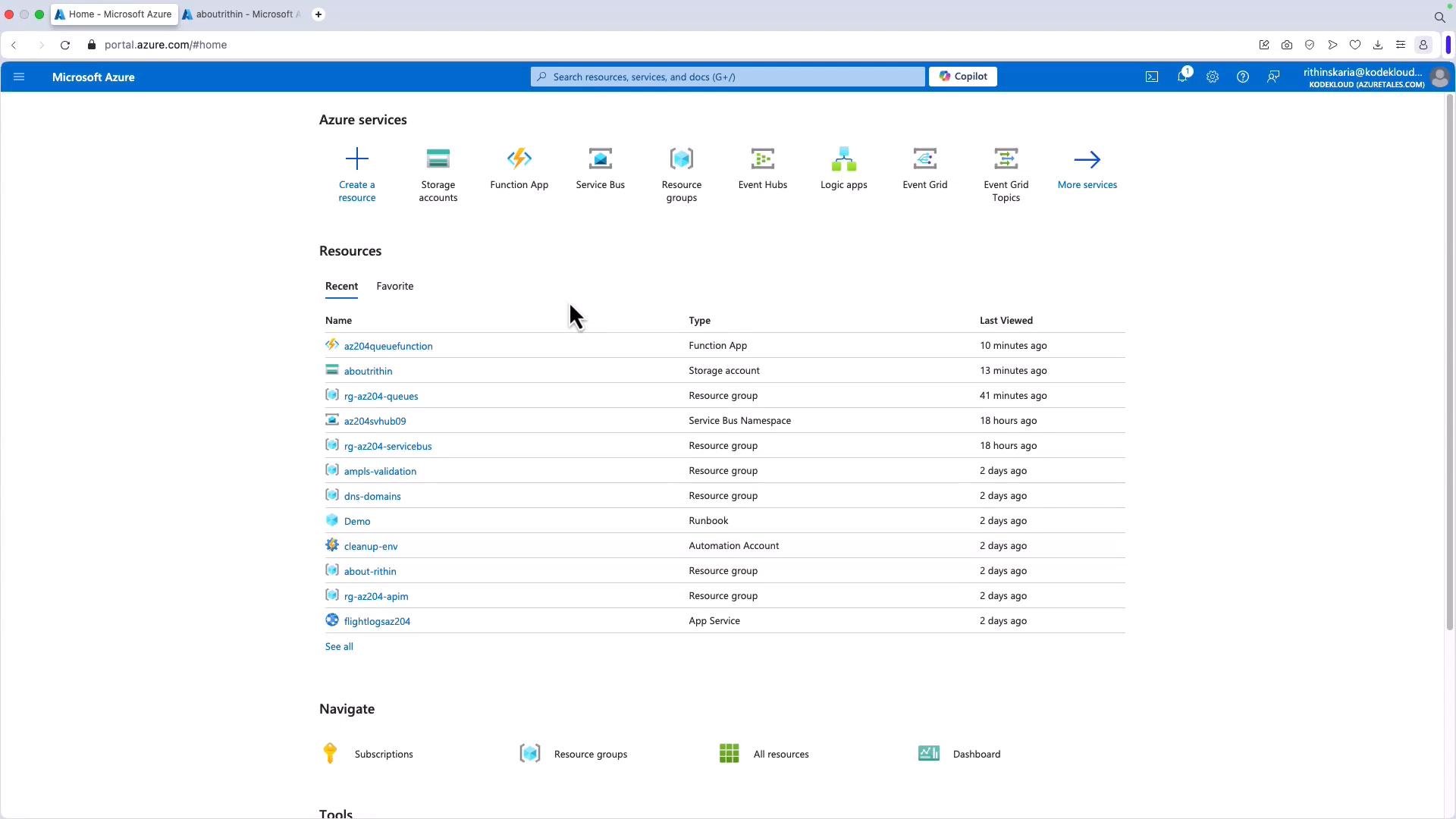
az204fnqueuewriter in Canada Central with Standard LRS). After the account is created you can add queues from the storage account’s Queues blade — the code examples below will also create the queue at runtime if it does not exist.
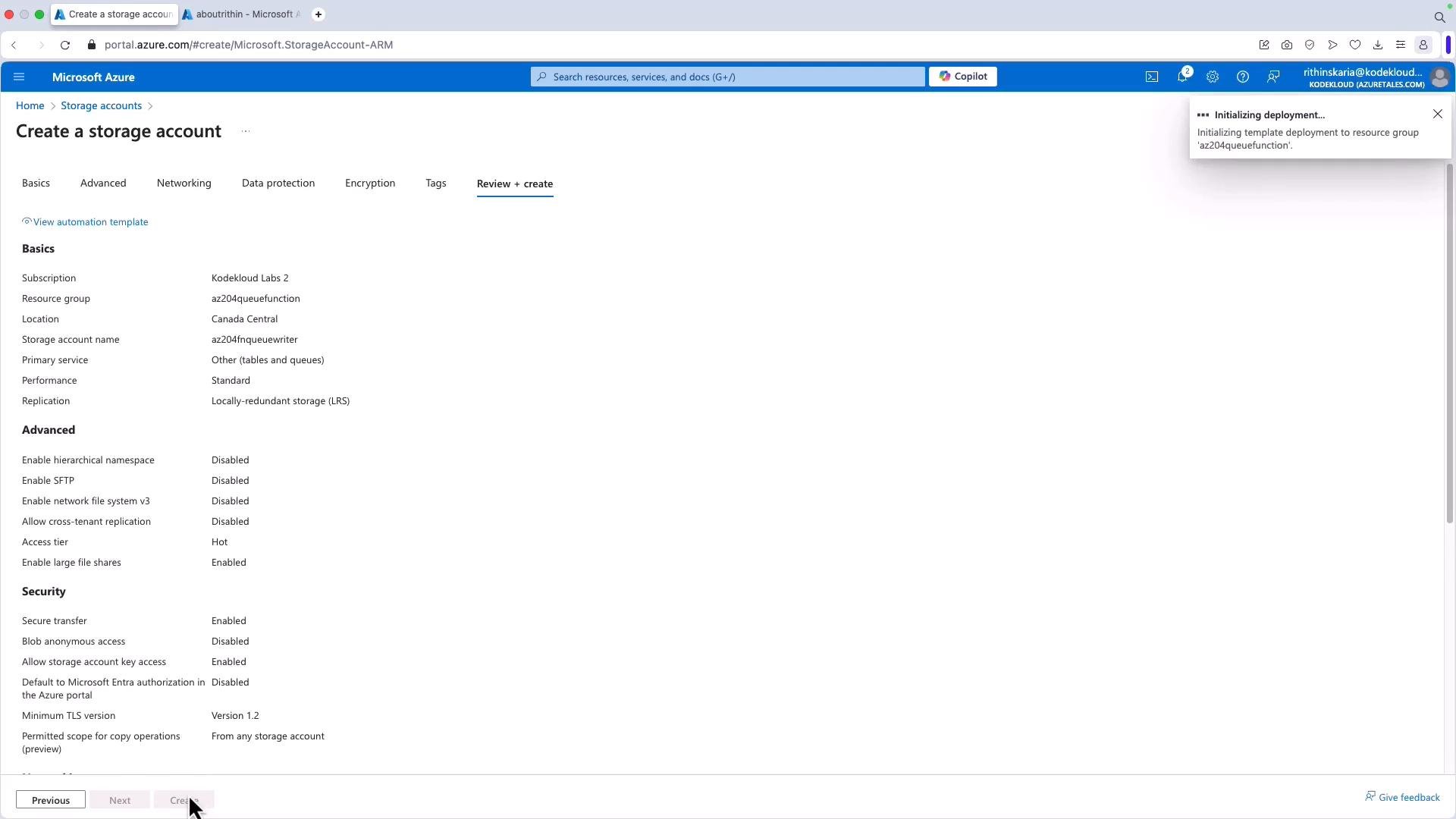
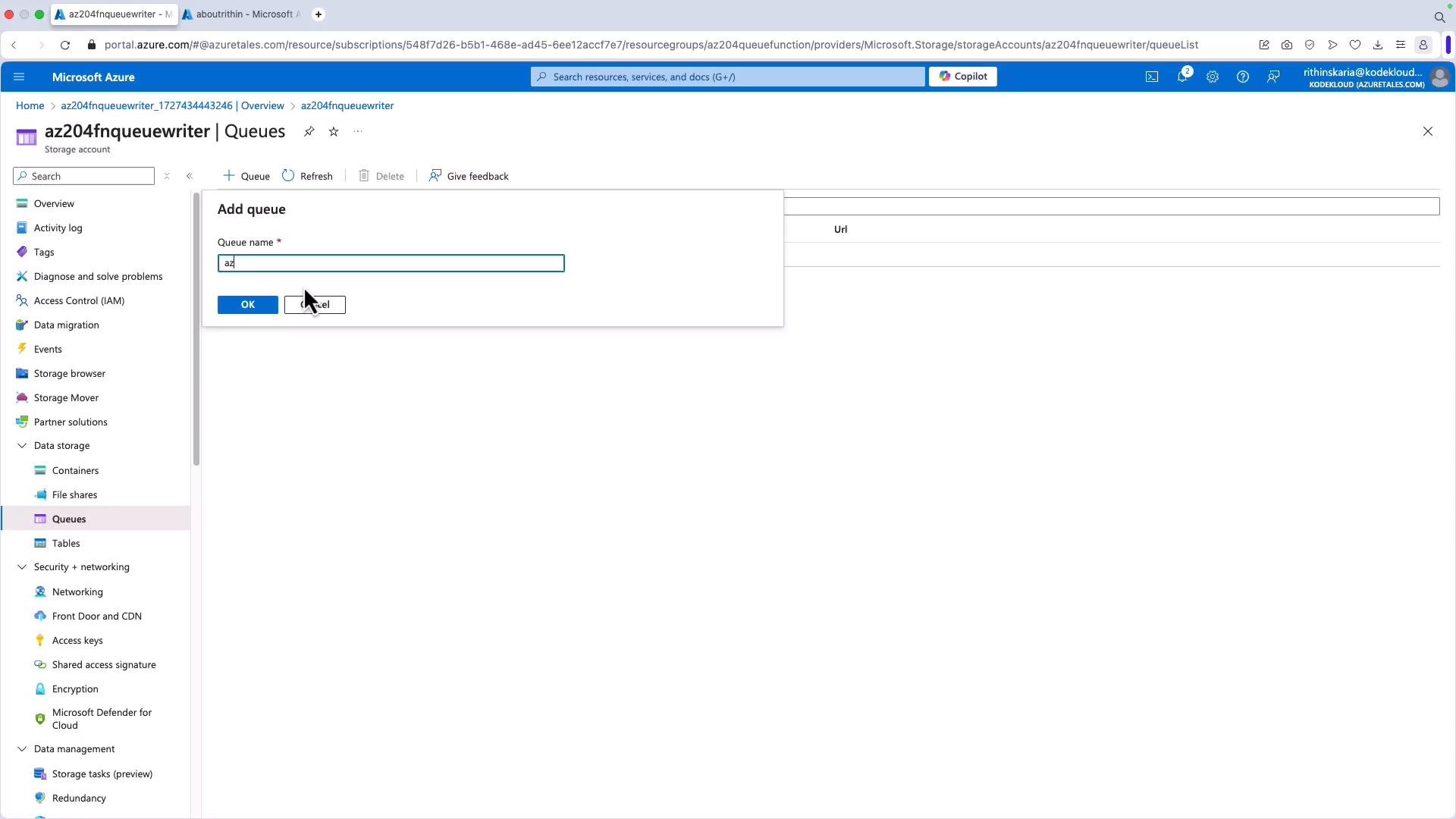
az204) if you prefer creating it manually.
Azure Function: post messages to a queue using Managed Identity
This consolidated Azure Function implements a POST endpoint that:- Reads the POST body as JSON
- Uses
DefaultAzureCredentialto authenticate (function app managed identity) - Ensures the queue exists
- Sends the request body as a queue message
- Returns appropriate HTTP responses and logs progress
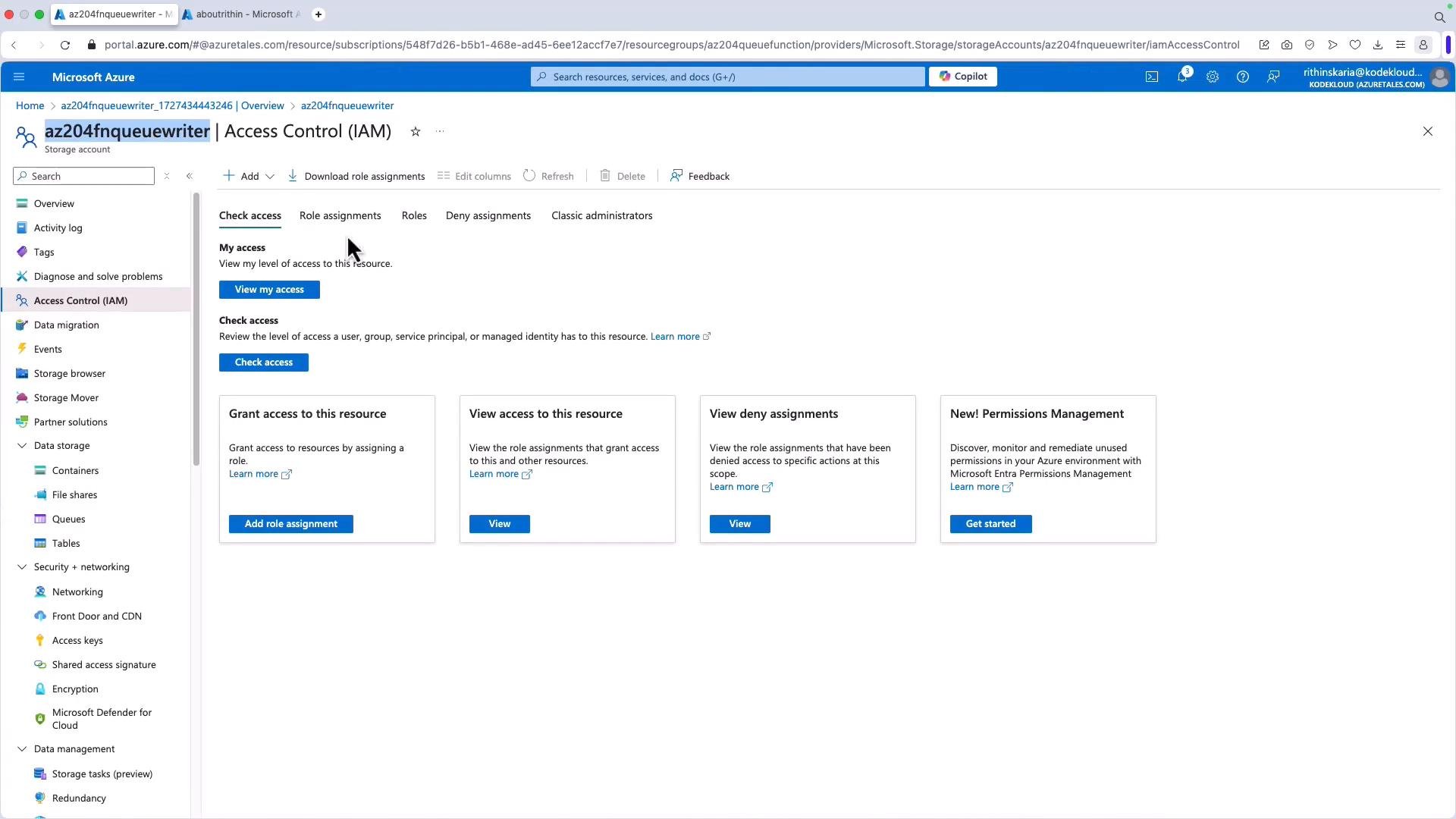
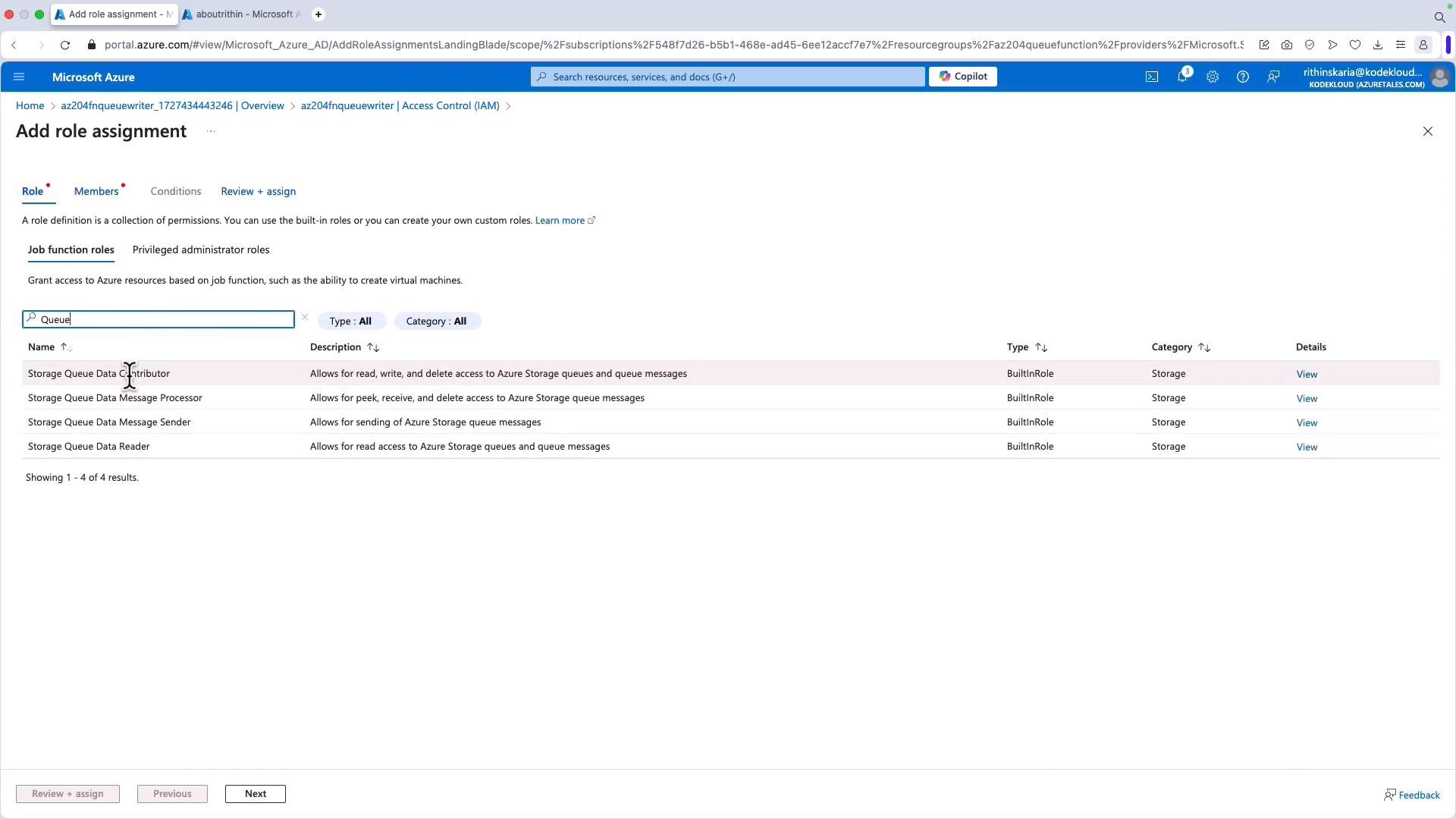
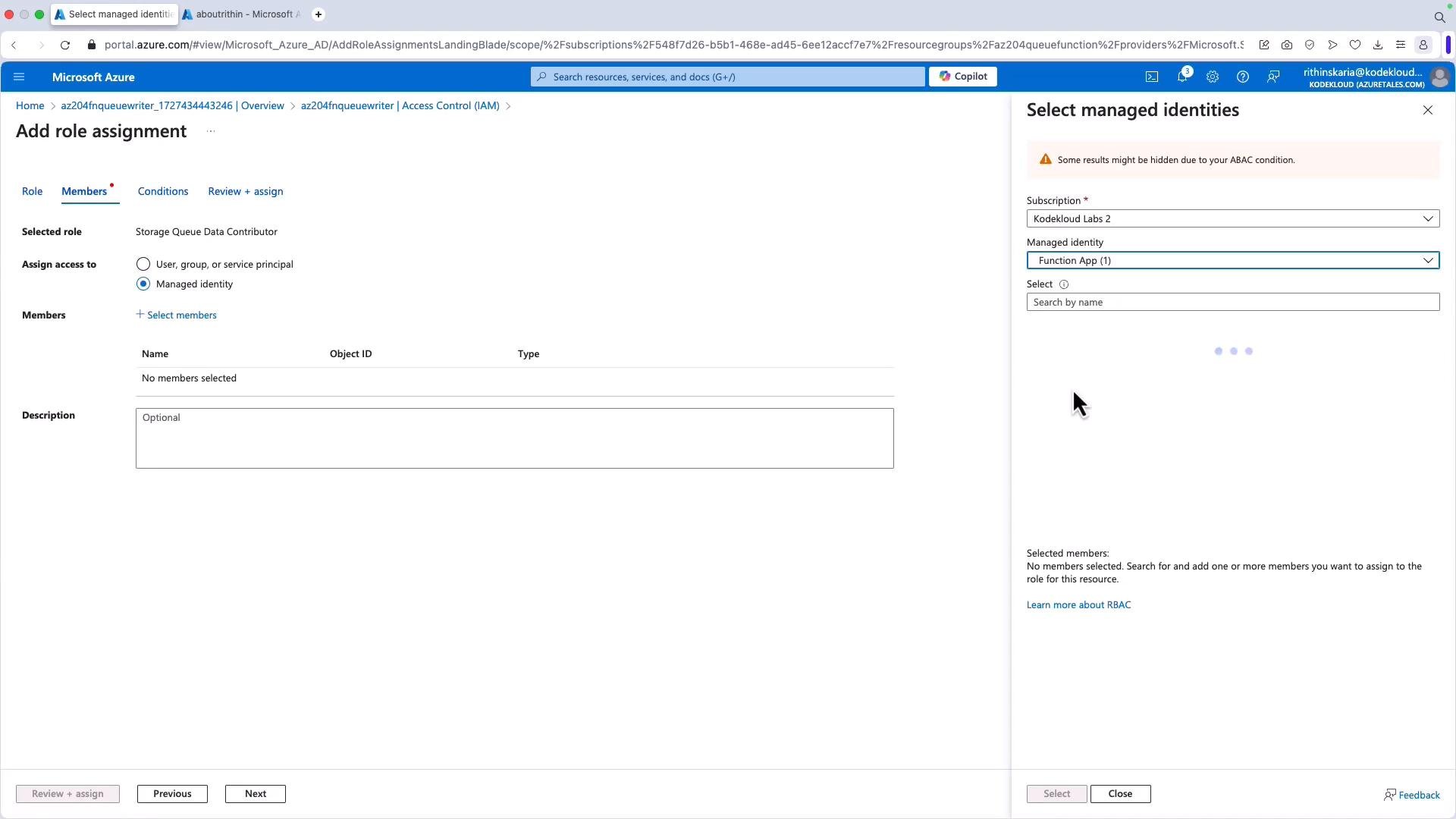
Storage Queue Data Contributor or Storage Queue Data Message Sender) on the storage account.
Azure Storage Queue messages have a maximum size of 64 KB. For larger payloads, store content in Blob Storage and send a reference (SAS URL or blob URL) in the queue message instead of the full payload.
Grant your Function App’s managed identity access to the storage account via the Access Control (IAM) blade. The following images show the IAM UI for a storage account and the role assignment flow.
Content-Type: application/json.
Example auto-generated function.json (for reference):
Viewing and verifying messages
To verify messages inserted by the function:- Open Microsoft Storage Explorer or the portal’s Queues blade for your storage account.
- Refresh the queue view and open the queue (for example,
az204) to inspect messages. - Messages can then be processed by another function, written to a database (e.g., Cosmos DB), or consumed by any downstream service.
Summary
You have seen how to:- Configure and use the Azure Storage Queues client (
Azure.Storage.Queues) in .NET - Create queues at runtime or manually in the portal
- Use DefaultAzureCredential / managed identity in an Azure Function to post messages securely
- Assign appropriate Storage Queue role permissions to the function app identity
- Verify messages using Storage Explorer or the portal
Links and references
- Azure Storage Queues overview
- Azure Functions authentication and authorization
- Azure SDK for .NET documentation