

- Initialize a
CosmosClientwith your account endpoint and key. - Get a
Containerreference for the target database and container. - Create or upsert items (
CreateItemAsync,UpsertItemAsync). - Read a single item by
idand partition key (ReadItemAsync<T>). - Query items with SQL-like queries via
GetItemQueryIterator<T>(returns aFeedIterator<T>).
References:
Create items
Start by creating aCosmosClient and obtaining the Container object for the database and container where you’ll store documents. The following example shows:
- Initializing the client and container.
- Defining a simple
EmployeePOCO. - Creating an item with
CreateItemAsync. - Demonstrating
UpsertItemAsync(insert-or-update).
If your container uses a partition key other than
id, include it when creating or upserting items so the SDK routes the write correctly. Example: await container.CreateItemAsync(employeeRecord, new PartitionKey(employeeRecord.department));UpsertItemAsyncis useful for idempotent writes — it inserts if theidis new, or replaces the existing item if theidexists.- Monitor
RequestChargefrom responses to understand RU consumption and tune throughput.
Read a single item
Reading an item requires the item’sid and its partition key value (if the container uses one). Use ReadItemAsync<T> to fetch a single document and access the resource via ItemResponse<T>.Resource.
Query multiple items (paged queries with FeedIterator)
To query many documents, use SQL-like syntax withGetItemQueryIterator<T>. The method returns a FeedIterator<T> that yields FeedResponse<T> batches — which enables efficient paging through large result sets.
Creating a database and container in the Azure portal
If you don’t yet have a database and container, use the Azure portal Data Explorer to create them. The portal’s Overview page shows account essentials and quick access to Data Explorer.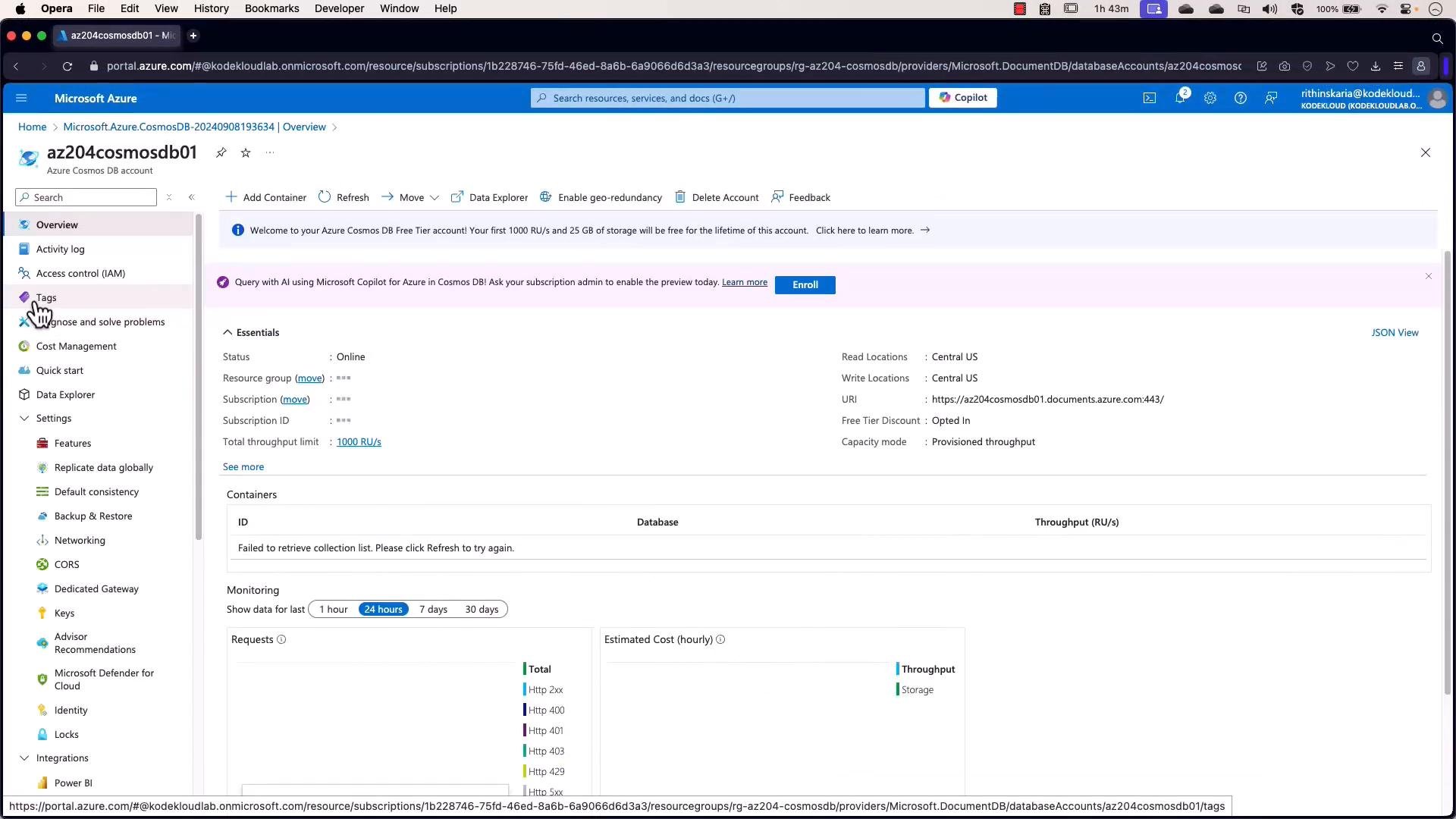
- Database id (create new or use existing).
- Provisioned throughput (RU/s) or serverless/free options.
- Container id and partition key path (for scale and routing).
- Indexing policy and any unique keys.
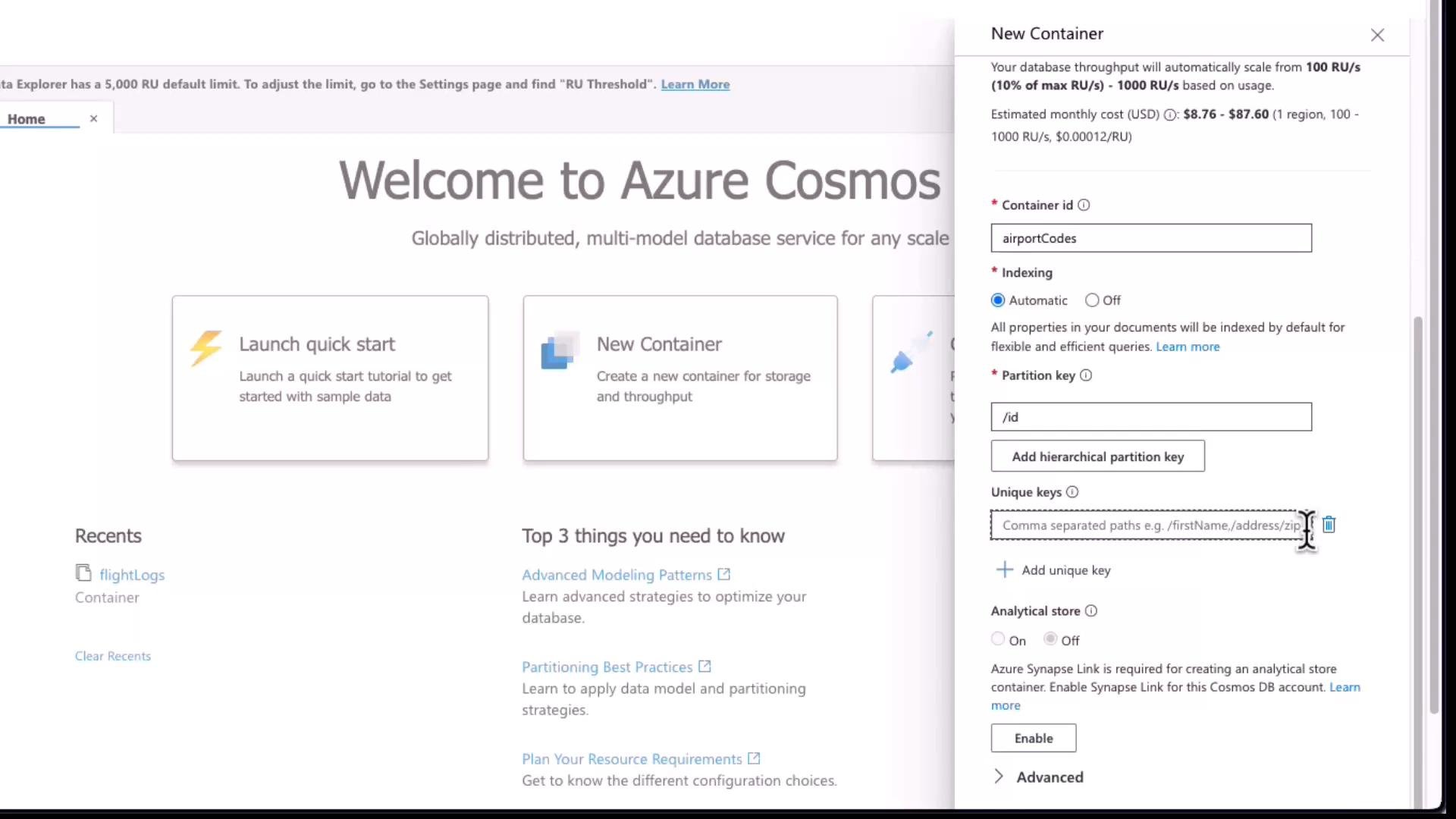
Bulk loading sample data (Data Migration Tool)
For test datasets or bulk imports, use the Cosmos DB Data Migration Tool (DMT). It supports sources such as JSON files, Amazon S3, and Azure Blob Storage and sinks including Cosmos DB (NoSQL). See the GitHub repository: https://github.com/Azure/azure-documentdb-datamigrationtool. Sample migration settings for a JSON source to a Cosmos DB sink:Visual Studio: adding, reading, and querying items from .NET
Create a Console application and add theMicrosoft.Azure.Cosmos NuGet package. Use the account URI and primary key from the Azure portal Keys blade to configure CosmosClient. Do not hard-code secrets in production—use managed identities and Azure Key Vault.
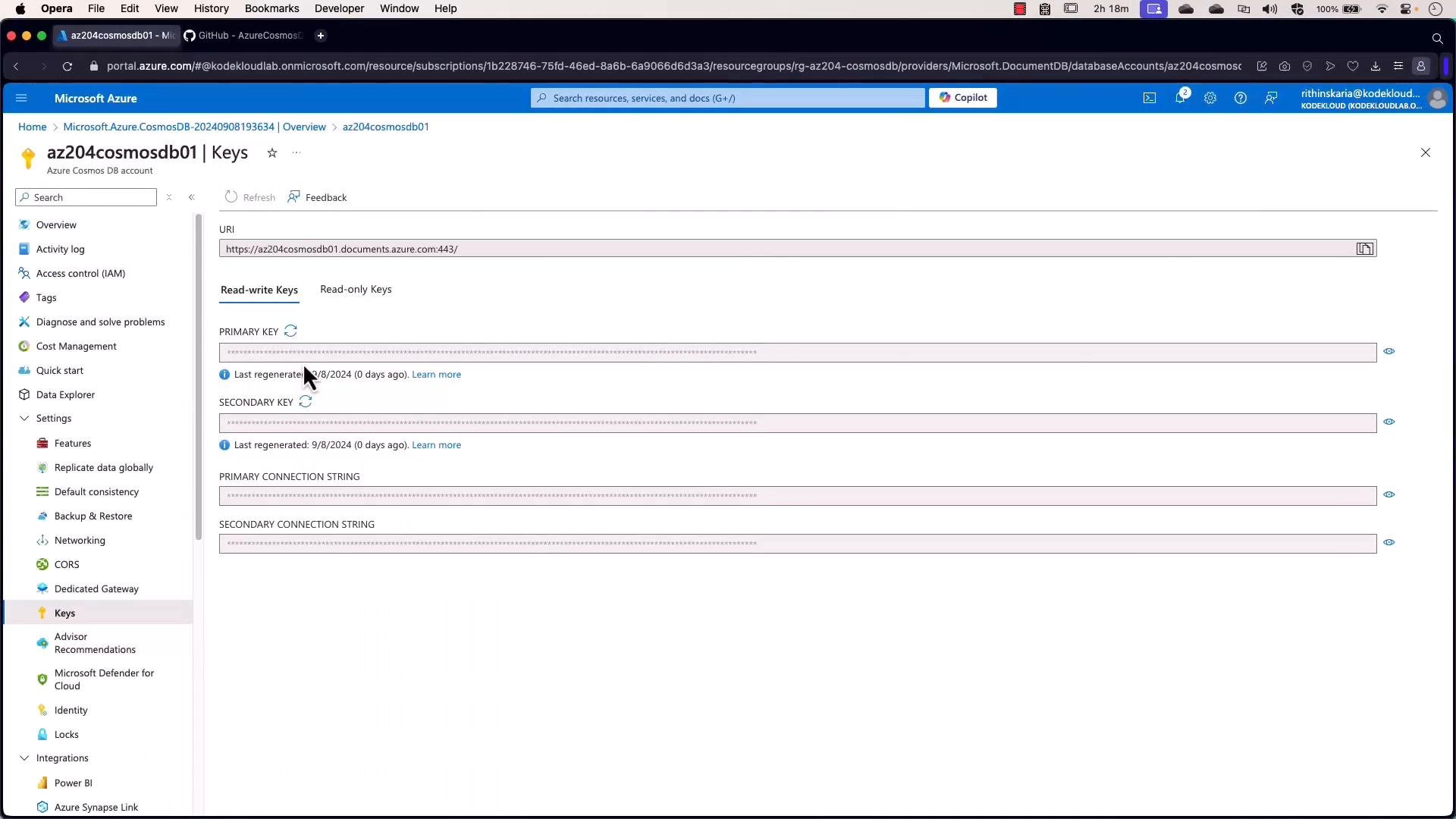
Do not store keys or secrets in source code for production. Use managed identities with Key Vault or other secure secret storage.
Querying by country_code (example)
If your documents use acountry_code property, filter by that property in your SQL query. The sample below shows querying airports by country_code and printing each airport name.
This lesson covered the essential CRUD and query patterns for using the Microsoft .NET SDK with Azure Cosmos DB. From here you can expand into partition key design, throughput tuning (RU/s), bulk imports, change feed processing, and server-side programming (stored procedures, triggers, and UDFs). Further reading and resources: