

Restart Policies in Azure Container Instances
Restart policies control the behavior of a container once its task completes. There are three options available:-
Always
The container restarts automatically after completion. This option is ideal for processes that need to run continuously. -
Never
Once the container completes its task, it stops permanently. Use this policy for one-off tasks where no further execution is required. -
On-Failure
The container restarts only if its process fails. This policy ensures fault tolerance while preventing unnecessary restarts after successful executions.

Configuring Environment Variables via YAML
You can pass configuration values such as connection strings and secrets to your containers using environment variables, eliminating the need to rebuild container images for configuration changes. This configuration is typically done by supplying a YAML file during container group creation. Below is an example YAML file that creates a container group with a single container using the “Always” restart policy. In this example, an environment variable for an Azure Storage account connection string is set and marked as secure:You can define multiple containers in the ‘containers’ array, each configured with its own resource requests and environment variables.
Passing Environment Variables via the CLI
If you prefer using the Azure CLI, you can set environment variables during container creation. This method is particularly useful for dynamically adjusting application logic without modifying the container image. For example, the following command creates a container with two environment variables (NumWords and MinLength):
Deploying a Container Instance with Registry Credentials in Azure Portal
You can also deploy container instances via the Azure portal using Cloud Shell. When using a private registry, providing the appropriate registry credentials is essential. The following command shows how to create a container instance with registry credentials, specify the port, and assign a public IP address: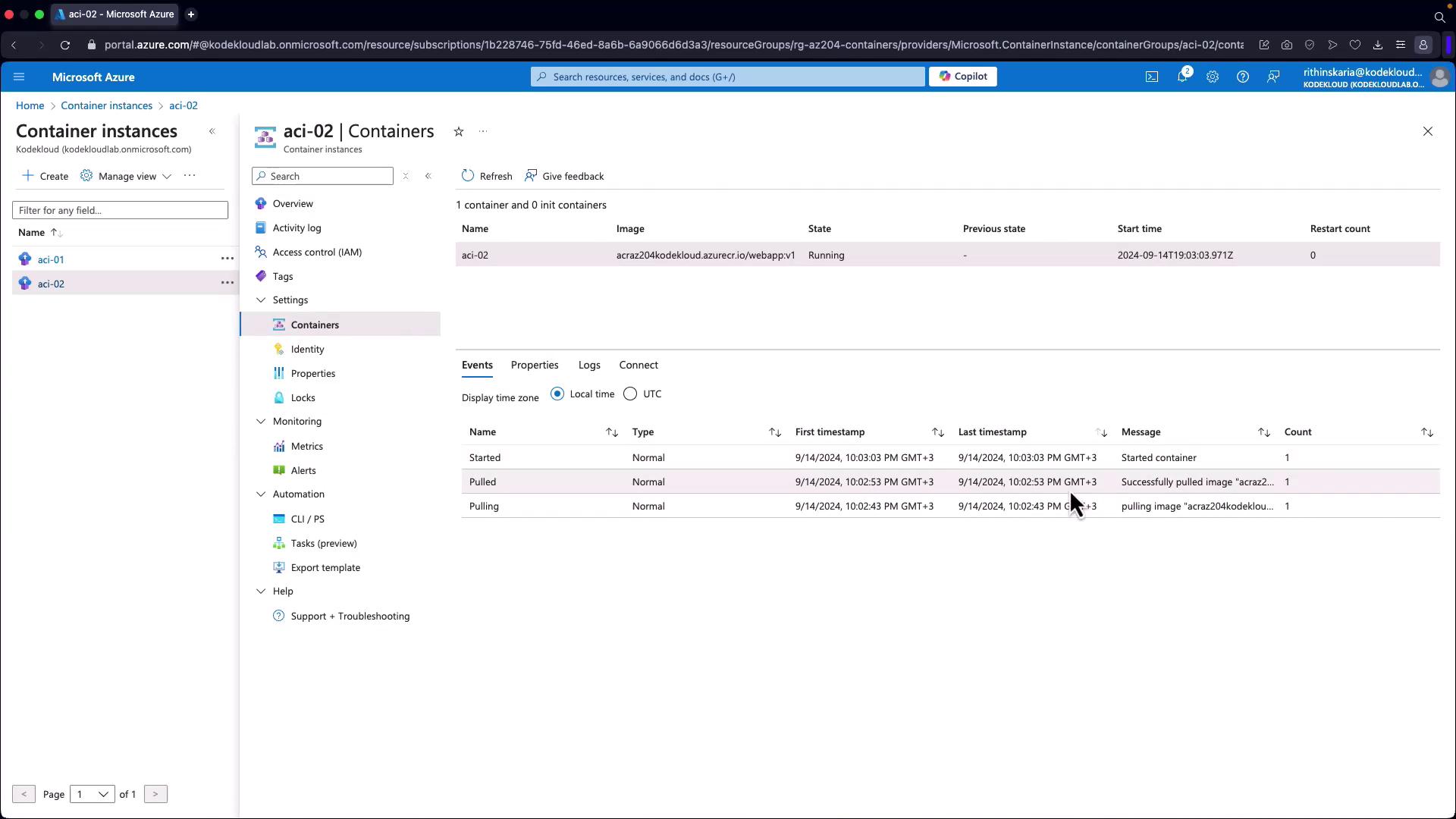
Mounting Storage to Azure Container Instances
In addition to environment variables, Azure Container Instances support storage mounting. The following command demonstrates how to create a container instance with environment variables; this pattern can be extended to include storage mounting configurations as needed:By leveraging restart policies and environment variables, you can manage container lifecycles dynamically and securely update configurations in Azure Container Instances. These techniques empower you to optimize resource utilization and adapt your containerized applications to evolving requirements.