

Key Differences from Azure Container Instances
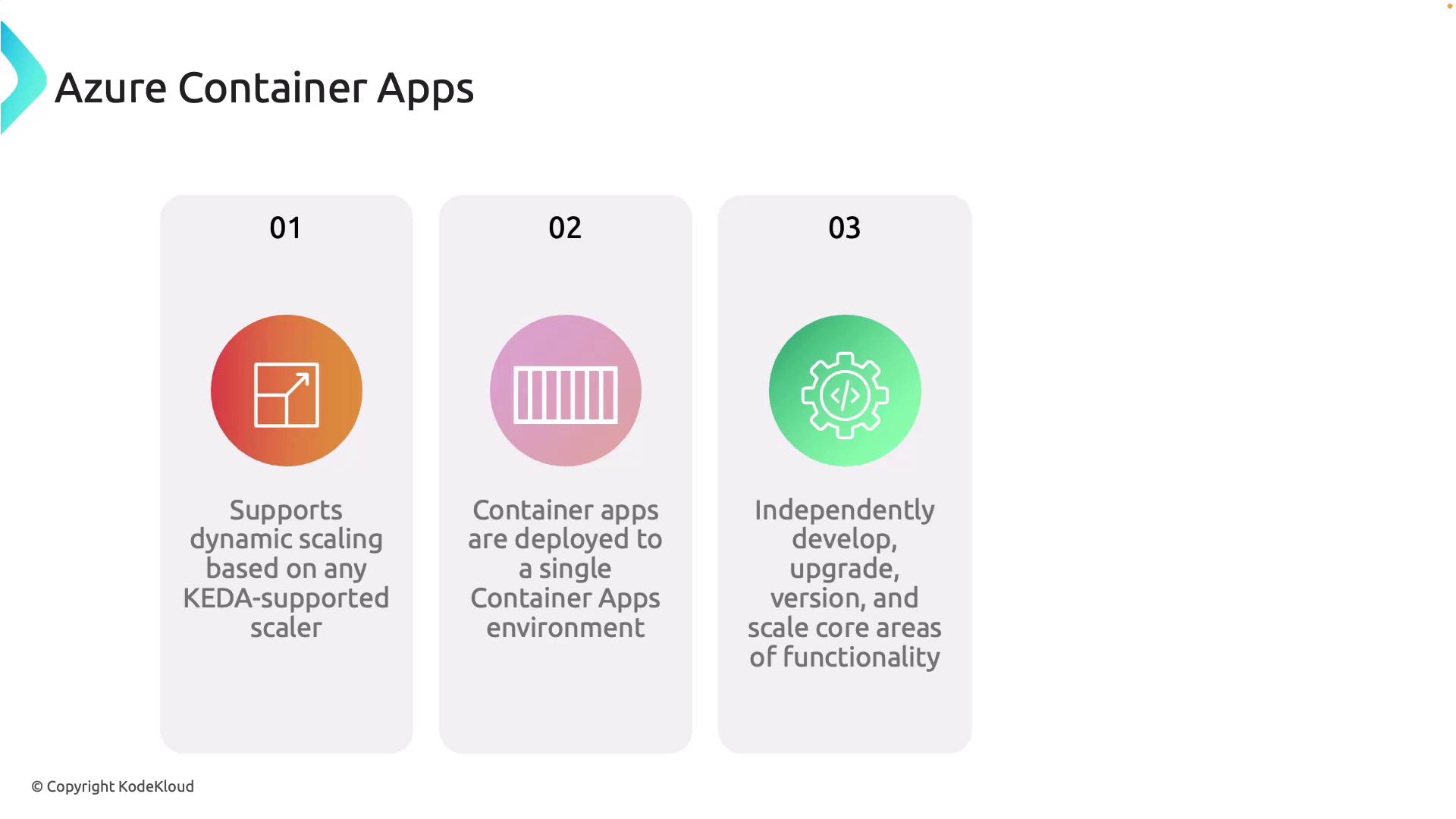
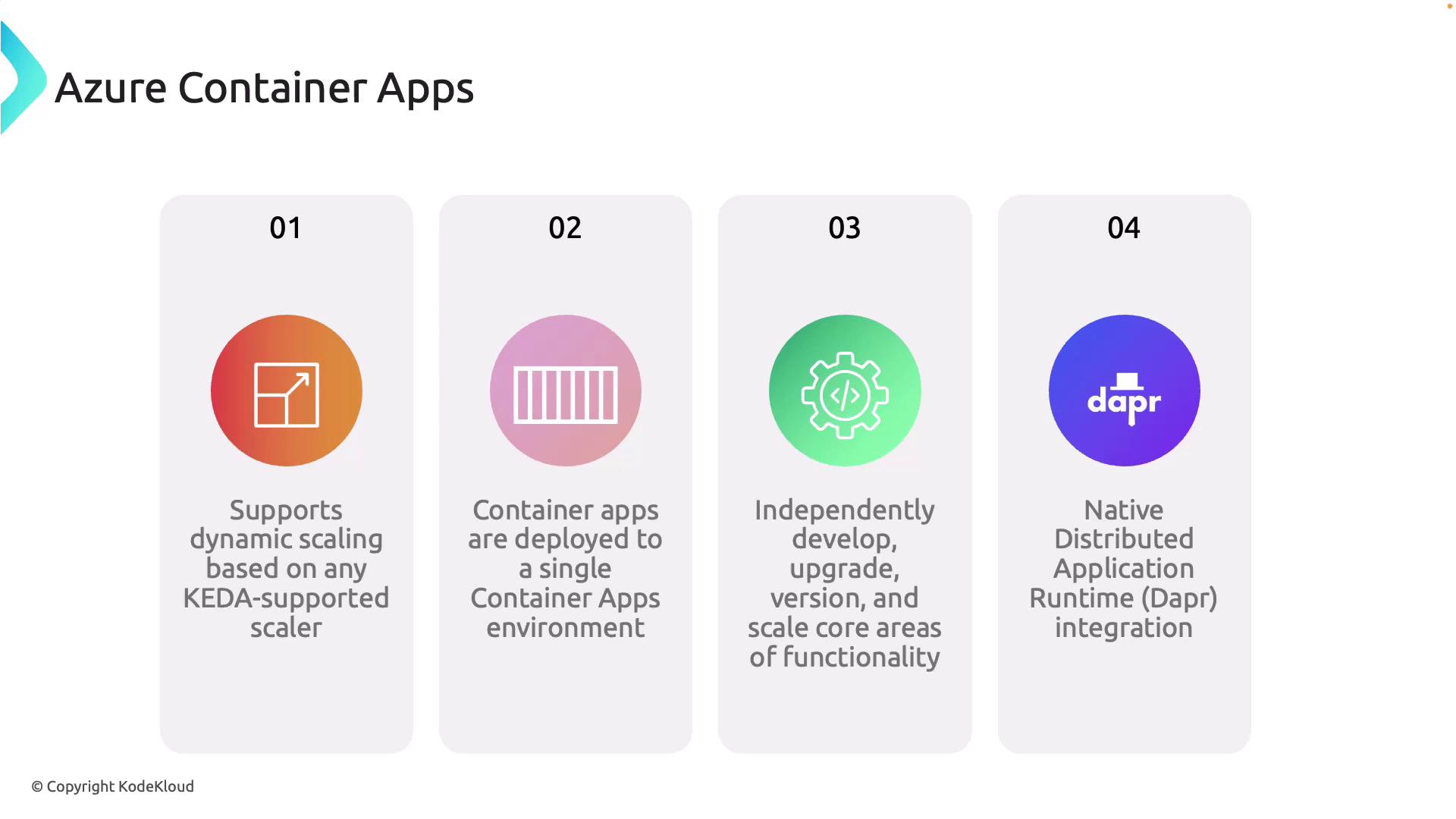
Azure Container Apps offers several advantages compared to Azure Container Instances by acting as an orchestrator with advanced features:-
Dynamic Scaling with KEDA:
Azure Container Apps leverages Kubernetes Event-Driven Auto Scaling (KEDA) to automatically scale applications based on CPU, memory usage, or external event triggers such as message queues. -
Deployment to a Single Environment:
All containerized applications are deployed within a secure, isolated environment, ensuring safe and reliable communication among apps. -
Independent Service Development:
Utilizing a microservices architecture, container apps can be developed, updated, and scaled independently which reduces risk and increases flexibility. -
Native Dapr Integration:
Built-in support for the Distributed Application Runtime (Dapr) simplifies microservices development with APIs for Pub/Sub messaging, service invocation, and state management, helping you construct resilient and scalable applications.
Container Structure and Pods
Azure Container Apps uses scalable architectures where containers are grouped into pods—logical units in Kubernetes that share resources and network namespaces. A common design pattern is the sidecar model, which adds auxiliary functionalities like logging, monitoring, and inter-service communication to support the main container service.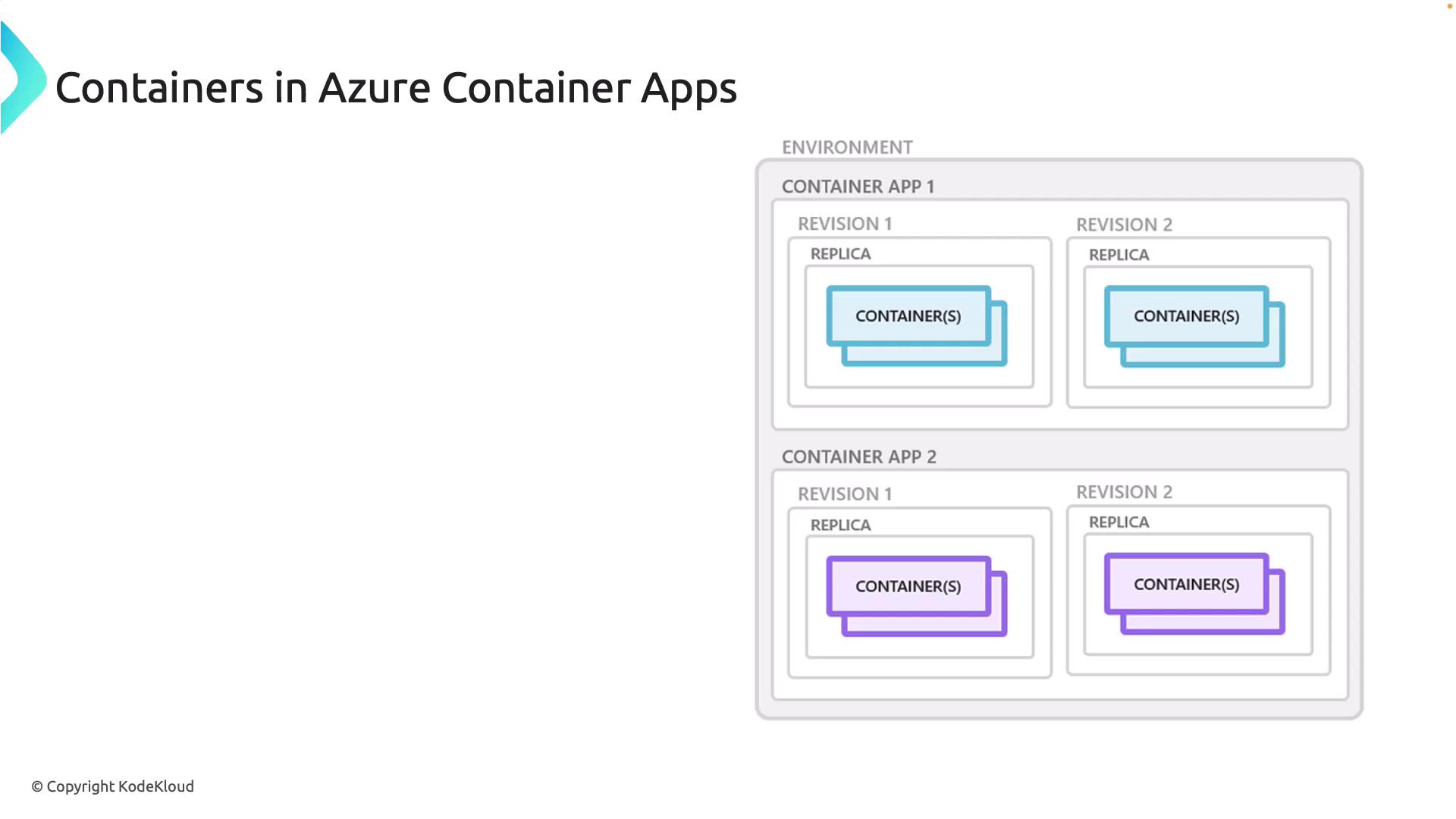
Working with Container Images and the Azure Portal
Azure Container Apps enables secure deployment of container images stored in private registries such as Azure Container Registry (ACR). By configuring the proper credentials, you ensure that sensitive container images remain protected during the deployment process. For example, consider the deployment of the Airport Codes API. This API reads a JSON file and has been containerized using the following Dockerfile:Deploying to Azure Container Apps
Next, you’ll deploy the web API to Azure Container Apps using the Azure CLI. While the Azure Portal provides a user-friendly, click-based experience, the Azure CLI offers more control over your deployment.Step 1: Create a Resource Group
Create a resource group to consolidate your Azure resources:Step 2: Create a Container Apps Environment
Establish a secure, isolated environment in which your container apps will run:Step 3: Create the Container App
Deploy the container app using your published image with the following command: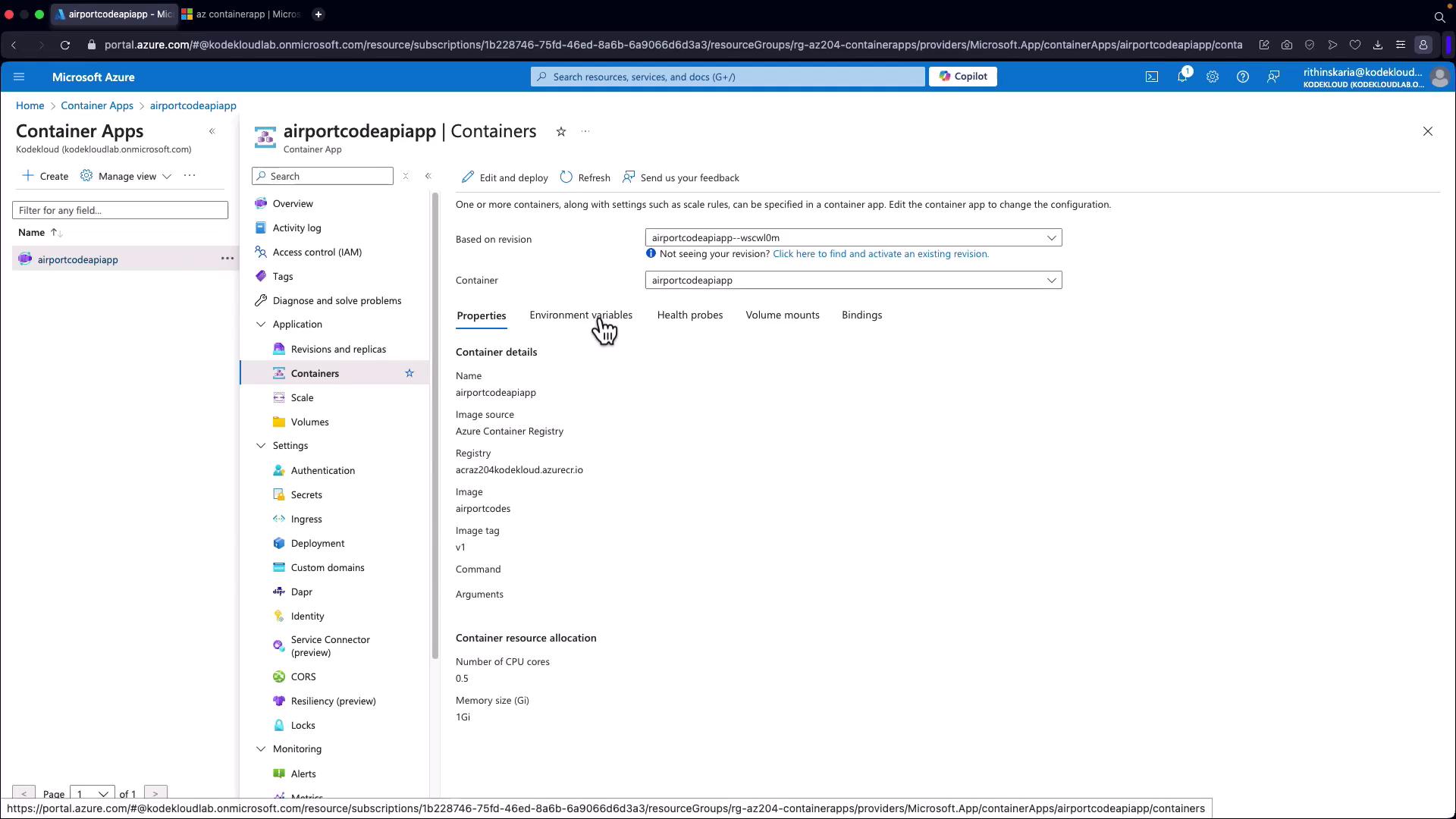
If the target port does not match the port that your application is listening on (for example, if your project uses port 8080), update your application’s configuration accordingly. Alternatively, create a second container app with the correct port mapping.
Next Steps
Now that your container app is successfully deployed, consider implementing authentication and authorization to secure your API and ensure that only authorized users have access. By following these steps, you have learned how to build a container image, push it to Azure Container Registry, and deploy it as an Azure Container App using the Azure CLI. Enjoy building resilient and scalable applications on Azure Container Apps!Additional Resources
- Azure Container Apps Documentation
- Azure CLI Documentation
- Kubernetes Basics
- Docker Hub
- Terraform Registry