

main branch. By the end, you’ll have a seamless CI flow between GitHub and Azure DevOps.
1. Connect GitHub to Azure DevOps
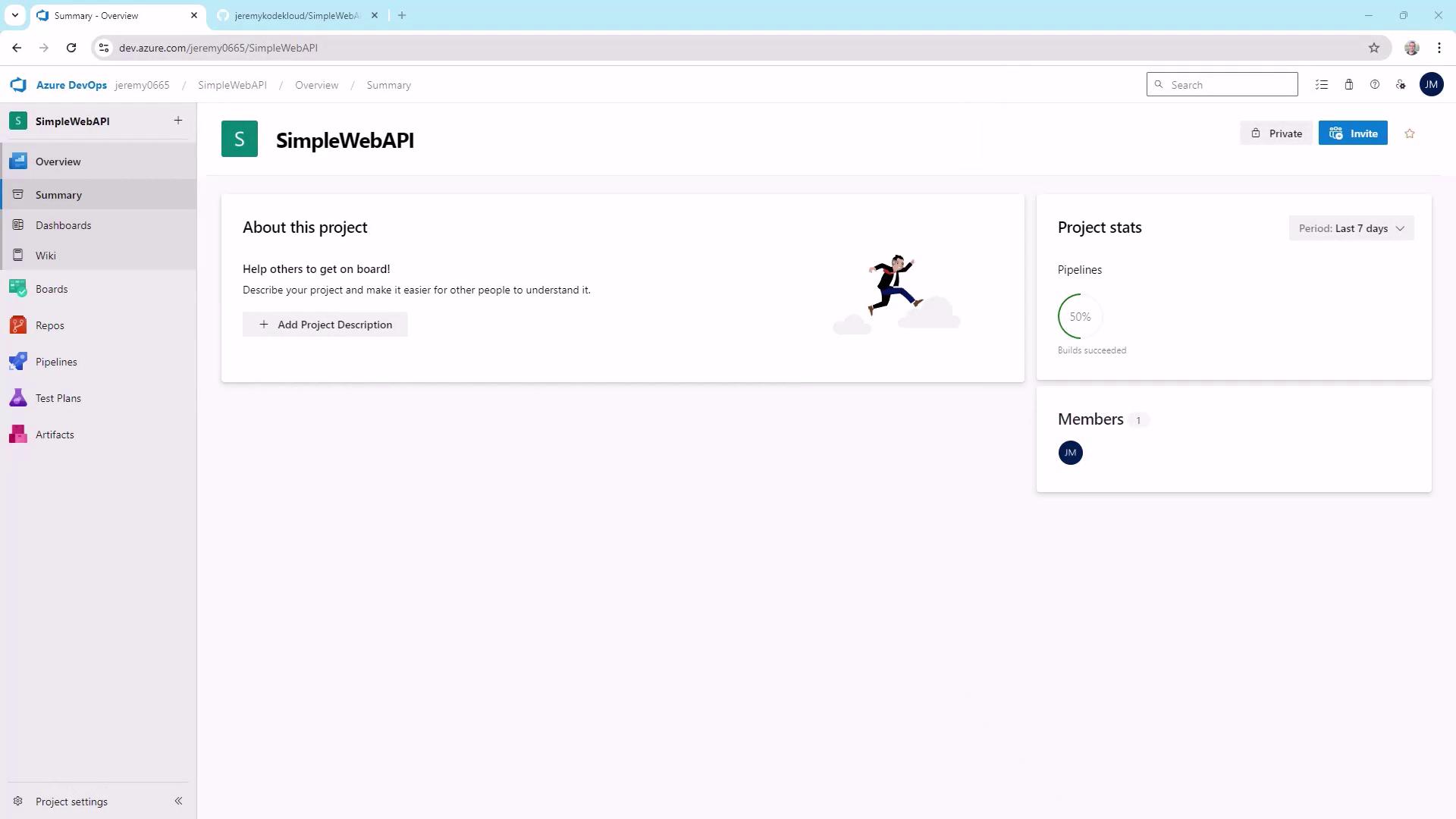
- In your Azure DevOps project (e.g., SimpleWebAPI), navigate to Project Settings → GitHub Connections.
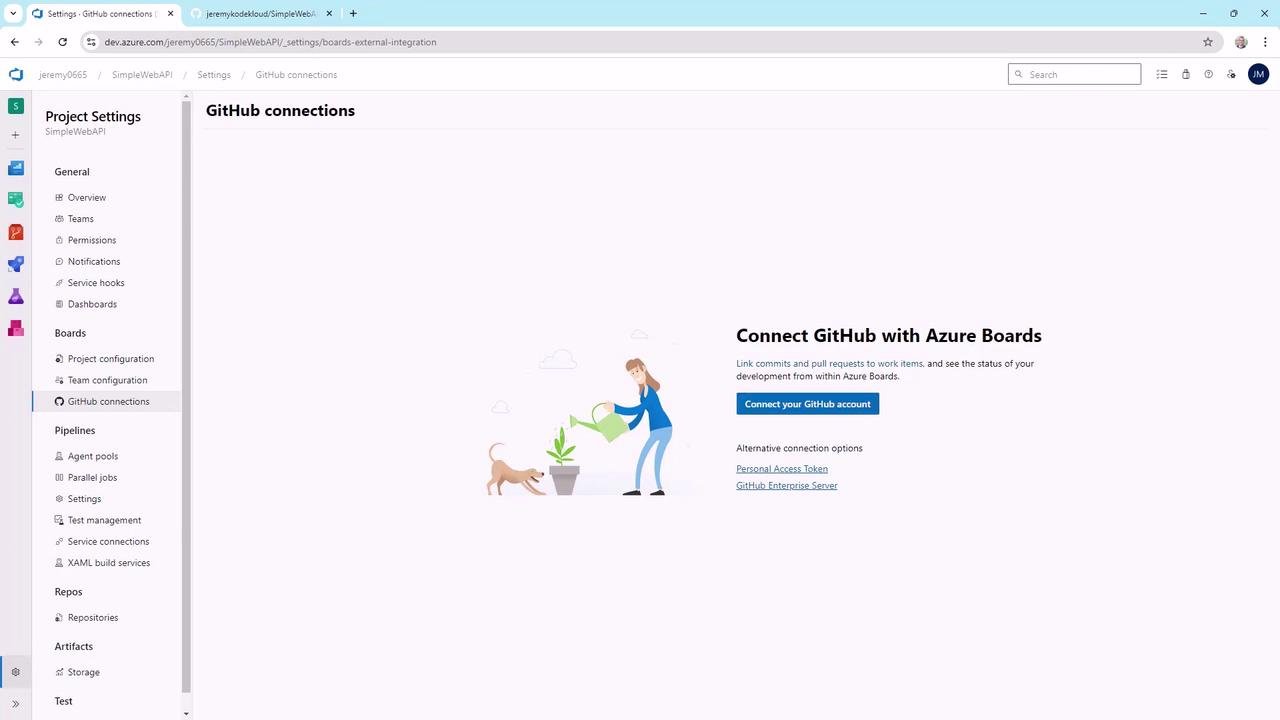
- Click Connect Your GitHub Account and authorize Azure DevOps to access your repos.
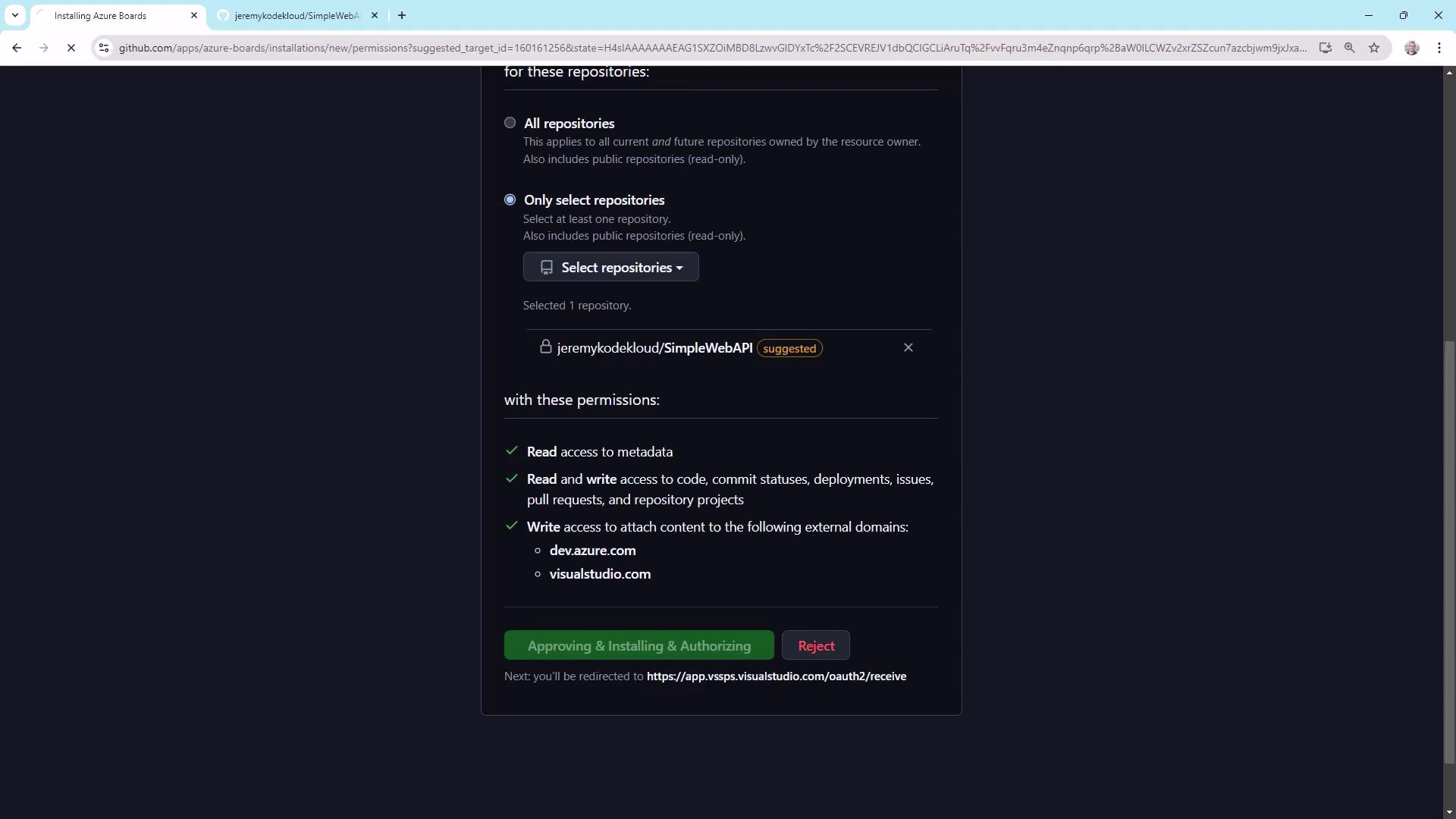
- Select the SimpleWebAPI repository and hit Save, then approve the installation in GitHub.
2. Generate a Personal Access Token (PAT)
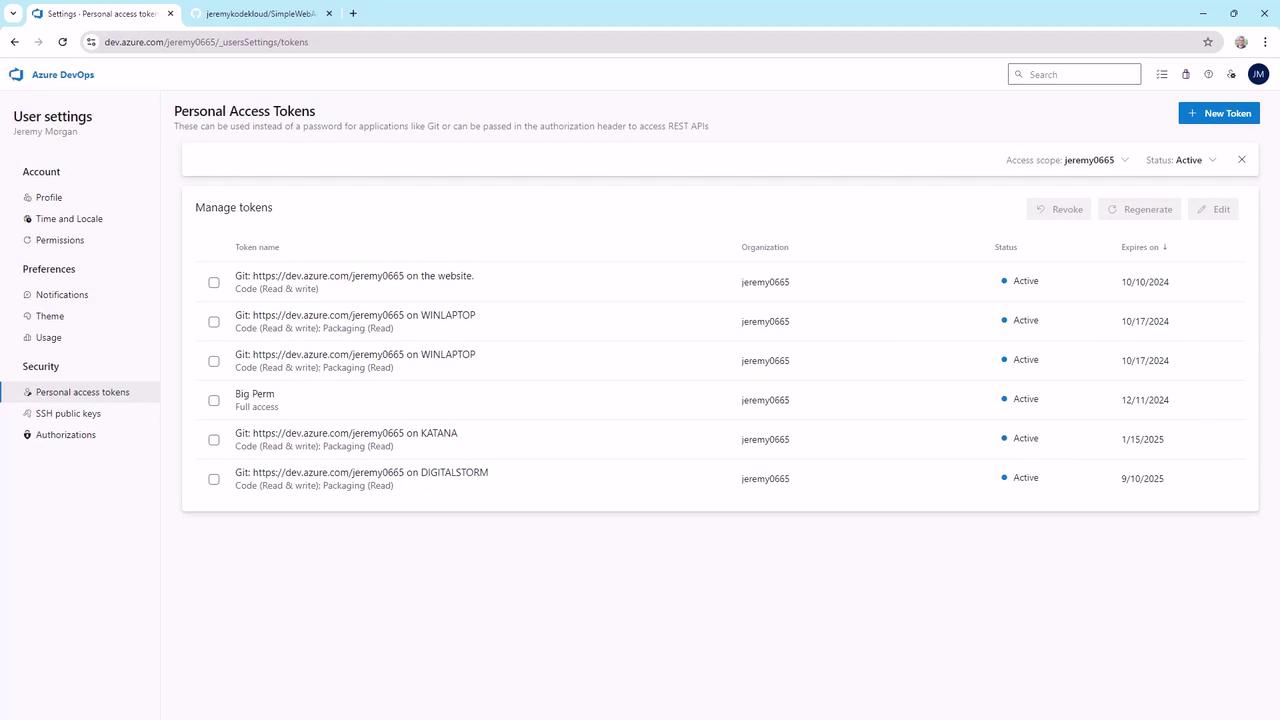
You’ll need a PAT with permissions to queue builds. In Azure DevOps:- Click your user icon → Personal Access Tokens → New Token.
- Give it a name, expiration date, and select scopes:
- Build (read & execute)
- Token administration (read & manage)
- Create the token and copy it immediately.
You will only see the PAT value once. Store it securely in your password manager.
3. Create an Azure Pipeline
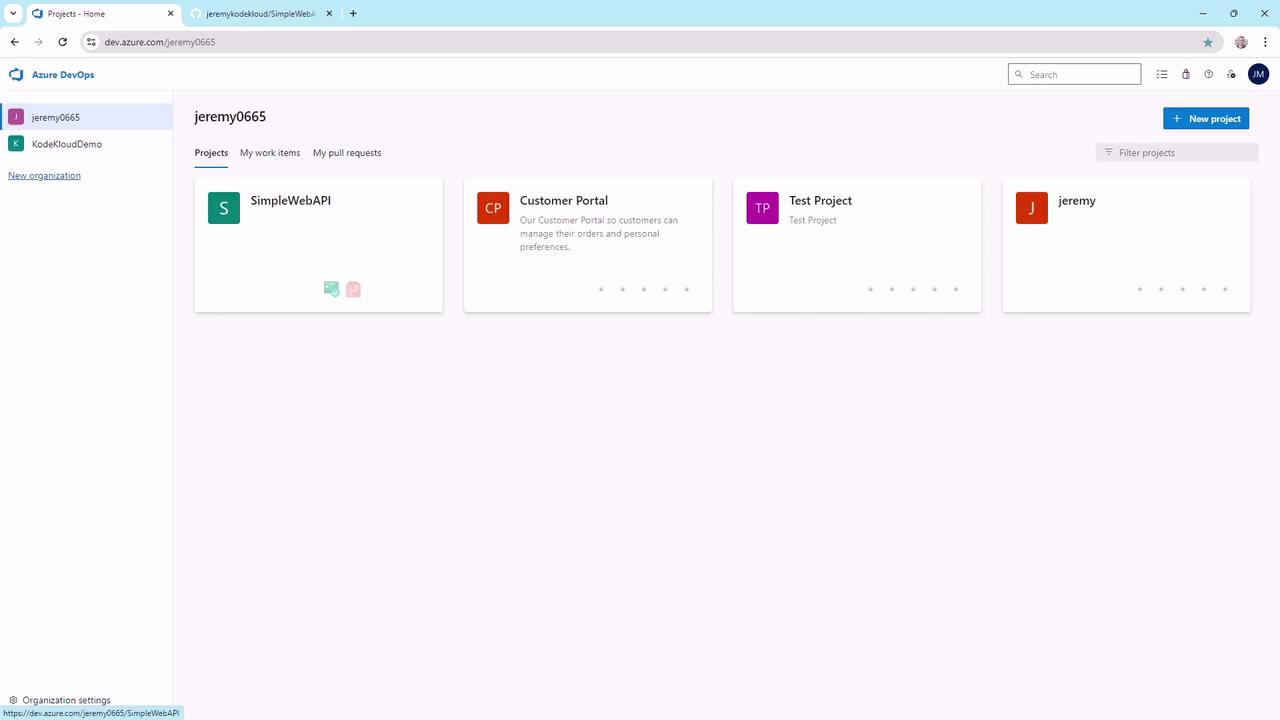
- In SimpleWebAPI, select Pipelines → Create Pipeline.
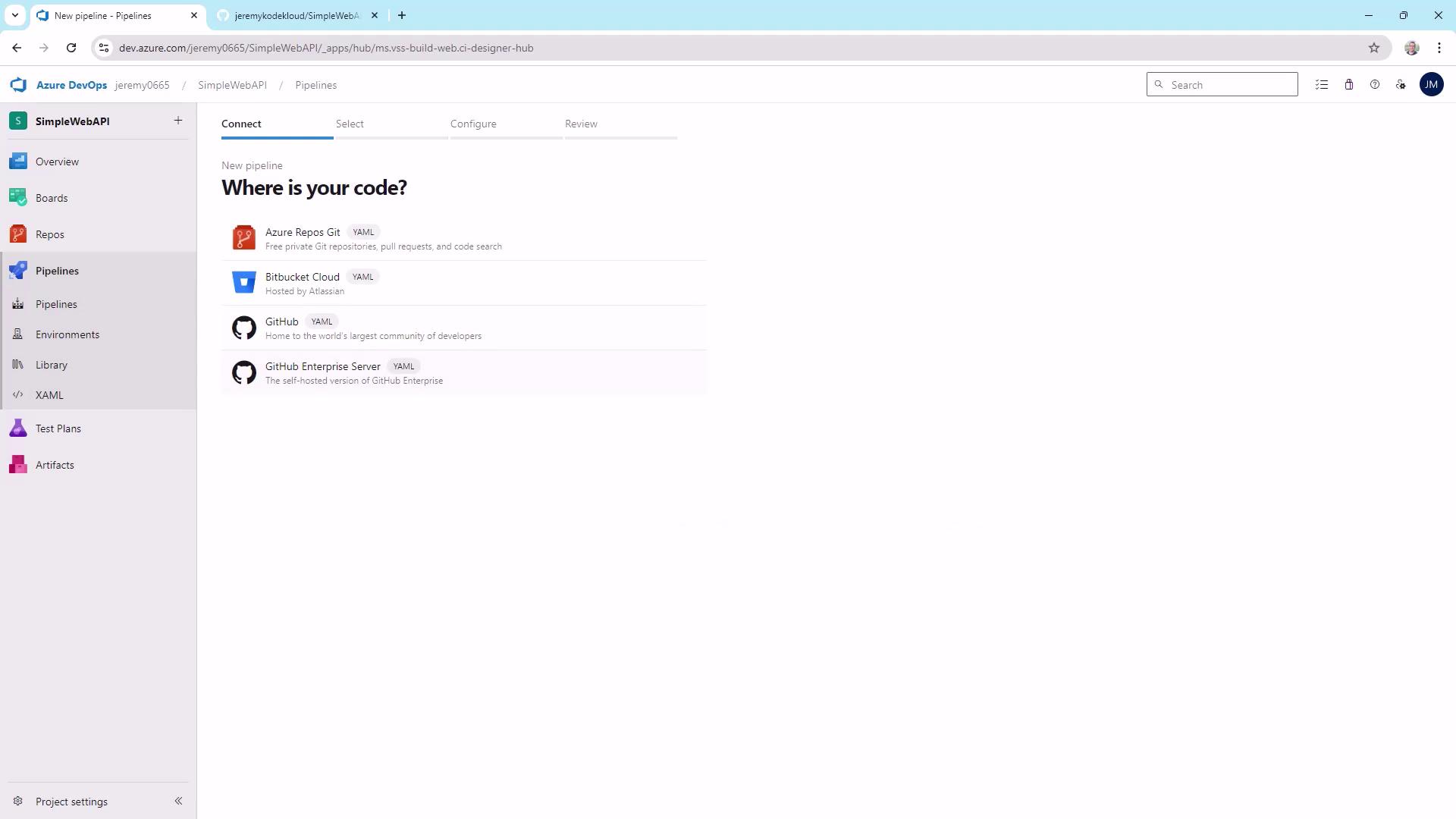
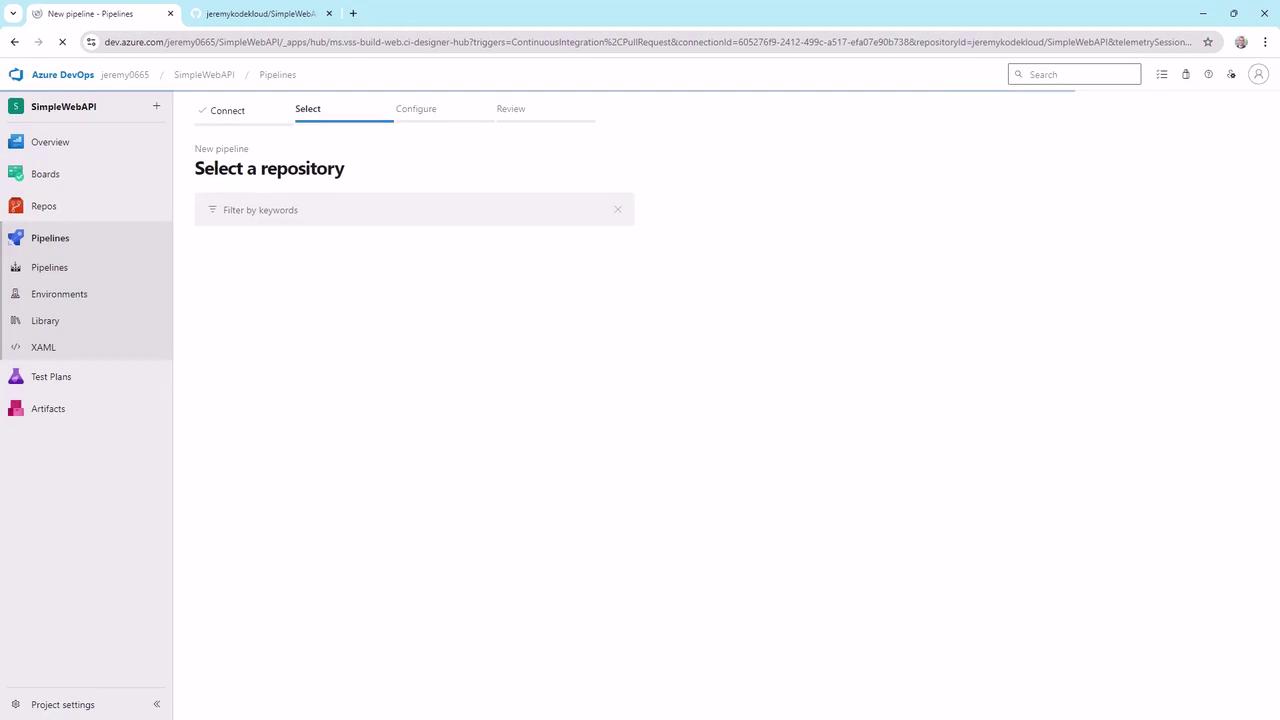
- Choose GitHub and pick SimpleWebAPI. Approve the Azure Pipelines app if prompted.
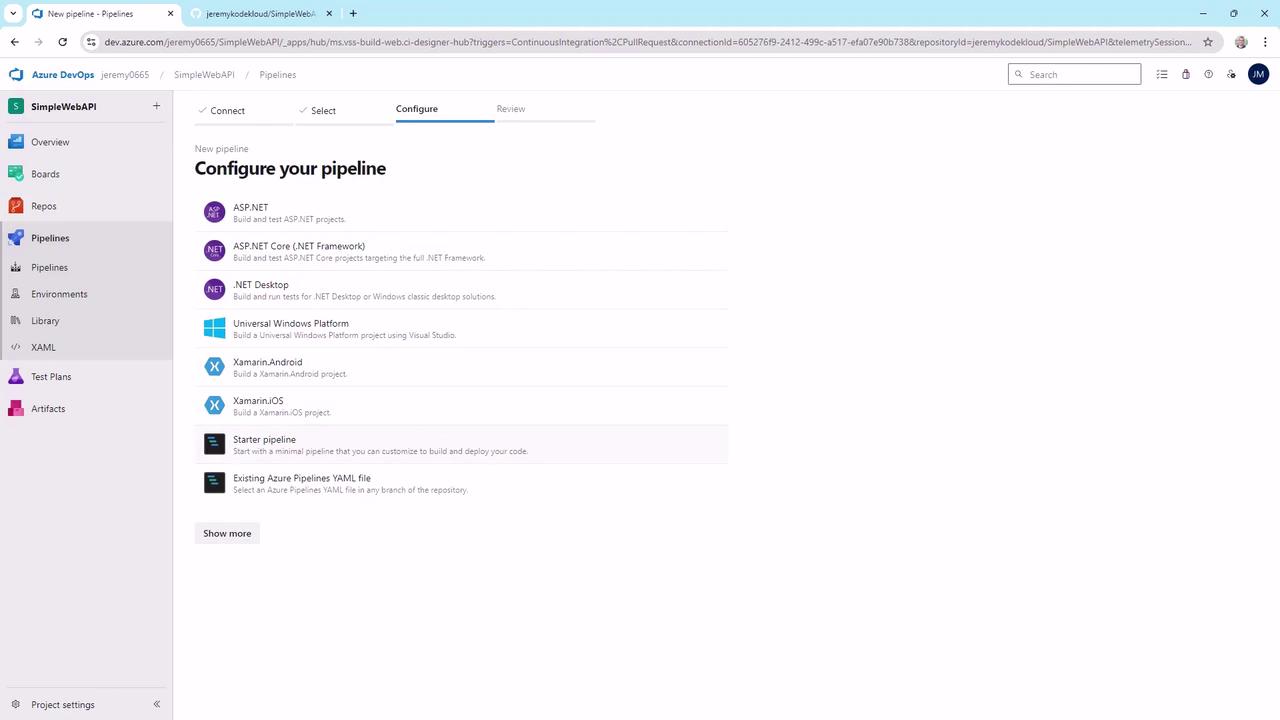
- Opt for Starter Pipeline to get a minimal YAML template.
4. Configure an Agent Pool
If you use self-hosted agents:- Go to Project Settings → Agent pools and note your pool name (e.g.,
KodeKloudCustomer). - Update the
poolblock in your YAML:
When targeting a self-hosted pool, remove the
vmImage setting. Jobs run on your specified agents.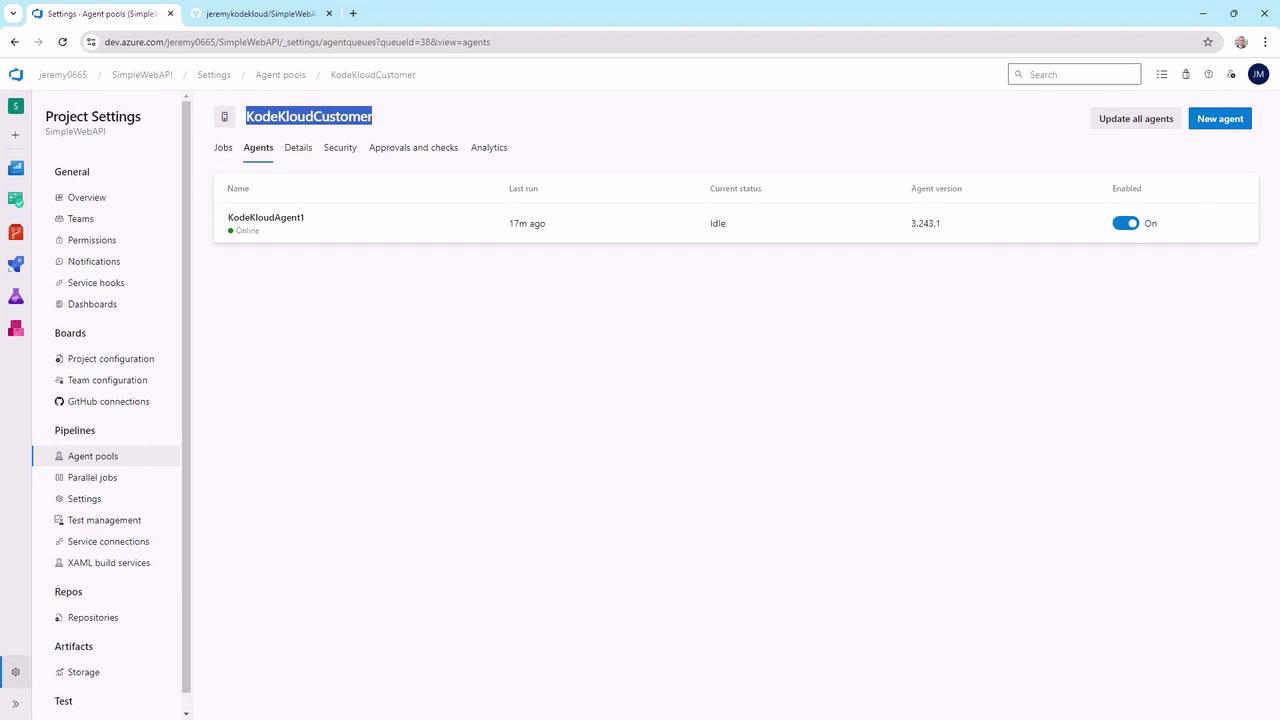
5. Set Up the GitHub Action
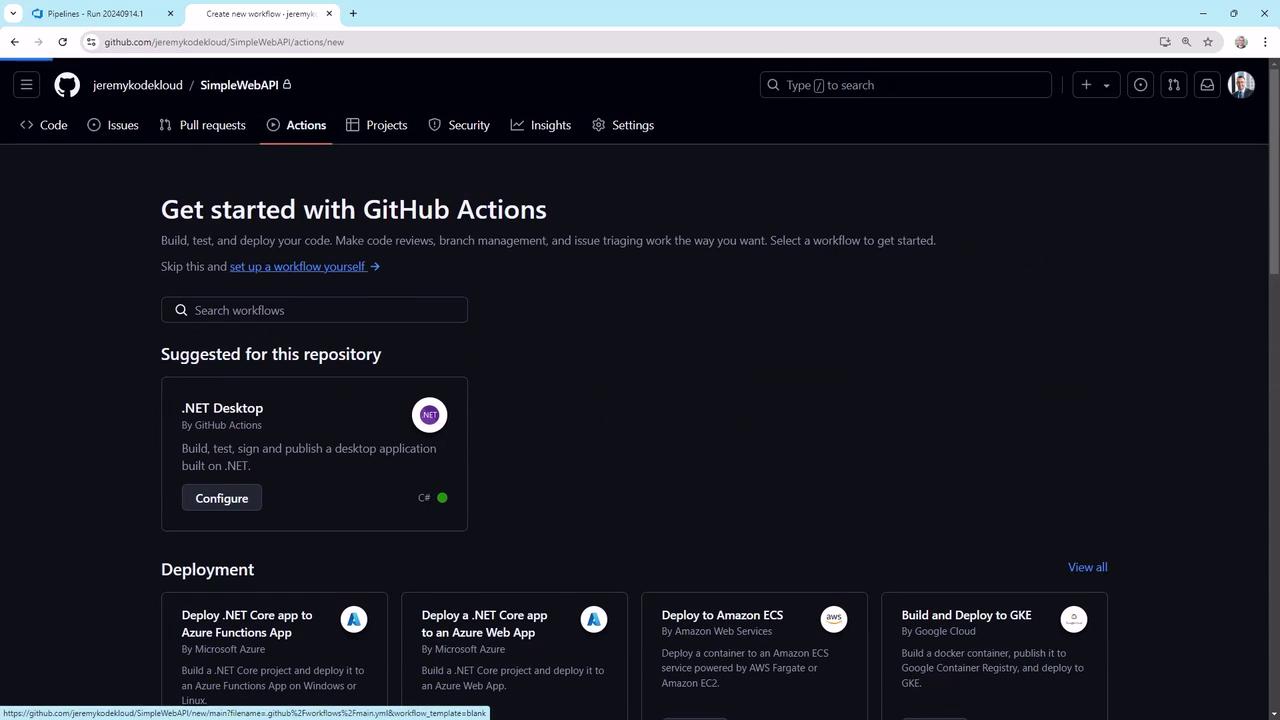
- In your SimpleWebAPI GitHub repo, go to Actions → Set up a workflow yourself.
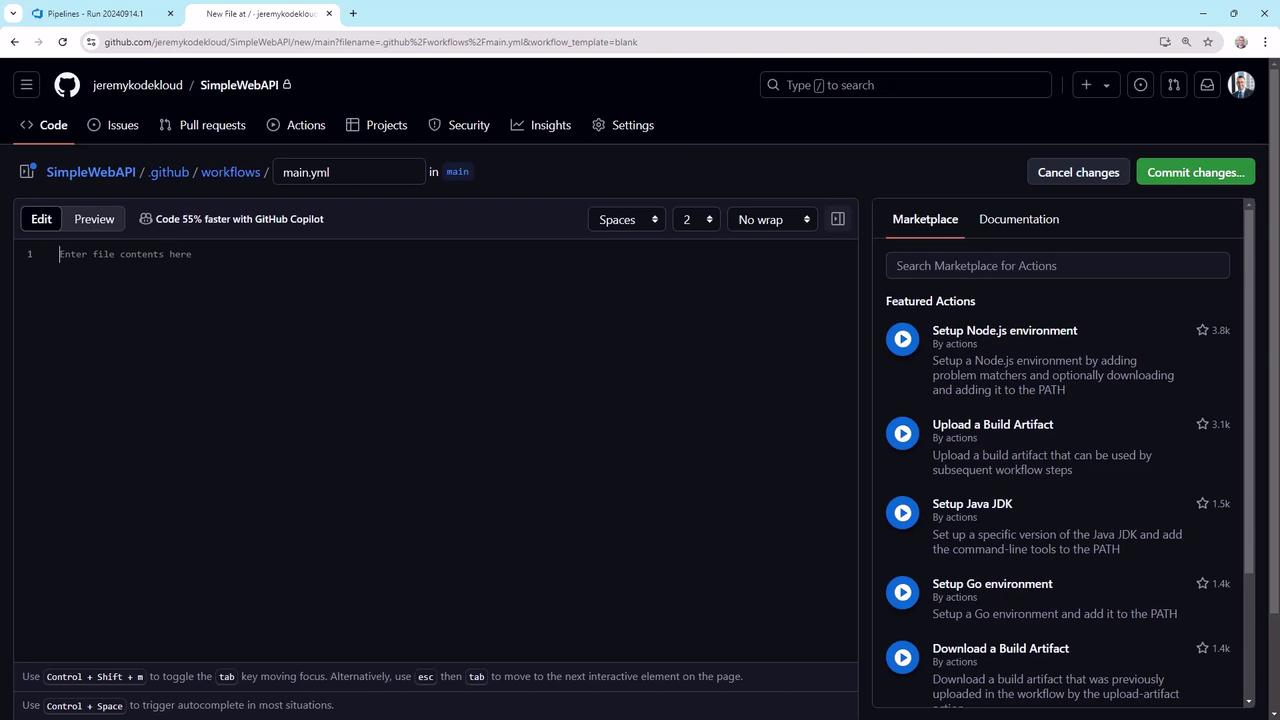
- This creates a blank file at
.github/workflows/main.yml. Replace its contents with:
6. Configure Repository Secrets
In GitHub, go to Settings → Secrets and variables → Actions and add:| Secret Name | Value Example |
|---|---|
| AZURE_DEVOPS_PROJECT_URL | https://dev.azure.com/yourOrg/yourProject |
| AZURE_DEVOPS_TOKEN | (your Azure DevOps PAT) |
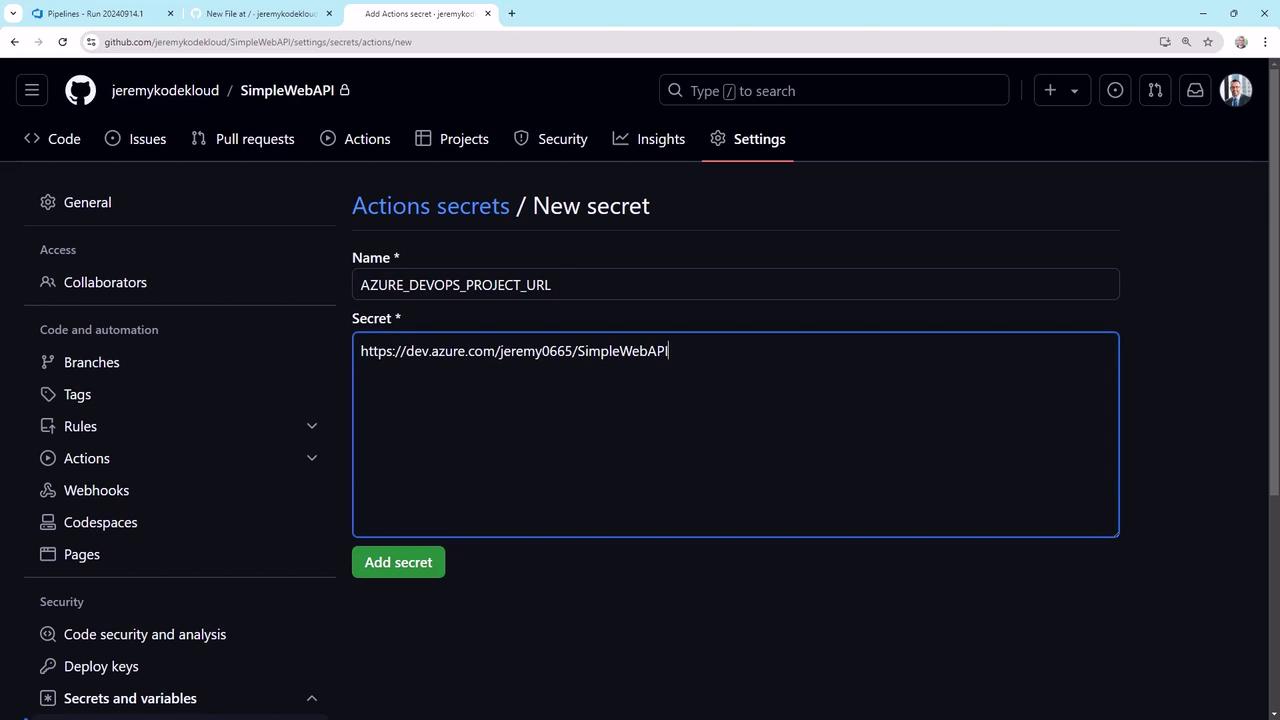
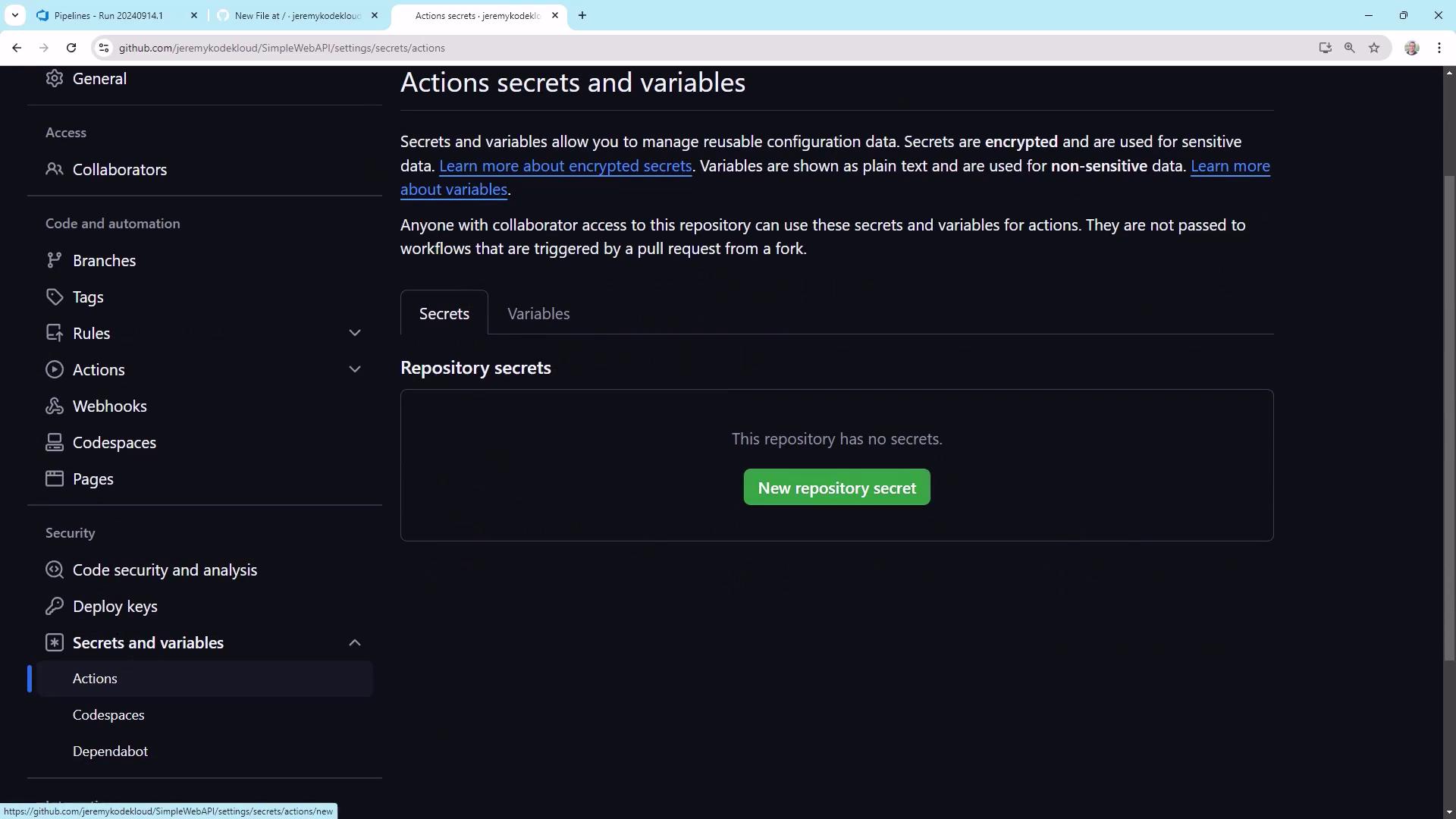
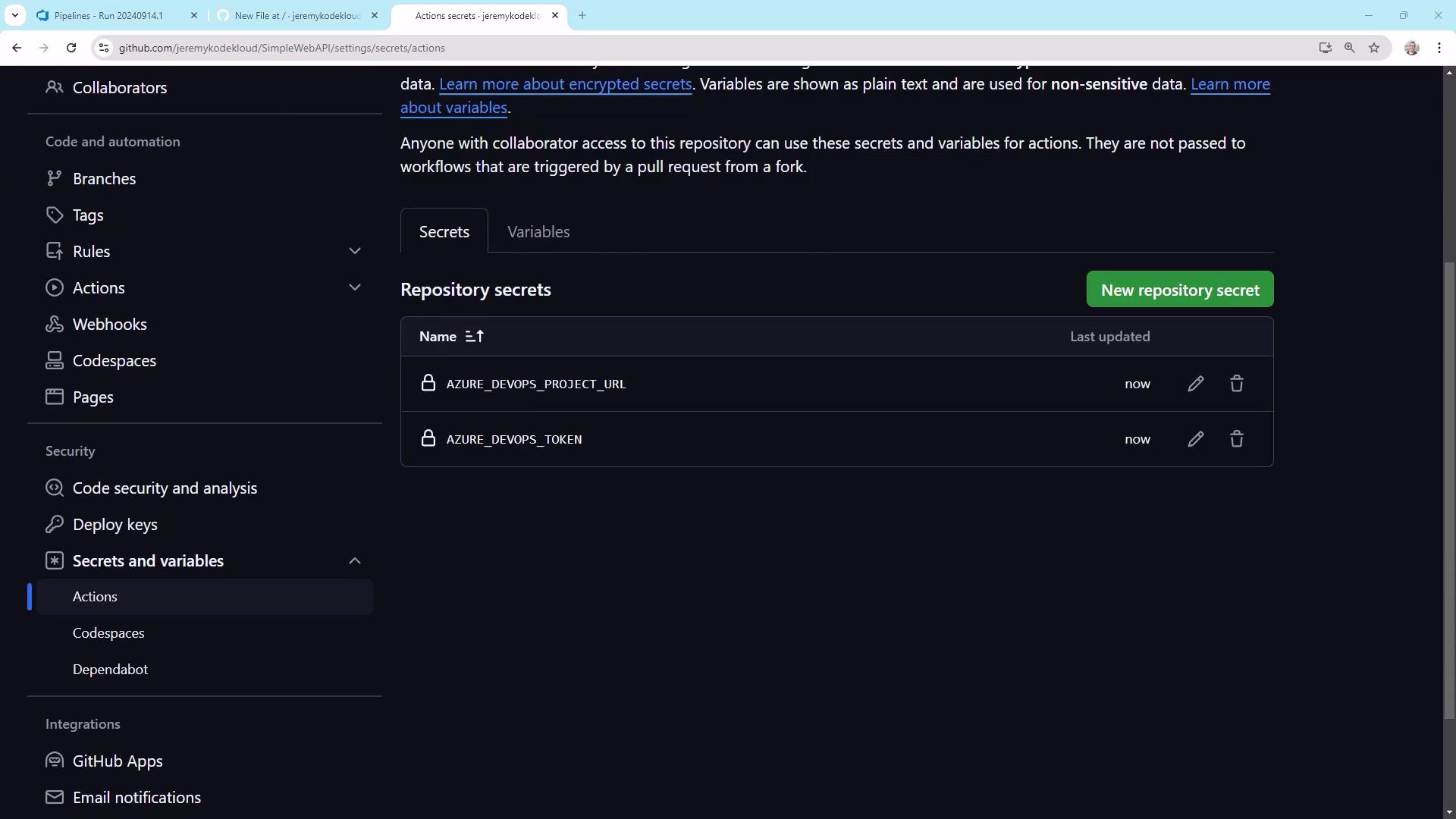
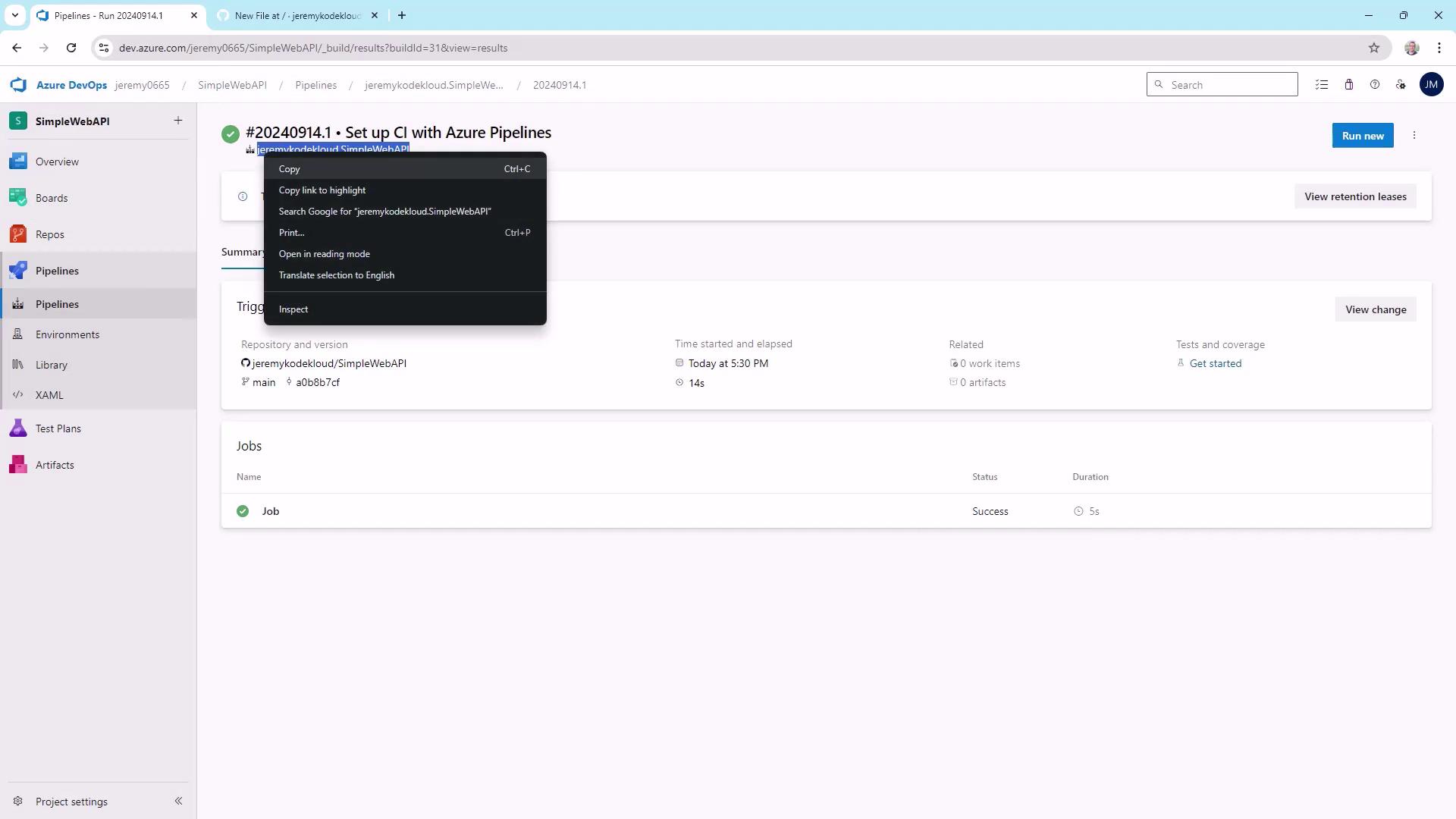
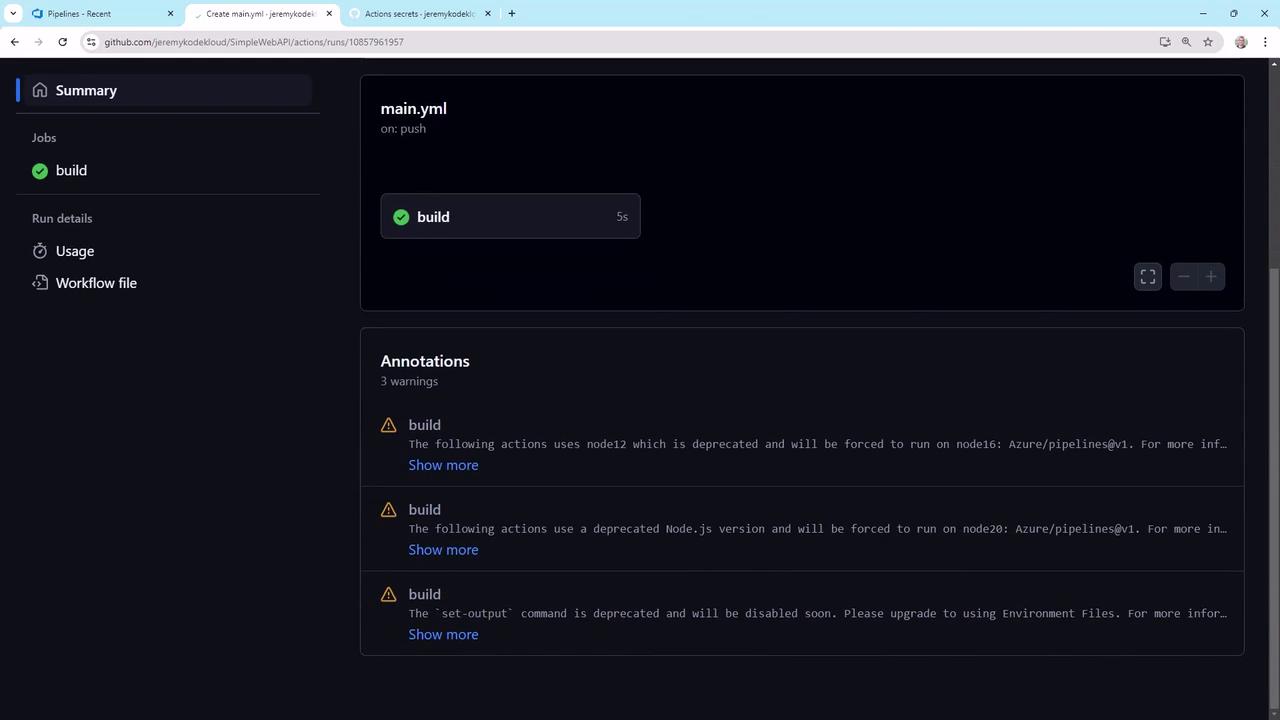
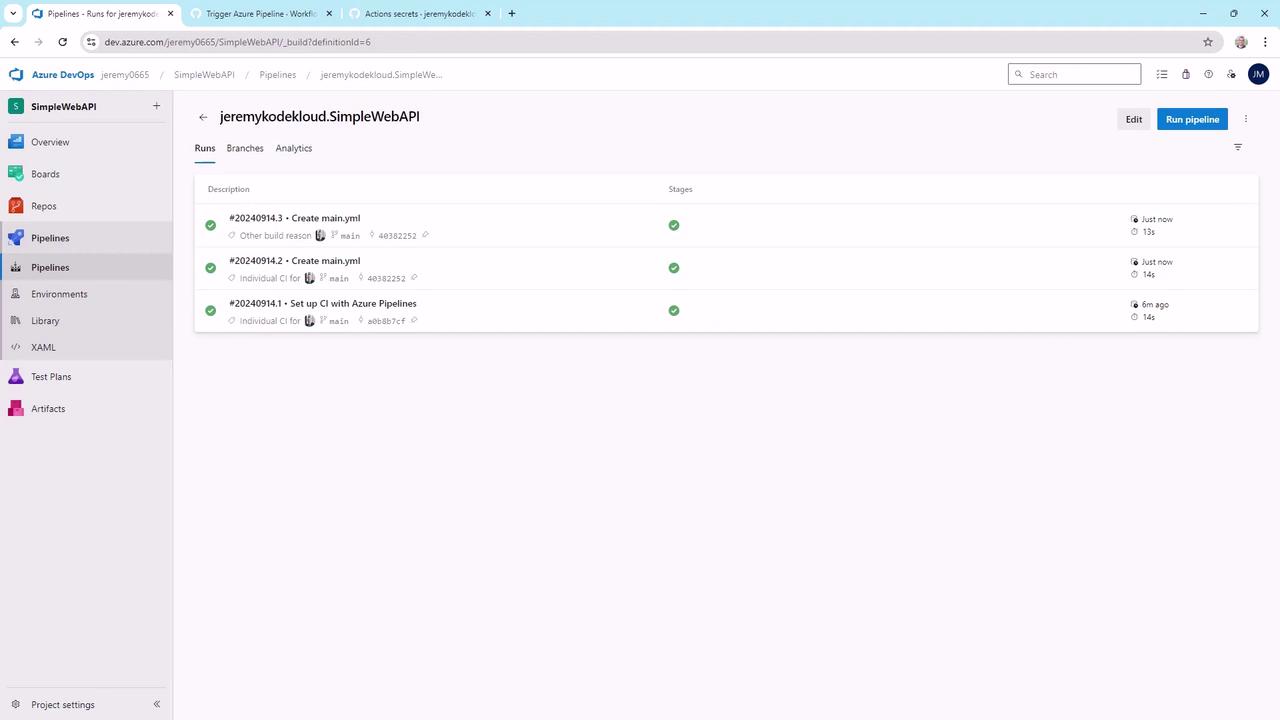
main. The GitHub Action triggers immediately, and you should see a corresponding run in Azure Pipelines.
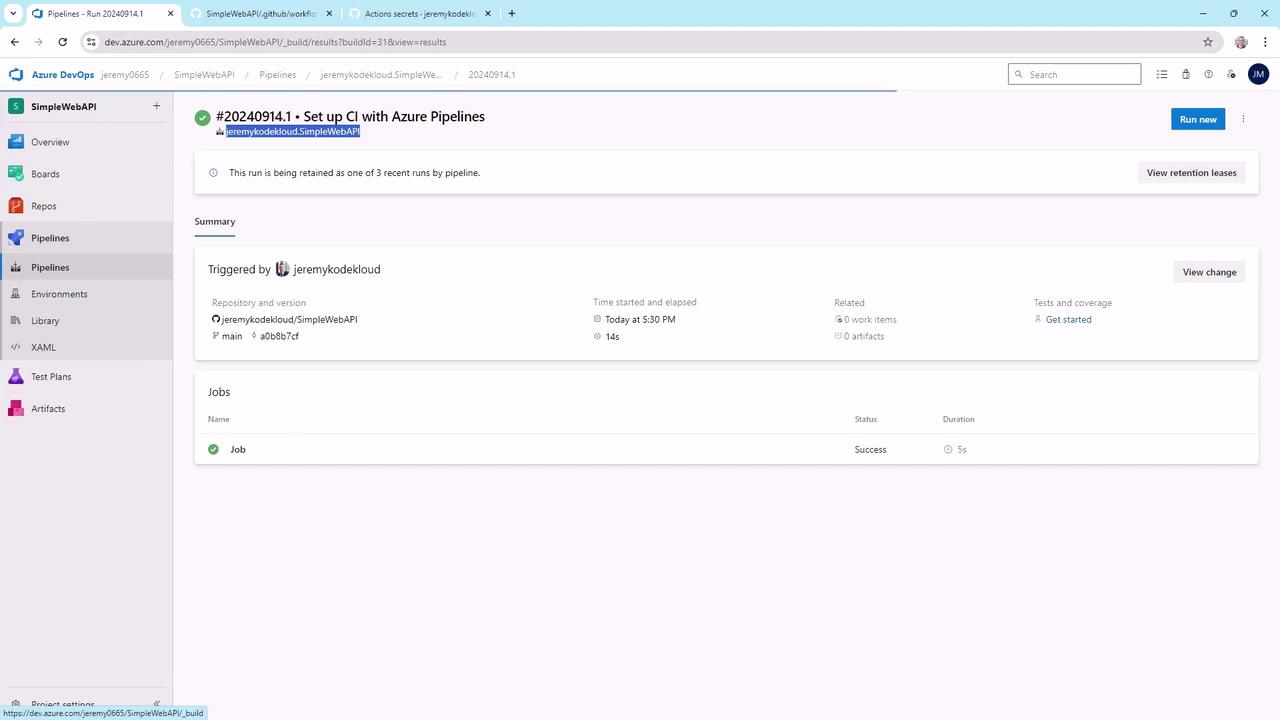
7. Verify Continuous Integration
Every push tomain now triggers: