

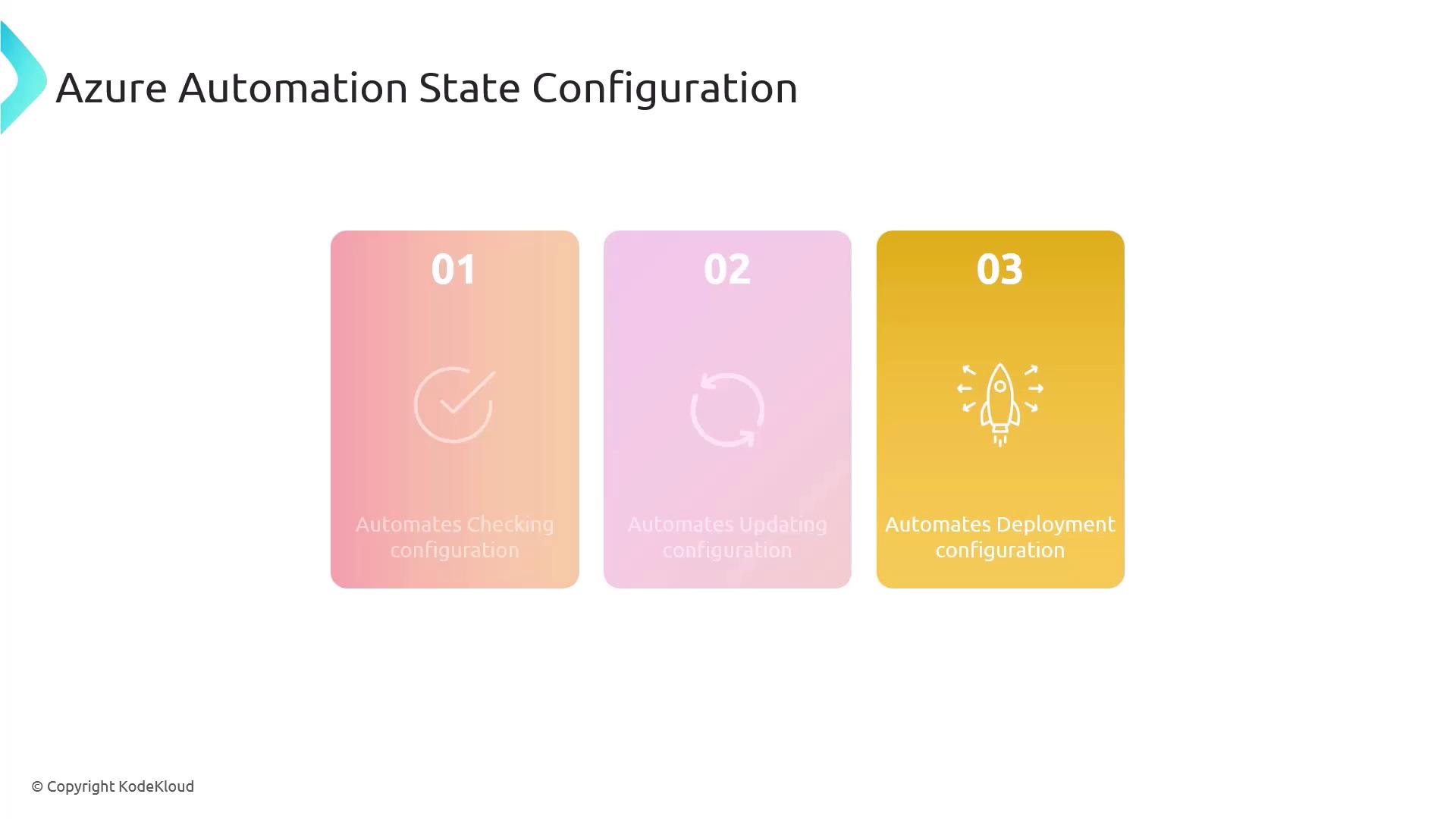
Key Benefits
| Benefit | Description |
|---|---|
| Centralized Management | Single pane of glass to manage DSC configurations across subscriptions and regions. |
| Automatic Drift Correction | Continuous monitoring with automatic remediation of configuration drift. |
| Detailed Compliance Reporting | Out-of-the-box dashboards and logs to track node compliance over time. |
Scenario: Enforce Software on Multiple Windows VMs
In this walkthrough, we’ll ensure a scheduled PowerShell task is installed and maintained on several Azure Windows VMs using Azure Automation DSC.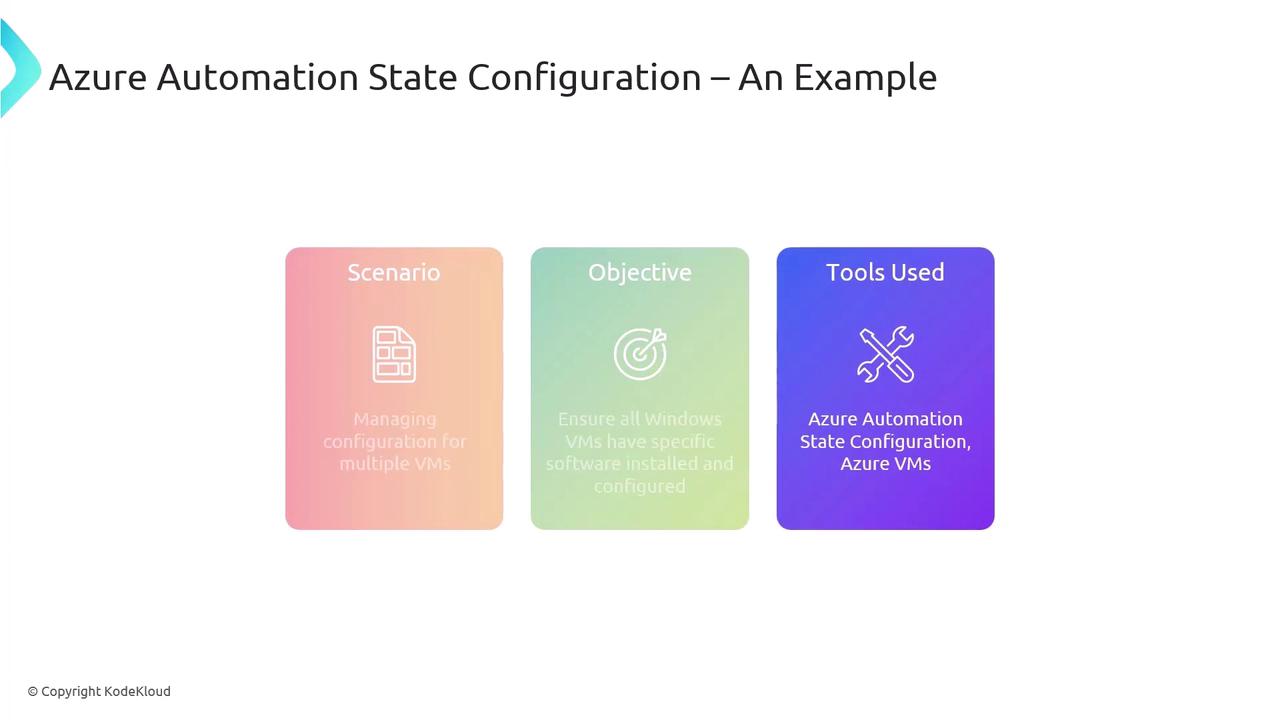
Prerequisites
- Azure subscription with contributor or automation operator role
- Azure VM Agent installed on each target VM
- Az.Automation PowerShell module installed locally
Before registering VMs for DSC, ensure the Azure VM Agent is up to date. Without it, DSC cannot communicate with the Automation account.
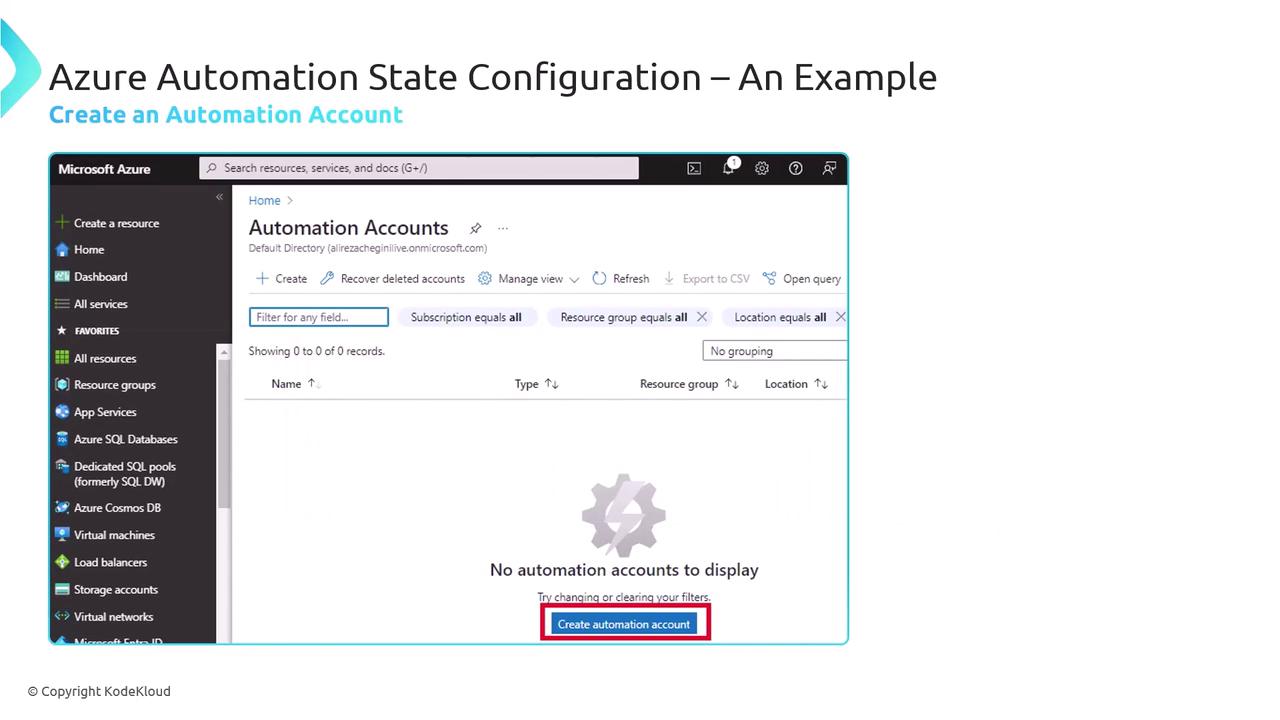
Step 1: Create an Automation Account
Your Automation Account is the central hub for DSC configurations, runbooks, and assets.- In the Azure portal, search for Automation Accounts.
- Click + Create, fill in the name, resource group, and region.
- Review and Create.
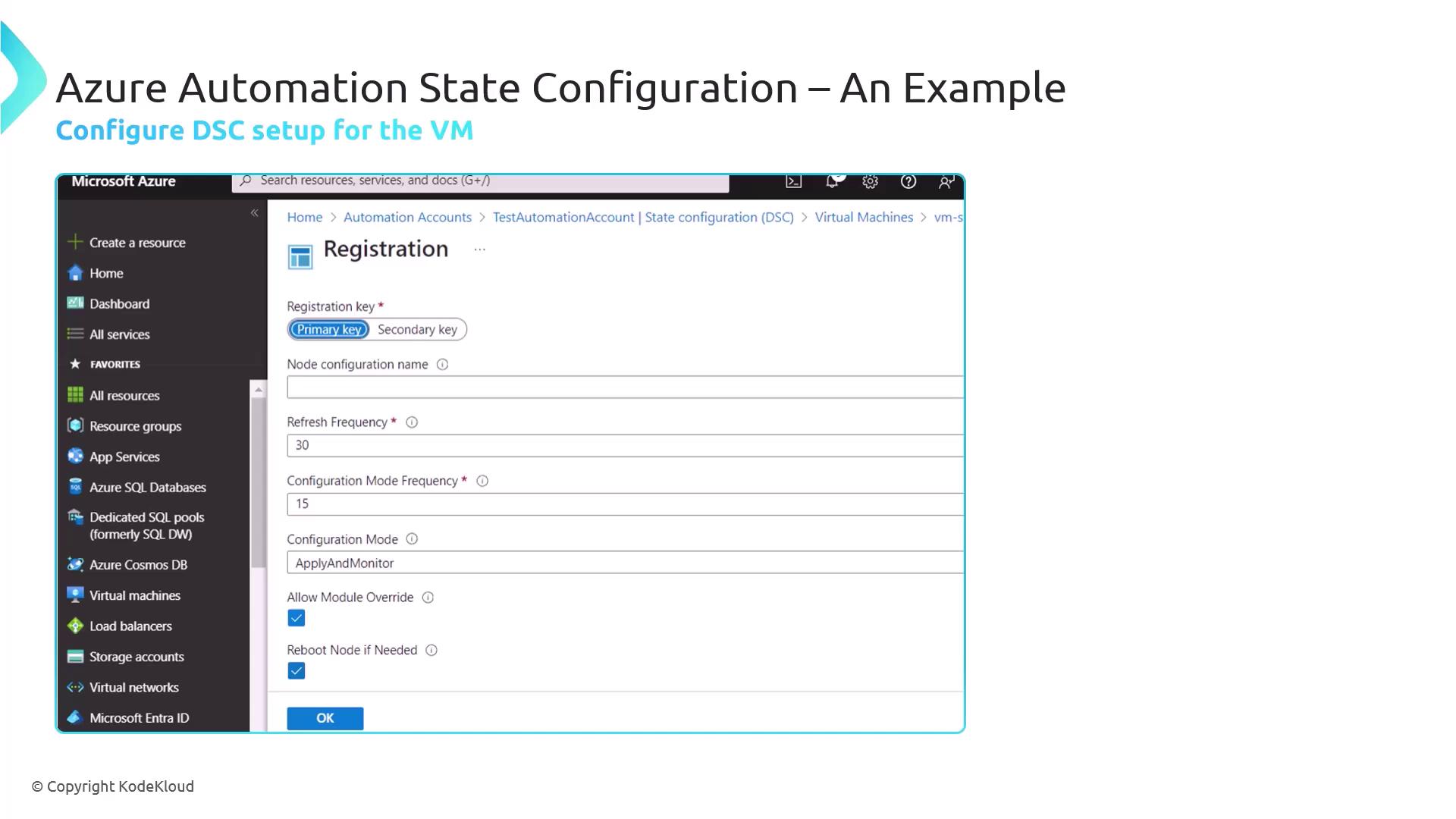
Step 2: Register Your VM as a DSC Node
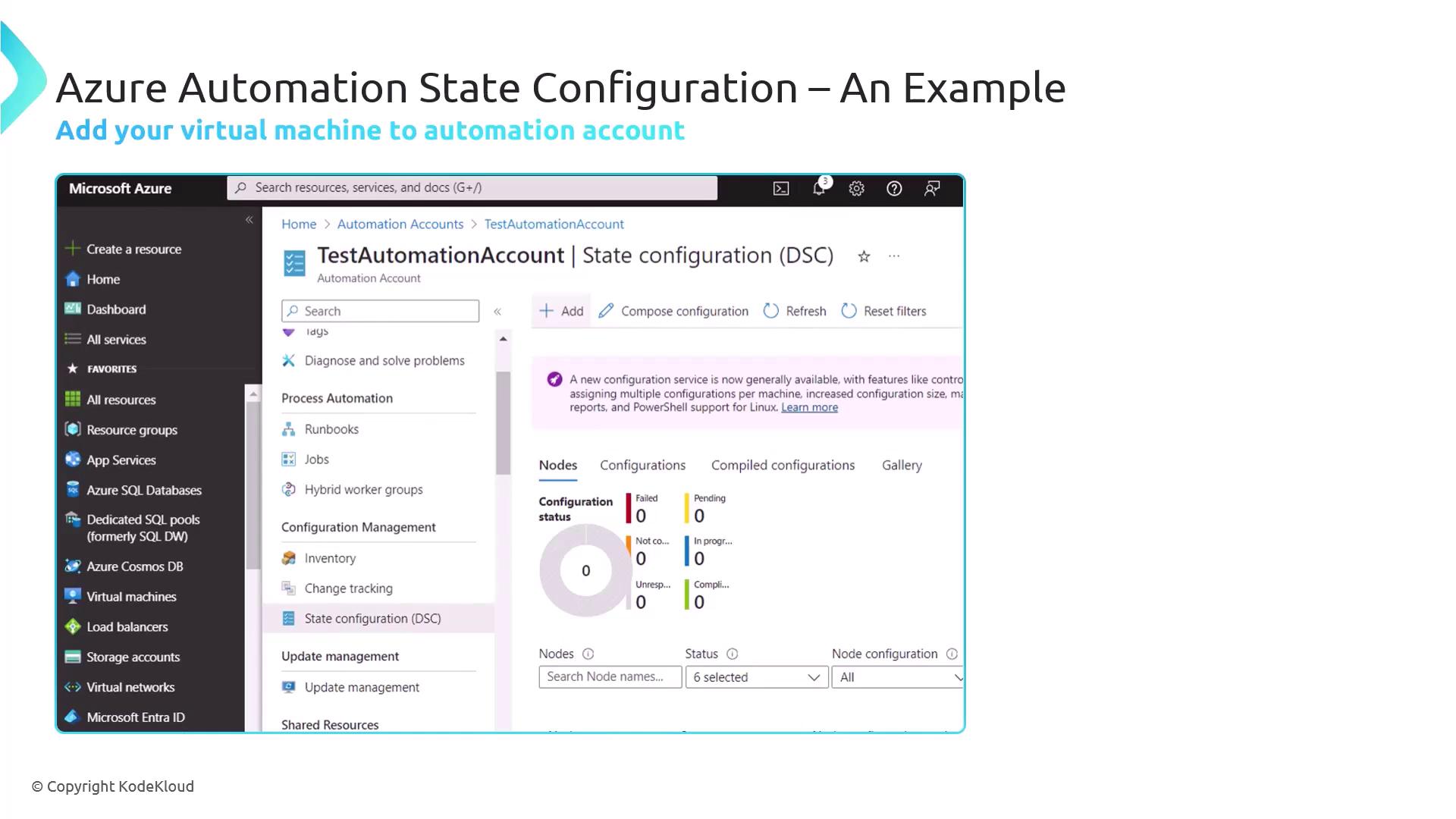
Once the Automation Account is active, add your Windows VM as a DSC node.- Navigate to State Configuration (DSC) > Nodes.
- Click Add > Azure VM.
- Select your subscription, resource group, and VM.
- Configure:
- Refresh Frequency: Interval for DSC pull (e.g., 30 minutes)
- Configuration Mode:
ApplyAndAutoCorrectorApplyAndMonitor
Step 3: Author and Import Your DSC Configuration
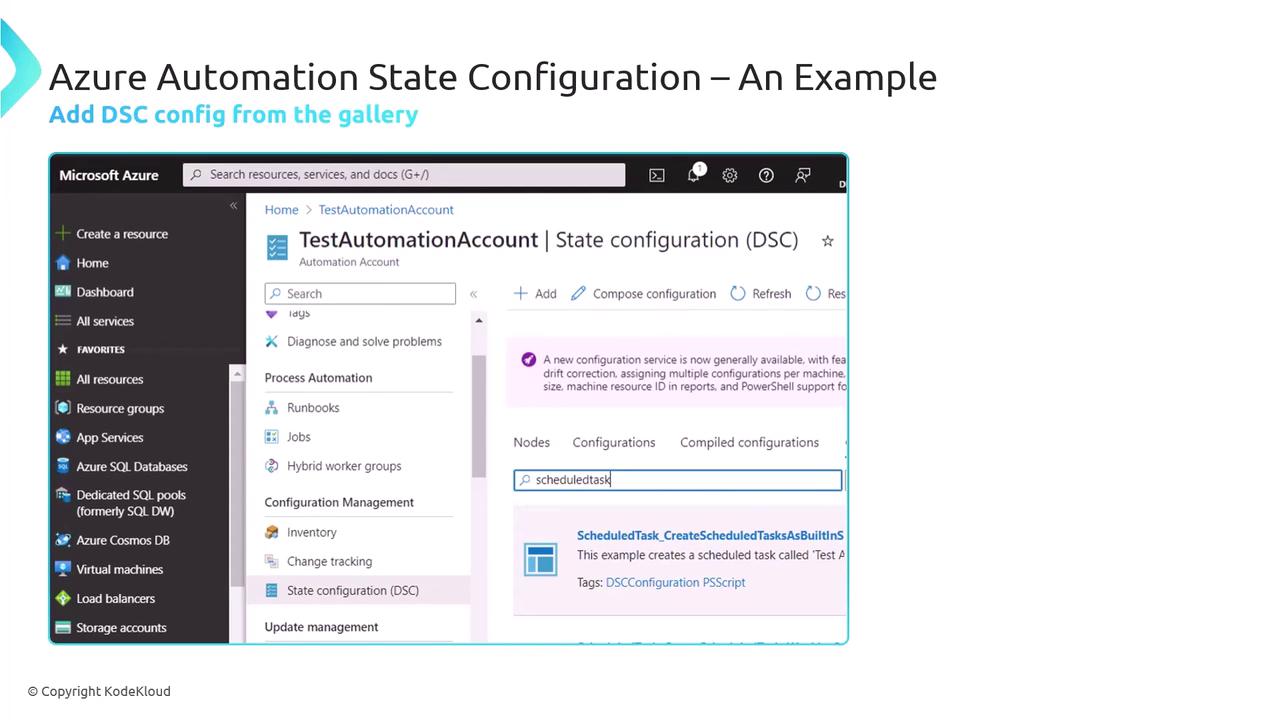
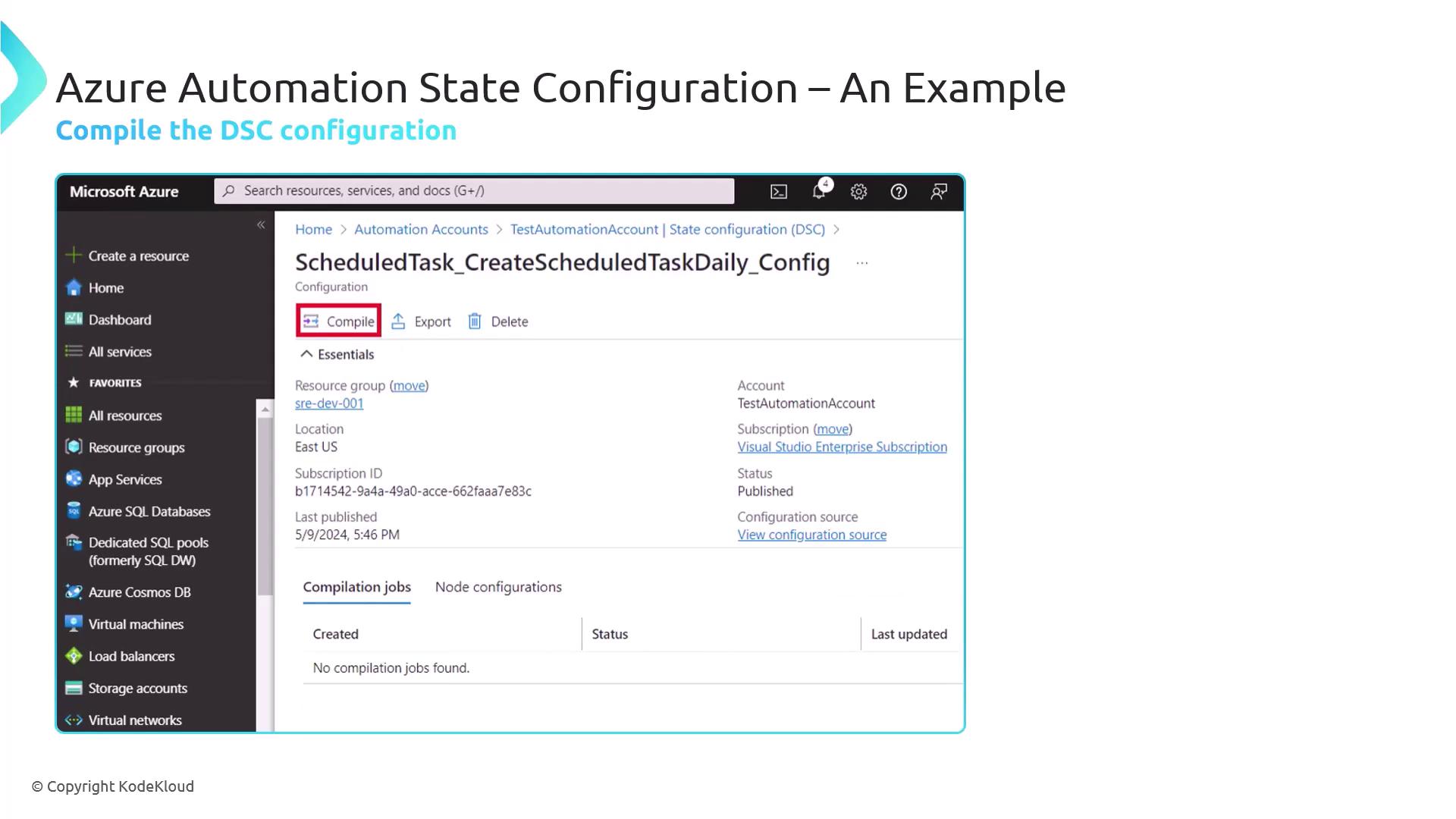
Define a DSC configuration that schedules a PowerShell task to run daily at midnight and repeat every 15 minutes for 8 hours.Ensure you include
StartBoundary and RepeatDuration when you need the schedule to span a specific time window.- In the portal, go to State Configuration (DSC) > Configurations.
- Click Add, upload the compiled
.moffile from"$env:Temp\DSC". - Confirm and Save.
Step 4: Assign the Configuration to the VM
Apply the new DSC configuration to your node:- Under State Configuration (DSC) > Nodes, select your VM.
- Click Assign Node Configuration.
- Choose the
ScheduledTaskDailyconfiguration version and OK.
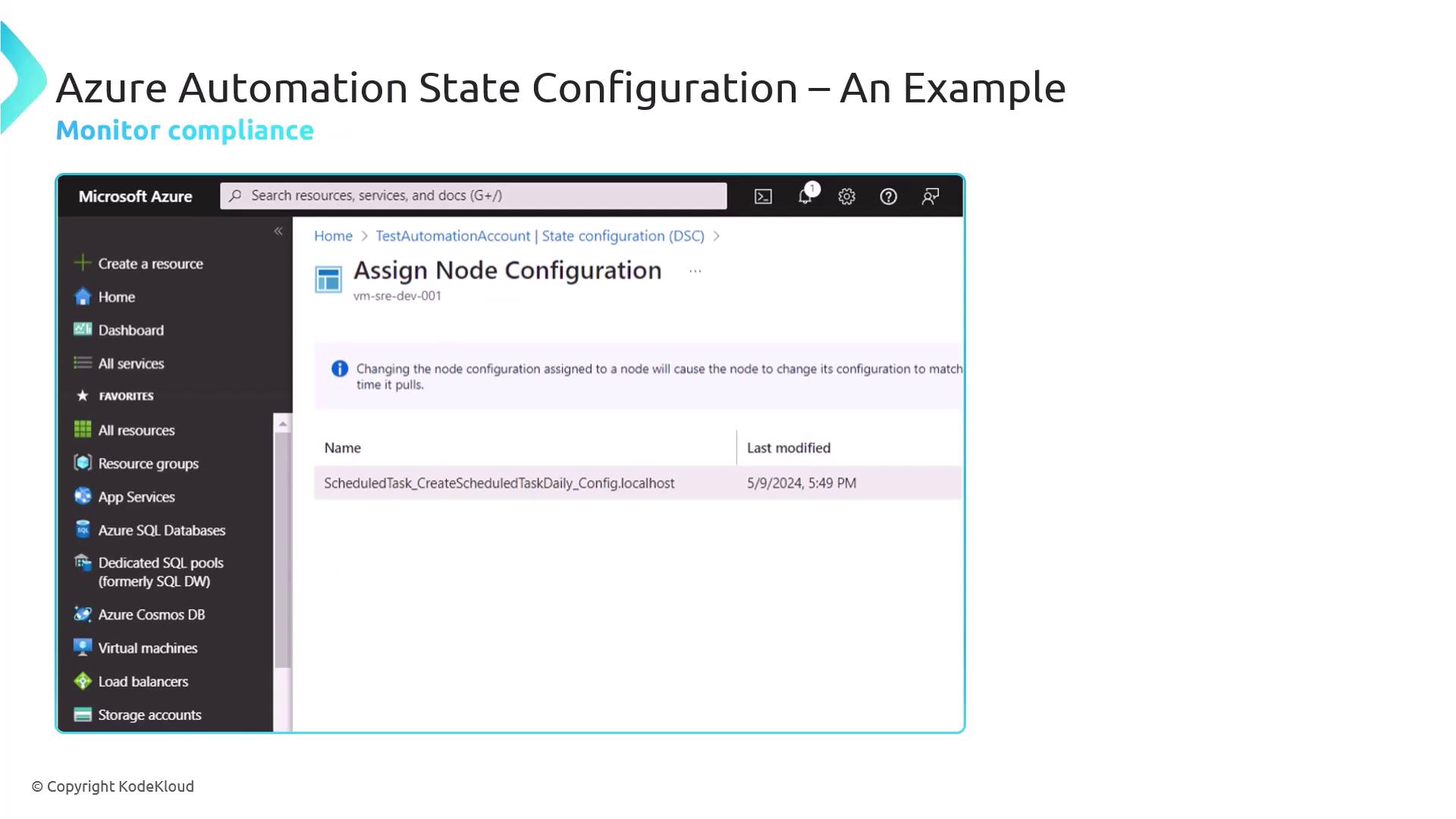
- The node will show Noncompliant until DSC applies your settings.
- After successful application, it returns to Compliant, indicating the scheduled task is in place.
Links and References
- Azure Automation DSC Overview
- PowerShell ScheduledTask DSC Resource
- Az.Automation PowerShell Module
- Azure Virtual Machine Agent