

Azure Load Balancer
At its core, load balancing distributes network traffic evenly across multiple servers—much like having several checkout lines in a store to avoid long queues. Azure Load Balancer operates at Layer 4 (TCP/UDP) and can manage millions of requests per second.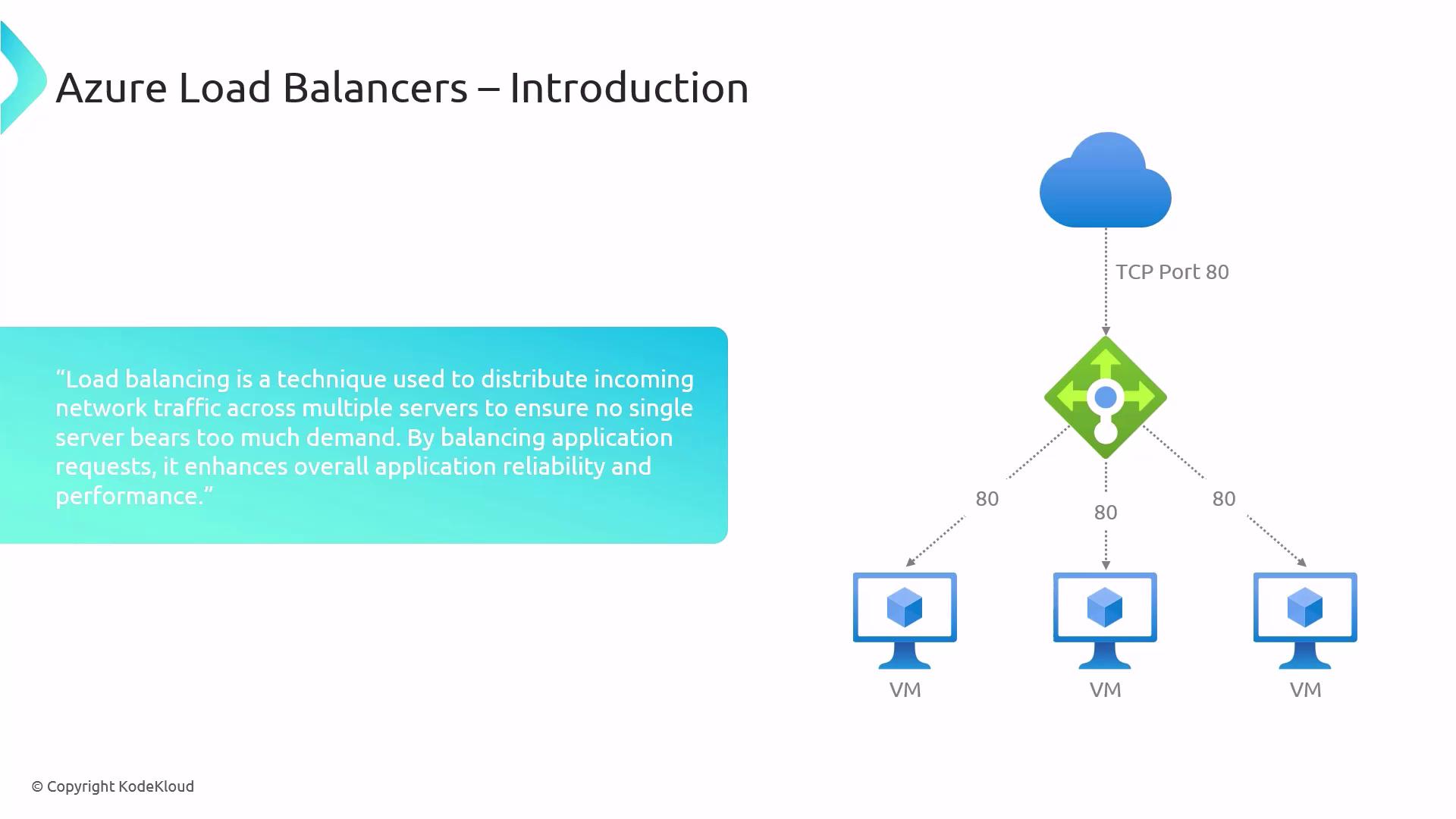
Basic vs. Standard SKU
Azure Load Balancer comes in two SKUs:
Understanding these differences helps you choose the right SKU.
Creating a Load Balancer
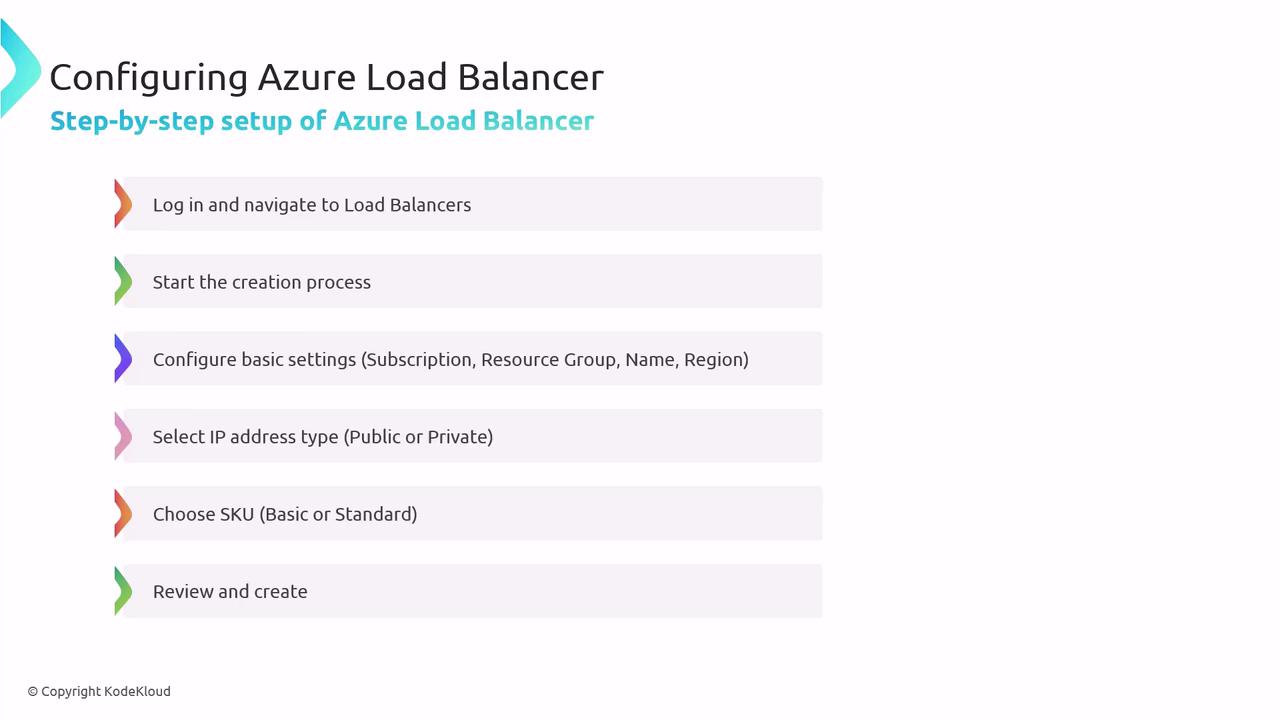
You can deploy an Azure Load Balancer via the Azure Portal or Azure CLI. Azure Portal- Sign in to the Azure portal and navigate to Load balancers.
- Click Create and configure:
- Subscription and Resource group
- Name, Region, and SKU (Basic or Standard)
- Public or Private type
- Review settings and click Create.
Front-end and Back-end Pools
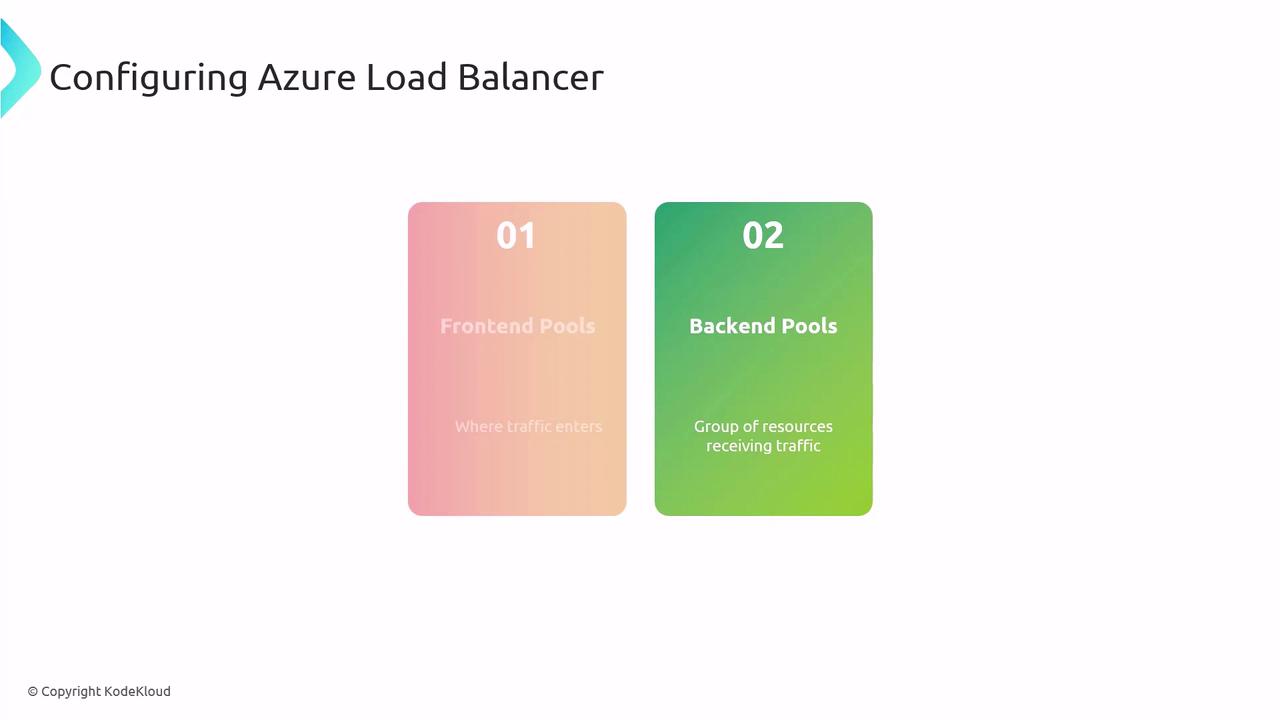
- Front-end pool: Binds a public or private IP where incoming traffic lands.
- Back-end pool: Contains VMs or instances that serve the traffic.
- Load-balancing rules map front-end IPs/ports to back-end targets.
Health Probes
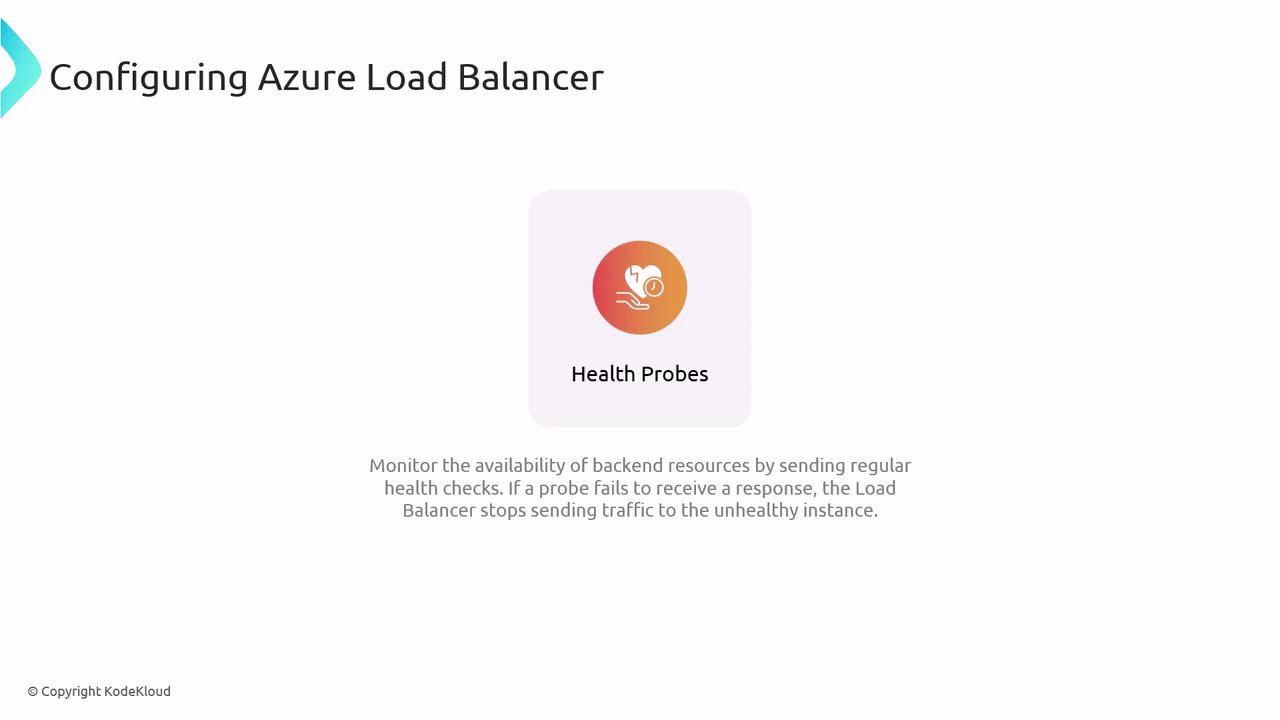
Health probes periodically check each back-end instance. If a probe fails, the instance is marked unhealthy and removed from rotation.Configure health probes with the correct protocol, port, and interval to ensure only healthy instances receive traffic.
Azure Traffic Manager
While Azure Load Balancer manages traffic within a region, Traffic Manager handles DNS-based load balancing across global endpoints. It routes client requests to the most appropriate endpoint based on your chosen method.
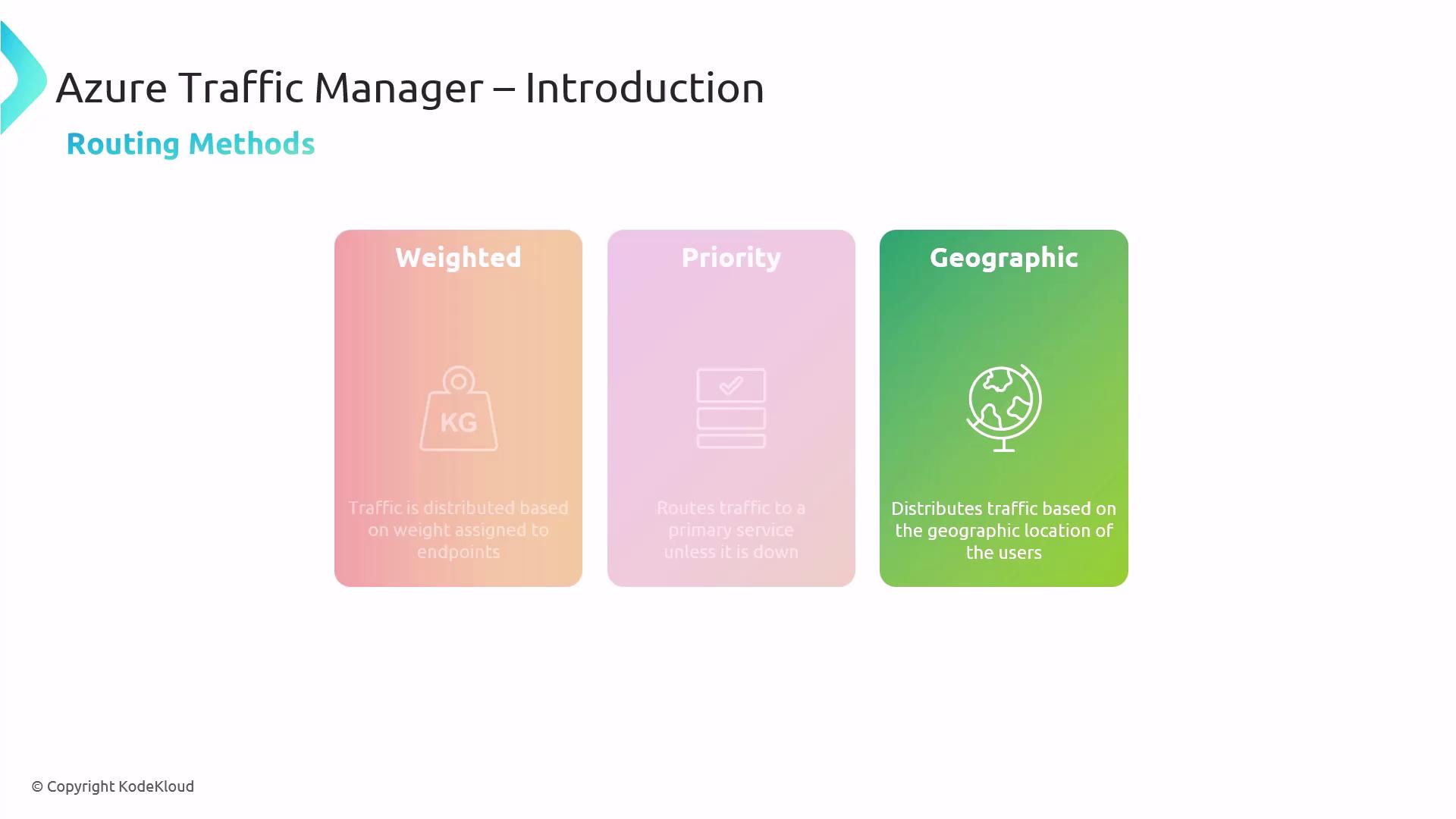
Traffic Routing Methods
Global Traffic Management
This diagram shows how Traffic Manager directs users from Europe and North America to their nearest data centers, reducing latency and improving availability.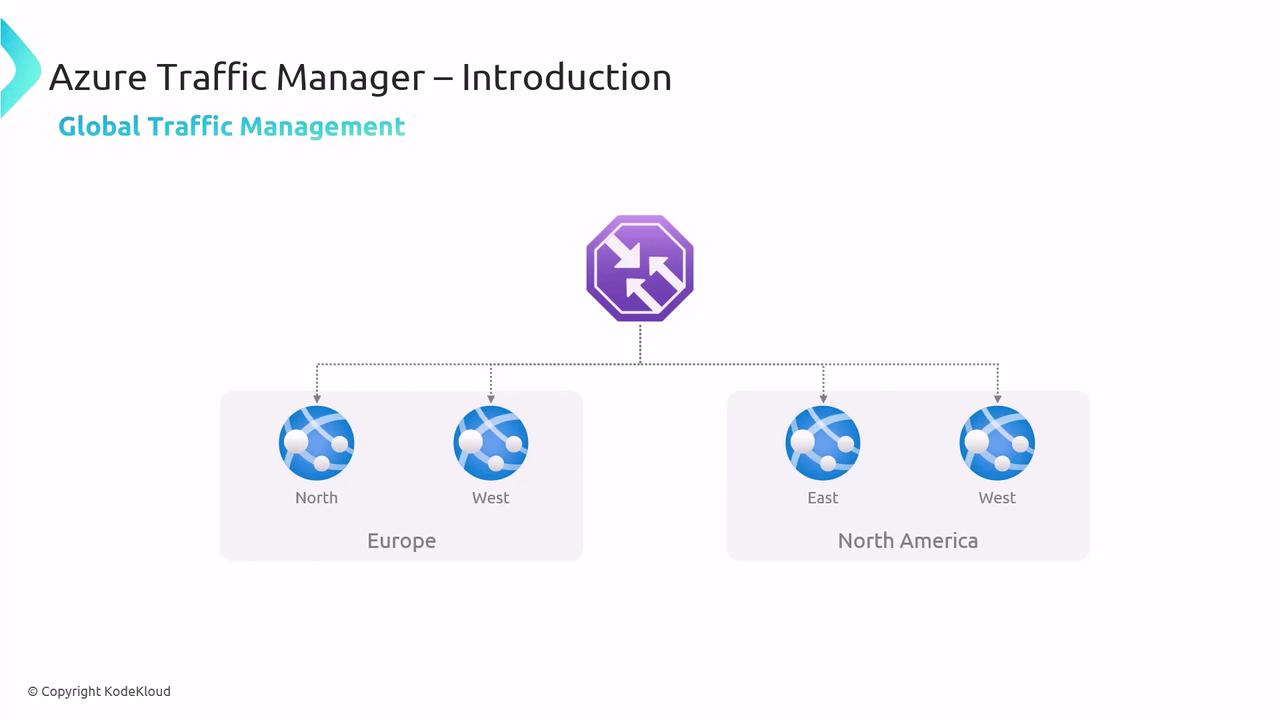
Integrating with DevOps
Traffic Manager integrates with Azure DevOps and CI/CD pipelines to support blue/green and canary deployments by gradually shifting traffic to new instances.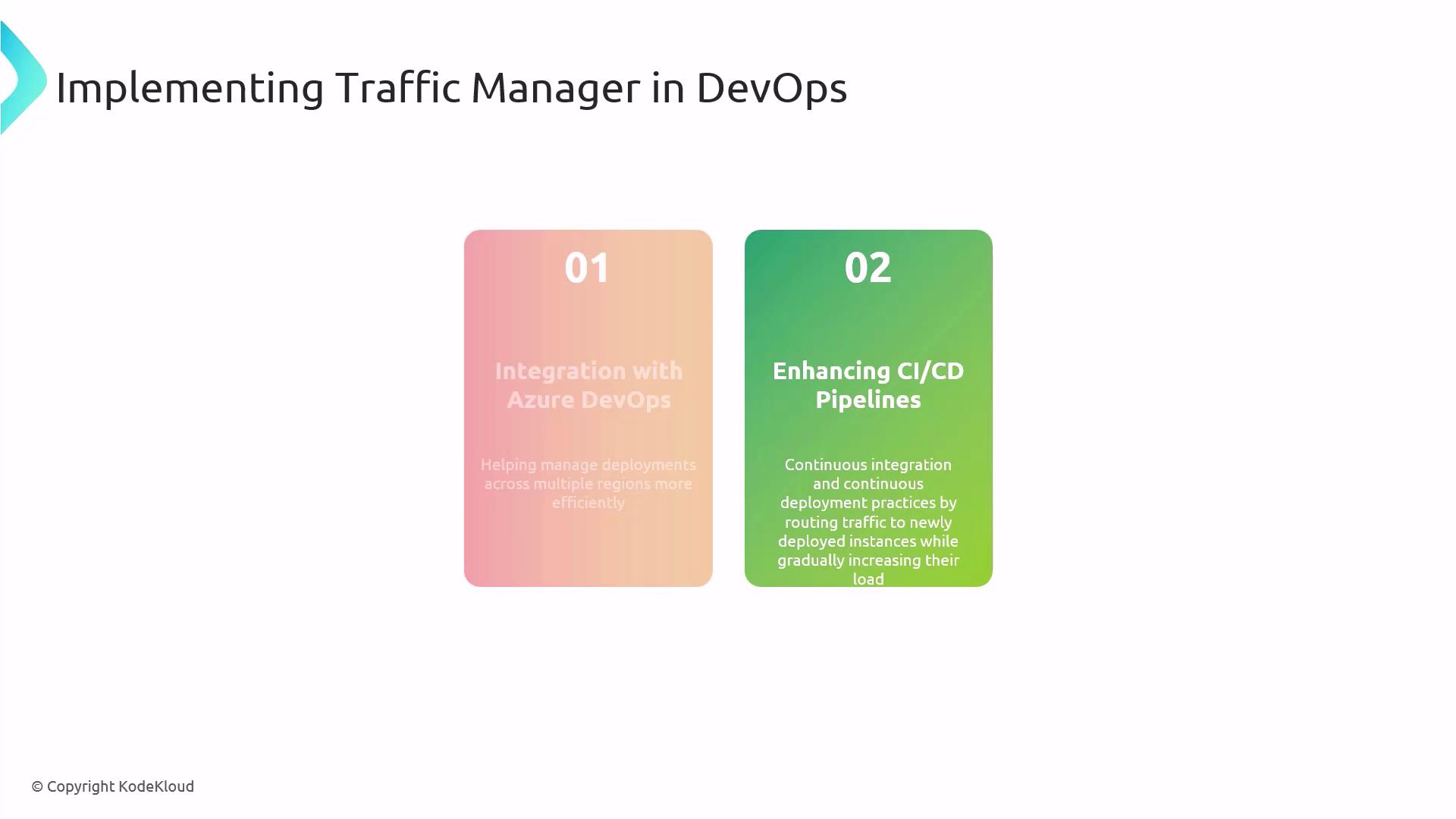
Case Studies
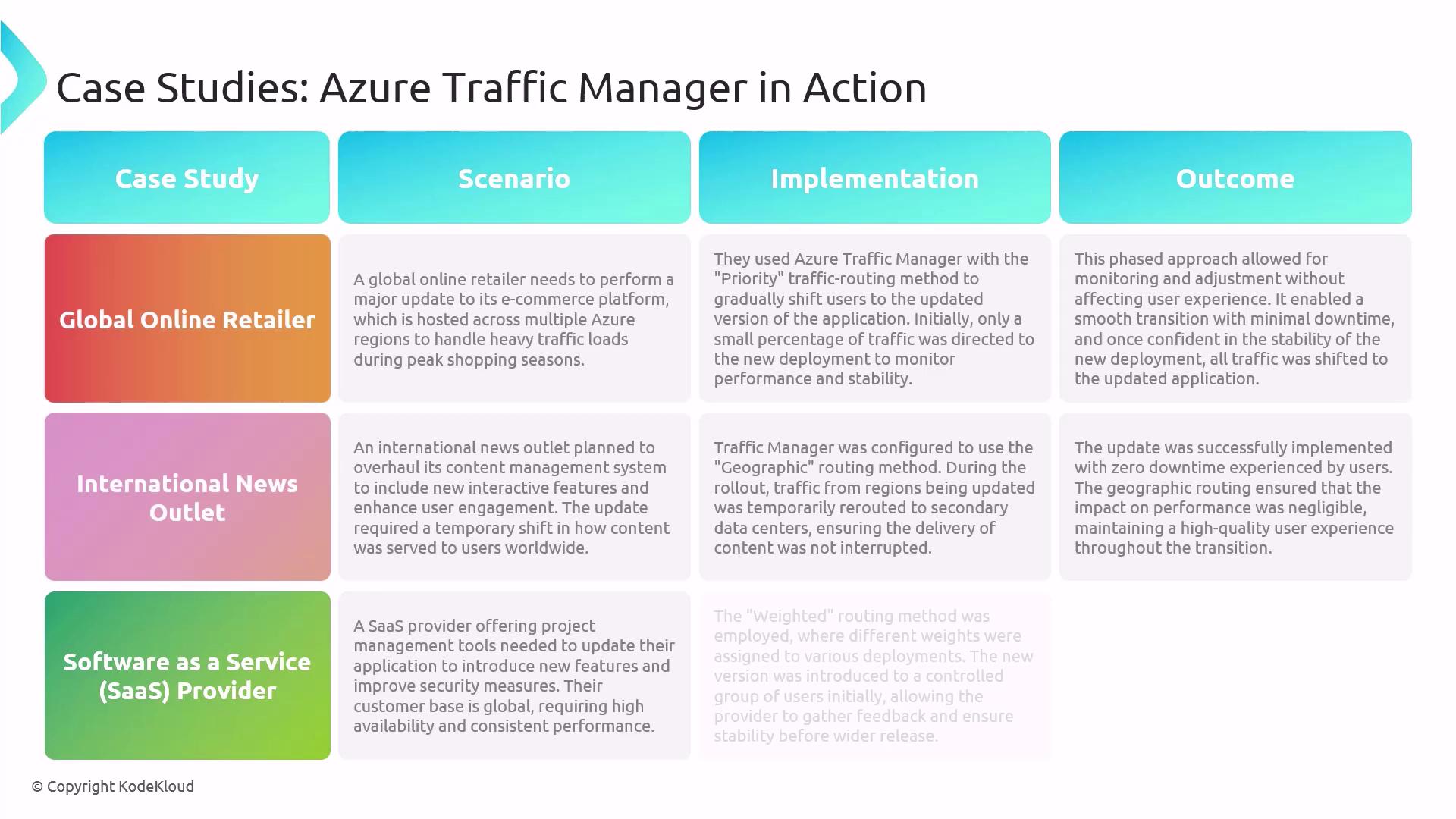
- A global retailer used Priority routing to roll out platform updates with zero downtime.
- An international news outlet leveraged Geographic routing for region-specific content delivery.
- A SaaS provider adopted Weighted routing to validate new features before a full launch.
Azure Web Apps
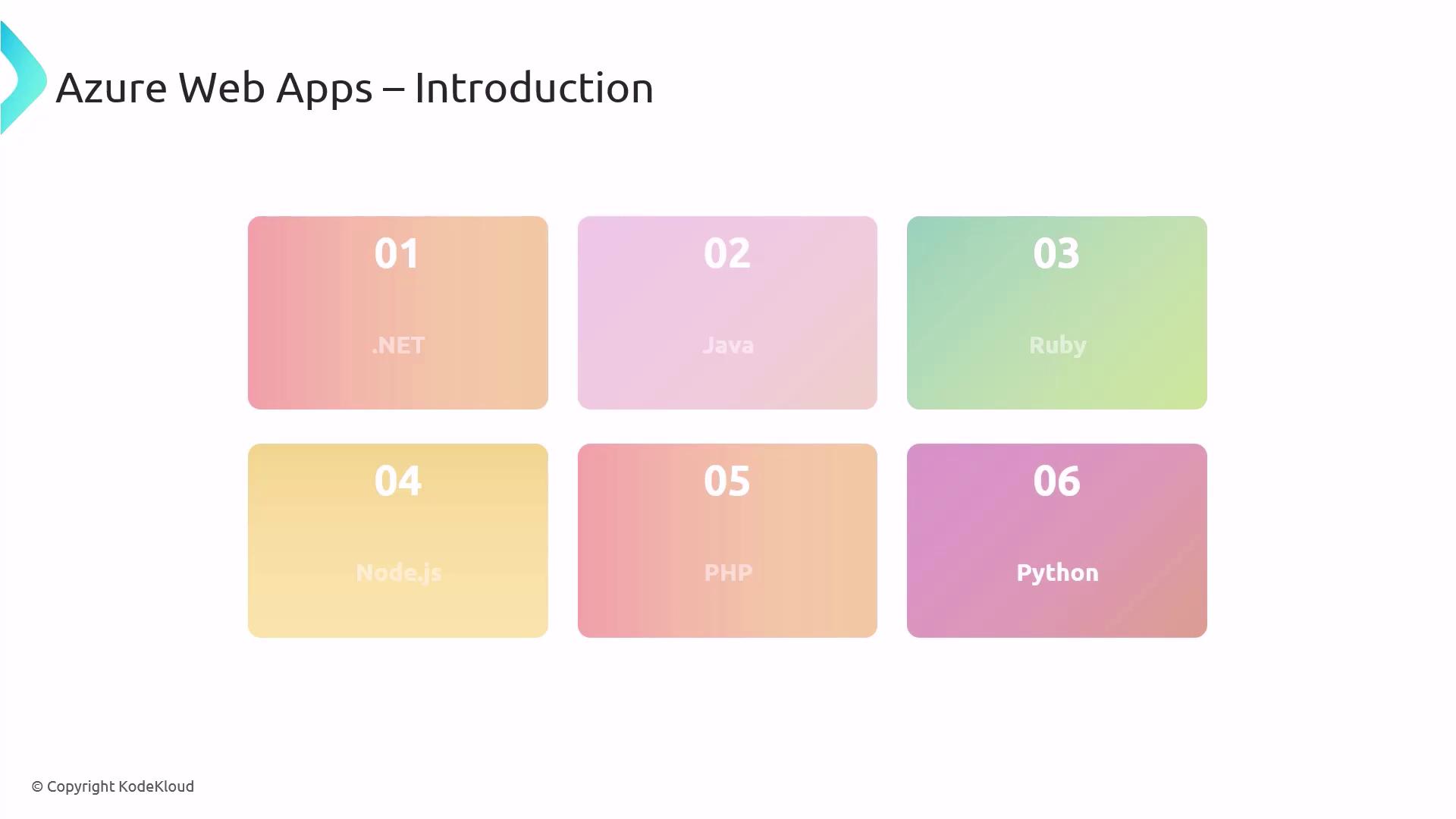
Azure Web Apps (part of Azure App Service) is a fully managed PaaS offering for hosting web applications, APIs, and mobile back ends without managing infrastructure. Key benefits:- Autoscaling: Dynamically adjusts to workload demands.
- Managed platform updates: Azure handles OS and runtime patches.
- Continuous deployment: Out-of-the-box integration with Git, GitHub, and Azure DevOps.
Deployment Workflow
- Prepare your subscription, resource group, and App Service plan.
- Create the Web App, specifying name, plan, and runtime stack.
- Configure deployment sources and CI/CD pipelines.
- Monitor, scale, and back up your app.
- Test thoroughly in staging, then go live.
Combining Services for Global Scale
- Use Azure Load Balancer for efficient intra-region traffic distribution.
- Employ Azure Traffic Manager for global DNS-based routing and failover.
- Host your application on Azure Web Apps for fully managed scaling and deployments.
Links and References
- Azure Load Balancer Documentation
- Azure Traffic Manager Documentation
- Azure App Service Documentation