In this guide, you’ll learn how to safely experiment with a project by creating a personal copy of an Azure DevOps repository. Forking enables you to develop features, test changes, and submit pull requests back to the original codebase—all without affecting the upstream repository. This workflow is perfect for open source contributions and large-team collaboration.Documentation Index
Fetch the complete documentation index at: https://notes.kodekloud.com/llms.txt
Use this file to discover all available pages before exploring further.
1. Forking a Repository
- Sign in to Azure DevOps as your user (e.g., Lloyd).
- Navigate to Repos and locate the KodeKloud GIFs repository.
- Click Fork, name your fork (for example,
KodeKloudGifts.LloydChristmas), choose the branches to include, and confirm.
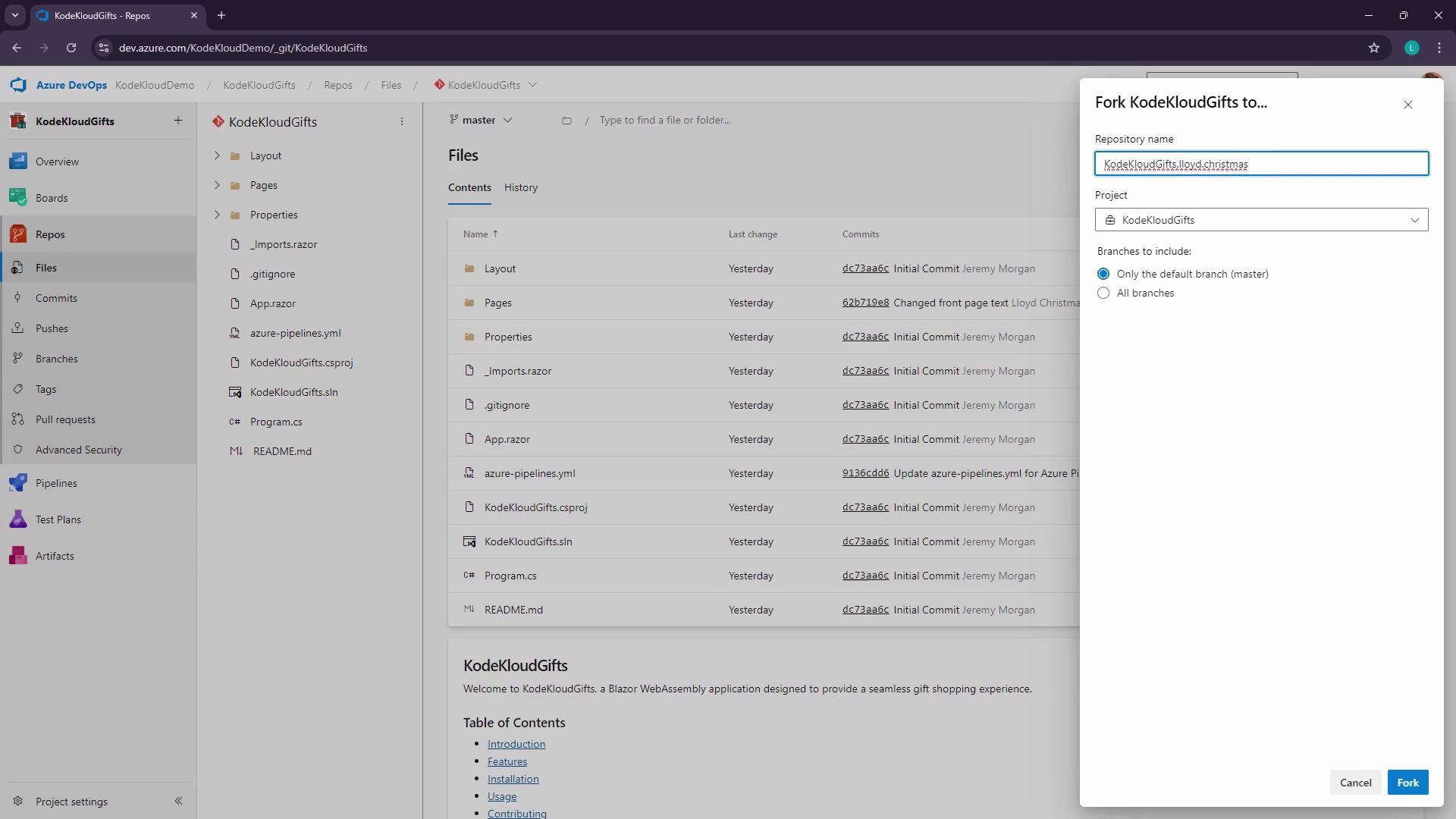
Forks are isolated copies—your changes won’t affect the original repository until you open a pull request.
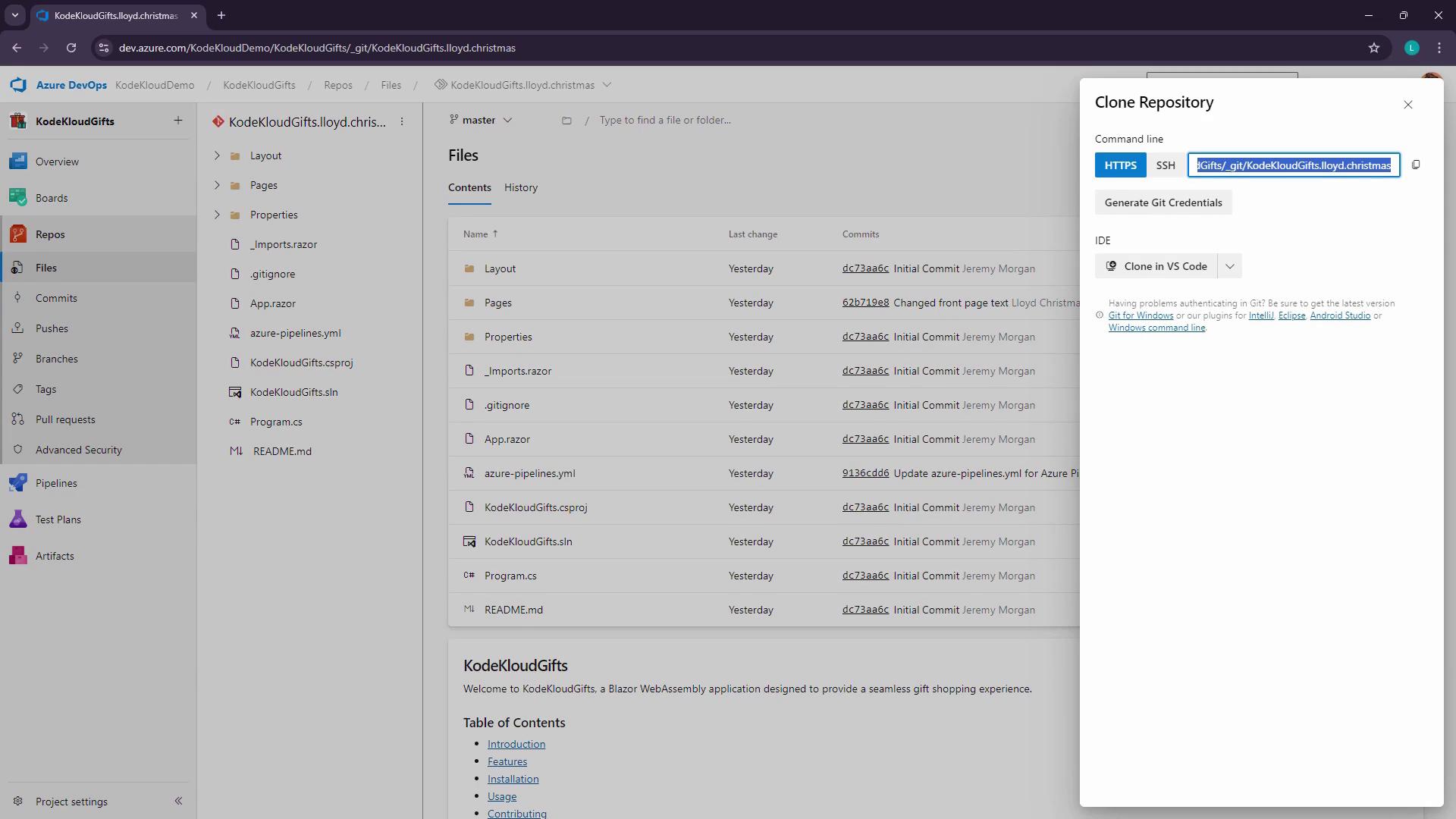
2. Cloning and Setting Up Your Fork
Use Git to clone your fork, not the original:After cloning, run the following to set up the original repo as
upstream:
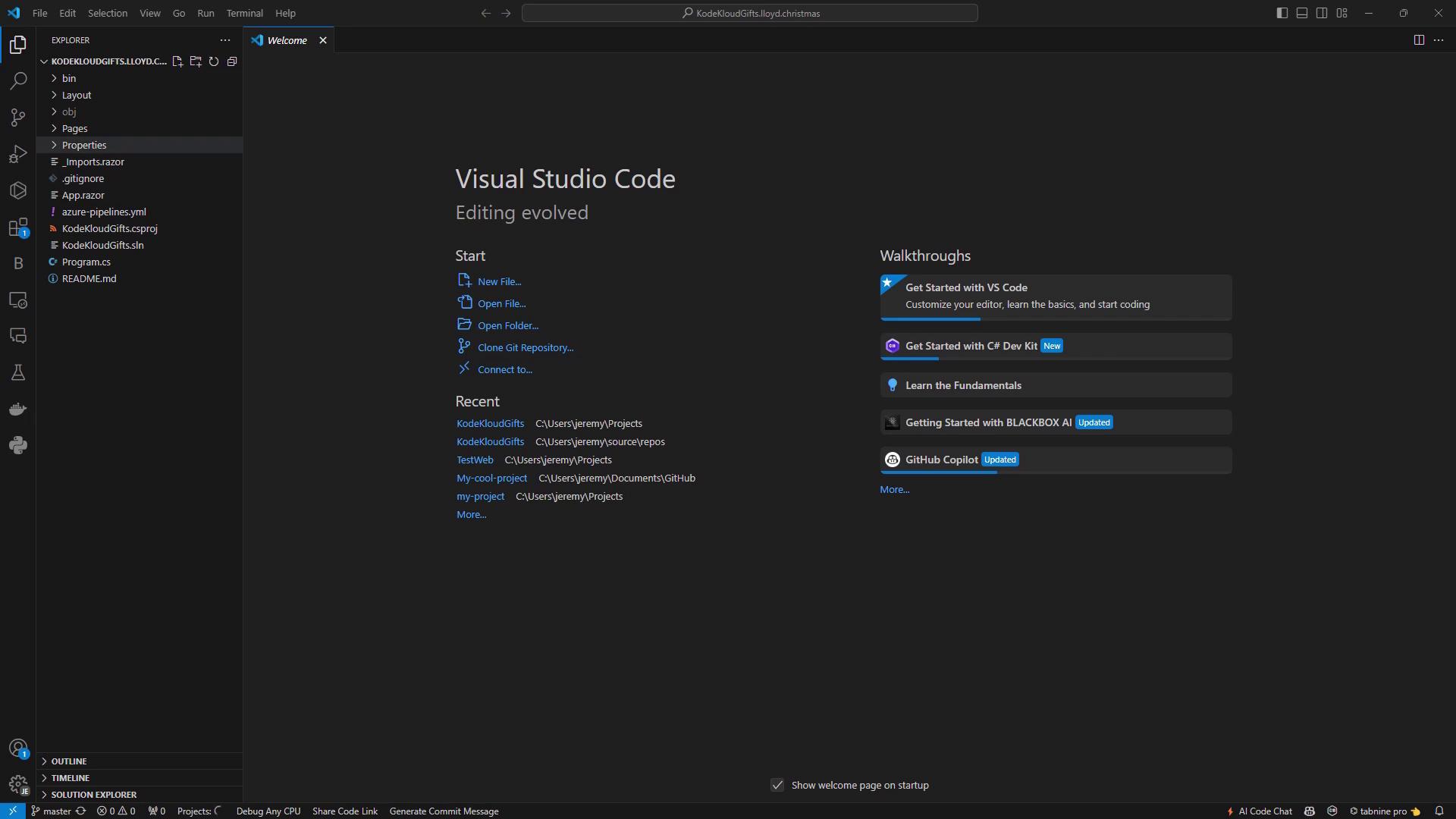
3. Modifying the Code
Edit Pages/Home.razor to showcase Lloyd’s GIF shop:4. Comparing Fork vs. Upstream
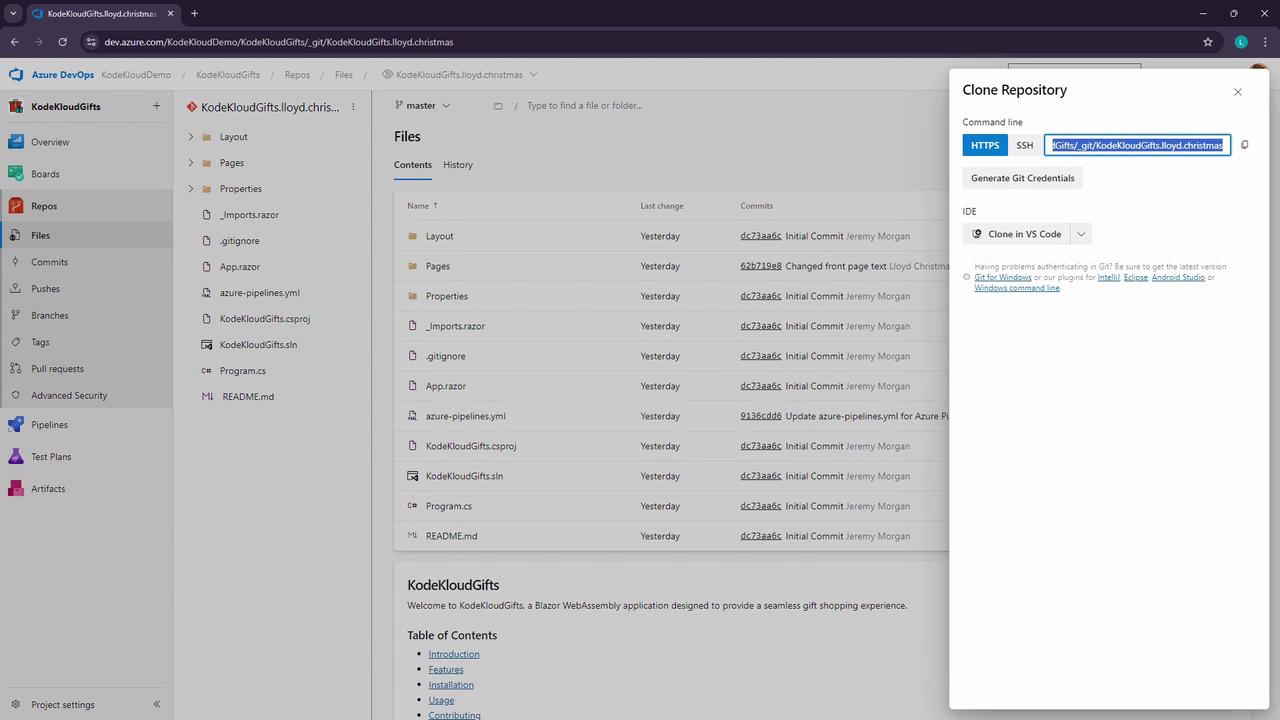
Switch between your fork and the upstream repository in Azure DevOps to verify changes:
5. Creating a Pull Request
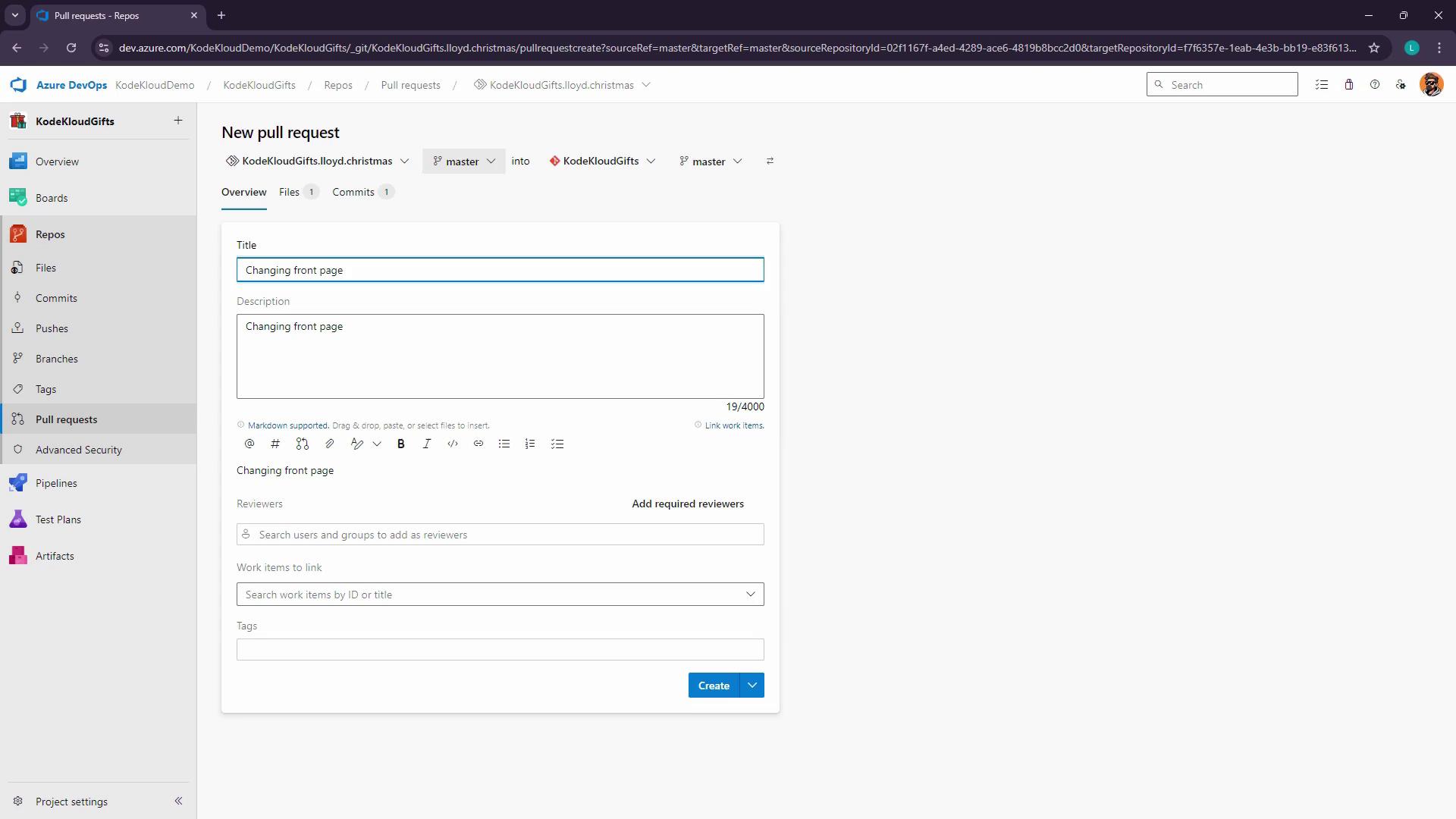
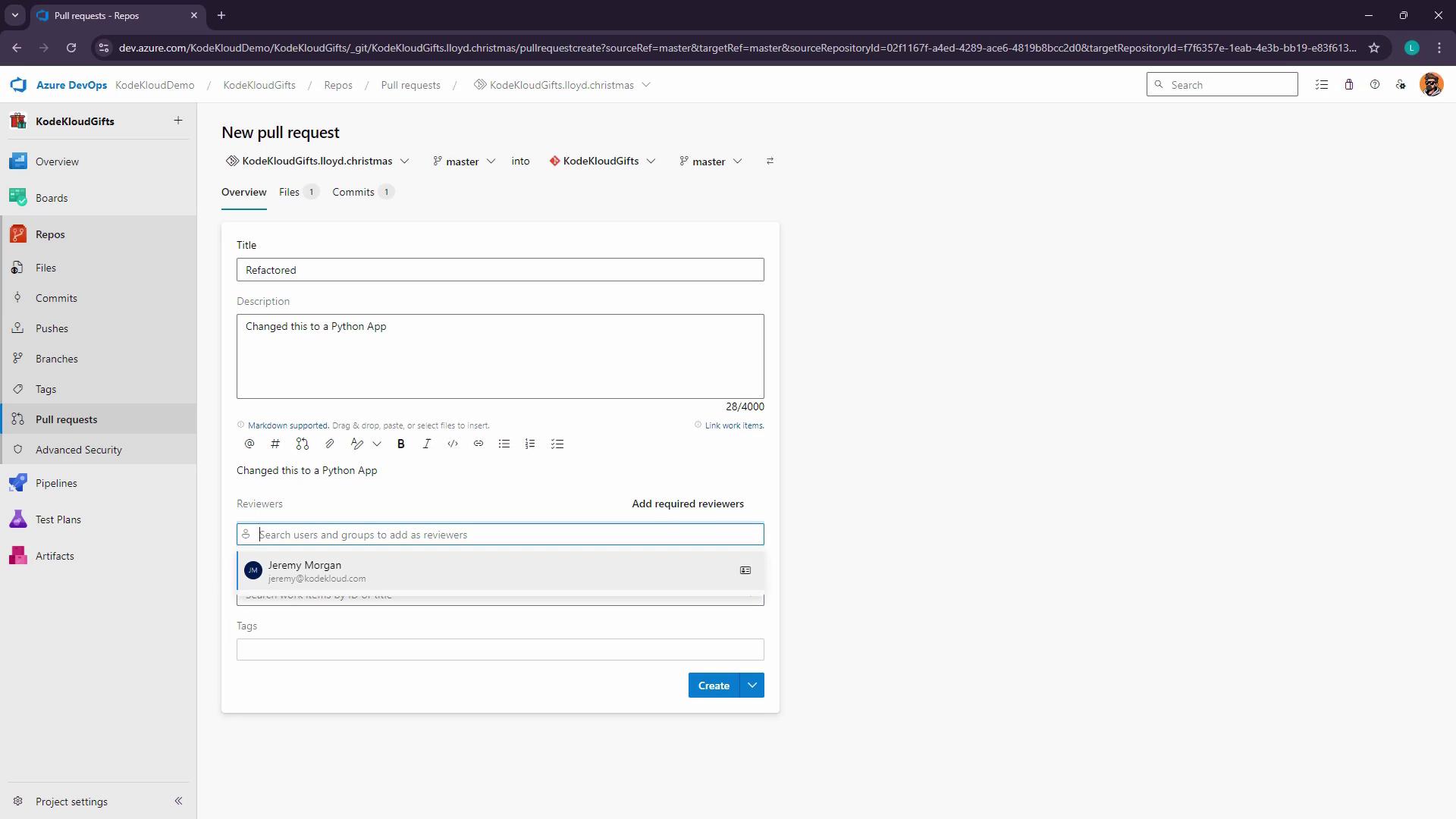
When you’re ready to merge, create a pull request:- In your fork, go to Pull Requests > New Pull Request.
- Select master (or your feature branch) as both source and target, if applicable.
- Add a descriptive title and summary.
Workflow Summary
| Step | Command / Action | Purpose |
|---|---|---|
| Fork | Click Fork in Azure DevOps | Create isolated repository copy |
| Clone | git clone <fork-url> | Download your fork locally |
| Add Upstream Remote | git remote add upstream <original-url> | Keep fork in sync with the original repo |
| Develop & Commit | git add → git commit -m → git push origin <branch> | Make and push changes to your fork |
| Create Pull Request | Pull Requests > New Pull Request | Propose changes to the upstream repository |